
What is XML?
XML stands for Extensible Markup Language. It is a markup language that defines a set of rules for encoding documents in a format that is both human-readable and machine-readable. It is a metalanguage that allows users to define their own customized markup language, particularly for displaying documents on the internet. It was designed to store, transport, and describe data. It is a flexible way to create information formats and electronically share structured data via both public and corporate networks.
The Compliance Planet software can help you generate XML from CTR FTR exported Transaction and Account Excel files. Here’s how to proceed.
NOTE: Only person(s) Assigned right(s) to ‘process CTR reports’ will be able to carry out this Operation.
STEP 1: From the left-hand side menu, click on NFIU CTR Excel XML as in Figure 2.6a below.
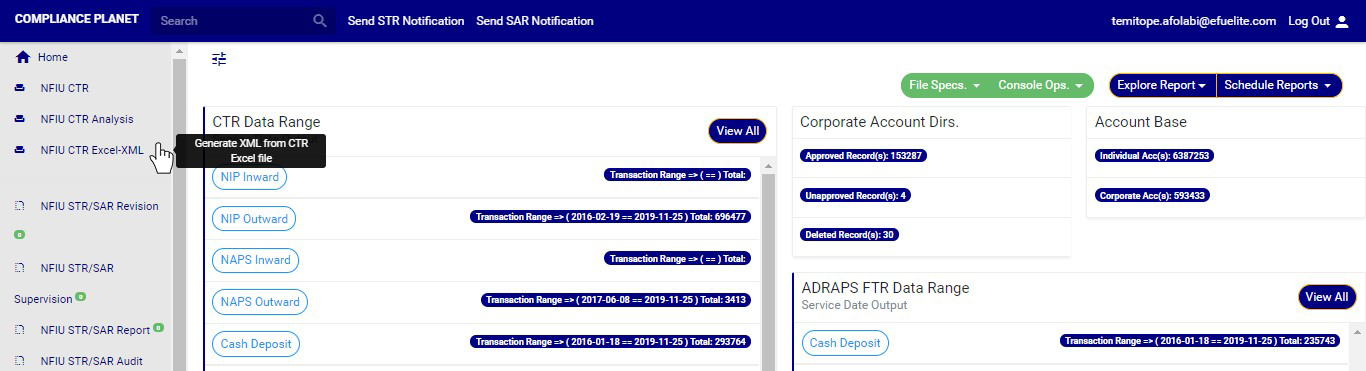
(Fig. 2.6a)
➔ This displays a console as in Fig.2 2.6b below.
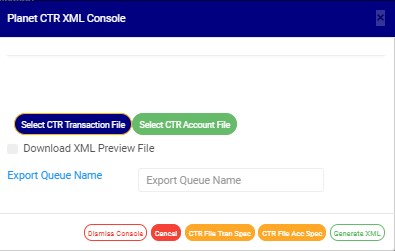
STEP 2: Click on SELECT CTR TRANSACTION FILE and SELECT CTR ACCOUNT FILE.
To generate the CTR FTR XML file, two Excel file types are required: CTR TRANSACTION FILE and FTR ACCOUNT FILE. Both files must be uploaded. None is optional. Fig. 2.5c and Fig. 2.5d shows the buttons for selecting each file from your computer.

(fig. 2.6c)
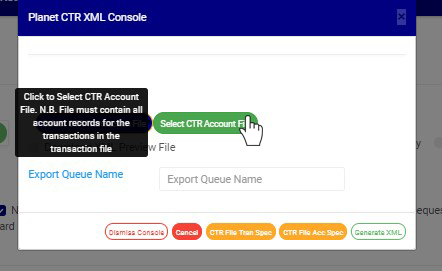
(fig. 2.6d)
➔ If you do not have any of the files on your computer, in step 3 above, click on CTR FILE TRAN. SPEC. or CTR FILE ACC. SPEC. to download the file format(s) you do not have. Open the downloaded Excel file and fill in the required details. Ensure you save the changes to the file(s). Then, upload as in step 3 above. See fig. 2.6c and fig. 2.6d to see buttons for uploading the Transaction file and Account file, respectively.
➔ Click the’Export Queue Name’ textbox to set the name of the document. See this in fig. 2.6e.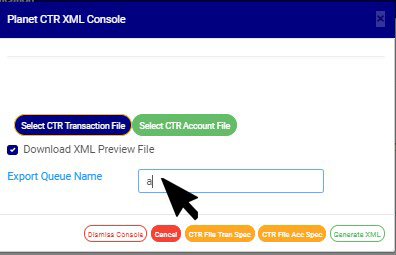
➔ Tick ‘Download XML Preview File’ for the software to generate an XML Preview file. See the button in fig. 2.6f below.
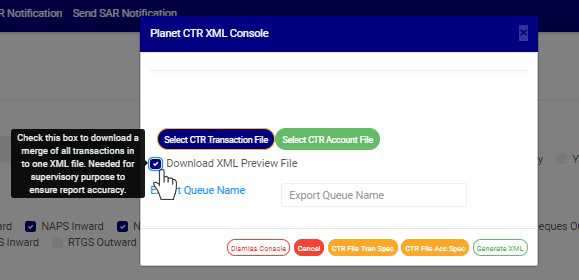
STEP 3: Click on ‘GENERATE XML’. This button is the green button at the bottom-right corner of the XML console, as in fig.2.6g below.

(fig. 2.6g)
➔ The signal console shows ongoing processes. See an example of a signal console in fig. 2.6h below
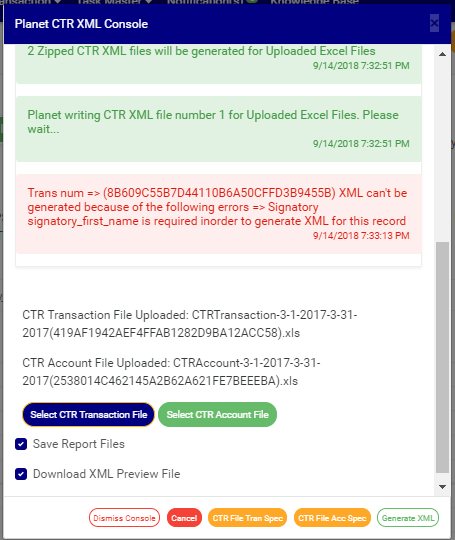
(fig. 2.6h)
➔You can terminate unfinished processes by clicking CANCEL.
➔ An Upload report file will be downloaded on your computer at the end of the upload. This file will provide information about the number of transactions extracted, generated and not generated the number of files generated and the file name.
➔ When the operation is complete, you can open the XML files. See an example of a generated CTR XML below

For further enquiries :
Tel +234(0) 816 555 9818
Email solutions@efuelite.com
Web http://solutions.efuelite.com
