What is XML?
The Compliance planet software can help you generate XML from Excel files. Here is how to go about it.
NOTE: Only person(s) assigned right(s) to process ADRAPS FTR Notifications will be able to carry out this Operation.
STEP 1: From the left hand side menu, click on CBN ADRAPS FTR Excel XML. Look at fig. 3.5a below.

This displays a ‘Planet ADRAPS FTR XML Console’ as in fig. 3.5b below
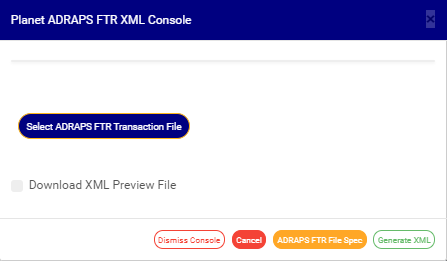
(fig. 3.5b)
STEP 2: Click on ‘Select ADRAPS FTR Transaction File’ to upload an ADRAPS FTR file from your computer. It is the information in the uploaded file that the software will convert into an XML file. See how to upload a file from your computer.
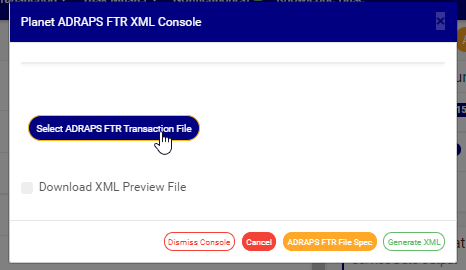
(fig. 3.5c)
➔ If you do not have the file to upload, the software can generate an empty excel file with columns according to ADRAPS FTR Specification to fill in details of the transactions you want to see in XML format. Click on the ADRAPS FTR File Spec. button to download the file specification.

(fig. 3.5d)
➔ Open the downloaded file and fill in the details of the transactions for which you want to generate XML for. Ensure you save the changes to the file. Then, back on the Compliance Planet, click on ‘Select ADRAPS FTR Transaction File’ to upload the file.
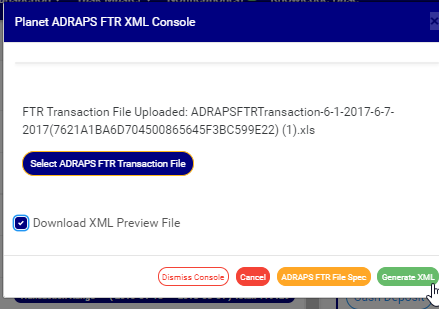
➔ After successful upload of file, the console will show the title of the file, that is, the file name. See fig. 3.5e to see an example of how the console looks like when you successfully upload a file from your computer.
STEP 3: Tick ‘Download XML Preview File’ to download a XML preview file. This preview file gives a numerical download report on the XML file that was generated, like the total number of transactions XML generated, the total number of transactions not generated, number of transactions extracted from the ADRAPS file uploaded. It also gives details of transactions with missing information. It is in Excel format. See fig. 3.5e to see the checkbox.
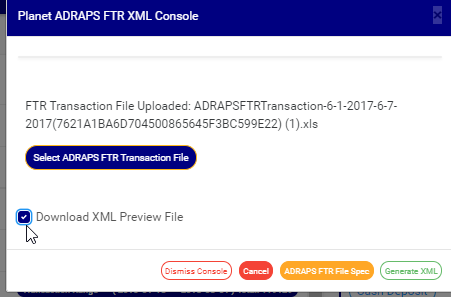
STEP 4: Click on GENERATE XML. Look at fig. 3.5f below to see the green button at the bottom-right corner of the console.
➔ This displays a confirmation console as in fig. 3.5g below.
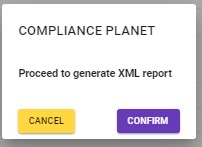
➔ To make changes to your report settings on the ADRAPS FTR Console, click on cancel. The software takes you back to the ADRAPS FTR XML Console.
➔ Click on CONFIRM to Proceed. The signal console shows on going processes. See an example of a signal console is fig 3.5h below
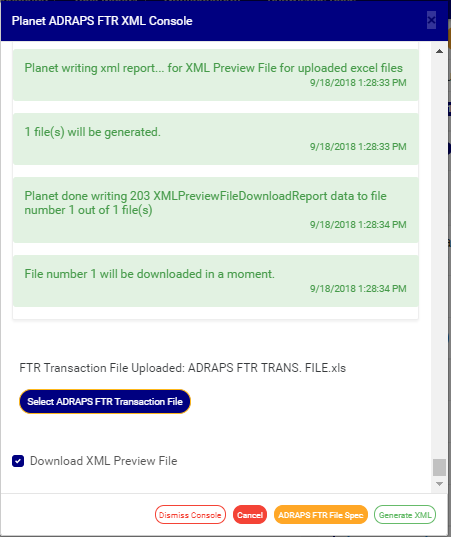
➔ Click on the DISMISS CONSOLE to close console.
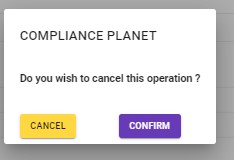
➔You can terminate unfinished processes by clicking CANCEL, this will display a confirmation console as in fig. 3.5i .
Click on proceed to confirm that you want to cancel the operation or cancel to go back to the XML Console.