
This operation involves creating multiple PEP accounts by uploading an excel file containing the details of the PEP accounts. There is another feature that handles the creation of a single PEP account. For instance; to upload fifty (50) new PEP accounts on the compliance planet, the Bulk Upload is the feature you should use instead of entering them one by one.
Compliance Planet also auto – scan the institution system for registered PEPs and notify the Compliance Team.
Here is how to upload bulk PEP information.
NOTE; Only person(s) assigned right to process PEP report can carry out this operation
STEP 1: From the left hand side menu, click on CBN ADRAPS PEP Acc Upload. as in fig. 4.3a
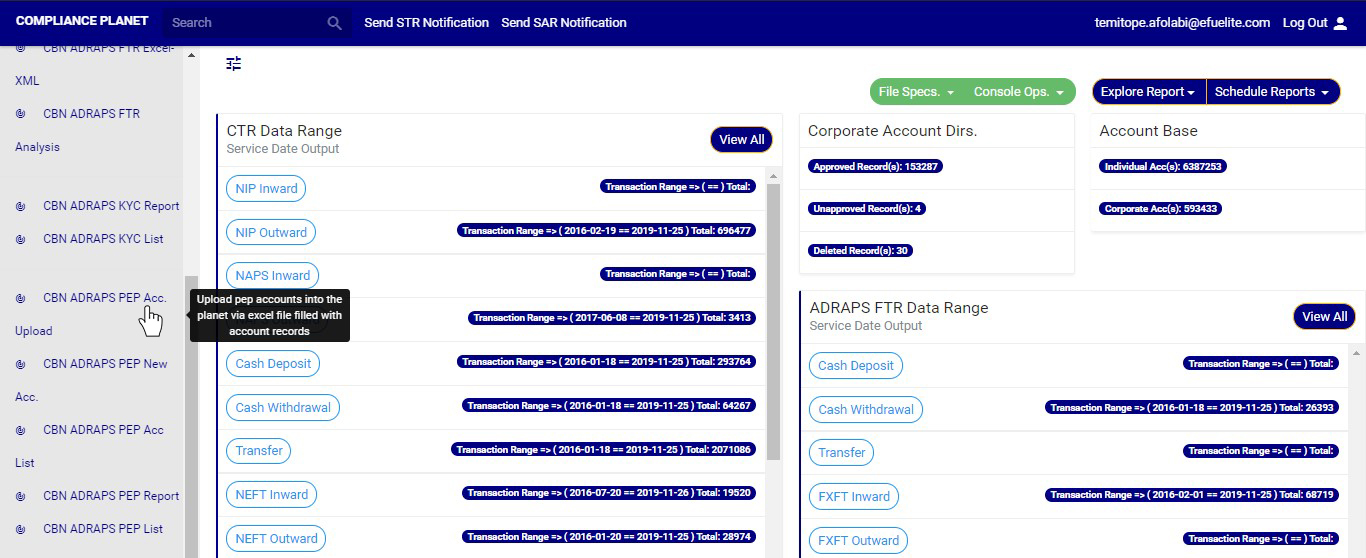
(fig. 4.3a)
➔ This displays a ‘PEP Acc Upload’ console as in fig. 4.3b below.
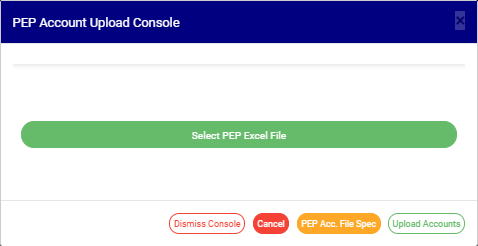
(fig. 4.3b)
STEP 2: Click on Select PEP Excel to upload the Excel file containing the details of the PEP Accounts you want to save on the software. Look at fig. 4.3c below to see how to upload a file from your computer.
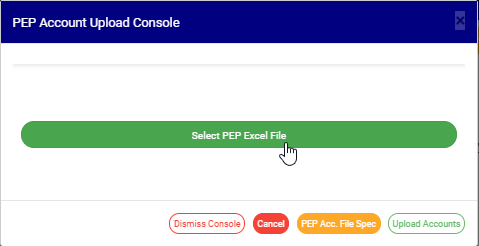
(fig. 4.3c)
➔ The details in the excel file to be uploaded must be according to the Compliance Planet’s PEP Account File specification. If you do not have the file specification, click on the PEP Acc. File Spec button to download an empty excel file. The file has titled columns according to ADRAPS PEP Specification. Fill in details of the accounts you want to upload, save the changes to the file, and click on Select PEP Excel File to upload the file. See fig. 4.3d for an example of what the PEP Account Upload Console looks like after selecting a file for upload.
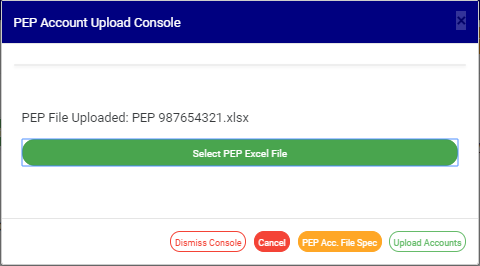
STEP 3: Click on UPLOAD ACCOUNTS to upload details from the selected file on the Compliance planet. This button is at the bottom-right corner of the console. See fig. 4.3e below for an example.
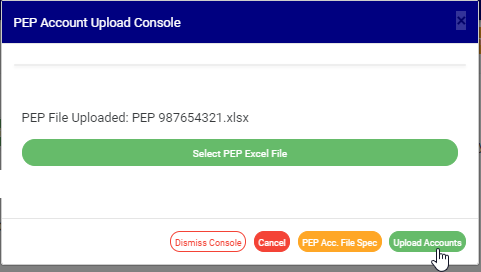
(fig. 4.3e)
➔This displays a confirmation console as in fig. 4.3f below.
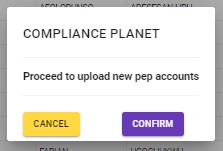
(fig. 4.3f)
- Click on cancel to go back to the console.
- Click on proceed to confirm that you want to upload the PEP Accounts. By clicking on proceed, a notification will be displayed at the top of the console as in fig. 4.3g below.
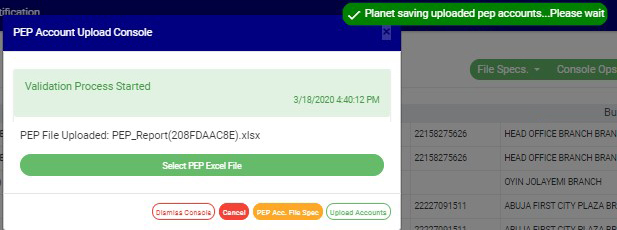
(fig. 4.3g)
- Click on the DISMISS CONSOLE button to close the console. By clicking on this button, the page will be closed but you can come back to it to when you click on Bulk Upload. See the button in fig. 4.3h below.
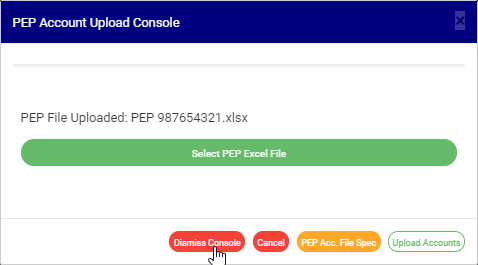
(fig. 4.3h)
➔ Click on CANCEL as in fig. 4.3i to cancel the operation. This is the red button next to the DISMISS CONSOLE button. It is effective when operation to upload PEP Accounts has started.
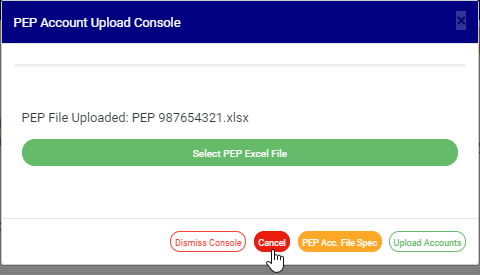
(fig. 4.3i)
- This displays a confirmation console as in fig. 4.3j.
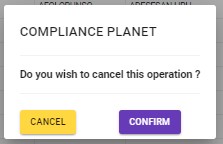
(fig. 4.3j)
➔ Click on Proceed to confirm you want to cancel the ongoing processes.
➔ Click on Cancel to go back to the PEP Account Upload Console.
For further enquiries :
Tel +234(0) 816 555 9818
Email solutions@efuelite.com
Web http://solutions.efuelite.com

One thought on “How to make bulk upload Of CBN ADRAPS PEP Accounts In Compliance Planet Anti Money Laundering/Core Banking Finance Software”