NOTE: Only person(s) Profiled as Team Lead 1 or Team lead 2 can carry out these operations.
➔ From the main dashboard and click on reports as in fig below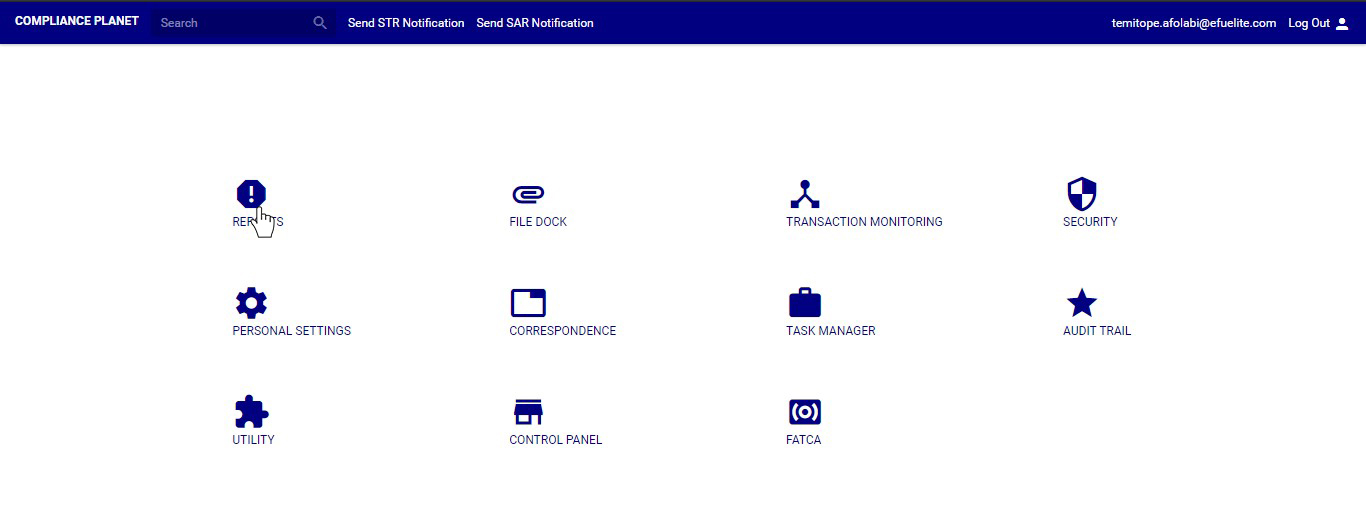
➔ From the left hand side menu click on “NFIU STR/SAR Revision”. See this feature in fig below.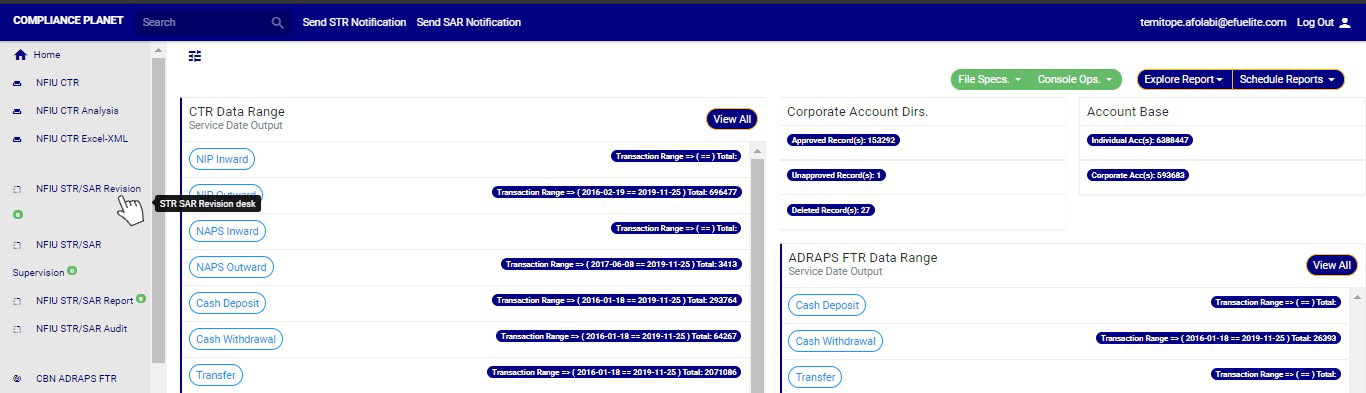
➔ Clicking on “NFIU STR/SAR Revision” will display a page as in fig. below.
STEP 1:select ‘Revision Officer All Pending Notifications Unassigned’ on the VIEW box still on the revision page, then click on the “view report” button.
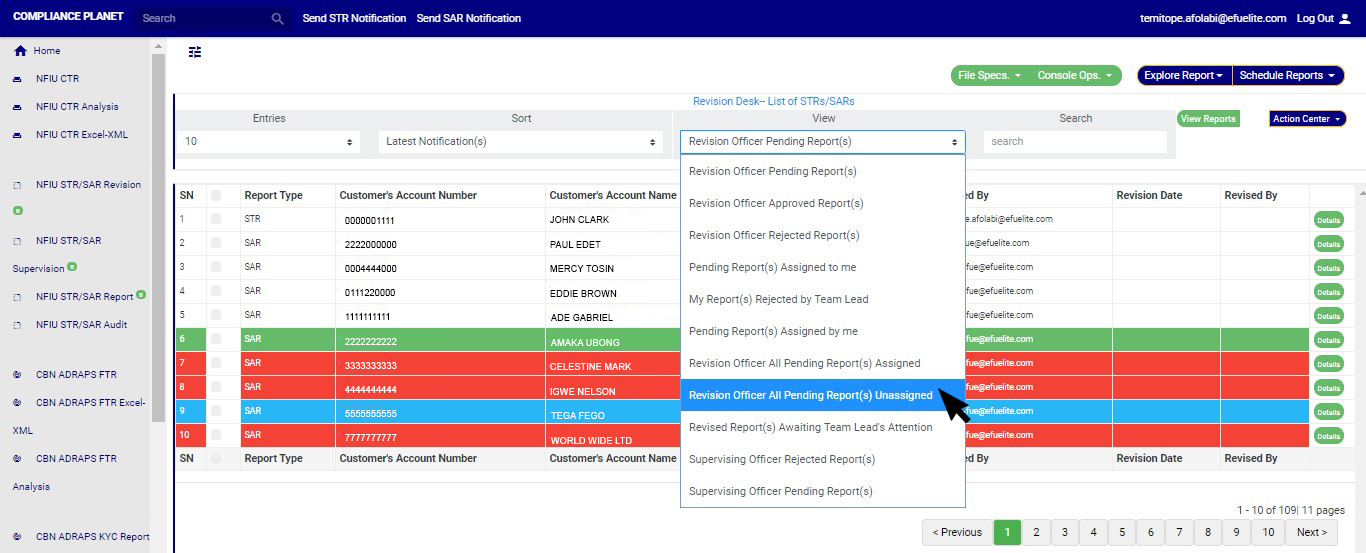
(fig. 6.3t)
STEP 2: Click on the checkbox beside the report type to select the Notifications you want to assign. See an example in Fig 6.3u below
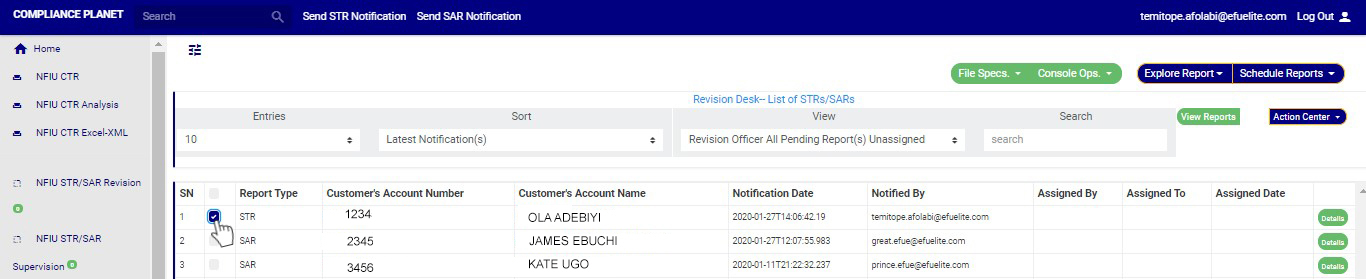
(fig. 6.3u)
STEP 3: Click on the action center button as shown in in Fig 6.3v below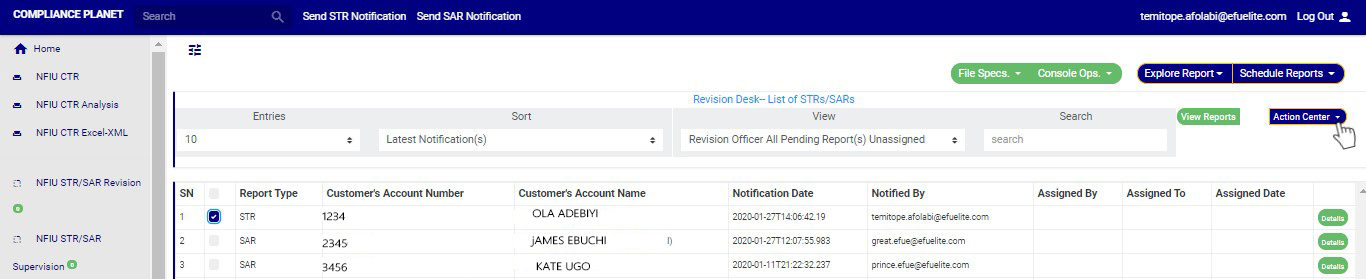
(fig. 6.3v)
STEP 4: Click on “Assign Pending Notification” from the action center dropdown. See an example in Fig 6.3w below
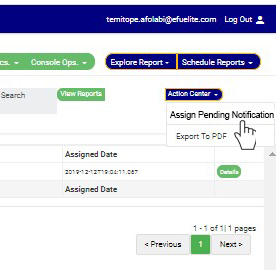
(fig. 6.3w)
STEP 5: Clicking Assign Notification will display a “Review Desk Officers Task Assignment” console as shown below in fig 6.3 x below
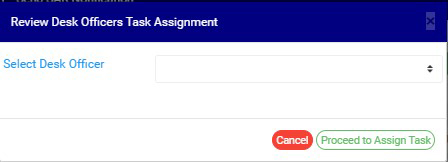
(fig. 6.3x)
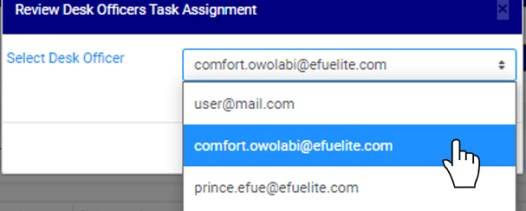
STEP 6: Select the officer you want to assign the notification. This is shown in fig 6.3y below
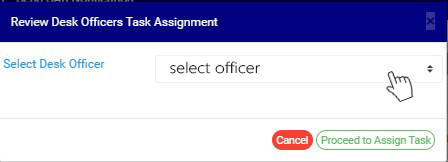
(fig. 6.3y)
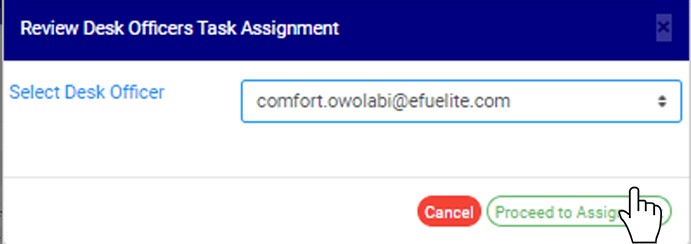
STEP 7: Click on “Proceed to Assign Task” to proceed or “cancel” to close the console and dismiss the operation.
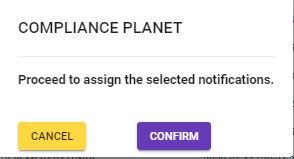
STEP 8: Clicking on “proceed to assign task” will display a console to confirm your selected action. See an example in Fig 6.3aa below. To proceed, click on CONFIRM and to dismiss the operation, click on CANCEL.