
When a report is given final approval, the report will move to the ‘REPORT OFFICER APPROVED REPORT(S)’ list and ‘APPROVED REPORT(S) PENDING DOWNLOAD’ list. Here, the report can be downloaded and details of the report can also be viewed. Reports can also be downloaded under the ‘APPROVED REPORT(S) DOWNLOADED’ list. A report can be downloaded many times as desired. The STR/SAR generated will be in XML file type.
NOTE: Only Person(s) profiled as Report Evaluation Officer on Report Desk and assigned right(s) to download STR/SAR reports can carry out this operation
See steps below to download an STR/SAR.
STEP 1: Go to the VIEW box still on the reporting desk page and select ‘REPORT OFFICER APPROVED REPORT(S)’ or ‘APPROVED REPORT(S) PENDING DOWNLOAD’. All approved reports will appear in the ‘REPORT OFFICER APPROVED REPORT(S) list irrespective of their download status. Reports that have been downloaded previously will appear in the ‘APPROVED REPORT(S) DOWNLOADED’ list, while those yet to be downloaded will appear in the ‘APPROVED REPORT(S) PENDING DOWNLOAD’ list. See an example in fig. 6.5al below.
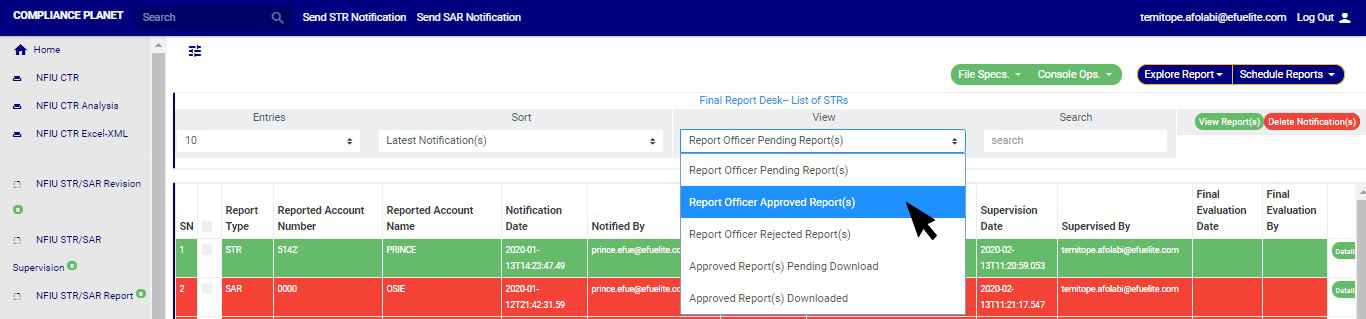
(fig. 6.5al)
STEP 2: Click on ‘VIEW REPORTS’ to see the reports as in fig. 6.5am below. On this page, the reporting officer will review the report for approval.

(fig. 6.5am)
➔ To see details of an STR/SAR report, click on ‘DETAILS’. It is the green button at the end of each report row.
STEP 3: To download an STR/SAR, click on ‘DOWNLOAD’. This button is next to the ‘DETAILS’ button. See the cursor on the DOWNLOAD button in an example to download a report in fig. 6.5an below.
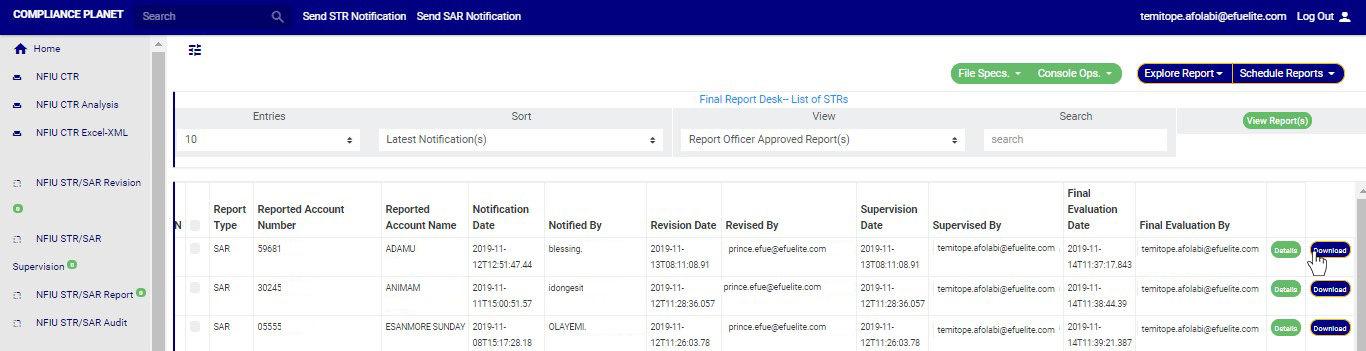
(fig. 6.5an)
➔ By clicking on the ‘DOWNLOAD’ button, a confirmation console as in fig. 6.5ao will be displayed. Click on ‘CONFIRM’ to proceed with the download or ‘CANCEL’ if you do not want to download the report.
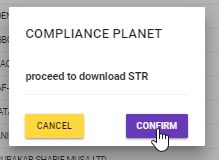
(fig. 6.5ao)
➔ The signal console shows on going processes as in fig. 6.5ap .
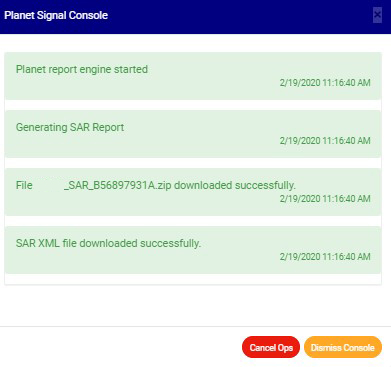
(fig. 6.5ap)
➔ After successful download, the report will move from the ‘APPROVED REPORT(S) PENDING DOWNLOAD’ list to the ‘APPROVED REPORT(S) DOWNLOADED’ list, but still remain in REPORTING OFFICER APPROVED REPORT(S) list.
➔ You can check the download history of a report by selecting ‘APPROVED REPORT(S) DOWNLOADED’ in the VIEW box still on the reporting desk page. Then, click on VIEW REPORTS and you will see a page as in fig. 6.5aq below.

(fig. 6.5aq)
➔ As seen in fig. 6.5ar below, the reports have three buttons at the end of their rows. These are the ‘DETAILS’ button, the ‘DOWNLOAD’ button and the ‘DOWNLOAD HISTORY’ button.
➔ The Final step is submission of the downloaded STR/SAR XM to the NFIU GoAML portal
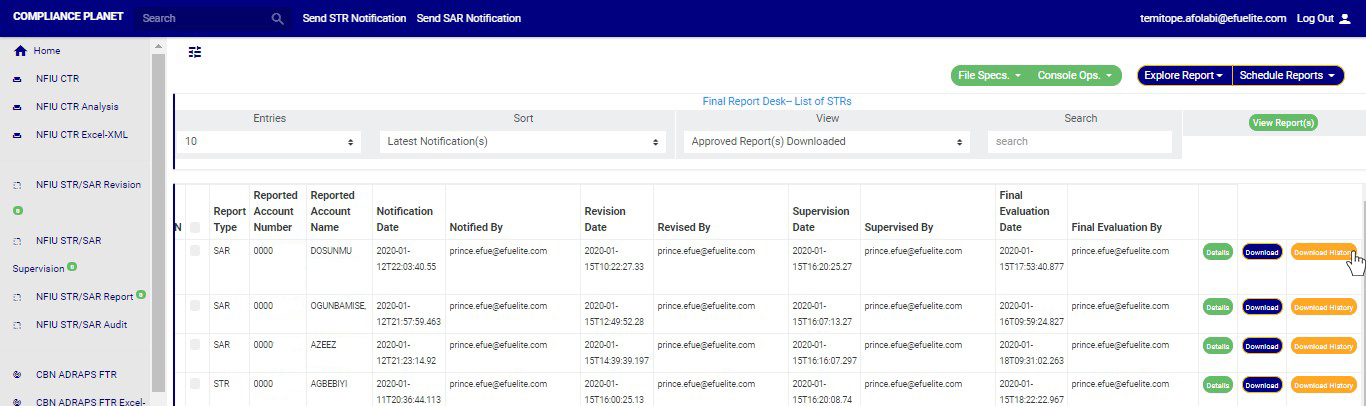
(fig. 6.5ar)
➔ By clicking on the ‘DOWNLOAD HISTORY’ button, a console as in fig. 6.5ac will be displayed on your screen. To close the console after viewing it, click on ‘DISMISS CONSOLE’ as in the example below.
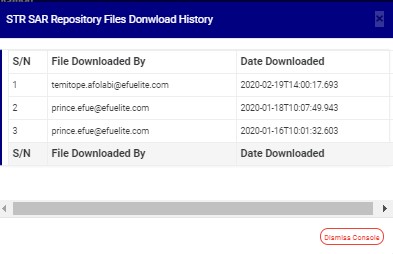
(fig. 6.5as)
