
NOTE: You have to be profiled as a supervisor with rights to edit.
- From the left hand side menu, click on “NFIU STR/SAR Supervision”. See this feature in fig below.

➔ Clicking on “NFIU STR/SAR Supervision” will display a page as in fig below.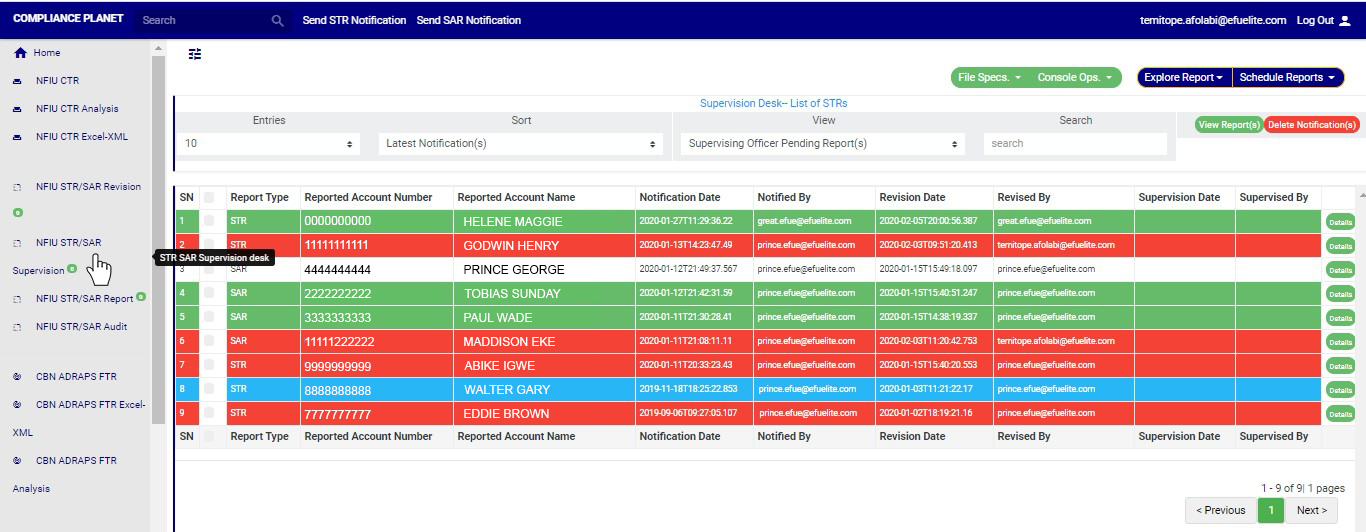
STEP 1: On NFIU STR SAR supervision page, Go to the ‘VIEW’ box and select ‘Reporting Officer Rejected Report(s)’. See fig. 6.4l below for an example.
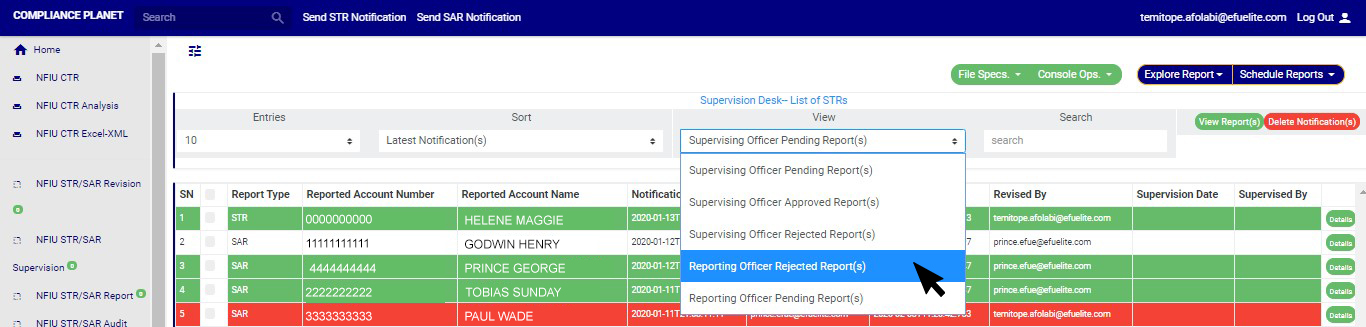
(fig. 6.4p)
➔ Click on ‘VIEW REPORTS’ to see the notifications. On this page, the supervising officer will be able to re-process notification for approval again.
STEP 2: To see details of the STR notification, click on ‘DETAILS’. Every notification still undergoing processing has this button at the end of its row.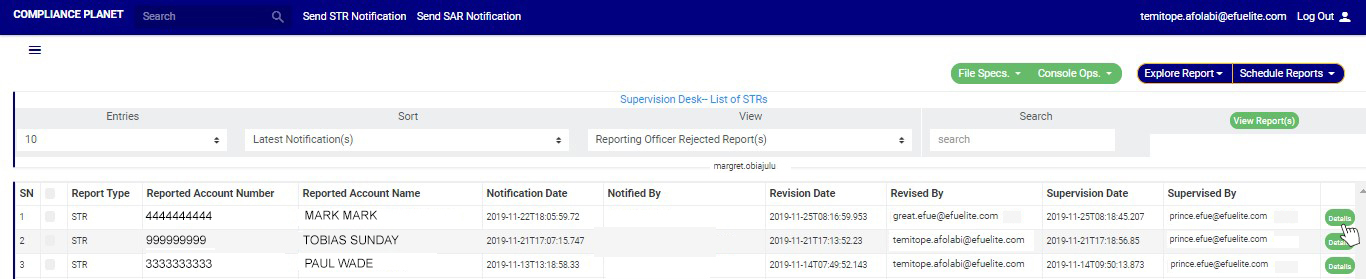
(fig. 6.4q)
STEP 3: Clicking on the DETAILS button will display a console which allows you to revisit the notification. See fig. 6.3q below for an example.
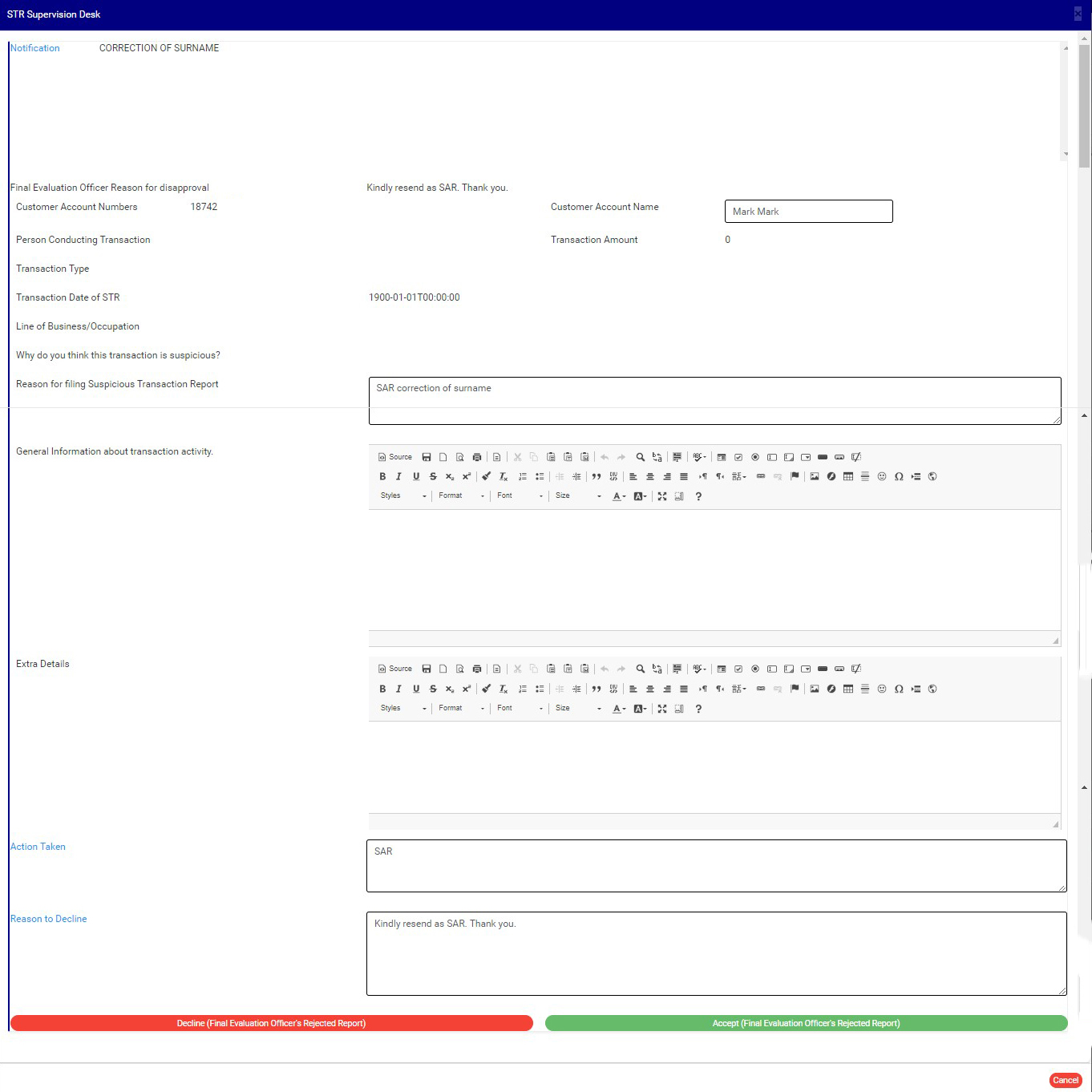
STEP 4: Edit the details you want to change. You can edit all information except the notification itself. This means you can change the Reason for filing notification , General information about transaction activity, Extra details, Action taken and reason to decline.
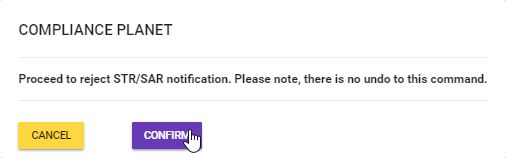
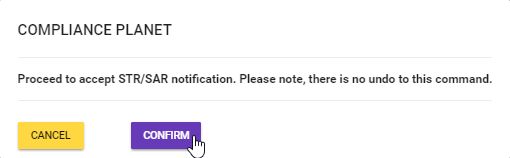
STEP 5: Click on REJECT or ACCEPT. The software will display a confirmation console to confirm your selected action. Check that you are sure of your options before rejecting or accepting the notification as this step cannot be reversed once confirmed. See fig. 6.4s and 6.4t to see example of the confirmation console when you decide to ‘reject’ and when you choose to ‘accept’ respectively. To proceed, click on CONFIRM and to cancel the review, click on CANCEL.
For further enquiries :
Tel +234(0) 816 555 9818
Email solutions@efuelite.com
