
The next stage of processing after revising an STR/SAR notification is the SUPERVISION STAGE. Here are steps to supervising a suspicious transaction notification.
NOTE: Only person(s) profiled as ‘supervision desk officer’ with right to edit can carry out these operations.
STEP 1: From the left hand side menu, click on “NFIU STR/SAR Supervision”. See this feature in fig. 6.4a below.
 (fig. 6.4a)
➔ Clicking on “NFIU STR/SAR Supervision” will display a page as in fig. 6.4b below.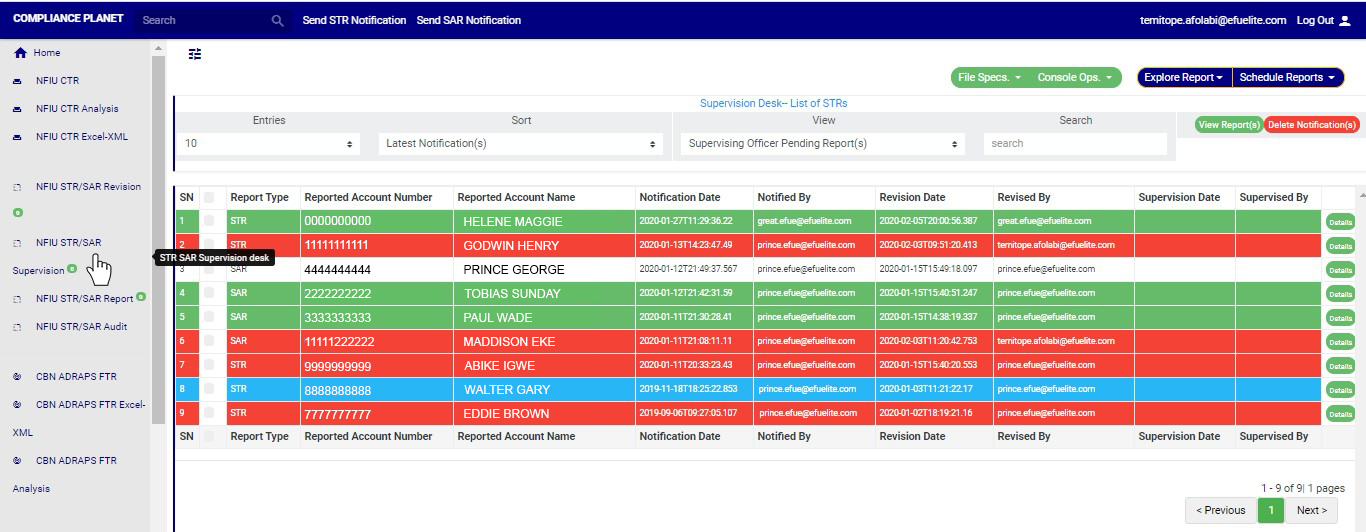
➔ The notification(s) highlighted “RED” indicates that it has not been viewed by anyone on the Supervising desk.
➔ The notification(s) highlighted “GREEN” indicates that it has been viewed by you alone.
➔ The notification(s) highlighted “WHITE” indicates that it has been viewed by you and at least one other Supervising officer(s)
➔ The notification(s) highlighted “BLUE” indicates that it has been viewed by other Supervising officer(s) excluding you
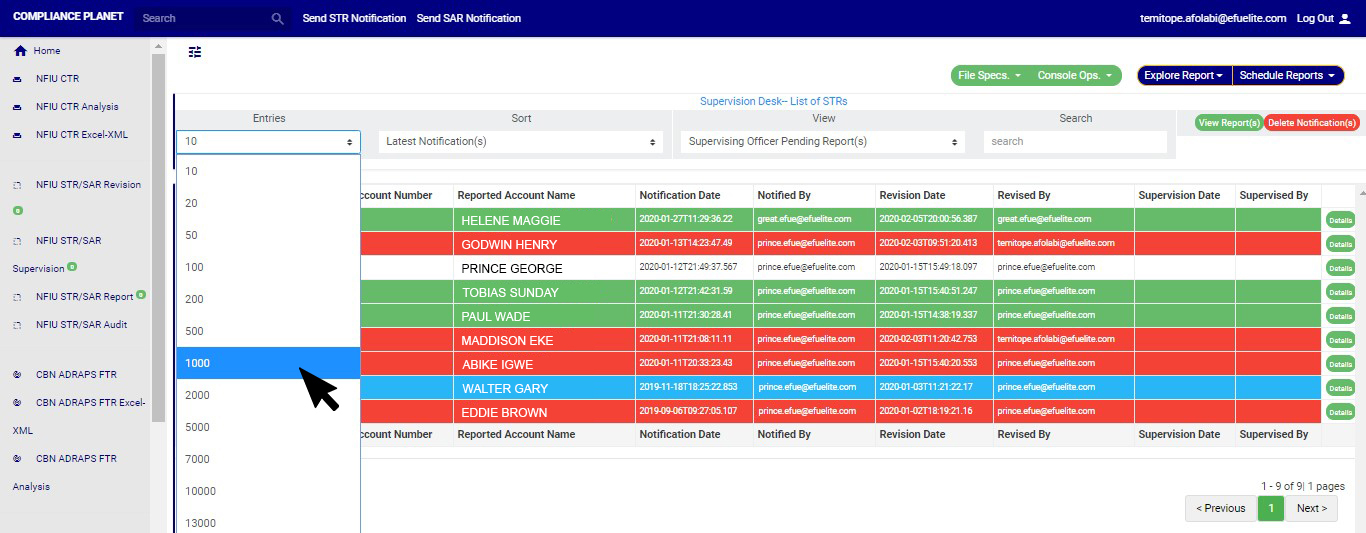
You can increase the number of notifications you want to see per page by clicking on the ENTRIES box. Pick any number of entries per page of your choice. See fig. 6.4c below for an example.
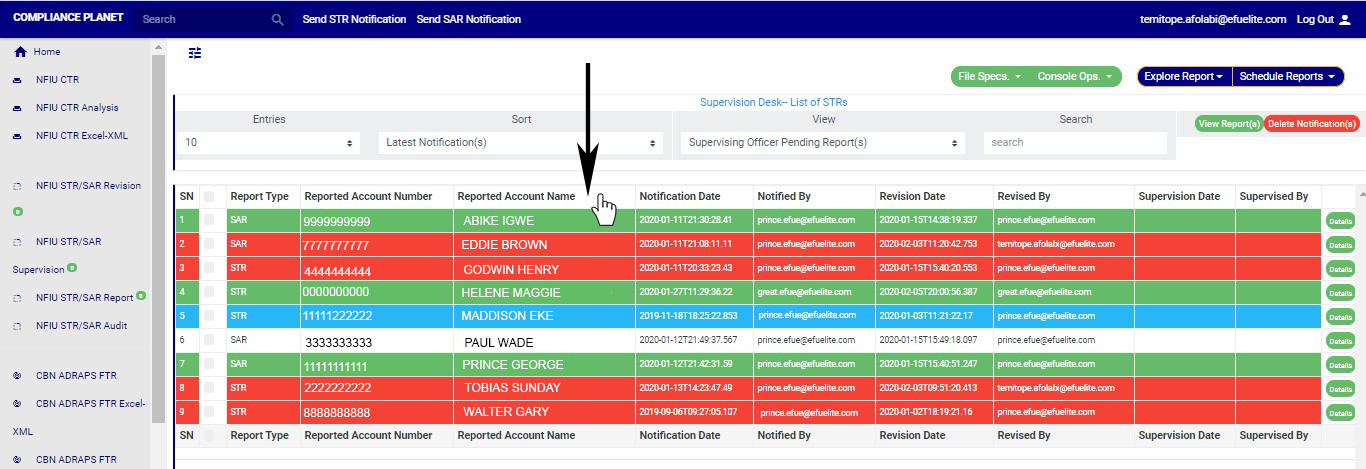
➔ You can sort the notifications by clicking on any of the column header, either by alphabetical order or from the latest to the earliest notifications or vice-versa as shown in fig. 6.4d below.
➔ Click on the VIEW box to see notifications classified according to the stage of processing they have gotten to. See fig. 6.4e for the classes of notifications available to a supervision officer’s view.
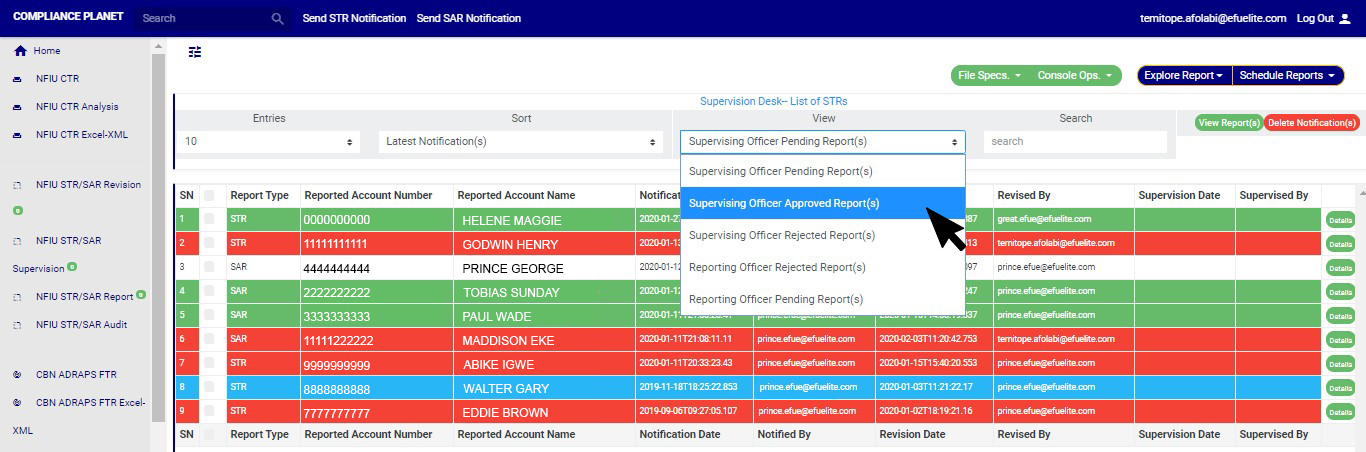
➔ As seen in fig. 6.4e above, the classes are;
1. Supervision Officer Pending Notification(s); these are STR/SAR notifications that have been reviewed and approved by a revision officer but they have not been treated by the supervision officer.
2. Supervision Officer Approved Notification(s); these are STR/SAR notifications that have been treated, approved and forwarded to the reporting officer for further processing. Once a notification is approved by supervision officer, it joins the reporting officer pending notification(s) list for further approval.
3. Supervision Officer Rejected Notification(s); these are STR/SAR notifications that are not satisfactory to the supervision officer. When a notification is rejected by the supervision officer, the revision officer will get a mail notification to revisit the notification and send again if need be. The notification this time around will include reason(s) for rejection.
4. Reporting Officer Rejected Notification(s); these are notification(s) that have been treated and approved by the revision officer and/or the supervision officer but they are unsatisfactory for further approval by the reporting officer.
5. Reporting Officer Pending Notification(s); these are STR/SAR notification that have been approved by revision and/or supervision officer and await the reporting officer’s treatment.
➔ After selecting the class of notification(s) from the VIEW box, click on ‘VIEW REPORT(S)’ to see the notification(s). This button is at the top-right corner of the page. See fig. 6.4f for an example.

➔ Also, you can search for a particular notification by typing the customer’s name or account number concerned in the search box. The software will make the search immediately. See fig. 6.4g below for an example of a search.
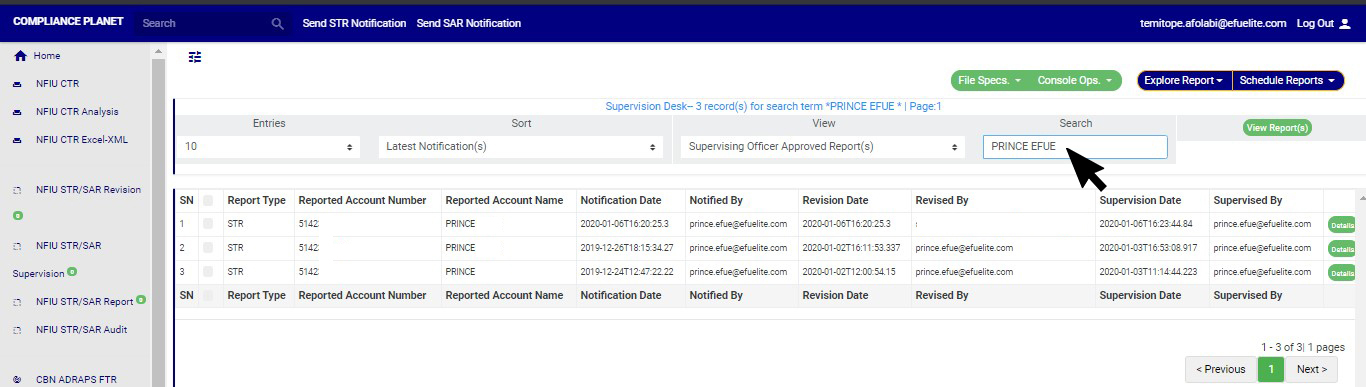
➔ At the bottom-right corner of the page, the software gives information about the number of pages, with the page numbers written out. All the page numbers represent buttons to go to each page. By clicking on any page number, the software takes you to that particular page. There is the NEXT button to take you to the next page when you click on it and there is the ‘PREVIOUS’ button to take you to the page before the one you are viewing at that moment. See these features in fig. 6.4g above.
STEP 2: Select notification to be treated from the ‘SUPERVISION OFFICER PENDING NOTIFICATION(S) list by clicking on the details button at the end of the notification row. Check out fig. 6.4h below to see the green button at the end of each notification pending any approval.

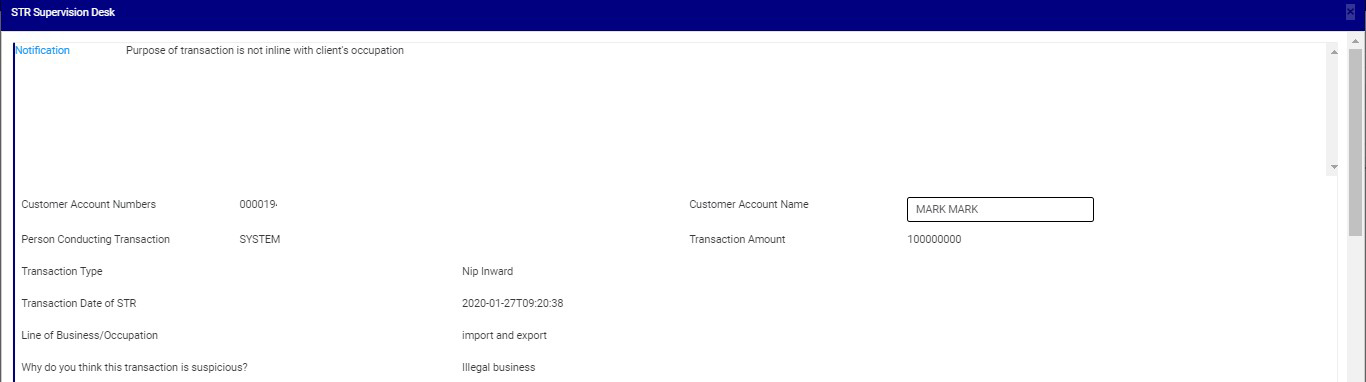
➔ By clicking on ‘DETAILS’, a console will be displayed as in fig. 6.4i below.
STEP 3: Click on the ‘Reason for Filing Suspicious Transaction Notification’ box to edit the revision officer’s reason(s) for approving the notification. This step is optional. See an example in fig. 6.4j below.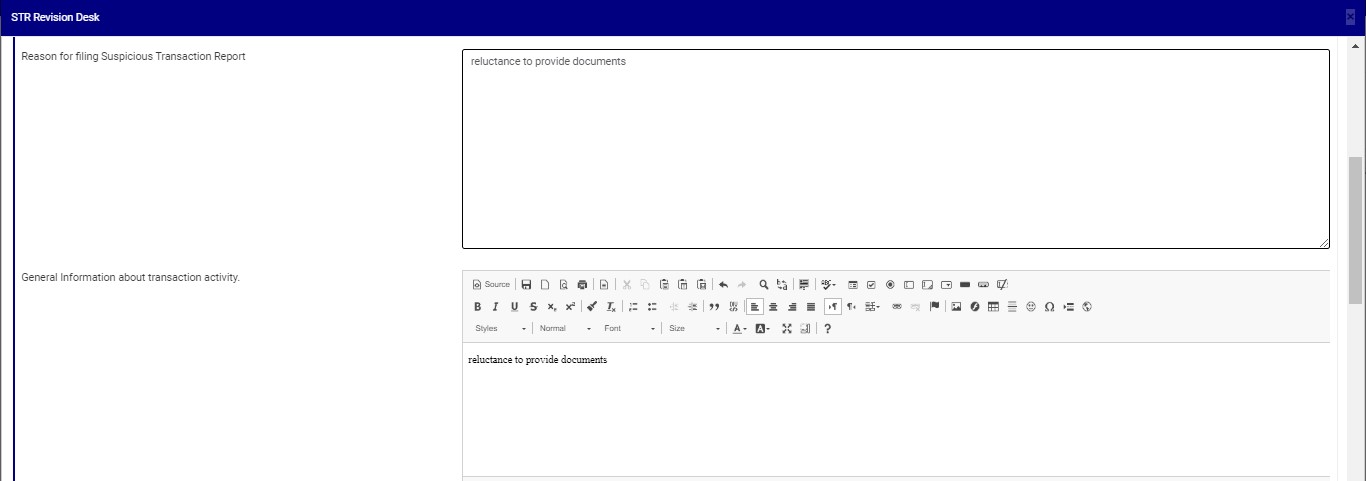
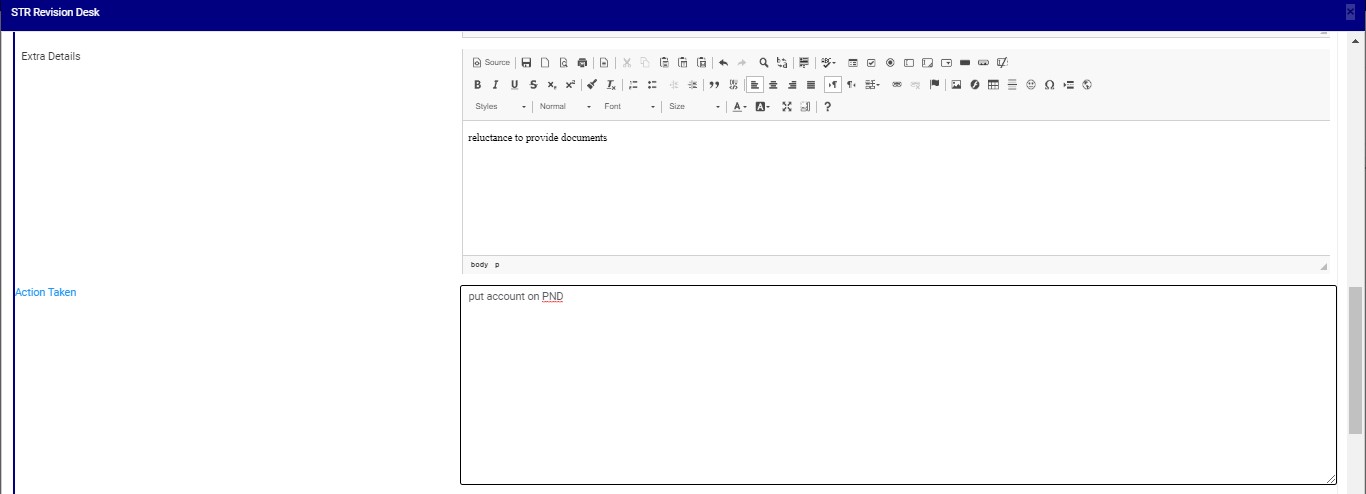
STEP 4: Click on “Extra Details” box to edit the revision officer’s comment and click on the “Action Taken” box to edit action(s) taken concerning the suspicion filed. See an example in fig. 6.4k below.
STEP 5: Click on ‘Reason to Decline’ box (if you want to reject the notification) to enter in comments. This step is mandatory if you want to reject the notification. See fig. 6.4l for an example.
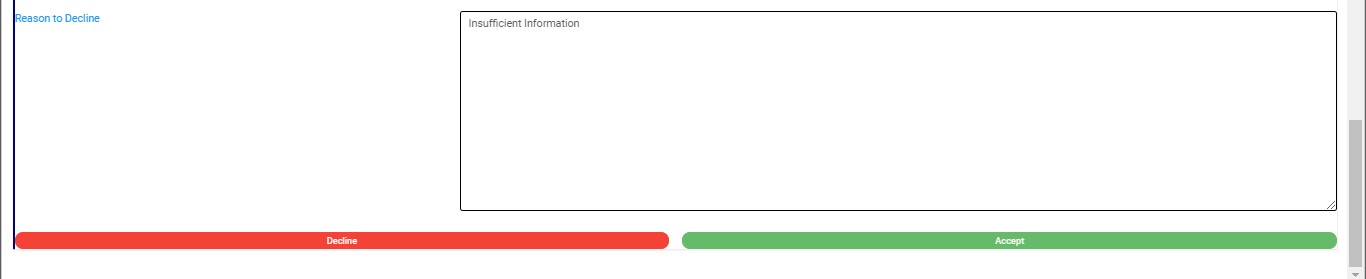
STEP 6: Click on REJECT or ACCEPT. The software will display a confirmation console to confirm your selected action. Check that you are sure of your options before rejecting or accepting the notification as this step cannot be reversed once you confirm. See fig. 6.4m and 6.4n to see an example. To proceed, click on CONFIRM and to cancel the action, click on CANCEL.
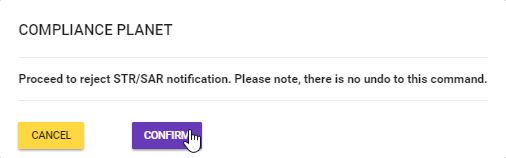
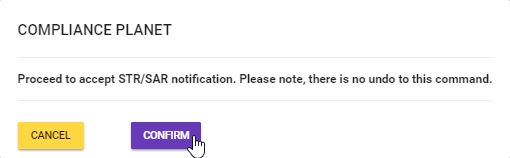
➔ A notification will be displayed at the top of the page whenever you confirm your option.

