
The Compliance planet software keeps a record of all AML RBS reports that have been manually scheduled. The process to find scheduled AML RBS reports and carry out other associated operations are described below.
NOTE: Only persons profiled and assigned right to view and process RBS reports can carry out this operation
STEP 1: From the left hand side menu, click on CBN AML/CFT RBS list as in fig.7.4a below.
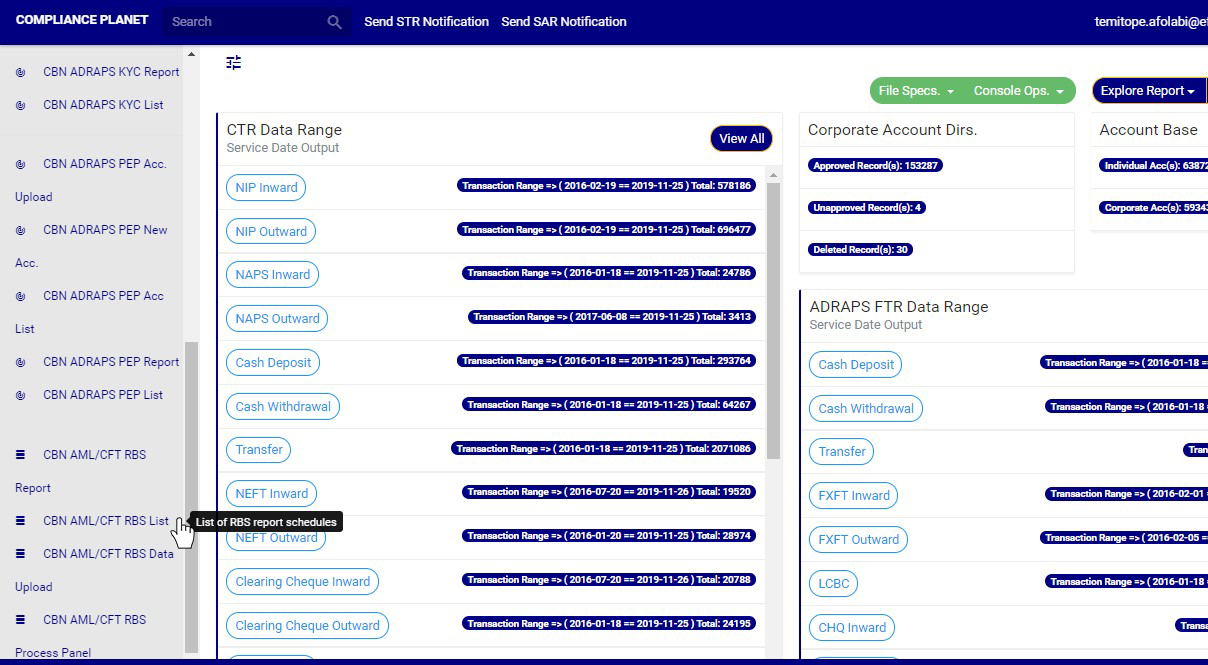
(fig. 7.4a)
➔ This will display a page as in fig. 7.4b.
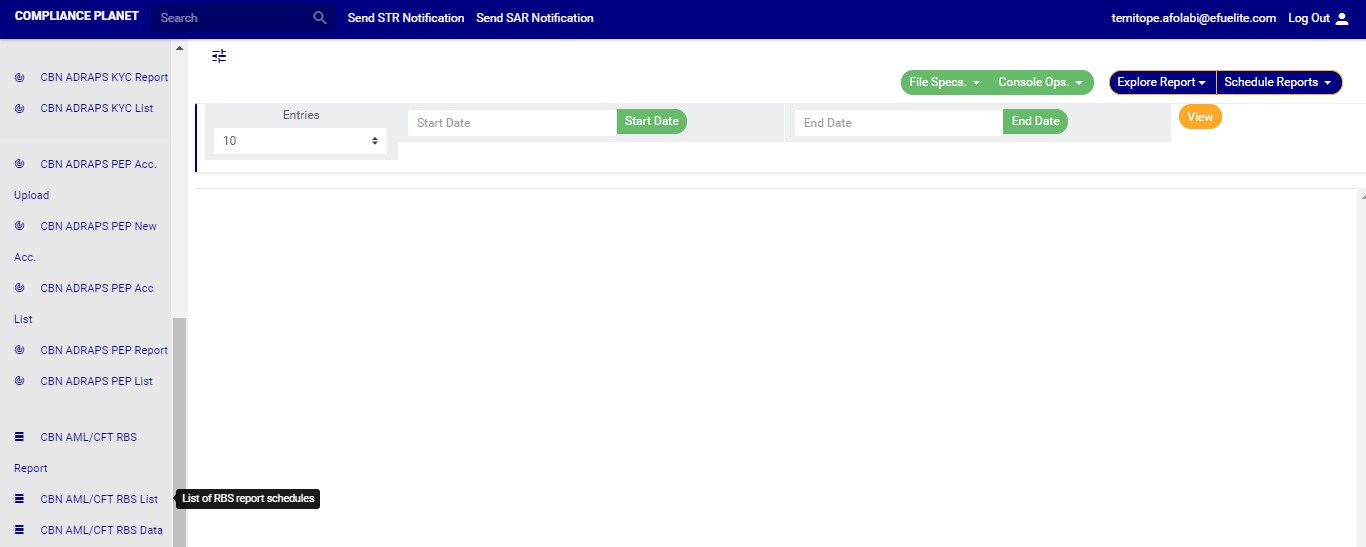
(fig. 7.4b)
STEP 2: Click on the START DATE and END DATE buttons to choose the date range of the report you want to schedule. The software will display a calendar console as in fig 7.3d and Fig 7.3e below for you to set the report start date and end date respectively.
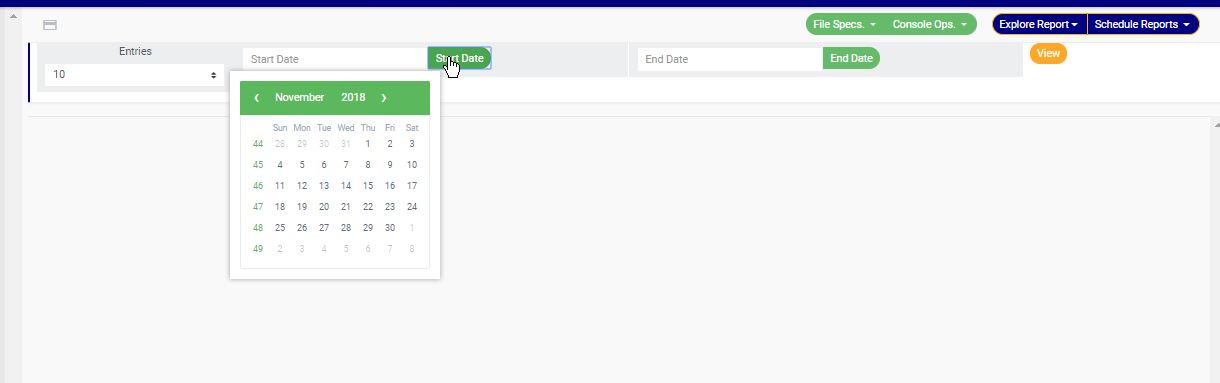
(fig. 7.4c)
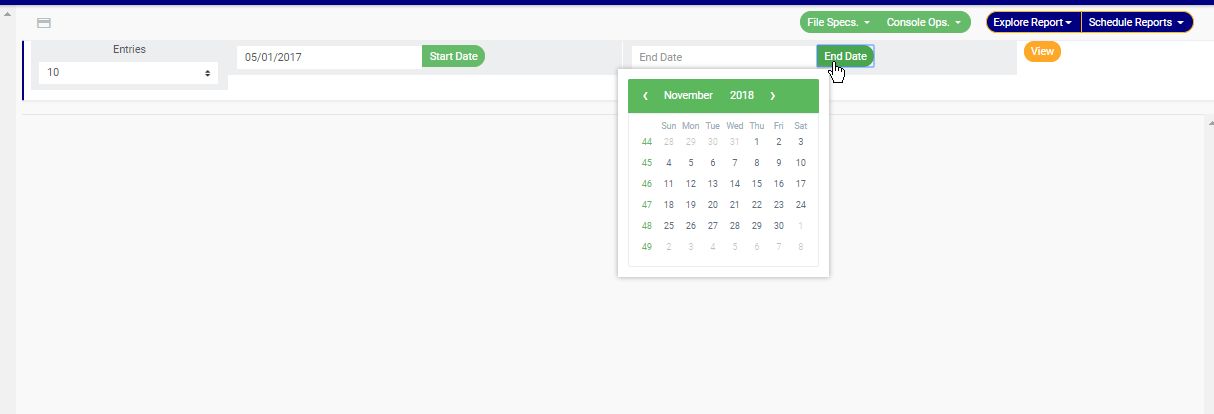
(fig. 7.4d)
➔ Take a look at the arrows labelled a to d in fig. 7.4e for a description of how the calendar works.
a. Click on the given year to change it to your year of choice.
b. Click on the given month to change it to your month of choice.
c. Then, click on the day of the month.
d. You can also click on the angle brackets on the calendar [ ‘’ ] to go backward or forward.
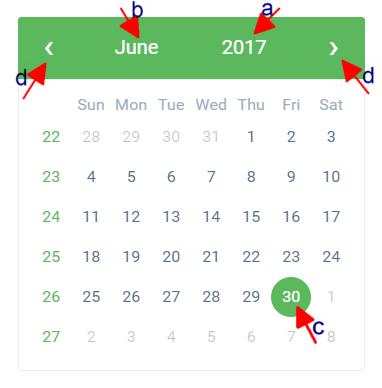
(fig.7.4e)
➔ For instance to see AML RBS reports scheduled for dates between MAY 2017 and JULY 2018,, the start date and end date would be 05/01/2017 and 07/31/2018 respectively. See an example in fig. 7.4f below.

(fig. 7.4f)
STEP 3: Click on ‘VIEW’ as in fig. 7.4g to see the reports. This is an orange colour button at the top-right area of the page.

(fig. 7.4g)
➔ The software will display the reports that were scheduled for the date range selected. See an example in fig. 7.4h.
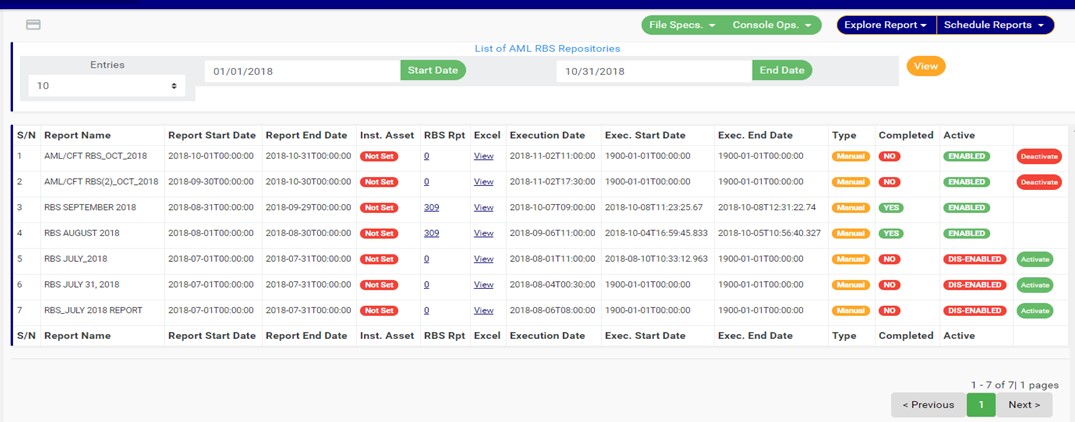 (fig. 7.4h)
➔ You can make changes to previously specified date range. Whenever the date range is changed, you will have to click the ‘view’ button for the software to display the scheduled reports that fall within that date range.
➔ At the bottom-right end of the page, the software gives information about the number of pages of your result, with the page numbers written out. Click on any page number, to go to that particular page. Click on NEXT to go to the next page or click on PREVIOUS to go to the previous page.
➔ For each report on the AML RBS list, the Compliance planet will provide information on the report name, report start date and end date, whether institution asset data has been set or not, the number of the institution’s branches involved, the report execution date and time, the report execution start date and end date, the type of report, a comment on whether the processing of the report has been completed or not and the processing status (for reports that have not been processed). Each report has a button to view the download history of Excel files the software has exported report information into.
➔ Adjust the number of reports you want to see per page by clicking on the ENTRIES box as in fig. 7.4i.
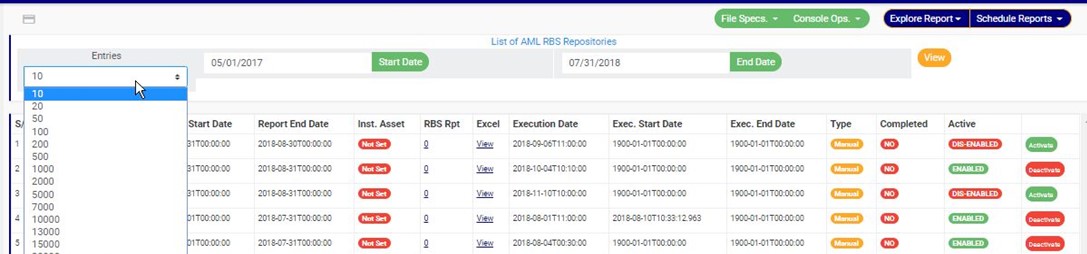
(fig.7.4i)
➔ Click on a report’s ‘Inst. Asset’ as in fig. 7.4j to view and/or edit the institution asset data. The institution asset data includes the name, code, address and number of assets of an institution.

(fig. 7.4j)
● An ‘AML RBS Institution Asset Data’ console will be displayed as in fig. 7.4k below.
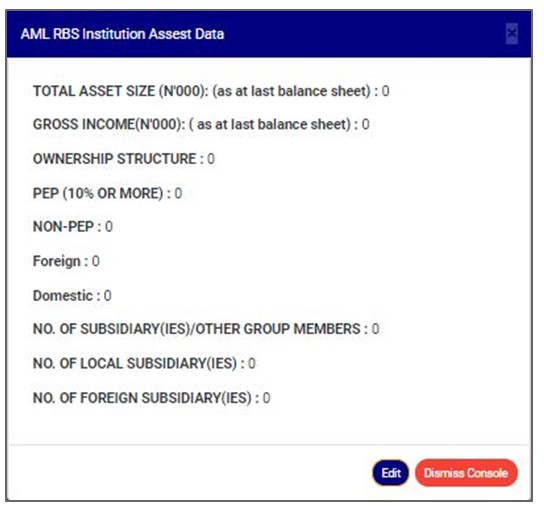 (fig. 7.4k)
● Click on ‘EDIT’ to modify any of the information displayed. See fig. 7.4l.
NOTE: Only Persons assigned right(s) to ‘Edit RBS reports’ can EDIT Institution asset data
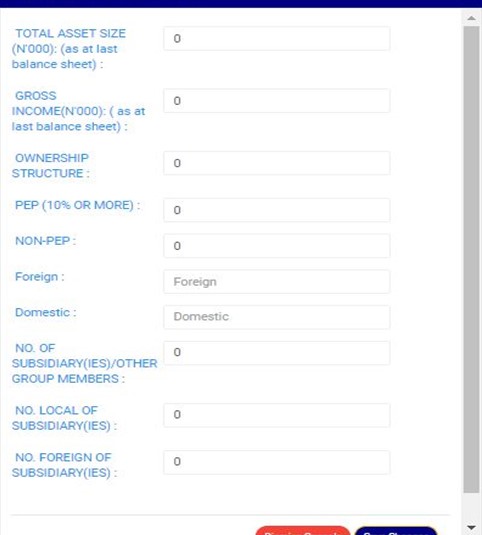
(fig. 7.4l)
● Fill the details and click on ‘Save changes’ to update the information as shown in fig. 7.4m below..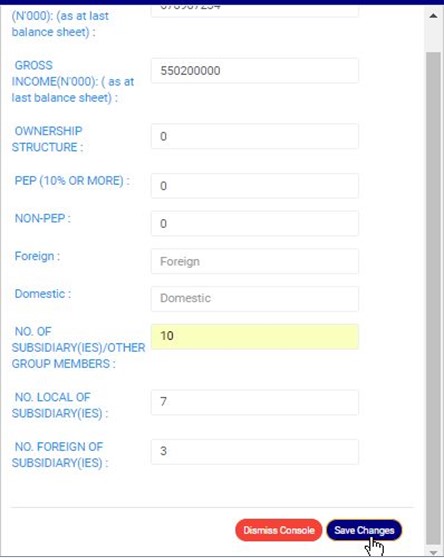 (fig. 7.4m)
● A confirmation console as in fig. 7.4n will be displayed. Click on ‘CONFIRM’ to proceed or ‘CANCEL’ to discontinue.
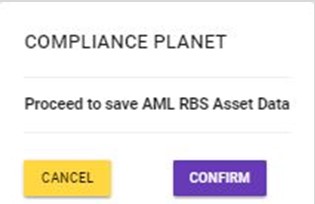
(fig. 7.4n)
➔ Click on a report’s ‘RBS Rpt’ to see the details of the branches included in the report.

(fig. 7.4o)
● This will display a ‘Kiosk AML RBS Report’ console as in fig. 7.4p below.
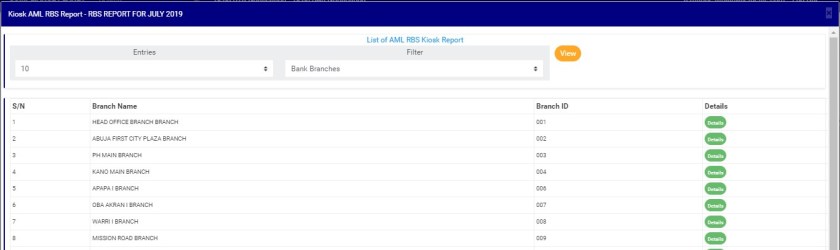
(fig. 7.4p)
● Steps (a – c) describes the features on this page.
a) Click on the ‘ENTRIES’ box as in fig.. 7.4q below to adjust the number of branches you want to see per page.
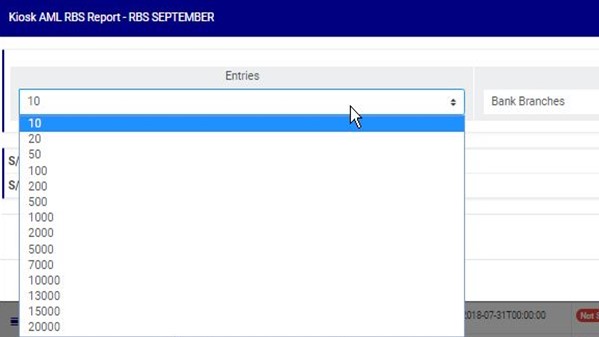
(fig. 7.4q)
b) Click on the ‘FILTER’ box to select a bank branch as in fig. 7.4r below.

(fig. 7.4r)
c) After selecting the bank branch of your choice, click on VIEW as in fig. 7.4s.
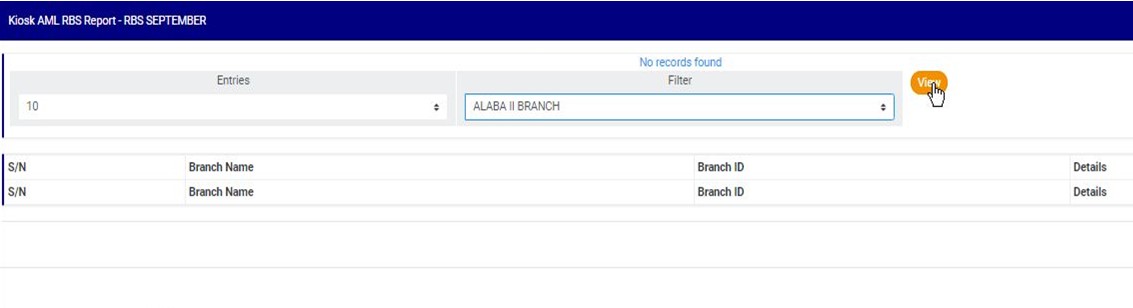
(fig. 7.4s)
d) Click details to view details of a particular branch.
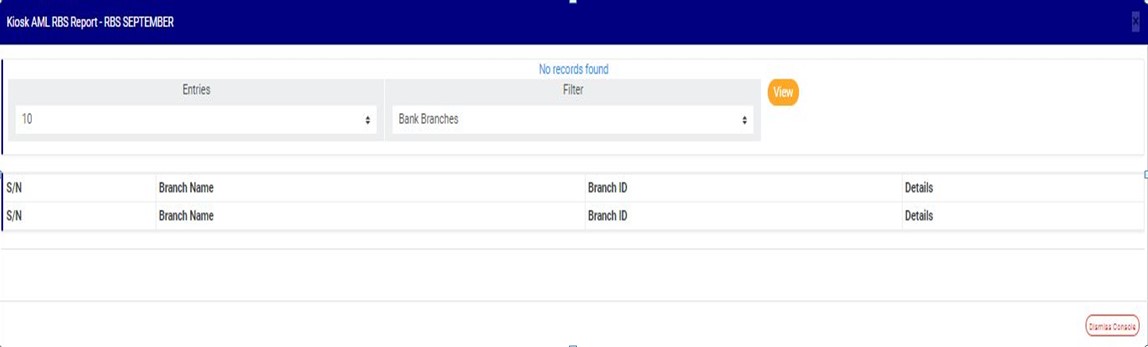
e) Click dismiss console to close the console.
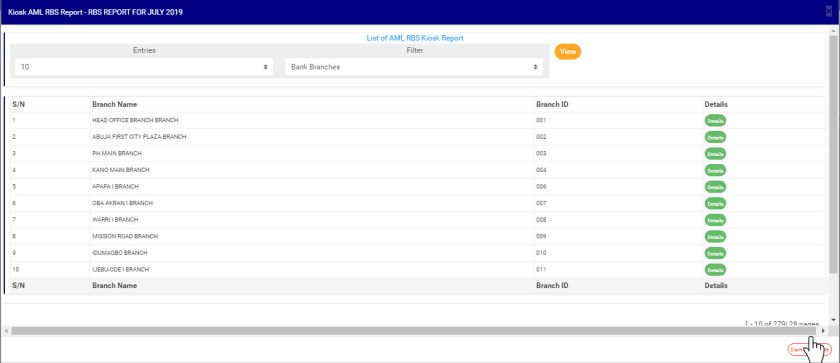
➔ Click on ‘VIEW’ under the ‘Excel’ column of a report as shown in fig. 7.4t to see its excel file download history.
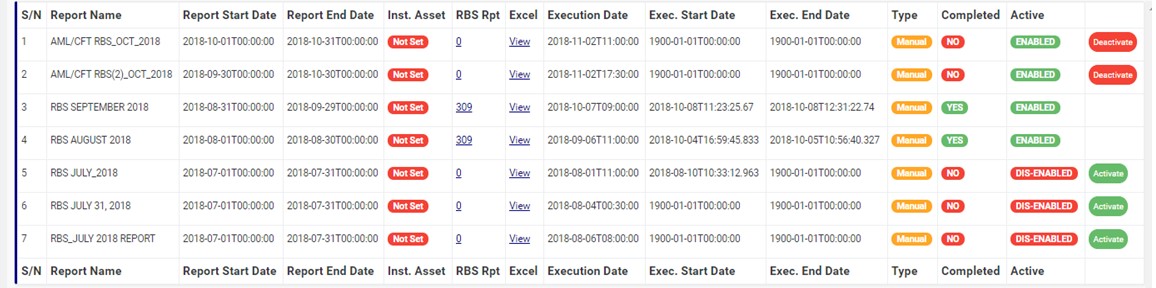
(fig. 7.4t)
● An AML RBS excel file repository console as in fig. 7.4u will be displayed. This page gives information about the users that have downloaded the excel file

(fig. 7.4u)
➔ Click on the file name to download the file.
NOTE: Only Persons assigned right(s) to ‘Download RBS reports’ can carry out this operation.
● Click on the ‘ENTRIES’ box as in fig. 7.4v to adjust the number of Excel files you want to see per page.
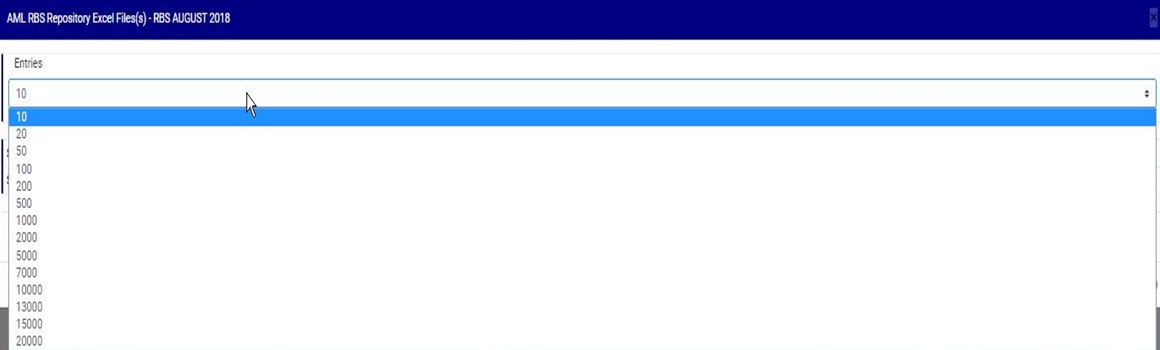
(fig. 7.4v)
- Click on ‘file download history’ as shown in fig 7.5u above to see the record of those that downloaded the file. See an example of the download history console below
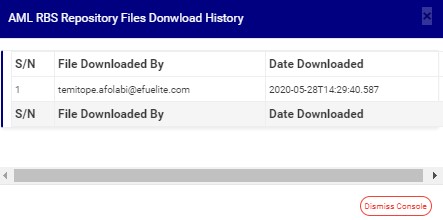
➔ Back on the AML RBS Repository list page, at the end of each report row, the software shows if the processing of the report is enabled or dis-enabled under the ‘ACTIVE’ column.
➔ For reports that have been completed, their status will read, ENABLED. See fig. 7.4w for an instance.

(fig. 7.4w)
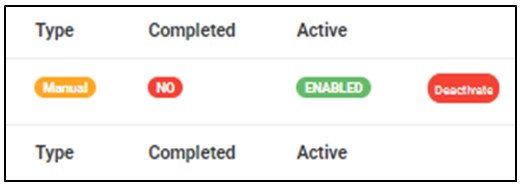
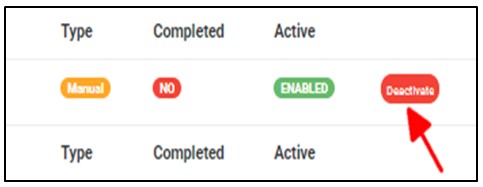
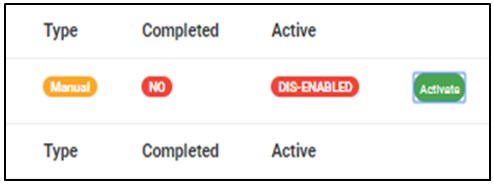
➔ For reports that have not been completed, there will be an extra button next to their ACTIVE status. This button is used to ACTIVATE or DEACTIVATE the processing of the report. Also see fig. 7.4w above. The button turns red when the report is enabled and it can be used to DEACTIVATE the report. It is green when the report is dis-enabled and it can be used to ACTIVATE the report for processing.
Activating a report;
● Click on Activate to enable the processing of report. This turns the status bar of the report to green with an ‘ENABLED’ inscription. See fig. 7.4x and fig. 7.4y for an example.
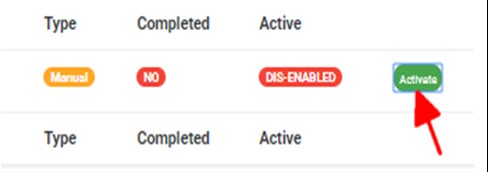
(fig. 7.4x)
(fig. 7.4y)
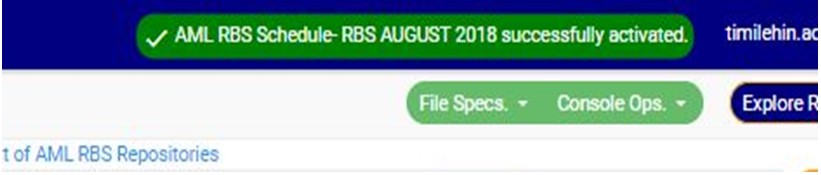
● A notification will be displayed at the top of the page when activation is successful. See fig. 7.4z for an example.
(fig. 7.4z)
Deactivating a report;
● Click on Deactivate to disable the processing of the report. This turns the status bar to red with a ‘DIS-ENABLED’ inscription. See fig.7.4z and fig. 7.4aa to see the result of deactivating a report also.
(fig. 7.4aa)
(fig. 7.4ab)
● A notification will be displayed at the top of the page when deactivation is successful. See fig. 7.4ac for an example.

(fig. 7.4ac)
NOTE: Only person(s) profiled and assigned right(s) to ‘Edit RBS Report’ will be able to activate or de-activate a report
