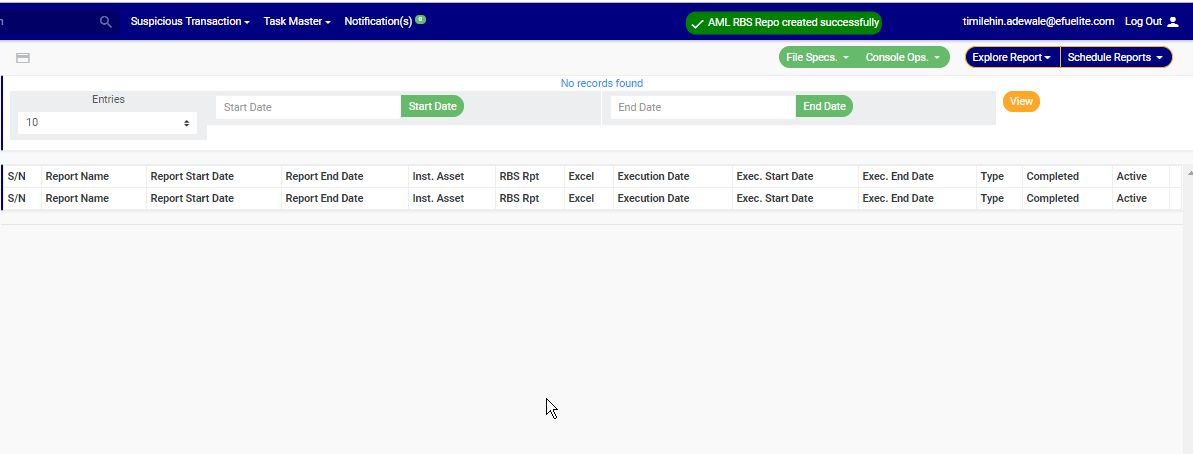
The compliance planet software allows you to schedule AML/CFT RBS report ahead of time. You can manually schedule and download AML RBS reports. Here is how to do this.
NOTE: Only persons profiled and assigned right(s) to process and view AML/CFT Risk Based Supervision report, will be ale to carry out this operation.
STEP 1: From the hand side menu click on ‘CBN AML/CFT RBS report’ as in fig. 7.3a below.
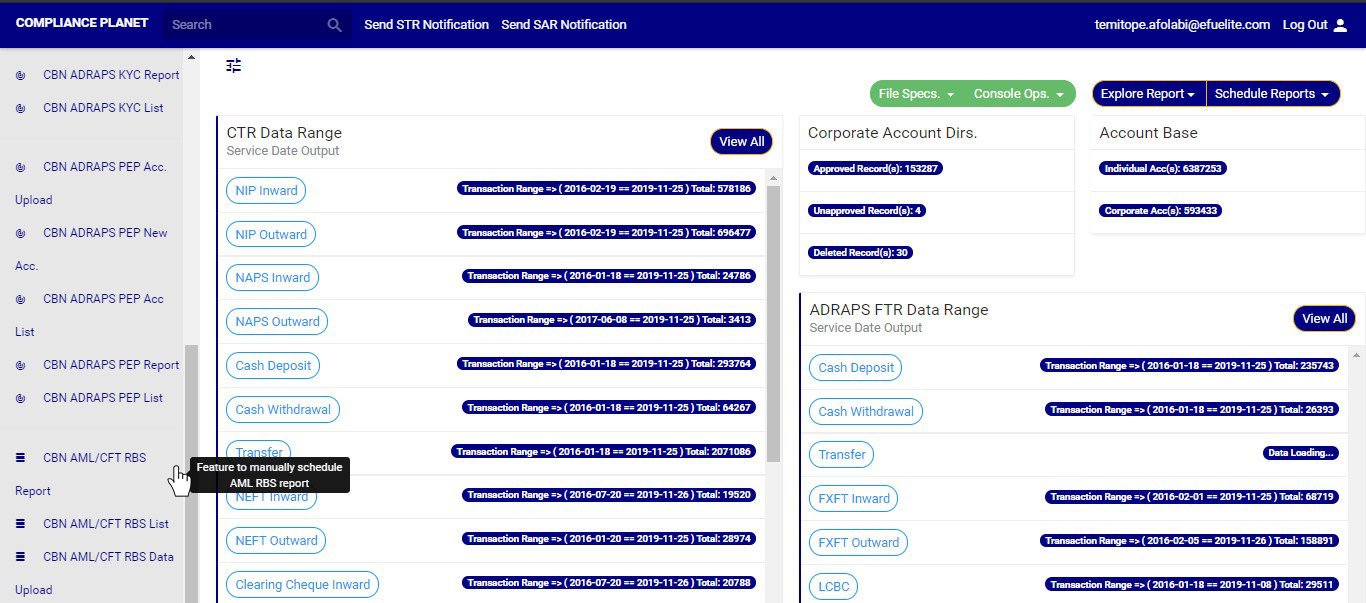
(fig. 7.3a)
➔ This will display an “AML RBS scheduler” as in fig. 7.3b below .

STEP 2: Fill in your desired title in the REPORT NAME text-box. See fig. 7.3c for an example.
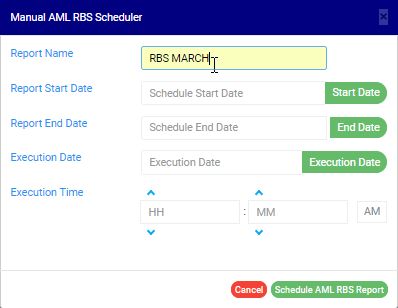
STEP 3: Click on the REPORT START DATE and END DATE buttons to choose the date range of the report you want to generate. The software will display a calendar console as in fig 7.3d and Fig 7.3e below for you to set the report start date and end date respectively.
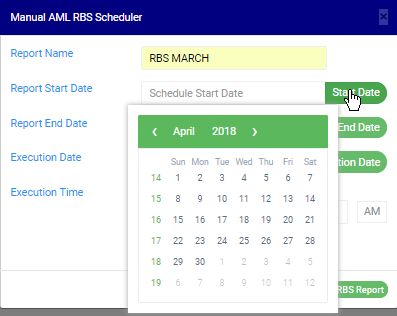
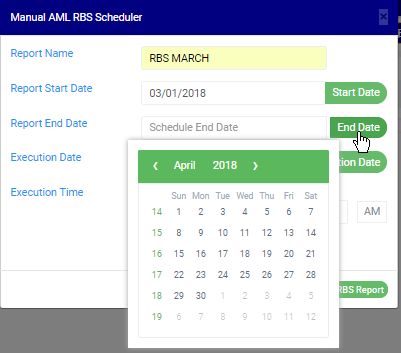
➔ Take a look at the arrows labelled a to d in fig. 7.3f for a description of how the calendar works.
a. Click on the given year to change it to your year of choice.
b. Click on the given month to change it to your month of choice.
c. Then, click on the day of the month.
d. You can also click on the angle brackets on the calendar [ ‘’ ] to go backward or forward.

STEP 4: Click on the EXECUTION DATE button to specify the date you want the report to be processed as shown in fig. 7.3g below.
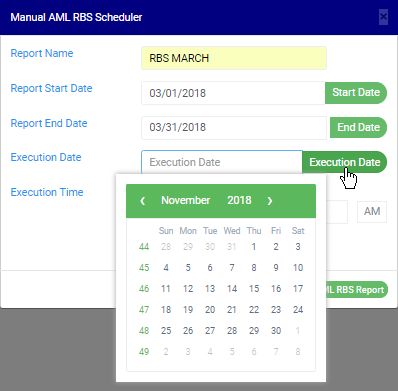
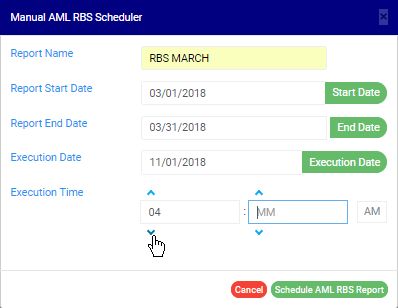
STEP 5: Set the report EXECUTION TIME by filling in the ‘hour’ and the ‘minute’ you want the report to be processed. Click on the arrows to select a number or input the number in the box as in fig. 7.3h
➔ There’s a button next to the hour and minute boxes used for switching between AM and PM. Click on it to specify PM or AM. See an example in fig. 7.3i below.
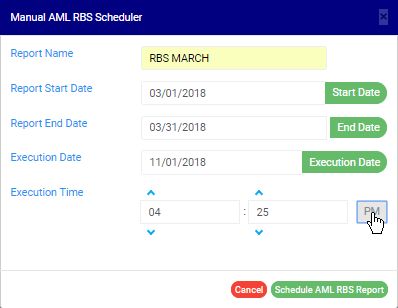
STEP 6: Click on ‘SCHEDULE AML RBS REPORT’ as in fig. 7.3j below to create your report or ‘CANCEL’ to close the console. These buttons are at the bottom-right corner of the console.
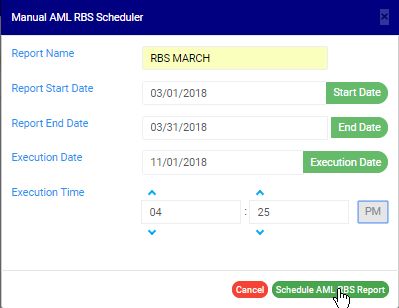
➔ By clicking on ‘CANCEL’, you can continue from where you stopped on the AML RBS scheduler when you click on ‘GENERATE REPORT’ as in step 1.
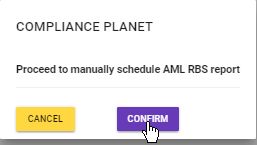
➔ By clicking on ‘SCHEDULE AML RBS REPORT’, a confirmation console will be displayed as in fig. 7.3k. Click on ‘CONFIRM’ to schedule the report or ‘CANCEL’ to go back to the scheduler.
➔ When report has been successfully scheduled for processing, a temporary notification will be displayed at the top of the page. See fig. 7.3l for an example.