
This refers to adding new director information for a corporate account. Here is how to create a new director information.
NOTE: Only Person(s) profiled as a deputy Supreme Admin with right(s) to view and create new directors will be able to carry out this operation.
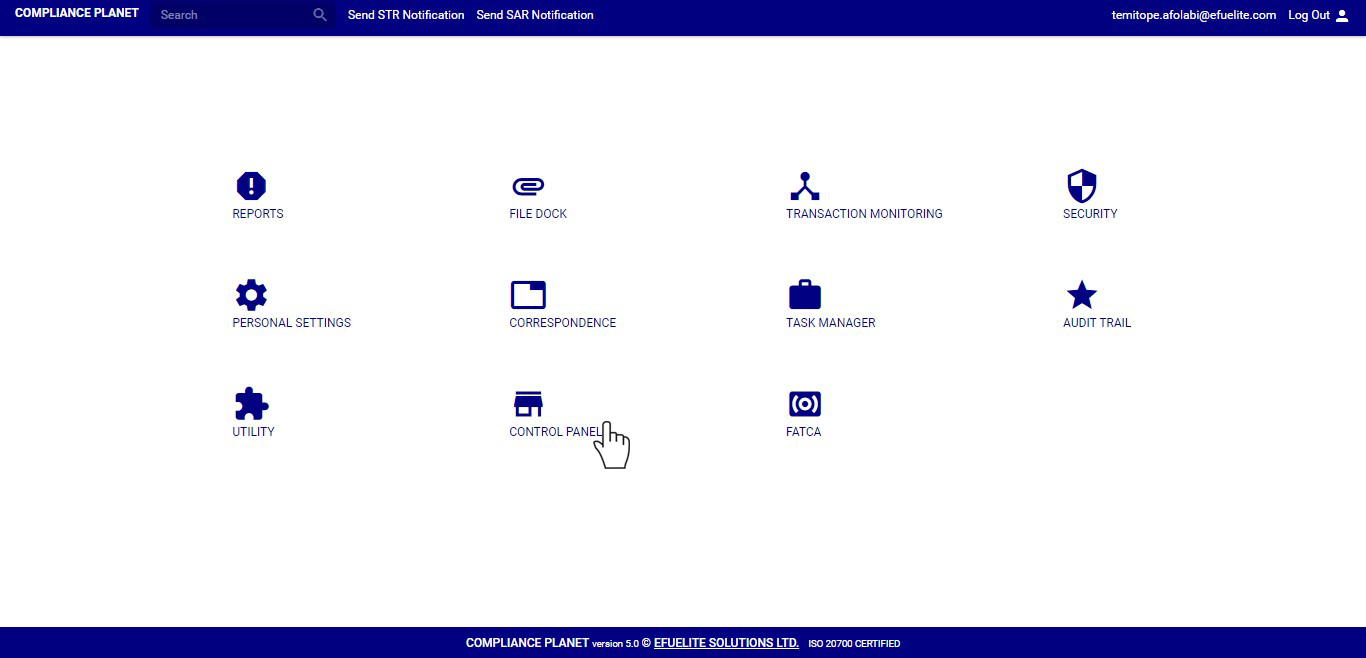
STEP 1: From the main dashboard, click on ‘CONTROL PANEL’. See an example below
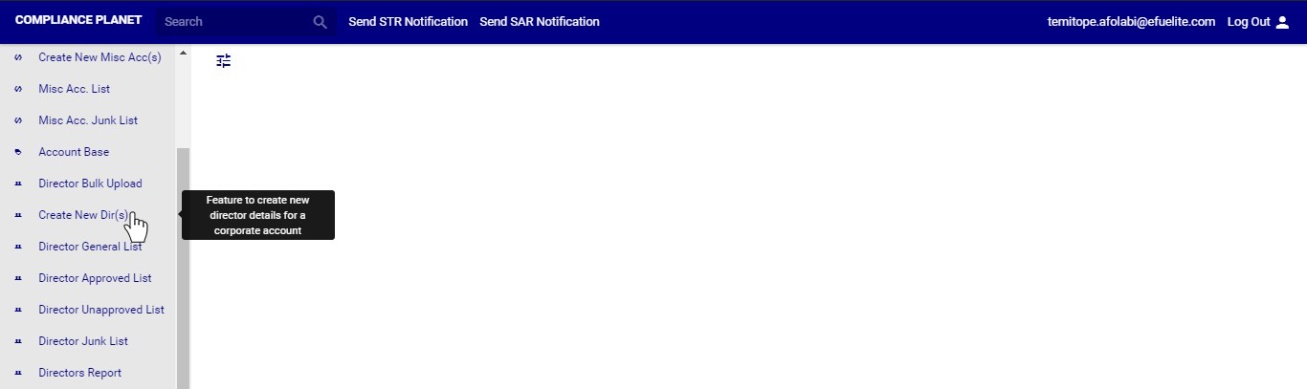
➔ From the left hand side menu, click on ‘Create New Dir(s)’ as in fig. 10.3a below.
➔ This will display a ‘Create Corporate Account Director’ console. See fig. 10.3b for an example of the console.
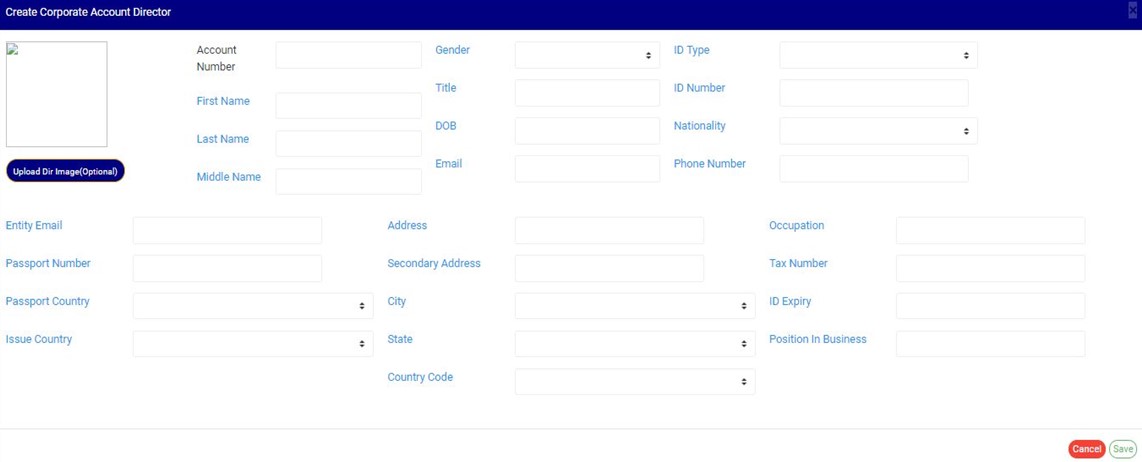
(fig. 10.3b)
STEP 2: Fill in the details of the new account director in their respective fields. . See fig. 10.3c for an example.
To close the console, click on the ‘CANCEL’ button
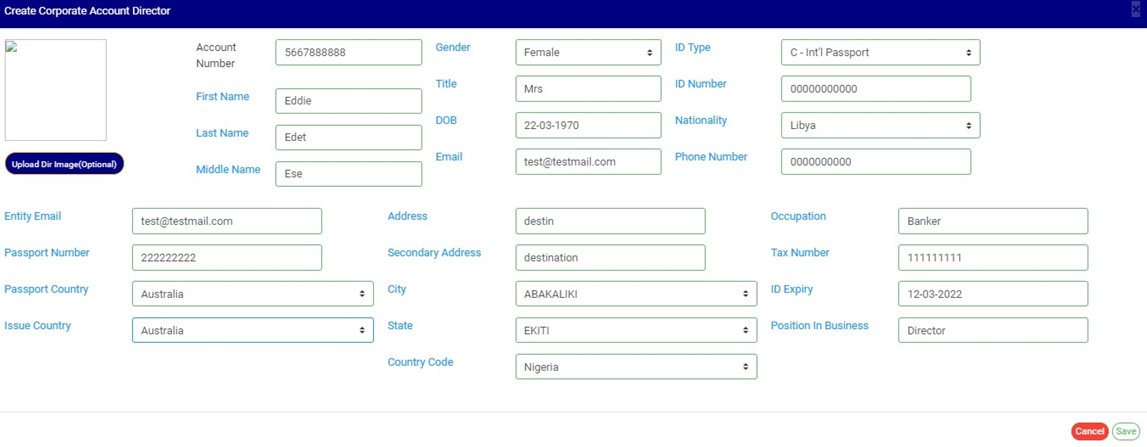
STEP 3: Click on ‘Save’ to upload the new director information on the software as in fig. 10.3c above. A confirmation console as in fig. 10.3d will be displayed to confirm your request. Click on ‘CONFIRM’ to proceed to save new account director information or ‘CANCEL’ to go back to console.
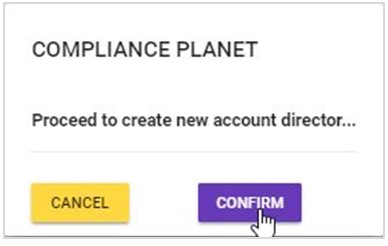
(fig. 10.3d)
➔ A notification as in fig. 10.3e below will be displayed at the top of the page when the information has been successfully added on the software.

(fig. 10.3e)
