
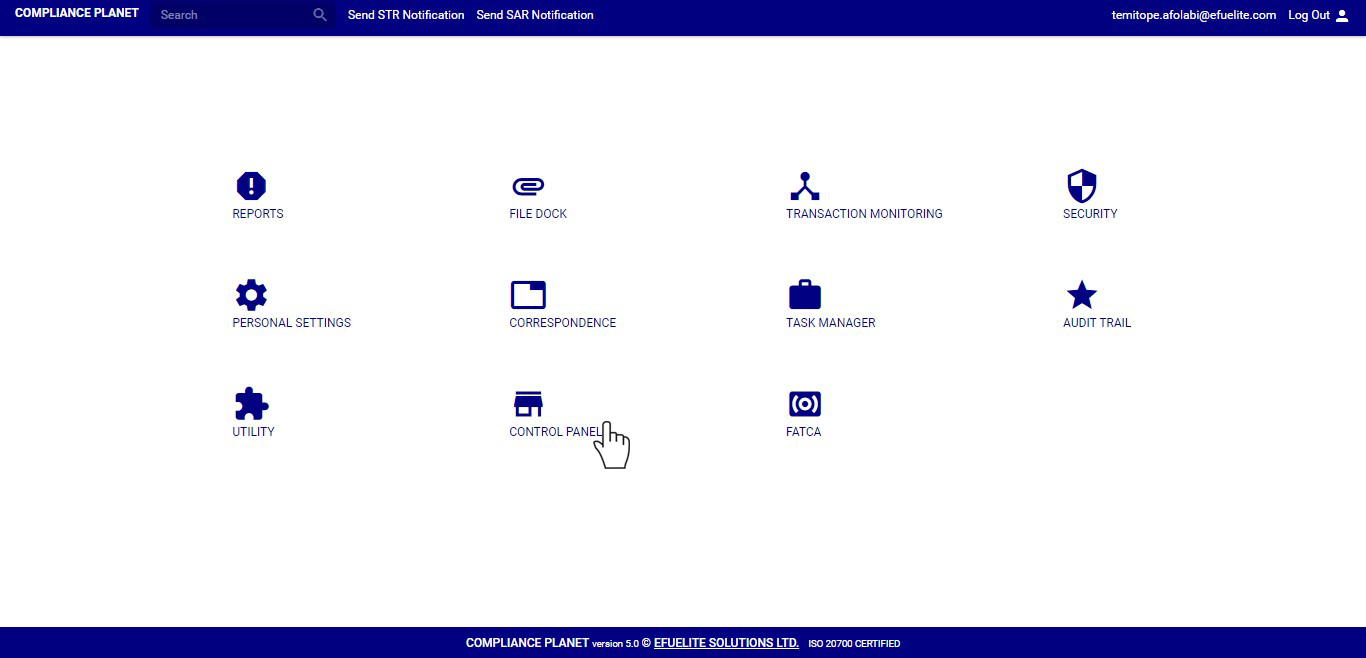
➔ From the left hand side menu, click on ‘Account base’ Check out fig.9.2a below for an example
(fig. 9.2a)
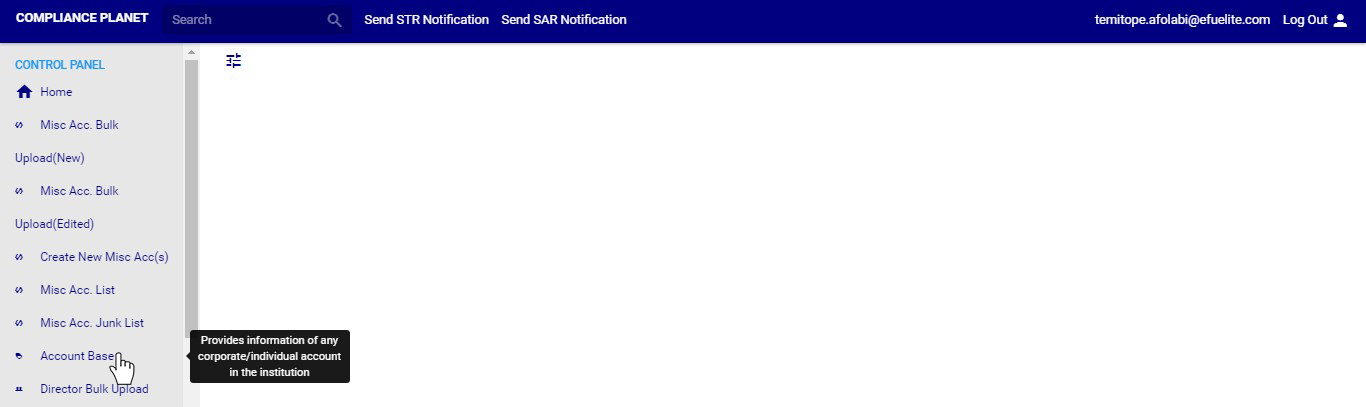
➔ Clicking on ‘Account Base’ will display a page as in fig. 9.3b below .
(fig. 9.2b)
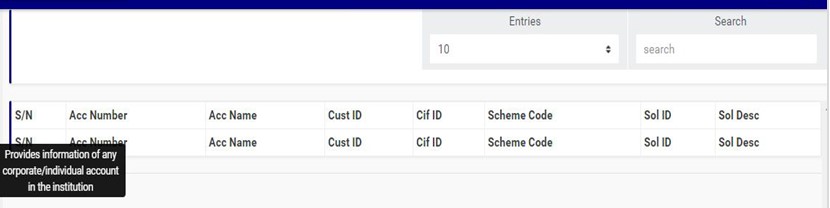
STEP 2: Enter ‘Search term’ in the search box to start a search. The search box is at the top-right area of the page. The search term could be either a name or part of the name, scheme code or account number. See an example of a search ongoing in fig. 9.2c below.

(fig. 9.2c)
➔ The software will start a search in real-time as you type a character in the search box. See the result of the search term in fig. 9.2c in fig. 9.2d below.
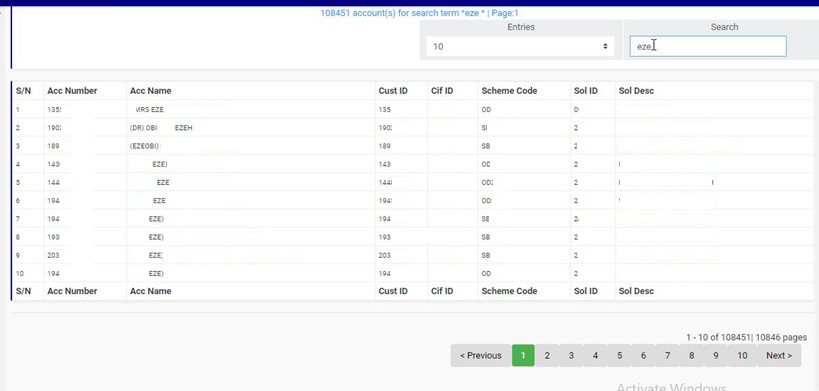
(Fig. 9.2d)
➔ Every information seen on this page is for view only. You can adjust the number of accounts you want to see per page by clicking on the ‘ENTRIES’ box next to the search box as shown in fig. 9.3e below.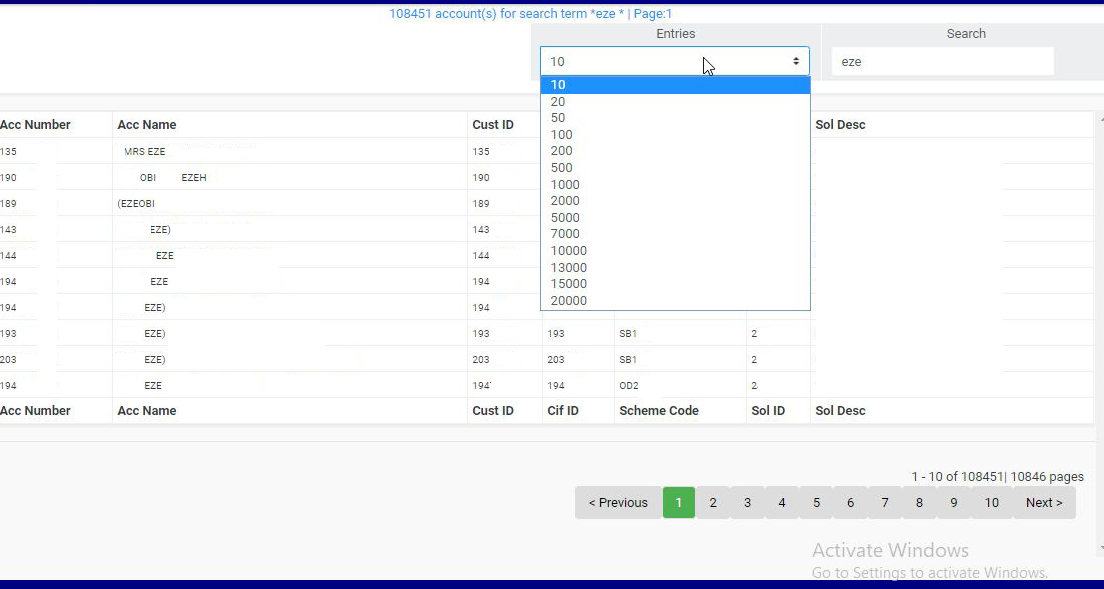
(fig. 9.2e)
➔ At the bottom-right corner of the page also, the software will provide information about the number of pages of the search result, with the page numbers written out. All the page numbers represent buttons to go to each page. By clicking on any page number, the software takes you to that particular page. Click on the ‘NEXT’ button to go to the next page when you and click on the ‘PREVIOUS’ button to take you to the page before the one you are viewing at that moment. See these features in fig. 9.3g below.

(fig. 9.2f)
