
This operation involves the upload of more than one new miscellaneous account.
NOTE: Only person(s) profiled as ‘Deputy Supreme Admin’ can carry out these operations
Here is how to do this.
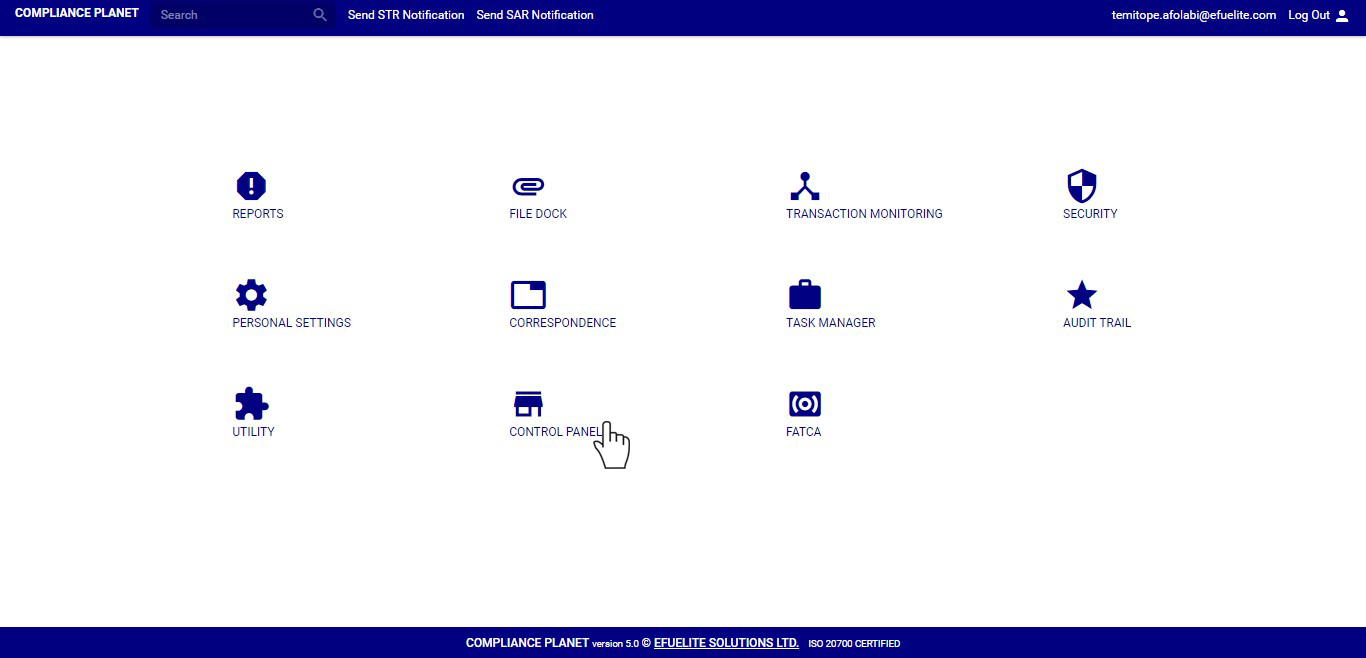
STEP 1: From the main dashboard, click on ‘CONTROL PANEL’. See an example below
➔ From the left hand side menu, click on ‘Misc. Acc Bulk Upload (New)’. Check out fig. 8.3a below.
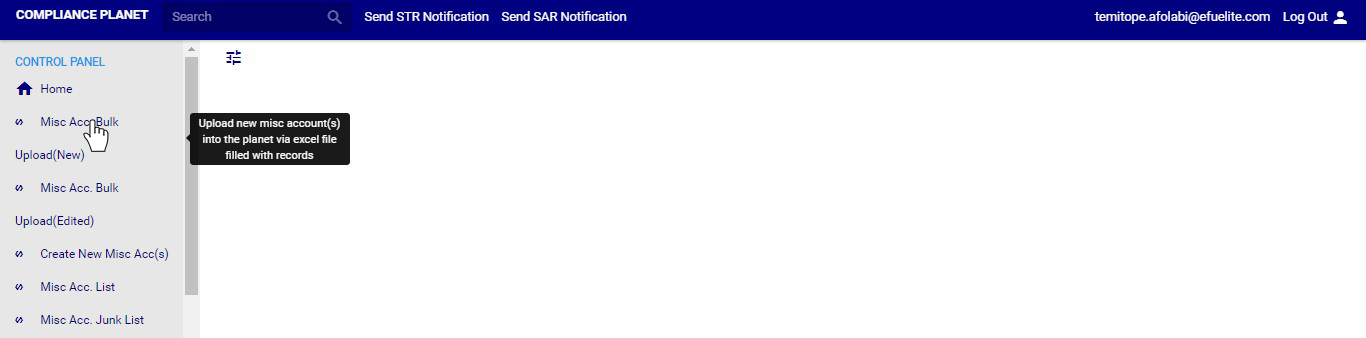
(fig. 8.3a)
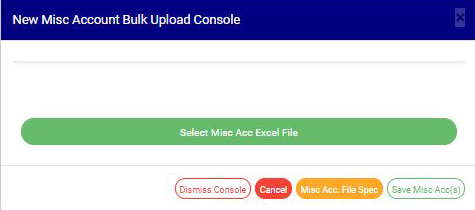
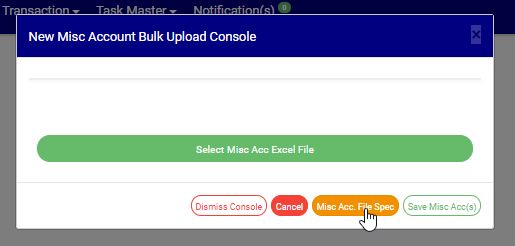
➔ Clicking on ‘Misc Acc. Bulk Upload (New)’ will display a console. See fig. 8.3b for an example of the console. On this console, you select from your computer, an excel file filled with the required information for the new miscellaneous accounts to be added on the software.
STEP 2: Click on ‘Select misc. Acc Excel File’ to choose from your computer the excel file which contains the data (according to specified requirement) of the miscellaneous accounts you want to upload. See fig. 8.3c below .
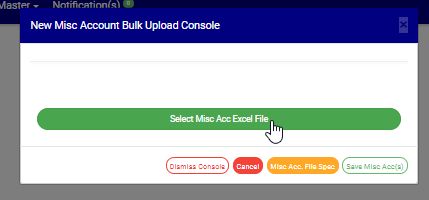
➔ If you are unsure of the file specification. Click on the ‘Misc Acc File Spec.’ to download an excel file (with pre-filled header columns according to the specification for files to be uploaded) where you can input the required data. See fig. 8.3d.
➔ Open the downloaded file and fill it with the required data. Ensure you save the changes to the file. Renaming the file is optional but this will aid the identification of the file on your computer.
➔ Back on the console, click on ‘Select Misc Acc Excel File’ to choose the new file.
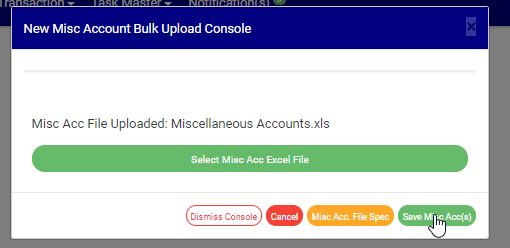
➔ you can hide the console by clicking on ‘DISMISS CONSOLE’. Note that this won’t cancel your operations.
STEP 3: Click on ‘Save Misc Acc(s)’ button as in Fig 8.3e above to upload the new miscellaneous accounts to the software.
➔This displays a confirmation console as in fig 8.3f below. Click on ‘CONFIRM’ to proceed with the upload of new miscellaneous accounts or Click on ‘CANCEL’ to go back to the Bulk Upload console.

➔The signal console shows on going processes and a report file will be automatically generated, this report contains information on number of accounts uploaded, processed, saved, exempted e.t.c
➔ You can terminate unfinished processes by clicking CANCEL OPS.
