
Under this control panel feature, the software provides a list of financial institutions and their SWIFT codes. Operations include editing, deleting, downloading and adding new SWIFT codes, with options to carry out operations individually or in bulk.
NOTE: Only person(s) profiled as deputy supreme Admin and assigned right(s) to “view Swift Dom transactions” will be able to carryout this operation.
To perform any of the operations on SWIFT schemes;
STEP 1: From the main dashboard, click on ‘CONTROL PANEL’ as in fig 11.2a below


(fig. 11.2a)
➔From the left hand side menu, click on ”Swift Scheme” as shown I Fig 11.2b below.

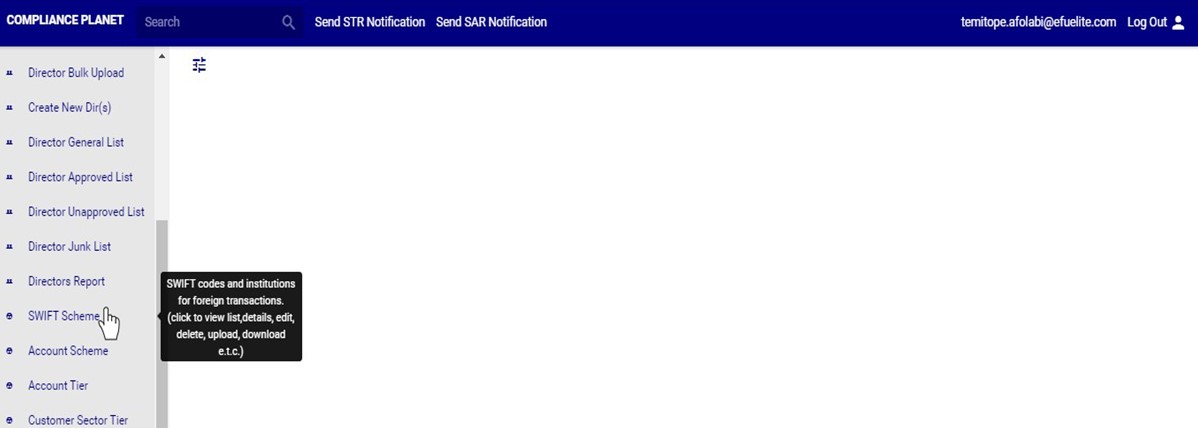
(fig. 11.2b)
STEP 2: This displays a page showing a list of all financial institutions, their SWIFT codes and other details. See fig. 11.2c for an example.
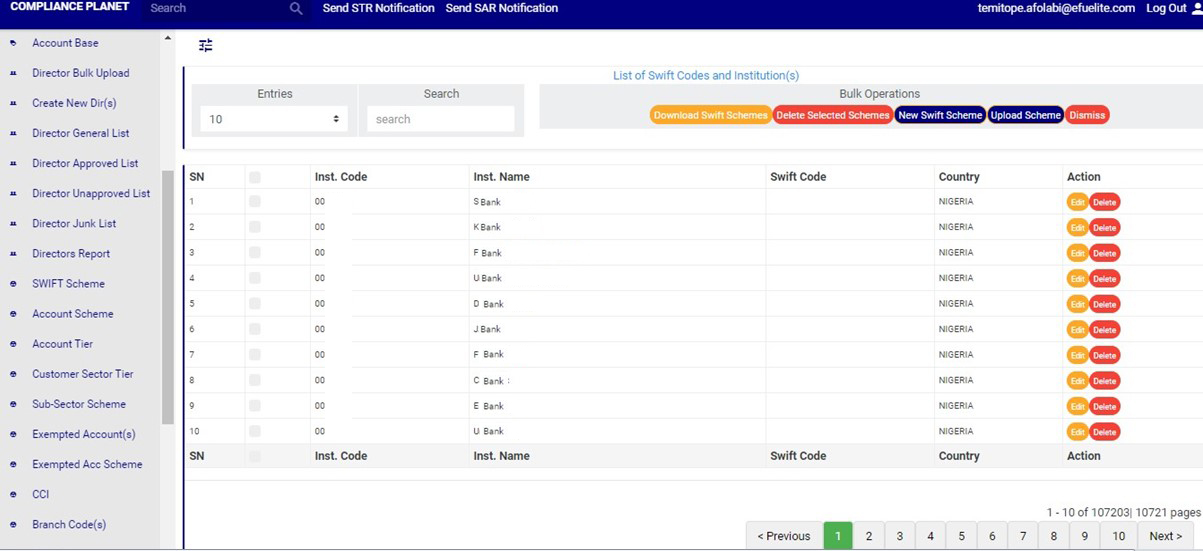
(fig. 11.2c)
➔ At the bottom-right corner of the page, the software gives information about the number of pages on the list, with the page numbers written out. The page numbers represent buttons to go to each page. By clicking on any page number, the planet takes you to that particular page. Click on the ‘NEXT’ button to go to the next page or the ‘PREVIOUS’ button to go to the page before the one you are viewing at that moment. See these features in fig. 11.2c above.
➔  Click the ‘ENTRIES’ box to adjust the number of financial institutions you see per page. See how to adjust the number of entries per page in fig. 11.2d.

(fig. 11.2d)
➔ Search for SWIFT Schemes by typing institution code, institution name, or SWIFT code in the search box as in fig. 11.2e below. Search results are immediately.
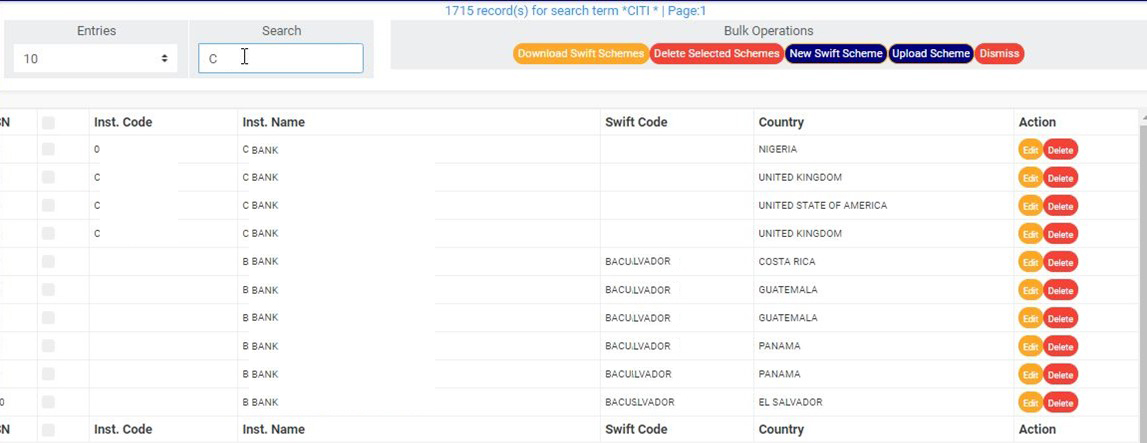
(fig. 11.2e)
➔ Each institution has two action buttons; ‘Edit’ button and ‘Delete’ button. The different operations are explained below.
How to Edit a SWIFT scheme
NOTE: Only person(s) profiled as deputy supreme Admin and assigned right(s) to “view Swift Dom transactions” and “screen edit Swift Dom transactions’ will be able to carryout this operation.
➔ To change details of an institution;
STEP 1: Click on its ‘Edit’ button as shown in the example in fig. 11.2f below.

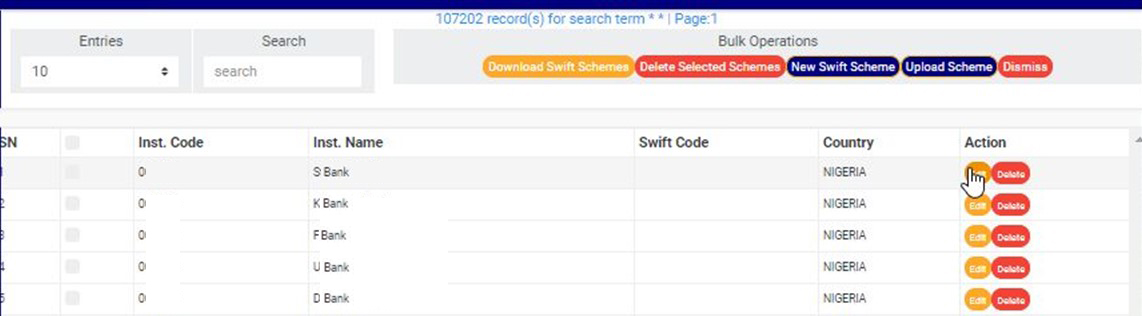
(fig. 11.2f)
➔  This display an “Edit Swift Scheme” console as in fig. 11.2g.
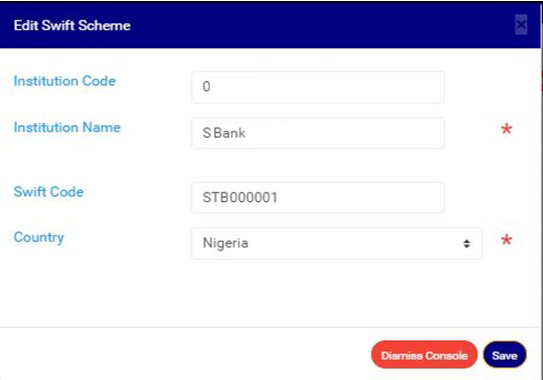
(fig. 11.2g)
STEP 2: Fill in the details you want to add or change.
STEP 3: Click on ‘SAVE’ to update the details on the software. Clicking‘Save’ will display a confirmation console as in fig. 11.2h to confirm you want to change the details.

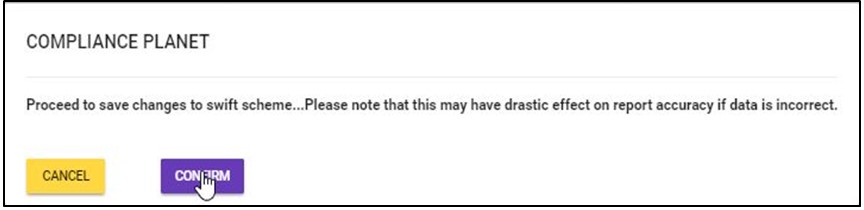
(fig. 11.2h)
➔ Click ‘CONFIRM’ to save the changes. When the changes are saved, a notification will be displayed at the top of the screen as in fig. 11.2i.

(fig. 11.2i)
How To Delete a SWIFT scheme
➔ To delete a SWIFT scheme, click on ‘DELETE’ as in fig. 11.2j below.
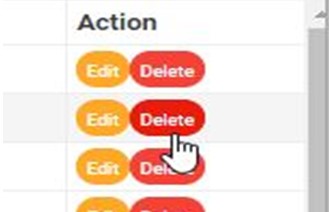
(fig. 11.2j)
➔ This displays a confirmation console to confirm your request as in fig. 11.2k

(fig. 11.2k)
➔ Click on ‘CONFIRM’ to proceed. A notification as shown in fig. 11.2l will also be displayed at the top of the page.
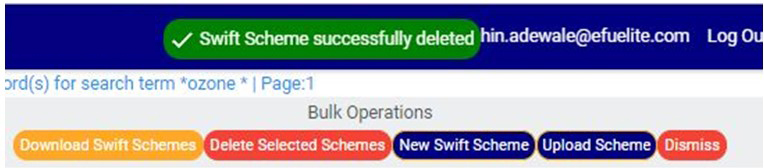
(fig. 11.2l)
How To Carry Out Bulk Swift Operations
NOTE: Only person(s) profiled as deputy supreme Admin and assigned right(s) to “view Swift Dom transactions” and “Bulk edit Swift Dom transactions’ will be able to carryout this operation.
The action buttons available under the bulk operations section of the page as shown in fig. 11.2m include buttons for both individual and bulk operations.
They are;
●Download SWIFT schemes
●Delete selected schemes
●New SWIFT scheme
●Upload scheme
●Dismiss

(fig. 11.2m)
➔ To select a scheme click on its checkbox as shown in the example in fig. 11.2n. Multiple schemes can be selected for bulk operations.
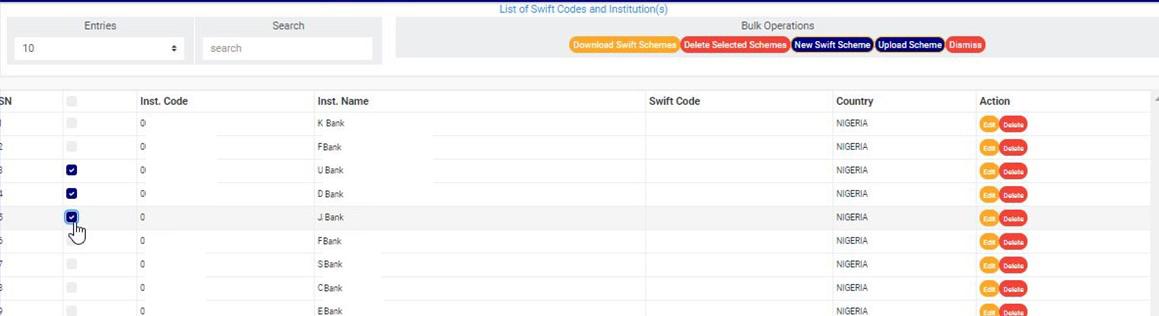
(fig. 11.2n)
➔ To select or deselect all the schemes on a page, click on the checkbox of the table title bar. This checkbox is between SN and Inst. Code. See fig. 11.2o below.

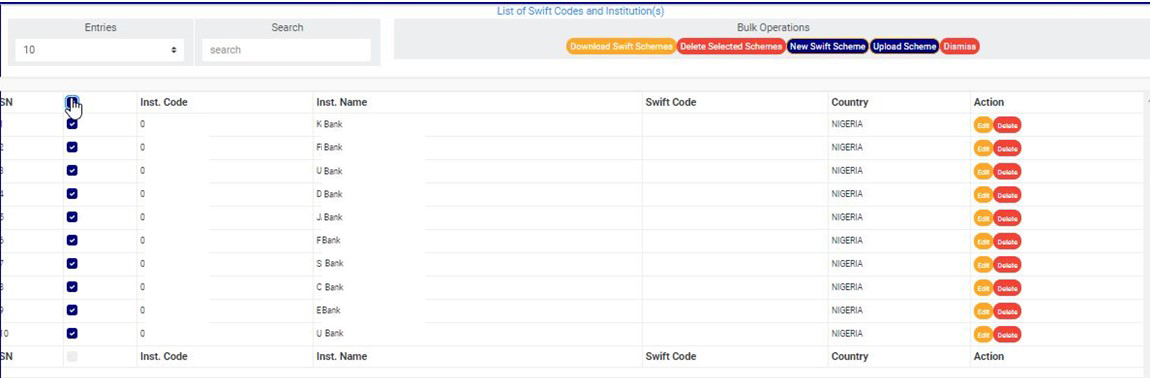
(fig. 11.2o)
A. How to Download SWIFT Schemes
NOTE: Only person(s) profiled as deputy supreme Admin and assigned right(s) to “view Swift Dom transactions” and “Download Swift Dom transactions’ will be able to carryout this operation.
➔ To download all the SWIFT schemes on the planet, click on ‘DOWNLOAD SWIFT SCHEMES’. No need to mark all the schemes.
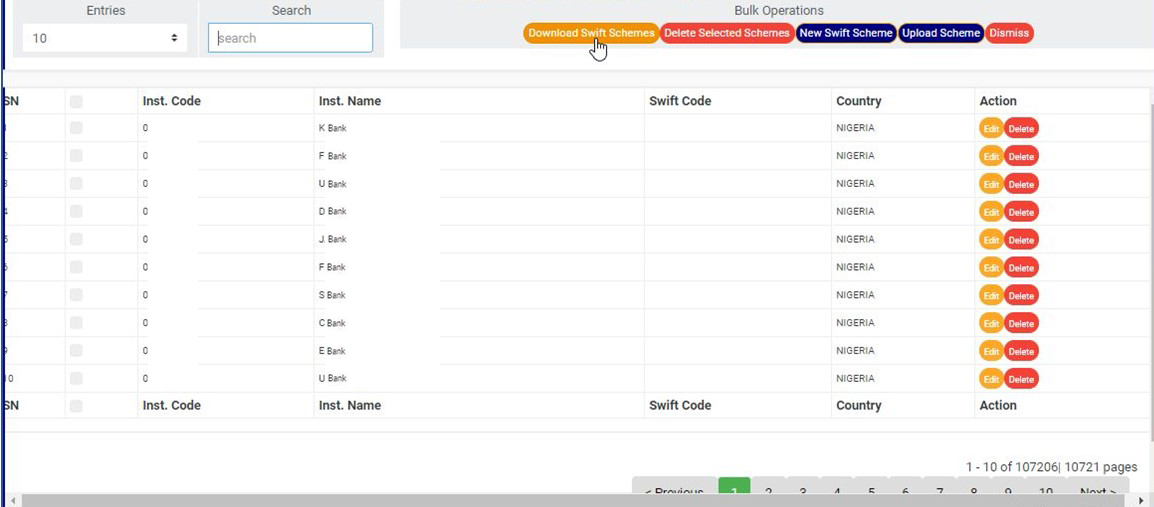
(fig. 11.2p)
➔ This displays a confirmation console as in fig. 11.2q. Click on ‘CONFIRM’ to proceed with the download or ‘CANCEL’ to stop action.
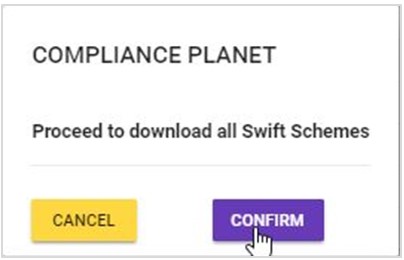
(fig. 11.2q)
➔The signal console shows on going processes, and when download is complete, a notification will be displayed at the top of the page as shown in fig. 11.2r.
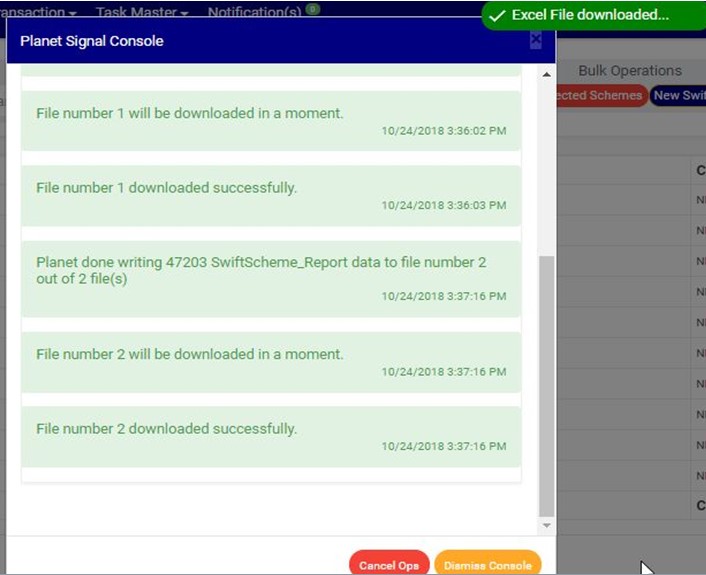
(fig. 11.2r)
B. How to Delete SWIFT Scheme
NOTE: Only person(s) profiled as deputy supreme Admin and assigned right(s) to “view Swift Dom transactions” will be able to carryout this operation.
➔ After selecting the SWIFT schemes to be deleted; Click on ‘DELETE SELECTED SCHEMES’ as in fig. 11.2s.
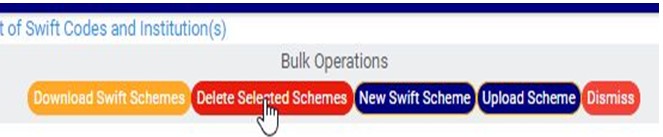
(fig. 11.2s)
➔This displays a confirmation console to confirm your request as shown in fig. 11.2t below.
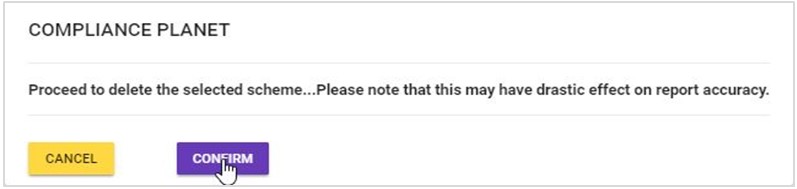
(fig. 11.2t)
➔ When delete is complete, a notification will be displayed at the top of the page as in fig. 11.2u.
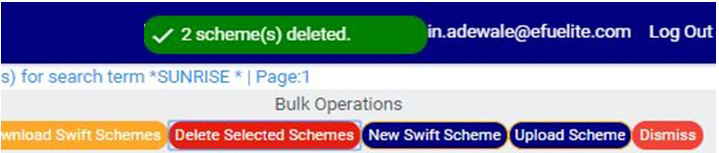
(fig. 11.2u)
C. How to Create A New SWIFT Scheme
NOTE: Only person(s) profiled as deputy supreme Admin and assigned right(s) to “view Swift Dom transactions” will be able to carryout this operation.
➔ To add a new SWIFT scheme on the software, click on ‘NEW SWIFT SCHEME’ as in fig. 11.2v

(fig. 11.2v)
➔ Clicking on the ‘NEW SWIFT SCHEME’ button will display a ‘NEW SWIFT SCHEME’ console as in fig. 11.2w, where you are to input details of the scheme.
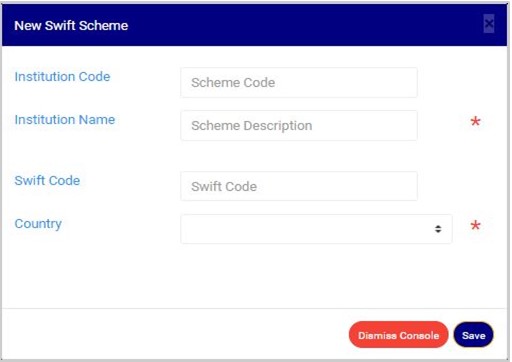
(fig. 11.2w)
➔ Fill in the details of the new scheme in their respective fields. After inputting the details, click on ‘SAVE’ as shown in fig. 11.2x.
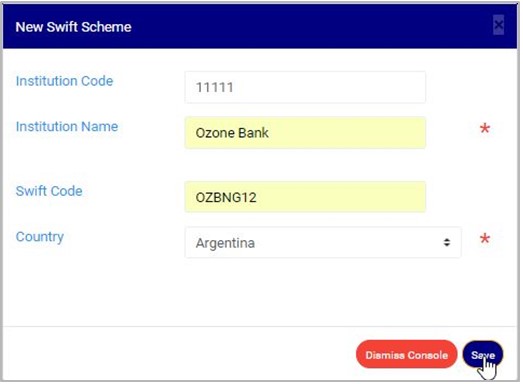
(fig. 11.2x)
➔ This displays a confirmation console to confirm your action. Click on ‘CONFIRM’ to proceed with the creation of a new SWIFT scheme or ‘CANCEL’ to discontinue.

(fig. 11.2y)
➔ If you proceed with adding a new SWIFT scheme, a notification as in fig. 11.2z will be displayed at the top of the page when the software has successfully created the new SWIFT scheme. The new scheme would be added to the list of SWIFT schemes on the software.

(fig. 11.2z)
D. How to make Bulk Upload of New SWIFT Schemes.
NOTE: Only person(s) profiled as deputy supreme Admin and assigned right(s) to “view Swift Dom transactions” and “Bulk edit Swift Dom transactions’ will be able to carryout this operation.
➔ To add more than one new SWIFT scheme on the software; you need to upload an excel file filled with the details of the new SWIFT schemes according to the software’s specification for uploading new SWIFT schemes. This process is described below.
STEP 1: Click on ‘UPLOAD SCHEME’ as in fig. 11.2aa below.


(fig. 11.2aa)
➔ This displays a ‘Swift Scheme Upload’ console as in fig. 11.2ab.
➔ To close the upload console, click on ‘DISMISS CONSOLE’. Note that you can continue the upload from where you stopped by clicking on ‘Upload scheme’.
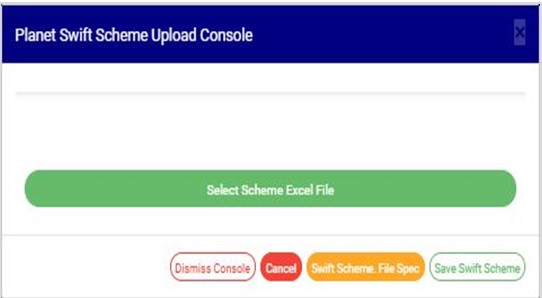
(fig. 11.2ab)
STEP 2: Click on ‘SELECT SCHEME EXCEL FILE’ as in fig. 11.2ac to choose the excel file filled with the new details to be uploaded on the planet.

(fig. 11.2ac)
➔ If you do not have the file specification for uploading new details, click on ‘SWIFT SCHEME FILE SPEC.’ as shown in fig. 11.2ad to download an excel file with the required specification.
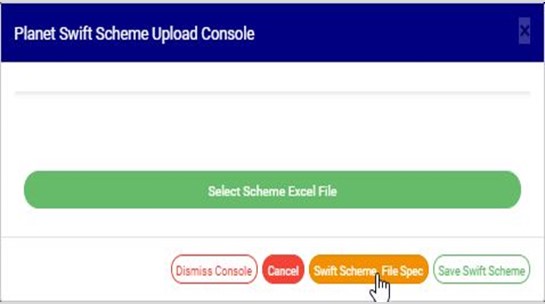
(fig. 11.2ad)
➔ An excel file will be downloaded to your computer with pre-filled titled columns under which the details will be entered. Open the file, fill in the required details of the new SWIFT schemes and save the changes to the file. Renaming the file on your computer is optional. Now you have a file to upload. Click on ‘Select Scheme Excel File’ to select the file.
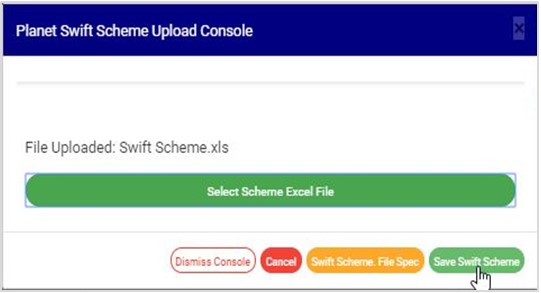
➔ After selecting a file from your computer, the name of the selected file will be added to the upload console. See fig. 11.2ae for an example.
(fig. 11.2ae)
STEP 3: Click on the ‘SAVE SWIFT SCHEME’ button as in fig. 11.2ae above to save the new SWIFT schemes on the software.
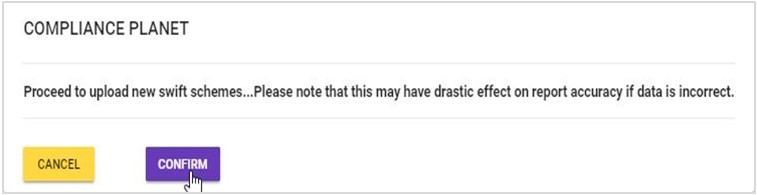
➔ This displays a confirmation console. Click on ‘CONFIRM’ to proceed or ‘CANCEL’ to return to the upload console. See fig. 11.2af.
(fig. 11.2af)
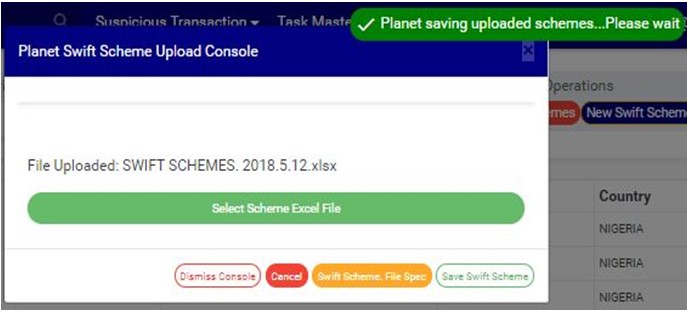
➔ A notification as in fig. 11.2ag will be displayed at the top of the page as the software is saving the new SWIFT schemes.
➔ SWIFT scheme upload report will be downloaded to your computer. This report will give information about the number of schemes (records) uploaded, processed, saved and number of duplicate and exempted schemes.
(fig. 11.2ag)
● ‘DISMISS’ BUTTON
This button is used for closing the SWIFT SCHEME page. Clicking on ‘’DISMISS’ as in fig. 11.2ah below will close the page and take you to the CONTROL PANEL home page as in fig. 11.2a.

(fig. 11.2ah)
