
The operations pertaining to exempted account scheme include exempting an account scheme and removing an account scheme from the CTR exemption list.
To perform any of the operations on Exempted Account schemes;
STEP 1: From the main dashboard, click ‘CONTROL PANEL as in fig 17.2a below

(fig. 17.2a)
STEP 2: Click ‘EXEMPTED ACC. SCHEME’ on the left hand side menu. . See fig. 17.2b below.
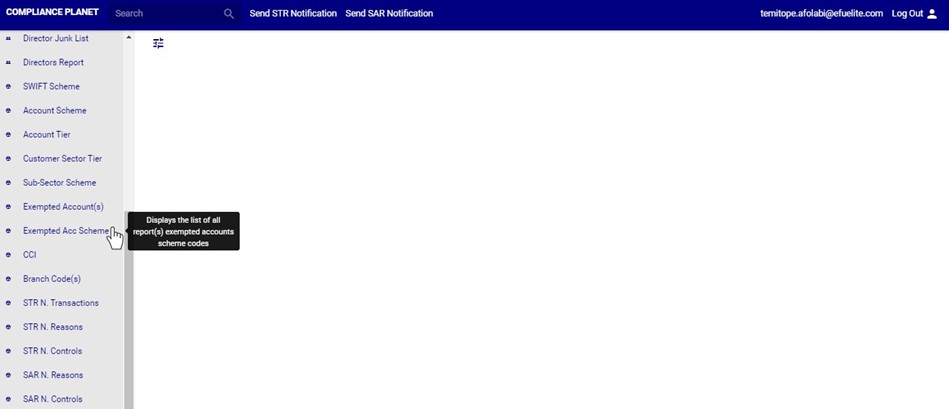
(fig. 17.2b)
➔ This displays a page as seen in fig. 17.2c below.
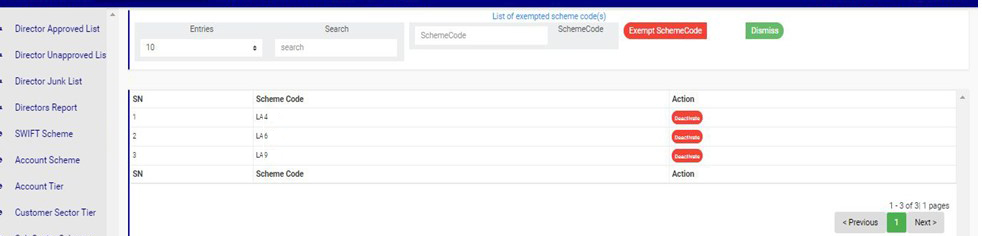
(fig. 17.2c)
➔ Click on the ‘ENTRIES’ box to adjust the number of entries per page as shown in fig. 17.2d below.
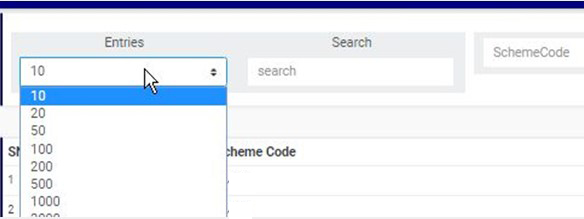
(fig. 17.2d)
➔ Type a scheme code in the search box to search for an exempted scheme code. See an example of a search in fig. 17.2e below.
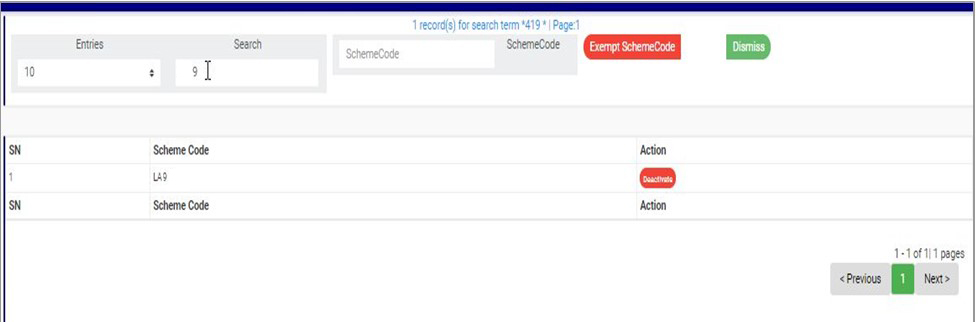
(fig. 17.2e)
➔ At the bottom-right corner of the page, the software gives information about the number of pages of the list, with the page numbers written out. The page numbers represent buttons to go to each page. By clicking on any page number, the software takes you to that particular page. Click on the ‘NEXT’ button to go to the next page or the ‘PREVIOUS’ button to go to the page before the current page.
➔ To close the Exempted Acc. Scheme page or return to the Control Panel home page, click ‘DISMISS’ as shown in fig. 17.2f below.

(fig. 17.2f)
How To Exempt An Account Scheme
This refers to adding an account scheme code to the exemption list. Here is how to do this.
STEP 1: Type an account scheme code in the SCHEME CODE box. See an example in fig. 17.3a below.
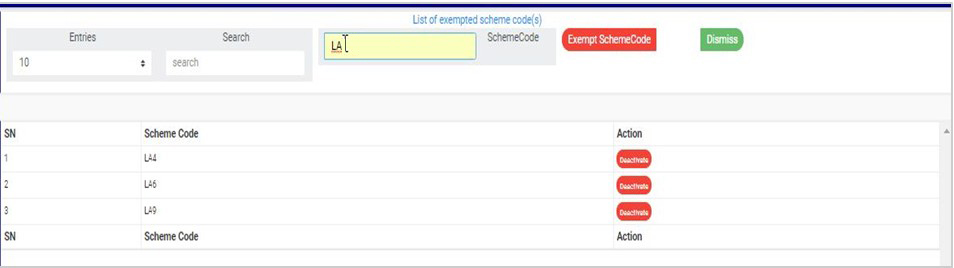
(fig. 17.3a)
STEP 2: Click on ‘EXEMPT SCHEME CODE’’ as shown in fig. 17.3b.
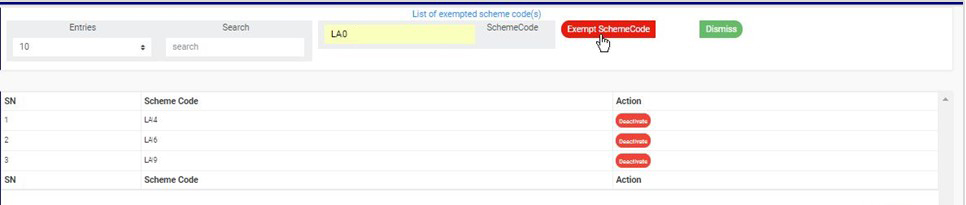
(fig. 17.3b)
➔ This displays a confirmation console as in fig. 17.3c.
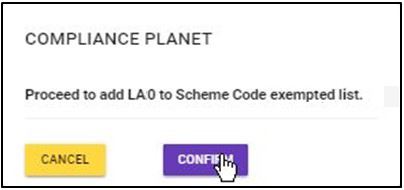
(fig. 17.3c)
STEP 3: Click on ‘CONFIRM’ to add the account scheme to the exemption list or ‘CANCEL’ to discontinue. If you proceed, a notification will be displayed at the top of the page. See fig. 17.3d for an example.
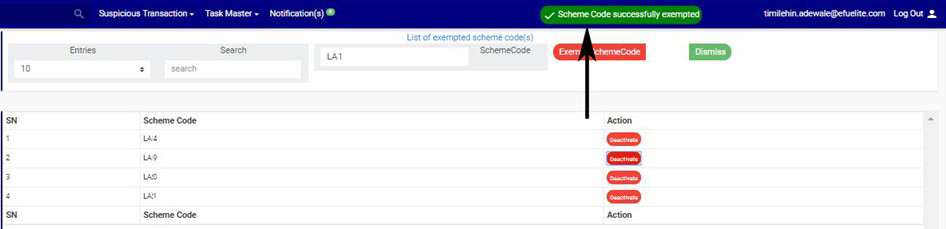
(fig. 17.3d)
To remove an account scheme from the exemption list;
STEP 1: Click ‘DEACTIVATE’ button as in fig. 17.4a for an example.
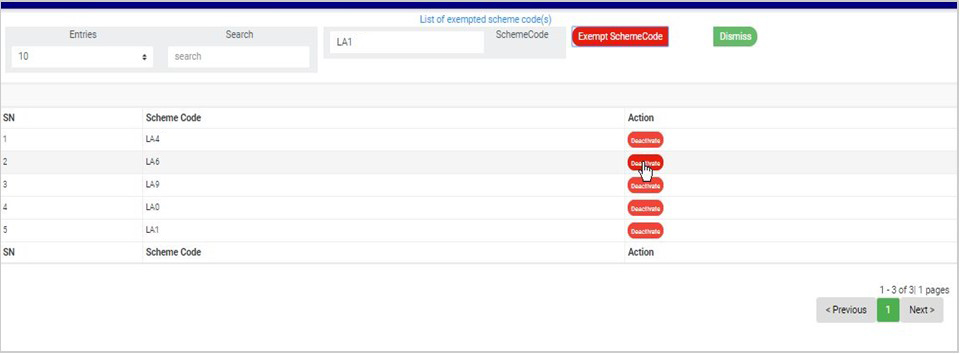
(fig. 17.4a)
➔ This displays a confirmation console as in fig. 17.4b.
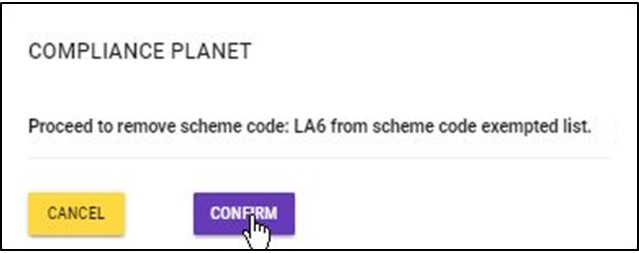
(fig. 17.4b)
STEP 2: Click on ‘CONFIRM’ to remove the account scheme from the scheme code exempted list or ‘CANCEL’ to discontinue. If you proceed, the scheme code will be removed from the list immediately and a notification will be displayed at the top of the page. See fig. 17.4c for an example.
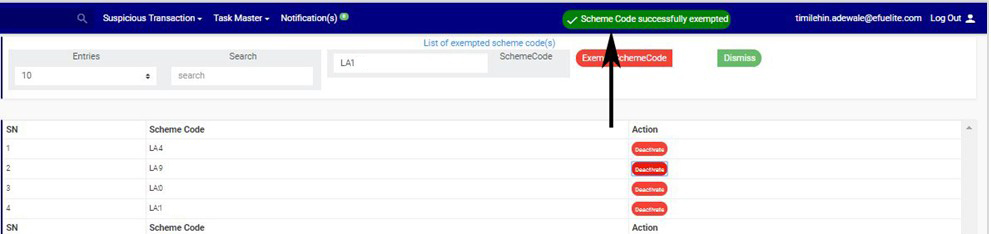
(fig. 17.4c)
