
This section provides a guide on how to make personal settings on the Compliance Planet, with step-by-step instructions and pictures.
Personal Settings Operations
The operations available in this section pertain to;
- File dock settings
- Log-in settings
Follow the steps outlined below to view or change your personal settings,
- From the main dashboard, click ‘PERSONAL SETTINGS’ as in fig. 29a below

- This displays a page as seen in fig. 29.1a below.
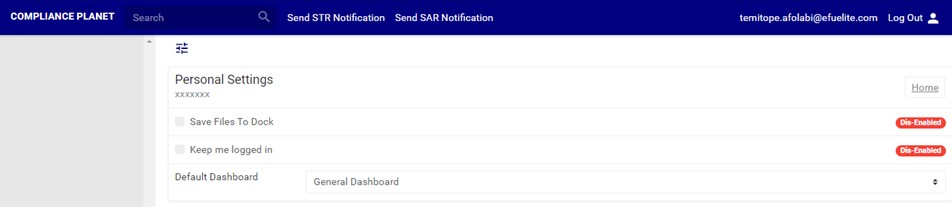
(fig. 29.1b)
- Each setting has a status bar which shows whether it is enabled or disable. See this in fig. 23.1a above.
File Dock Settings
This refers to enabling or dis-enabling the auto-saving of generated files to the Compliance planet software file dock. To activate or deactivate auto-save for generated files to the file dock, click the ‘SAVE FILES TO FILE DOCK’ checkbox.
- When the checkbox for this feature is ticked, it activates the feature and a notification will be displayed at the top of the page. The status will also change from ‘Dis-Enabled’ to ‘Enabled’ See fig. 29.2a for an example.
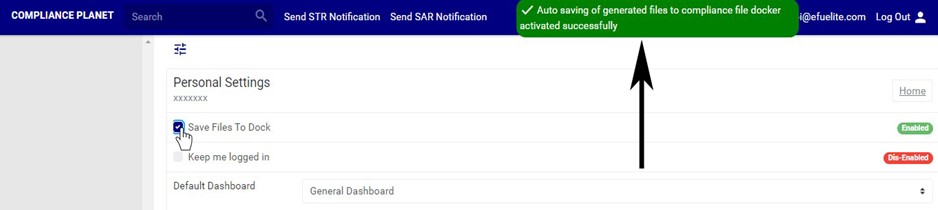
(fig. 29.2a)
- When you untick the checkbox, the feature is deactivated and a notification will be displayed at the top of the page. The status bar will also change from ‘ENABLED’ to ‘DIS-ENABLED’ also. See fig. 29.2b for an example.
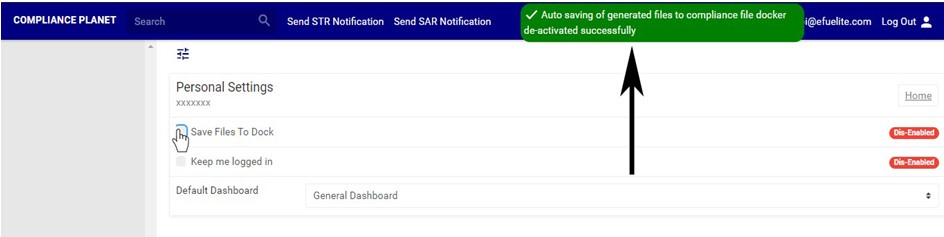
(fig. 29.2b)
Log In Settings
This refers to enabling or dis-enabling the automatic login of your account credentials on the Compliance Planet. To activate or deactivate the automatic login of your account whenever you open the Compliance Planet on your computer, click on the ‘KEEP ME LOGGED IN’ checkbox.
- When you tick the checkbox to activate the feature, the software will display a notification at the top of the page and the status bar will change from ‘DIS-ENABLED’ to ‘ENABLED’. See fig. 29.3a for an example.
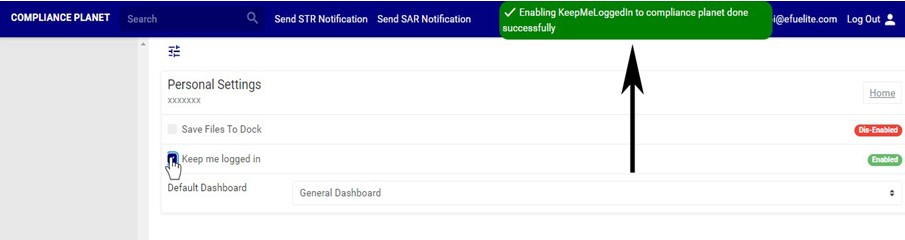
(fig. 29.3a)
- When you untick this checkbox to deactivate the feature, the software will display a notification at the top of the page and the status bar will change from ‘ENABLED’ to ‘DIS-ENABLED’. This means that any time you open the compliance planet software, you will have to provide you log-in credentials before accessing the Compliance planet features. See fig. 29.3b for an example.
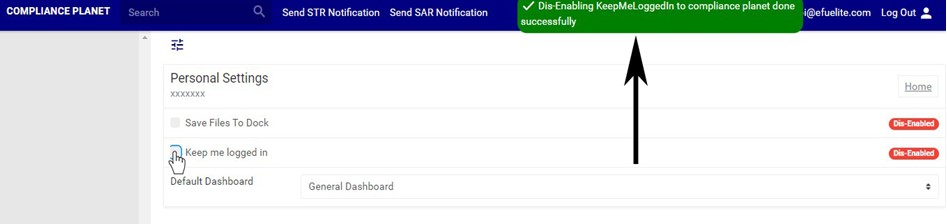
(fig. 29.3b)
- You can also choose a prefered default landing page as in fig. 29.3c. i.e. the page that will be displayed first anytime you open the software.
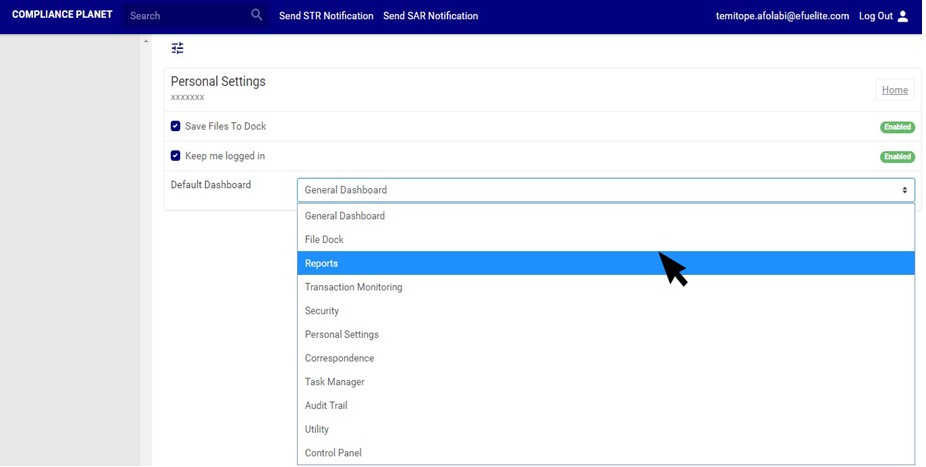
(fig. 29.3c)
For further enquiries :
Tel +234(0) 816 555 9818
Email solutions@efuelite.com
Web http://solutions.efuelite.com
