Anti-Money Laundering Monitoring, Digital and Financial Crime Surveillance, Global Sanction and PEP Screening And Reporting Software
How to View Action Log In Compliance Planet Anti Money Laundering/Core Banking Finance Software
The Action log provides a list of activities or actions that were carried out successfully and completed on the Compliance Planet software in chronological order at any time. Here is how to view an action log for any period of time.
NOTE: Only the Supreme Administrator can carry out this operation
STEP 1: Click on ‘Action log’ on the audit trail page as in fig. 28.4a
(fig. 28.4a)
You can also click on ‘User trail’ on the left hand side menu as in Fig. 28.4b
(fig. 28.4b)
This displays the User log page as seen in fig. 28.4c below.
(fig. 28.4c)
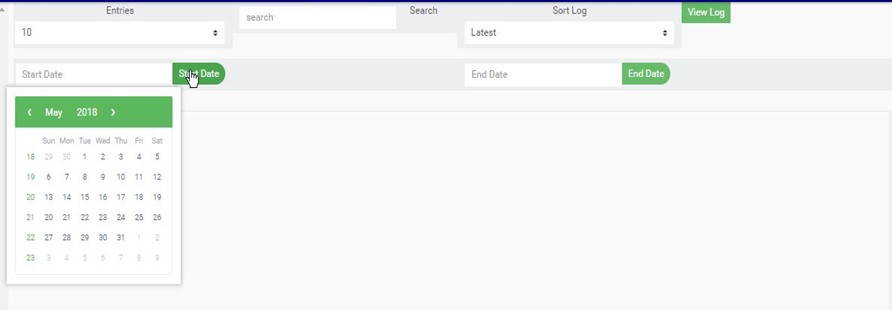
STEP 2: Click on the ‘Start Date’ button. This will display a calendar below the date. See fig. 28.4d for an example.
(fig. 28.4d)
Take a look at the arrows labelled a to d in fig. 28.4e to study the calendar.
Click on the given year to change it to your year of choice.
Click on the given month to change it to your month of choice.
Then, click on the date of the month.
You can also click on the angle brackets on the calendar [ ‘<’ or ‘>’ ] to go backward or forward.
(fig. 28.4e)
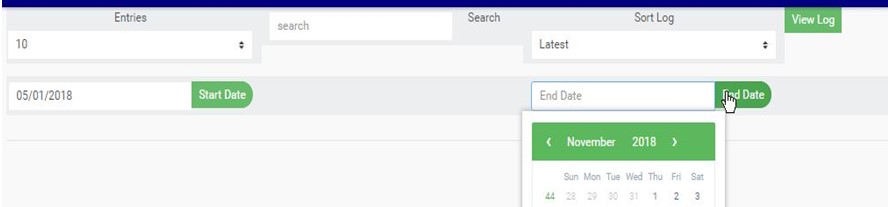
STEP 3: Click on the ‘End Date’ button to specify the end date. This displays a calendar below the date box. See fig. 28.4f for an example.
(fig. 28.4f)
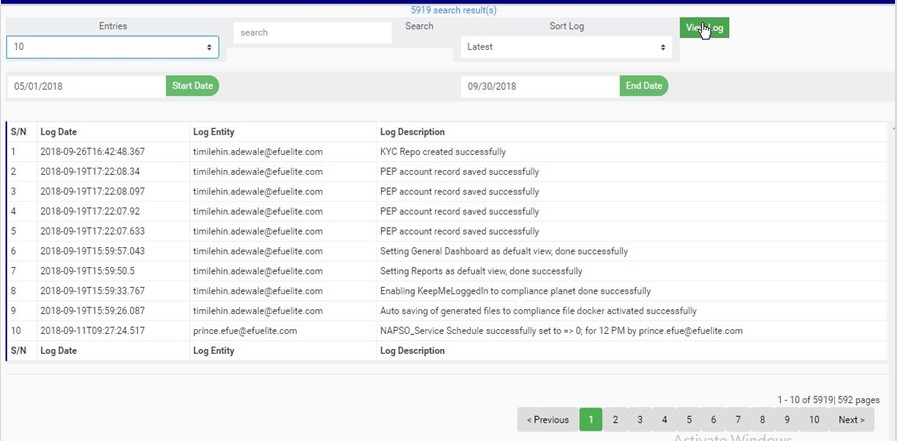
STEP 4: Click on ‘View Log’ as in fig. 28.4g to view the services.
(fig. 28.4g)
This displays a list of activities that were successfully carried within the specified date. See fig. 28.4h for an example.
(fig. 28.4h)
Click on the ‘entries’ box to change the number of entries you want to see per page. See fig. 28.4i.
(fig. 28.4i)
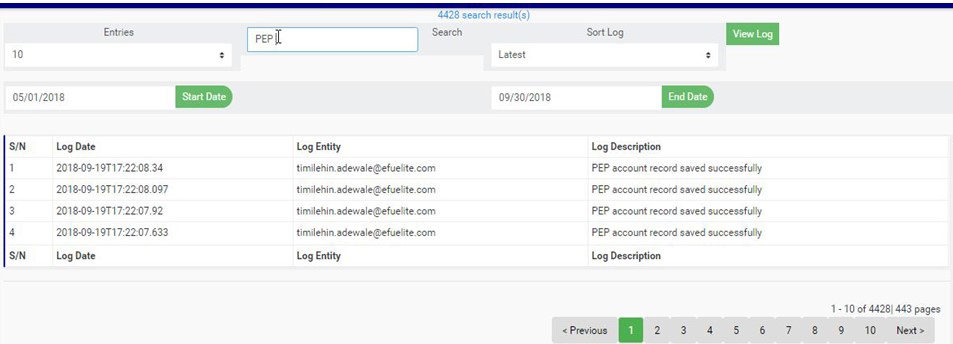
Search by inputting a search term in the ‘Search’ box. See fig. 28.4j for an example of a search.
(fig. 28.4j)
You can sort out the records to be seen from the latest to the earliest or vice-versa. Specify the order of the list by clicking on the ‘Sort Log’ box as in fig. 28.4k below.
(fig. 28.4k)
At the bottom-right corner of the page, the software provides information about the number of pages, with the page numbers written out. Clicking on a page number to go to that particular page. Click on ‘NEXT’ to go to the next page and click on ‘PREVIOUS’ to go to the page before the current page. See these features in fig. 28.4l below.