
This feature allows service operations for various transaction types to be scheduled for any hour of the day. Here is how to access the service operation schedule manager;
NOTE: Only person(s) profiled as Deputy Supreme Admin can carry out this operation
STEP 1: From the main dashboard, click ‘UTILITY’.

- This displays the ‘Utility’ home page. As in fig 34.3b below
STEP 2: Click on ‘Service Mgr Schedule’ on the left hand side menu as in fig. 34.3b or click on ‘Service Operations Schedule’ on the home page.
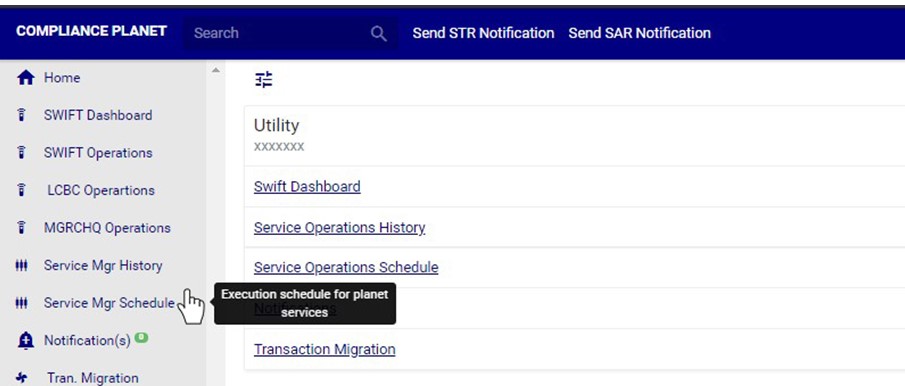
(fig. 34.3b)
- This displays the ‘service operations schedule’ page as shown in fig. 34.3c.

(fig. 34.3c)
STEP 2: Click the ‘Service’ box to select the transaction type you want to view it’s schedule of service operations as shown in fig. 34.3d below.
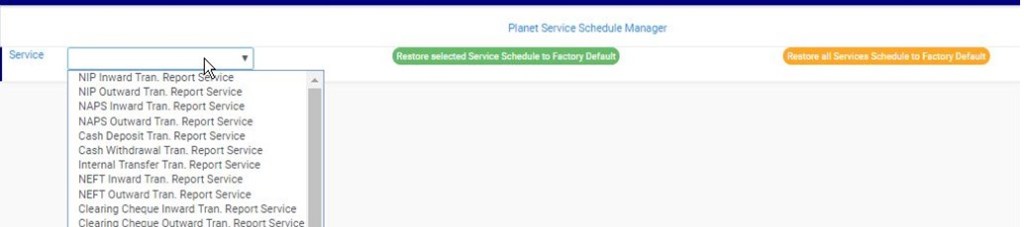
(fig. 34.3d)
- The selected service time schedule will be displayed immediately. See fig. 34.3e for an example.
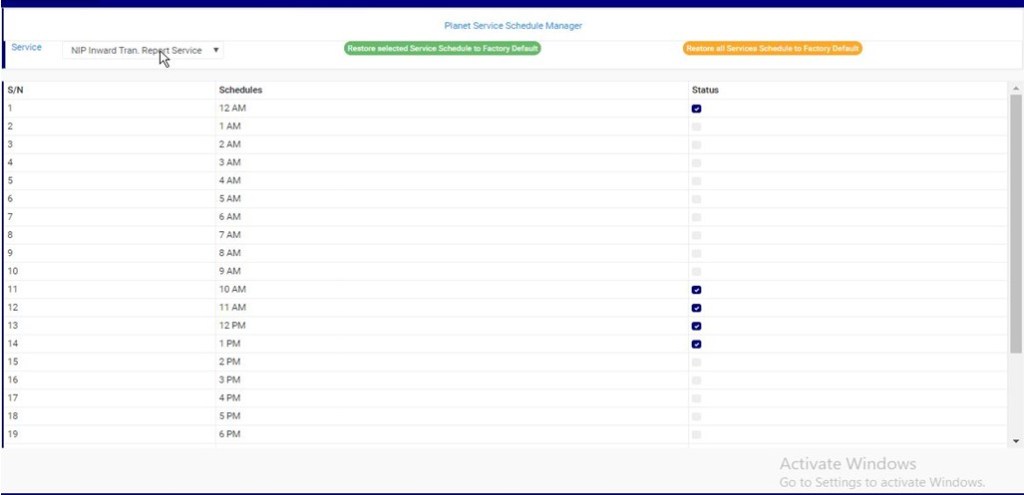
(fig. 34.3e)
- You can schedule a service operation for any time of the day by marking the time checkbox. Click on the checkbox to select or deselect a time of the day. By selecting or deselecting any time schedule, the software will display a notification at the top of the page. See fig. 34.3f and fig. 34.3g to see examples of notifications in the case of selecting and deselecting a time of the day respectively.
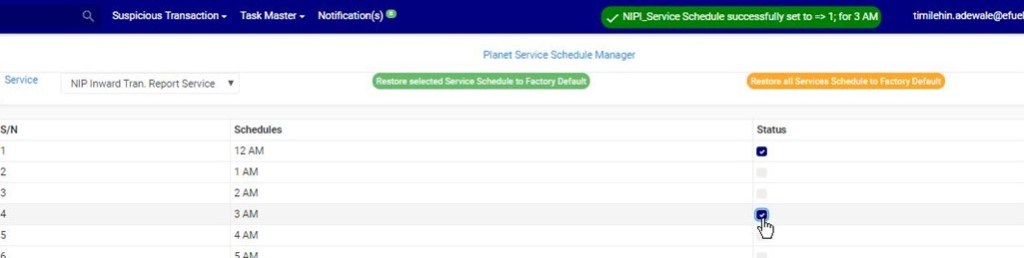
(fig. 34.3f)
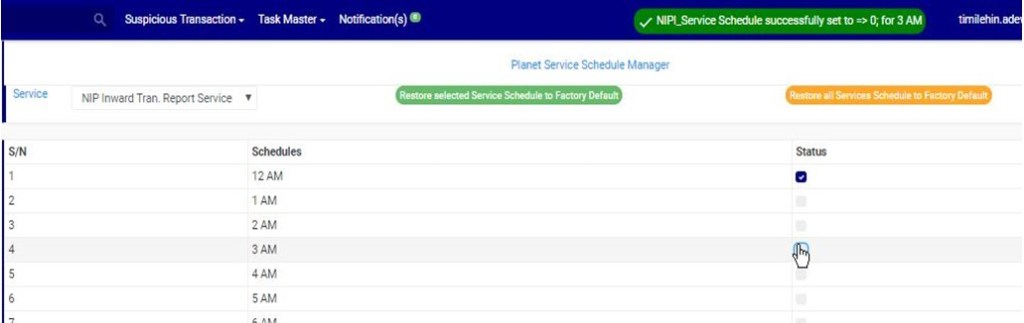
(fig. 34.3g)
- You can also restore the selected service operation schedule to factory default settings by clicking on ‘Restore Selected Service Schedule To Factory Default’.
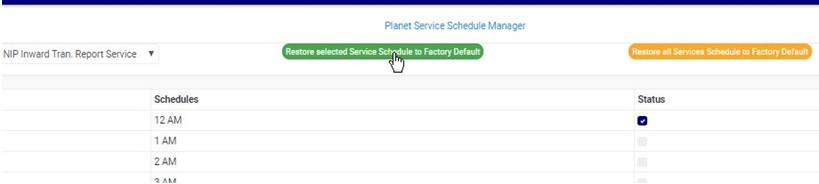
(fig. 34.3h)
- To restore all services operation schedule to factory default settings, click on ‘Restore All Services Schedule To Factory Default’ as in fig. 34.3i below.
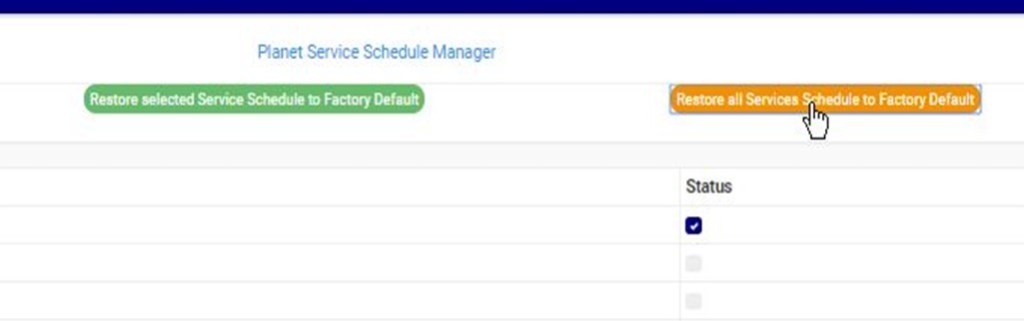
(fig. 34.3i)
- A confirmation console will be displayed as in fig. 34.3j to confirm your request. Click on ‘Confirm’ to proceed or ‘Cancel’ to discontinue.
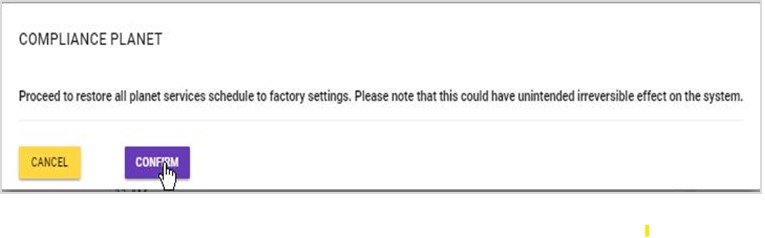
(fig. 34.3j)
- A notification will be displayed at the top of the page when the restore is successful.
For further enquiries :
Tel +234(0) 816 555 9818
Email solutions@efuelite.com
Web http://solutions.efuelite.com
