
This feature houses notifications generated by the Compliance planet software when a report is processed successfully. These notifications are also sent to the mail of the user. This section provides a guide on how to perform operations pertaining to notifications on the Compliance Planet software, with step-by-step instructions and pictures.
Notification Operations
Operations here include viewing and deleting notifications. Here is how to make use of the features.
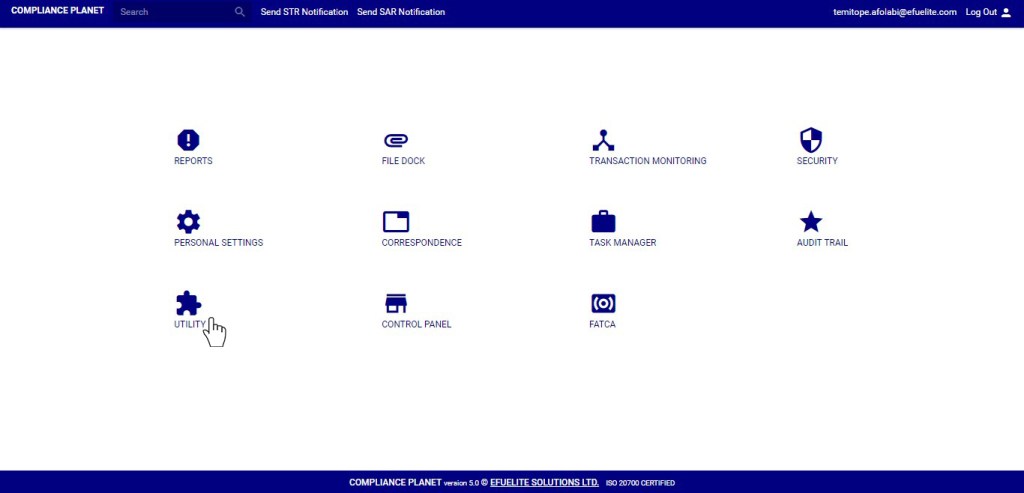
- From the main dashboard, click ‘UTILITY’.
- This will display the ‘Utility’ home page. See fig. 35.1b below for an example of the home page.
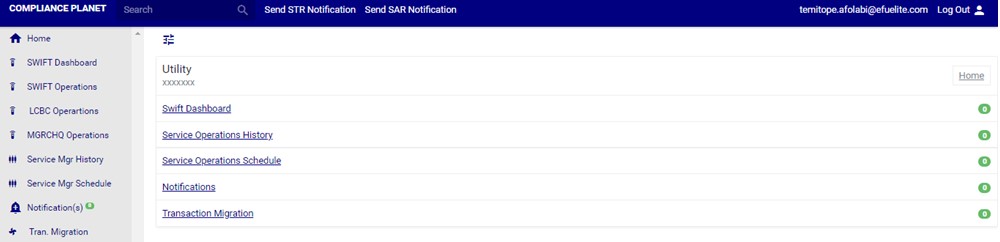
(fig. 35.1b)
- Click on ‘Notification’ on the left hand side menu as in fig. 35.1c or click ‘Notifications’ on Utility home page.

(fig. 35.1c)
- This will display the notifications page. See fig. 35.1d for an example of the page.
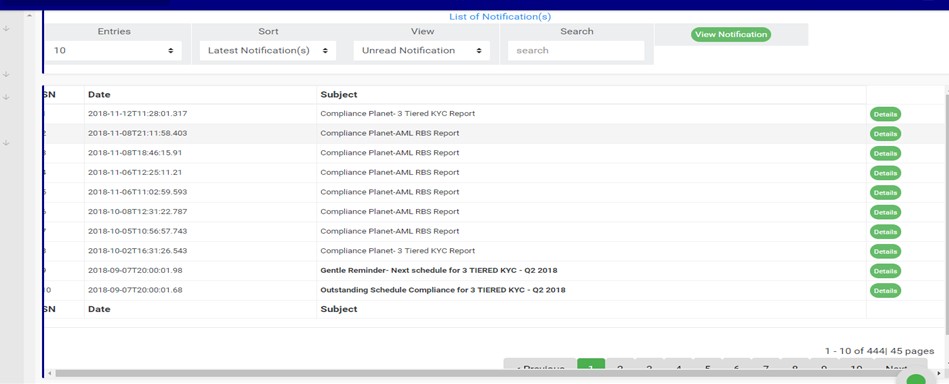
(fig. 35.1d)
- Click on the ‘entries’ box as in fig. 35.1e to adjust the number of notifications you want to see per page.
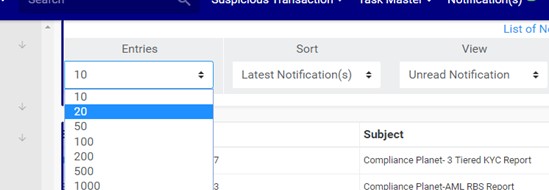
(fig. 35.1e)
- You can sort the notifications to be seen from the latest notification (oldest notification) to the earliest notification (newest notifications) or vice-versa. Specify the order of the list by clicking on the ‘Sort’ box as in fig. 35.1f. The default view is from the latest to the earliest.
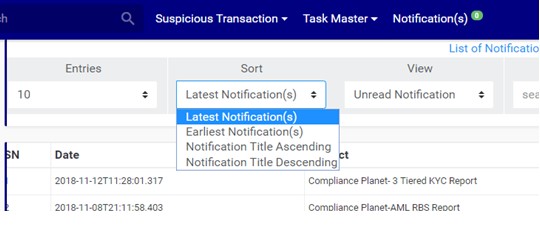
(fig. 35.1f)
- Select the notifications to be displayed by clicking the ‘View’ box as in fig. 35.1g. The categories of notifications available are; Unread notification, Read notification, Deleted notification and All notifications. The Unread category is the default view on landing on the page.
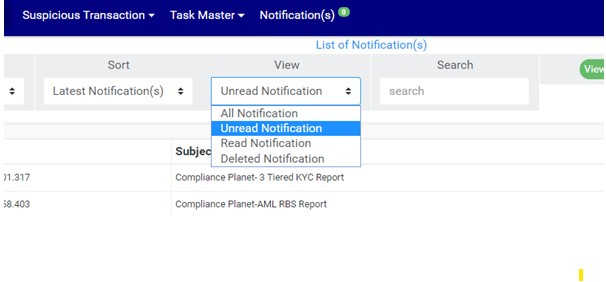
(fig. 35.1g)
- After selecting the category you want to see, click on ‘View Notification’ as in fig. 35.1h.

(fig. 35.1h)
- Search for a notification or a set of notifications by typing a search term in the ‘Search’ box. Search results are displayed in real time. See fig. 35.1i for an example of a search.
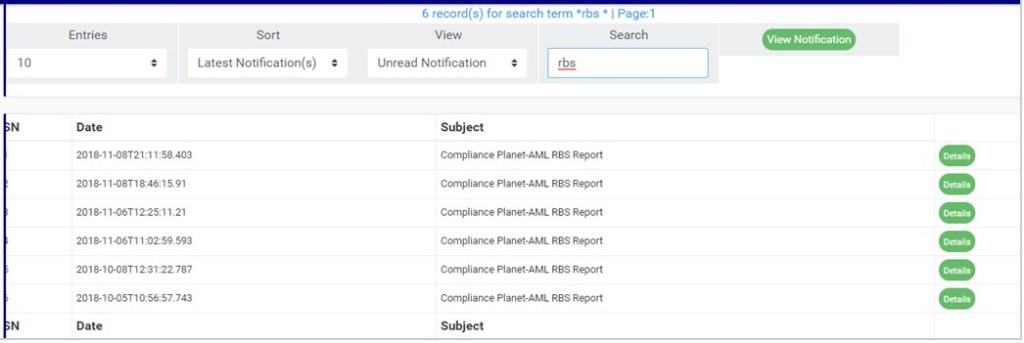
(fig. 35.1i)
- Each notification has a ‘Details’ button that shows details of the message conveyed by the notification. Click on ‘Details’ as in fig. 35.1j to see a notification message.
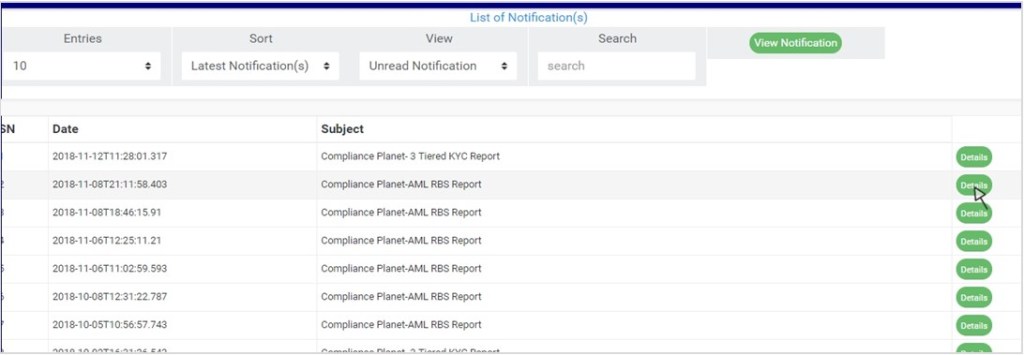
(fig. 35.1j)
For further enquiries :
Tel +234(0) 816 555 9818
Email solutions@efuelite.com
Web http://solutions.efuelite.com
