
Using the PEP Account Repository feature, you can see a list of all the PEP accounts on the Compliance Planet software. Here are the steps:
NOTE: Only person(s) assigned the right to ‘view PEP Report’ and ‘process PEP Report’ can carry out these operation (s)
STEP 1: From the app dashboard, click on “REGULATORY REPORTS” as in Fig. 4.5a below.
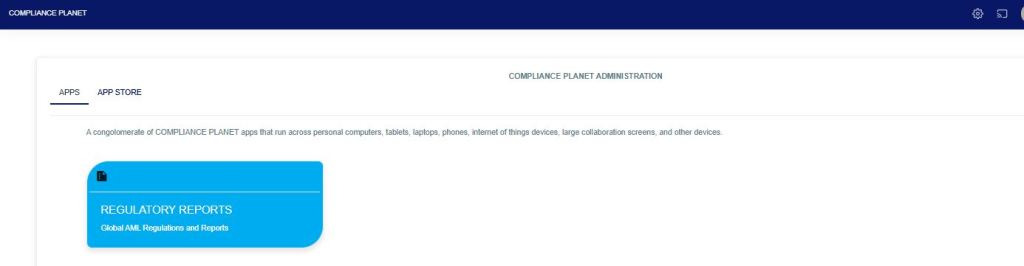
Fig 4.5a
STEP 2: Click ‘CBN ADRAPS PEP’ on the drop-down list and display the PEP page as in Fig. 4.5b below.
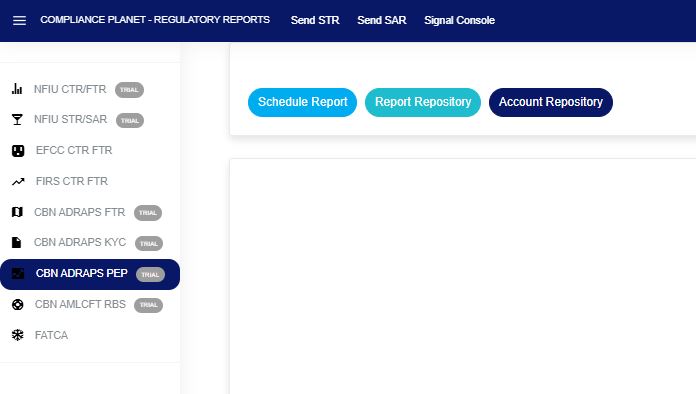
Fig 4.5b
STEP 3: From the menu, click “Account Repository” as in Fig. 4.5c below.
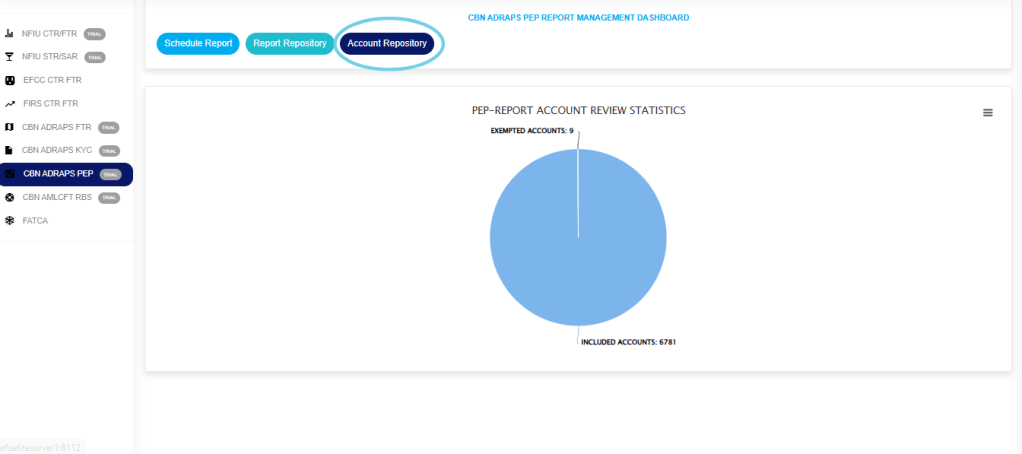
Fig 4.5c
- This displays a page showing a list of all the PEP accounts, as in Fig. 4.5d below.
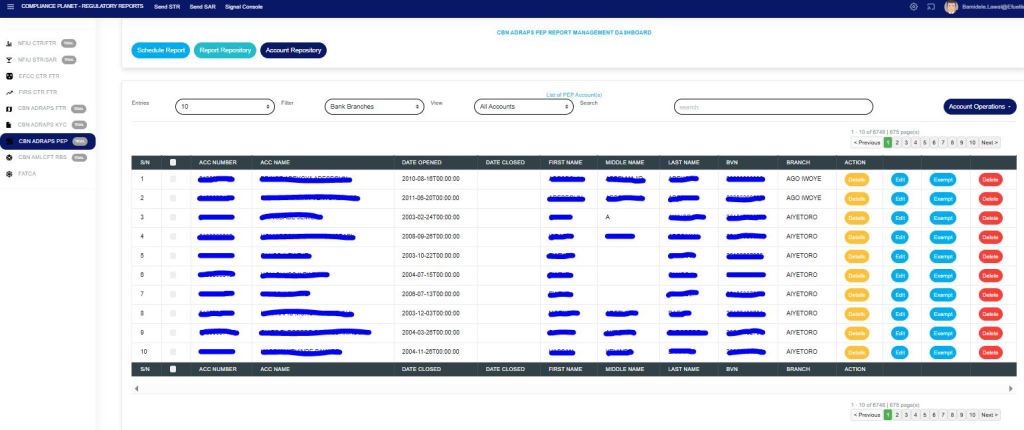
Fig 4.5d
- At the top-right and bottom-right corners of the page, there is information about the number of pages. The NEXT button takes you to the next page of the list, and the PREVIOUS button takes you to the page before the current one.
STEP 5: Click on the FILTER BOX to view the PEP list for a specific branch bank. The default list includes all branches of the institution (See Fig. 4.5d above). Therefore, you can select any branch to view its PEP accounts, as shown in Fig. 4.5e below.
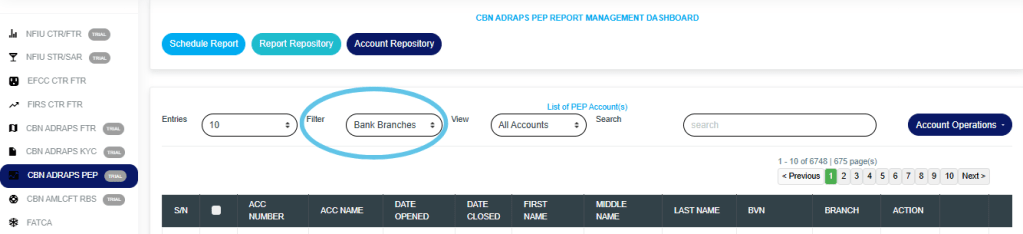
Fig 4.5e
STEP 6: Type in the SEARCH BOX next to the FILTER box to narrow your list to a particular account number, account name, first name, middle name, last name, or bank verification number.
Note that you can’t search a branch name. The filter box does that already.
See Fig. 4.5f below to see an example of a search.
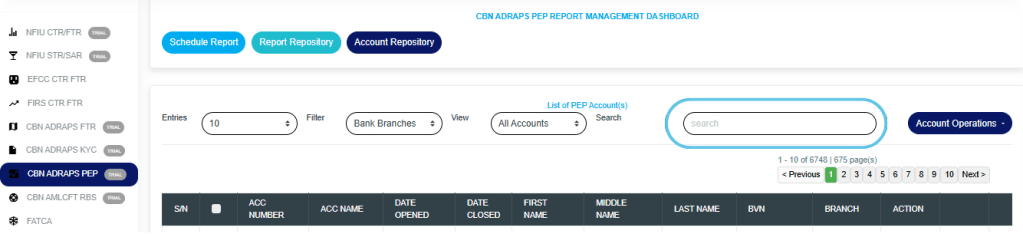
Fig 4.5f
- Sort orders in ascending or descending order:
Click on the “Account Opened Date” column header to sort the records in ascending or descending order. - Action buttons:
For every search result given on the ‘PEP Account Repository’ page, there are action buttons right at the end of the row, and they are:
Details button
Edit button
Exempt button
Delete button
These buttons only affect the account on their respective rows. - DETAILS
Click on the “Details” button, and a console, as shown in Fig. 4.5g below, will be displayed, showing the details of the PEP account on the row you clicked the button. To close the console, click on “DISMISS CONSOLE“.

Fig 4.5g
- EDIT
Click the “Edit” button to update or modify information in the details of your PEP account console. This button is next to the DETAILS button. By clicking on EDIT, a console as in Fig. 4.5h below, titled CREATE NEW PEP ACCOUNT will be displayed. This console is identical to the one generated when creating a new PEP account, but it comes pre-populated with fields that are already filled in. After filling in the details, effect the changes by clicking on the “SAVE” button. If you do not want to edit the information on the console, click on “CANCEL”.
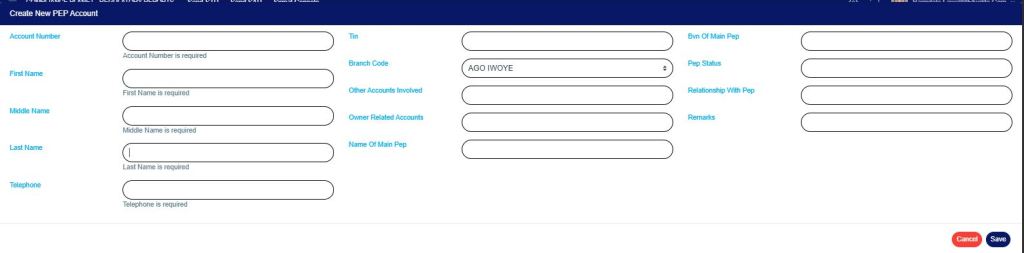
Fig 4.5h
- EXEMPT
Click on the “Exempt” button, and a console, as shown in Fig. 4.5i below, will be displayed, displaying the account number and account name of the PEP to be exempted, along with the reason(s) for exemption. Click on “DISMISS CONSOLE” to close the console if the PEP is not to be exempted.
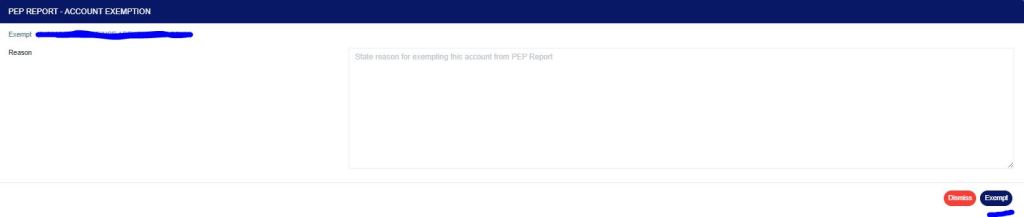
Fig 4.5i
- DELETE
Click on the “DELETE” button to remove a PEP account.
NOTE: Only person(s) assigned the right to ‘Process PEP Report’ and ‘Edit PEP Report’ can carry out these operations - This displays a confirmation console as in Fig. 4.5j. Click “CANCEL” if you do not want to delete the account, or click on “CONFIRM” to confirm your request to delete the account. When you do this, the account will be deleted immediately from the list.
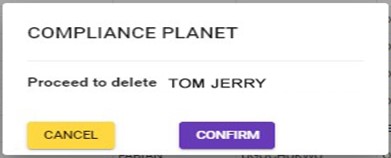
Fig 4.5j
- Also, the PEP ACCOUNT REPOSITORY page gives options for bulk operations. The bulk operations include downloading PEP accounts and deleting PEP accounts.
How to Carry Out Bulk Delete of PEP Records
NOTE: You need to be assigned the right to ‘edit PEP Report’ to be able to delete reports.
- To carry out a bulk delete of accounts, select the accounts you want to delete as shown in Fig. 4.5k below
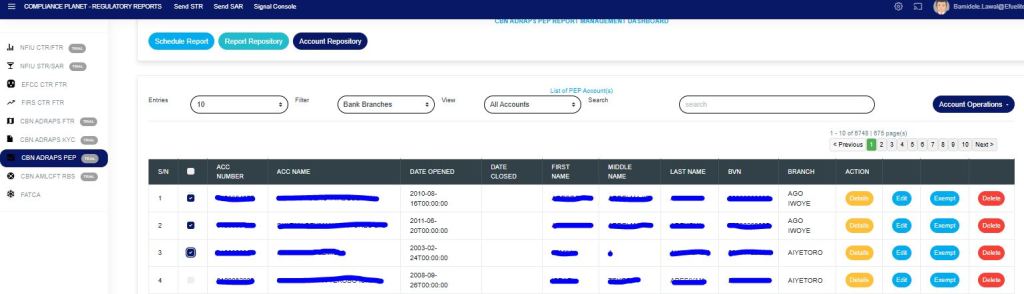
Fig 4.5k
- Click on “Account Operations” as shown in Fig. 4.5l below.
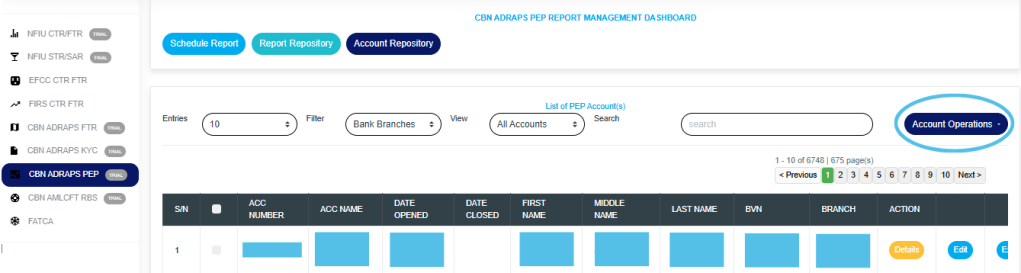
Fig 4.5l
- This will display a drop-down as in Fig. 4.5m below,
- Click “Delete Selected Account” as in Fig 4.5m below
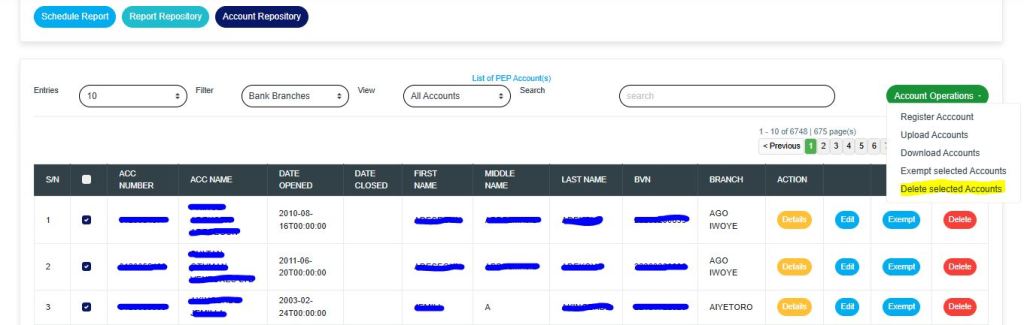
Fig 4.5m
How to Carry Out Bulk Download of PEP Records
NOTE: You need to be assigned the right to ‘download PEP Report’ to be able to download reports.
- To carry out a bulk download of PEP accounts, select the accounts you want to download, and click “Download Selected Accounts” as shown in fig. 4.5n below.
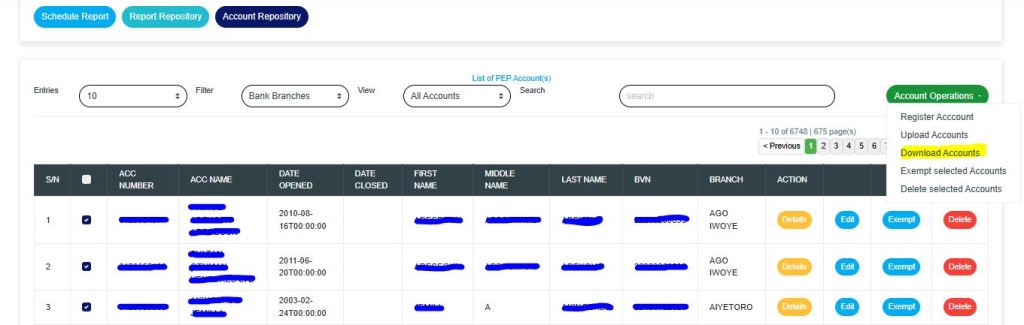
Fig 4.5n
For further enquiries :
Tel +234(0) 816 555 9818
Email solutions@efuelite.com
Web http://solutions.efuelite.com

One thought on “How To Generate PEP Account List Report In Compliance Planet Anti Money Laundering/Core Banking Finance Software”