
The compliance planet keeps a record of all KYC reports that have been manually scheduled. This section will guide you on how to access your scheduled KYC report and other features to enhance your overall experience.
NOTE: Only the person(s) assigned the right to ‘view KYC Report’ can carry out these operations
Step 1: From the app dashboard, click on “REGULATORY REPORTS” as in Fig. 5.4a below.
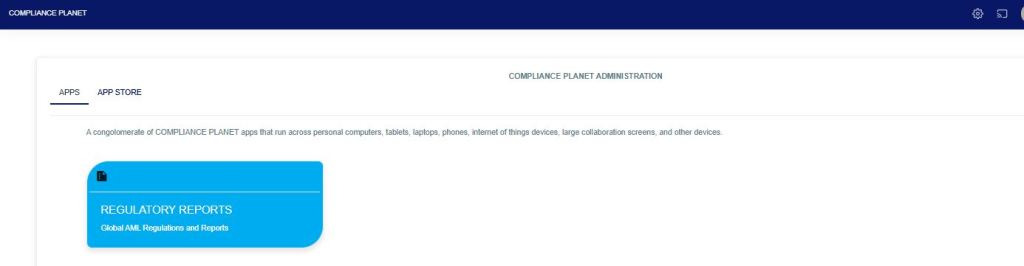
Fig 5.4a
STEP 2: Click ‘CBN ADRAPS KYC’ on the drop-down list and display the KYC page as in Fig. 5.4b below.
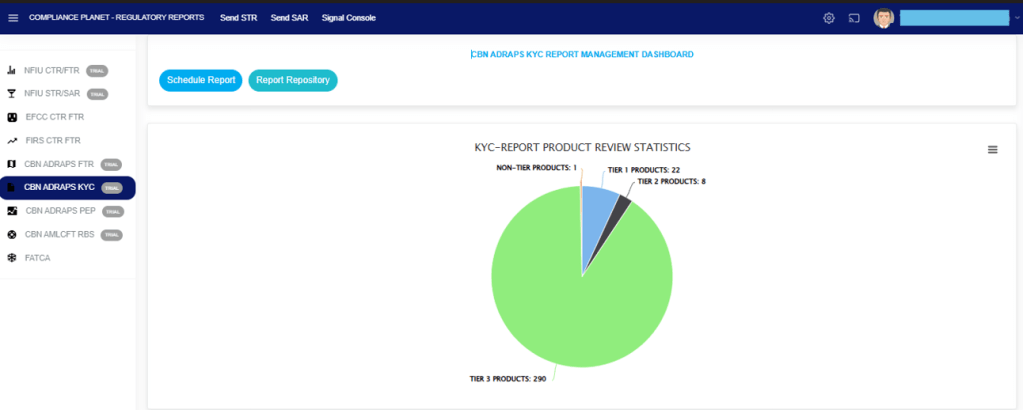
Fig 5.4b
STEP 3: From the menu, click ‘REPORT REPOSITORY.’ Check out Fig. 5.4c below.
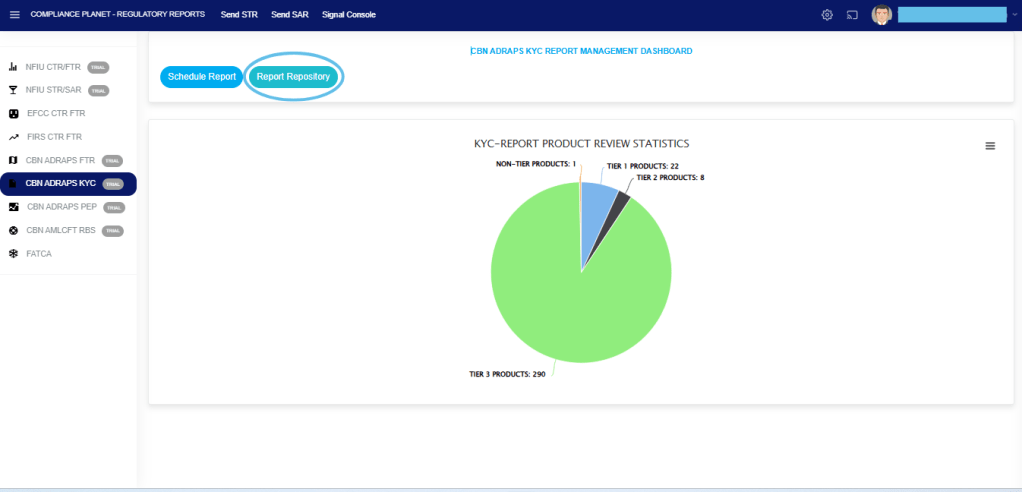
Fig 5.4c
- This will display a page as in Fig. 5.4d below. On this page, you can search for KYC reports by specifying the periods in which they were scheduled.

Fig 5.4d
STEP 4: Click on the “START DATE” button/box and the “END DATE” button/box to set the beginning and the end of the period in which the reports you want to see have been scheduled.
See Fig. 5.4e below for an example, and check out Fig. 5.3f to study using the compliance planet’s calendar.
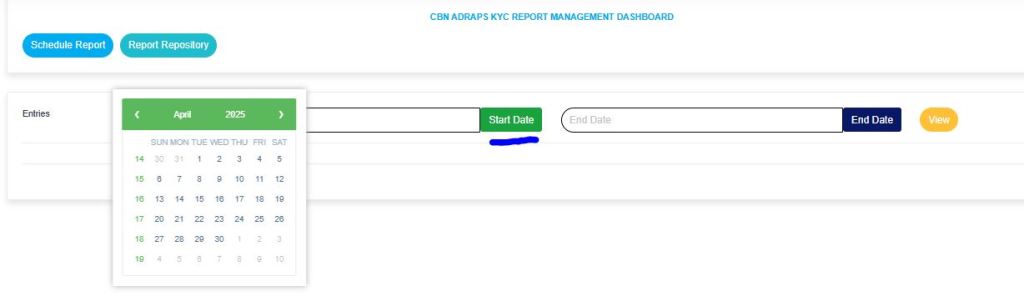
Fig 5.4e
- Take a look at the arrow labelled a-d in Fig. 5.4f to study the calendar.
- Click on the given year to change it to your year of choice.
- Click on the given month to change it to your month of choice.
- Then, click on the date of the month.
- You can also click on the angle brackets on the calendar [ ‘<’ or ‘>’ ] to go backward or forward.
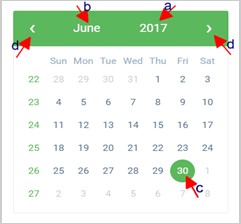
Fig 5.4f
- You can increase the number of reports you want to see per page by clicking on the ENTRIES box. See Fig. 5.4g below for an example.

Fig 5.4g
STEP 5: Click on the “VIEW” button to see the reports. It is an orange button at the upper area of the page, next to the END DATE box. By doing this, the software will search for reports scheduled for the period you entered in the date boxes. See Fig. 5.4h below. Click on the “VIEW “ button and see the results of the example in Fig. 5.4i.

Fig 5.4h
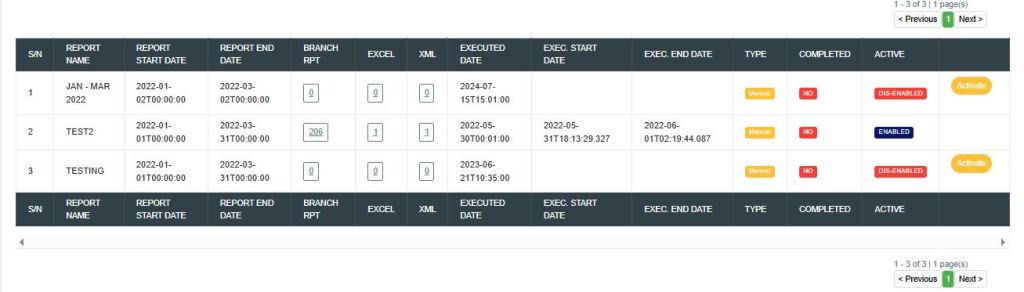
Fig 5.4i
- The software will search out the requested reports and give information about the start and end date, the number of branches the account information relates to (Branch Rpt), the number of Excel files and the XML files the report has been written into, the start date and end date for the processing of the report, the report type and whether the report has been completed or not. See Fig. 5.4i above.
- The numbers under the Branch Rpt column represent the branches reported in the KYC report. Click on “BRANCH RPT”, a page titled Branch KYC Report will appear. This page gives information about the branch’s ID, number of tier one and tier two accounts, total account balances, and number of accounts that moved from one tier to another for each branch reported in the ADRAPS KYC. See Fig. 5.4j below.
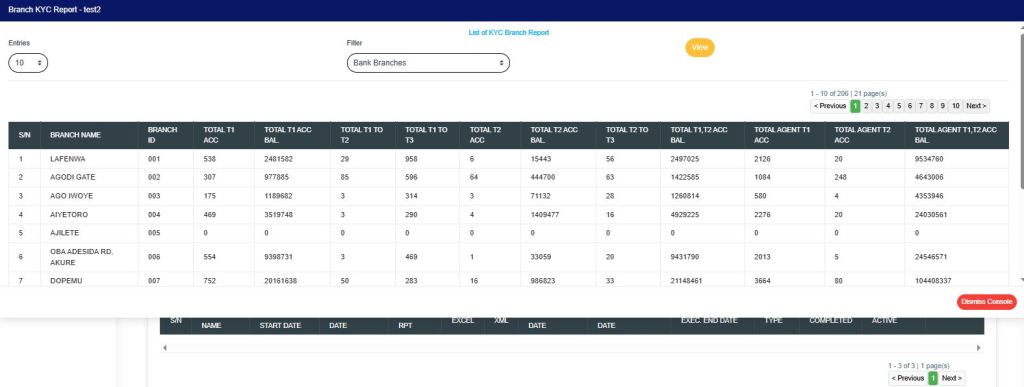
Fig 5.4j
BRANCH KYC REPORT PAGE
The Branch KYC Report page has various features, and here are the following steps on how to use them:
- ENTRIES
Click on the “ENTRIES” box to adjust the number of transactions you want to see per page. See Fig. 5.4k below for an example of how to do this. The software will automatically affect your changes.
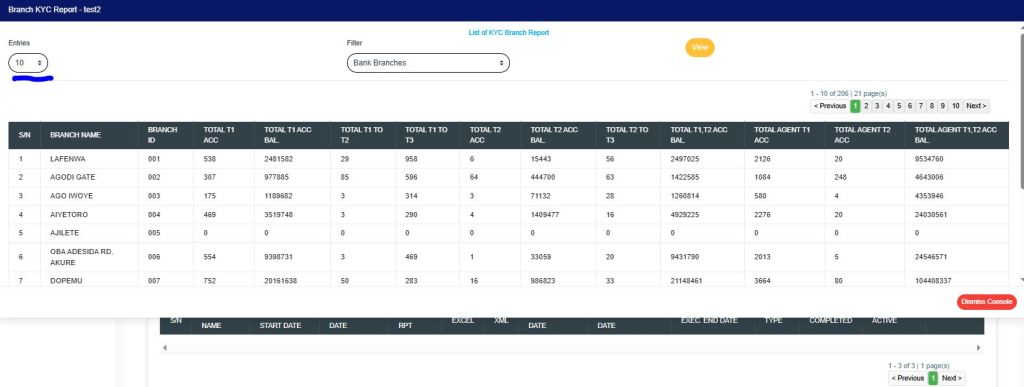
Fig 5.4k
- FILTER
Click on the “FILTER” box to select a bank branch for which you want to see KYC information. See Fig. 5.4l below for an example of how to do this.

Fig 5.4l
- VIEW
After selecting the bank branch of your choice, as in Fig. 5.4l above, click on “VIEW” to see the result of your selection. See Fig. 5.4m for an example of how to do this.

Fig 5.4m
- PREVIOUS AND NEXT
At the top-right and bottom-right corners, you see information about the number of pages. All the page numbers represent buttons for each page. By clicking on any page number, the software takes you to that particular page. Click on the “NEXT” button to take you to the next page.
Click on the “PREVIOUS” button to take you to the page before the current page. - DISMISS
To close this page, click on the “DISMISS” button at the bottom-right corner of the page.
Back to Fig. 5.4i. - The numbers under the ‘Excel’ column (in Fig. 5.4i) also represent the Excel files into which the software has written the report. By clicking on the number of Excel files, the KYC Repository Excel file(s) console will appear on the screen. See Fig. 5.4n below for an example of the console.
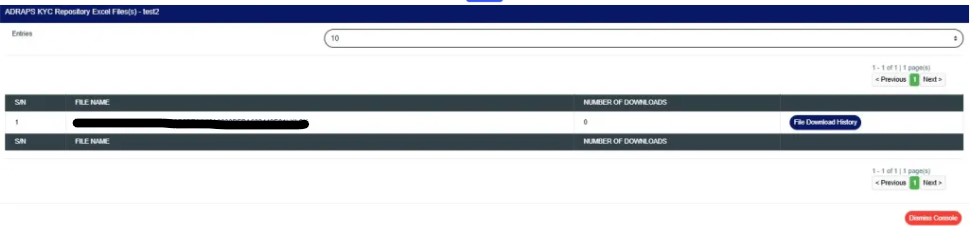
Fig 5.4n
KYC REPOSITORY EXCEL FILE (S) PAGE
The KYC Repository Excel file(s) page gives information about the Excel file name(s), the number of times users have downloaded the file, and the download history. It has various features, and here are the following steps on howto use them:
- ENTRIES
Click on the “ENTRIES” box to adjust the number of Excel files you want to see per page. See Fig. 5.4o below for an example of how to do this. The software will automatically affect your changes whenever you do this.
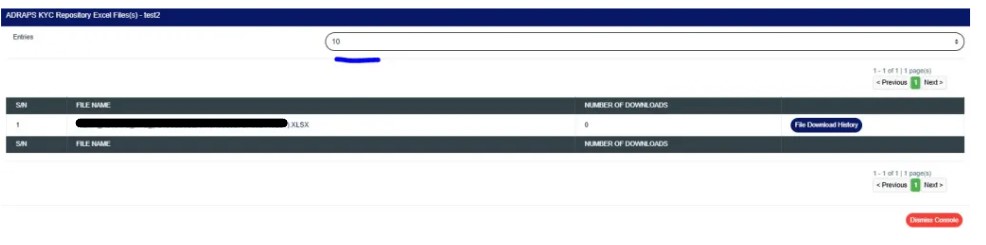
Fig 5.4o
- FILE NAME
Click on the “FILE NAME” to download the Excel file to your computer. The number of downloads will change once you click on the file name. See Fig. 5.4p below for an example of how to download the KYC Excel file.
NOTE: Only the person(s) assigned the right to ‘View KYC Report’ and ‘Download KYC Report’ can carry out these operations.
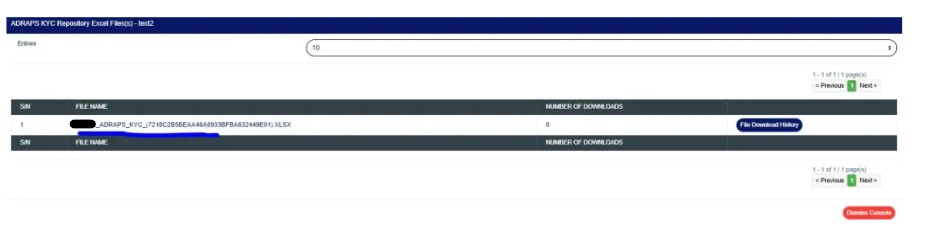
Fig 5.4p
- FILE DOWNLOAD HISTORY
Click the “File Download History” button to see who downloaded the file and the download time. A small console will be displayed. See Fig. 5.4o below for an example. Close the console by clicking the DISMISS button located in the bottom-right corner.
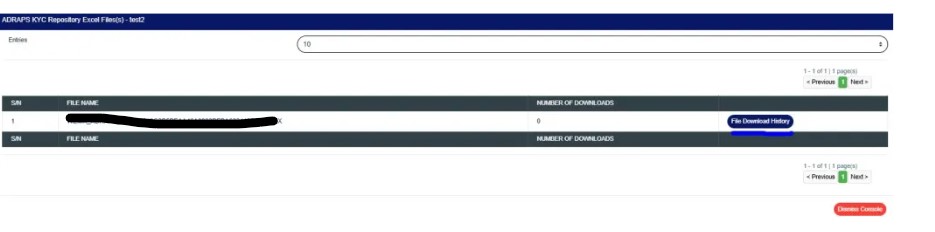
Fig 5.4q
- PREVIOUS AND NEXT
At the top-right and bottom-right corners, you see information about the number of pages. All the page numbers represent buttons for each page. By clicking on any page number, the software takes you to that particular page. Click on the “NEXT” button to take you to the next page.
Click on the “PREVIOUS” button to take you to the page before the current page. - DISMISS
To close this page, click on the “DISMISS” button at the bottom-right corner of the page.
Back to Fig 5.4i - The numbers under the ‘XML’ column (in Fig. 5.4i) also represent the number of XML files into which the software has written the respective report. By clicking on the number of XML files, a page will appear on the screen, as in Fig. 5.4r.
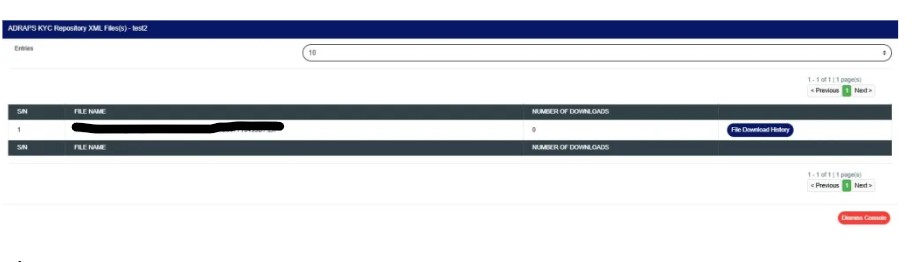
Fig 5.4r
KYC REPOSITORY XML FILE(S) PAGE
The KYC Repository XML file(s) page also gives information about the XML file name(s), the number of times users have downloaded the file(s), and the download history. The features on the KYC Repository XML file(s) page function similarly to those on the KYC Repository Excel file(s) page.
Here are the steps on how to make use of the KYC Repository XML file(s) page features:
- ENTRIES
Click on the “ENTRIES” box to adjust the number of XML files you want to see per page. See Fig. 5.4s below for an example of how to do this. The software will automatically apply your changes whenever you do this.
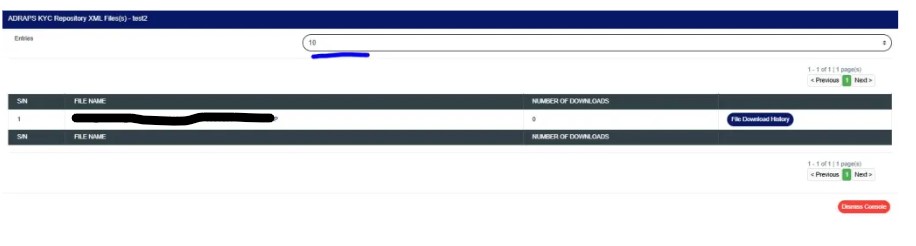
Fig 5.4s
- FILE NAME
Click on the “FILE NAME” to download the XML file to your computer. The number of downloads will change once you click on the file name. The file name is underlined, and the download is immediate! See Fig. 5.4t below for an example of downloading a KYC XML file.
NOTE: Only the person(s) assigned the right to ‘view KYC Report’ and ‘Download KYC Report’ can carry out these operation(s)
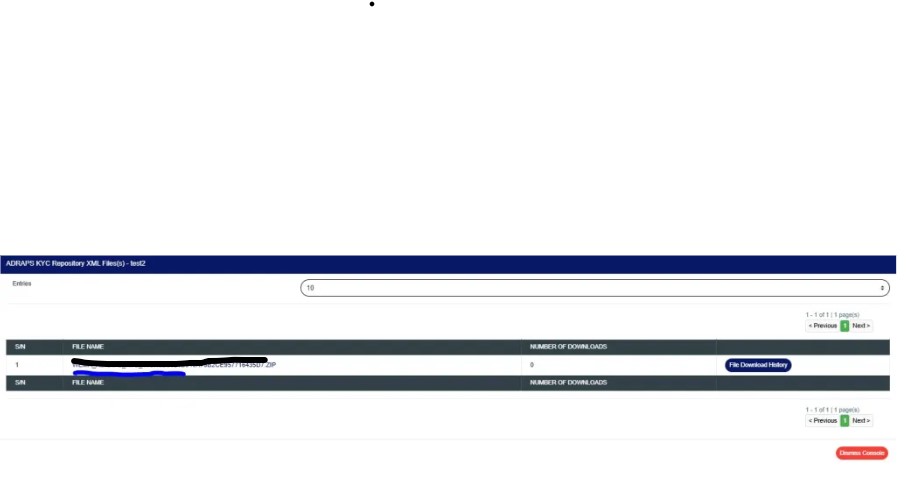
Fig 5.4t
- FILE DOWNLOAD HISTORY
Click the ‘File Download History‘ button to see who downloaded the file and the download time. A small console will be displayed on the page, as in Fig. 5.4u below. Close the console using the DISMISS button at the bottom-right corner of the console.
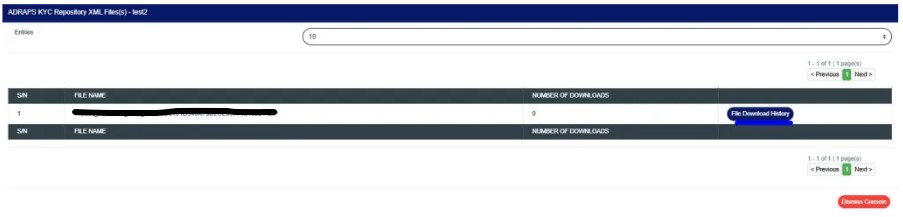
Fig 5.4u
- PREVIOUS AND NEXT
At the top-right and bottom-right corners, you see information about the number of pages. All the page numbers represent buttons for each page. By clicking on any page number, the software takes you to that particular page. Click on the “NEXT” button to take you to the next page.
Click on the “PREVIOUS” button to take you to the page before the current page. - DISMISS
To close this page, click on the “DISMISS” button at the bottom-right corner of the page.
- Back to fig. 5.4i – KYC Repository list page: At the end of each report row, the software indicates whether the report processing is enabled or disabled under the ‘ACTIVE’ column.
- For reports that have been completed, their status will read ENABLED. See Fig. 5.4i for an instance.
- There will be an extra button next to their ACTIVE status for reports that have not been completed. This button is used to ACTIVATE or DEACTIVATE the processing of the report. See Fig. 5.4i also for an example. When the report is enabled, the button turns red, and it can be used to DEACTIVATE the report. It is yellow when the report is disabled and can be used to ACTIVATE the report for processing.
STEP 6: Click on Activate to enable the processing of the report or Deactivate to disable the processing of the report.
NOTE: Only the person(s) assigned the right to ‘view KYC Report’ and ‘Edit KYC Report’ can carry out these operation(s)
- Clicking on ACTIVATE turns the status bar of the report to blue with an ‘ENABLED’ inscription, while clicking on DEACTIVATE will turn the status bar back to red with a ‘DIS-ENABLED’ inscription. See fig. 5.4v and fig. 5.4w to see the result of activating the report for an example, as well as Fig. 5.4x and Fig. 5.4y to know the result of deactivating the report for another example.
Activating a report

Fig 5.4v Fig 5.4w
Deactivating a report

Fig 5.4x Fig 5.4y
- At the top-right and bottom-right corners of the page, the software gives information about the number of pages of your result, with the page numbers written out. All the page numbers represent buttons for each page. By clicking on any page number, the planet takes you to that particular page. There is the NEXT button to take you to the next page when you click on it, and there is a PREVIOUS button to take you to the page before the one you are viewing. See these features in Fig. 5.4z below.
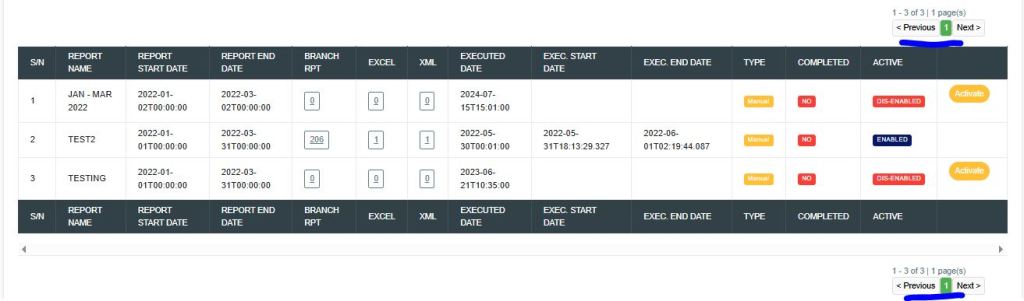
Fig 5.4z
For further inquiries:
Tel: +234(0) 816 555 9818
Email: solutions@efuelite.com
Web: http://solutions.efuelite.com
