
NOTE: You have to be profiled as an ‘Auditor’ and ‘report evaluation officer’ on report desk with rights to EDIT to carry out this operation.
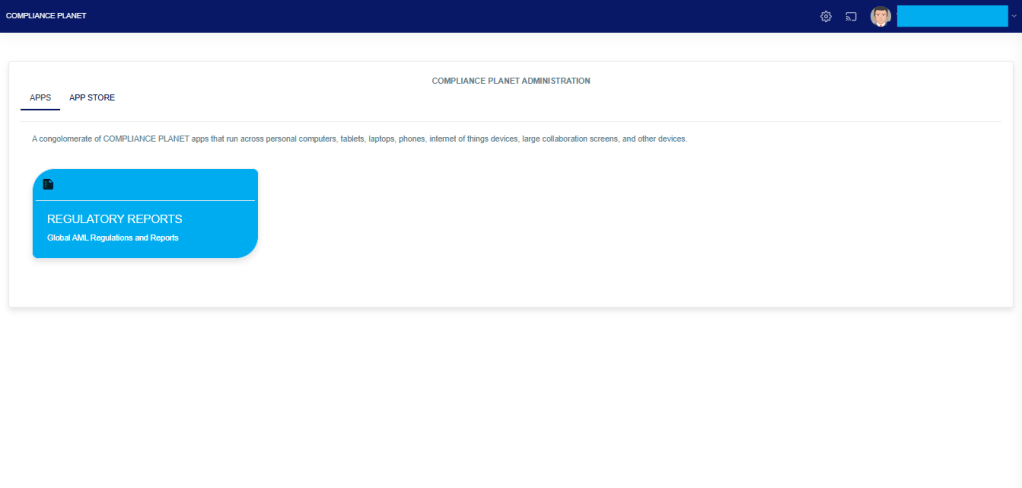
From the app dashboard, click on “REGULATORY REPORTS” as displayed in the image below.
This will display a drop-down, as shown in image below. The drop-down menu lists the report types available on the Compliance Planet software.
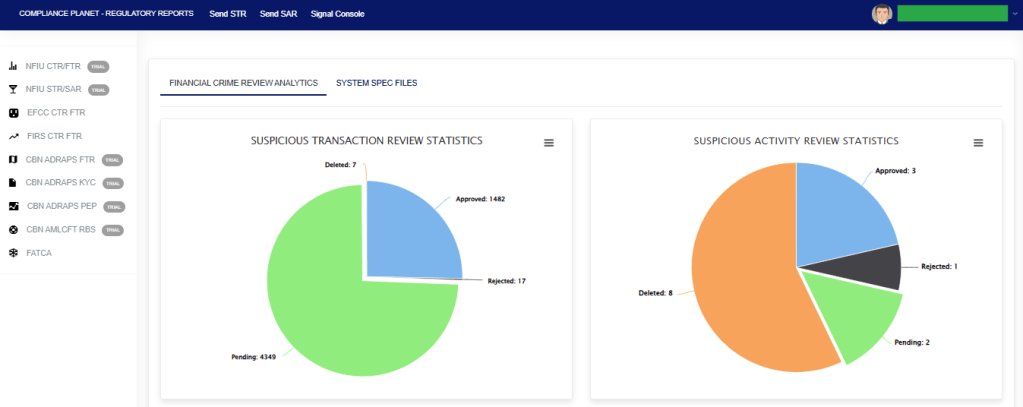
Click ‘NFIU STR/SAR’ on the drop-down list and display the STR/SAR page as displayed in the image below.
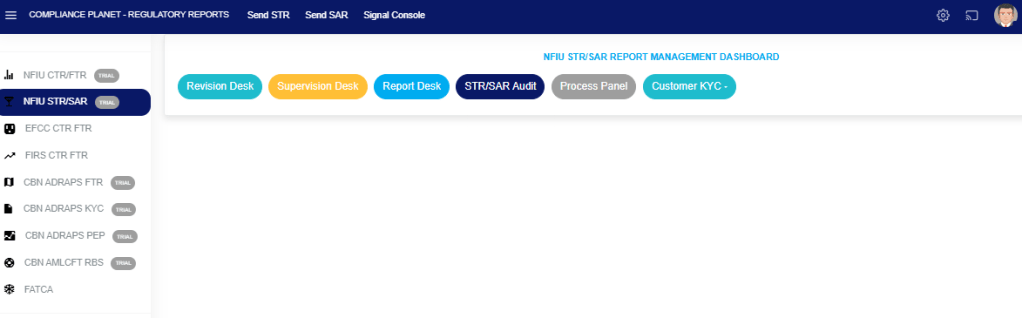
STEP 1: From the top menu, click “STR/SAR Audit” as in image below.
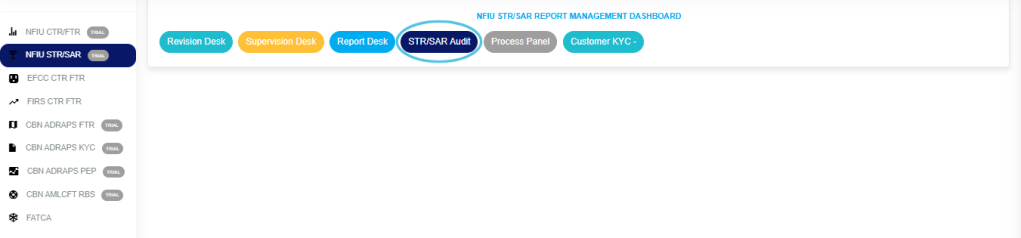
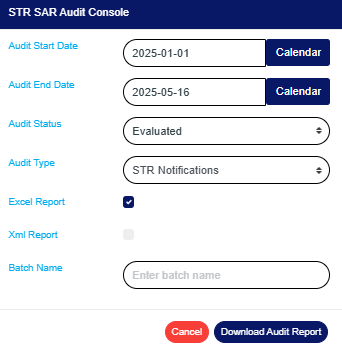
- This above action will display an “STR SAR AUDIT CONSOLE” as shown below.
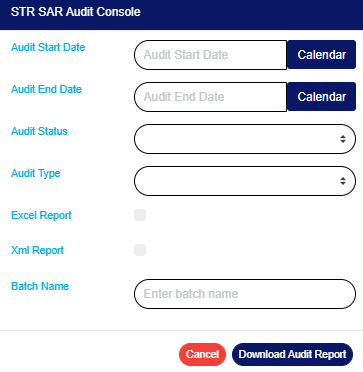
STEP 2: Click on “AUDIT START DATE“ and “AUDIT END DATE” to specify the beginning and the end of the period (respectively) for which you want to generate report. A calendar drops below the date box.
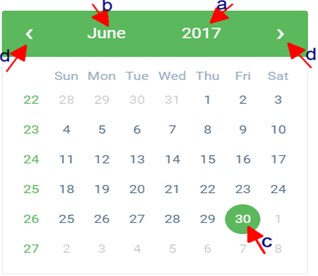
- Take a look at the arrows labelled a – d in image above to study the calendar.
- Click on the given year to change it to your year of choice.
- Click on the given month to change it to your month of choice.
- Then, click on the date of the month.
- You can also click on the angle brackets on the calendar ‘<’ or ‘>’ to go backward or forward.
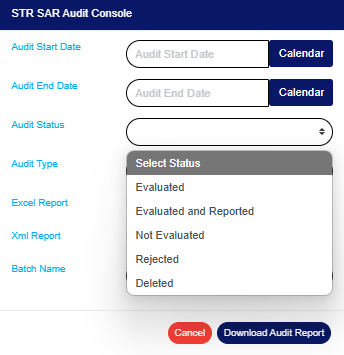
STEP 3: Click on “AUDIT STATUS“ to select the status of the report(s) you want to audit i.e. Evaluated, Evaluated and reported, Not Evaluated, Rejected or deleted reports. See an example in Fig below.
STEP 4: Click on “AUDIT TYPE“ to select the type of notification audit report you want to download i.e. STR Notifications or SAR notifications. See an example in the image below.
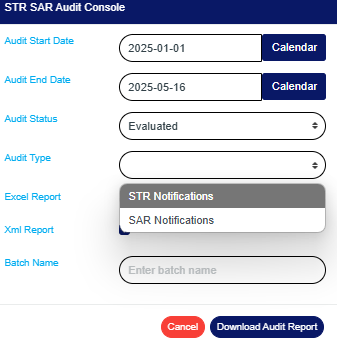
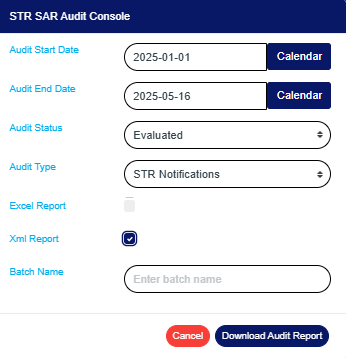
STEP 5: Tick the “Excel Report“ checkbox to export your report to Excel file format or “XML REPORT” to export reports to XML. Note you can tick one or the two check boxes. This is illustrated in the images below.
STEP 6: Fill in the name of your report in the “BATCH NAME” box. The report name should be any title of your choice for easy identification later on. See image for an example.
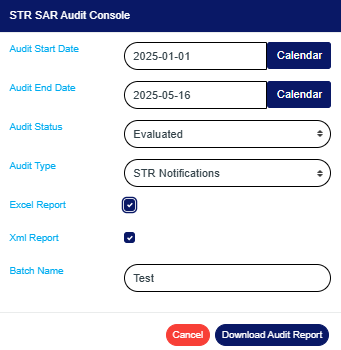
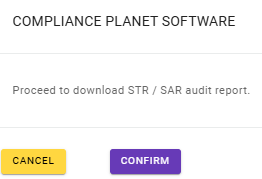
STEP 7: Click on the “DOWNLOAD AUDIT REPORT” button to generate report. If you want to cancel schedule, click on the “CANCEL” button. These buttons are at the bottom-right corner of the console. (See image above). A console will be displayed like in the image below if you choose to process report.
- Click on “Confirm” to continue.
- Click on “Cancel” If you want to make changes to the settings of your report, like changing the date or selecting/deselecting an Audit type, etc. The software will take you back to the Audit console.
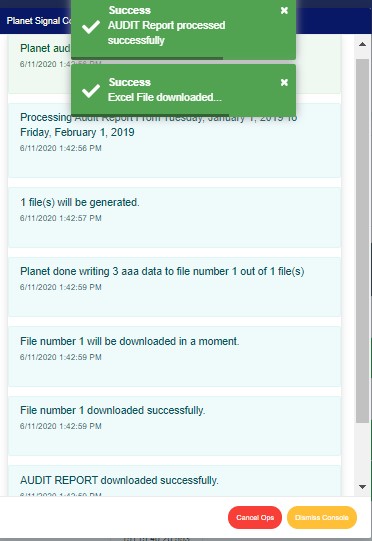
- The signal console shows ongoing processes. An example of a signal console is in the image below.
- Terminate ongoing operations by clicking “CANCEL OPS“.
- To minimize signal console, click on “DISMISS CONSOLE“.
How to View Audit Trail for a single STR/SAR Notification
- You can view the audit trail for a particular transaction on any of the three desks i.e. the revision, supervision or reporting desk by double clicking the Account name or Account number as in the image below.

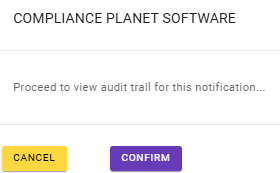
- This will display a confirmation console as shown below. Click ‘confirm’ to proceed or ‘cancel’ to close the console.
- Clicking ‘confirm’ will display a ‘STR/SAR Audit Trail’ console as in the image below. The console shows detail of every action taken on the notification from the time it was sent to the current state of the notification.
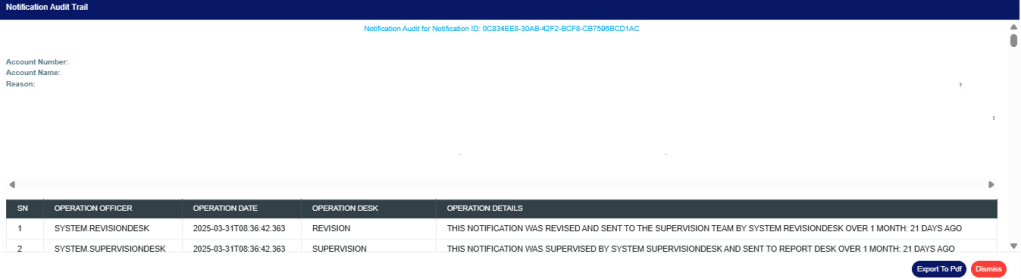
- Click on ‘Dismiss Console’ to close the console or click ‘Export to PDF’ to download the data as a PDF file.
- Clicking on ‘export to pdf’ will display a notification at the top of the page as in the image below and a file will be downloaded to your computer.

For further enquiries:
Tel: +234(0) 816 555 9818
Email: solutions@efuelite.com
Web: http://solutions.efuelite.com
