
This refers to carrying out a search for customer accounts, whether individual or corporate accounts, on the Compliance Planet. This page offers information on customer’s account number, account name, account scheme code, branch code (Sol ID), branch name (Sol Desc), Customer identification number (Cust ID) and the unique identification number generated by finacle for each customer you search for. Here is how to make a search below;
NOTE: Only person(s) profiled as ‘Deputy Supreme Admin’ can carry out this operation.
- To perform any of the operations,
- STEP 1: From the left hand side menu, Click ‘Control panel’ as in fig. 9.2a.
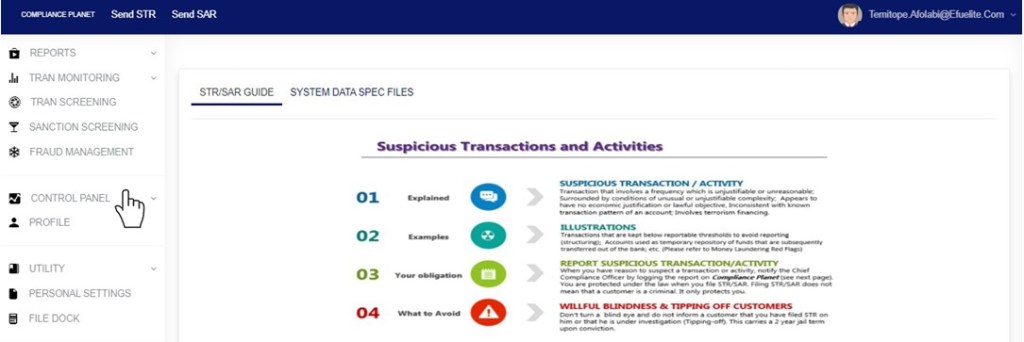
Fig 9.2a
- This will display a drop down as in Fig 9.2b below.
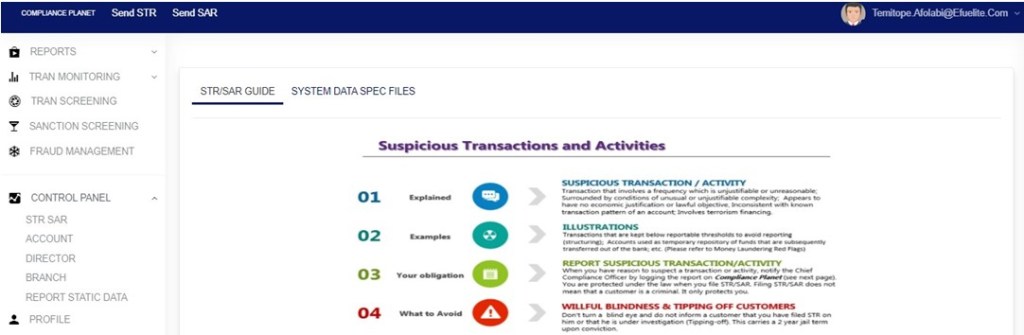
Fig 9.2b
STEP 2: Click ‘ACCOUNT’ on the drop down list. See an example in Fig 9.2c below.
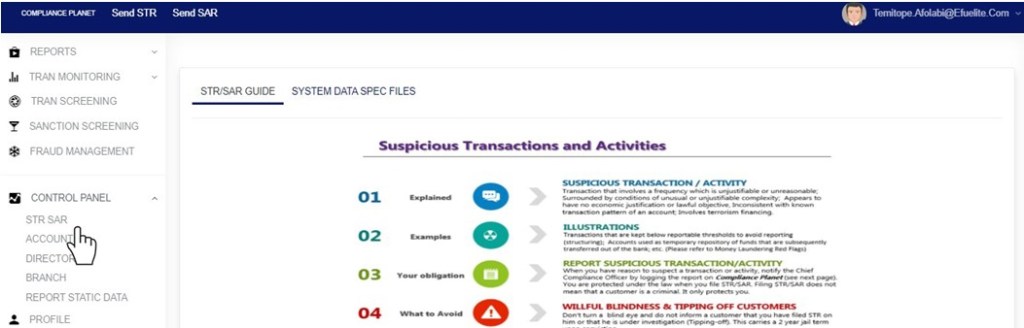
Fig 9.2c
- This will display the ACCOUNT CONTROL PANEL OPERATIONS dashboard as in Fig 9.2d below

Fig 9.2d
STEP 3: Click Info pool from the top menu, on the account page. See an example in fig9.2e below
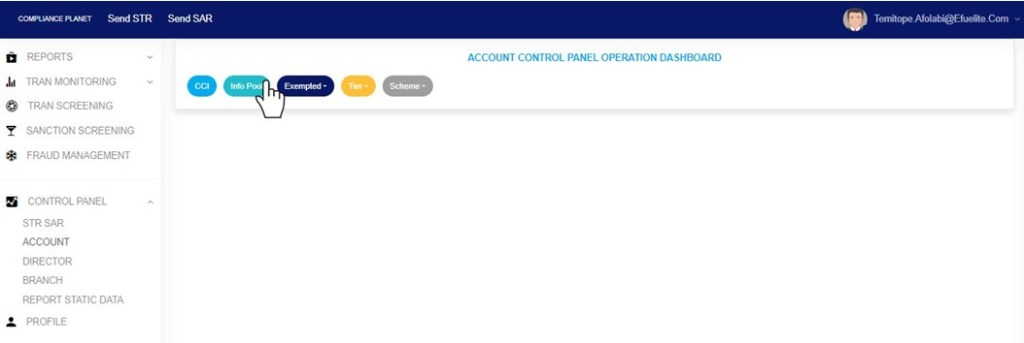
Fig 9.2e
- Clicking on ‘Info pool’ will display the page on which you are to make the search. Check out fig. 9.2f below to see the page.
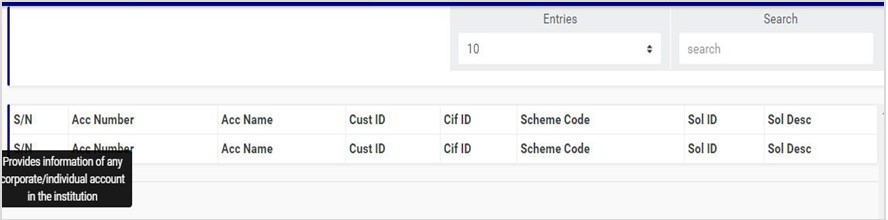
(fig. 9.2f)
STEP 4: Enter ‘Search term’ in the search box to start a search. The search box is at the top-right area of the page. The search term could be either a name or part of the name, scheme code or account number. See an example of a search ongoing in fig. 9.2g below.

(fig. 9.2g)
- The software will start a search immediately you type a character in the search box. See the result of the search term in fig. 9.2h in fig. 9.2d below.

(Fig. 9.2h)
- Every information seen on this page is for view only. You can adjust the number of accounts you want to see per page by clicking on the ‘ENTRIES’ box next to the search box as shown in fig. 9.3i below.
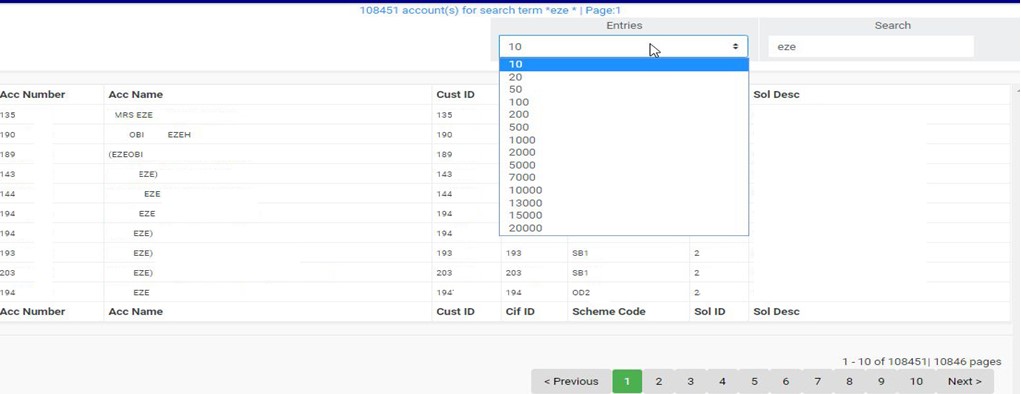
(fig. 9.2i)
- At the bottom-right corner of the page also, the software gives information about the number of pages of the search result, with the page numbers written out. All the page numbers represent buttons to go to each page. By clicking on any page number, the software takes you to that particular page. Click on the ‘NEXT’ button to go to the next page when you and click on the ‘PREVIOUS’ button to take you to the page before the current page. See these features in fig. 9.3j below.
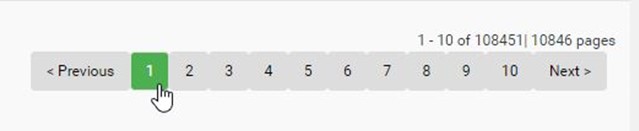
(fig. 9.2j)
For further enquiries :
Tel +234(0) 816 555 9818
Email solutions@efuelite.com
Web http://solutions.efuelite.com
