
This menu was created because the AML CFT RBS report schema encompasses lots of data from various sectors of the institution. We are aware that some of these sectors may not have their monthly report data automated; hence this menu is used for the upload of such data once it is made available. This involves selecting a file filled with manually prepared sector data, and uploading its details to be included in a particular AML RBS report.
NB: When there is a manual data to be uploaded for a particular scheduled report, all manual data upload for all sectors must be completed before the report schedule is activated to be processed.
Here is how to upload an AML RBS report data:
NOTE: Only person(s) with right(s) to process RBS Reports will be able to carry out this operation
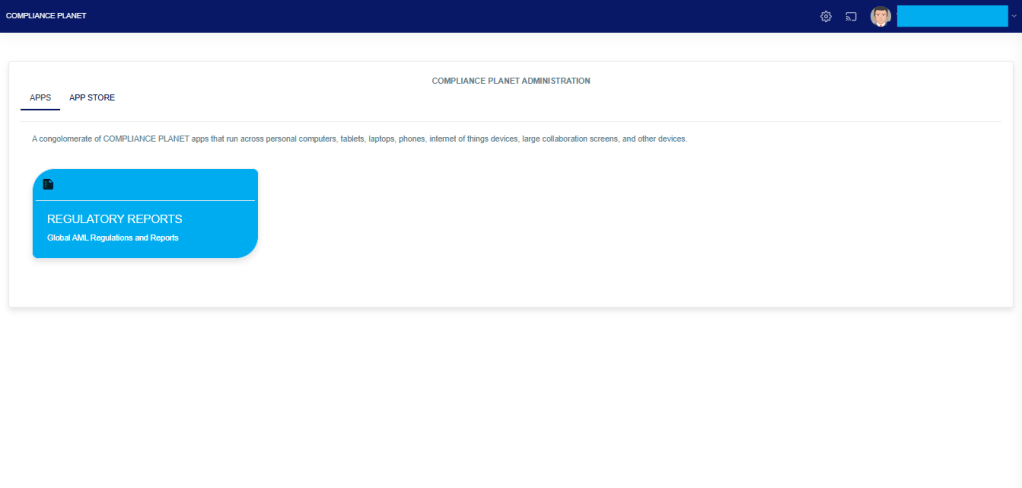
From the app dashboard, click on “REGULATORY REPORTS” as displayed in the image below.
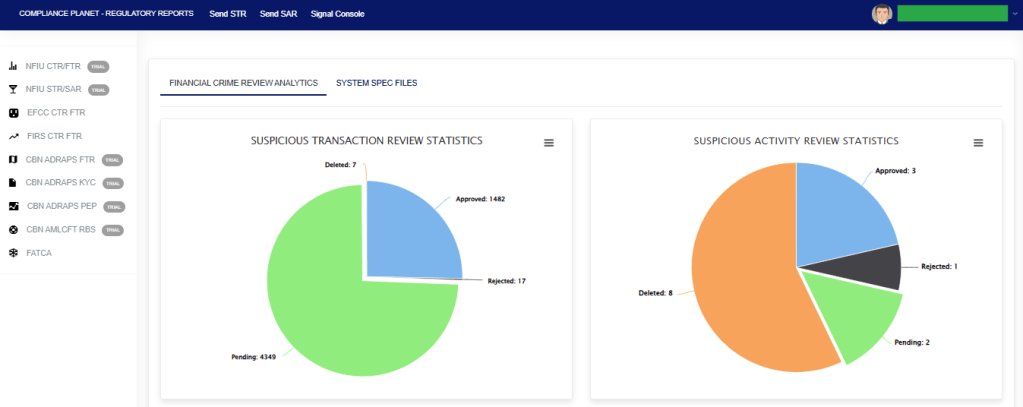
This will display a drop-down, as shown in image below. The drop-down menu lists the report types available on the Compliance Planet software.
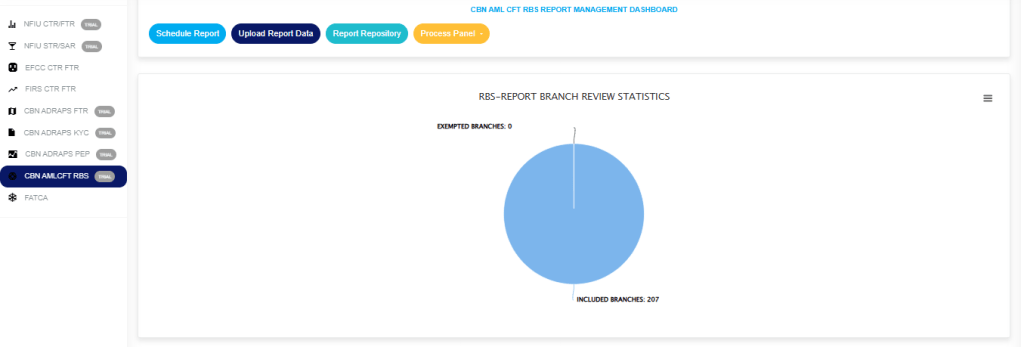
Click “CBN AML/CFT RBS” on the drop-down list and display the RBS REPORT BRANCH REVIEW STATISTICS Page as displayed in the image below.
STEP 1: From the top menu, click on” Upload Report Data” as in fig.7.5a below.
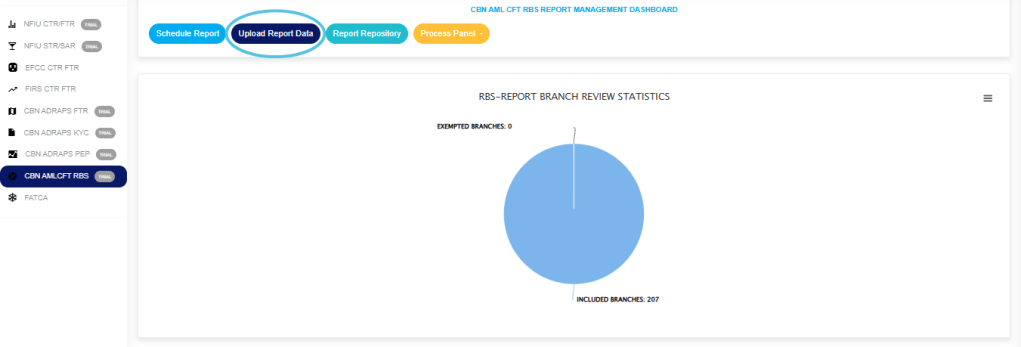
(fig. 7.5a)
- A console as in fig. 7.5b will be displayed.
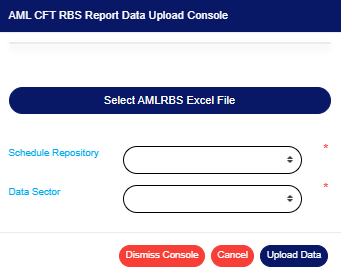
(fig. 7.5b)
STEP 2: Click on ‘SELECT AML RBS EXCEL FILE’ as in fig. 7.5c to choose an AML RBS Excel file from your computer. This file should contain the details to be uploaded and it should be according to the compliance planet’s file specification for uploading AML RBS report data.
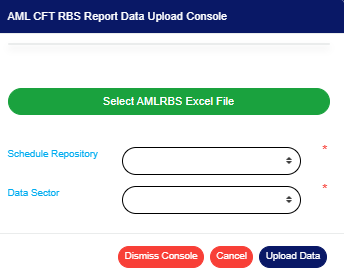
(fig. 7.5c)
- If you do not have the file specification for uploading RBS data, You can download it from the “SYSTEM DATA SPEC FILES” on the software home page as shown in fig. 7.5 below to download an excel file with the required specification.
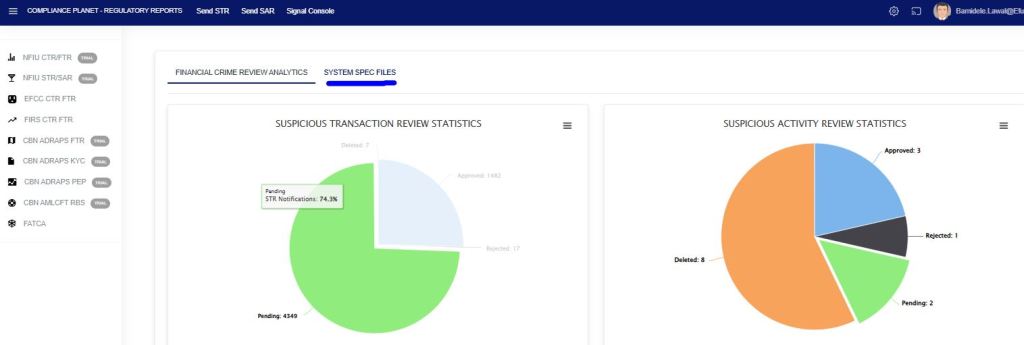
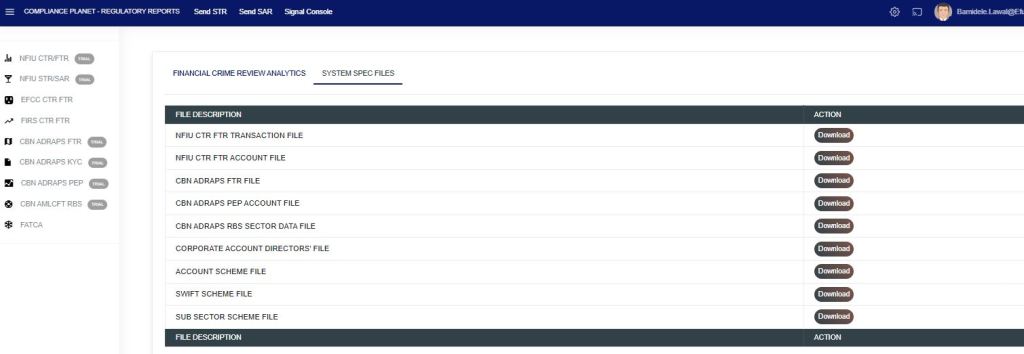
(fig. 7.5)
- An excel file will be downloaded to your computer with pre-filled titled columns under which the details will be entered. Open the file, fill in the required details of the RBS data and save the changes to the file. Renaming the file on your computer is optional. Go back to the software and click on ‘Select AML RBS Excel File’ to select the file.
- The console will add the title of the file, that is, the file name, after selecting the file for upload. See fig. 7.5d to see an example of how the console looks like when you select a file from your computer.

(fig. 7.5d)
STEP 3: Click ‘Schedule Repository’ box to select the AML RBS report that the uploaded data will be attached to. See fig.7.5e for an example.
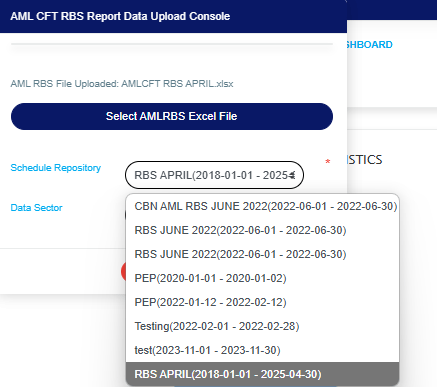
(fig. 7.5e)
STEP 4: Select the Data Sector from the ‘DATA SECTOR’ box. Data sector refers to the different sections from where data is needed as represented in the AML/CFT RBS report schema. See fig. 7.5f for an example.
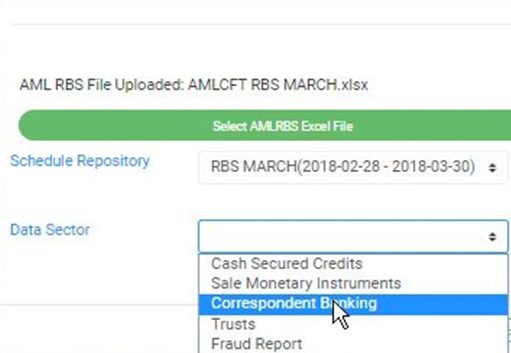
(fig. 7.5f)
STEP 5: Click on ‘UPLOAD DATA’ to upload details in the selected excel file on the compliance planet. This button is at the bottom-right corner of the console as shown in fig. 7.5g below.
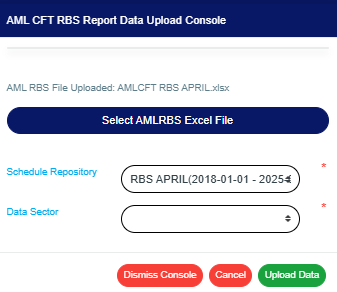
(fig. 7.5g)
STEP 3: Click on ‘CONFIRM’ as in fig. 7.5h to proceed with the upload or ‘CANCEL’ to discontinue and return to the upload console.
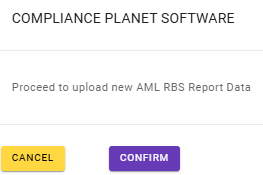
(fig. 7.5h)
- A notification will be displayed at the top of the page as seen in fig. 7.5i

(fig. 7.5i)
- While the processing is on, you can cancel the upload by clicking on ‘CANCEL’ or close the upload console by clicking on ‘DISMISS CONSOLE’.
- The signal console will show ongoing processes as shown in fig. 7.5j below.
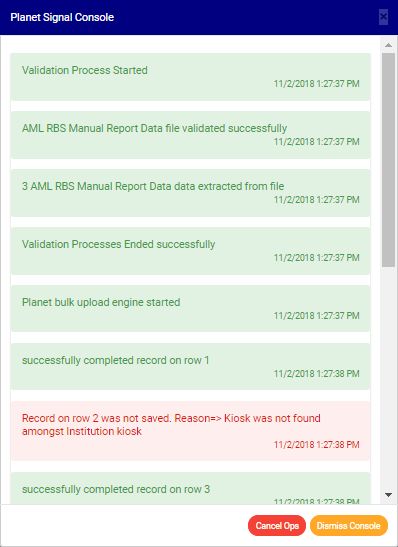
(fig. 7.5j)
- Terminate ongoing processes by clicking on ‘Cancel Ops.
- Click on ‘Dismiss Console’ to close the signal console.
- When upload is complete, an ‘AML RBS Report Data Upload’ report will be downloaded to your computer. It is an excel file that will provide information on the number of uploaded records, processed records, saved records, duplicate records and exempted records. It will also give information on unsuccessful data upload, with reason(s) why upload was not successful. The reason will give you hints on correction(s) to be made in the file before uploading the data again.
For further enquiries:
Tel: +234(0) 816 555 9818
Email: solutions@efuelite.com
Web: http://solutions.efuelite.com
