
The ‘APPROVED LIST’ page provides a list of all corporate account directors’ information that have been verified and approved by the financial institution .Here also; details of corporate account director can be viewed, edited, deleted and disapproved, either individually or in bulk. Here are steps on how to make use of the features on the Approved list page.
NOTE: Only person(s) profiled as deputy Admin will be able to carry out this operation.
From the left hand side menu, Click ‘Control panel’ as in fig. 10.1a.

Fig 10.1a
- This will display a drop down as in Fig 10.1b below.

Fig 10.1b
Click ‘DIRECTOR’ on the drop down list. See an example in Fig 10.1c below.
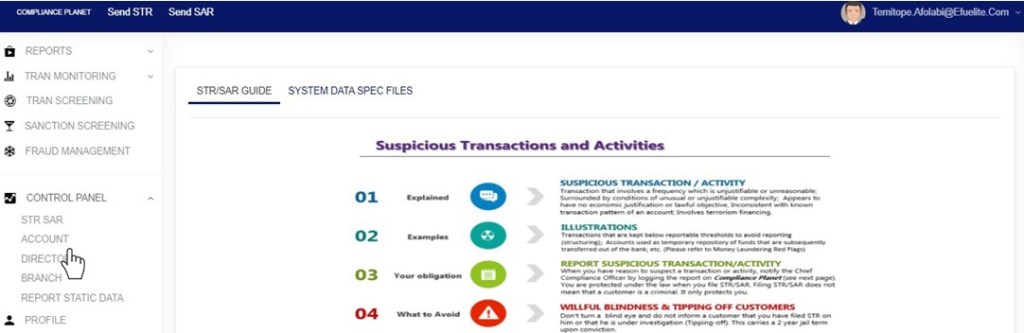
Fig 10.1c
- This will display the ACCOUNT DIRECTORS OPERATIONS dashboard as in Fig 10.1d below
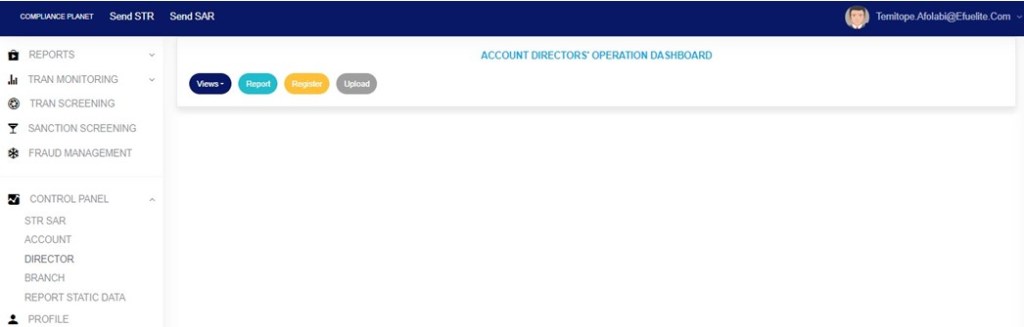
Fig 10.1d
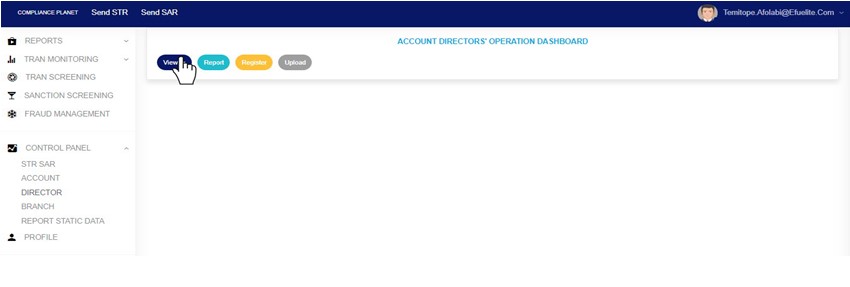
- From the top menu, Click ‘View’ as shown in fig. 10.5a below
(fig. 10.5a)
- This will display a dropdown as in fig 10.5b below
STEP 2: Click “Approved” from the drop-down list as in fig 10.5b below

Fig 10.5b
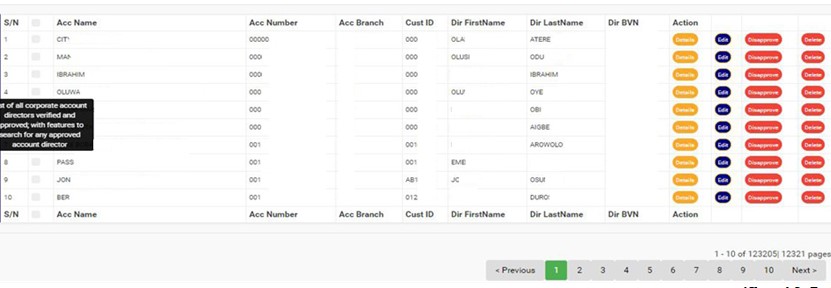
- This will display a page listing out the director information that has been verified and approved. See fig. 10.5c below for an example.
(fig. 10.5c)
- At the bottom-right corner of the page, the software gives information about the number of pages of the approved director list, with the page numbers written out. The page numbers are buttons to go to each page. By clicking on any page number, the software takes you to that particular page. Click on ‘NEXT’ to go to the next page or click on ‘PREVIOUS’ to go to the page before the current page.
- Adjust the number of approved account directors you want to see per page by clicking on the ENTRIES box as in fig. 10.5d below.
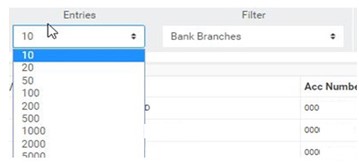
(fig. 10.5d)
- To see approved director information of corporate accounts for any of the branches, select the branch name from the filter box as seen in fig. 10.5e below. The default list is always for all branches of the institution.

(fig. 10.5e)
- Search for a corporate account director information by the account name, account number, director’s first name, last name or director’s BVN in the search box. See an example of a search in fig. 10.5f below. Search results will appear as you type in the search box.
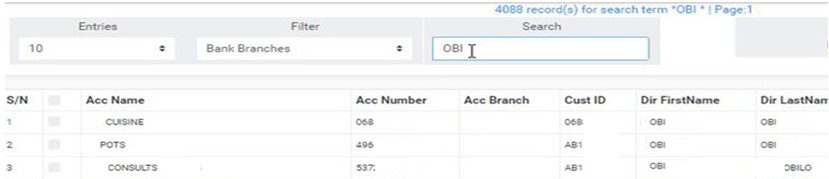
(fig. 10.5f)
- On this page, each director information on the list has four (4) action buttons. These buttons are used for individual operations of the respective director information in the list. They are;
- ‘DETAILS’ button,
- ‘EDIT’ button
- ‘DISAPPROVE’ button and
- ‘DELETE’ button
Here is how to make use of the action buttons.
- Click on ‘DETAILS’ as in fig. 10.5f below to view the details of a corporate account director.

(fig. 10.5f)
- This will display a Corporate Account Director Details console as in fig. 10.4g below. After viewing, click on ‘DISMISS CONSOLE’ (as shown below) to close the console.

(fig. 10.5g)
- To make changes to the details of a director, click on ‘EDIT’ as shown in fig. 10.5h below.
Note; Only person(s) profiled as deputy Admin will be able to carry out this operation.
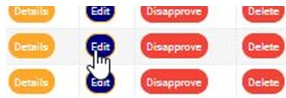
(fig. 10.5h)
- This will display an ‘Edit Corporate Account Director’ console where you can edit the previously saved director information and also, add other details in the fields that are yet to be filled. Note that the account number, account name, account branch, customer ID and BVN cannot be changed. See an example of the console in fig. 10.5i.

(fig. 10.5i)
- Click on ‘SAVE’ to make the changes permanent.
- This displays a confirmation console to confirm you want to make the changes. Click on ‘CONFIRM’ as shown in fig. 10.5j to proceed or ‘CANCEL’ to go back to the ‘Edit Corporate Account Director’ console.
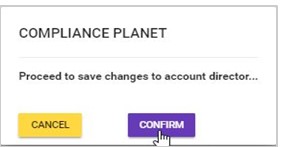
(fig. 10.5j)
- By clicking on ‘CONFIRM’, the console will be closed. When the changes have been saved, a notification will be displayed at the top of the page as seen in fig. 10.5k below.

(Fig. 10.5k)
- To disapprove director information that was previously verified and approved, click on ‘DISAPPROVE’ as shown in fig. 10.5l below.
NOTE: Only person(s) profiled as supreme Admin will be able to carryout this operation.

(fig. 10.5l)
- This displays a confirmation console to confirm your request to DISAPPROVE the director information. Click on ‘CONFIRM’ to proceed or ‘CANCEL’ to stop action. See fig. 10.5m for an example.

(fig. 10.5m)
- When the disapproval is successful, a notification will be displayed at the top of the page as in fig. 10.5n, the director information will be removed from the approved list page and added to the unapproved list of corporate director information.

(fig. 10.5n)
- To delete any of the corporate account director information, click on ‘DELETE’ as shown in fig. 10.5o below.
NOTE: Only person(s) profiled as deputy supreme Admin and assigned right(s) to “view directors list” and “disapprove director” will be able to carry out this operation.
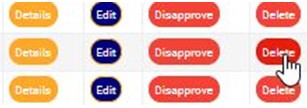
(fig. 10.5o)
- This displays a confirmation console to confirm your request to delete the director information. Click on ‘CONFIRM’ to proceed with the delete or ‘CANCEL’ to stop action. See fig. 10.5p for an example.
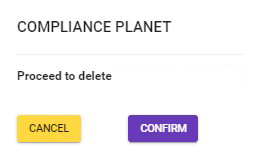
(fig. 10.5p)
- When the delete is done, a notification as in fig. 10.5q will be displayed at the top of the page, the deleted account director information will removed from the general list and the approved list and added to the Account Directors Junk List.

(fig. 10.5q)
Bulk Operations
At the top-right area of the Approved List page, there are features to carry out bulk treatment of more than one account director information together. As shown in fig. 10.5r below, these features are;
- ‘Download Excel’ button
- ‘Disapprove Selected’ button and
- ‘Delete Selected’ button
- To carry out any bulk operation,
- Select the corporate account director information to be treated. Select the account director information by clicking on their checkboxes. See fig. 10.5s below for an example.
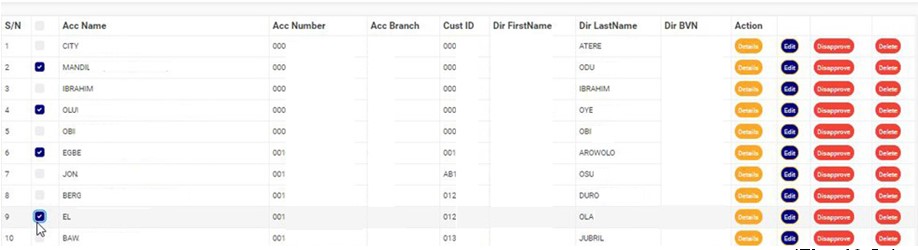
(Fig. 10.5s)
- To select or deselect all the accounts, click on the checkbox on the table title bar, that is, the checkbox between ‘S/N’ and ‘ACC NAME’. See fig. 10.5t for an example.

(fig. 10.5t)
- After making your selection, Click “Operations” button as shown in fig 10.5u below

(fig. 10.5u)
- This will display a dropdown as in Fig 10.5v below

(fig. 10.5v)
A. Bulk Download
By clicking on the ‘Download Excel’ button, an excel file filled with the details of selected approved account director information will be downloaded to your computer.
- Click on the ‘DOWNLOAD EXCEL’ button as seen in fig. 10.5w below.
NOTE Only person(s) profiled as deputy supreme Admin and assigned right(s) to “view directors list” and “download excel report” will be able to carryout this operation.

(fig. 10.5w)
- This displays a confirmation console as in fig. 10.5x below. Click on ‘CONFIRM’ to proceed with the download or ‘CANCEL’ to discontinue.
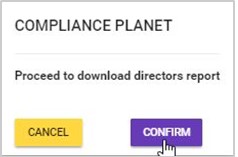
(fig. 10.5x)
- The signal console shows ongoing processes as in fig. 10.5y below and a notification will be displayed at the top of the page when the file download is complete.
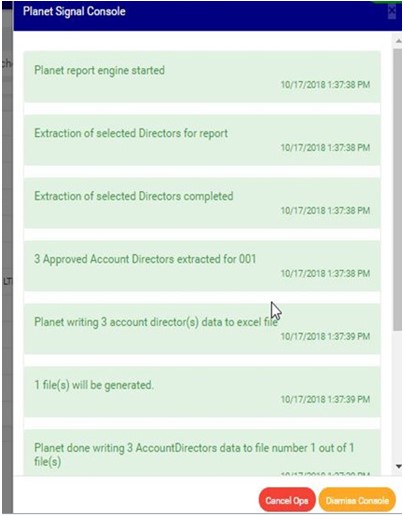
(fig. 10.5y)
- To close the signal console, click on its ‘DISMISS CONSOLE’ button;
- To terminate the ongoing processes, click on ‘CANCEL OPS’.
- This displays a confirmation console, Click on ‘CONFIRM’ as seen in fig. 10.5z below to proceed.

(fig. 10.5z)
B. Bulk Disapproval
By clicking on the ‘Disapprove Selected’ button, all the selected director information will be disapproved and moved to the Account Directors Unapproved List on the planet.
NOTE only person(s) profiled as deputy supreme Admin and assigned right(s) to “view directors list” and “Disapprove directors (Bulk)” will be able to carryout this operation.
Here is how to make a bulk disapproval.
- Click on the ‘DISAPPROVE SELECTED’ button as seen in fig. 10.5aa below.

(fig. 10.5aa)
- This displays a confirmation console to confirm your request to DISAPPROVE the director information. Click on ‘CONFIRM’ to proceed or ‘CANCEL’ to stop action. See fig. 10.5ab for an example.
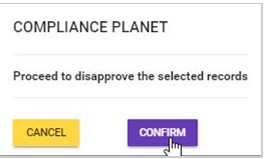
(fig. 10.5ab)
- When the disapproval is successful, a notification will be displayed at the top of the page as in fig. 10.5ac below. Then, the director information will be removed from the approved list page and added to the unapproved list of corporate director information.

(fig. 10.5ac)
C. Bulk Delete
By clicking on the ‘Delete Selected’ button, all the selected director information will be removed from the general list and the approved list, and added to the account directors’ junk list.
NOTE only person(s) profiled as deputy supreme Admin and assigned right(s) to “view directors list” and “Disapprove directors (Bulk)” will be able to carryout this operation.
- Click on the ‘DELETE SELECTED’ button as seen in fig. 10.5ad below.

(fig. 10.5ad)
- This displays a confirmation console as in fig. 10.5ae below. Click on ‘CONFIRM’ to proceed with the delete or ‘CANCEL’ to discontinue.
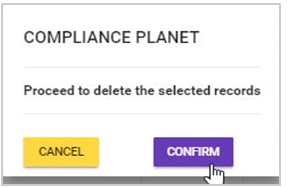
(fig. 10.5ae)
- A notification will be displayed at the top of the page when the bulk delete is successful. See fig. 10.5af below for an example.

(fig. 10.5af)
For further enquiries :
Tel +234(0) 816 555 9818
Email solutions@efuelite.com
Web http://solutions.efuelite.com
