
This operation entails the analysis of corporate accounts involved in currency transactions but do not have director information. Here, the various types of director reports can be downloaded. Here are steps for generating analyses for the corporate accounts without director information and downloading the various report types.
NOTE: Only person(s) profiled as deputy supreme admin can carry out this operation.
From the left hand side menu, Click ‘Control panel’ as in fig. 10.1a.

Fig 10.1a
- This will display a drop down as in Fig 10.1b below.

Fig 10.1b
Click ‘DIRECTOR’ on the drop down list. See an example in Fig 10.1c below.
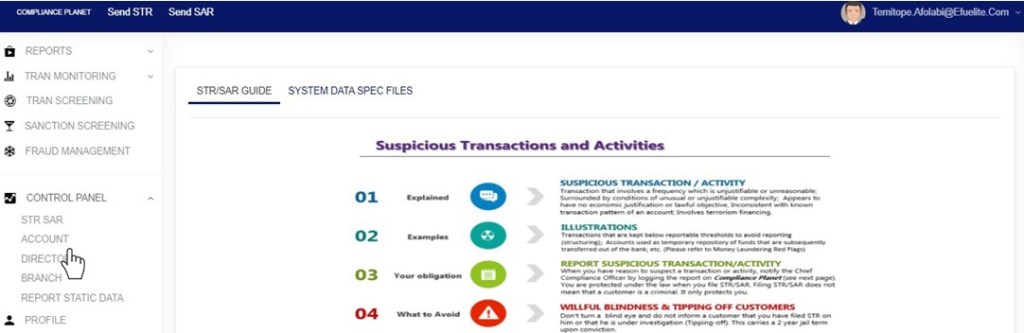
Fig 10.1c
- This will display the ACCOUNT DIRECTORS OPERATIONS dashboard as in Fig 10.1d below
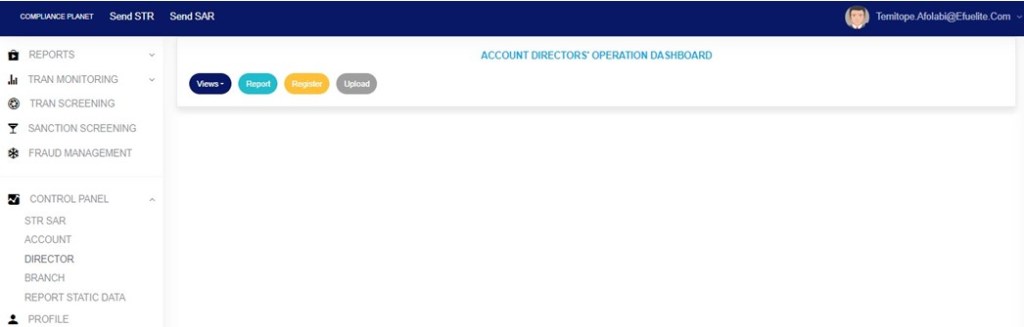
Fig 10.1d
- STEP 1:From the top menu, Click ‘Report’ as shown in fig. 10.8a below
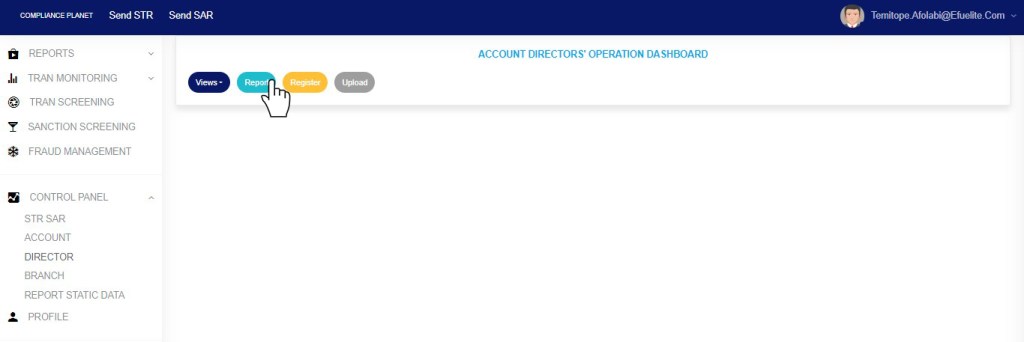
(fig. 10.8a)
- This will display a page as shown in fig. 10.8b below.
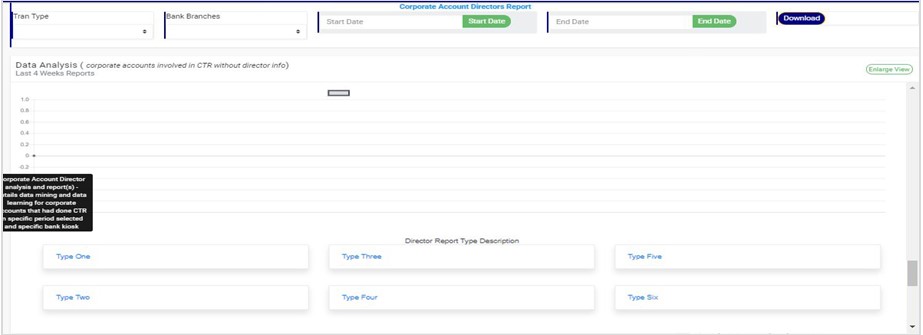
(fig. 10.8b)
How to Download Corporate Account Reports
This section is a guide on downloading the various report types. If you do not know the distinguishing features of each report type, you are advised to read the directions on the Director Report type description.
To view any Director Report type description click on the type you want to view as in fig. 10.8c below before selecting any option or feature on this page.
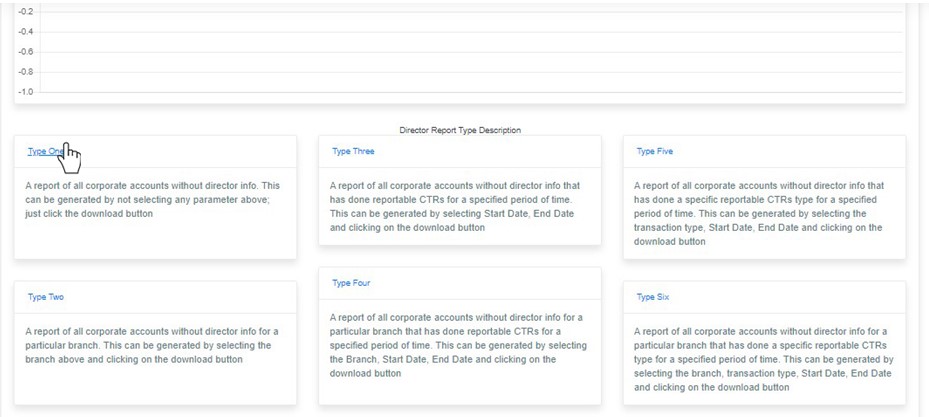
(fig. 10.8c)
1) Type One Report:
This is a report of all the corporate accounts involved in CTR without director information. To download this report, just click on the ‘DOWNLOAD’ button only. See an example in fig. 10.8d below.
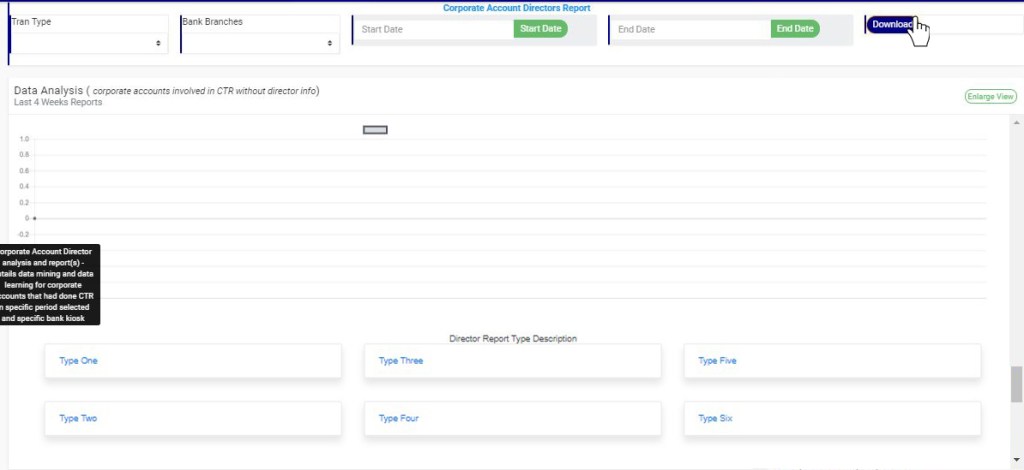
(fig. 10.8d)
- This displays a confirmation console as seen in fig. 10.8e. Click on ‘CONFIRM’ to proceed with the download or ‘CANCEL’ to discontinue.
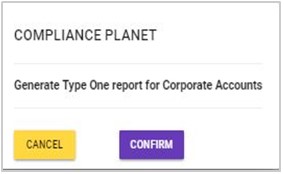
(fig. 10.8e)
- The signal console shows ongoing processes as in fig. 10.8f below. Once download is complete, a notification will be displayed at the top of the page.

(fig. 10.8f)
2) Type Two Reports:
This is a report of all the corporate accounts involved in CTR without director information for a particular branch of the financial institution. Here is how to download this report.
STEP 1: Select branch name from the ‘BANK BRANCHES’ box as in fig. 10.8g below.
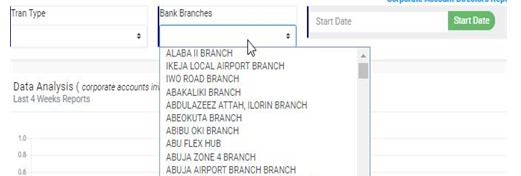
(fig. 10.8g)
STEP 2: Click on ‘DOWNLOAD’ to download type two report. This displays a confirmation console as seen in fig. 10.8h. Click on ‘CONFIRM’ to proceed with the download or ‘CANCEL’ to discontinue.
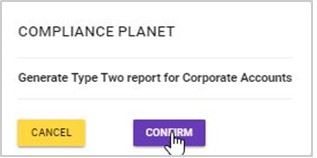
(fig. 10.8h)
- The signal console shows ongoing processes (as in fig. 10.8f for type one) and a notification will also displayed at the top of the page when download is complete.
3) Type Three Report:
This is a report of all the corporate accounts involved in CTR without director information within a specified period of time. Here is how to download this report.
STEP 1: Select the ‘START DATE’ and ‘END DATE’ from the date boxes to specify period for which you want to download report. The start date and end date refer to the beginning and the end of the period respectively. See fig. 10.8i below for an example.

(fig. 10.8i)
- Take a look at the arrows labelled a to d in fig. 10.8j to learn how to operate a calendar.
Click on the given year to change it to your year of choice.
- Click on the given month to change it to your month of choice.
- Then, click on the date of the month.
- You can also click on the angle brackets on the calendar [ ‘<’ or ‘>’ ] to go backward or forward.
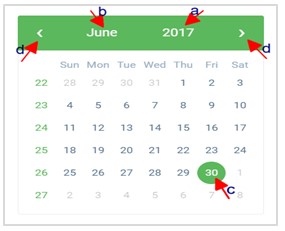
(fig. 10.8j)
STEP 2: Click on ‘DOWNLOAD’ to download type three report. This displays a confirmation console as seen in fig. 10.8k. Click on ‘CONFIRM’ to proceed with the download or ‘CANCEL’ to discontinue.

(fig. 10.8k)
- The signal console shows ongoing processes (as in fig. 10.8f for type one) and a notification will be displayed at the top of the page when download is complete.
4) Type Four Report:
This is a report of all the corporate accounts involved in CTR without director information for a particular branch within a specified period of time. Here is how to download this report.
STEP 1: Select branch name from the ‘BANK BRANCHES’ box as in fig. 10.8l below.
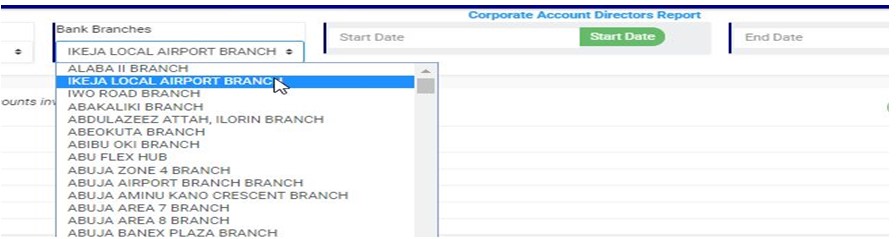
(fig. 10.8l)
STEP 2: Select the ‘START DATE’ and ‘END DATE’ from the date boxes to specify the period; the start date and end date being the beginning and the end of the period respectively. See fig. 10.8m below for an example.
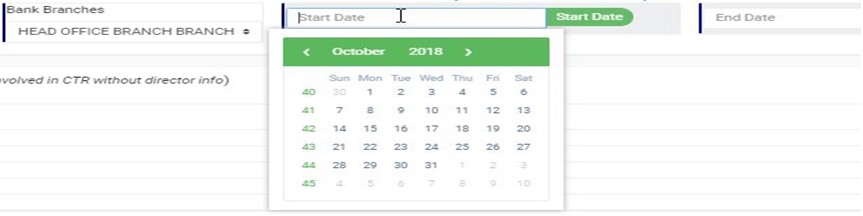
(fig. 10.8m)
Take a look at the arrows labelled a to d in fig. 10.8n to learn how to operate a calendar.
- Click on the given year to change it to your year of choice.
- Click on the given month to change it to your month of choice.
- Then, click on the date of the month.
- You can also click on the angle brackets on the calendar [ ‘<’ or ‘>’ ] to go backward or forward.
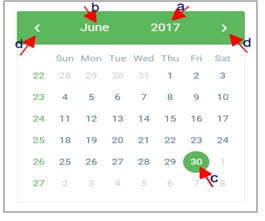
(fig. 10.8n)
STEP 3: Click on ‘DOWNLOAD’ to download the type four report. This displays a confirmation console as seen in fig. 10.8o. Click on ‘CONFIRM’ to proceed with the download or ‘CANCEL’ to discontinue.

(fig. 10.8o)
- The signal console shows ongoing processes (as in fig. 10.8f for type one) and a notification will be displayed at the top of the page when download is complete too.
5) Type Five Report:
This is a report of all the corporate accounts without director information that were involved in a specific currency transaction type within a specified period of time. Here is how to download this report.
STEP 1: Select the transaction type from the ‘TRAN TYPE’ box as in fig. 10.8p below.

(fig. 10.8p)
STEP 2: Select the ‘START DATE’ and ‘END DATE’ from the date boxes to specify the period; the start date and end date being the beginning and the end of the period respectively. See fig. 10.8q below for an example.
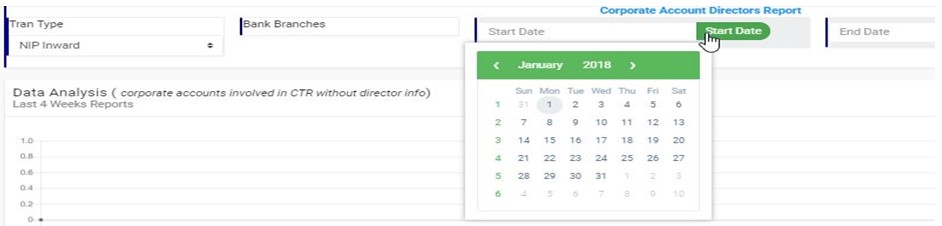
(fig. 10.8q)
Take a look at the arrows labelled a to d in fig. 10.8r to learn how to operate a calendar.
- Click on the given year to change it to your year of choice.
- Click on the given month to change it to your month of choice.
- Then, click on the date of the month.
- You can also click on the angle brackets on the calendar [ ‘<’ or ‘>’ ] to go backward or forward.
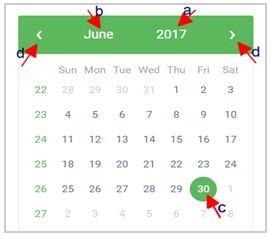
(fig. 10.8r)
STEP 3: Click on ‘DOWNLOAD’ to download the type five report. This displays a confirmation console as seen in fig. 10.8s. Click on ‘CONFIRM’ to proceed with the download or ‘CANCEL’ to discontinue.
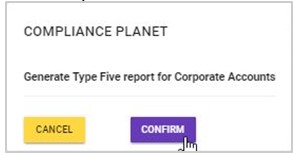
(fig. 10.8s)
- The signal console shows ongoing processes (as in fig. 10.8f) and a notification will be displayed at the top of the page when the download is complete too.
6) Type Six Report:
This is a report of all the corporate accounts without director information for a particular branch that were involved in a particular currency transaction type within a specified period of time. Here is how to download this report.
STEP 1: Select the transaction type from the ‘TRAN TYPE’ box as in fig. 10.8t below.
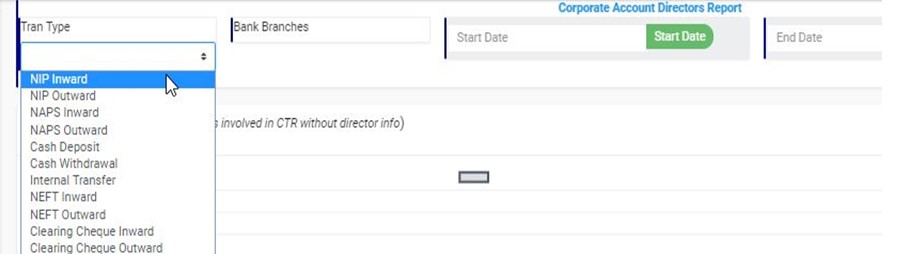
(fig. 10.8t)
STEP 2: Select branch name from the ‘BANK BRANCHES’ box as in fig. 10.8u below.

(fig. 10.8u)
STEP 3: Select the ‘START DATE’ and ‘END DATE’ from the date boxes to specify the period; the start date and end date being the beginning and the end of the period respectively. See fig. 10.8v below for an example.
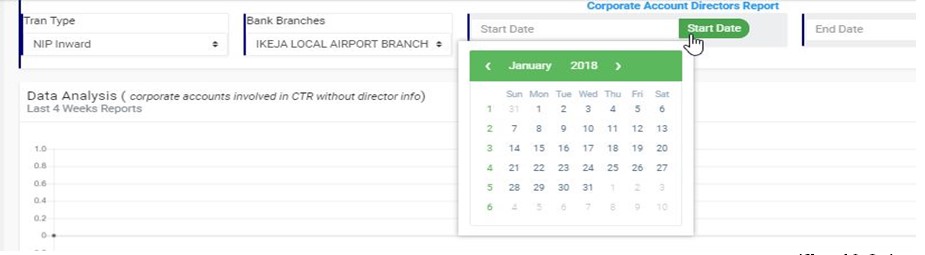
(fig. 10.8v)
STEP 3: Click on ‘DOWNLOAD’ to download the type six report. This displays a confirmation console as seen in fig. 10.8w. Click on ‘CONFIRM’ to proceed with the download or ‘CANCEL’ to discontinue.
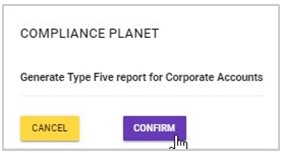
(fig. 10.8w)
- The signal console showing ongoing processes (as in fig. 10.8f for type one) will be displayed and a notification will be displayed at the top of the page when the download is complete also.
10.8.2 How to Analyse Corporate Accounts
The Compliance Planet software, through the graph on the director report page, offers an analysis of CTRs involving corporate accounts without director information for the past four (4) weeks. On opening the director report page, the graph will automatically show an analysis of all transactions involving corporate accounts without director information during the last four weeks. If there are no analysis as in fig. 10.8x below, it means during the last four weeks, there were no transactions involving corporate accounts without director information.
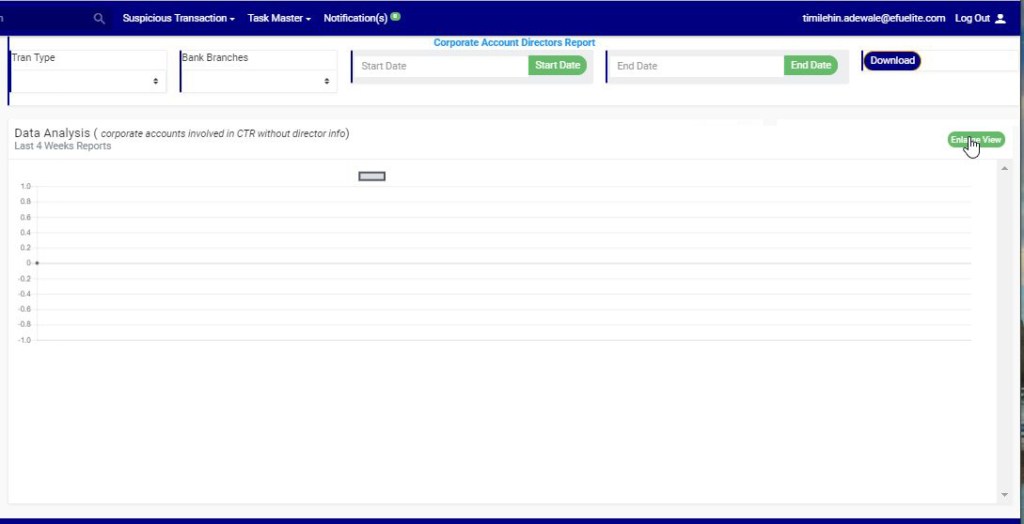
(fig. 10.8x)
- To get a bigger view of the graph, click on ‘ENLARGE’ as shown in fig. 10.8x above. See fig. 10.8y for an enlarged view of the graph. Click on ‘DISMISS’ to close the enlarged view.
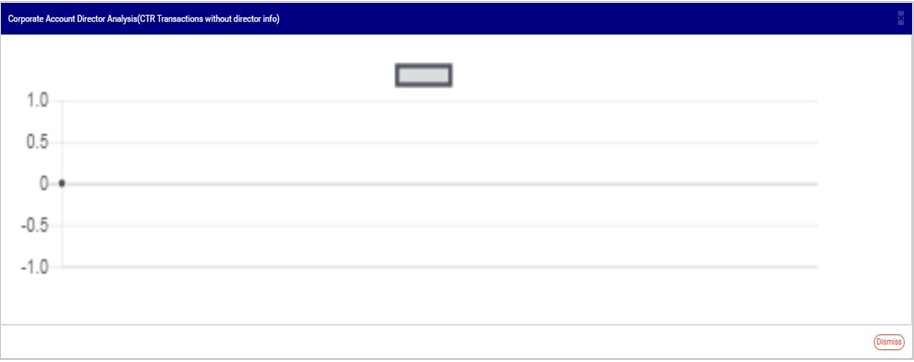
(fig. 10.8y)
For further enquiries :
Tel +234(0) 816 555 9818
Email solutions@efuelite.com
Web http://solutions.efuelite.com
