
NOTE: Only person(s) Profiled as Team Lead 1 or Team lead 2 can carry out these operations.
STEP 1: To assign Notification(s) to any member on the revision desk team, go to the VIEW box still on the revision desk page; select ‘Revision Officer All Pending Notifications Unassigned’, then click on the “view report” button.
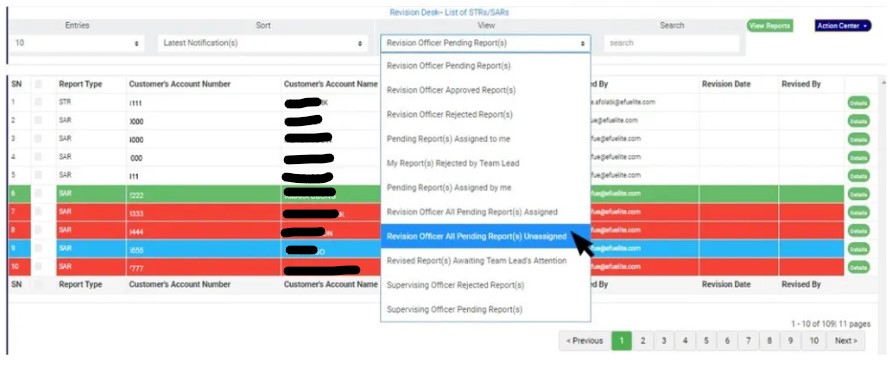
(fig. 6.3x)
STEP 2: Click on the checkbox beside the report type to select the Notifications you want to assign. See an example in Fig 6.3y below
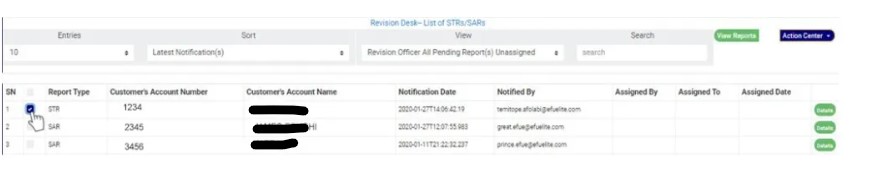
(fig. 6.3y)
STEP 3: Click on the action center button as shown in in Fig 6.3z below
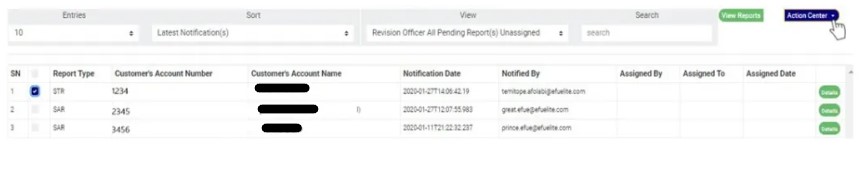
(fig. 6.3z)
STEP 4: Click on “Assign Pending Notification” from the action center dropdown. See an example in Fig 6.3aa below
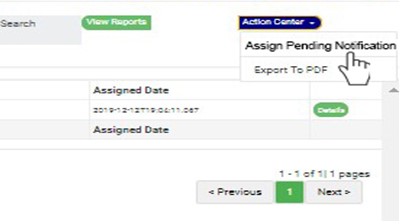
(fig. 6.3aa)
STEP 5: Clicking Assign Notification will display a “Review Desk Officers Task Assignment” dashboard as shown below in fig 6.3 ab below
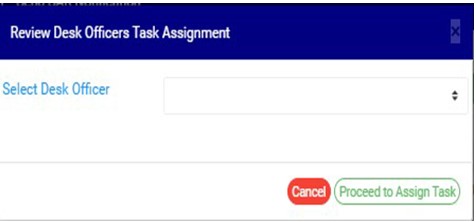
(fig. 6.3ab)
STEP 6: Select the officer you want to assign the Notification. This is shown in fig 6.3ac below
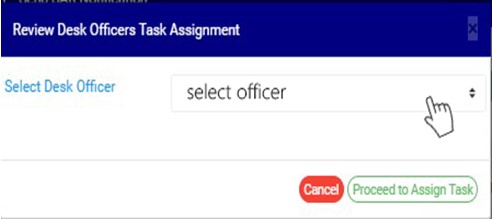
(fig. 6.3ac)
STEP 7: Click on “Proceed to Assign Task” to proceed or “cancel” to close the console and dismiss the operation.
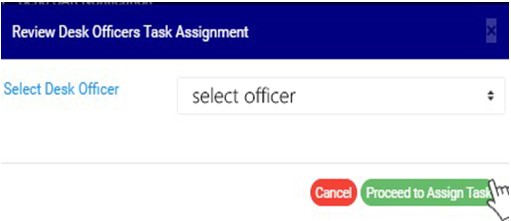
(fig. 6.3ad)
STEP 8: Clicking on “proceed to assign task” will display a console to confirm your selected action. See an example in Fig 6.3ae below. To proceed, click on CONFIRM and to dismiss the operation, click on CANCEL.
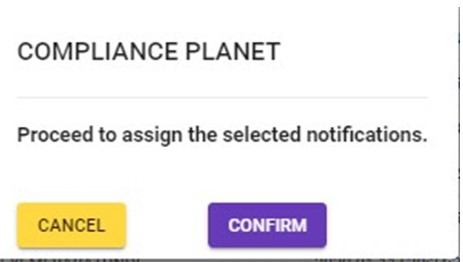
(fig. 6.3ae)
For further enquiries :
Tel +234(0) 816 555 9818
Email solutions@efuelite.com
Web http://solutions.efuelite.com
