
This section provides a guide on how to perform operations pertaining to the report person data on the Compliance Planet, with step-by-step instructions and pictures.
WHO IS A REPORT PERSON?
The report person refers to an authorized representative of the reporting institution. The personal and official details of the person make up the ‘Report person data’. The Compliance planet attaches the report person data to all reports processed and generated and it is static for all reports.
NOTE: Only person(s) profiled as deputy supreme admin will be able to carry out these operations
How to View Report Person Data
To view Report Person data;
STEP 1: From the app dashboard, click “CONTROL PANEL” as in Fig 26.1a below.
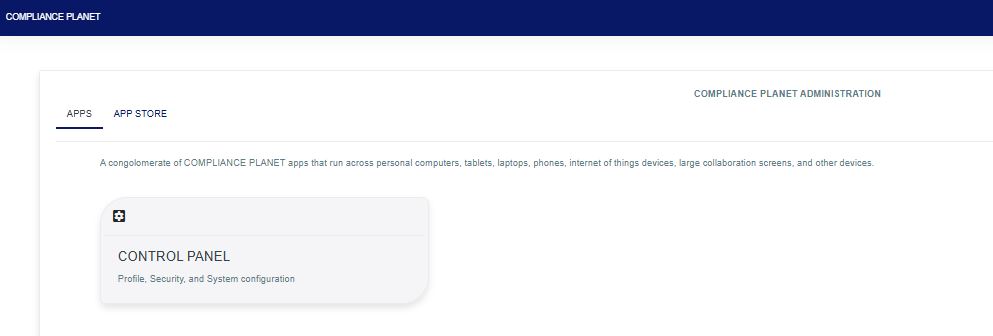
Fig 26.1a
STEP 2: From the left-hand side menu, click “REGULATORY REPORT” as in Fig 26.1b below
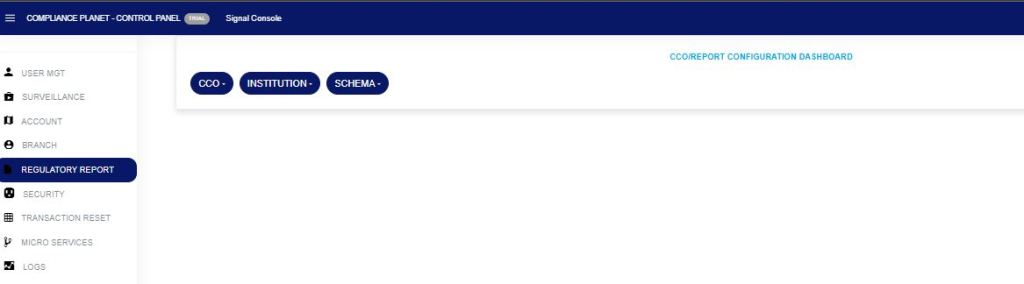
Fig 26.1b
STEP 3: From the menu, click “CCO” and select “View” as in Fig 26.1c below.
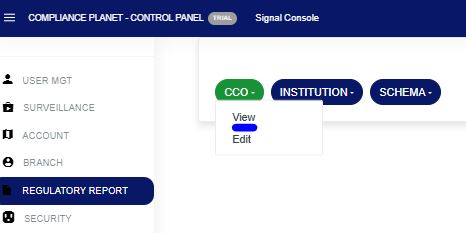
Fig 26.1c
This displays a REPORT PERSON DATA VIEW as in Fig. 26.1d below.
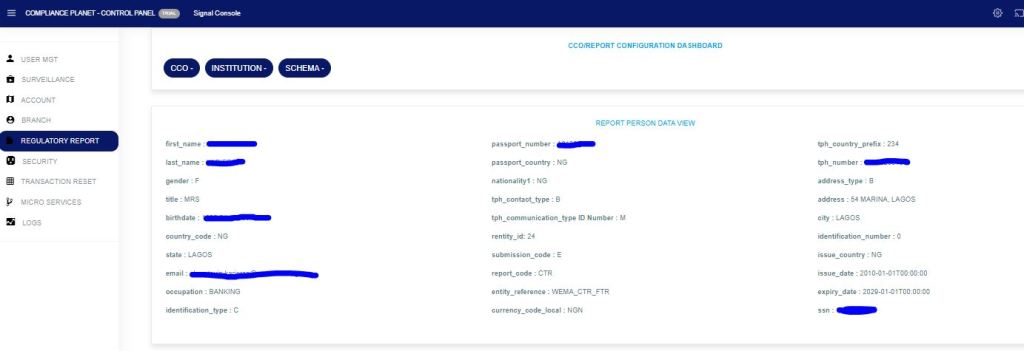
Fig. 26.1d
How to Edit Report Person Data
To make changes to the report person data;
STEP 1: Click “edit” on the report person data drop-down as in Fig 26.2a below

Fig. 26.2a
- This displays a page as in Fig. 26.2b below.
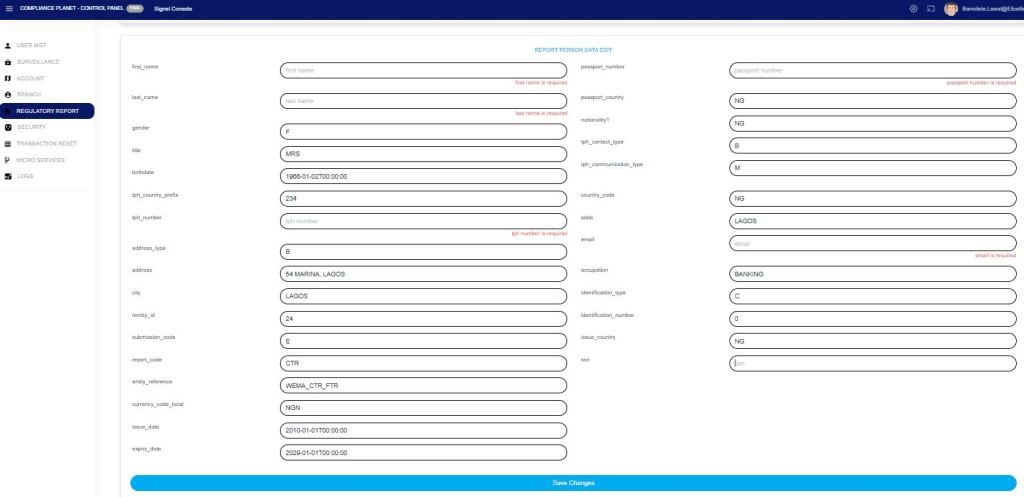
Fig. 26.2b
- Fill in the new details or change the details on the console.
STEP 2: Click on ‘Save Changes’ as shown in Fig. 26.2c.

Fig. 26.2c
- This displays a confirmation console as in Fig. 26.2d to confirm the request.

Fig. 26.2d
STEP 3: Click on ‘CONFIRM’ as in fig. 26.2e to proceed or ‘CANCEL’ to discontinue the operation. A notification will be displayed at the top of the page when the operation is complete.

Fig. 26.2e
For further enquiries:
Tel: +234(0) 816 555 9818
Email: solutions@efuelite.com
Web: https://solutions.efuelite.com
