
This section provides a guide on how to modify transaction type options available when sending an STR notification (see section 6.2.1) on the Compliance Planet, with step-by-step instructions and pictures.
Transaction types include NIP, NAPS, NEFT, Cheques, Cash deposits, Cash withdrawal, Transfer, FXFT, RTGS, REMITA, Investment Booking Transactions, Managers’ Cheque, etc.
Here, the operations are:
- Editing notification transaction type
- Deleting the notification transaction type
- Adding a new notification transaction type
NOTE: Only person(s) profiled as deputy supreme admin can carry out these operations
To perform any of the operations:
STEP 1: From the app dashboard, click “CONTROL PANEL” as in Fig. 20.2a below.
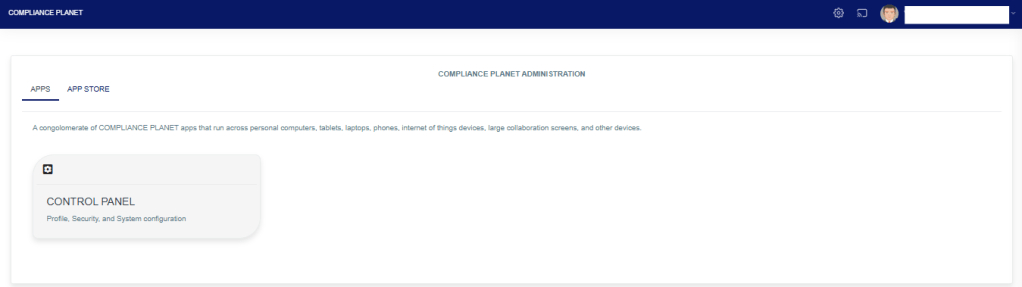
Fig 20.2a
- This will display a drop-down as in Fig. 20.2b below.
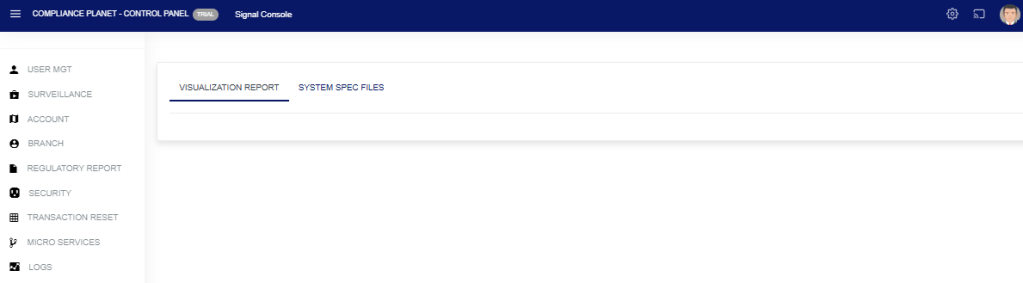
Fig. 20.2b
STEP 2: Click ‘SURVEILLANCE’ on the drop-down list. See an example in Fig. 20.2b below.
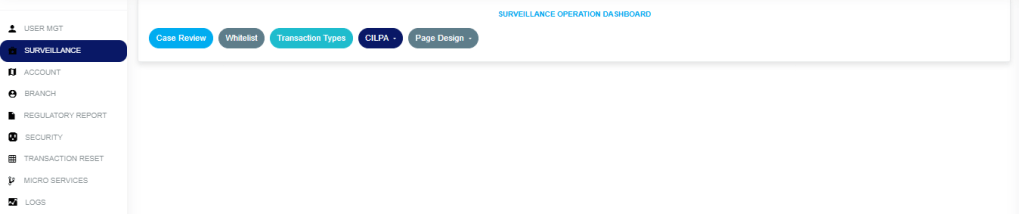
Fig 20.2b
- This will display the SURVEILLANCE OPERATION dashboard as in Fig. 20.2c below.
STEP 3: Click on “Transaction types” as in Fig. 20.2c below.

(Fig. 20.2c)
- This displays a page showing a list of all transaction types that have been created and are available on the software. See Fig. 20.2d for an example.
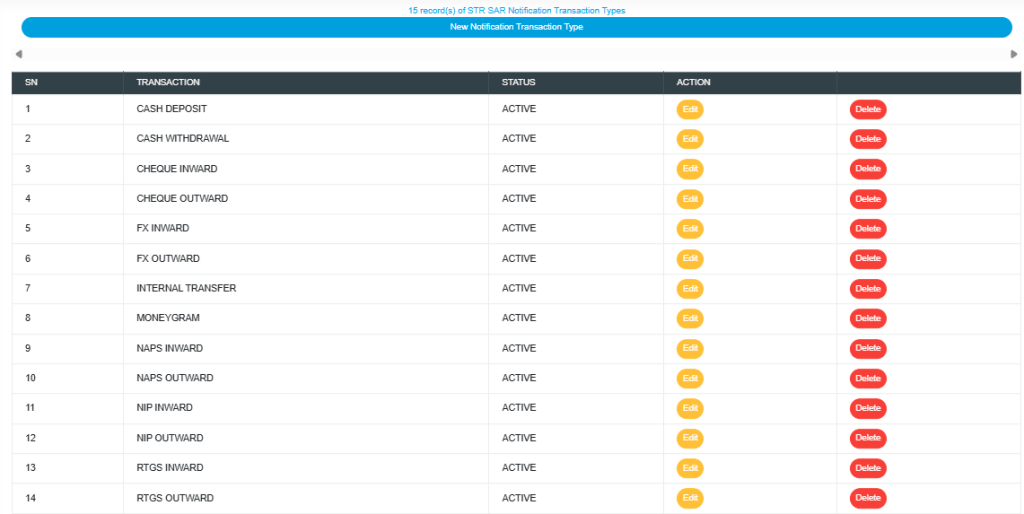
(Fig. 20.2d)
How to Edit an STR notification transaction type
This refers to changing the description or status of the transaction type. Here is how to do this.
STEP 1: Click on the ‘EDIT’ button in the action column. See Fig. 20.3a for an example.

(Fig 20.3a)
- Clicking the EDIT button will display a ‘Notifications Transaction Type’ console as shown in Fig. 20.3b below.
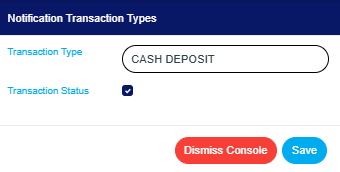
(Fig 20.3b)
STEP 2: Click on the transaction type text box to change the Notification transaction type description. See an example in Fig. 20.3c below.

(Fig 20.3c)
STEP 3: Click on the ‘Transaction Status’ checkbox to make that transaction notification type active or inactive. This is illustrated in Fig. 20.3d and Fig. 20.3e below.
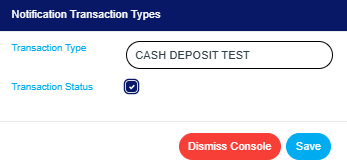
(Fig 20.3d)
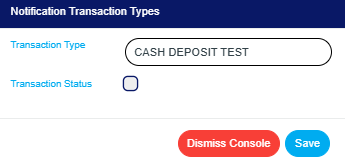
(Fig 20.3e)
- Fig. 20.3d shows that the transaction type is set ACTIVE, while Fig. 20.3e shows that the transaction type is set INACTIVE.
- An active transaction type will be available when sending a new STR notification on the Compliance Planet. In contrast, an inactive transaction type will no longer be part of the available options when sending a new STR notification on the compliance planet.
STEP 4: Click the ‘SAVE’ button to save the edit or click ‘DISMISS CONSOLE’ to cancel the operation. See Fig. 20.3f for an example.
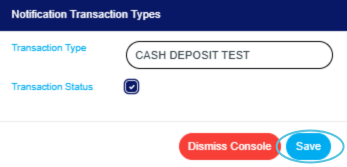
Fig 20.3f
- This displays a confirmation console as in Fig. 20.3g below.

Fig 20.3g
- A notification, as in Fig. 20.3h (A), will be displayed at the top of the page when the operation is successful. Also, see Fig. 20.3h for an example of the updated description and status.
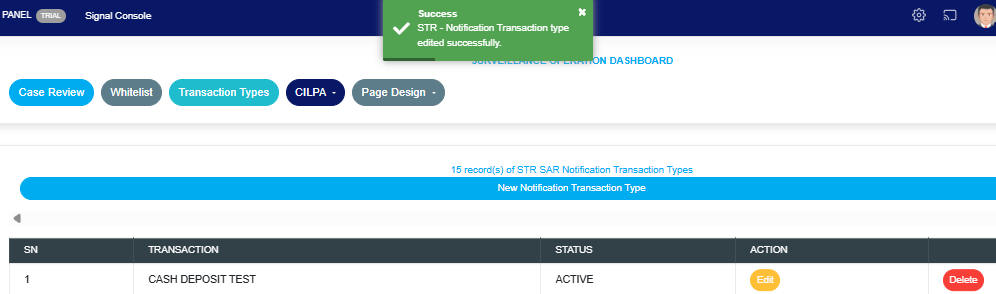
Fig 20.3h
How to Delete an STR notification transaction type
This refers to deleting an STR notification transaction type. If a transaction type is deleted, it will no longer be part of the available options when sending a new STR notification on the compliance planet (See section 6.2.1 for sending an STR notification).
Here is how to do this.
STEP 1: Click on the ‘delete’ button of the STR notification transaction type as in Fig.20.4a.
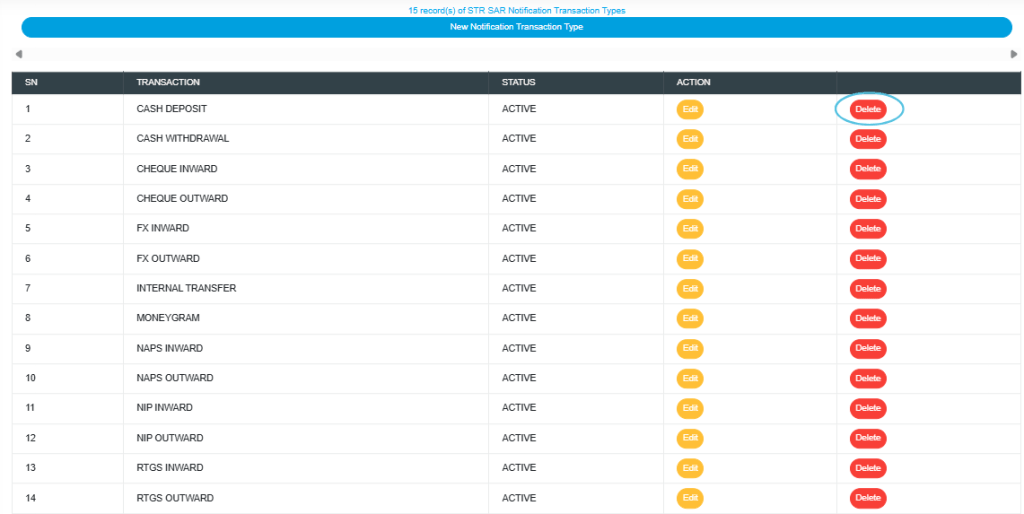
(fig20.4a)
- This displays a confirmation console to confirm your request to delete the transaction type.
STEP 2: Click on ‘CONFIRM’ as in Fig.20.4b to proceed or ‘CANCEL’ to discontinue.
(Fig.20.4b)
- A notification will be displayed at the top of the page when the delete operation is complete.

(Fig.20.4c)
How to add a new STR notification transaction type
This refers to creating a new STR notification transaction type. This transaction type will form part of the available options when sending a new STR notification on the compliance planet (See section 6.2.1 for sending an STR notification).
STEP 1: Click on ‘NEW NOTIFICATION TRANSACTION TYPE’ as shown in Fig. 20.5a below.

(Fig. 20.5a)
- A console as in Fig. 20.5b will be displayed.
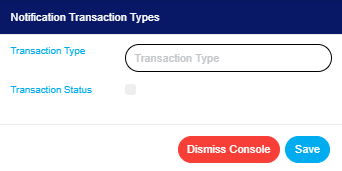
(fig. 20.5b)
STEP 2: Input the transaction type as in Fig. 21.5c below

(Fig. 20.5c)
STEP 3: Click on the transaction status checkbox to make that transaction notification type active or inactive. This is illustrated in
Fig 21.5d and Fig 20.5e below
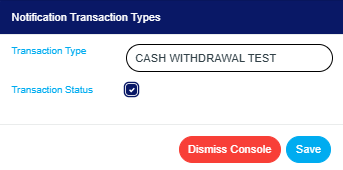
(Fig 20.5d)
(Fig 20.5e)
- Fig. 20.5d shows that the transaction type is set ACTIVE, while Fig. 21.0e shows that the transaction type is set INACTIVE.
- An active transaction type will form part of the available options when sending a new STR notification on the compliance planet (See section 6.2.1 for sending an STR notification). In contrast, an inactive transaction type will no longer be part of the available options when sending a new STR notification on the compliance planet.
STEP 3: Click on ‘SAVE’ to save the edit or click ‘DISMISS CONSOLE’ to cancel the operation. See Fig. 20.5f for an example.

Fig 20.5f
- This displays a confirmation console as in Fig. 20.5g below. Click ‘Confirm’ to proceed or ‘Cancel’ to close the console.
Fig 20.5g
- A notification, as in Fig. 20.5h (A), will be displayed at the top of the page, and the description and status will be updated.
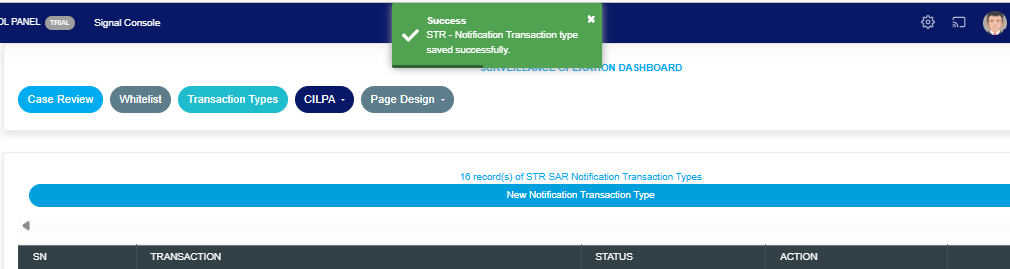
Fig 20.5h
For further enquiries:
Tel: +234(0) 816 555 9818
Email: solutions@efuelite.com
Web: https://solutions.efuelite.com
