
This section provides a guide on settings pertaining to STR and SAR notifications on the Compliance Planet, with step-by-step instructions and pictures.
Under this Control panel feature, the software provides options to;
- Modify the route an STR or SAR notification will go through
- Allow file attachments to be uploaded with the STR or SAR notification
- Validate account number when Sending an STR or SAR notifications
NOTE: Only person(s) profiled as deputy supreme admin will be able to carry out these operations
To perform any of the operations on STR SAR NOTIFICATION SETTINGS;
STEP 1: From the left-hand side menu, Click ‘Control panel’ as in fig. 25.1a.
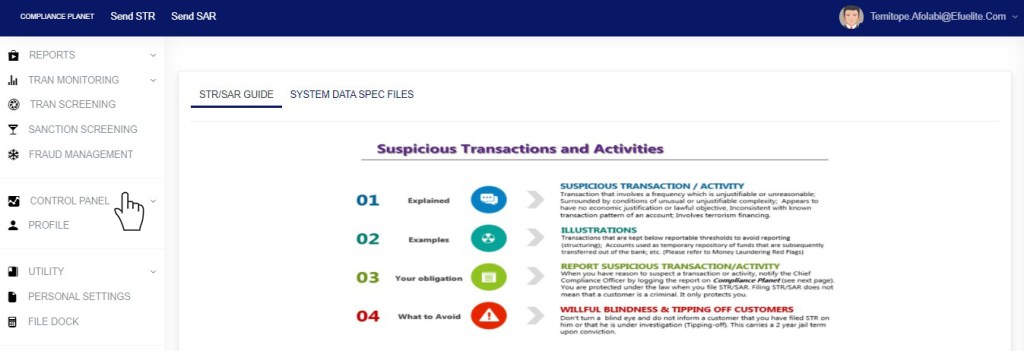
Fig 25.1a
- This will display a drop down as in Fig 25.1b below.
STEP 2: Click ‘STR SAR’ on the drop-down list. See an example in Fig 25.1b below.
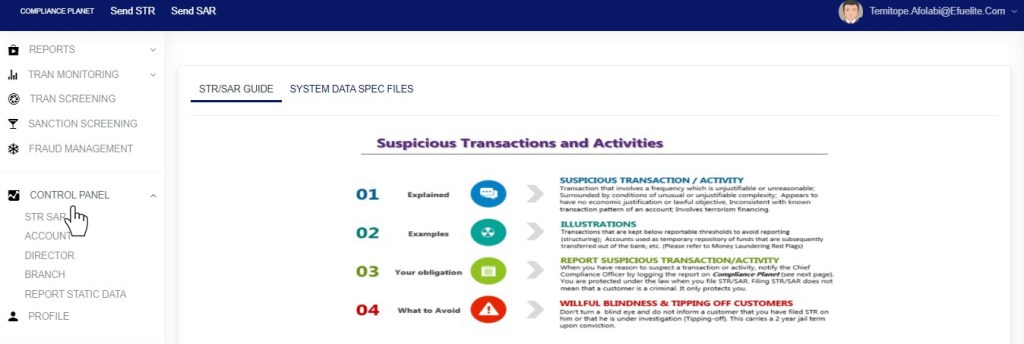
Fig 25.1b
- This will display STR SAR CONTROL PANEL OPERATION dashboard as in fig 25.1c below.
STEP 3: Click “STR SAR Process Settings” as in fig 25.1c below
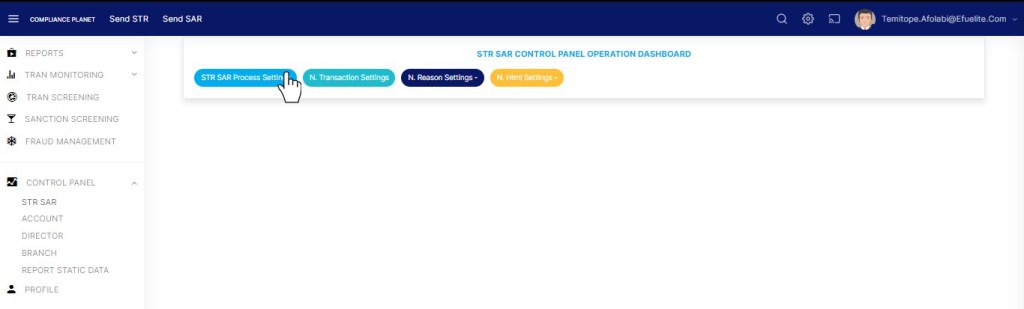
(fig. 25.1c)
- Clicking on SAR NOTIFICATION SETTINGS will display a page showing a list of all STR SAR notification settings. See fig. 25.1d for an example.

(fig. 25.1d)
STEP 4: Select the any of the STR SAR notification settings checkbox to activate that particular setting. See an example in fig 25.1e below

(fig. 25.1e)
- As seen in fig 25.1d and 25.1e above the STR SAR notification settings allows the user to configure the STR SAR notification process flow for both manually filed notifications and notifications automatically filled from transaction monitoring alerts.
- Note that the automated filling is only STR notifications.
- Selecting the STR SAR notification settings checkbox will activate that setting while deselecting the checkbox means you want to deactivate the setting.
Manual Notification Process Settings
- Manual STR Filling – Bypass Revision Desk: This means that all STR notifications sent will by-pass or will not go through the revision desk. This option may be used when the financial institution does not have a revision desk in the compliance department.
- Manual STR Filling –Bypass Supervision Desk: This means that all STR notifications sent will by-pass or will not go through the supervision desk. This option may be used when the financial institution does not have a supervision desk in the compliance department.
- Manual SAR Filling – Bypass Revision Desk: This means that all SAR notifications sent will by-pass or will not go through the revision desk. This option may be used when the financial institution does not have a revision desk in the compliance department.
- Manual SAR Filling – Bypass Supervision Desk: This means that all SAR notifications sent will by-pass or will not go through the supervision desk. This option may be used when the financial institution does not have a supervision desk in the compliance department.
Automated (Transaction Monitoring) Notification Process Settings
- Automated (Tran Monitoring) STR filling – Bypass Revision Desk: This option is for transactions that are automatically pushed from transaction monitoring alerts. Selecting this option means the STR notification sent will not go through the revision desk.
- Automated (Tran Monitoring) STR filling – Bypass Supervision Desk: This option is for transactions that are automatically pushed from transaction monitoring alerts. Selecting this option means the STR notification sent will not go through the supervision desk.
Other STR SAR Notification Pro Settings
- STR file Upload: Selecting this enables the option to upload documents (attachments) to accompany the STR notification.
- SAR file upload: Selecting this enables the option to upload documents (attachments) to accompany the SAR notification
- STR Validate Notification account number: Selecting this option means that when sending an STR notification, the planet will validate the inputted AC number if it exists on the financial institutions’ database.
- SAR Validate Notification account number: Selecting this option means that when sending an SAR notification, the planet will validate the inputted AC number if it exists on the financial institutions’ database.
STEP 5: Click on ‘SAVE CHANGES’ button to save the changes. See an example in fig 25.1f below.

(fig. 25.1f)
- Clicking on the save changes button will display a confirmation console as in Fig 25.1g below. Click on ‘CONFIRM’ to save the changes or cancel to discontinue action.
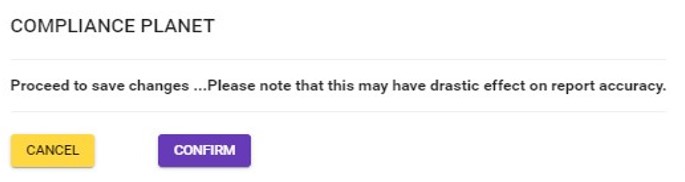
(Fig 25.1g)
- When the changes are saved, a notification will be displayed at the top of the page as in fig. 25.1h below.

(Fig 25.1h)
For further enquiries :
Tel +234(0) 816 555 9818
Email solutions@efuelite.com
Web https://solutions.efuelite.com
