
In this section, you can edit the bio-data of the institution. This includes: the full and short name of the institution, the institution code, tax number, Bvn, address, year of establishment, default email, and default occupation. This section provides a guide on how to perform operations regarding institution settings on the Compliance Planet, with step-by-step instructions and pictures.
NOTE: Only the Supreme Administrator can carry out these operations.
STEP 1: From the app dashboard, click “CONTROL PANEL” as in Fig 27.3a below.
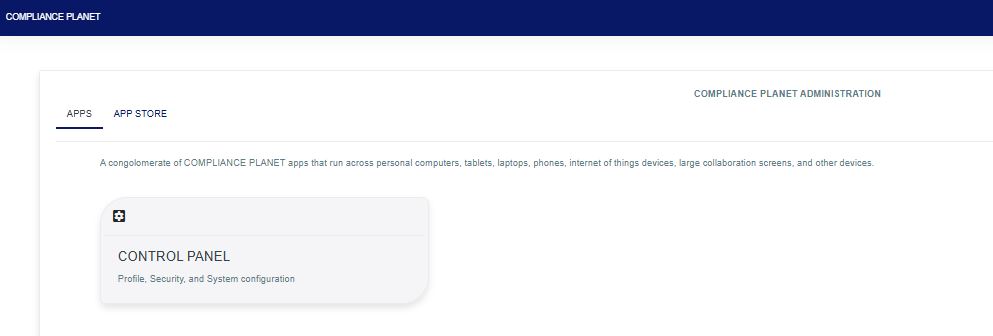
Fig 27.3a
STEP 2: From the left-hand side menu, click “REGULATORY REPORT”. as in Fig 27.3b below
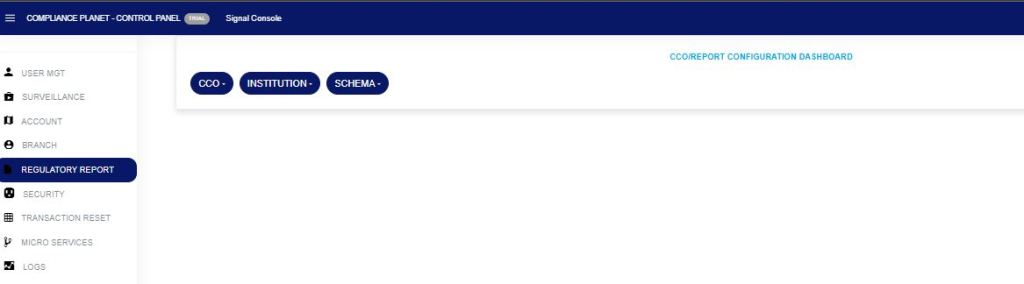
Fig 27.3b
STEP 3: From the menu, click “Institution” as in Fig 27.3c below
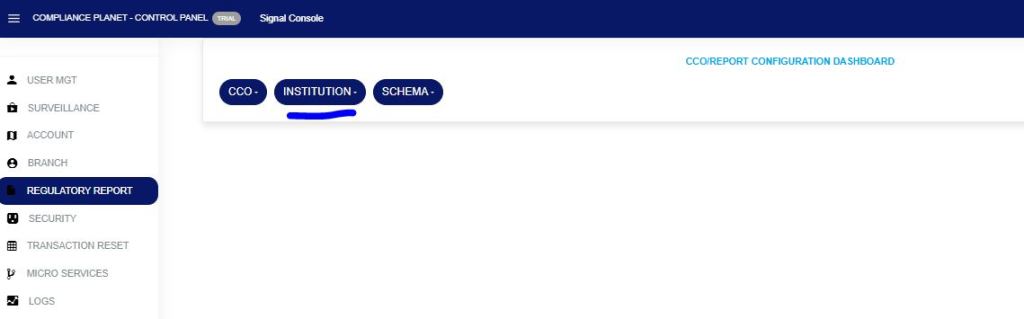
Fig 27.3c
- This displays a drop-down as in fig 27.3d below
STEP 4: Click “Settings” on the institution drop-down as in fig 27.3d below
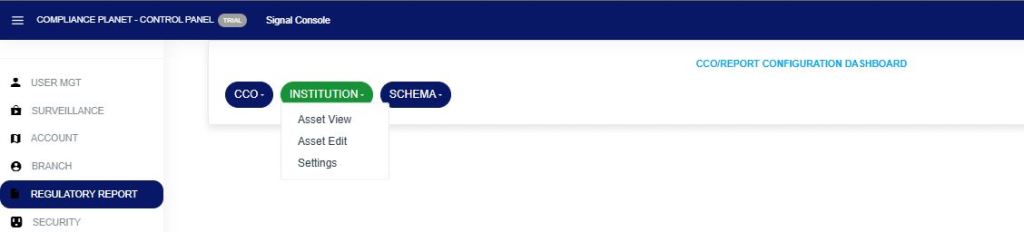
Fig 27.3d
- This displays a console as in Fig. 27.3e below
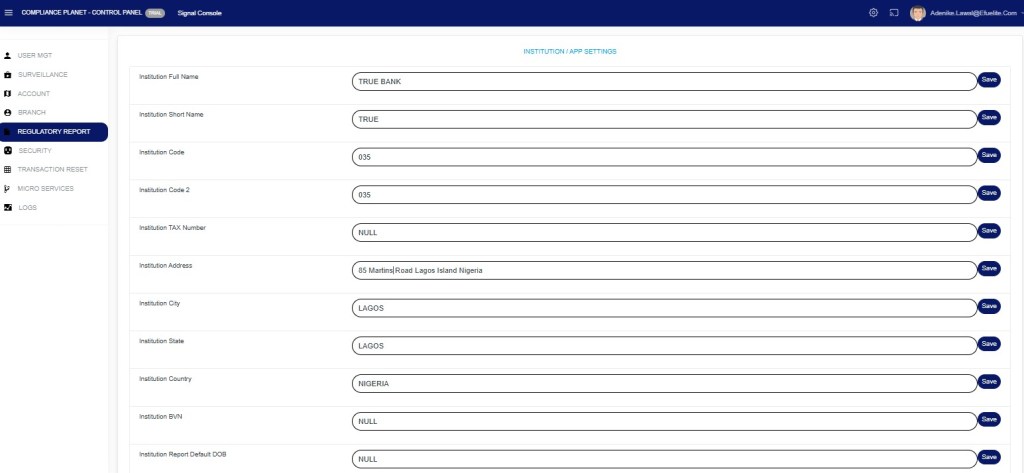
Fig. 27.3e
STEP 3: Click on any of the textboxes to edit it. See an example in fig. 27.3f below.

Fig. 27.3f
STEP 4: Click on the “SAVE” button at the right end of the row to update that specific field. See an illustration in fig. 27.3g below.

Fig. 27.3g
- A notification as in fig. 27.3h below will be displayed at the top of the page when the operation is complete.

Fig. 27.3h
For further enquiries:
Tel: +234(0) 816 555 9818
Email: solutions@efuelite.com
Web: https://solutions.efuelite.com
