
The operations pertaining to the exempted account scheme include exempting an account scheme and removing an account scheme from the CTR exemption list.
NOTE: Only person(s) profiled as deputy supreme admin can carry out these operations
To perform any of the operations on Exempted Account schemes;
STEP 1: From the left-hand side menu, Click ‘Control panel’ as in fig. 17.2a.
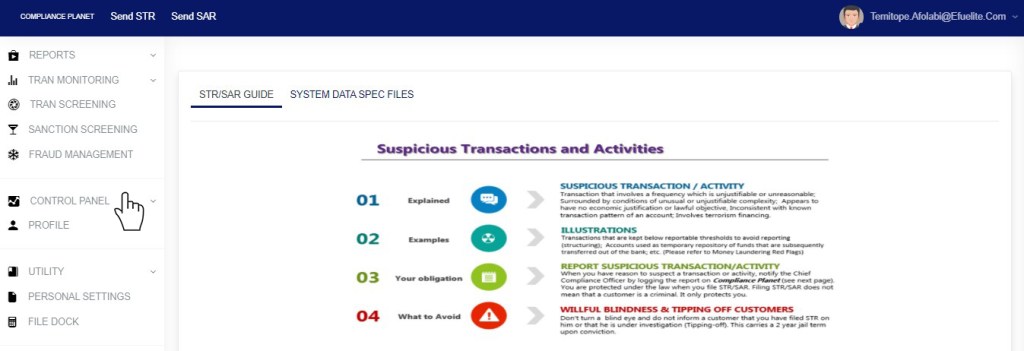
Fig 17.2a
- This will display a drop down as in Fig 17.2b below.
STEP 2: Click ‘ACCOUNT’ on the drop-down list. See an example in Fig 17.2b below.
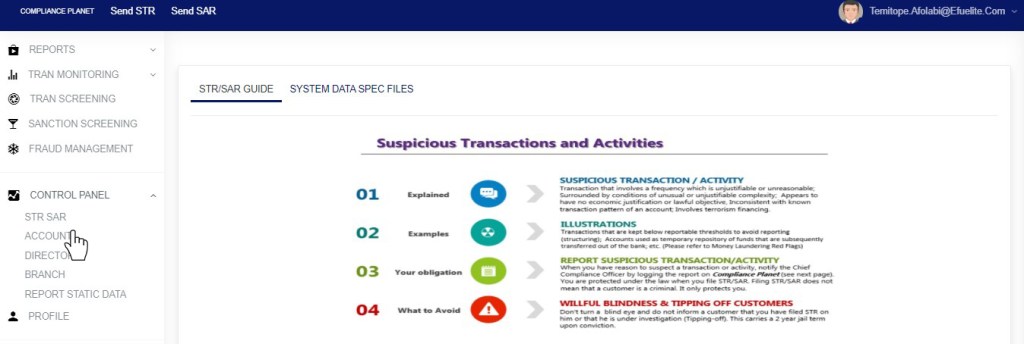
Fig 17.2b
- This will display the ACCOUNT CONTROL PANEL OPERATIONS dashboard as in Fig 17.2c below
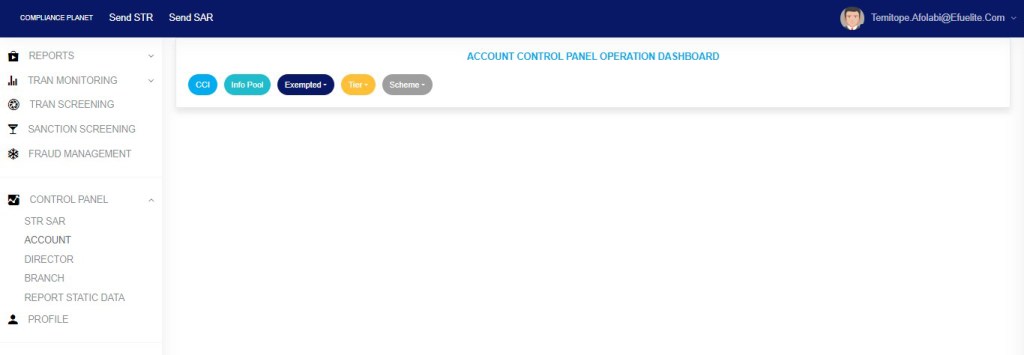
Fig 17.2c
STEP 3: Click “Exempted” from the top menu on the account page. See an example in fig. 17 .2d below
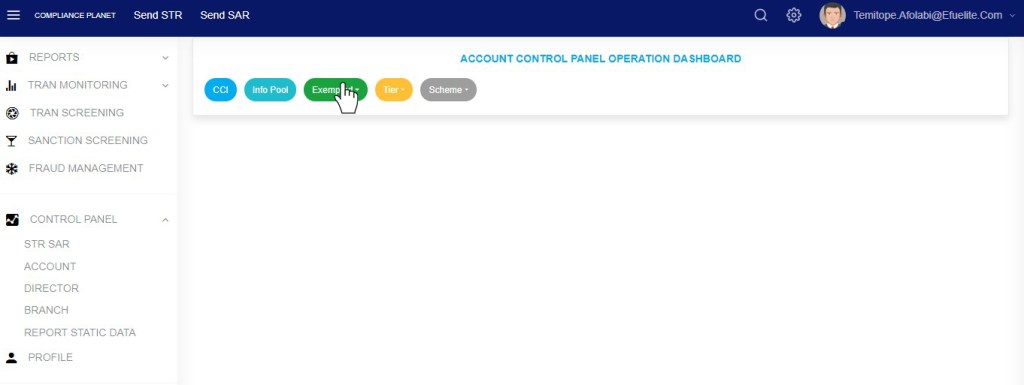
Fig 17.2d
- This displays a dropdown as in fig 17.2e below
STEP 4: Click “Account Scheme” on the drop-down list as in fig 17.2e below
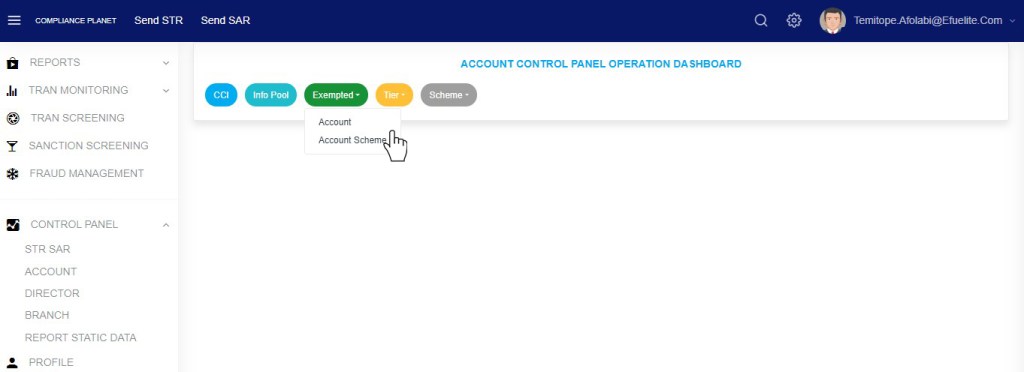
Fig 17.2e
- This displays a page as seen in fig. 17.2f below.

(fig. 17.2f)
- Click on the ‘ENTRIES’ box to adjust the number of entries per page as shown in fig. 17.2g below.

(fig. 17.2g)
- Type a scheme code in the search box to search for an exempted scheme code. See an example of a search in fig. 17.2h below.
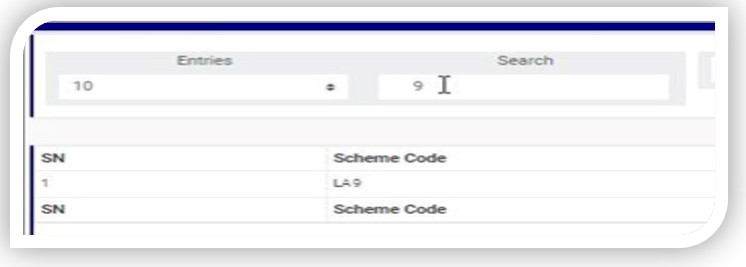
(fig. 17.2h)
How To Exempt An Account Scheme
This refers to adding an account scheme code to the exemption list. Here is how to do this.
STEP 1: Type an account scheme code in the SCHEME CODE box. See an example in fig. 17.3a below.

(fig. 17.3a)
STEP 2: Click on ‘EXEMPT SCHEME CODE’’ as shown in fig. 17.3b.
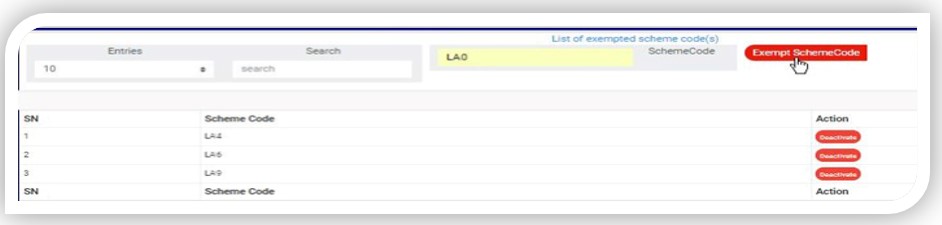
(fig. 17.3b)
- This displays a confirmation console as in fig. 17.3c.
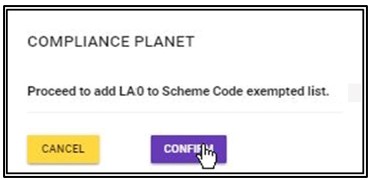
(fig. 17.3c)
STEP 3: Click on ‘CONFIRM’ to add the account scheme to the exemption list or ‘CANCEL’ to discontinue. If you proceed, a notification will be displayed at the top of the page. See fig. 17.3d for an example.
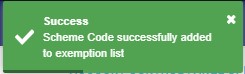
(fig. 17.3d)
How to Remove An Account Scheme from the Exemption List
To remove an account scheme from the exemption list;
STEP 1: Click the ‘DEACTIVATE’ button as in fig. 17.4a for an example.

(fig. 17.4a)
- This displays a confirmation console as in fig. 17.4b.
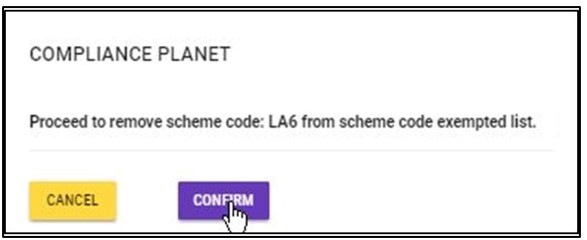
(fig. 17.4b)
STEP 2: Click on ‘CONFIRM’ to remove the account scheme from the scheme code exempted list or ‘CANCEL’ to discontinue. If you proceed, the scheme code will be removed from the list immediately, and a notification will be displayed at the top of the page. See fig. 17.4c for an example.

(fig. 17.4c)
For further enquiries :
Tel +234(0) 816 555 9818
Email solutions@efuelite.com
Web https://solutions.efuelite.com
