
SWIFT Message types come in a format that cannot be interpreted by a layman, hence the need for a SWIFT message reader (SWIFT message translator). The SWIFT console has a message reader. The Compliance Planet SWIFT message reader processes MT102 and MT103 only. These message types are category 1 messages -Customer Payments and Cheques. Here is how to translate a SWIFT message.
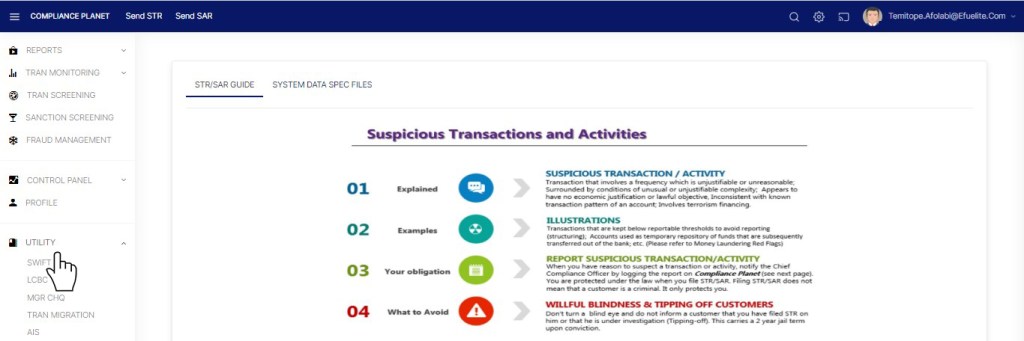
STEP 1: From the left-hand side menu, click ‘UTILITY’ as in fig. 30.3a below

(fig. 30.3a)
- This displays a drop-down list as in fig.30.3b.
STEP 2: On the drop-down list, click “Swift” as shown in fig 30.3b below
(fig. 30.3b)
- This displays a “SWIFT OPERATIONS DASHBOARD” as in fig. 30.3c.
STEP 3: Click “File” On the SWIFT OPERATIONS DASHBOARD as shown in fig 30.3c below

(fig. 30.3c)
- This displays a page as in fig. 30.3d. On this page the software give information on the number of Swift messages archived, extracted unprocessed messages and file dump. You can refresh these data by clicking the “Refresh” button as shown in fig 30.3d below
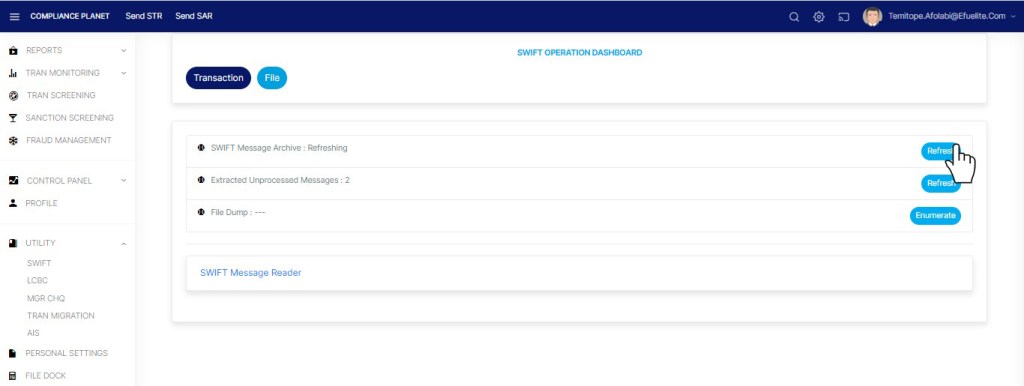
Fig 30.3d
- The SWIFT dashboard also gives information on the number of SWIFT files processed by the software on the server. This figure can also be refreshed by clicking on its ‘Enumerate’ button as in fig. 30.3e below
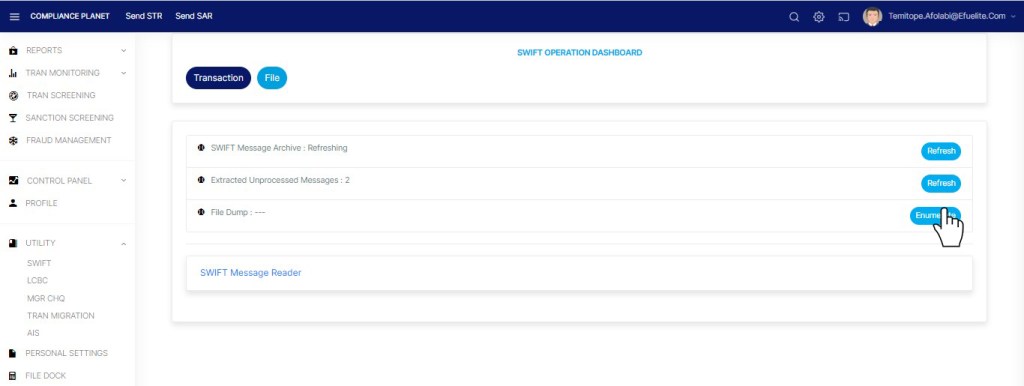
fig. 30.3e
- Also, the SWIFT dashboard has a SWIFT message reader that translates SWIFT messages to information that is meaningful to users.
How to Translate SWIFT messages
STEP 1: Click on ‘SWIFT Message Reader’ as in fig. 30.4a below.

(fig. 30.4a)
- This displays a text box as in fig. 30.4b.

(fig. 30.4b)
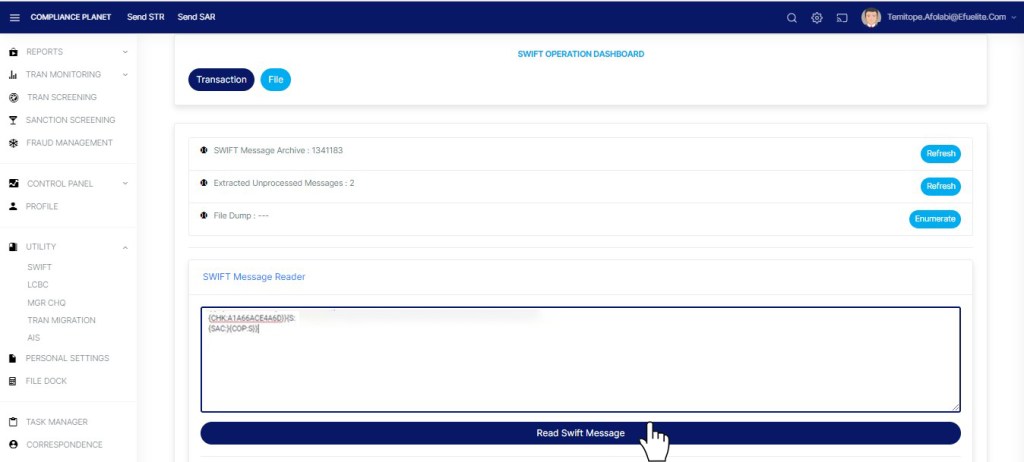
STEP 2: Paste the MT102 or MT103 message to be translated in the text box. See an example in fig. 30.4c.

(fig. 30.4c)
STEP 3: Click on ‘Read SWIFT Message’ as in fig. 30.4d to translate the message.
(fig. 30.4d)
- This displays a confirmation console to confirm the processing of the message. Click on ‘Confirm’ to proceed or ‘Cancel’ terminate the operation.
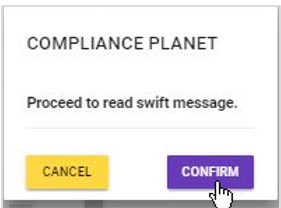
(fig. 30.4e)
- By clicking on ‘Confirm’, the compliance planet software SWIFT reader will read the message, and place a transaction folder at the right side of the console and a notification will be displayed at the top of the page. The number of transaction folders represents each transaction reported in the SWIFT message translated. See fig. 30.4f below for an example.

(fig. 30.4f)
STEP 4: Click on the transaction folder(s) as in fig. 30.4g to view the message(s).
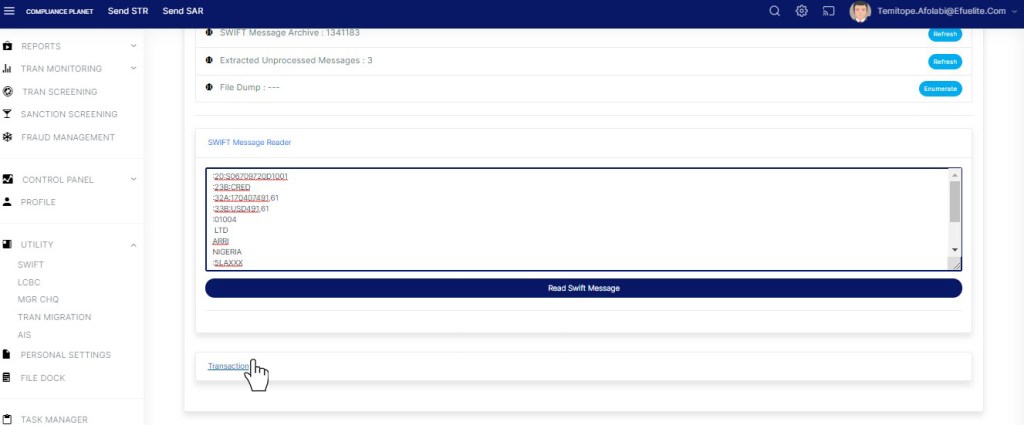
(fig. 30.4g)
- The translated version of the SWIFT message will be displayed as shown in fig. 30.4h
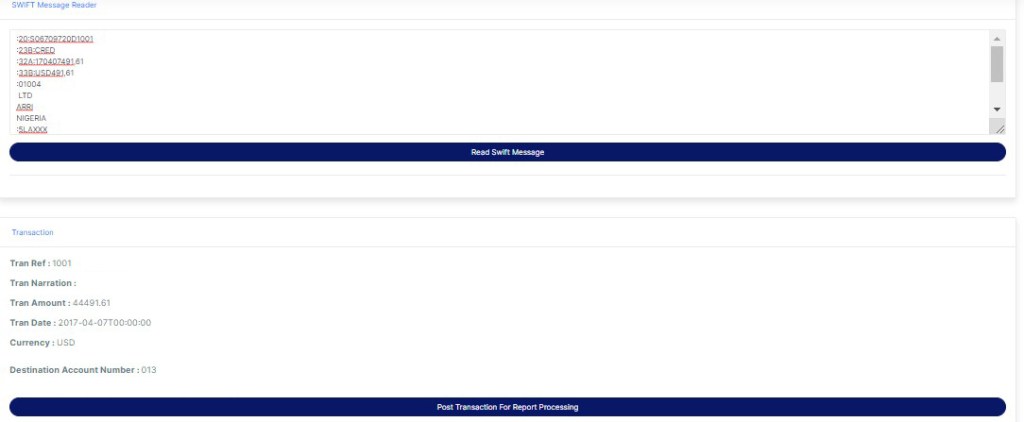
(fig. 30.4h)
- Transactions reported in SWIFT messages fall under the Foreign Exchange Transaction type (FXFT). From the message reader, SWIFT transactions read can be posted to the transaction pool for Report processing. Transactions posted will form part of reports generated by the Compliance Planet. If they are re-posted, the transaction details will be duplicated in the report generated.
- To post the transaction(s) for report processing;
- click on ‘Post Transaction for Report Processing’ as in fig. 30.4i below.
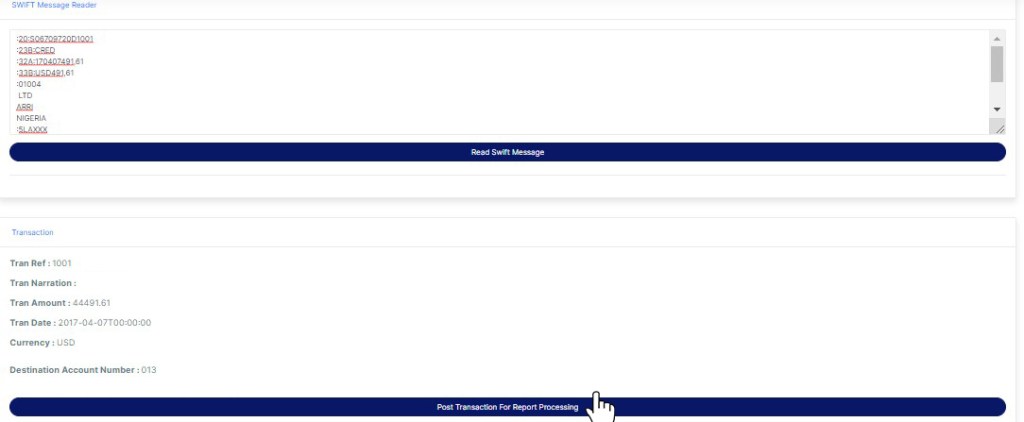
(fig. 30.4i)
- This displays a confirmation console as in fig. 30.4j. Click on ‘Confirm’ to proceed.
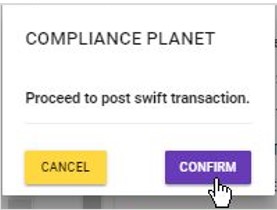
(fig. 30.4j)
- A ‘Success Message’ will be displayed on the page as seen in fig. 30.4k below.
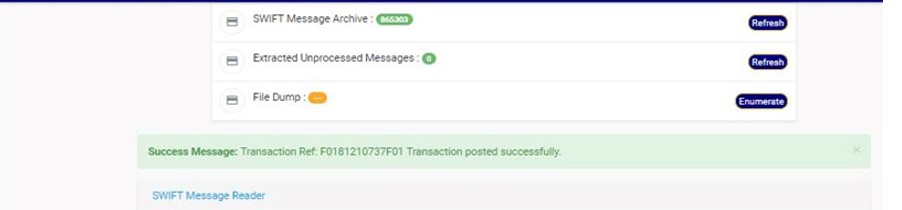
(fig. 30.4k)
For further enquiries :
Tel +234(0) 816 555 9818
Email solutions@efuelite.com
Web https://solutions.efuelite.com
