Anti-Money Laundering Monitoring, Digital and Financial Crime Surveillance, Global Sanction and PEP Screening And Reporting Software
How to View and Delete Notification Prompt In Compliance Planet Anti Money Laundering/Core Banking Finance Software
This feature houses notifications generated by the Compliance Planet software when a report is processed successfully. These notifications are also sent to the user’s email.
This section provides a guide on how to perform operations pertaining to notifications on the Compliance Planet software, with step-by-step instructions and pictures.
Operations here include viewing and deleting notifications. Here is how to make use of the features.
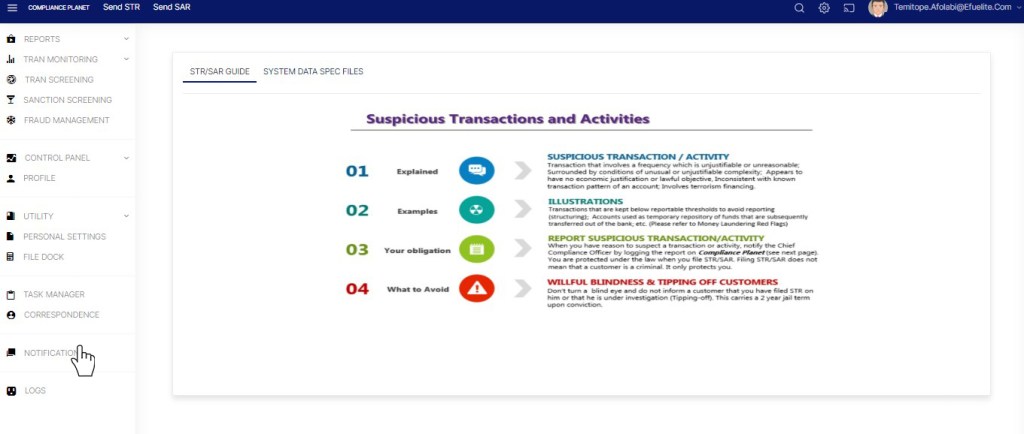
Click on ‘Notification’ on the left-hand side menu as in fig. 35.1a.
(fig. 35.1a)
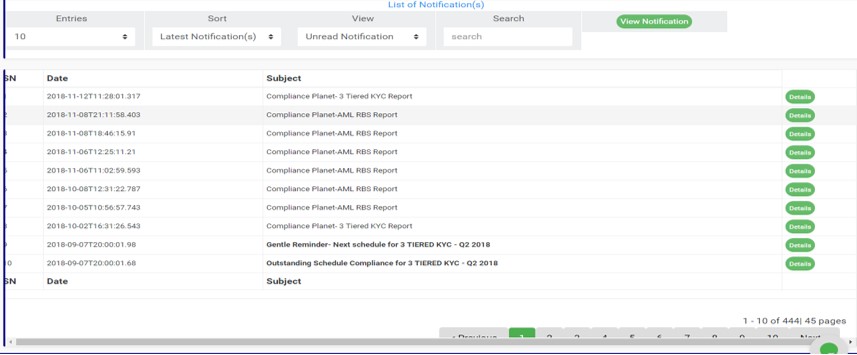
This will display the notifications page. See fig. 35.1b for an example of the page.
(fig. 35.1b)
Click on the ‘entries’ box as in fig. 35.1c to adjust the number of notifications you want to see per page.
(fig. 35.1c)
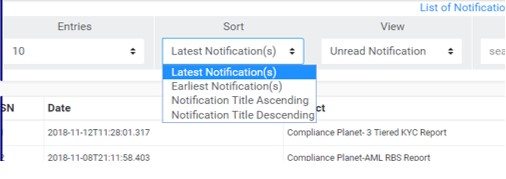
You can sort the notifications to be seen from the latest notification (oldest notification) to the earliest notification (newest notifications) or vice versa. Specify the order of the list by clicking on the ‘Sort’ box as in fig. 35.1d. The default view is from the latest to the earliest.
(fig. 35.1d)
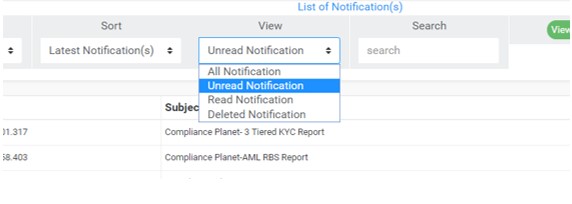
Select the notifications to be displayed by clicking the ‘View’ box as in fig. 35.1e. The categories of notifications available are; Unread notification, Read notification, Deleted notification and All notifications. The Unread category is the default view on landing on the page.
(fig. 35.1e)
After selecting the category you want to see, click on ‘View Notification’ as in fig. 35.1f.
(fig. 35.1f)
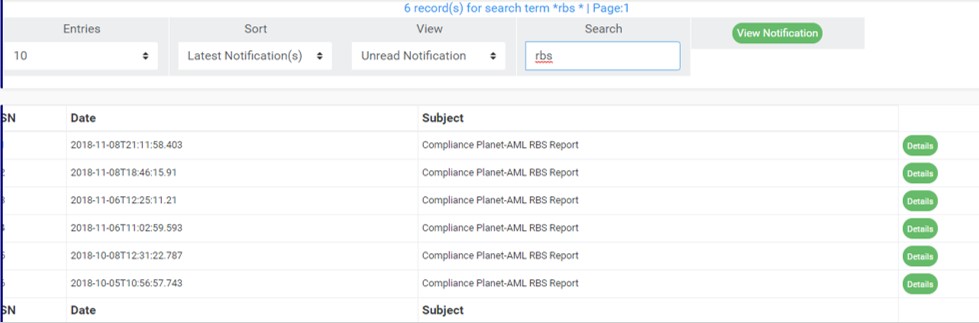
Search for a notification or a set of notifications by typing a search term in the ‘Search’ box. Search results are displayed in real time. See fig. 35.1g for an example of a search.
(fig. 35.1g)
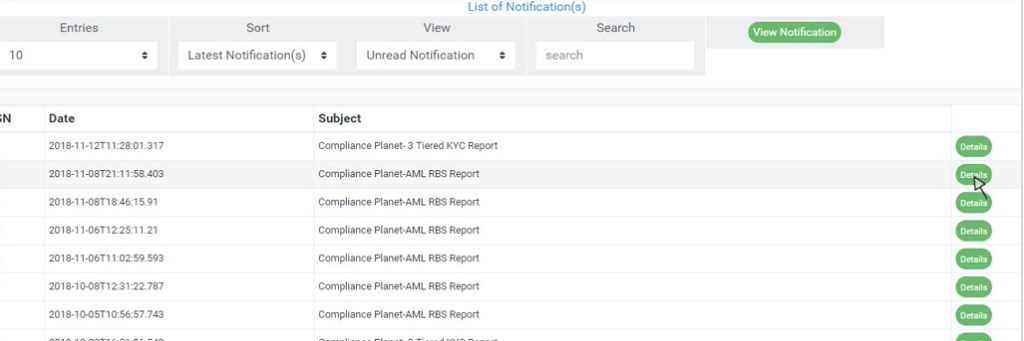
Each notification has a ‘Details’ button that shows details of the message conveyed by the notification. Click on ‘Details’ as in fig. 35.1j to see a notification message.