
This section provides options to set
1. Idle time Out: This is the maximum period users can stay without interacting with the software. When this feature is activated, users will be automatically logged out after a specified period of inactivity.
2. App Session Life Span: This is the maximum period a user’s session can last, i.e., a user will be automatically logged out once the set life span elapses. Note that a session starts when a user logs into the software and ends when the user logs out.
3. Multiple User Sessions: This determines if the user will be permitted to log into the software on more than one browser, tab on a browser, or device at the same time.
NOTE: Only administrators can carry out these operations
Follow the Steps below to perform the operations listed above in the Compliance Planet AML software.
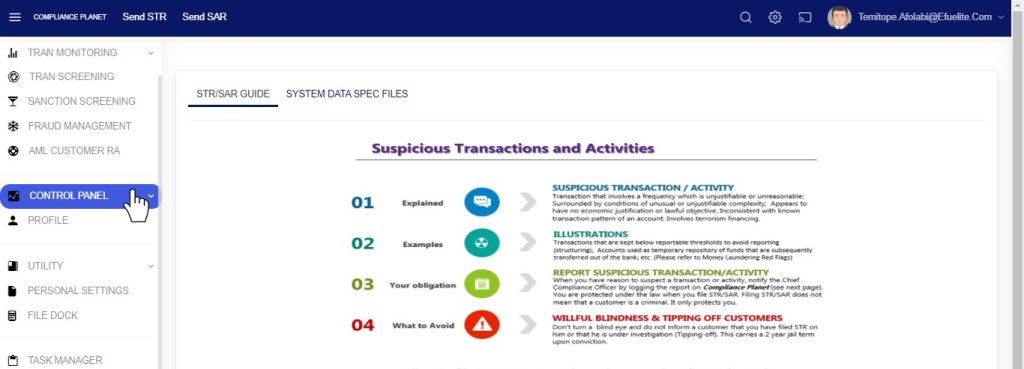
- From the left-hand side menu click “Control Panel” as in fig below.
- This will display a drop-down as in fig below
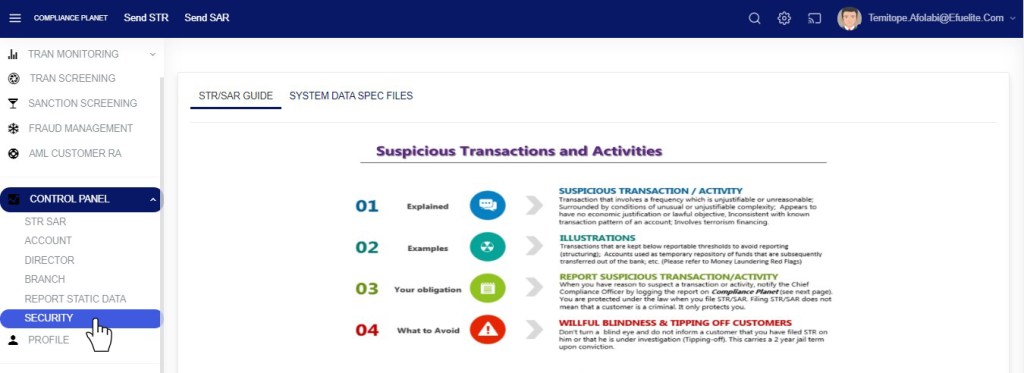
- Click “Security” from the control panel drop-down as in fig below

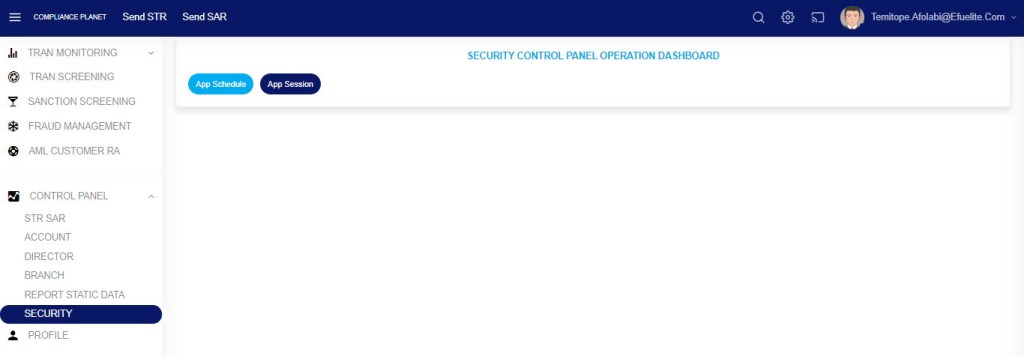
- This will display a SECURITY CONTROL PANEL OPERATIONS DASHBOARD as in fig below
STEP 1: Click “App Session” from the top menu on the SECURITY CONTROL PANEL DASHBOARD. See an example in fig 39.2a below.
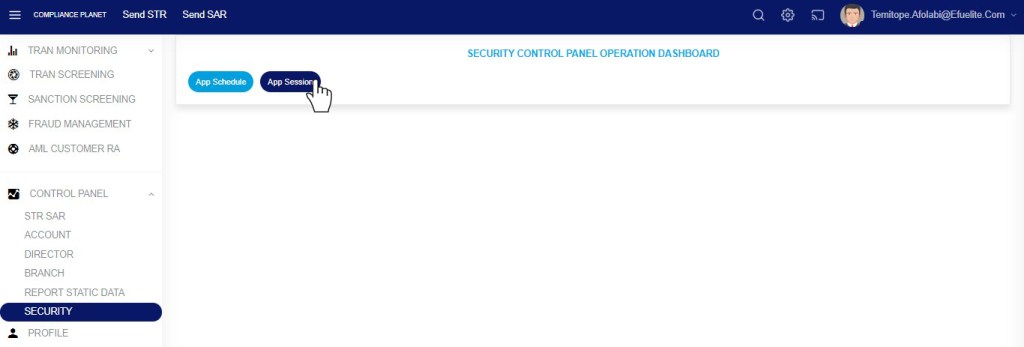
Fig 39.2a
- This displays a page as in fig 39.2b below
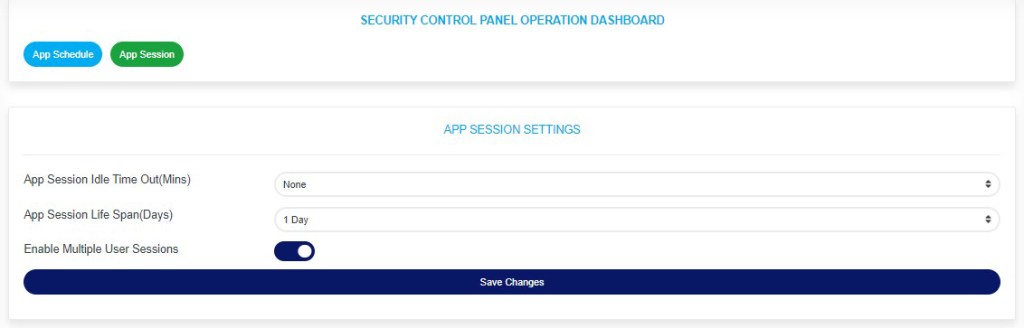
Fig 39.2b
STEP 2: Click the “App Session Idle Time Out (Mins)” box as in Figure 39.2c below.
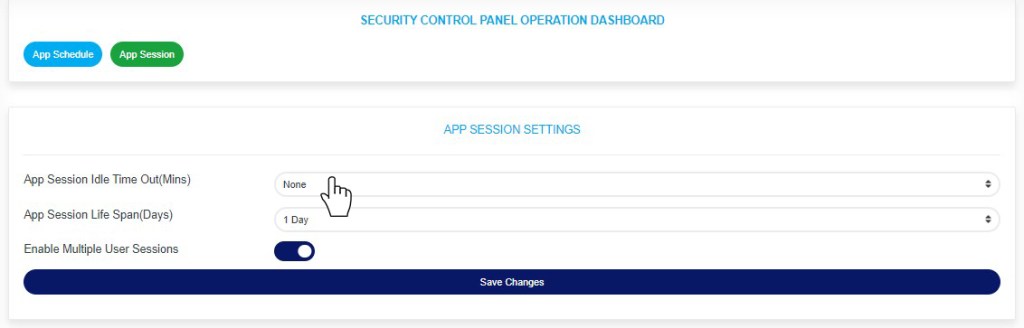
Fig 39.2c
- This displays a drop-down as in fig 39.2d below.
STEP 3: Select your preferred idle time-out duration in minutes, as in Fig. 39.2d below.
Note that selecting “None” will deactivate the idle time-out feature.

Fig 39.2d
- A timer console will be displayed as soon as the set maximum idle time remains 1 minute. The time will count down to zero, and if the user does not interact with the software before it gets to zero, the user will be logged out of the application. See an example below
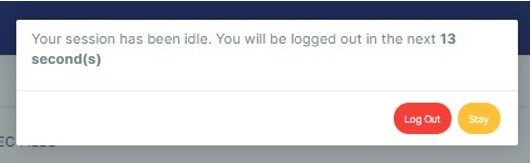
fig.27.3l
STEP 4: Click the “App Session Life Span (Days)” box as in Fig. 39.2e below.
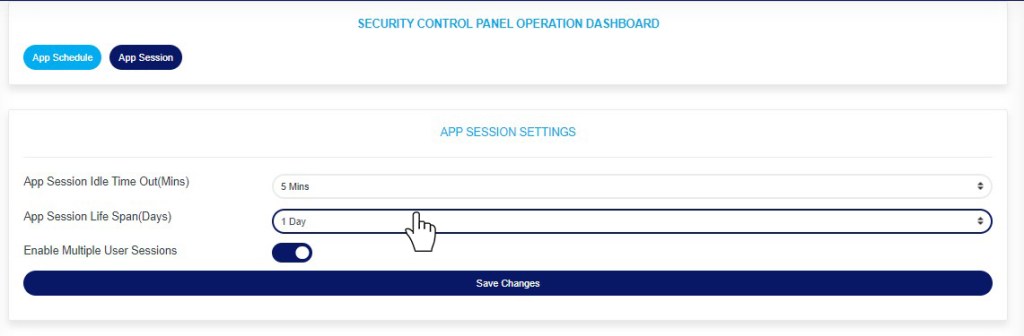
Fig 39.2e
- This displays a drop-down as in fig 39.2f below.
STEP 5: Select your preferred App Session Life Span duration in days as in fig 39.2f below.
Note: Selecting “None” will deactivate the App Session Life Span feature

Fig 39.2f
STEP 6: Toggle the “Enable Multiple User Sessions” box to either allow multiple user sessions or disallow multiple user sessions. See examples in fig. 39 .2 g and fig 39.2h below
- Dis-enable Multiple User Sessions
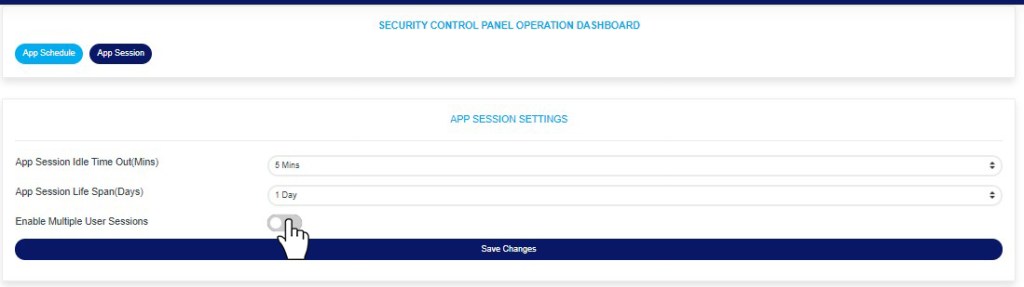
Fig 39.2g
- Enable Multiple User Sessions
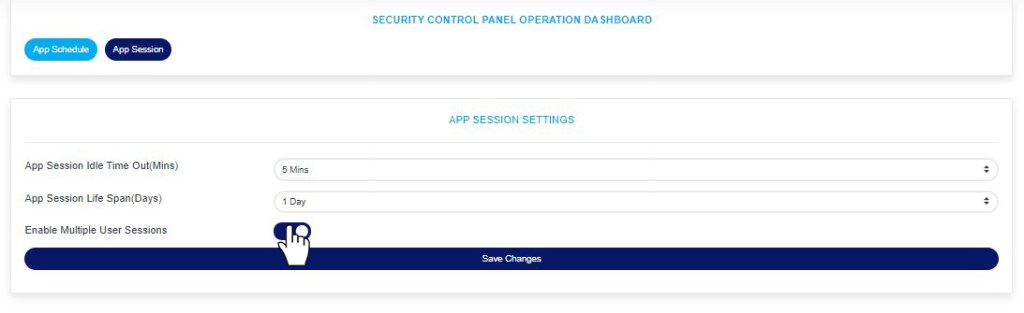
Fig 39.2h
STEP 7: Click “Save Changes” as in fig 39.2h below to update the App Session Settings.
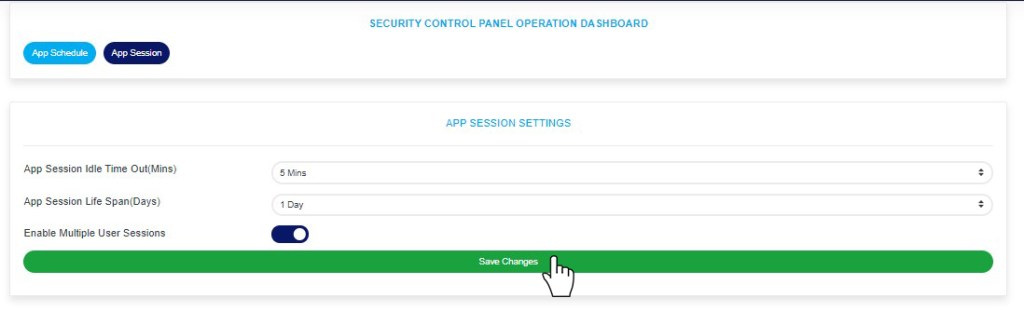
Fig 39.2i
- This displays a confirmation console as in fig 39.2j below
STEP 8: Click “Confirm” to proceed or “Cancel” to close the console.
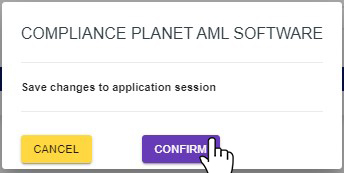
Fig 39.2j
- This will display a notification at the top of the page showing that the app session settings have been successfully updated.

Fig 39.2k
For further enquiries :
Tel +234(0) 816 555 9818
Email solutions@efuelite.com
Web https://solutions.efuelite.com
