
The User Device Log page displays a record of user devices currently logged in to the Compliance Planet AML software.
STEP 1: From the dashboard, click “Control Panel” as in Fig.28.6a below
Fig.28.6a

This will display a Log Management Operations dashboard as in Fig.28.6b below
STEP 2: From the top menu, click “User Device” as in Fig.28.6b below
Fig.28.6b

STEP 3: This will display the Click “Dataview filter,” as shown in Fig. 28.6c below.
Fig.28.6c

STEP 4: This will display the “Parameters” as shown in Fig.28.6d below.
Fig.28.6d
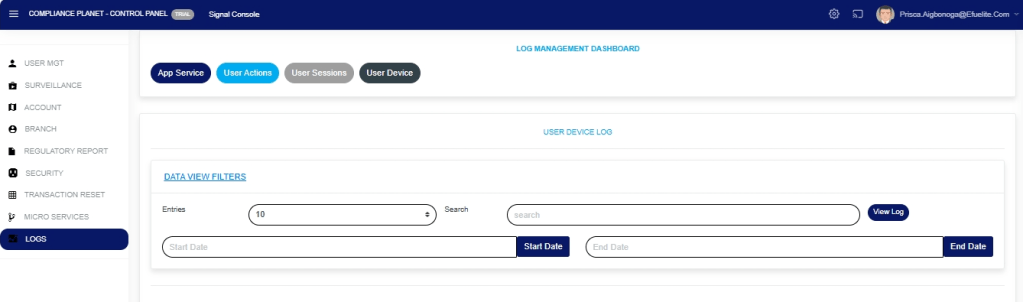
STEP 3: Click “Start Date” and “End Date” as in Fig.28.6e and Fig.28.6f below to select the end and start date for the records you want to view.
Fig 28.6e
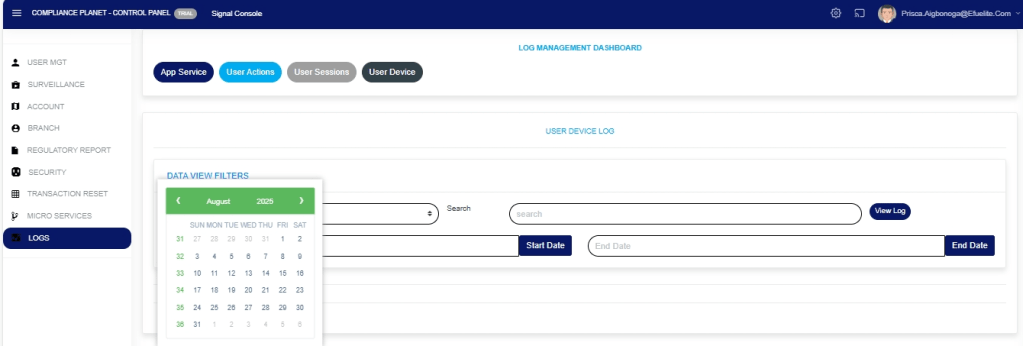
Fig.28.6f

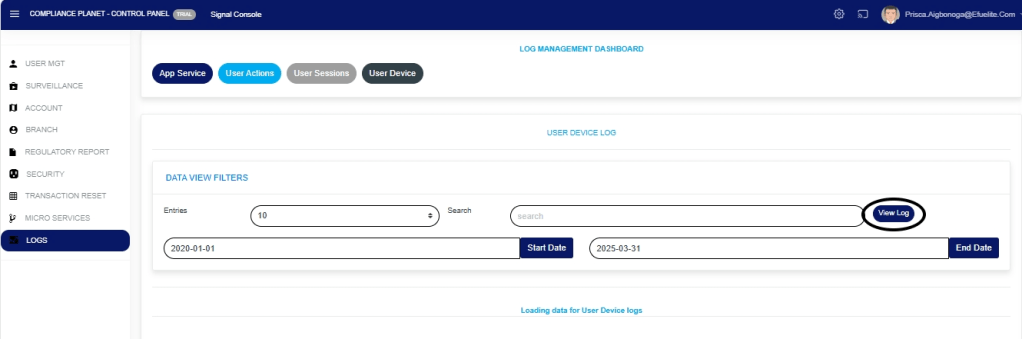
STEP 4: Click “View Log” (Fig. 28.6g below) to view the User Device log for the selected date range.
Fig 28.6g
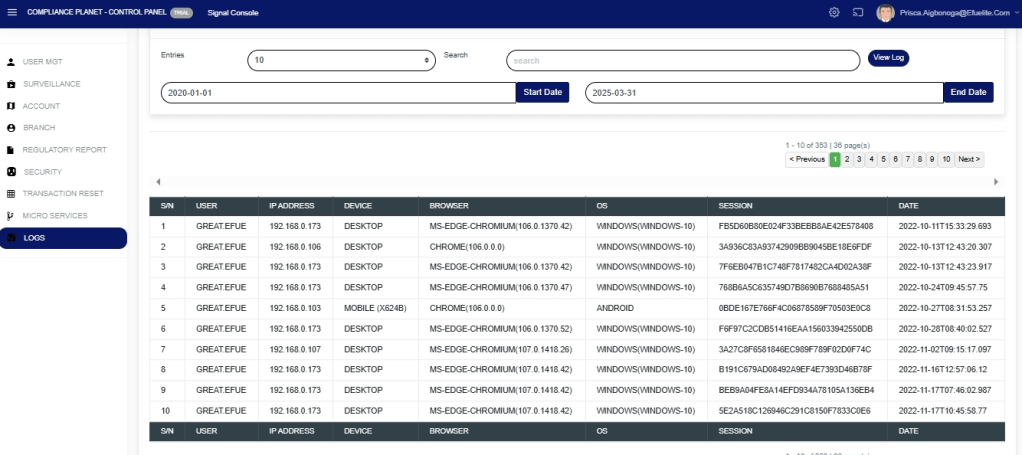
STEP 5: This will display a page showing the records of users’ devices that are currently logged in to the software. The page also provides information such as the device IP Address, Browser, Operating system, and date the device was used to log into the software, as in Fig. 28.6h below
Fig 28.6h
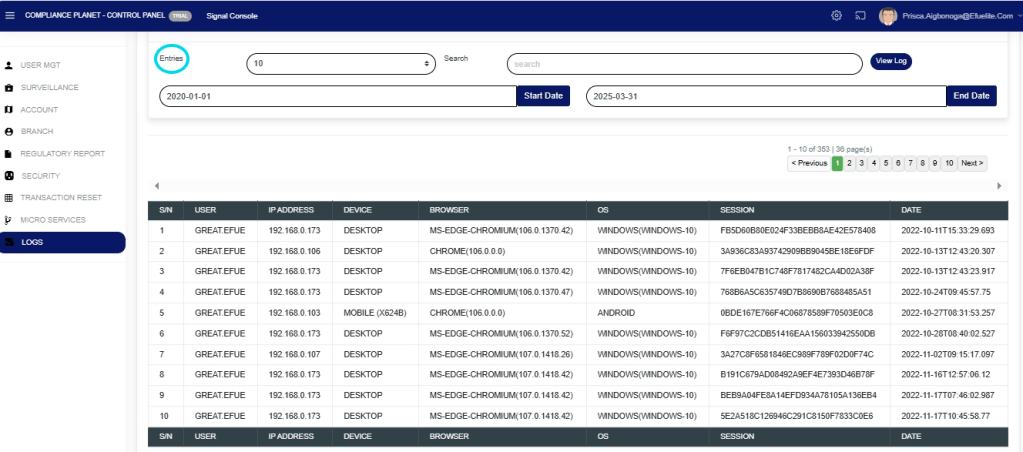
STEP 5: Click the “Entries” box as in Fig.28.6i below to select the number of records you want to see per page.
Fig.28.6i
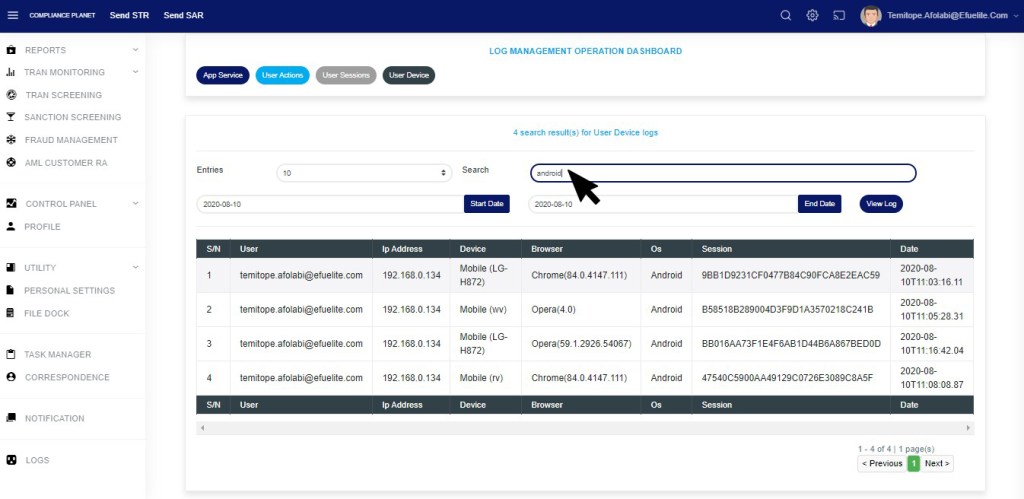
STEP 6: Click the “Search” textbox as in Fig.28.6j below to search records by inputting either the user email, device name, browser name, or OS (Operating System). Note that the software displays the search results in real time as you input each character of the search term.
Fig.28.6j
For further enquiries :
Tel +234(0) 816 555 9818
Email solutions@efuelite.com
Web https://solutions.efuelite.com
