
STEP 1: From the app dashboard, click “CUSTOMER RISK ASSESSMENT” as in the image below.
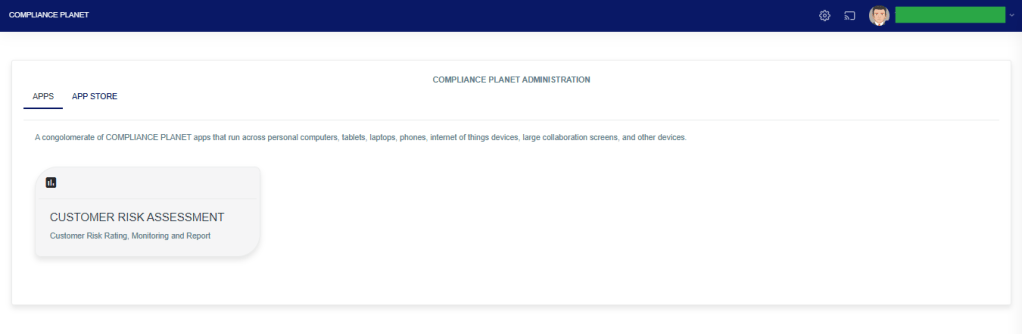
The above action will display a page as seen in the image below.

STEP 2: Click “POLICIES” to display the policy list as shown below.

Entries: Number of records to see on a page.
View Type: This option allows you to switch between active and inactive policies.
Search: This helps you search for a specific policy.
When any of the above filters is changed, click on the View button to see the result.
The data representation of the table columns is explained below;
Name: The name of the policy.
Risk level: The risk level of the policy.
Account: The number of accounts picked by the policy.
Status: The status of the policy(active or inactive).
There are three action buttons on each row with different functions as explained below;
Details: This displays all the parameters entered during policy creation. To edit these parameters, you must reset the policy.
Duplicate: This allows you to make a copy of the policy. The copy becomes inactive and is added to the inactive list.
Reset: This deletes all the records that the policy has picked.
For further enquiries:
Tel: +234(0) 816 555 9818
Email: solutions@efuelite.com
Web: http://solutions.efuelite.com
