
This section provides a guide on how to use the TM Case Manager feature on the Compliance Planet Anti-Money Laundering/Core Banking Finance Software, complete with step-by-step instructions and illustrations.
STEP 1: From the app dashboard, click “DIGITAL FINANCIAL CRIMES SURVEILLANCE” as in Fig. a below.
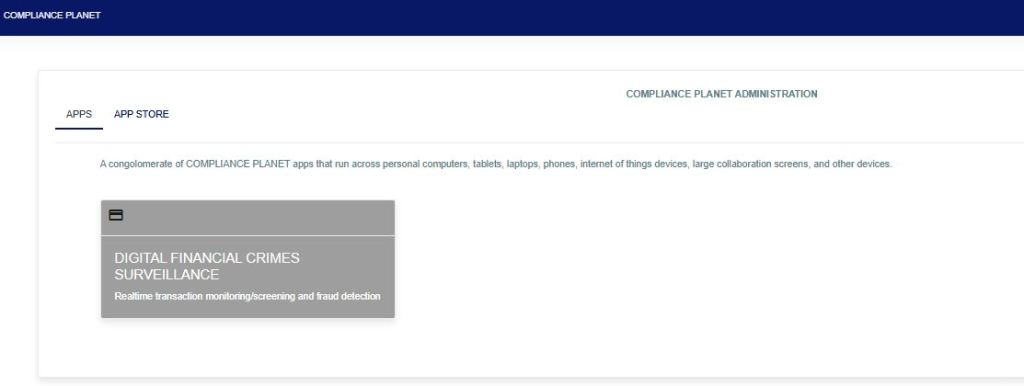
FIG a
STEP 2: From the left-hand side menu, click “TM Case Manager” as in Fig. b below to display the “Data View Filters“.

STEP 3: Then click “Data View Filters” to show a menu window that displays all the menus: Case Managers, Review Cases, Export to Excel, View Cases, Search Cases, Entries, Case Type, Start Date & End Date, Filter Rules, and Search Rules as in Fig. C below.
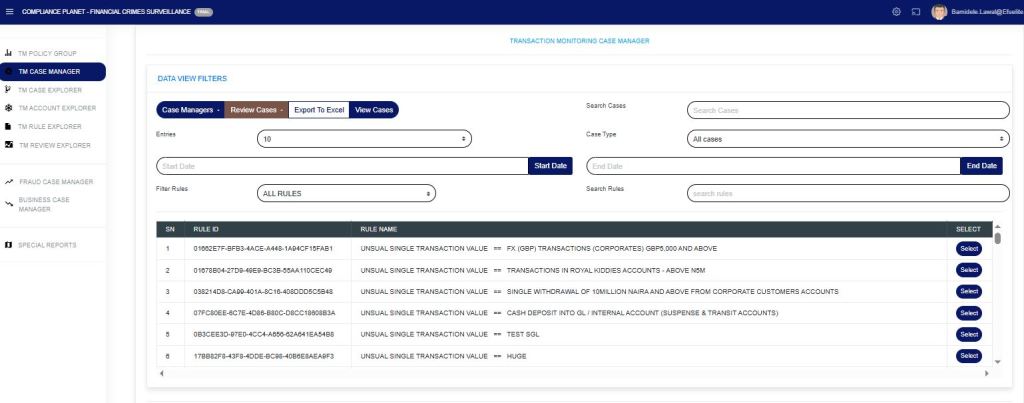
STEP 4: Click on “Case Managers” as in Fig. D below to display a drop-down of all the case managers.
- ML/TF/PF Reviewers: TM policy rule that needs further review, which has been sent to the STR Review desk.
- ML/TF/PF Supervisors: TM policy rule that needs further review, which has been sent to the STR Supervision desk.
- ML/TF/PF Reporters: TM policy rule that needs further review, which has been sent to the STR Report desk.
- Fraud Reviewers: A TM policy rule that requires further review has been sent to the Fraud Review desk in the event of suspected fraud.
- Fraud Supervisors: TM policy rule that needs further review, which has been sent to the Fraud Supervision in case of fraud suspicion.
- Business Reviewers: TM policy rule that requires business reviews not for reporting but for institutional sanity. e.g., staff account used for betting.
- Business Supervisors: The TM policy rule that needs further review requires business supervision.
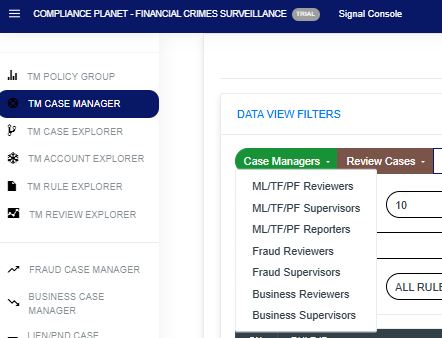
Fig d
STEP 5: Click on “Review Cases” to further enhance the review of policy rule case(s), as in Fig. E below, to display a drop-down of all the review cases.
- Close case (manually) as ML/TF/PF reported STRs: when an alert(s) from the case manager has been treated on STR and filed externally, this menu needs to be selected so that the system will not regard such alert(s) as pending alert on the visualization dashboard.
- Close case as ML/TF/PF monitoring false-positive alert: when an alert(s) is/are extracted and has a number of transactions and not all the alert(s) is/are meant for STR review(s), those not for STR review(s) is/are removed by selecting this option.
- Close case as Fraud monitoring false-positive alert: alerts(s) not meant for STR review(s) are removed by selecting this option.
- Close case as Business monitoring false-positive alert: alerts(s) not meant for STR review(s) are removed by selecting this option.
- Whitelist account(s) in Rule: whitelisting in a rule allows accounts to be marked as closed from pending cases in that rule.
- Whitelist account(s) in Policy: whitelisting in policy applies to all rules under a specific policy group.
- Whitelist account(s) in Global Monitoring: Whitelisting in Global Monitoring ensures that accounts are exempt from alerts across all policy categories.
- Place account(s) on PND: This places an account(s) on PND to avoid fraud.
- Place lien on account(s) alert: This is to place a freeze/hold on account(s) alert.
NB: Whitelisting account(s) from a rule, policy, or global does not mean the account(s) will not be monitored, but they will not pop up as a pending case awaiting review. It will show as closed in the whitelist, and pick the review details where the account(s) were first whitelisted, and put them in an Excel file.
For example, when you whitelist an account(s) in a rule, policy, or globally, from the start date entered in the case manager, the account(s) will be marked as whitelisted.

Fig e
STEP 6: Click on “Export to Excel” as in Fig. f below to carry out further analysis on a downloaded rule.
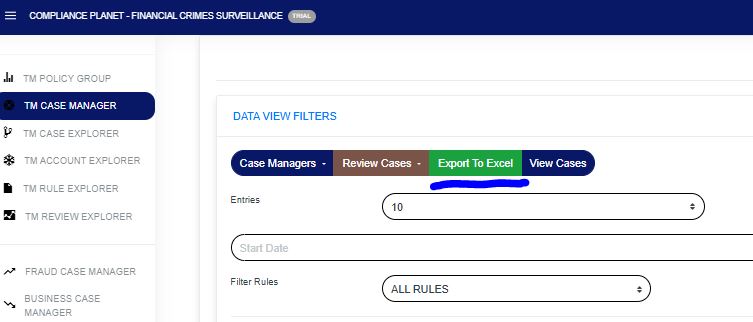
Fig f
STEP 7: To view rule cases, select the policy rule by clicking on the “select button” to highlight, input the start date and end date, then click on “View Cases” as in Fig. g below.
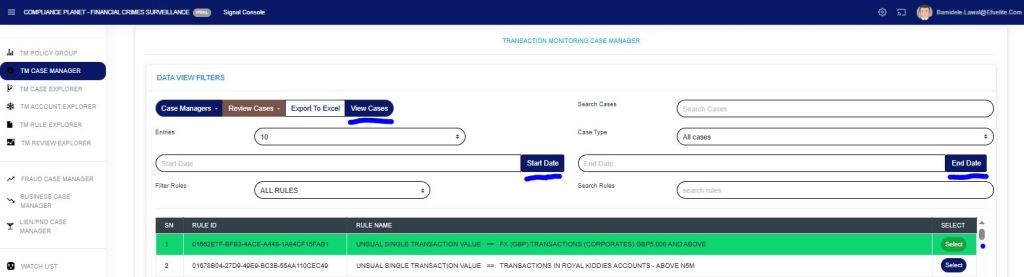
Fig g
Then the lower part of the page now displays the policy rule name and all the information regarding the account, as seen in the figure below.
Each rule can be viewed in the Explorer case, the Explorer account, or the Explorer rule.
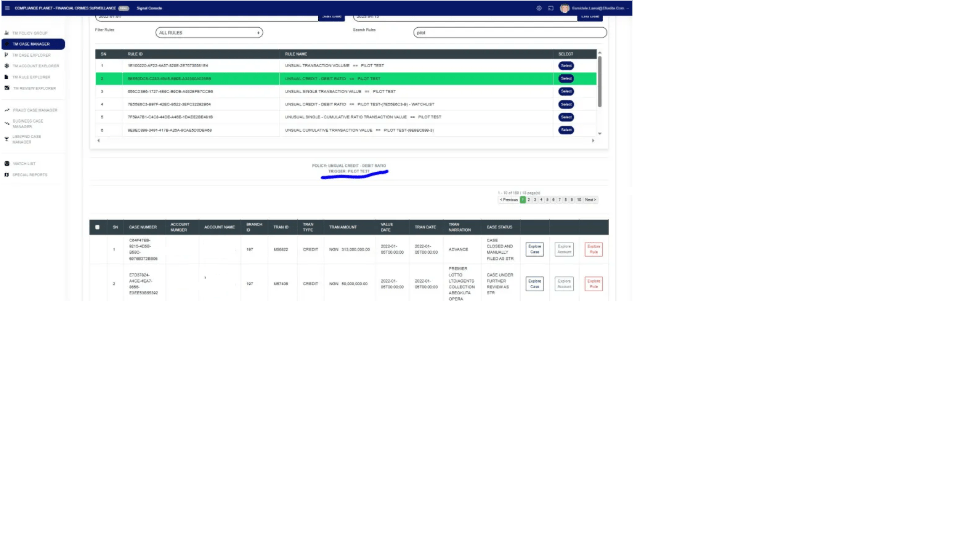
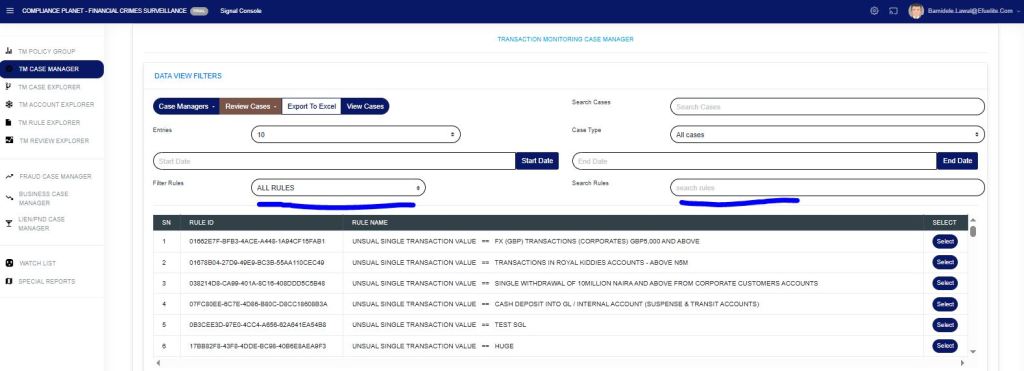
As in the figure below, the Filter Rule menu gives a drop-down of: All rules, Rules Deployed by me, or Rules Assigned to me.
The Search rule menu allows searching for a particular rule. A phrase can also be used to search for rule(s) with such a phrase.
For further enquiries:
Tel: +234(0) 816 555 9818
Email: solutions@efuelite.com
Web: http://solutions.efuelite.com
