
STEP 1: From the app dashboard, click “DIGITAL FINANCIAL CRIMES SURVEILLANCE” as in Fig. 8a below.
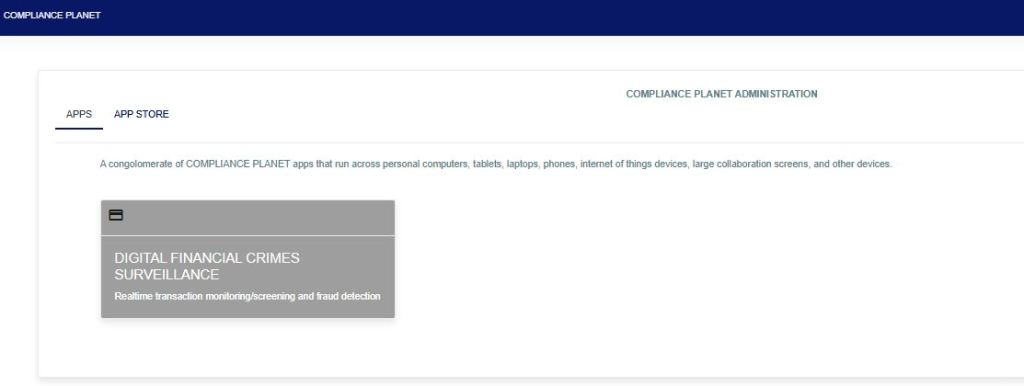
Fig 8a
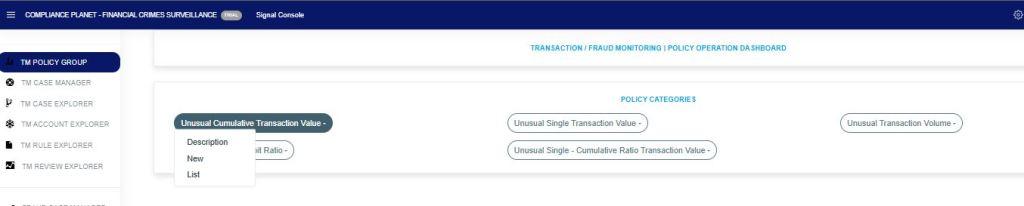
STEP 2: From the left-hand side menu, click “TM POLICY GROUP” as in Fig. 8b below.

STEP 3: Click on the desired group policy from the “Policy Categories“. This will display a drop-down as shown in Fig. 8c below. Click on “List” to see the active/inactive policies under the selected policy category.
STEP 4: The above displays the list of policies as in fig. 8d below.
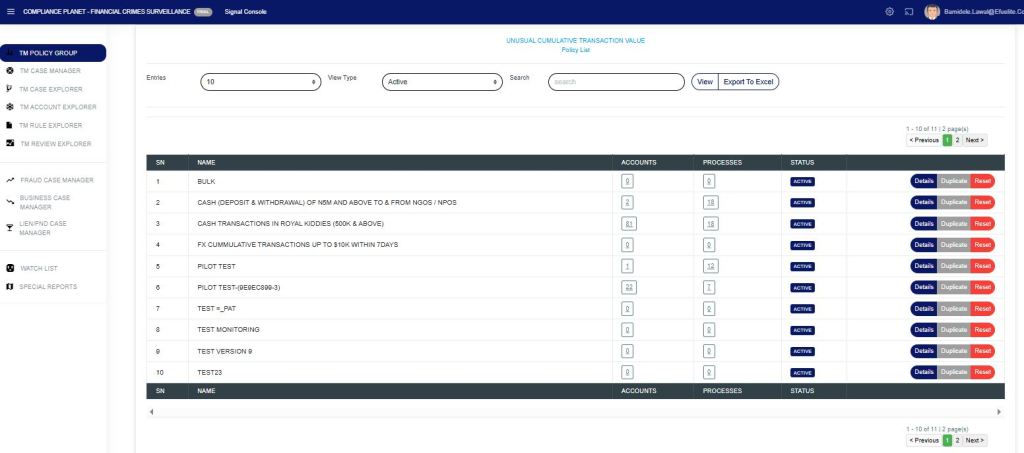
Entries: Number of records to see on a page.
View Type: This option allows you to switch between Active and Inactive policies.
Search: This helps you search for a specific policy.
View: This feature allows you to view all listed policies or a specific policy by inputting a search phrase for the policy.
Export to Excel: Click on the button to export the records on the screen to Excel.
When any of the above filters is changed, click on the View button to see the result.
The data representation of the table columns is explained below;
Name: The name of the policy.
Account: The number of accounts picked by the policy.
Processes: The number of times the policy has been processed, as in Figure 8e below.
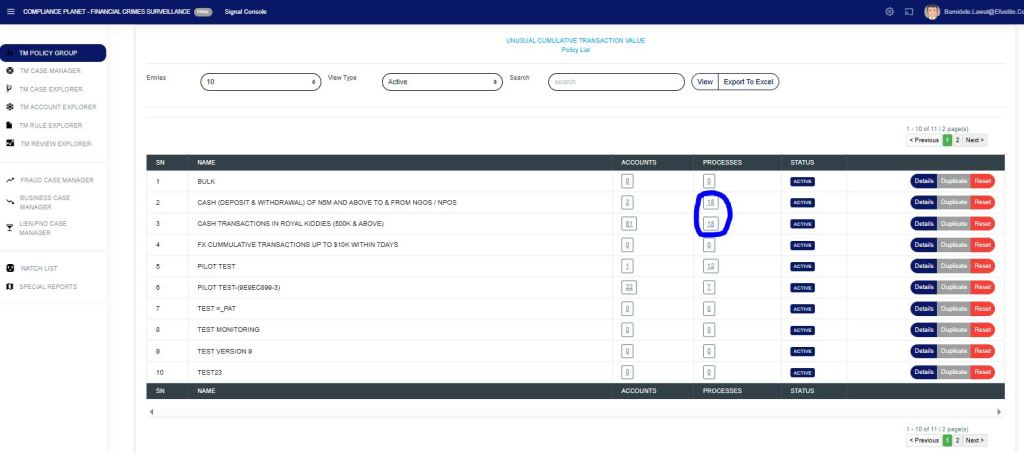
Fig 8e
When you click on the process number, this displays the Surveillance Start and End Date (the span of the policy, either 24 hours (1 day) or 48 hours (2 days), and so on). The Execution Start and End Period shows the last period the policy was processed, including the start date with time and the end date with time, as shown in Fig. 8f below.
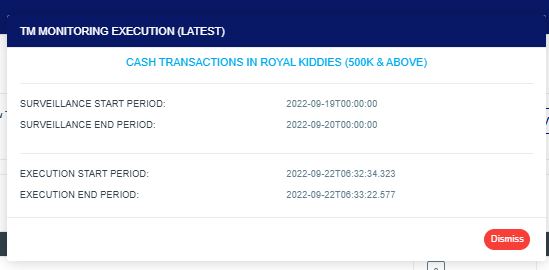
Fig 8f
Status: The status of the policy (active or inactive).
There are three action buttons on each row with different functions as explained below;
Details: This displays all the parameters entered during the policy creation. This can be edited and saved with the parameters.
Duplicate: This allows you to make a copy of the policy. The copy becomes inactive and is added to the inactive list.
Reset: This deletes all the records that the policy has picked.
For further enquiries:
Tel: +234(0) 816 555 9818
Email: solutions@efuelite.com
Web: http://solutions.efuelite.com
