
The bulk upload helps in uploading more than one scan parameter into the system for the automatic scan.
Note: This operation requires the Administrator or Auditor’s permission.
How to Prepare the Scan Parameters in an Excel File
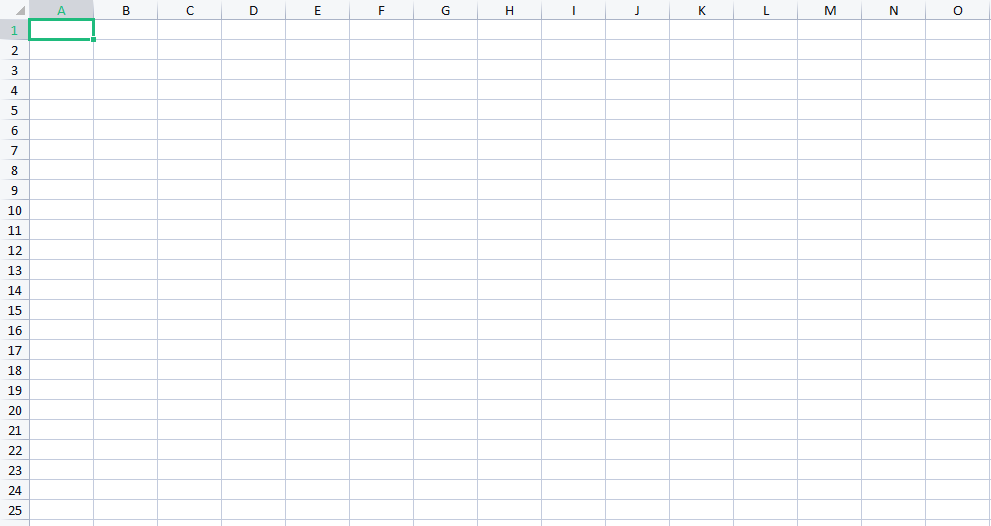
STEP 1: Open an excel sheet as seen in the image below. This must be the first sheet(Sheet1) in the excel workbook.
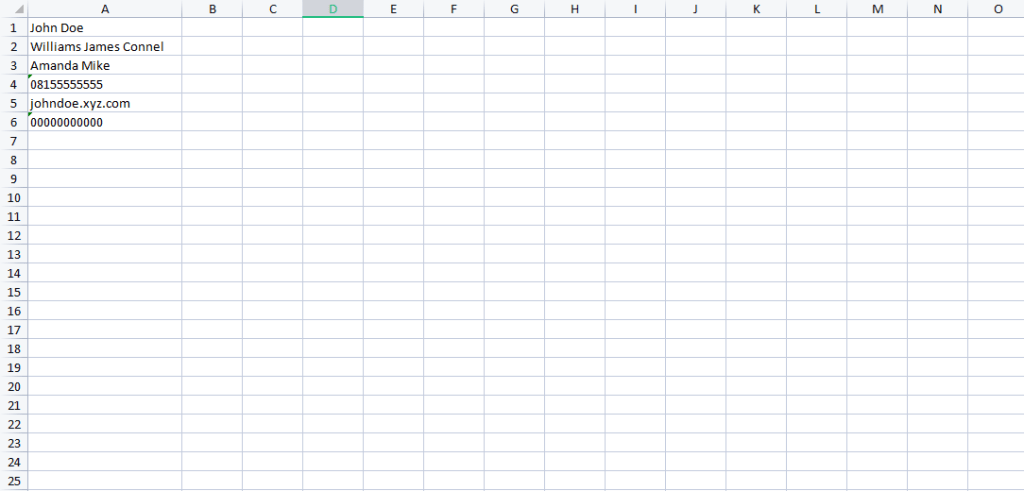
STEP 2: Fill in the scan parameters in the first column (column A) as seen in the image below.
The excel sheet should not have column names(Start inputting the scan parameters from row 1).
These scan parameters can be either a name, phone number, email address, ID Number, or BVN.
Note: The first, last and middle name must be in the same column with a space in between them (Column A).
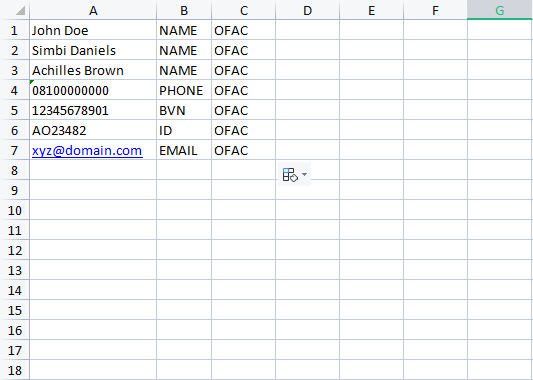
STEP 3: Fill in the scan parameter category in the second column (column B) as seen in the image below.
The software accepts four different parameter categories(Name, Email address, Phone Number, ID Number, and BVN).
1. When a scan parameter is a name, the category should be NAME
2. When a scan parameter is a phone number, the category should be PHONE
3. When a scan parameter is an email address, the category should be EMAIL
4. When a scan parameter is a BVN, the category should be BVN
5. When a scan parameter is an ID Number, the category should be ID

STEP 4: Fill in a reason in the third column (column C) as seen in the screenshot below.
Save the excel file and proceed to the Compliance Planet AML software.
How to Upload the scan parameters in the Compliance Planet Software
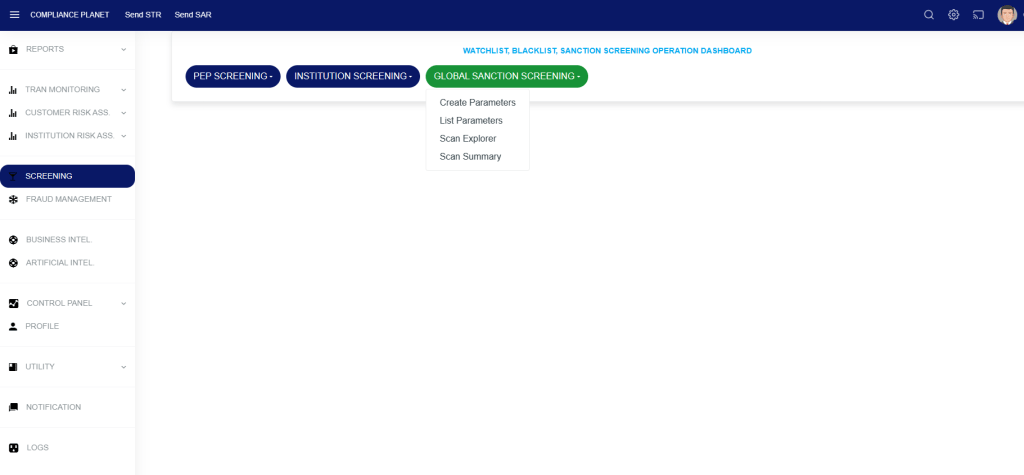
STEP 5: From the left-hand side menu, click “SCREENING” as seen below.

STEP 6: From the top menu, click “Global Sanction Screening”, this action will display a dropdown menu as seen in the image below. From the dropdown menu, click “Create Parameters”.
STEP 7: On the NEW SCREENING PARAMETERS page, click on the “Bulk Upload” button to select the excel file which you have earlier filled with the scan parameters.
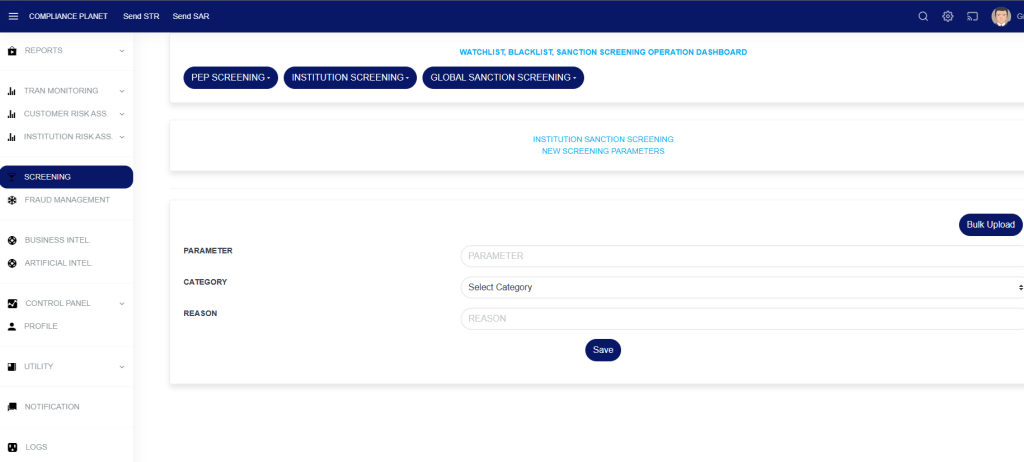
STEP 8: Click on the Save button.
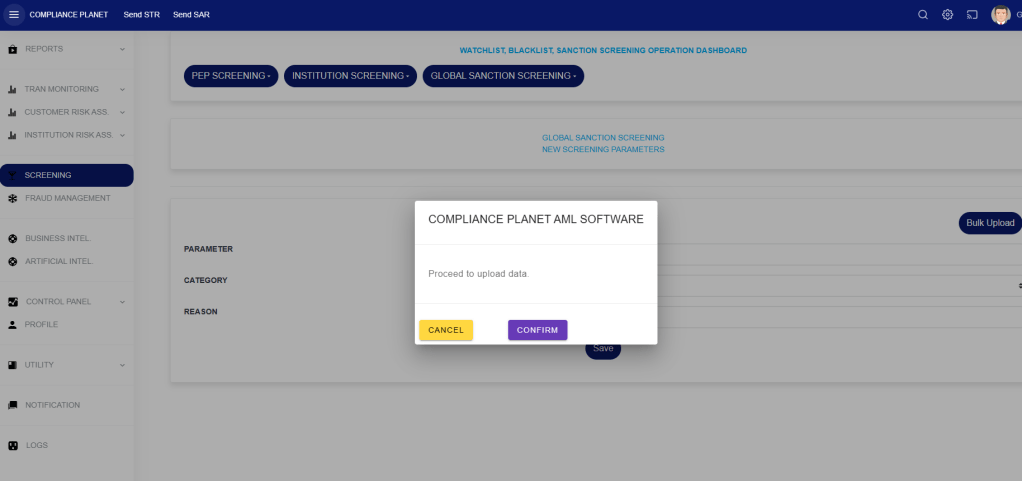
STEP 9: Click on the CONFIRM button to begin the upload process.
