
This section provides a guide on how to view and modify info spool, account tier, and account scheme on the Compliance Planet control panel, with step-by-step instructions and pictures.
NOTE: This action can only be carried out by person(s) profiled as Administrator in the software
STEP 1: From the app dashboard, click on “CONTROL PANEL” as shown in the image below.

- The action above displays the page shown below.
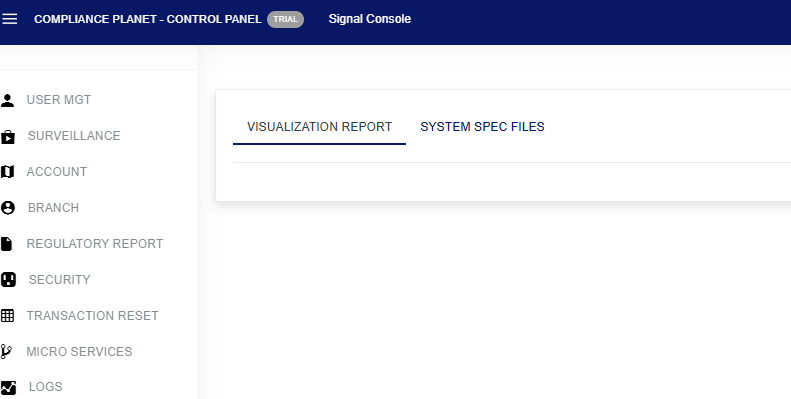
- STEP 2: Click on “ACCOUNT” to see the drop-down below.

- STEP 3: Click on ‘Info Spool’ from the account operation dashboard page, as shown in Fig.2.1a below.
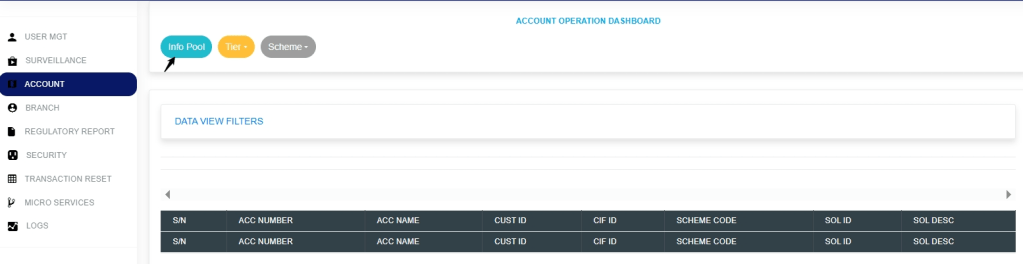
Fig.2.1a
- STEP 4: Click on ‘Data View Filters’ to fill in the parameters of the account you want, as shown in Fig. 2 .1b below.

Fig. 2 .1b
- This displays a page showing the entries and search box shown in Fig.2.1c below.
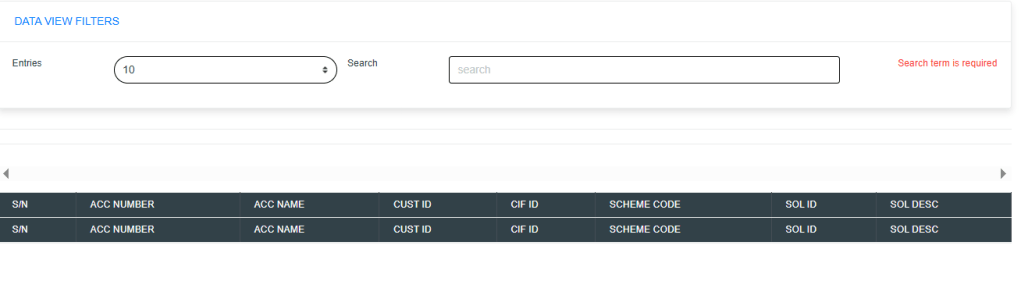
Fig.2.1c
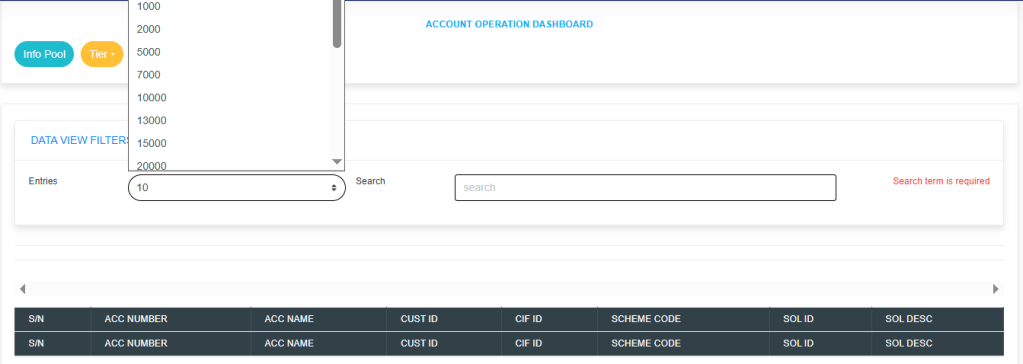
Click on the “Entries” box as in Fig. 2.1d below to select the number of records you want to view per page.
Click on the “Search” box as in Fig. 2.1d below to input the account number you want to spool for.
How to Edit and Delete a Custom Sector under Tier
Note: Only the person(s) assigned this role can carry out this operation.
Click on the “Tier” box menu, and a drop-down revealing the customer sector option will be revealed as shown in Fig. 2.1e below.

Fig. 2.1e
Click on the customer sector option, and this will display a page shown in Fig.2.1f below.
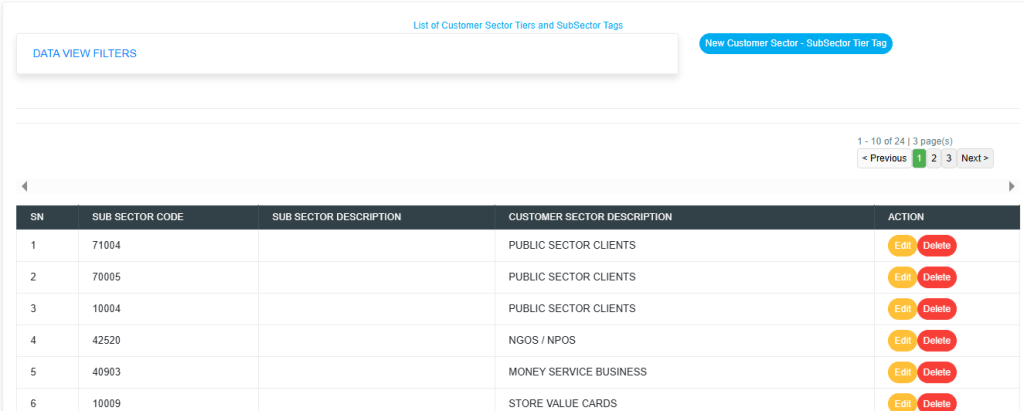
Fig.2.1f
Click on the Data View Filters option to display the entries and search box as shown in Fig.2.1g below.
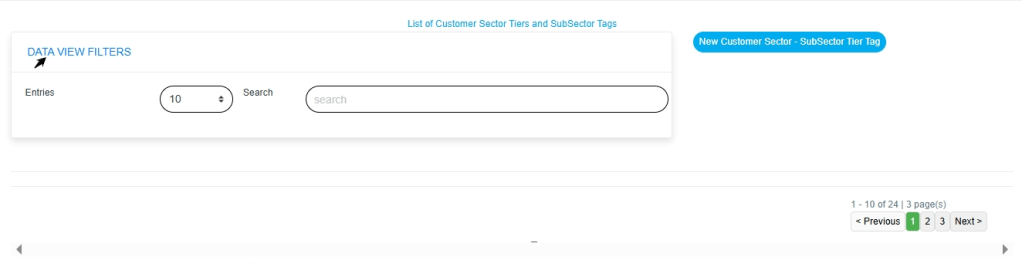
Fig.2.1g
Enter the number of pages you want to view in the entries box as shown in Fig.2.1h below.
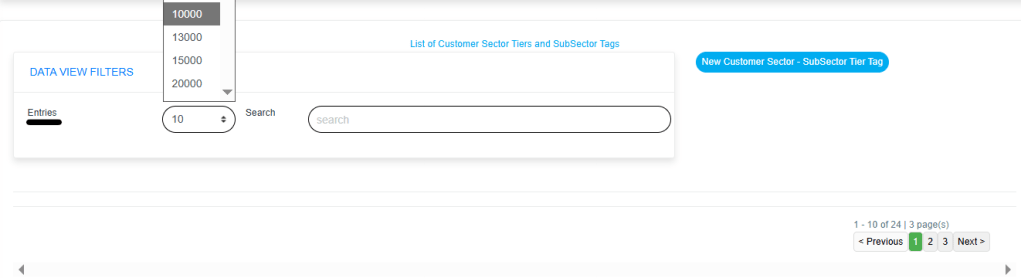
Fig.2.1h
Fill in the search box to easily locate the customer sector description as shown in Fig.2.2a below.
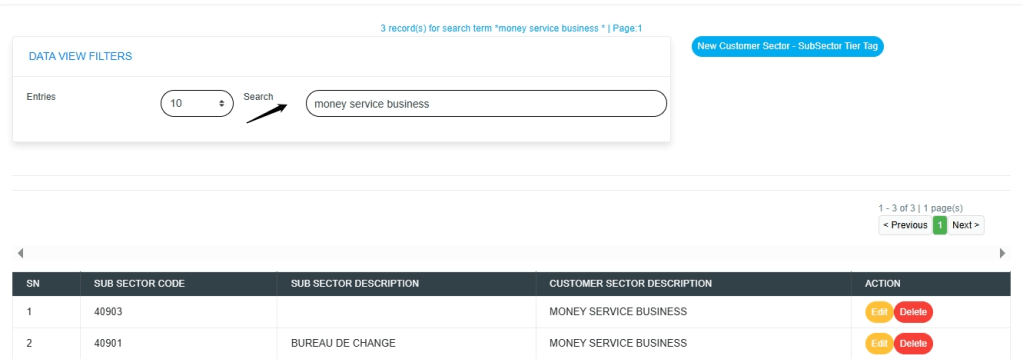
Fig.2.2a
- How to Delete a Customer Sector Tier tag
Note: Only person(s) assigned this role can carry out this operation.
STEP 1: Click the “Delete” button, as shown in Fig. 2.2b below, to delete the action.
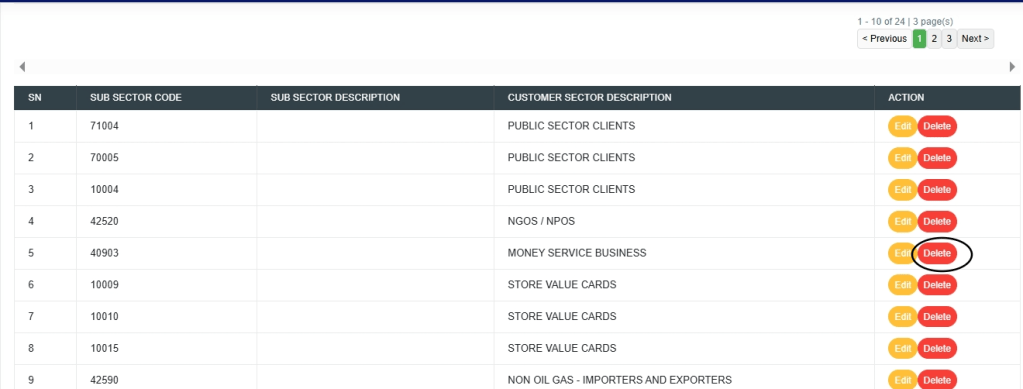
Fig. 2.2b
- This will display a confirmation console as in Fig. 2.2c below
STEP 2: Click “Confirm” to proceed or “Cancel” to dismiss the console.

Fig. 2.2c
- A notification will be displayed at the top of the page, as shown in Fig. 2.2d below, and the record will be deleted from the list.

Fig. 2.2d
- How to Edit a Customer Sector /sub-sector Tier tag
Note: Only person(s) assigned this role can carry out this operation.
STEP 1: Click the “Edit” button, as shown in Fig. 2.2e below, to edit the action.
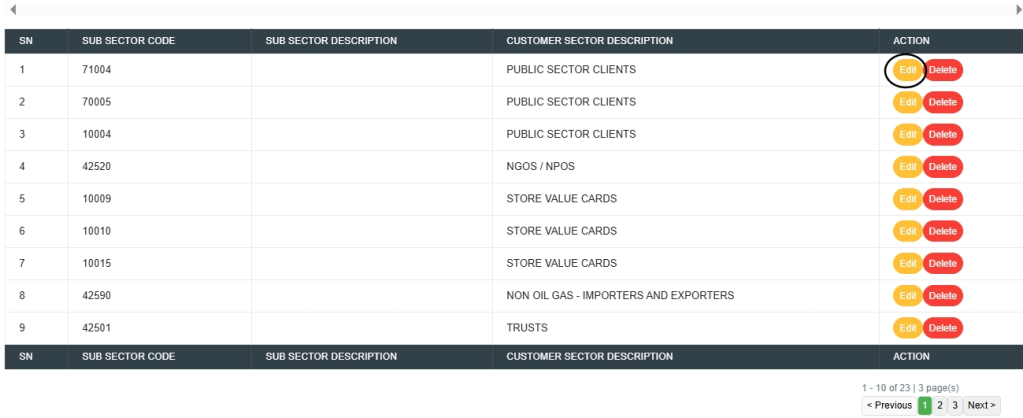
Fig. 2.2e
- This will display a page as in Fig. 2.2f below.

Fig. 2.2f
STEP 1: Click the “sub search” box, as shown in Fig. 2.2g below, a list of drop-downs will be displayed.

Fig.2.2g
- Click on the Customer Tier box as shown in Fig.2.2h below to display a list of drop-downs for more options.
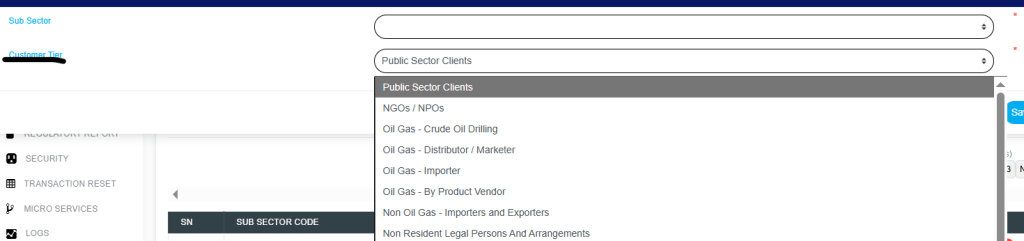
Fig.2.2h
- Note that the sub-sector search box and the customer tier search box must be filled accordingly.
- This will display a console for dismissing or saving changes, as shown in Fig.2.3a below.

Fig.2.3a
Clicking on Save changes will display a confirmation console as in page shown in Fig.2.3b below.
STEP 2: Click “Confirm” to proceed or “Cancel” to dismiss the console.

Fig.2.3b
- A notification will be displayed at the top of the page, as in Fig.2.3c below, showing that the customer sector code tag has been successfully edited.
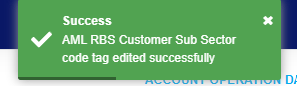
Fig.2.3c
How to Edit and Delete an Account Scheme.
- Click on the “Scheme” in the Account Operation Dashboard page to display a list of drop-downs as shown in Fig.2.3d, then click on Account.

Fig.2.3d
- Click on Data view Filters to display the Entries and search box.
- Fill the entries box with the number of pages you want to view by clicking on the dropdown button, and also fill the search box with your choice of scheme from the Operations dropdown.
- Note that this action will display the List of Account Schemes as shown in Fig.2.3e

Fig.2.3e
- How to Edit Account Scheme
- STEP 1:To edit the Account Scheme, click on the Edit console. This will display a page as shown in Fig.2.3f
Note: Only person(s) assigned this role can carry out this operation.
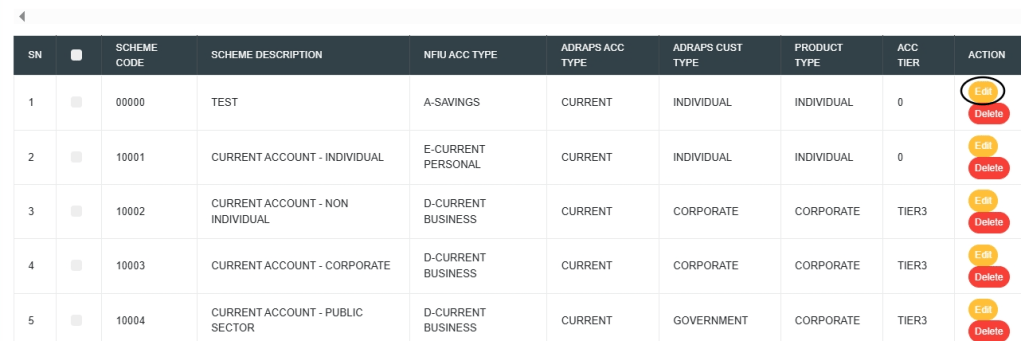
Fig. 2.3f
- This will display a page as shown in Fig.2.3g
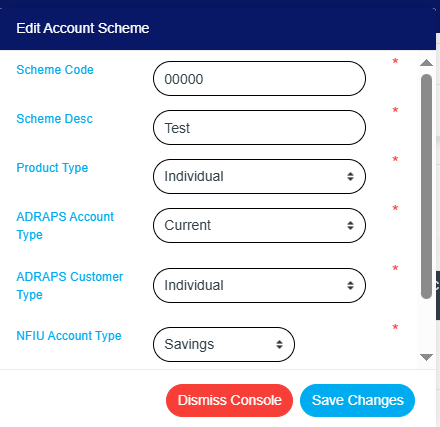
Fig.2.3g
- Clicking on Save changes will display a confirmation console as in page shown in Fig.2.3h below.
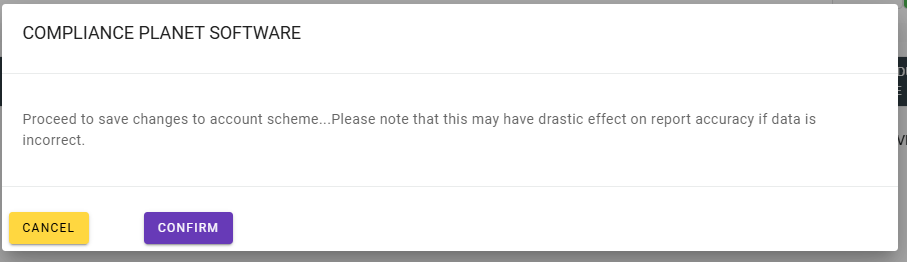
Fig.2.3h
- A notification will be displayed at the top of the page, as in Fig.2.4a below, showing that the account scheme has been successfully edited.

- To delete the Account Scheme, click on the Delete console as shown in Fig.2.4b
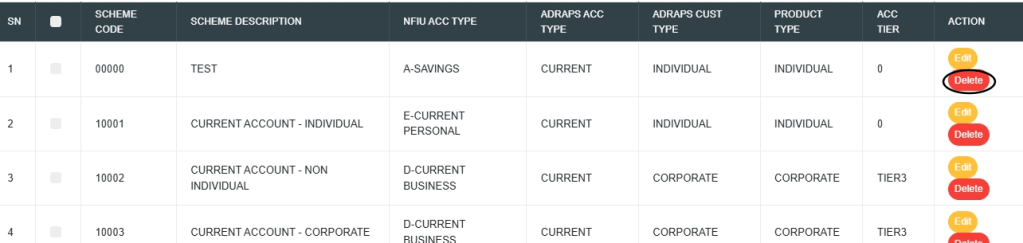
Fig.2.4b
- This will display a confirmation console as shown in Fig.2.4c
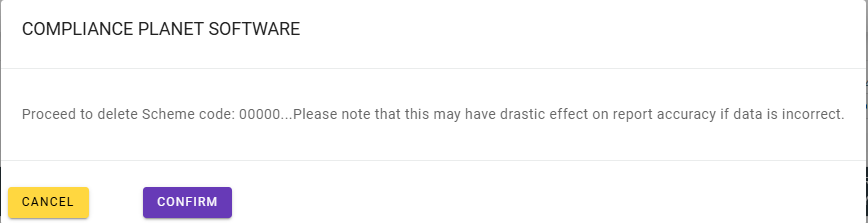
Fig.2.4c
- A notification will be displayed at the top of the page, as in Fig.2.4d below, showing that the account scheme has been successfully deleted.
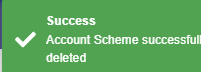
Fig.2.4d
How to Edit and Delete Swift
- Click on Scheme to display the image shown in Fig.2.4e. This will display a list of dropdowns, then click on Swift
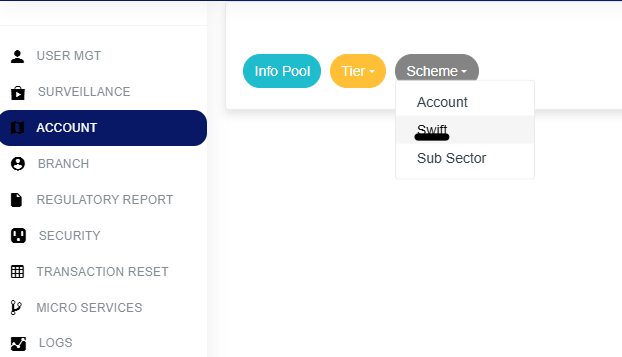
Fig.2.4e
- This will display a console shown in Fig.2.4f
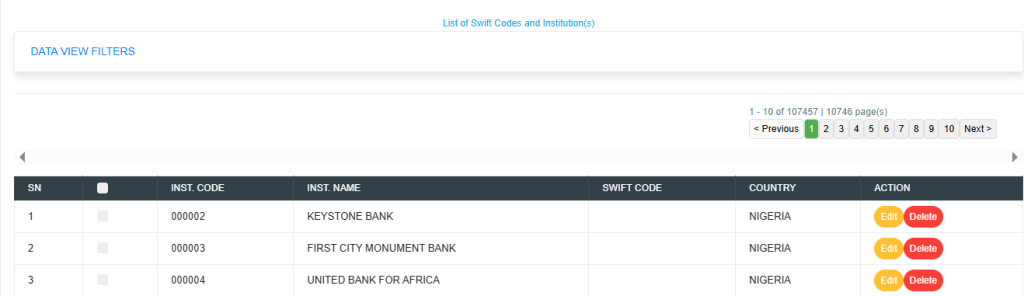
- Fig.2.4f
- Click on Data view Filters to display the Entries and search box.
- Fill the entries box with the number of pages you want to view by clicking on the dropdown button, and also fill the search box with your choice of scheme from the Operations dropdown.
- Note that this action will display the image below as shown in Fig.2.4g
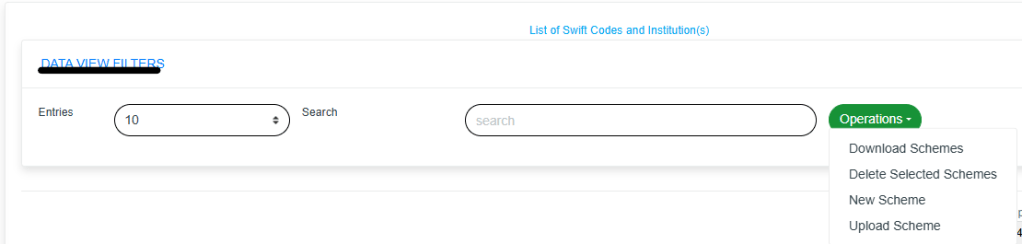
Fig.2.4g
- To edit the Swift Scheme, click on the Edit console. This will display a page as shown in Fig.2.4h
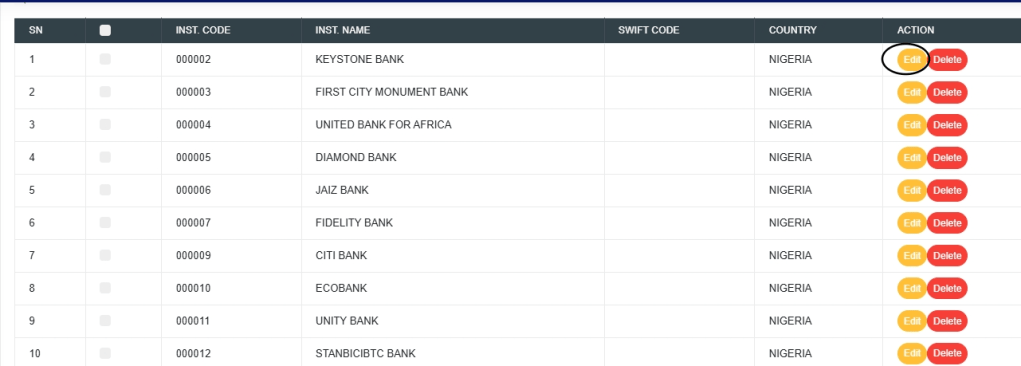
Fig.2.4h
- This will display a page shown in Fig.2.5a below
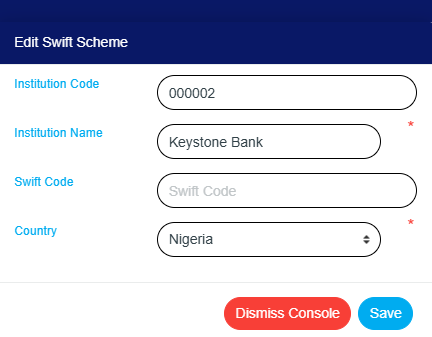
Fig.2.5a
- Clicking Save will display a confirmation console, as shown in Fig. 2.5b below.
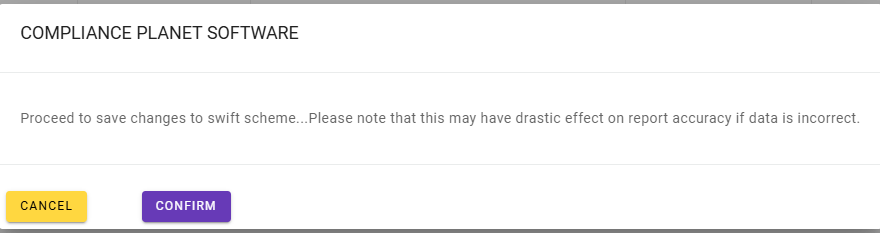
Fig.2.5b
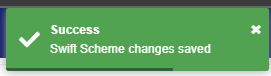
- A notification will be displayed at the top of the page, as shown in Fig. 2.5c below, indicating that the swift scheme has been successfully edited.
- To delete the Swift Scheme, click on the delete console as shown in Fig.2.5e
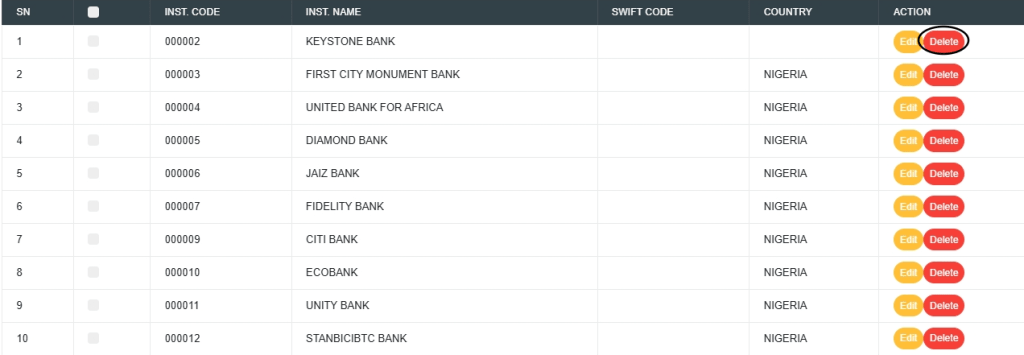
Fig.2.5e
- This will display a confirmation console as shown in Fig.2.5f

Fig.2.5f
- A notification will be displayed at the top of the page, as shown in Fig. 2.5g below, indicating that the Swift scheme has been successfully deleted.
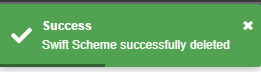
Fig.2.5g
How to Edit and Delete Subsector
- Click on Scheme to display the image shown in Fig.2.5h. This will display a list of dropdowns, then click on Subsector.
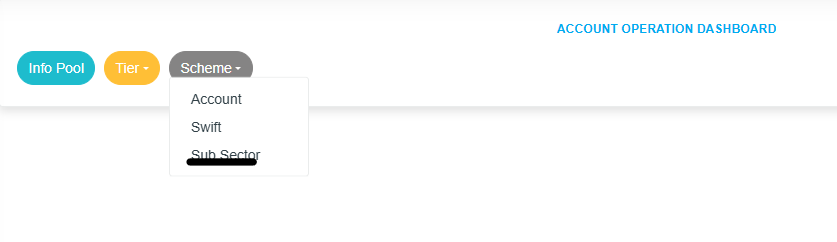
Fig.2.5h
- This will display a console shown in Fig.2.6a
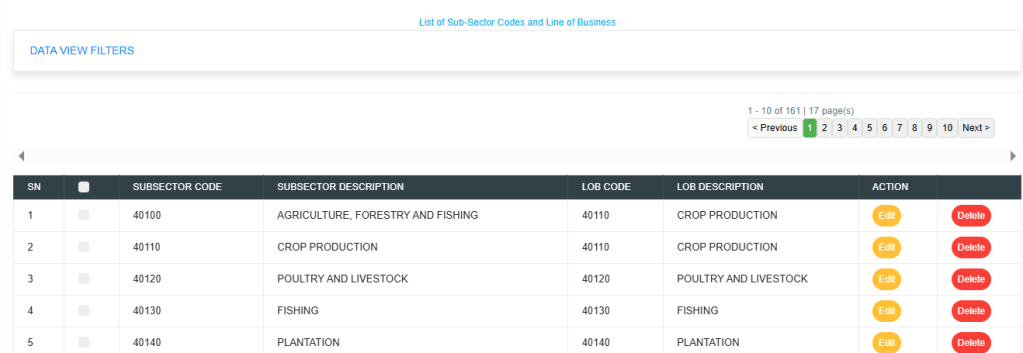
Fig.2.6a
- Click on Data view Filters to display the Entries and search box.
- Fill the entries box with the number of pages you want to view by clicking on the dropdown button, and also fill the search box with your choice of scheme from the Operations dropdown.
- Note that this action will display the image below as shown in Fig.2.6b

Fig.2.6b
- To edit the Subsector, click on the Edit console. This will display a page as shown in Fig.2.6c
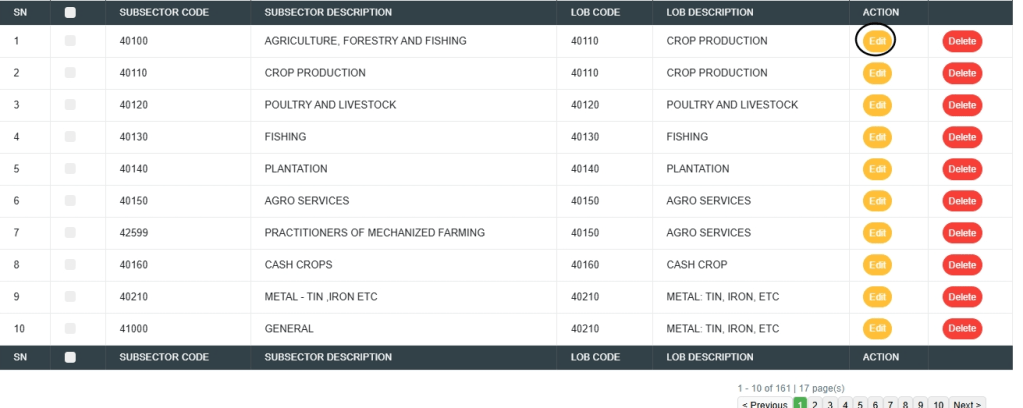
Fig.2.6c
- This will display a page shown in Fig.2.6d below

Fig.2.6d
- Clicking Save will display a confirmation console, as shown in Fig. 2.6e below.

Fig.2.6e
- A notification will be displayed at the top of the page, as in Fig.2.6f below, showing that the subsector scheme has been successfully edited.
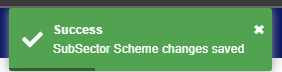
Fig.2.6f
- To delete the Subsector, click on the delete console as shown in Fig.2.6g
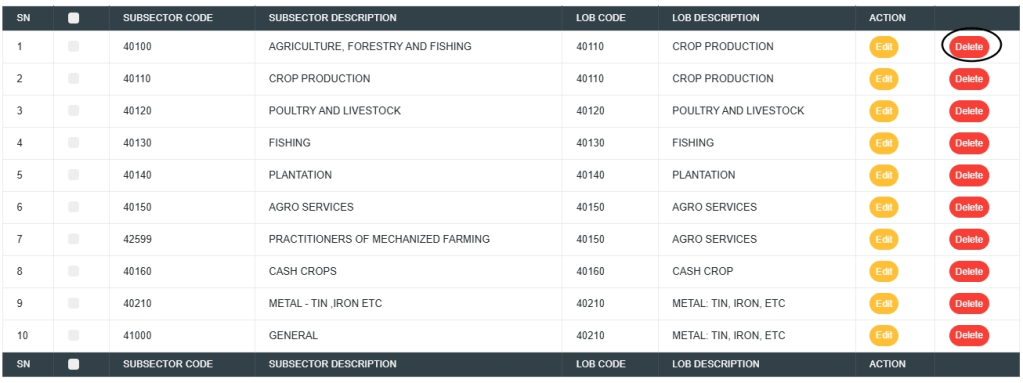
Fig.2.6g
- This will display a confirmation console as shown in Fig.2.6h
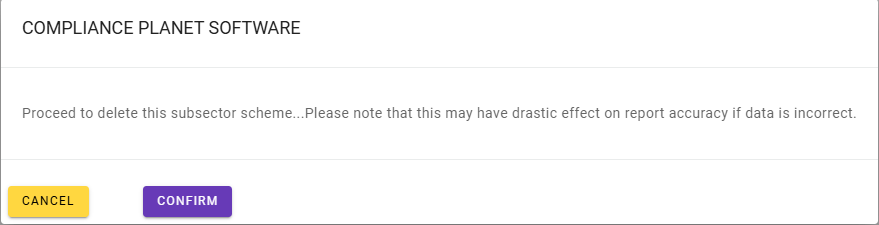
Fig.2.6h
- A notification will be displayed at the top of the page, as in Fig.2.6i below, showing that the Subsector has been successfully deleted.
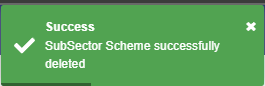
Fig.2.6i
For further enquiries :
Tel +234(0) 816 555 9818
Email solutions@efuelite.com
Web https://solutions.efuelite.com
