
NOTE: This action can only be carried out by person(s) profiled as Administrator in the software
From the app dashboard, click on “CONTROL PANEL” as shown below.

- This will display a drop-down as in the image below. The dropdown lists the activities available under the control panel in the Compliance Planet software.

Click “REGULATORY REPORT” from the drop-down menu to open the CCO/REPORT CONFIGURATION DASHBOARD page. See the image below, as shown in Fig.3.1a
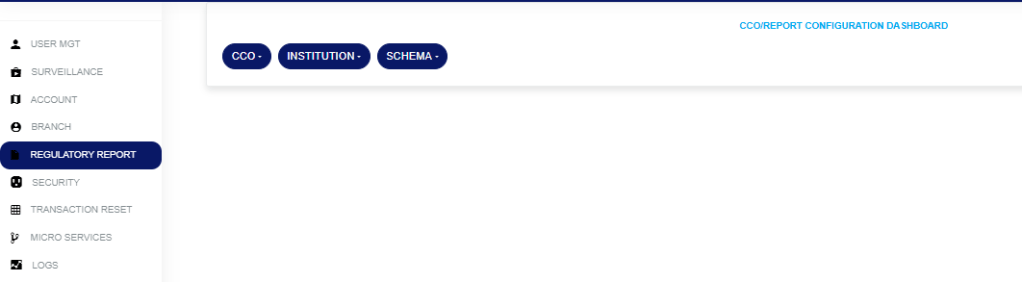
Fig.3.1a
Click on “CCO”, which then displays a drop-down as seen below in Fig.3.1b
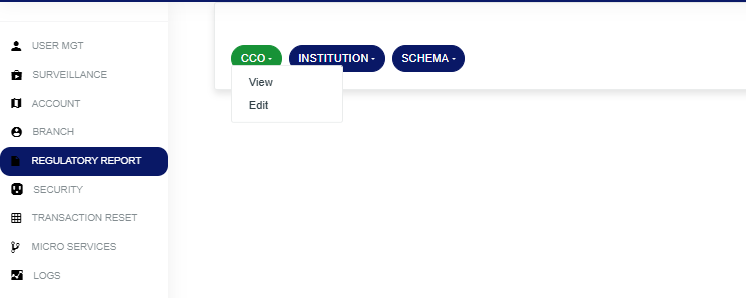
Fig.3.1b
- STEP 1: From the drop-down, click “View,” which then displays the image below in Fig.3.1c
- Note that the Report Person Data View page contains all the necessary information to file a regulatory report.
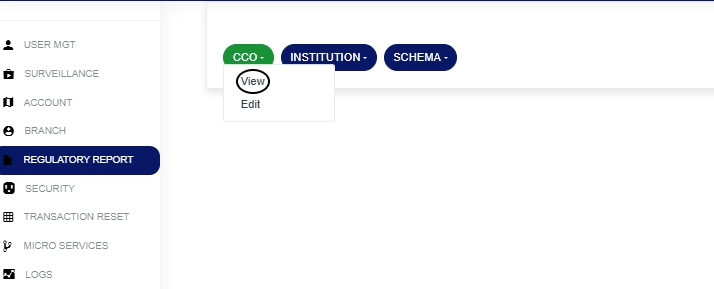
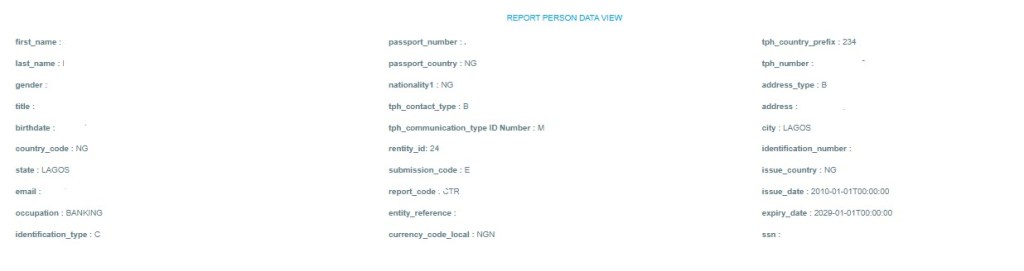
Fig.3.1c
How to Edit the CCO Report Data
- STEP 1: Click on “CCO” to see the drop-down below as shown in Fig.3.1d
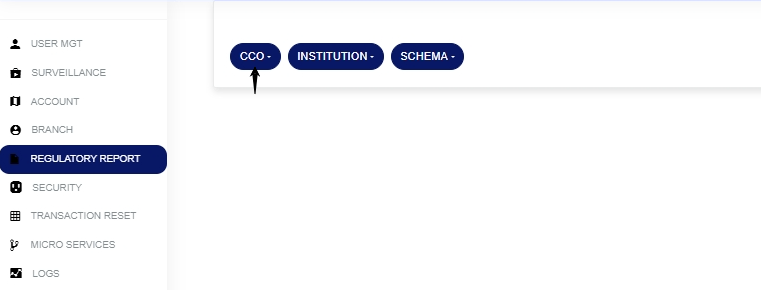
Fig.3.1d
STEP 2: Click on the “Edit” button from the list of drop-downs as shown in Fig.3.1e

Fig.3.1e
- This will display the image below as seen in Fig.3.1f
- Note that the “report person data” page contains all the necessary information required to file a regulatory report, and each box must be filled out.
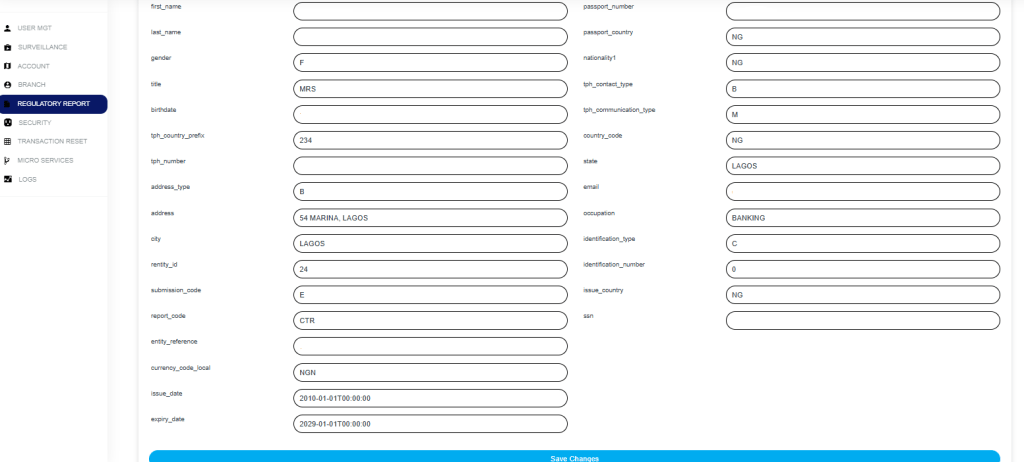
Fig.3.1f
STEP 3: Click on the “save changes” button at the bottom of the page, and this will display a page as shown in Fig.3.1g
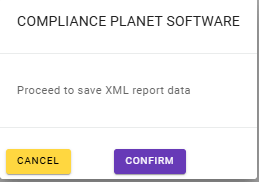
Fig.3.1g
Click “Confirm” to proceed or “Cancel” to dismiss the console as shown in Fig.3.1h
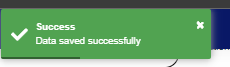
Fig.3.1h
For further enquiries :
Tel +234(0) 816 555 9818
Email solutions@efuelite.com
Web https://solutions.efuelite.com
