
This section provides a guide on how to carry out Special Report operations on the Compliance Planet Anti Money Laundering/Core Banking Finance Software, with step-by-step instructions and pictures.
STEP 1: From the app dashboard, click “DIGITAL FINANCIAL CRIMES SURVEILLANCE” as in Fig.6a below.
Fig.6a

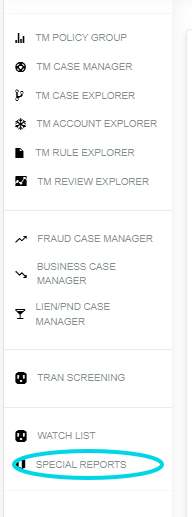
STEP 2: From the left-hand side menu, click “Special Report” as in Fig.6b below.
Fig.6b
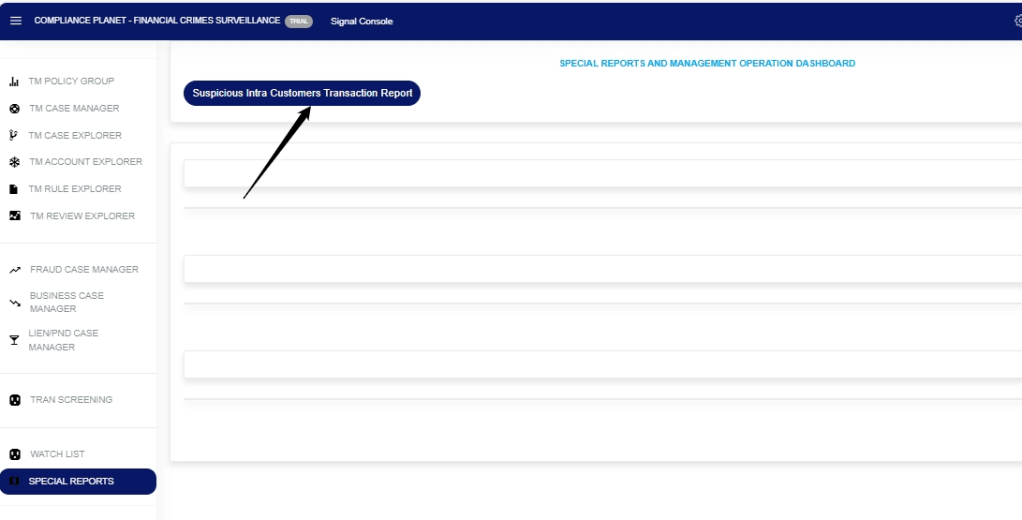
STEP 3: Click on the “Suspicious Intra Customer Transaction Report” as in Fig.6c below.
Fig.6c
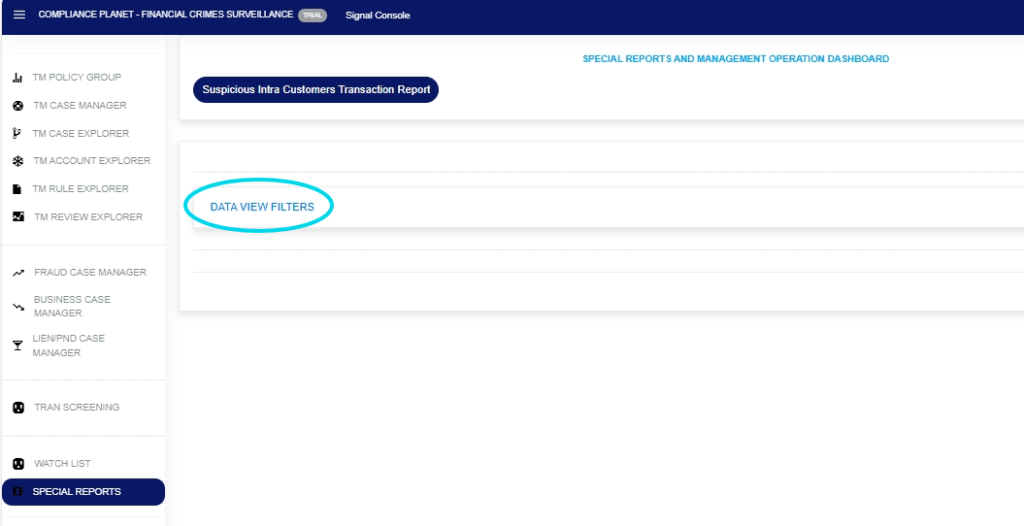
STEP 4: Click on “Data View Filters” as in Fig.6d below.
Fig.6d
STEP 5: And this opens the Data View Filters page as in Fig.6e below.
Fig.6e
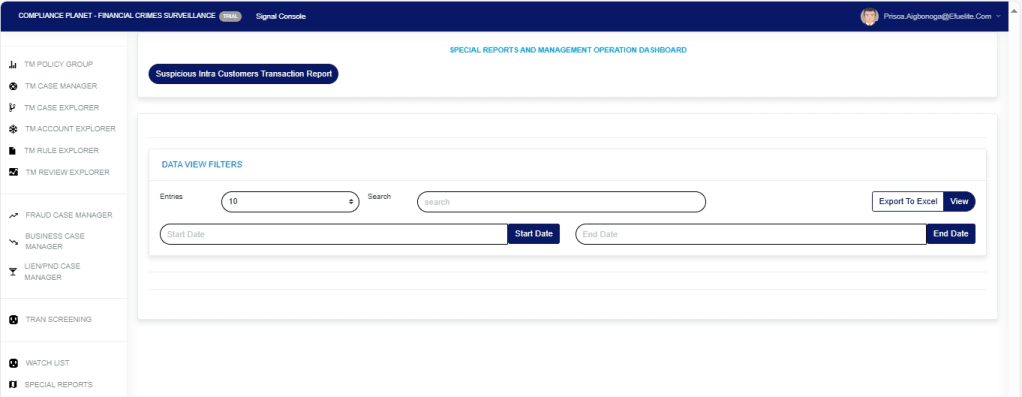
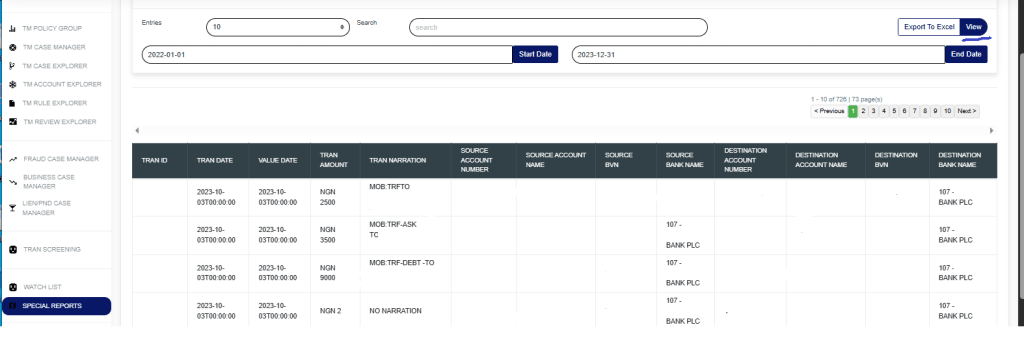
STEP 6: Fill all the parameters in the Data View Filters page as in Fig.6f below
Click on the ‘Start Date’ button to specify the start date; this also displays a calendar below the date box.
Click the ‘End Date’ button to specify the end date; this will also display a calendar below the date box.
Click on the ‘Entries’ in the entries box to change the number of entries you want to see per page.
Click on the ‘Search’. You can search for a service by typing the customer name in the Search box. The software displays the results in real time.
Click the “View” box to view results
Fig.6f
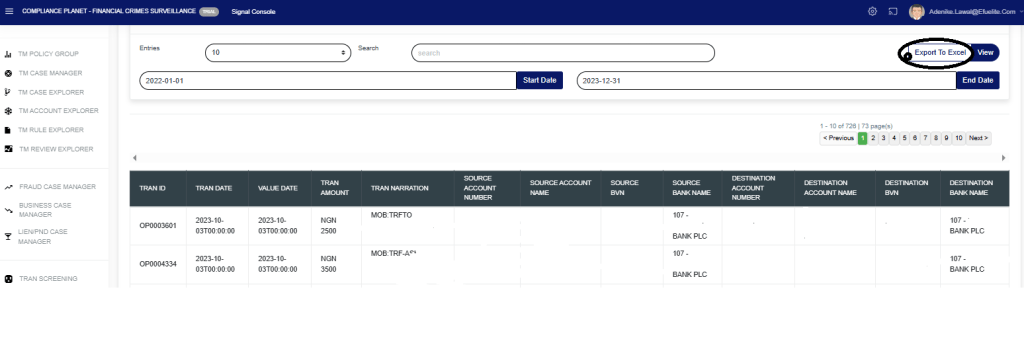
STEP 7: Click on the “Export To Excel” to download the report as in Fig.6g below.
Fig.6g
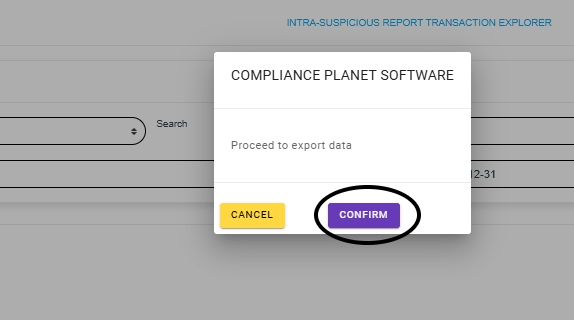
STEP 8: Click on the “Confirm” button to confirm your download as in Fig.6h below.
Fig.6h
For further enquiries:
Tel: +234(0) 816 555 9818
Email: solutions@efuelite.com
Web: http://solutions.efuelite.com
