
The service log records the Compliance Planet software services, forming a logical path that links a sequence of operations on the software. The service log provides a list of services that have affected an operation in a sequential order. It is used to trace the services that have affected the contents of a record.
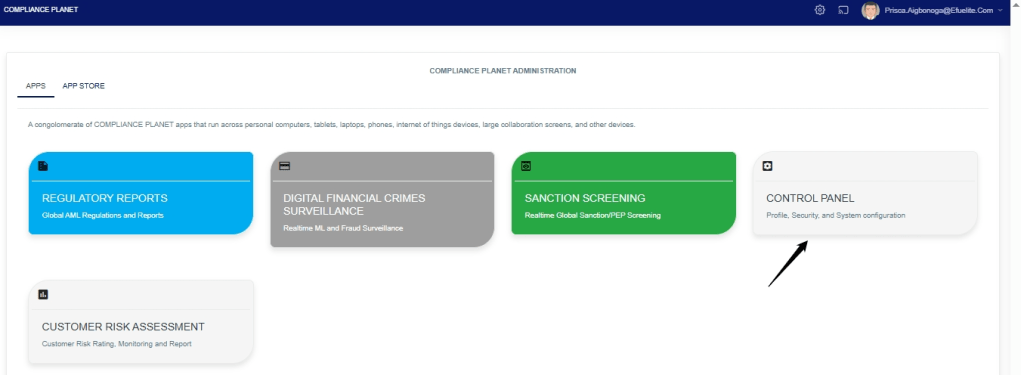
STEP 1: From the dashboard, click “Control Panel” as in Fig. 28 .3a below
Fig .28.3a
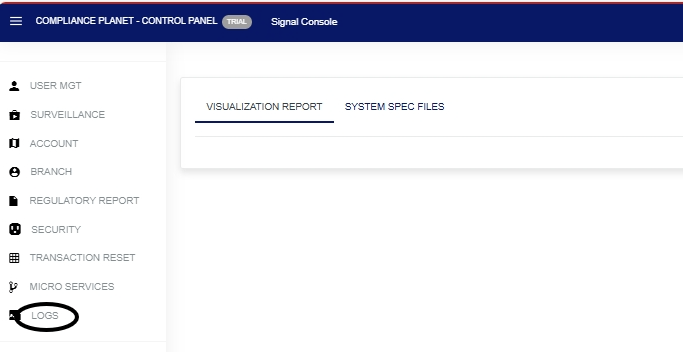
- This will display a page, then click “Log” as in Fig. 28 .3 b below
- Fig. 28 .3 b
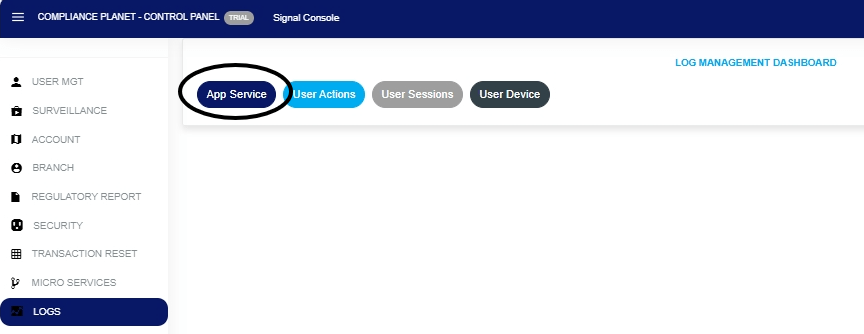
STEP 2: Click “App Service” as in F.ig 28.3c below
F.ig 28.3c
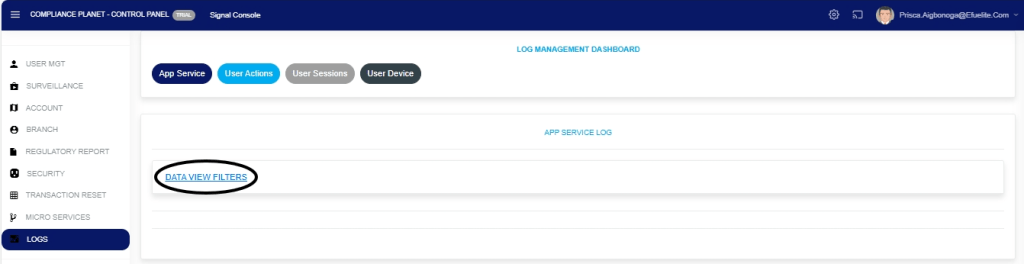
This will display the service App Service log page. Click “Dataview filter” as shown in Fig.28.3c below.
Fig.28.3c
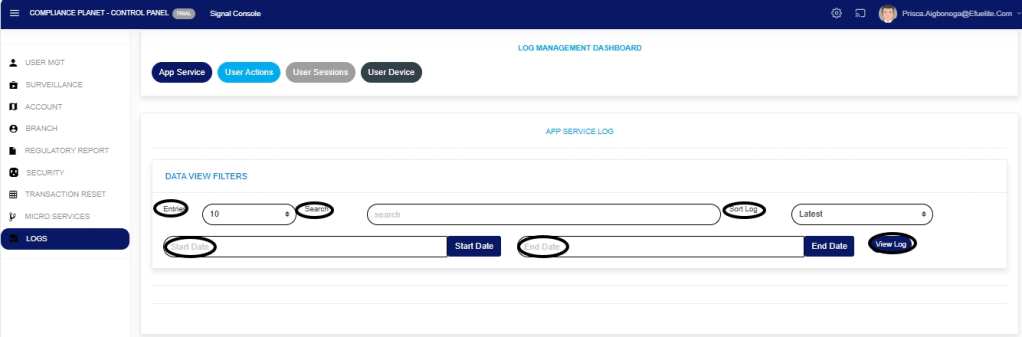
STEP 4: Fill in all the parameters as circled and explained in Fig.28.3d below:
Click on the ‘Start Date’ button to specify the start date; this also displays a calendar below the date box.
Click on the ‘End Date’ button to specify the end date; this also displays a calendar below the date box.
Click on the ‘Entries’ in the entries box to change the number of entries you want to see per page.
Click on the ‘Search’. You can search for a service by typing the search term in the Search box. The software displays the results in real time.
Click on the ‘Sort Log’. You can sort the records from the latest to the earliest or vice versa. Specify the order of the list by clicking on the Sort Log box
Click on ‘View Log’ as in Fig.28.3d below to view the services.
Fig.28.3d
STEP 5: This displays a list of services related to operations carried out within the specified period. See Fig.28.3e for an example.
Fig.28.3e
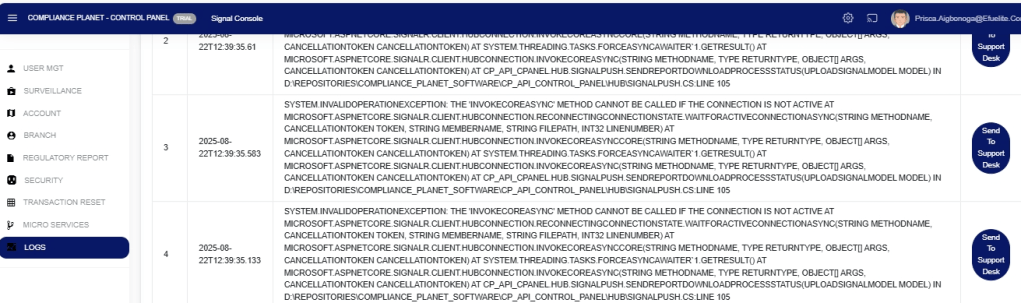
STEP 6: Click on the At the bottom-right corner of the page, the software provides information about the number of pages, with the page numbers written out. Clicking any page number takes you to that particular page. Click ‘NEXT’ to go to the next page and click on ‘PREVIOUS’ to go to the page before the current page. See these features in Fig.28.3f below.
Fig.28.3f

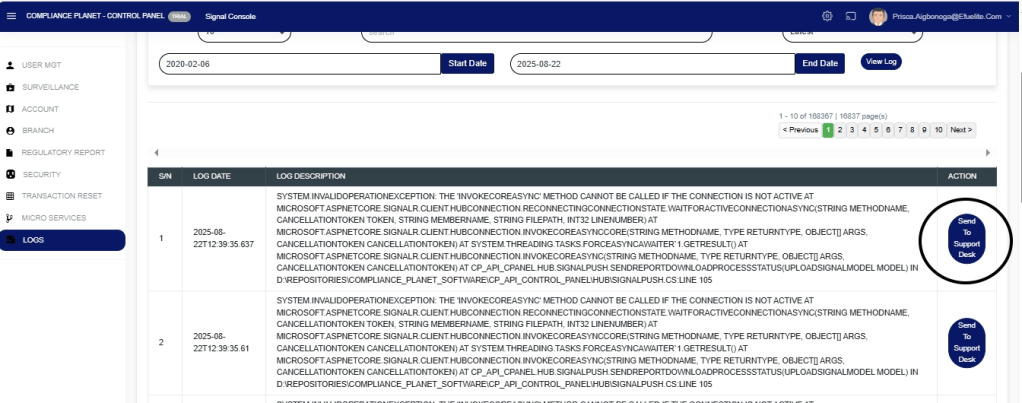
STEP 7: Each service log entry includes an action button for mailing the service log to the Compliance Support desk.
Click on ‘Send To Support Desk’. This button is at the end of the row of each log entry. See this in Fig.28.3g below.
Fig.28.3g
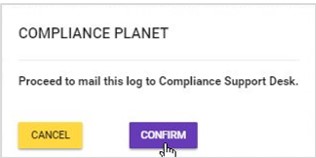
STEP 8: This displays a confirmation console, as shown in Fig. 28.3h. Click on ‘Confirm’ to proceed.
Fig.28.3h
STEP 8: A notification will be displayed at the top of the screen, as in Fig.28.3i, when the mail is sent successfully, and the action button for that log will change to ‘Sent’.
Fig.28.3i

For further enquiries :
Tel +234(0) 816 555 9818
Email solutions@efuelite.com
Web https://solutions.efuelite.com
