How to Carry Out Swift FXFTI Operations In Compliance Planet Anti Money Laundering/Core Banking Finance Software

This section provides a guide on how to perform operations pertaining to swift, with step-by-step instructions and pictures.

Note: Only person(s) assigned right to ‘view SWIFT DOM transactions’ will be able to carry out this operation(s)

STEP 1: From the left-hand side menu, click ‘UTILITY’ as in fig. 31.0a below

(fig. 31.0a)

  • This displays a drop-down list as in fig.31.0b.

STEP 2: On the drop-down list, click “Swift” as shown in fig 31.0b below

(fig. 31.0b)

  • This displays a “SWIFT OPERATIONS DASHBOARD” as in fig. 31.0c.

(fig. 31.1c)

31.2  How to View SWIFT FXFTI Transaction Documents

STEP1:  Click “Transaction” On the SWIFT OPERATIONS DASHBOARD as shown in fig 31.2a below

(fig. 31.2a)

  • This displays a page as in Fig 31.2b below

STEP 2:  Click on ‘Dom Explorer’ button on the Swift Operation page. See Fig 31.2b for an            example

(Fig. 31.2b)

  • Clicking on the ‘Dom Explorer’ button will display a ’SWIFT DOm FXFTI Explorer’ console as in Fig 31.2c below

(Fig. 31.2c)

STEP 3: Click on SET START DATE and SET END DATE to specify the period to be covered. See an example in Fig 31.2d below

(fig. 31.2d)

  • Take a look at the arrows labelled a to d in fig. 31.2e to study the calendar.
  • Click on the given year to change it to your year of choice.
  • Click on the given month to change it to your month of choice.
  • Then, click on the date of the month.
  • You can also click on the angle brackets on the calendar [ ‘<’ or ‘>’ ] to go backward or forward.

(fig. 31.2e)

STEP 4: Click on the filter box to select a particular bank branch. (See the example in fig. 31.2f). If you want to see the transactions for all branches, select bank branches. It is the first option on the filter list.

(Fig. 31.2f)

STEP 5: Click the ‘entries’ box to change the number of transactions you want to see per page. (See the drop-box in fig. 31.2g. below)

(Fig. 31.2g)

STEP 6: Tick the any of the checkbox as shown in fig 31.2h to specify the transactions you want to view

  • Select ‘Source Data Supplied by Me’ to see list of  SWIFT FXFT transactions whose source data was supplied by you
  • Select ‘Report Schema Completed’ to see list of SWIFT FXFT transactions with a complete schema
  • Select ‘Deleted Records’ to see list of SWIFT FXFT transactions that have been deleted.

NOTE: Leave all checkboxes unchecked to see list of all SWIFT FXFT transactions

(Fig. 31.2h)

STEP 7: Click ‘Search Transaction’ as shown in fig 31.2i

(Fig. 31.2i)

  • Clicking on the search transaction button will display a page as in Fig 31.2j below

(Fig. 31.2j)

  • Transactions with transaction ID coloured blue signify that the source account details has been added to the transaction hence, the schema is complete.
  • Transactions with transaction ID coloured red signify that the source account details has not been added to the transaction hence, the schema is incomplete.

How to carry out CCI Operations on SWIFT FXFTI transaction

  • On the Doc explorer page Click on ‘Operations’ button on the Action column, this will display a drop-down as in fig 31.2k below.
  • The drop-down shows a list of actions that can be carried out on that SWIFT transaction. These actions include viewing and editing CCI attached to the transaction

  (Fig. 31.2k)

  • However, if the CCI has not been added to the record the dropdown will have only ‘ADD’ new CCI. See examples in fig 31.2l below.

                                                                                                                                    (Fig. 31.2l)

A.  How to View and Delete CCI Attached to a SWIFT FXFTI Transaction

This option will be available if a Certificate of Capital Importation (CCI) has been added to the schema.

Note: Only person(s) assigned right to ‘view SWIFT DOM transactions’ and ‘Screen Edit SWIFT DOM transactions’ will be able to add Source Account data

  • Click on ‘VIEW CCI’ on the operations drop-down as in fig 31.2m to see the CCI attached to this transaction.

                                                                                                                                                (Fig 31.2m)

  • This will display a console as in in fig 31.2n below.

(Fig. 31.2n)

  • Click on ‘Dismiss console’ to close the console or click ‘Delete’ to delete the data. See fig 31.2o for an example

(Fig. 31.2o)

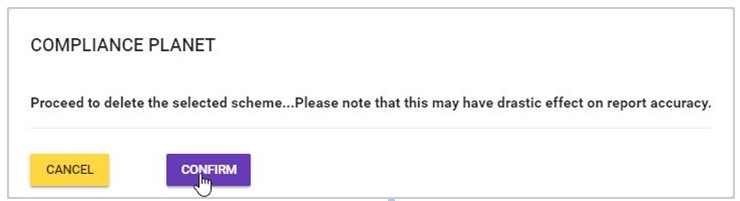
  • Clicking on delete will display a confirmation console as in Fig 31.2p below. Click ‘confirm’ to continue or ‘cancel’ to dismiss the operation.

                                                                                                                                    (Fig. 31.2p)

  • A notification will be displayed at the top when delete is successful as in Fig 31.2q below

(Fig. 31.2q)

B.  How to Edit CCI Attached to a SWIFT FXFTI Transaction

This option is will be available if a cci has been added to the Swift FXFTI transaction.

Note: Only person(s) assigned right to ‘view SWIFT DOM transactions’ and ‘Screen Edit SWIFT DOM transactions’ will be able to add Source Account data

  • Click on ‘Edit CCI’ on the operations drop-down to modify CCI for this transaction as in fig 31.2r below

                                                                                                                        (Fig 31.2r)

  • Clicking on ’Edit’ will display a console as in in fig 31.2s below.

(Fig. 31.2s)

  • Click the NEW CCI text box to  input the new CCI as in fig 31.2t below

                                    (Fig 31.2t)

  • Click on ‘Dismiss console’ to close the console or click ‘proceed’ to save the new cci. See fig 31.2u

(Fig. 31.2u)

  • Clicking on proceed will display a confirmation console as in Fig 30.5v below. Click on confirm to continue or cancel to dismiss the operation.

                                                                                                                                    (Fig. 31.2v)

  • A notification will be displayed at the top of the page when new CCI is saved successfully. See Fig 31.2w below

(Fig. 31.2w)

C.   How to Add CCI to a SWIFT FXFTI Transaction

Note: Only person(s) assigned right to ‘view SWIFT DOM transactions’ and ‘Screen Edit SWIFT DOM transactions’ will be able to add Source Account data

  • Click ‘Add CCI’ on the Operations drop-down, this is shown in Fig 31.2x below

                                                                                                                        (Fig 31.2x)

  • Clicking on ’add’ will display a console as in in fig 31.2ybelow.

(Fig. 31.2y)

  • Click on New CCI text box to input new CCI as in in fig 31.2z below.

(Fig. 31.2z)

  • Click on Proceed to add the new cci or ‘dismiss console’ to dismiss the operation. See an example in Fig 31.2aa below

(Fig. 31.2aa)

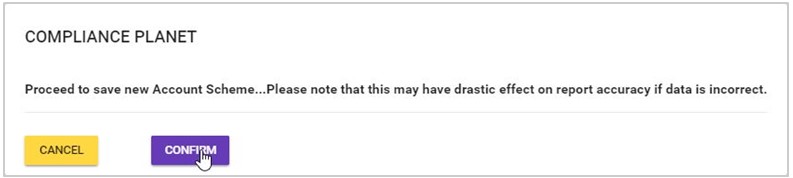
  • Clicking on Proceed will display a confirmation console as in Fig 31.2ab below. Click on confirm to continue or cancel to dismiss the operation.

                                                                                                            (Fig. 31.2ab)

  • A notification will be displayed at the Top when cci is successfully added. See Fig.31.2ac below.

(Fig. 31.2ac)

How to Carry Out Source Account Operations on Swift FXFTI Transaction

  • Swift FXFTI records with Source account details will show options to “view source account and “Edit source account”.
  • However, if the source account data has not been added, the dropdown will have an option to ‘ADD’ source account. See an example in fig 31.2ad and 31.2ae below.

  (Fig. 31.2ad)

                                                                                                                                    (Fig. 31.2ae)

A. How to view and delete Source Account data attached to a Swift FXFTI Transaction

Note: Only person(s) assigned right to ‘view SWIFT DOM transactions’ and ‘Screen Edit SWIFT DOM transactions’ will be able to add Source Account data

  • Click on ‘View Source Account’ button on the operations drop-down as in fig 31.2af below.

     (Fig. 31.2af)

  • This will display a console as in in fig 31.2ah below.

(Fig. 31.2ah)

  • Click on ‘Dismiss’ to close the console or click ‘Delete’ to delete the source data. See fig 31.2ai

(Fig. 31.2ai)

  • Clicking on delete will display a confirmation console as in Fig 31.2aj below. Click on confirm to continue or cancel to dismiss the operation.

                                                                                                                                    (Fig. 31.2aj)

  • A notification will be displayed at the top of the page when delete is successful. See Fig 31.2ak below

(Fig. 31.2ak)

B.      How to edit Account Source data attached to a Swift FXFTI Transaction

Note: Only person(s) assigned right to ‘view SWIFT DOM transactions’ and ‘Screen Edit SWIFT DOM transactions’ will be able to add Source Account data

  • click on ‘EDIT Source Account’ on the Operations drop-down to modify source account details. See this in Fig 31.2al below

(Fig 31.2al)

  • Clicking on ’Edit’ will display a console as in in fig 31.2am below.
  • Clicking any of the textboxes to modify the details as in fig 31.2am below.

(Fig. 31.2am)

  • Click on ‘Dismiss console’ to close the console or click ‘proceed’ to save the source data. See fig 31.2an

(Fig. 31.2an)

  • Clicking on proceed will display a confirmation console as in Fig 31.2ao below. Click on confirm to continue or cancel to dismiss the operation.

                                                                                                                                    (Fig. 31.2ao)

  • A notification will be displayed at the top of the page when edit  is saved successfully. See Fig 31.2ap below

(Fig. 31.2ap)

C.   How to add ‘Source account’ data to a SWIFT FXFTI Transaction

This Option is available for SWIFT FXFTI transactions with no source account data.

Note: Only person(s) assigned right to ‘view SWIFT DOM transactions’ and ‘Screen Edit SWIFT DOM transactions’ will be able to add Source Account data

  • Click on ‘add source account’ on the operations dropdown.This is shown in Fig 31.2aq below

                                                                                                                        (Fig 31.2aq)

  • Clicking on ’add’ will display a console as in in fig 31.2ar below.

(Fig. 31.2ar)

  • Click on any of the source account data textbox to fill the field as in in fig 31.2as below.

(Fig. 31.2as)

  • Click on Proceed to add the source account data or ‘dismiss console’ to dismiss the operation. See an example in Fig 31.2at below

(Fig. 31.2at)

  • Clicking on Proceed will display a confirmation console as in Fig 31.2au below. Click on confirm to continue or cancel to dismiss the operation.

                                                                                                (Fig. 31.2au)

  • A notification will be displayed at the Top when Source account data is successfully added. See Fig. 31.2av below.

(Fig. 31.2av)

Viewing Swift FXFTI Transaction ‘Account details’ and ‘Transaction details’

A.  How to View Swift FXFTI ‘Transaction details’

Note: You need to be assigned right to ‘view SWIFT DOM transactions’ to carry out this operation

  • Click on ‘View Transaction’ on the operations dropdown as in fig 31.2aw to see the details of the transaction

                                                                                                            (Fig 31.2aw)

  • Clicking ‘View Transaction will display a console as in fig 31.2ax below

(Fig 31.2ax)

  • Click dismiss console to close the console

B. How to View Swift FXFTI Transaction ‘Account details’

Note: You need to be assigned right to ‘view SWIFT DOM transactions’ to carry out this operation

  • Click on view Account as in fig 31.2az below to see the details of the transaction

(Fig 31.2az)

  • Clicking ‘View Account will display a console as in fig 31.2ba below

(Fig 31.2ba)

  • Click dismiss console to close the console

31.2.4 How to View Swift FXFTI Transaction ‘Swift message’

For transactions that have a swift message attached, the software will display an option to view Swift message. This is illustrated in the figures below.

Note: You need to be assigned right to ‘view SWIFT DOM transactions’ to carry out this operation

  • Click on ‘View Swift Message’ button on the Operations drop-down. See an example in fig 31.2bb below.

     (Fig. 31.2bb)

  • This will display a console as in in fig 31.2bd below.

(Fig. 31.2bd)

  • Click on ‘Dismiss’ to close the console

31.3  How to Carry Out bulk Swift FXFTI transaction Operations

On the SWIFT FXFTI transaction list page you can make a bulk download of Foreign Exchange Foreign Transactions (FXFT) files either for viewing or editing purpose. The process is explained below

A.  How to carry out bulk view of Swift FXFTI transactions

Note: You need to be assigned right to ‘view SWIFT DOM transactions’ and ‘Download SWIFT DOM transactions’ to carry out this operation

STEP 1: Click on the “OPERATIONS” button on the SWIFT FXFTI page.

Note that this operation button is at the top of the page and it is different from the operations button on the action  column which is used to carry out operations pertaining to individual transactions. See Fig 31.3a   for an example

(fig. 31.3a)

  • Clicking the Operations button will display a dropdown as in fig. 31.3b below

(fig. 31.3b)

STEP 2: Click on the bulk view as shown in fig 31.3c below

(fig. 31.3c)

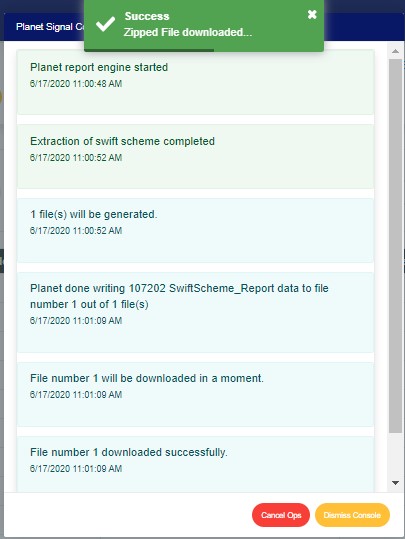
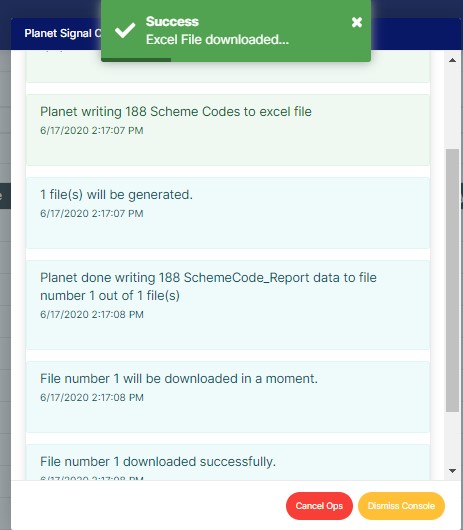
  • The signal console shows on going processes.  An example of a signal console is fig 31.3d. You can terminate unfinished processes by clicking ‘CANCEL OPS’.                                  
  • To minimize signal console, click on DISMISS CONSOLE.

(fig 31.3d)

➔   An excel file with details of the SWIFT FXFT transaction will be downloaded when the process is complete.

B.  How to carry out bulk edit of Swift FXFTI transactions

Note: You need to be assigned right to ‘view SWIFT DOM transactions’ and ‘Download SWIFT DOM transactions’ to carry out this operation

STEP 1: Click on the “Operations” button on the SWIFT FXFTI transaction page. See Fig 31.3e for an example

(fig. 31.3e)

  • Clicking the download button will display a dropdown  as in fig. 31.3f below

(fig. 31.3f)

STEP 2: Click on the bulk Edit as shown in fig 31.3g below

(fig. 31.3g)

  • The signal console shows on going processes.  An example of a signal console is fig 31.3h. You can terminate unfinished processes by clicking ‘CANCEL OPS’.                                  
  • To minimize signal console, click on DISMISS CONSOLE.

(fig 31.3h)

  • An excel file with details of the SWIFT transaction will be downloaded when the process is complete. The details on the downloaded excel file can be edited and uploaded on the software to update multiple SWIFT FXFT transaction details at once. However, the ‘Compliance tran Id’ for each record on the excel file must not be tampered with for the upload to be successful.

C.      How to Carry out Bulk Upload of Edited Swift Documents

On the Swift Operations page you can make a bulk upload of Edited Swift Foreign Exchange Foreign Transactions (FXFT) files. The process is described below.

Note: You need to be assigned right to ‘view SWIFT DOM transactions’ and ‘Bulk Edit SWIFT DOM transactions’ to carry out this operation.

STEP 1: Click on the Operations button on the Swift Transaction page. See Fig 31.3i for an example

(fig. 31.3i)

  • This will display a dropdown as in fig. 31.3j below

STEP 2: Click “Upload Bulk Edit Data” as shown in fig 31.3j below

(fig. 31.3j)

  • This displays a ‘Planet FXFTI Bulk Edited Upload Console’ as in Fig31.3k below.

(fig. 31.3k)

STEP 3: Click on ‘Select Bulk Edited FXFTI Transaction file’ to choose the edited transaction file you want to upload from your computer. Note that the file must contain at least a transaction record. See this in Fig 31.3l below

(fig. 31.3l)

  • After successful upload of file, the console will display the title of the file, that is, the file name. See fig. 31.3m to see an example of how the console looks like when you successfully upload a file from your computer.

(Fig. 31.3m)

STEP 4: Click on ‘process’ button to proceed with the upload. See fig31. 3n below to see the green button at the bottom-right corner of the console.

(Fig. 31.3n)

  • This displays a confirmation console as in fig. 31.3o below. Click ‘Confirm’ to continue or  ‘Cancel’ to close the console.

(Fig. 31.3o)

For further enquiries : 
Tel +234(0) 816 555 9818
Email solutions@efuelite.com 
Web https://solutions.efuelite.com

How to carry out Customer Sector- tier operations In Compliance Planet Anti Money Laundering/Core Banking Finance Software

This Control Panel feature provides a list of customer sectors and their sub sector tier tags. The customer sector is a section in the AML/CFT RBS report. Here, the operations are;

  • Editing a customer sector-sub sector tier tag
  • Deleting a customer sector-sub sector tier tag, and
  • Creating a  customer sector-sub sector tier tag

Note: Only person(s) profiled as deputy supreme admin can carry out account scheme operations.

To perform any of the operations on Customer Sector- sub sector tier tag;

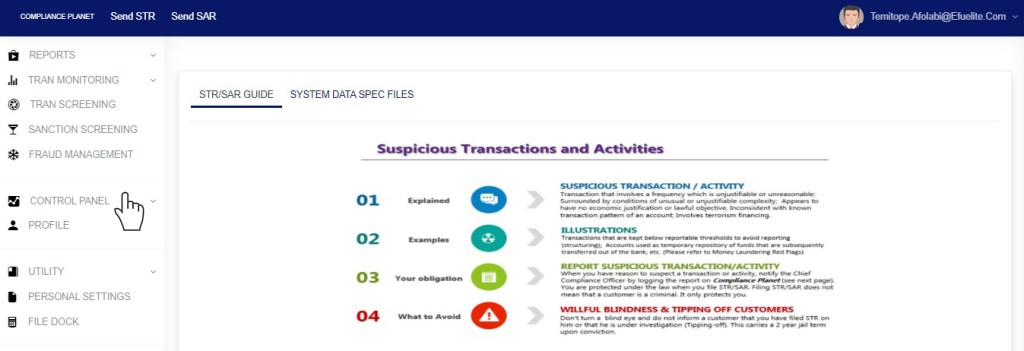
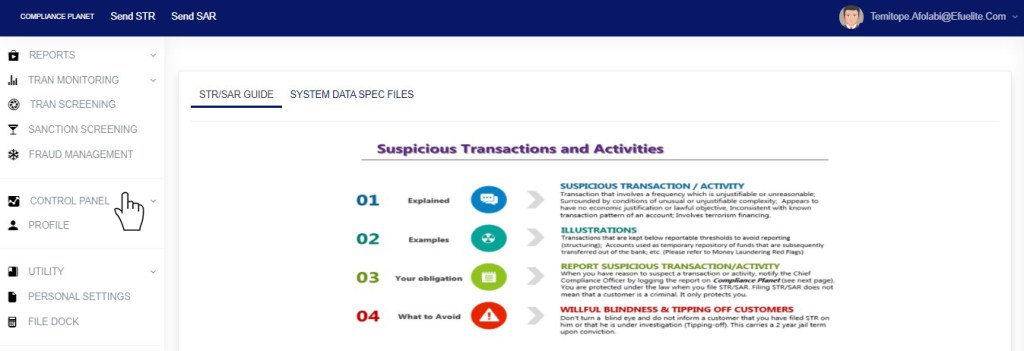
STEP 1: From the left hand side menu, Click ‘Control panel’ as in fig. 14.2a.

Fig 14.2a

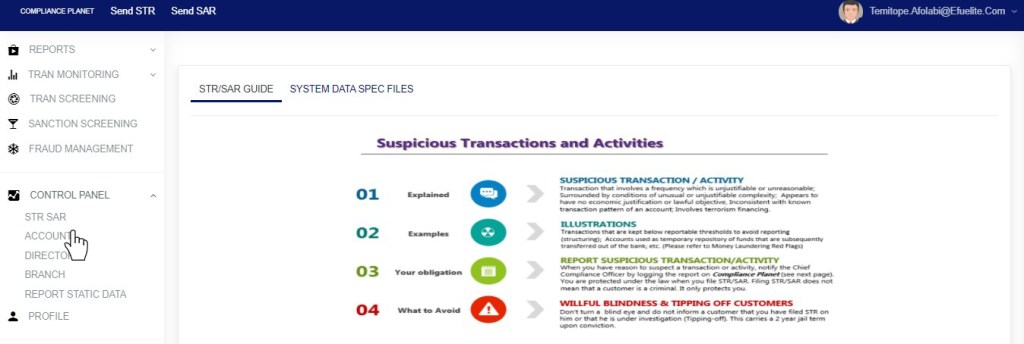
  • This will display a drop down as in Fig 14.2b below.

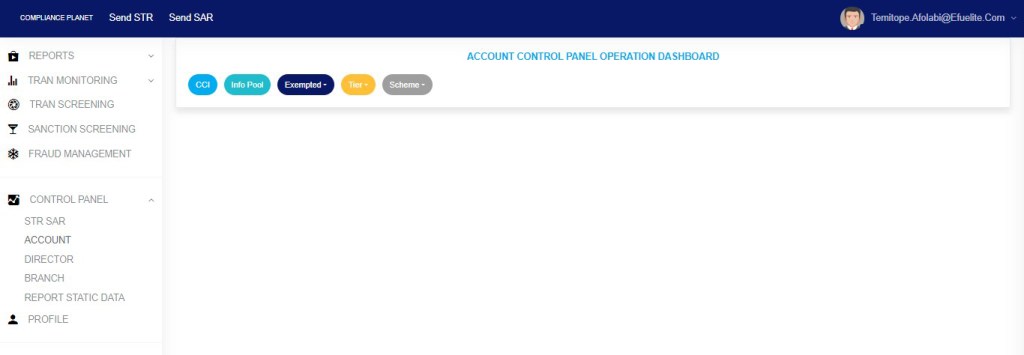
STEP 2: Click ‘ACCOUNT’ on the drop down list. See an example in Fig 14.2b below.

Fig 14.2b

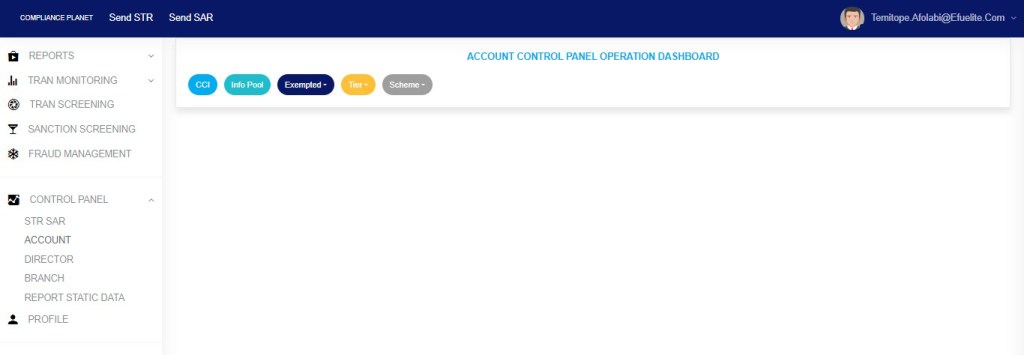
  • This will display the ACCOUNT CONTROL PANEL OPERATIONS dashboard as in Fig 14.2c below

Fig 14.2c

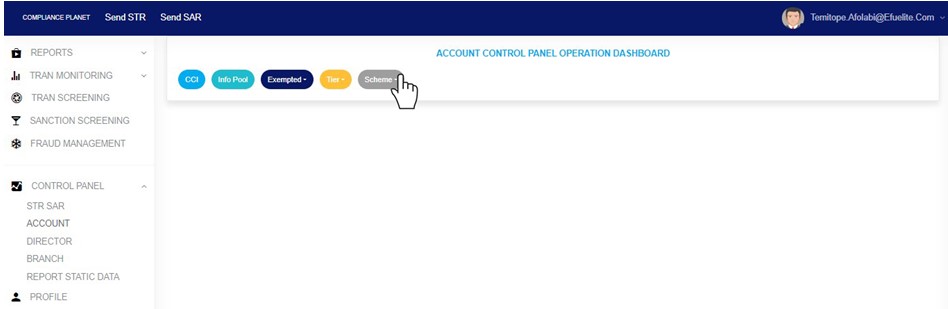
STEP 3: Click “Tier” from the top menu, on the account page. See an example in fig14.2d below

Fig 14.2d

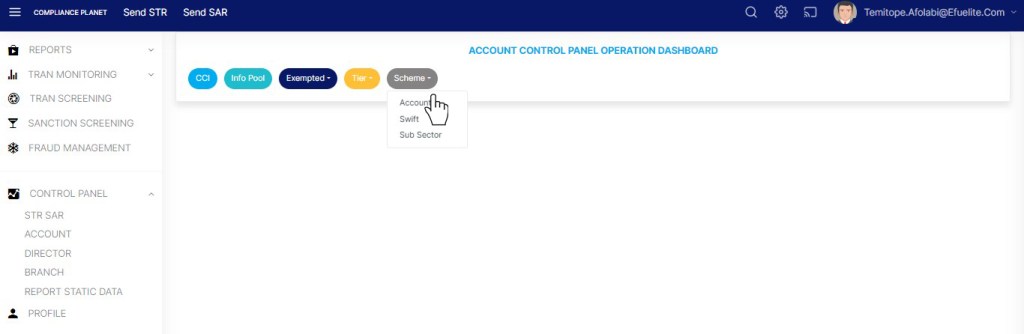
  • This displays a dropdown as in fig 14.2e below

STEP 4: Click “Customer Sector” on the drop down list as in fig 14.2e below

Fig 14.2e

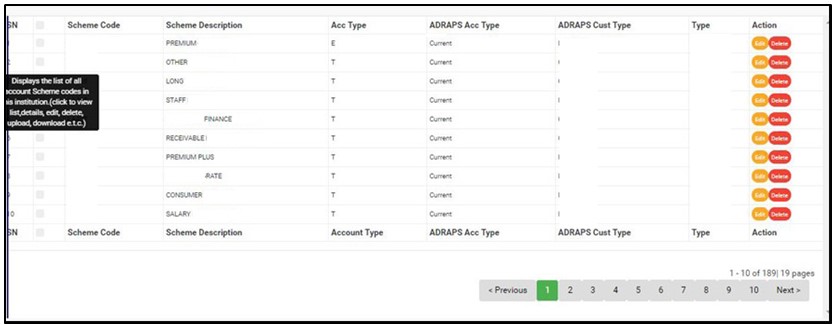
  • This displays a page showing a list of all customer sectors and sub sectors in the institution, with options to edit, delete and create new information. As stated earlier, customer sector is also referred to as the ‘Customer Tier’. On the table provided on the customer sector tier page, it is represented with the Customer sector description on the table.See fig. 14.2f for an example.

(fig. 14.2f)

  • As seen in fig. 14.2g, the bottom-right corner of the page, the software gives information about the number of pages of the list, with the page numbers written out. The page numbers represent buttons to go to each page. By clicking on any of the page number, the software takes you to that particular page. Click on ‘NEXT’ to go to the next page or ‘PREVIOUS’ to go to the page before the one you are viewing at that moment.
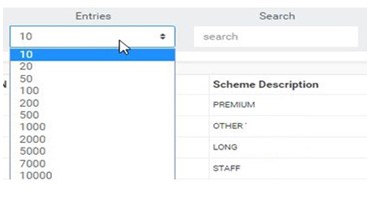
  • Adjust the number of results per page by clicking on the ‘ENTRIES’ box as in fig. 14.2g.

(Fig. 14.2g)

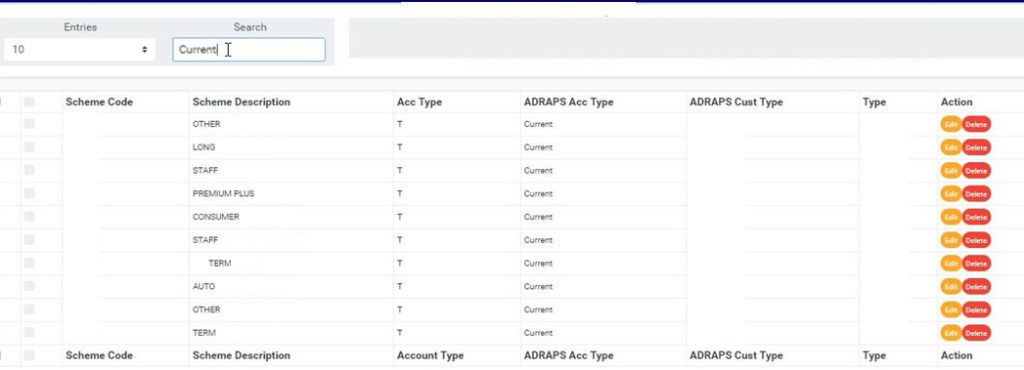
  • Search for customer sectors and sub sectors by inputting the sub sector code, sub sector description or customer sector description. Search results will appear immediately a character is typed in the search box.. See fig. 14.2h below for an example.

(fig. 14.2h)

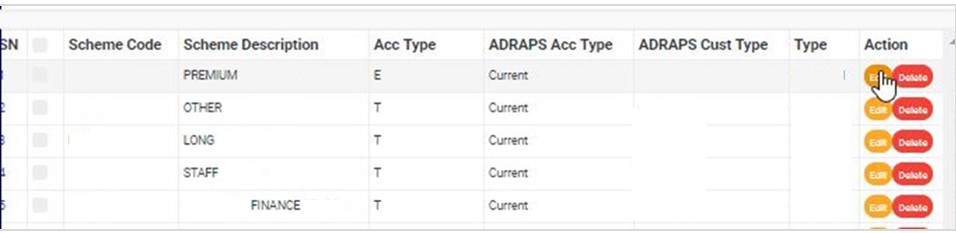
  • Each entry has two (2) action buttons; ‘Edit’ button and ‘Delete’ button and they are explained below.

14.3  How to Edit A Customer Sector Tier Tag

To change details of a customer sub-sector tier tag;

STEP 1:          Click the ‘Edit’ button as shown in fig.14.3a below.

(fig. 14.3a)

  • This displays an ‘Edit Customer Sub Sector-Tier tag’ console, as in fig. 14.3b.

(fig. 14.3b)

STEP 2: Select new options from the ‘Sub Sector’ box and ‘Customer tier’ box as shown in fig. 14.3c and fig. 14.3d respectively.

(fig. 14.3c)

(fig. 14.3d)

STEP 3: Click on ‘SAVE CHANGES’ as shown in fig. 14.3e below, to update the new changes on the software.

(fig. 14.3e)

  • This displays a confirmation console as in fig. 14.3f to confirm you want to change the details.

(fig. 14.3f)

  • Click on ‘CONFIRM’ to save the changes or cancel to discontinue action. When the changes are saved, a notification will be displayed at the top of the page as in fig. 14.3g below.

(fig. 14.3g)

How to Delete Customer Sector Tier Tag

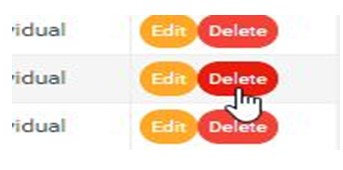
  • To delete a customer sector-sub sector-tier tag, click on the ‘DELETE’ button as shown in fig. 14.4a below.

(fig. 14.4a)

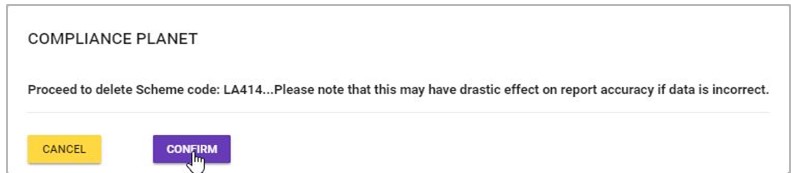
  • This displays a confirmation console to confirm your request to delete the customer sector tier tag as in fig. 14.4b. Click on ‘CONFIRM’ to proceed or ‘CANCEL’ to discontinue.

(fig. 14.4b)

  • When the operation is complete, a notification will be displayed at the top of the page as in fig. 14.4c.

(fig. 14.4c)

How to Create New Customer Tier Tag

  • This refers to the adding of a new customer sector-sub sector tier tag.  Here is how to do this.

STEP 1: Click on ‘NEW CUSTOMER SECTOR-SUB SECTOR-TIER TAG’ as in fig. 14.5a below.

(fig. 14.5a)

  • This displays a ‘NEW CUSTOMER SECTOR-SUB SECTOR-TIER’ console. See fig. 14.5b below for an example.

(fig. 14.5b)

STEP 2: Select  ‘Sub Sector’ and ‘Customer Tier’ as shown in fig. 14.5c  and fig. 14.5d respectively.

(fig. 14.5c)

(fig. 14.5d)

STEP 3:          After selecting the details, click on ‘SAVE’ as shown in fig. 14.5e below.

(fig. 14.5e)

  • This displays a confirmation console to confirm you want to add the new customer sector-sub sector tier tag. Click on ‘CONFIRM’ to proceed or ‘CANCEL’ to discontinue.

(fig. 14.5f)

  • If you proceed, a notification as in fig. 14.5g will be displayed at the top of the page when the new customer sector-tier tag has been successfully created.

(fig. 14.5g)

For further enquiries : 
Tel +234(0) 816 555 9818
Email solutions@efuelite.com 
Web https://solutions.efuelite.com

How to carry out Sub Sector Scheme operations In Compliance Planet Anti Money Laundering/Core Banking Finance Software

The operations pertaining to SUB-SECTOR SCHEME on the Compliance Planet are:

  1. Editing a sub-sector scheme
  2. Deleting a sub-sector scheme
  3. Creating a new sub-sector scheme
  4. Downloading all sub-sector schemes
  5. Bulk delete of sub-sector schemes
  6. Bulk upload of new sub-sector schemes

NOTE: Only person(s) profiled as Deputy Supreme Admin can carry out these operations.

The last three (3) operations are for bulk operations. To perform any of the sub-sector scheme operations;

STEP 1: From the left hand side menu, Click ‘Control panel’ as in fig. 15.2a.

Fig 15.2a

  • This will display a drop down as in Fig 15.2b below.

STEP 2: Click ‘ACCOUNT’ on the drop down list. See an example in Fig 15.2b below.
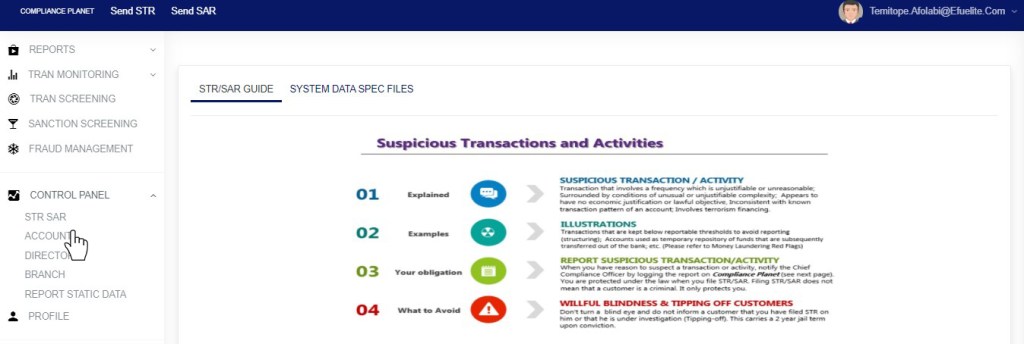
Fig 15.2b

  • This will display the ACCOUNT CONTROL PANEL OPERATIONS dashboard as in Fig 15.2c below

Fig 15.2c

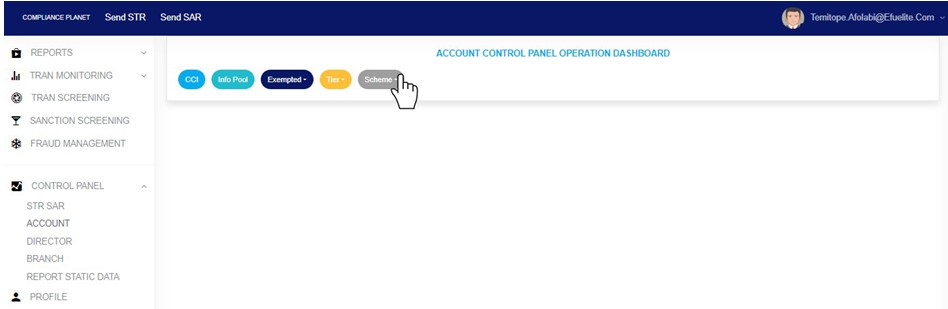
STEP 3: Click “SCHEME” from the top menu, on the account page. See an example in fig15.2d below

Fig 15.2d

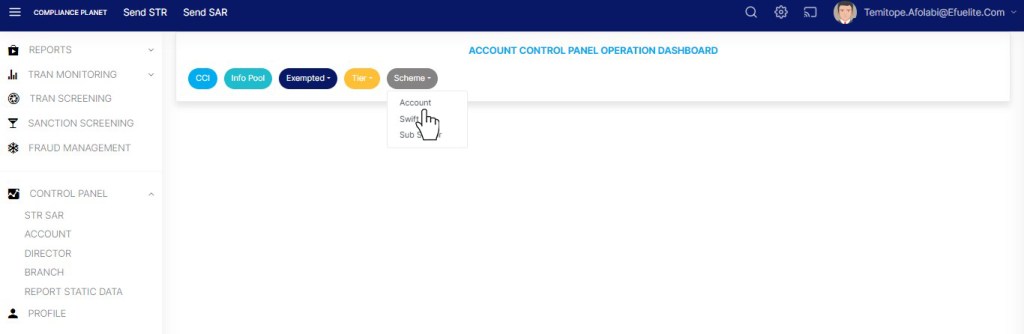
  • This displays a dropdown as in fig 15.2e below

STEP 4: Click “Sub Sector” on the drop down list as in fig 15.2e below
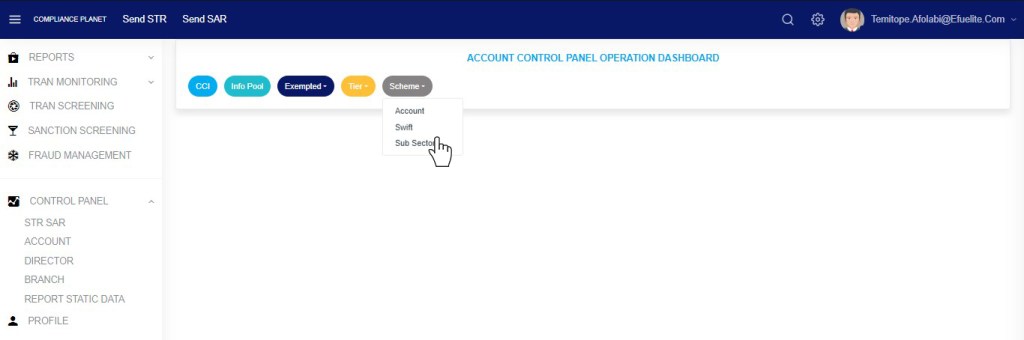
Fig 15.2e

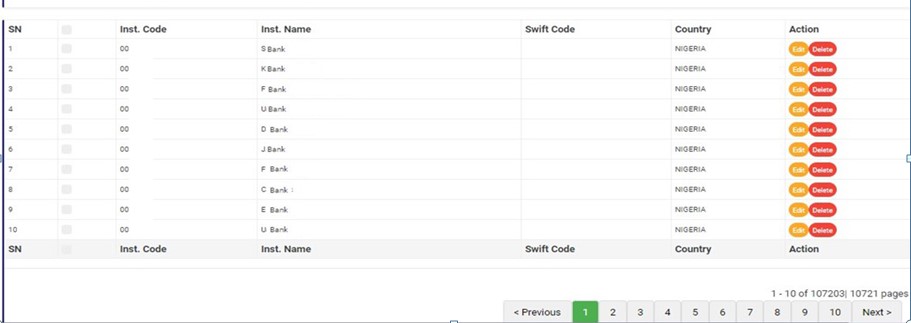
  • This displays a page showing a list of all sub-sectors and their respective lines of business. See fig. 15.2f below for an example.
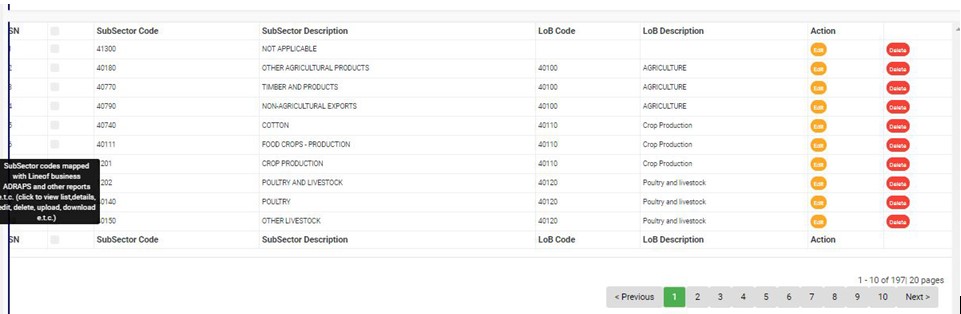
(fig. 15.2f)

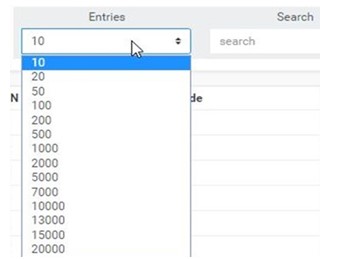
  • Click on the ‘ENTRIES’ box to adjust the number of sub-sector schemes you see per page. See fig. 15.2g.
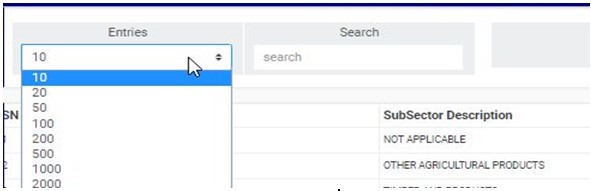
(fig. 15.2g)

  • Search for Sub-sector Schemes by inputting the sub-sector code, sub-sector description, line of business code or line of business description in the search box. Search results will appear immediately a character is typed in the search box.. See an example of a search in fig. 15.2h.
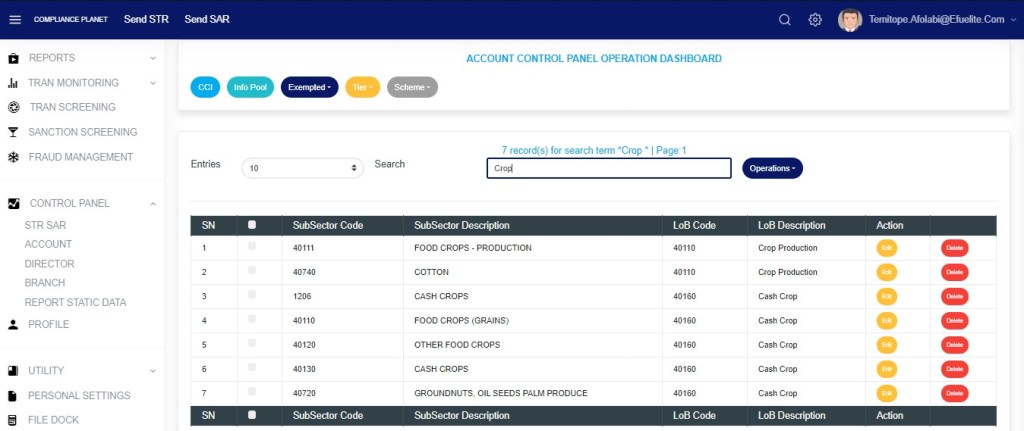
(fig. 15.2h)

  • At the bottom-right corner of the page, the software supplies information about the number of pages of the list, with the page numbers written out. The page numbers represent buttons to go to each page. By clicking on any page number, the planet takes you to that particular page. Click on the ‘NEXT’ button to go to the next page or the ‘PREVIOUS’ button to go to the page before the current page. See fig. 15.2i for an example.

(fig. 15.2i)

  • Each sub-sector scheme entry has two (2) action buttons; ‘Edit’ button and ‘Delete’ button. These buttons are placed at the end of each row. Also, at the top of the page are other buttons to carry out bulk operations. These operations are explained below.

How To Edit Sub-Sector Scheme

This refers to changing the details of a sub-sector scheme which includes; the sub-sector code, sub-sector description and the line of business. Here is how to edit a sub-sector scheme.

STEP 1: Click on its ‘Edit’ button as shown in fig. 15.3a below.

(fig. 15.3a)

  • This displays an ‘Edit Sub sector Scheme’ console as in fig. 15.3b below.
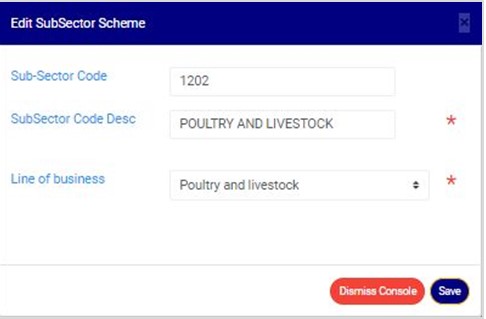
(fig. 15.3b)

STEP 2:          Fill in the new sub-sector code or new sub-sector description or select the new line of business. See fig. 15.3c for an example.
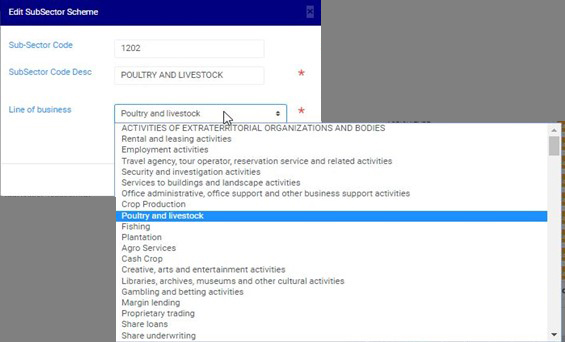
(fig. 15.3c)

STEP 3:          Click on ‘SAVE’ as in fig. 15.3d to update and save the sub-sector scheme details. To close the console, click on ‘Dismiss Console’.
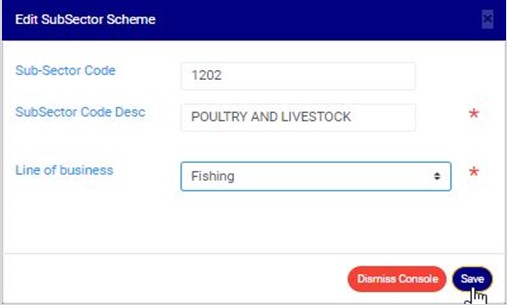
(fig. 15.3d)

  • This displays a confirmation console to confirm you want to save the changes. Fig. 15.3e is an example of the planet inquiry console.

STEP 4:          Click on ‘CONFIRM’ to proceed or ‘CANCEL’ to discontinue.
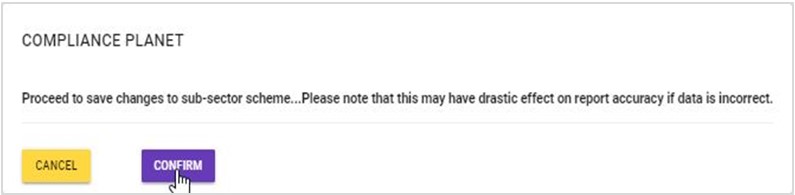
(fig. 15.3e)

  • By clicking on CONFIRM, a notification as in fig. 15.3f will be displayed at the top of the page when the operation is complete.

(fig. 15.3f)

How To Delete Sub-Sector Scheme

This refers to the delete of one sub-sector scheme. Here is how to delete a sub-sector scheme.

STEP 1:          Click on the sub-sector’s ‘DELETE’ button as shown in fig. 15.4a below.

(fig. 15.4a)

  • A confirmation console will be displayed to confirm your request to delete the sub-sector scheme.

STEP 2:          Click on ‘CONFIRM’ to proceed.as in fig. 15.4b or ‘CANCEL’ to discontinue.
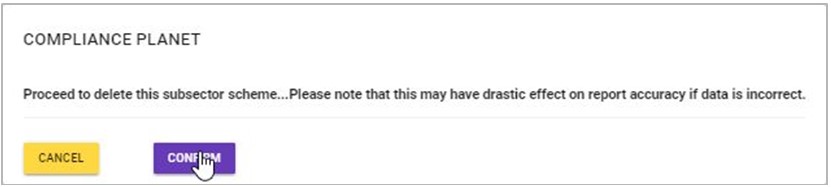
(fig. 15.4b)

  • If you proceed to delete the sub-sector, a notification as in fig. 15.4c will be displayed at the top of the page when the delete operation is done.
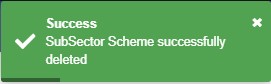
(fig. 15.4c)

How to Create New Sub-Sector Scheme

This refers to the adding of a new sub-sector scheme on the compliance planet. Here is how to create a new sub-sector scheme.

STEP 1: Click on the “OPERATIONS” button on the top-left side of the page as in fig. 15.5a below.
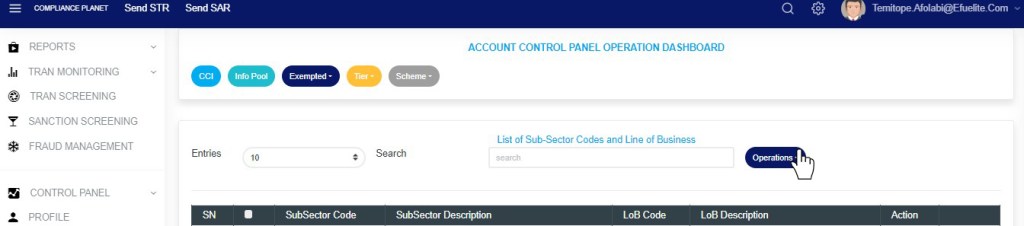
(fig. 15.5a)

  • This displays a dropdown as in fig 15.5b below
  • Click “New Scheme” on the dropdown list as in fig 15.5b below.
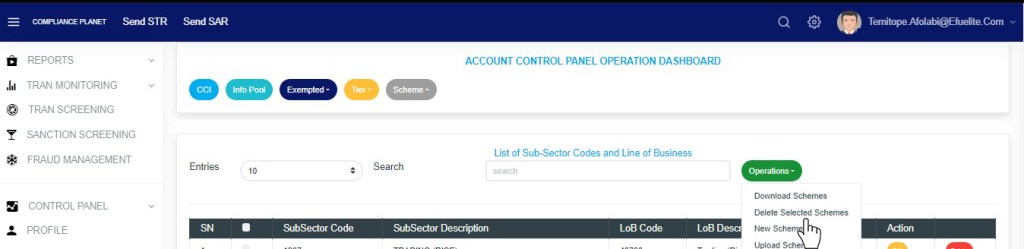
Fig 15.5b

  • This displays a ‘NEW SUB SECTOR SCHEME’ console. Here on this console, you are to input the details of the new sub-sector scheme which includes the sub-sector code and description and the line of business. See fig. 15.5c for an example.
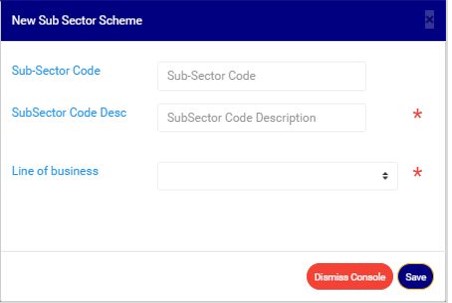
(fig. 15.5c)

STEP 2:          Fill in the details of the new sub-sector scheme. See fig. 15.5d for an example.
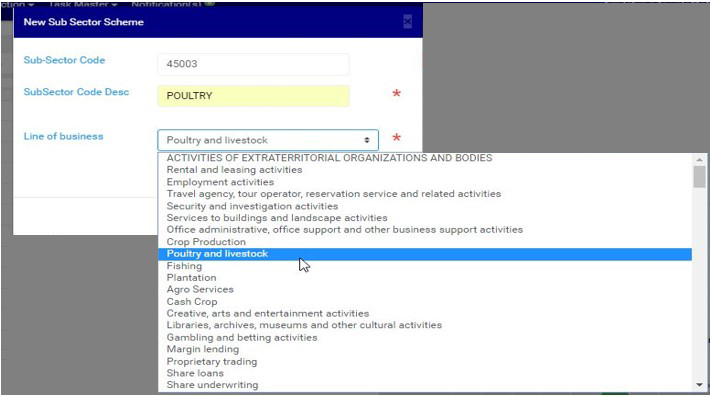
(fig. 15.5d)

STEP 3:          Click on ‘SAVE’ as shown in fig. 15.5e below.

(fig. 15.5e)

  • This displays a confirmation console to confirm you want to add a new sub-sector scheme. See fig. 15.5f.
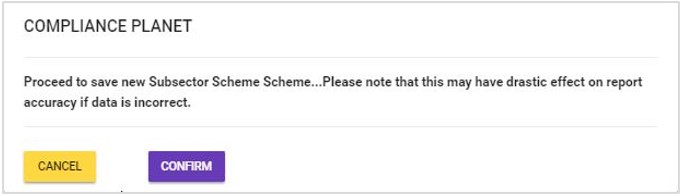
(fig. 15.5f)

STEP 4:  Click  ‘CONFIRM’ to proceed with the creation of the new sub-sector scheme or ‘CANCEL’ to discontinue. If you proceed, a notification as in fig. 15.5g will be displayed at the top of the page when the new sub-sector scheme has been successfully created.
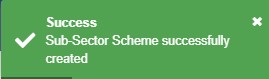
(fig. 15.5g)

How to Download All Sub-Sector Schemes

This refers to the download of an excel file filled with all the sub-sector schemes saved on the compliance planet. Here is how to do this.

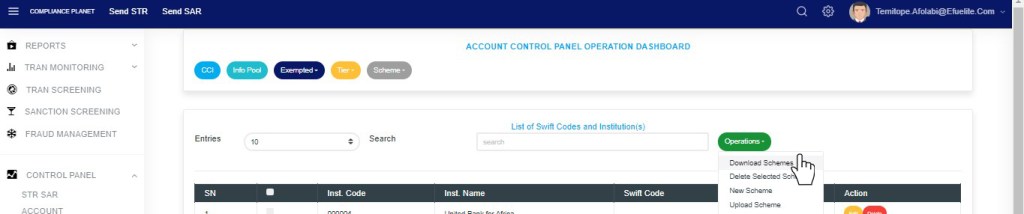
STEP 1:          Click on ‘DOWNLOAD SUB-SECTOR SCHEMES’ on the drop down list as shown in fig. 15.6a below.
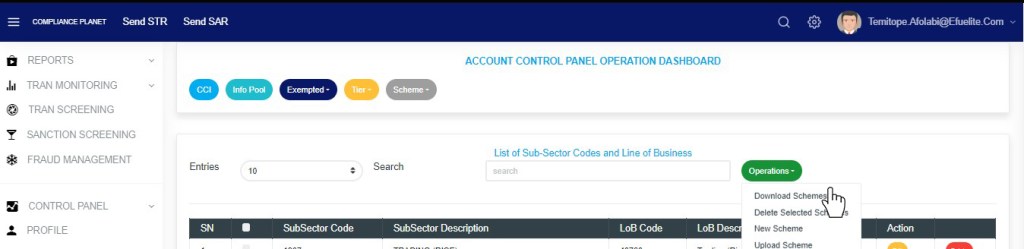
(fig. 15.6a)

  • This displays a confirmation console to confirm the download of all the sub-sector schemes.
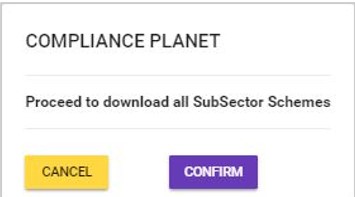
(fig. 15.6b)

STEP 2: Click on ‘CONFIRM’ to proceed with the download or ‘CANCEL’ to discontinue with the operation.

  • The signal console shows on going processes.  An example of a signal console is fig 15.6b. When download is complete, a notification will be displayed at the top of the page that an excel file has been downloaded.
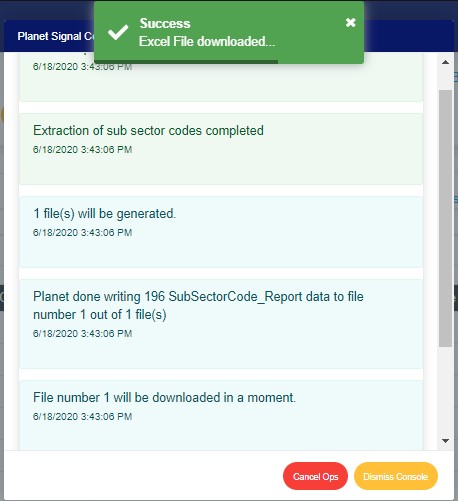
(fig. 15.6c)

 How To Make Bulk Delete of Sub-Sector Schemes

This refers to deleting more than one sub-sector schemes at once. Here is how to carry out a bulk delete of sub-sector schemes.

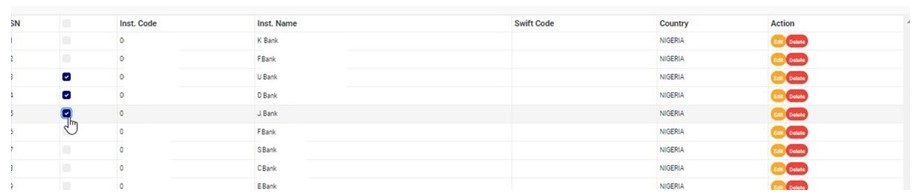
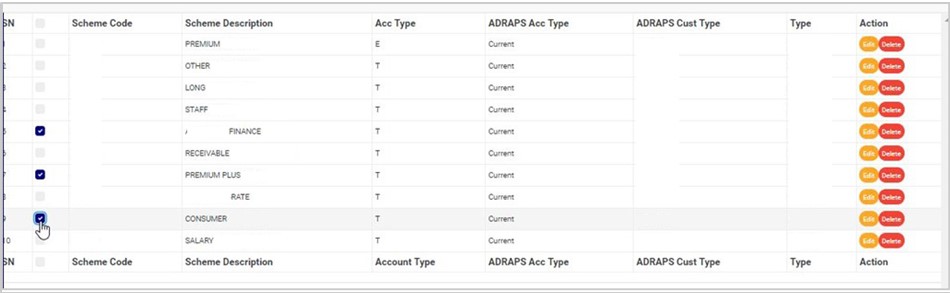
STEP 1:          Select sub-sector schemes to be deleted by clicking on their checkboxes as shown in fig. 15.7a below.
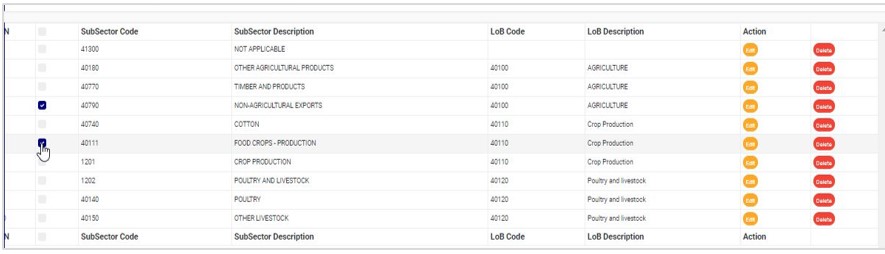
(fig. 15.7a)

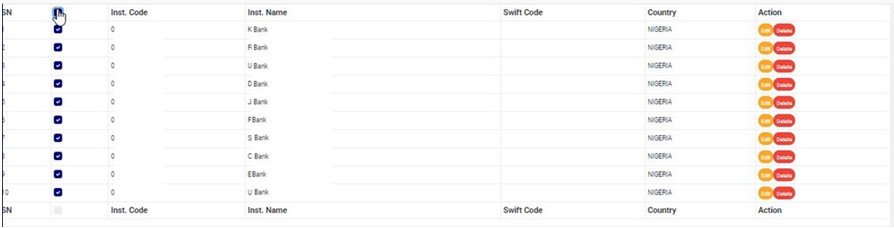
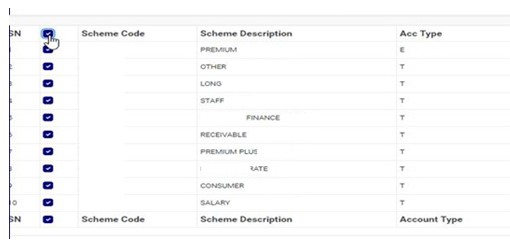
  • To select/deselect all the schemes on a page, click on the checkbox on the table’s title bar. This checkbox is between ‘SN’ and ‘Sub Sector Code’. See fig. 15.7b below.
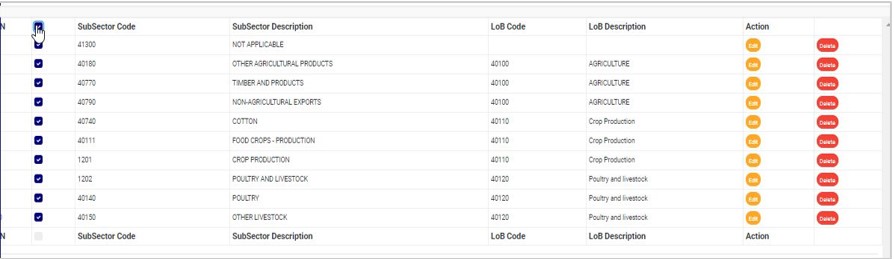
(fig. 15.7b)

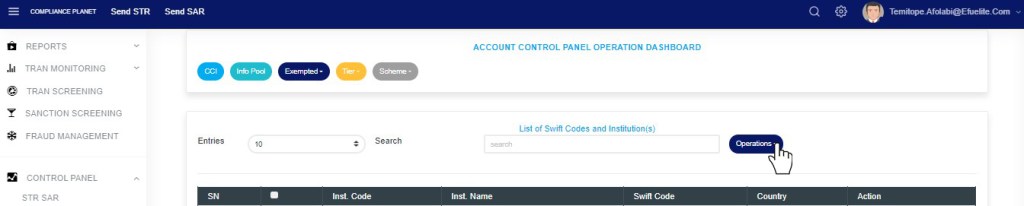
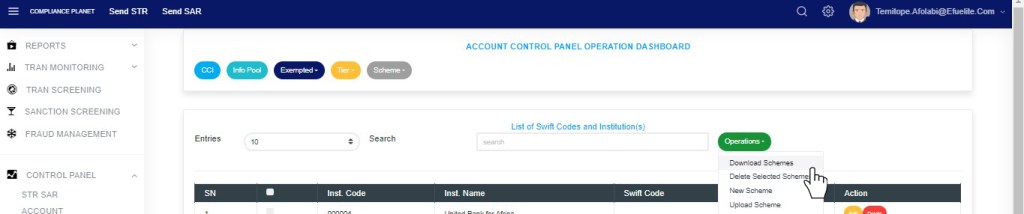
STEP 2:          Click on ‘DELETE SELECTED SCHEME’ from the operations drop down as shown in fig. 15.7c below.
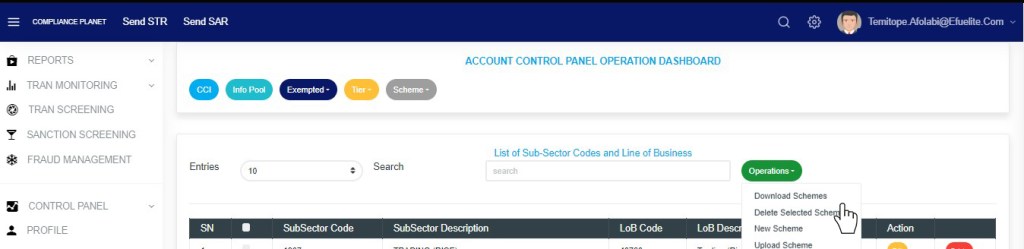
(fig. 15.7c)

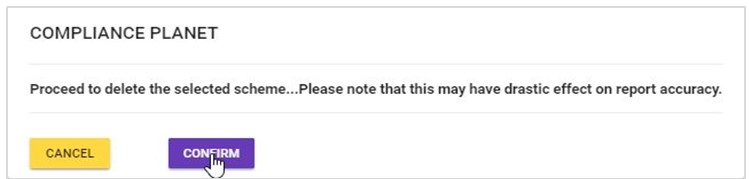
  • Clicking on ‘Delete Selected Schemes displays a confirmation console as seen in fig. 15.7d below.

STEP 3:          Click on ‘CONFIRM’ to proceed or ‘CANCEL’ to discontinue delete operation. See fig. 15.7d.

(fig. 15.7d)

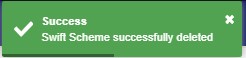
  • If you proceed, a notification as in fig. 15.7e below will be displayed at the top of the page when delete operation is complete.
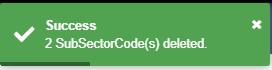
(fig. 15.7e)

How To Make Bulk Upload of New Sub-Sector Schemes

  • To add more than one new account scheme on the software; you need to upload an excel file filled with the details of the new sub-sector schemes according to the software’s specification for uploading new sub-sector schemes. This process is described below.

STEP 1:          Click on ‘UPLOAD SCHEME’ as in fig. 15.8a below.
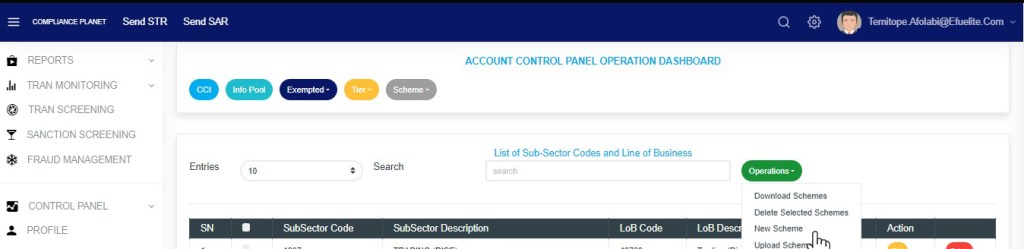
(fig. 15.8a)

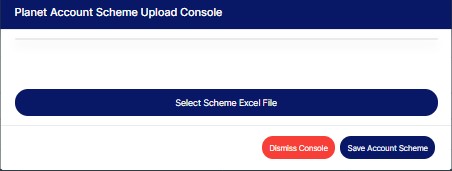
  • This displays a ‘Planet Sub-Sector Scheme Upload’ console as in fig. 15.8b
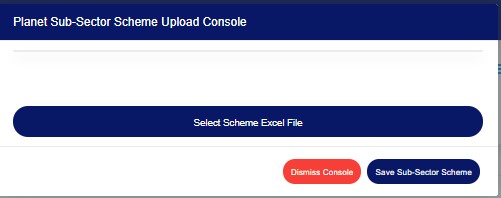
(fig. 15.8b)

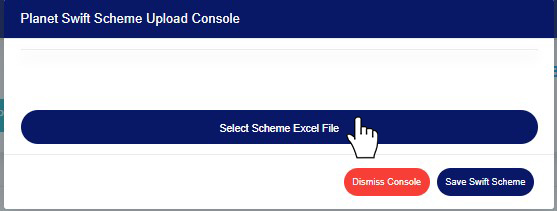
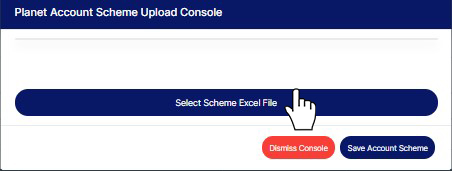
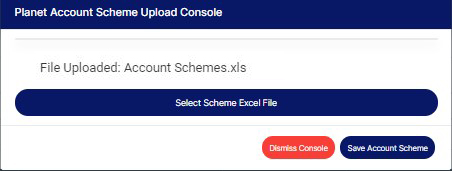
STEP 2:          Click  ‘SELECT SCHEME EXCEL FILE’ as in fig. 15.8c to choose the excel file filled with the details of the new sub-sector schemes to be uploaded on the planet.
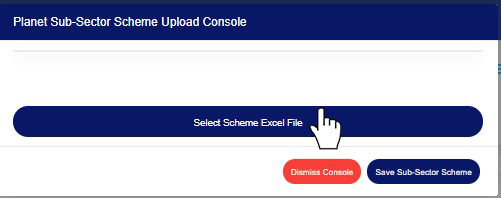
(fig. 15.8c)

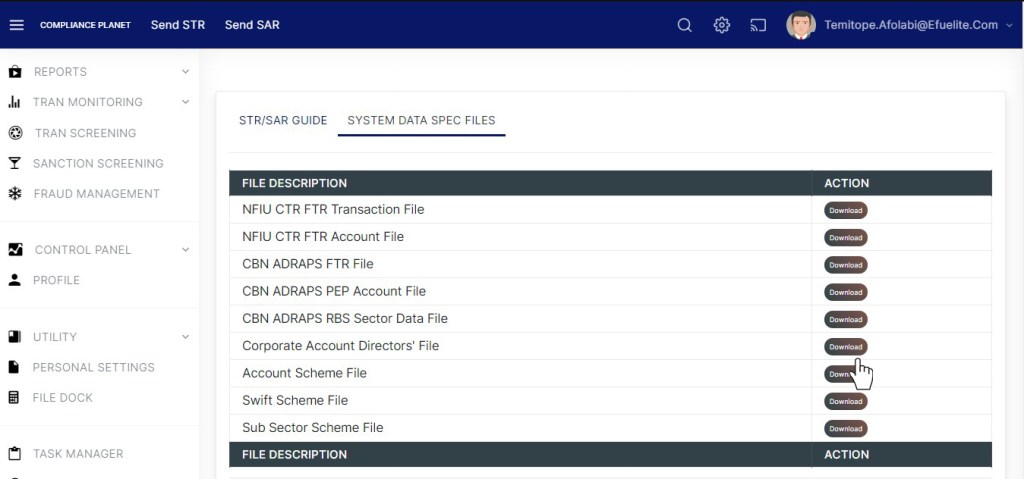
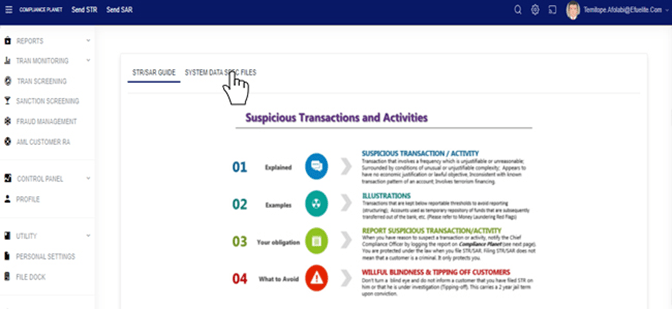
  • If you do not have the file specification for uploading new sub-sector schemes, You can download it from the “SYSTEM DATA SPEC FILES” on the software home page as shown in fig. 15.8d below to download an excel file with the required specification.
I

(fig. 15.8d)

  • An excel file will be downloaded to your computer with pre-filled titled columns under which the details will be entered. Open the file, fill in the required details of the new sub-sector schemes and save the changes to the file. Renaming the file on your computer is optional. Go back to the software and click on ‘Select Scheme Excel File’ to select the file.
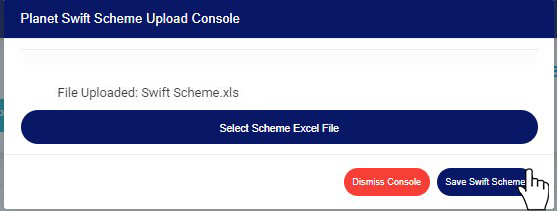
  • After selecting a file from your computer, the name of the selected file will be added to the upload console. See fig. 15.8e below for an example.
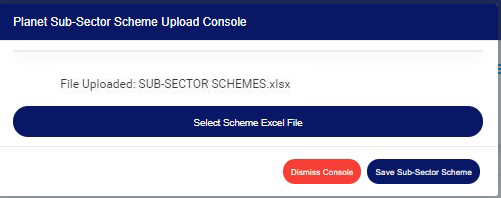
(fig. 15.8e)

  • To close the upload console, click on ‘DISMISS CONSOLE’ as in fig. 15.8f.
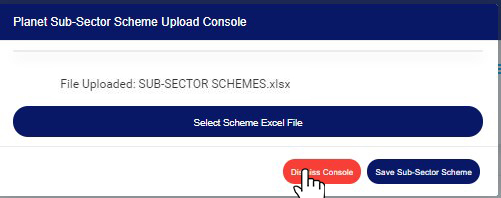
(fig. 15.8f)

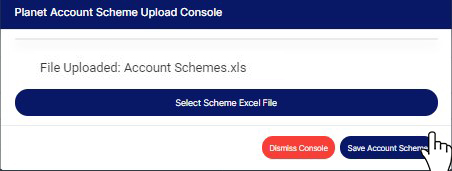
STEP 3:          Click on ‘SAVE SUB-SECTOR SCHEME’ as in fig. 15.8g below to save the new sub-sector schemes on the planet.

(fig. 15.8g)

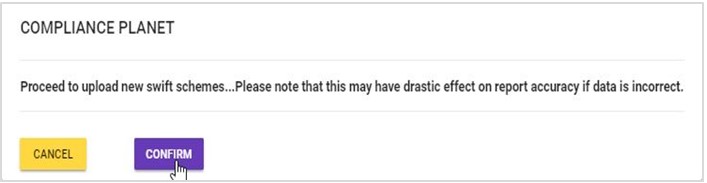
  • This displays a confirmation console, Click on ‘CONFIRM’ to proceed or ‘CANCEL’ to return to the upload console. See fig. 15.8h for an example of a confirmation console.
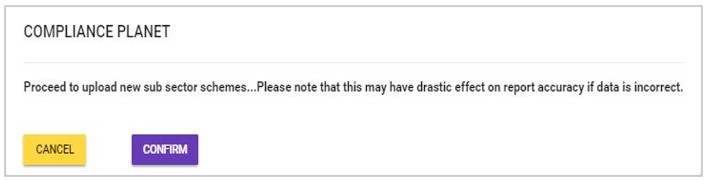
(fig. 15.8h)

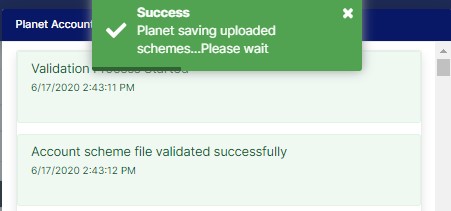
  • A notification as in fig. 15.8i below will be displayed at the top of the page as the planet is saving the new sub-sector schemes.
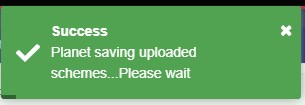
(fig. 15.8i)

  • The signal console shows on going processes.  An example of a signal console is fig 6.5bb. When the upload is complete, an excel file titled, ‘Sub-sector Code Upload Report’ will be downloaded. You will be notified as shown in fig. 15.8j.
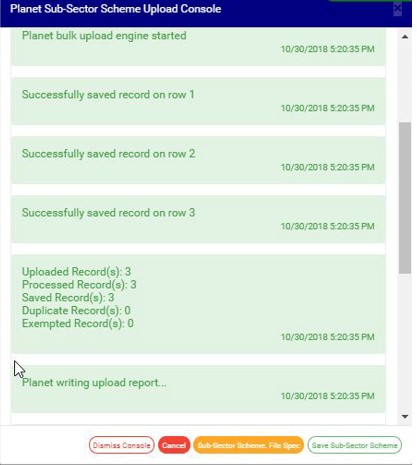
(fig. 15.8j)

For further enquiries : 
Tel +234(0) 816 555 9818
Email solutions@efuelite.com 
Web https://solutions.efuelite.com
How To Report Currency/Foreign Transaction Report(CTR/FTR) To The Nigeria Financial Intelligence Unit (NFIU) In Compliance Planet Anti Money Laundering/Core Banking Finance Software

The CTR/FTR Transaction Report can be scheduled and downloaded instantly at any period/time. Reports can be exported in Excel format and XML format without the need for additional conversion. Here is how to schedule and download CTR FTR transactions:

NOTE: Only the person(s) Assigned right(s) to ‘Process CTR reports’ will be able to carry out this Operation.

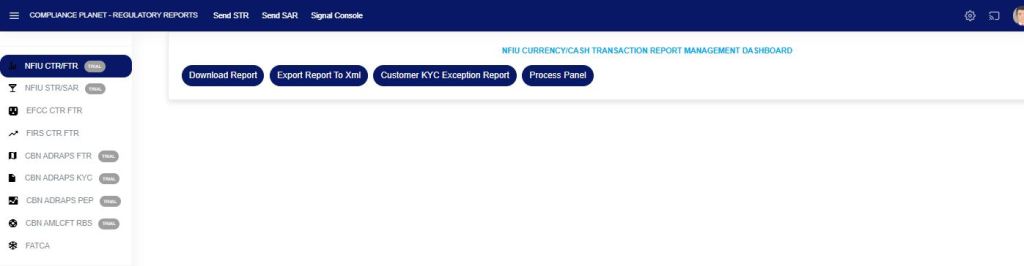
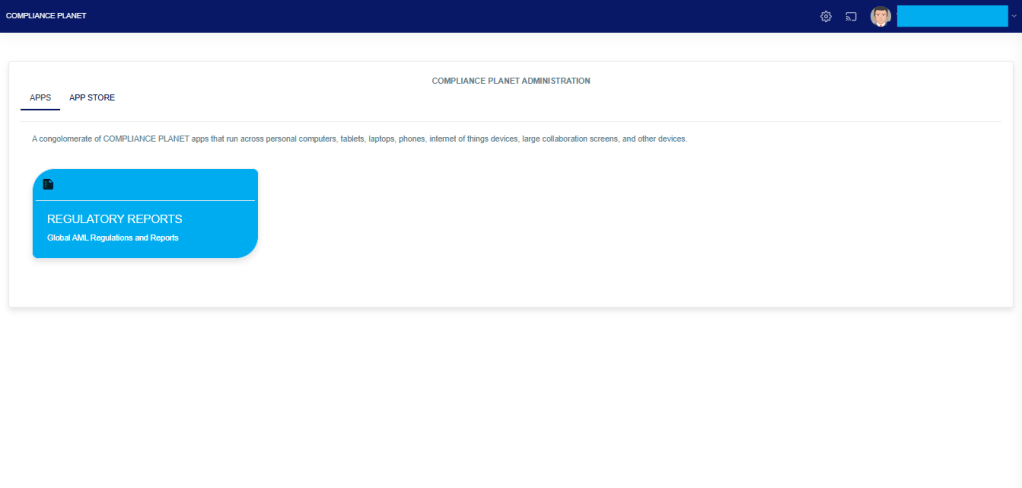
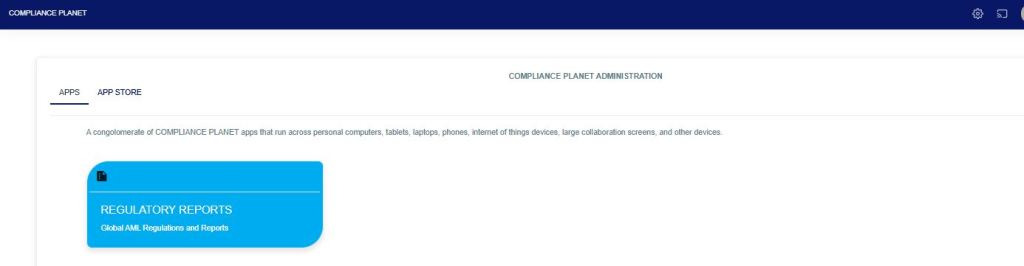
From the app dashboard, click on “REGULATORY REPORTS” as shown below:

Fig

  • This will display a drop-down, as shown in Fig. below. The drop-down menu lists the report types available on the Compliance Planet software.

Fig

Click ‘NFIU CTR/FTR’ on the drop-down list. See an example in Fig below. This will display the NFIU CTR/FTR page.

Fig

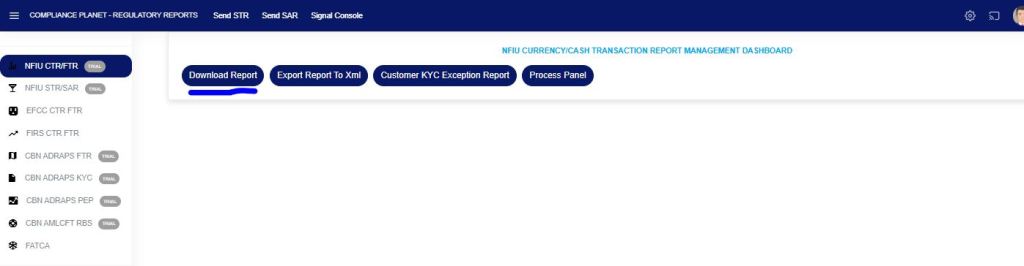
STEP 1: From the menu, click “Download Reports,” as shown in Fig 2.3a below

Fig 2.3a

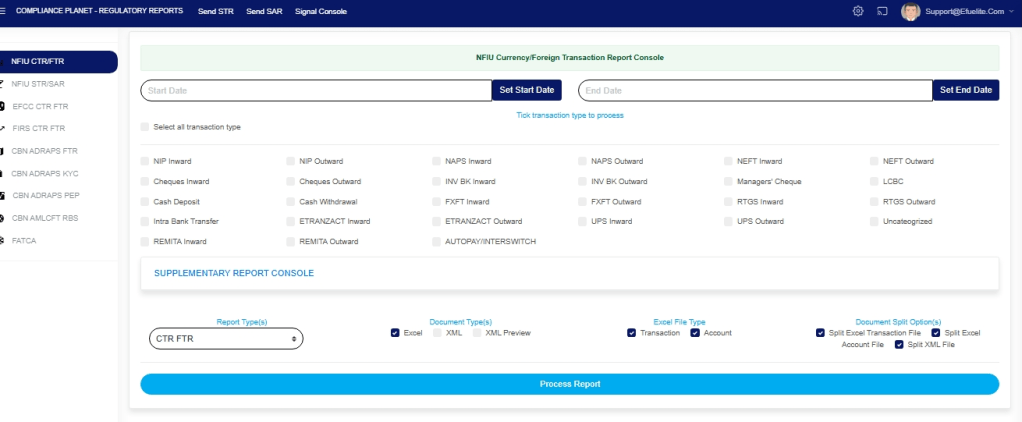
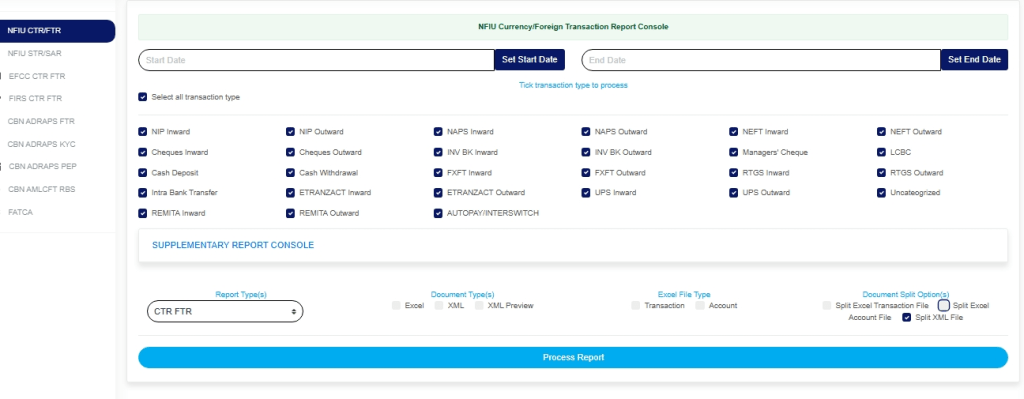
The download reports display all the different types of transactions as shown in Fig. 2.3b below

Fig 2.3b

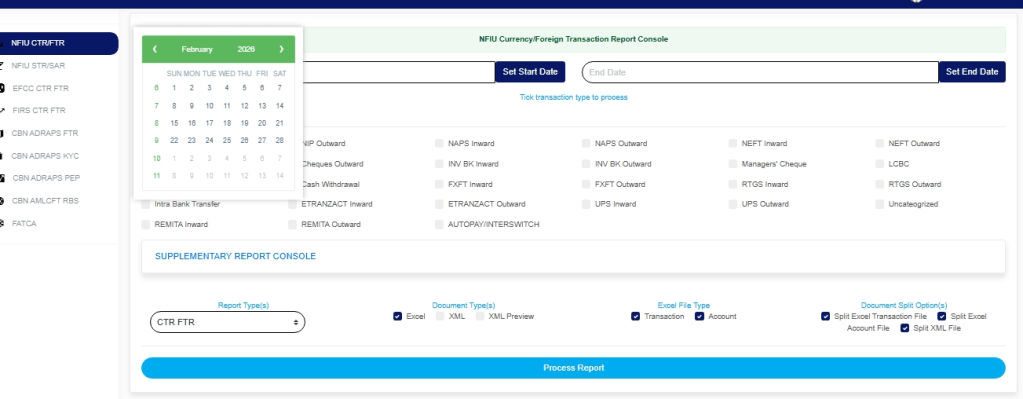
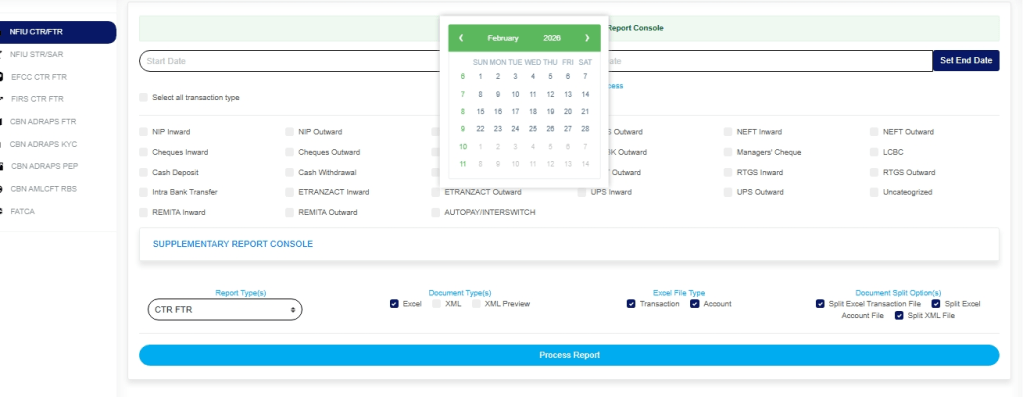
STEP 2: Click ‘Set Start Date’ and ‘Set End Date’ to specify the periods you want the software to download reports for.

  • This will display a calendar dropdown as if Fig 2.3c and 2.3d below

Fig 2.3c

Fig 2.3d

  • Take a look at the arrows labelled a to d in Fig. 2.3e to study the calendar.
  • Click on the given year to change it to your year of choice.
  • Click on the given month to change it to your month of choice
  • Click on the day of the month
  • You can also click on the angle brackets on the calendar ( ‘<’ or ‘>’ ) to go backward or forward.

Fig 2.3e

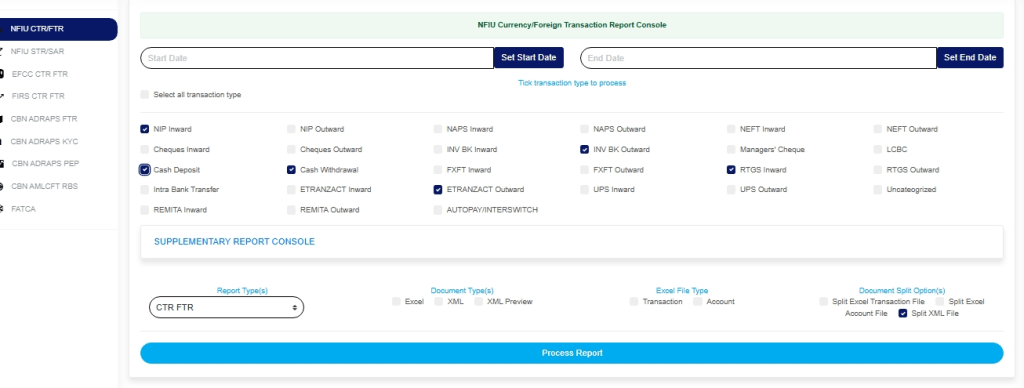
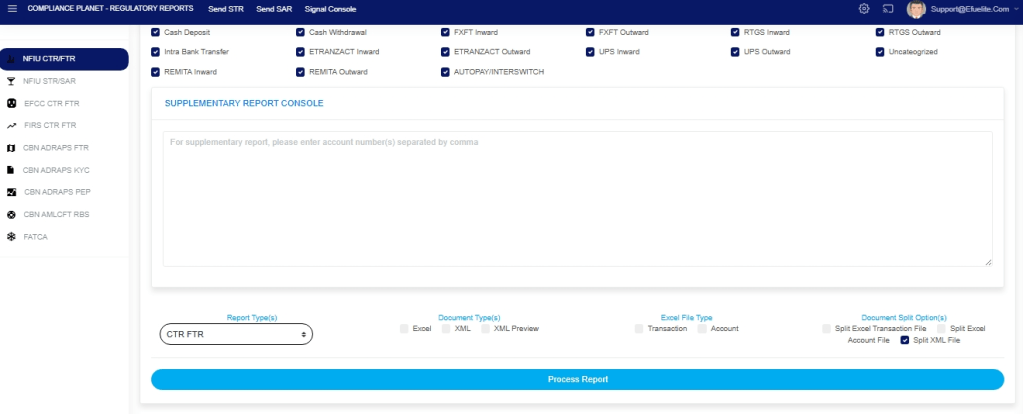
STEP 3: Tick the checkbox of the transaction type(s) you want to process, as in Fig 2.3f below. You can tick as many transaction types as you want. To deselect any of the transaction types, untick their checkboxes.

Fig 2.3f

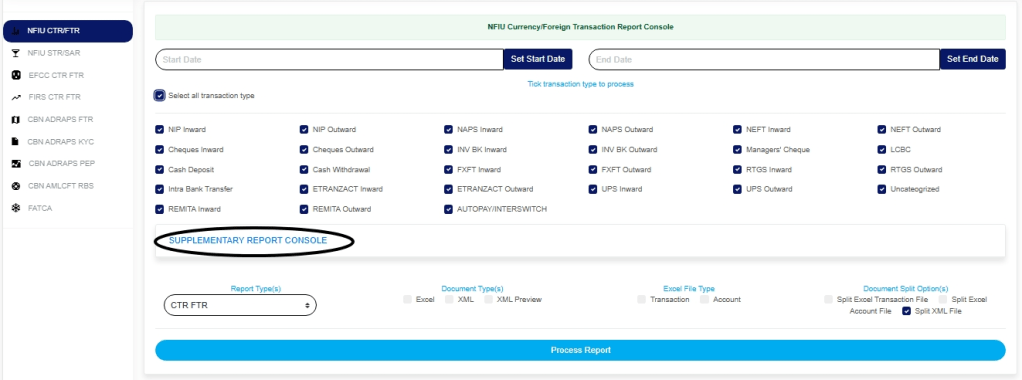
  • You can select all transaction types listed on the console by ticking the ‘Select all transaction types’ checkbox, as shown in Fig 2.3g below. Also, you can deselect all transaction types listed by unticking the ‘Select all transaction types’ checkbox.

Fig 2.3g

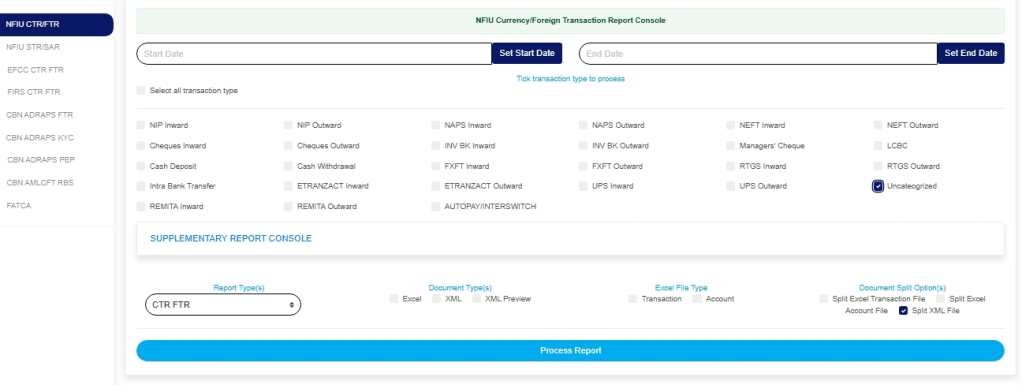
  • You can also select the “Uncategorized” option, which will display all reportable transactions (regardless of the transaction type) for the specified date range, as shown in the image below. This type of report does not include external customer data.

STEP 4: Click on ‘SUPPLEMENTARY REPORT CONSOLE’ as in Fig 2.3h below to download the report pertaining to Specific account number(s) only within the period selected.

Fig 2.3h

  • This displays a text box where the account number(s) are to be inserted. Note that each account number is to be separated by a comma. See an example in Fig. 2.3i below.

Fig 2.3i

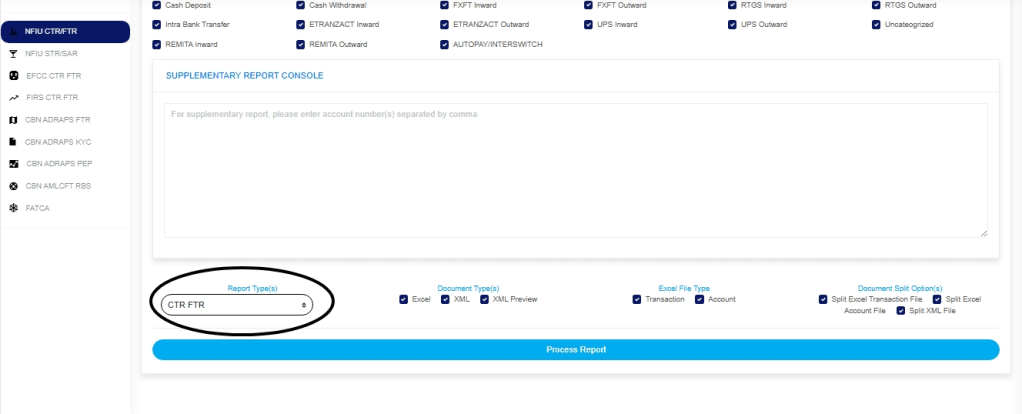
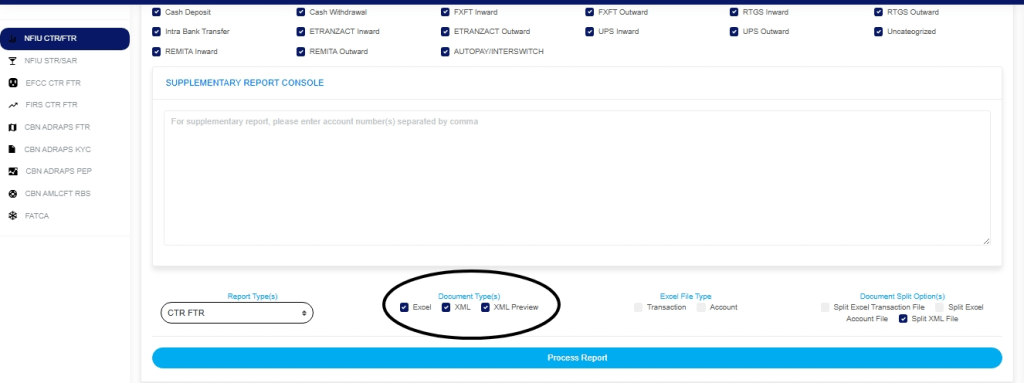
STEP 5: Select the preferred file DOCUMENT TYPE(S) you want the report exported by ticking either the Excel or XML checkbox. Select Excel to export the report as an Excel file, or select XML and XML Preview to export reports to XML. See an example in Fig. 2.3j below.

Fig 2.3j

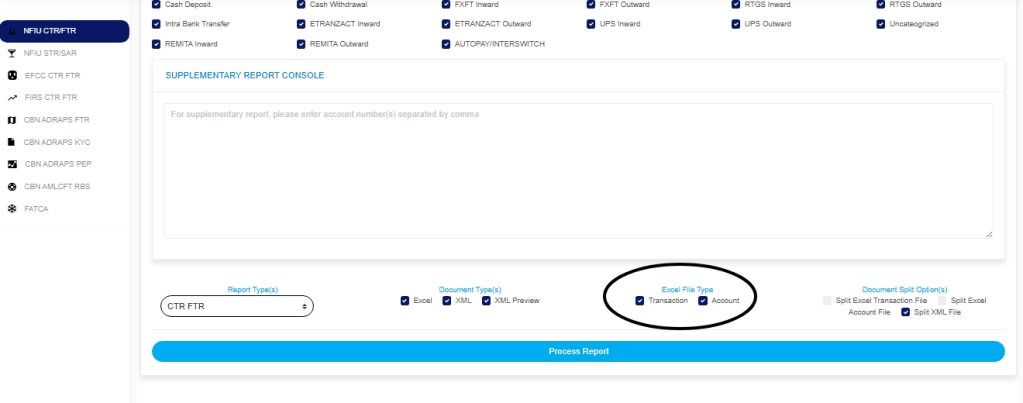
STEP 6: Choose the EXCEL FILE TYPE that the software should process. There are two Excel file types: one for Transaction details and the other for the details of the Account involved in the transaction(s). You can select one or both.

Fig 2.3k

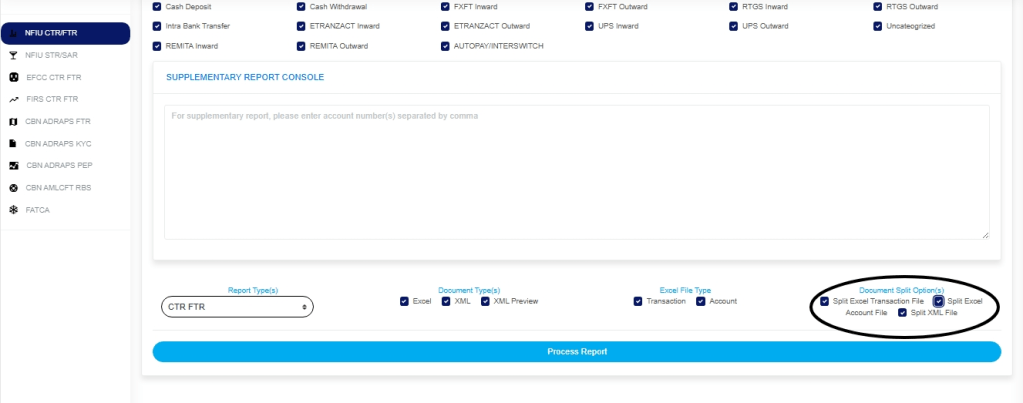
STEP 7: Tick the DOCUMENT SPLIT OPTION(S). This step is optional.

By clicking on the document split option(s) for either Excel file or XML, the software will generate separate transaction or account files for each transaction type.

For instance, not ticking the document split in Fig. 2.3l below will result in the software combining all the transaction details of each transaction type and exporting them into a single Excel sheet. In this instance, the name of such a file will start with ‘CTR Account,’ in the case of the Transaction Excel file, type the file name with ‘CTR Transaction’. If you select ‘split Excel transaction file’ as in Fig. 2.4j below, the Software will write the transaction details of each transaction type in separate Excel files. This is also the case for XML. The different files will bear the name of each transaction type.

Fig 2.3l

STEP 8: Click on the “PROCESS REPORT button to generate the report. To cancel the schedule, click the “DISMISS CONSOLE button. These buttons are at the bottom-right corner of the console.  (see Fig. 2.3l above)

  • Clicking ‘Process report’ displays a confirmation console as in Fig. 2.3m.

Fig 2.3m

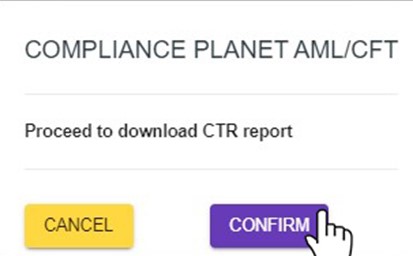
  • Click “Confirm” to proceed with the download or “Cancel” to return to the console.
  • Clicking confirm displays the signal console as in Fig. 2.3n below, which shows ongoing processes

Fig 2.3n

  • You can terminate unfinished processes by clicking “CANCEL OPS“.                         
  • To minimize the signal console, click on “DISMISS CONSOLE.

For further inquiries: 
Tel: +234(0) 816 555 9818
Email: solutions@efuelite.com 
Web: https://solutions.efuelite.com
How to Send SAR Notification In Compliance Planet Anti Money Laundering/Core Banking Finance Software

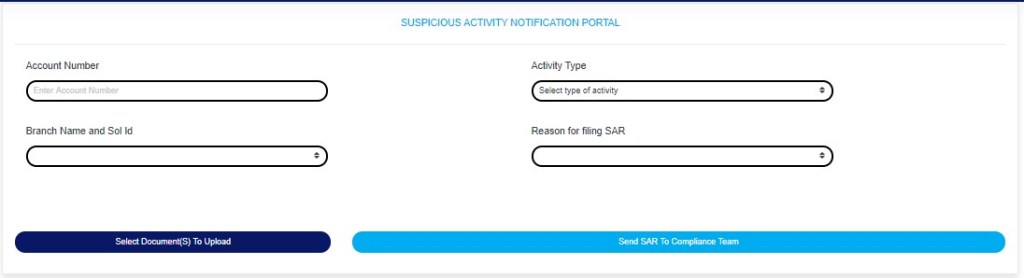
STEP 1: Click ‘Send SAR’ as in fig. 6.2.2a below

                                                                                                                                                              (Fig 6.2.2a)

➔        This will display a console as in fig. 6.2.2b below

                                                                                                                                           (Fig 6.2.2b)

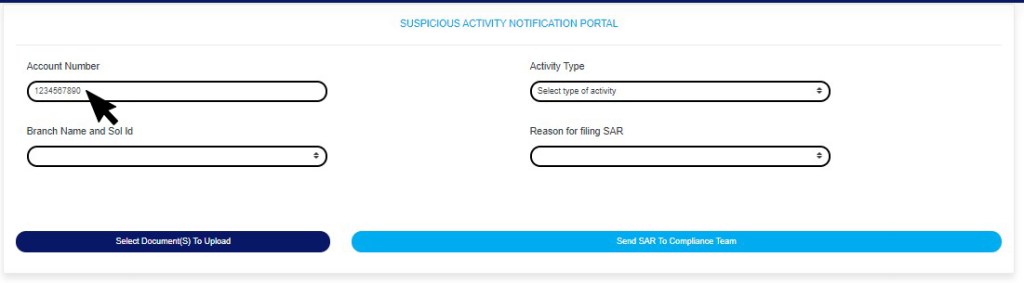
STEP 2: Type in the Account number involved in the activity. See an instance in fig. 6.2.1c. Kindly note th­at the account number must be valid.

(Fig 6.2.2c)

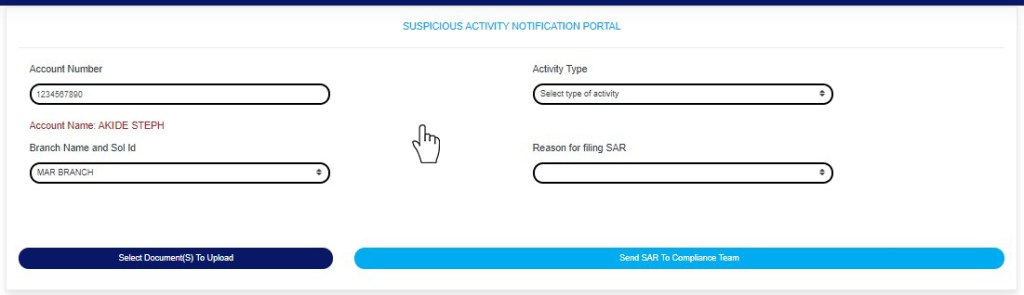
  • After Inputting the account number, the software will auto-fill the branch name and also display the name attached to the account when you click on any part of the page(Outside the checkbox). See Fig 2.2d for an example

Fig 6.2.2d

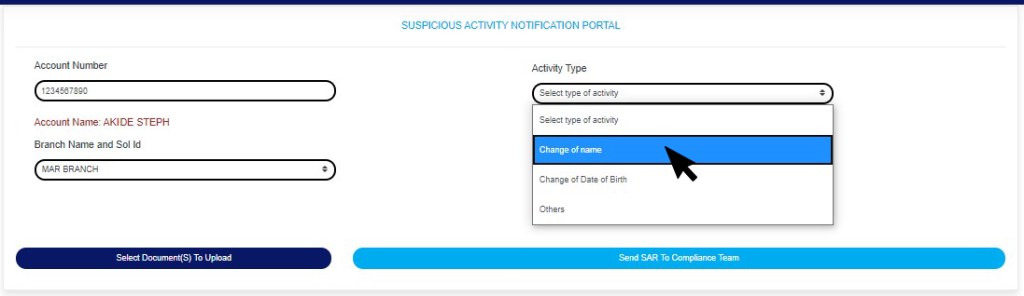
STEP 3: Click on the “Select type of activity” box to select the activity type from a drop down list that will be displayed as in fig 6.2.2e below.

Fig 6.2.2e

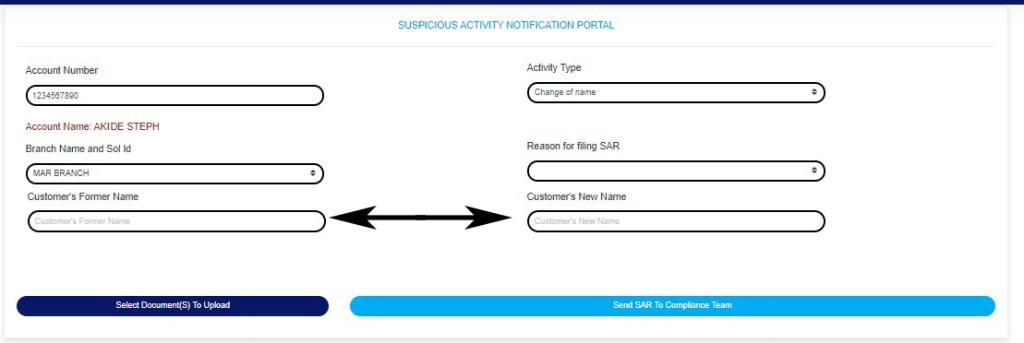
  • Note that if you select change of name or change of date of birth, the software will display text-boxes where you are to input the former and new name or the former and new date of birth, as the case may be.

Fig 6.2.2f

  • If you select “Others” in the Activity type drop-down in fig 6.2.2e above, this will display a text-box where you can input the activity involved, see an example in fig 6.2.2g below

6.2.2g

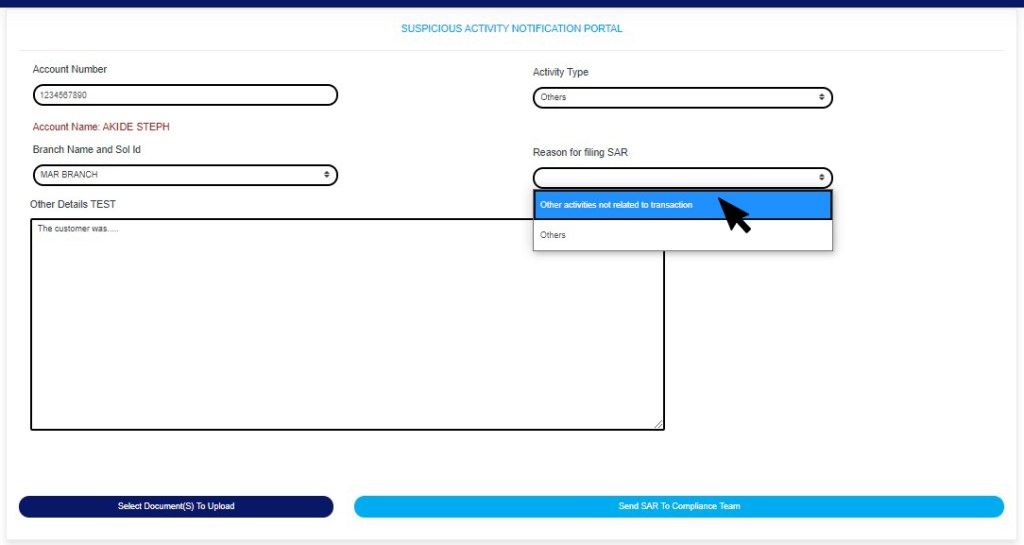
STEP 3: Click on reason for filling SAR. See an example in fig. 6.2.2h

                                                                                                                                             (Fig6.2.2h)

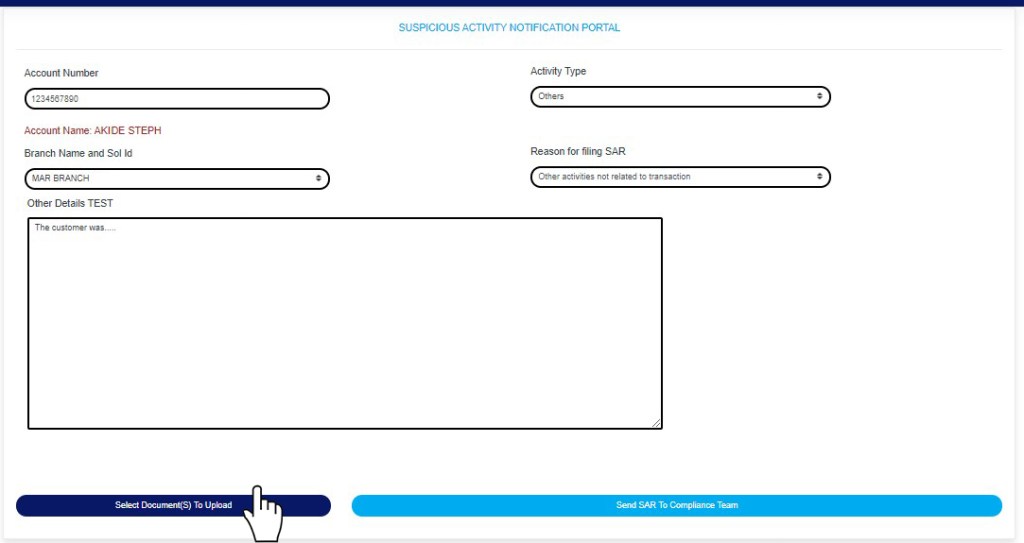
STEP 4: Click “Select Document(s) to Upload” button to add supporting documents to the SAR notification as shown in Fig.6.2.2i below

(Fig 6.2.2i)

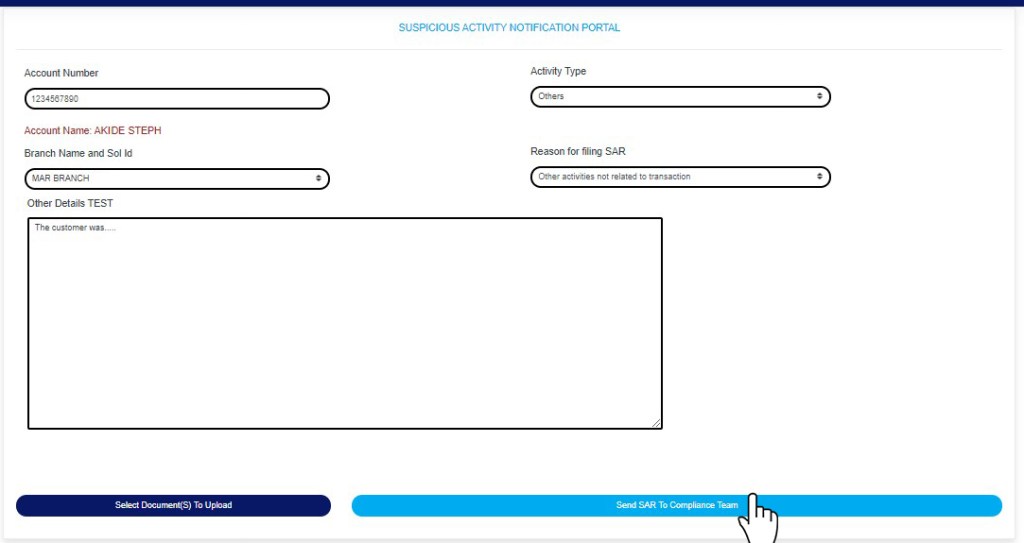
  • Click on ‘SEND SAR TO COMPLIANCE TEAM’ to send the information to compliance desk. This button is at the bottom-right corner of the console. Check out this buttons in fig. 6.2.2j below.

Fig 6.2.2j

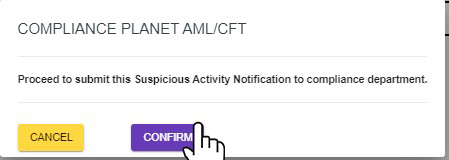
  • A confirmation console will be displayed when you click on ‘SEND SAR TO COMPLIANCE TEAM’. Click on CONFIRM to proceed or click on Cancel to go back to the notification console.
  •  

Fig 6.2.2k

For further enquiries : 
Tel +234(0) 816 555 9818
Email solutions@efuelite.com 
Web http://solutions.efuelite.com
How to Revise Suspicious Transaction/Activity Notification (STR/SAR) In Compliance Planet Anti Money Laundering/Core Banking Finance Software

The STR/SAR notification goes straight to the REVISION DESK team lead(s) when successfully sent. It is the duty of the revision team lead(s) to assign notifications to revision officer(s) to review the notifications sent to the compliance team. Below are steps on how to review notifications sent to the compliance desk:

Note that notifications attended to by team members will go to the team lead who can either accept or reject the team member’s decision (to accept or reject the notification). If a team member’s decision is rejected, the notification goes back to the team member to work on before it returns to the team lead. However, upon team lead’s approval the notification goes to the next desk i.e. supervision desk or revision desk (depending on the institution setting).

NOTE: Only Person(s) profiled as ‘revision desk officer’ can carry out these operations.

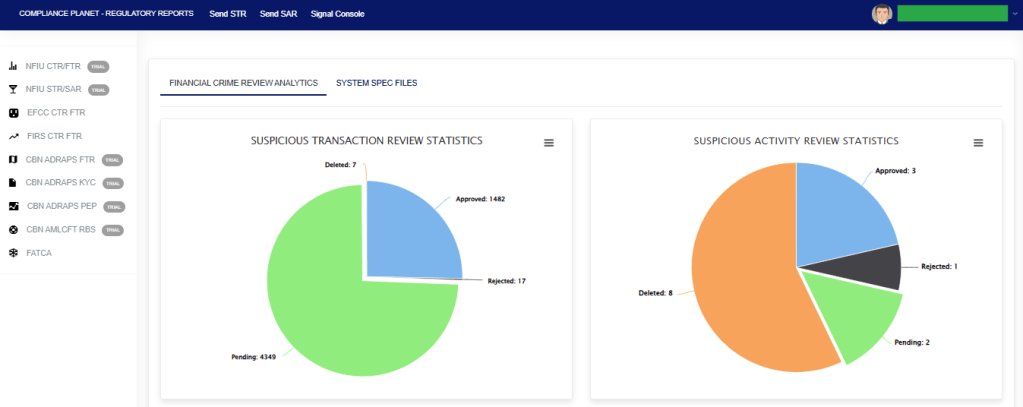
From the app dashboard, click on “REGULATORY REPORTS” as displayed in the image below.

This will display a drop-down, as shown in image below. The drop-down menu lists the report types available on the Compliance Planet software.

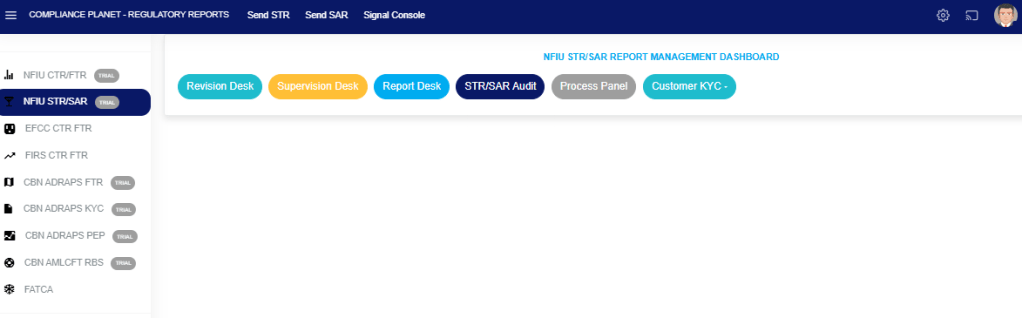
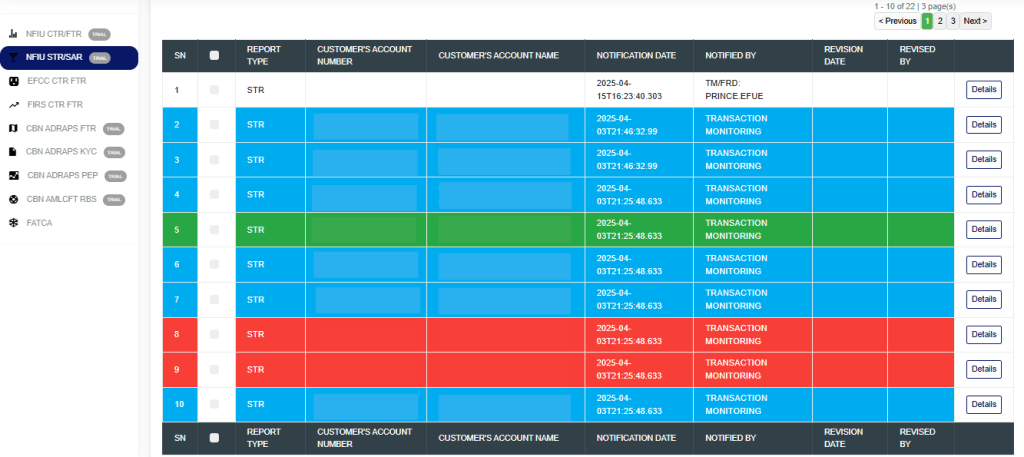
Click ‘NFIU STR/SAR’ on the drop-down list and display the STR/SAR page as displayed in the image below.

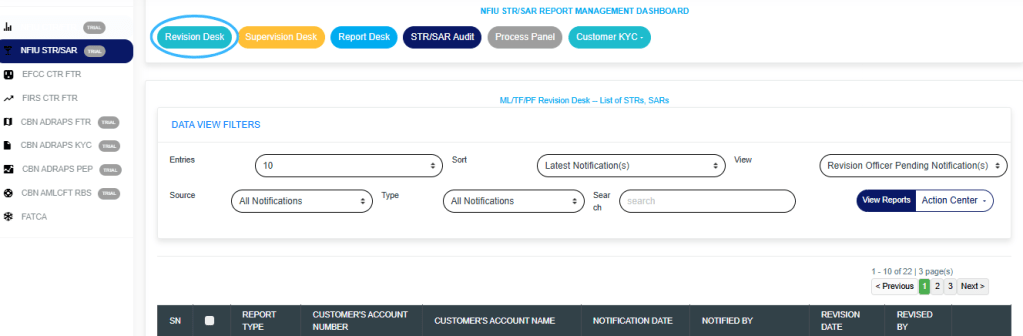
STEP 1: Click on “REVISION DESK” as displayed in the image below. Then click “DATA VIEW FILTER“.

  • Click on the “ENTRIES” box to increase the number of Notifications you want to see per page.
  • Click on the “SORT” box to sort the notifications either by alphabetical order or from the latest to the earliest notifications or vice-versa as shown.
  • Click on the “VIEW” box to see notifications classified according to the stage of processing they have gotten to.
  • Click on the “SOURCE” box to select either All Notifications, Digital Surveillance Notification or Manually Filled Notifications.
  • Click on the “TYPE” box to select either All Notification, Suspicious Transaction Notification, or Suspicious Activity Notification.
  • Click on the “SEARCH” box to search for a particular notification by typing in the customer’s name or account number concerned. More details below.
  • Click on the “VIEW REPORTS” button after selecting the class of Notification(s) from the VIEW box. This is to view the notifications from any of the selected class. This button is at the top-right corner of the page.

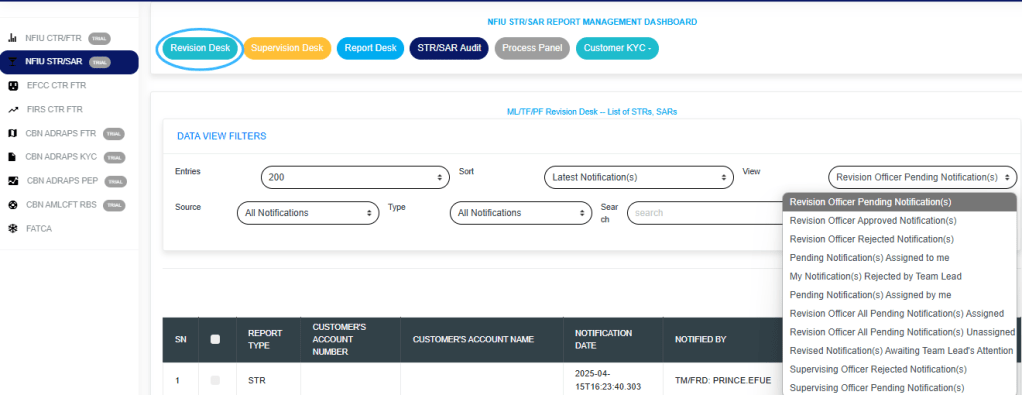
Based on the “VIEW” box details, the notifications are categorized according to their current stage of processing, as shown in the image below.

The classes are:

  1. Revision Officer Pending Notification(s); these are notifications that have not been reviewed, i.e. they have not been attended to by the revision officer. This is the default view of the revision desk.
  2. Revision Officer Approved Notification(s); these are notifications that have been reviewed by team lead and forwarded to the supervising officer for further processing. Once a Notification is reviewed and approved, it joins the supervising officer pending Notification(s) list for further approval.
  3. Revision Officer Rejected Notification(s); these are notifications that have been reviewed but rejected by team lead.
  4. Pending Notifications Assigned to me; these are notifications that are assigned to you (a revision officer) by the revision desk team lead and are yet to be reviewed or treated by you.
  5. My Notification(s) rejected by team lead; these are notifications that have been reviewed by you but not satisfactory to the revision desk team lead.
  6. Pending Notification(s) assigned by me; these are notifications that you (i.e. if you are profiled as either team lead 1 or 2) assigned to other revision officers in your team and are yet to be treated or attended to. In this case you are the team lead.
  7. Revision Officer All Pending Notification(s) Assigned; these are the notifications that have been assigned to a revision officer (or team member) by the team lead but are yet to be attended to.
  8. Revision Officer All Pending Notification(s) Unassigned; these are the Notifications are yet to be assigned to any revision officer (or team member) by the revision desk team lead.
  9. Revised Notification awaiting team lead’s attention; these are notifications that have been attended to by a revision desk team member but is yet to be reviewed or treated by the team lead.
  10. Supervising Officer Rejected Notification(s); These are notifications that were approved by the revision desk team lead but were rejected by the supervision desk officer.
  11. Supervising Officer Pending Notification(s); these are notifications that have been approved by revision team lead and await the supervising officer’s treatment.

Note that default page shows a list of Revision officer Pending Notifications i.e notifications that are yet to be attended to. These notifications are highlighted with different colours which are explained below.

  • The notification(s) highlighted “RED” indicates that it has not been viewed by anyone on the revision desk.
  • The notification(s) highlighted “GREEN” indicates that it has been viewed by you alone.
  • The notification(s) highlighted “WHITE” indicates that it has been viewed by you and at least one other revision officer(s).
  •  The notification(s) highlighted “BLUE” indicates that it has been viewed by other revision officer(s) excluding you.

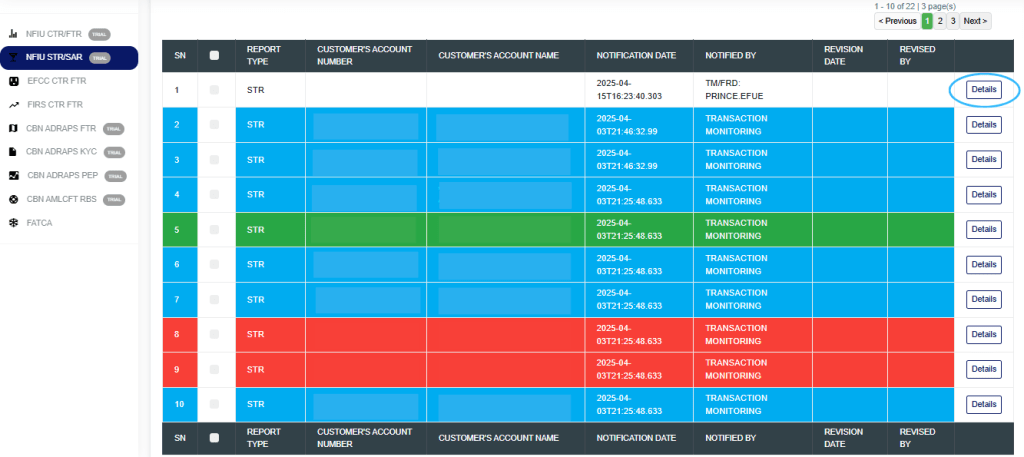
STEP 2: Review a notification by clicking on the “Details” button at the end of the notification row.

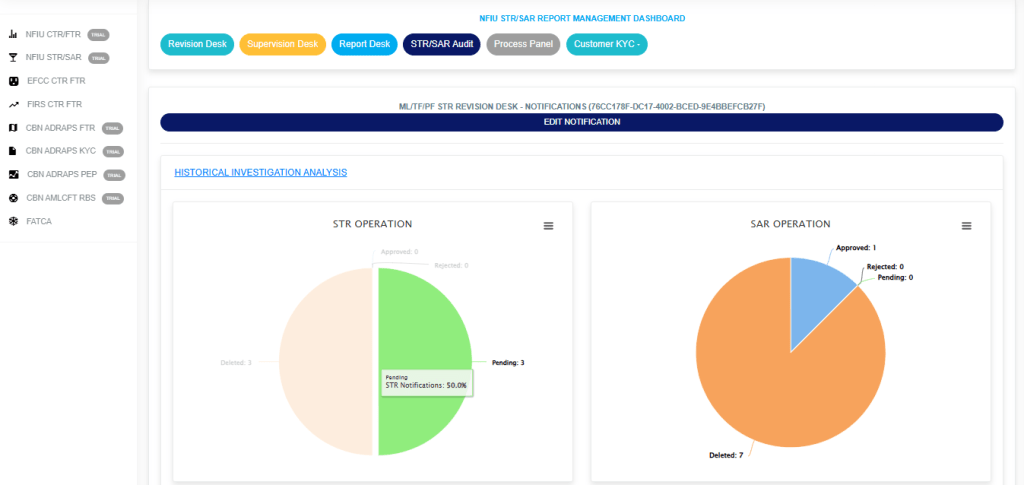
STEP 3: By clicking on ‘DETAILS’, the STR REVISION DESK NOTIFICATIONS Page will display as in image below, then click on “HISTORICAL INVESTIGATION ANALYSIS“.

The “STR OPERATION” shows if there are Deleted STR Notifications, Approved STR Notifications, Rejected STR Notifications and Pending STR Notifications associated with that specific account.

The “SAR OPERATION” shows if there are Deleted SAR Notifications, Approved SAR Notifications, Rejected SAR Notifications and Pending SAR Notifications associated with that specific account.

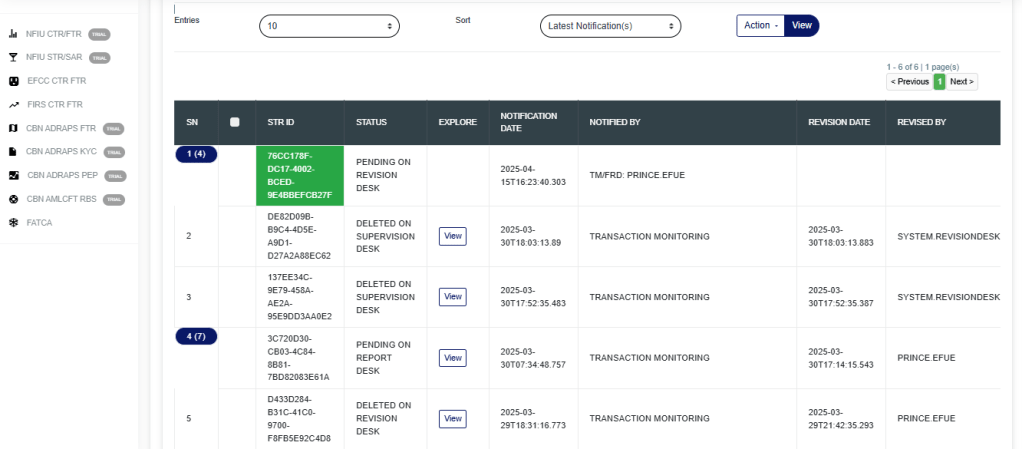
  • Click on the “ENTRIES” box to increase the number of Notifications you want to see per page.
  • Click on the “SORT” box to sort the notifications either by alphabetical order or from the latest to the earliest notifications or vice-versa as shown.

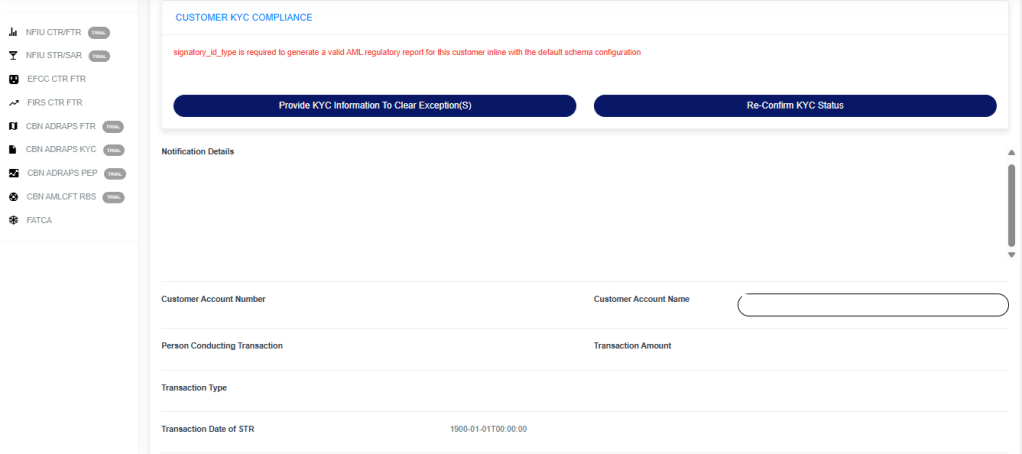
STEP 4: Click on “CUSTOMER KYC COMPLIANCE” to view the missing data for the specific account, as shown in the image below.

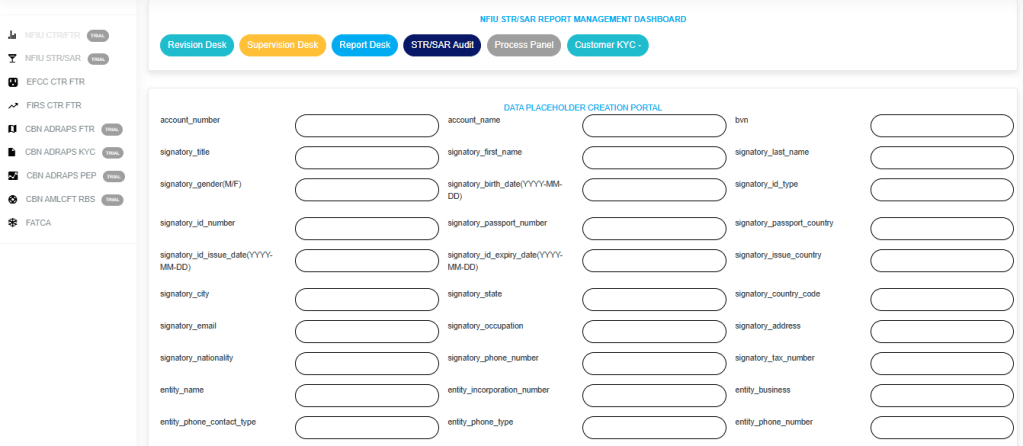
Click on “Provide KYC Information to Clear Exception(s)” to navigate to the page shown below, where you can enter the missing details. Then, click on “Submit Data Procedure” to proceed to the confirmation page.

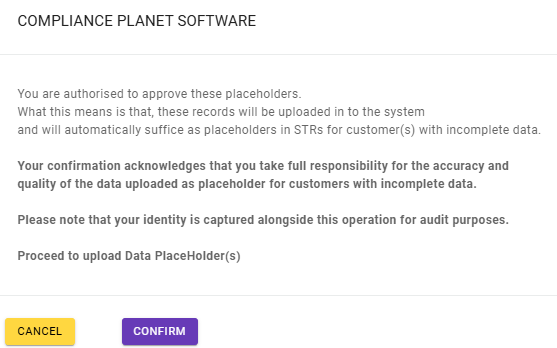
Click “CONFIRM” to upload the data or click “CANCEL” to exit the confirmation process.

If the account has no exceptions, it will appear as shown in the image below.

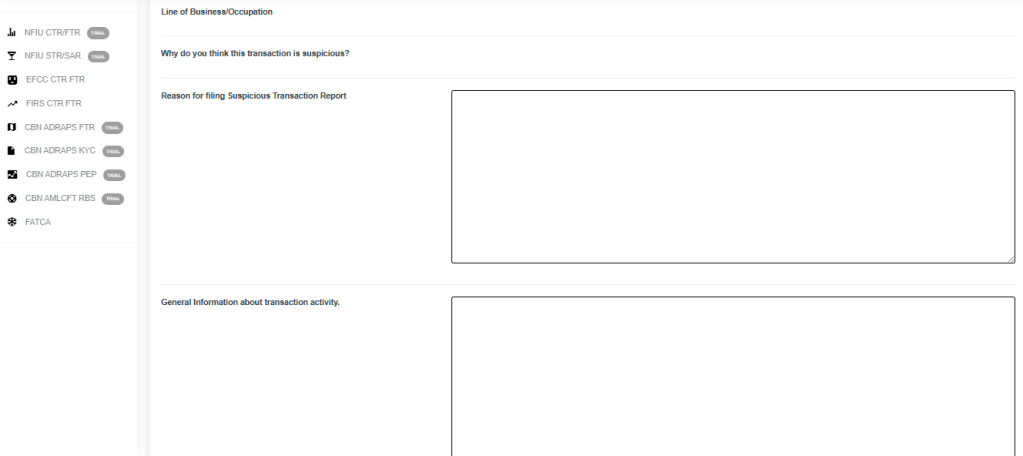
STEP 5: Click on the ‘Reason for Filing Suspicious Transaction Report’ box to state your reason(s) for approving the Notification. This step is compulsory if you want to accept the notification. See an example in the image below.

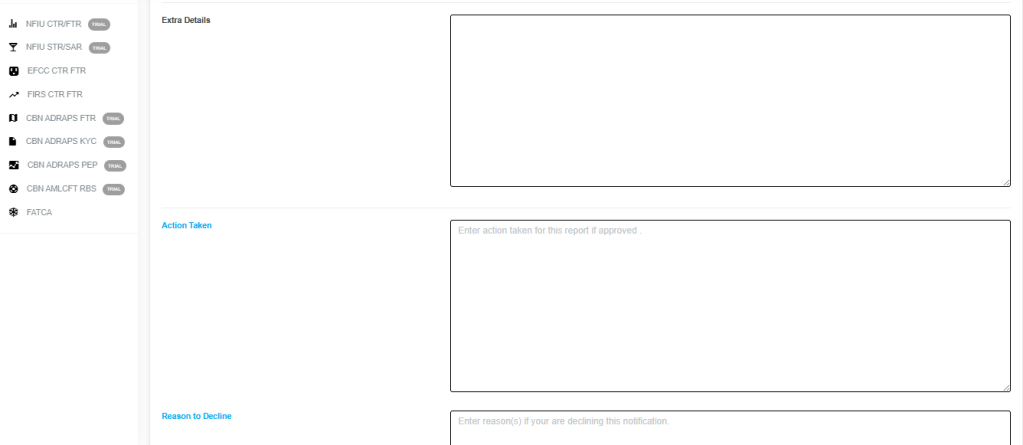
STEP 6: Click on the “Extra Details” box to enter other comments and the “Action Taken” box to enter the action(s) taken concerning the suspicion filed. See an example in the image below.


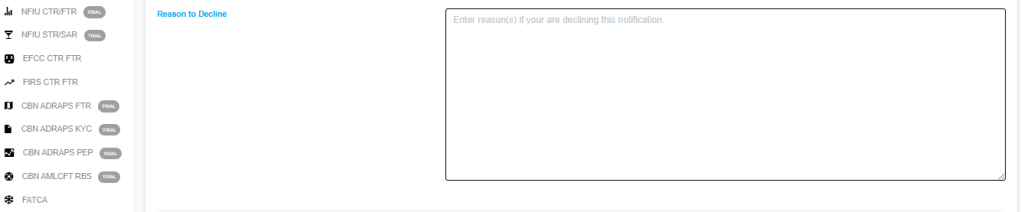
STEP 7: Click on the ‘Reason to Decline’ box (if you want to reject the notification) to enter comments. This step is mandatory if you want to reject the notification. See the image below for an example.

STEP 8: Click on “SURVEILLANCE CASES” to view the account’s cases, as illustrated in the image below.

STEP 9: Click on “SCAN DOCUMENTS TO UPLOAD” to upload any documents that support the STR.
Next, click on “DECLINE” or “ACCEPT”—this will open a confirmation console to verify your selected action.
Ensure you are certain of your choice before proceeding, as this action is irreversible once confirmed.
Refer to the images below to see how the confirmation console appears when selecting “Decline” and “Accept” respectively.
To continue, click “CONFIRM” to exit the console without taking action, click CANCEL.


  • Regardless of whether you accept or reject the notification, the software will display a temporary notification highlighted in green at the top of the page.

NOTE: If you are not profiled as a Team Lead on the Revision desk, all notifications revised by you will be forwarded to a Team Lead on the revision desk for higher-level approval. If the Team Lead approves, then it proceeds to the next higher desk. If the Team Lead rejects it, then it is returned to you for re-evaluation.

For further enquiries: 
Tel: +234(0) 816 555 9818
Email: solutions@efuelite.com 
Web: http://solutions.efuelite.com
How to Revise Rejected Suspicious Transaction / Activity Notification (STR/SAR) In Compliance Planet Anti Money Laundering/Core Banking Finance Software

When an STR/SAR notification is rejected by the supervising officer, the notification can be revisited for re-processing by the revision officer.Below are steps on how to revise notifications that have been rejected by the supervising officer.

NOTE: You have to be profiled as a revision officer with rights to EDIT to be able to carry out this operation.

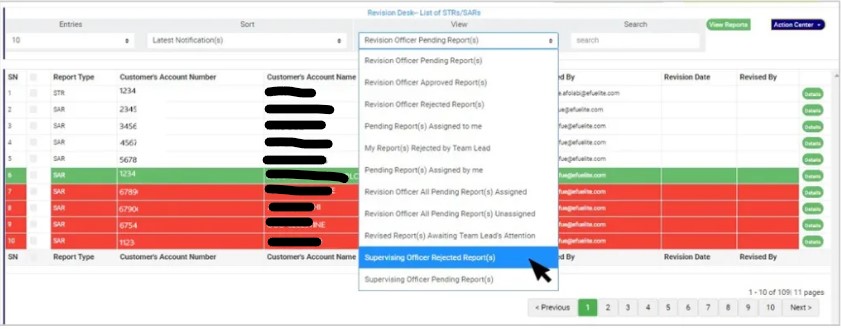
STEP 1: Click the VIEW box on the revision desk page; select ‘supervising officer rejected Notification(s)’.

(fig. 6.3r)

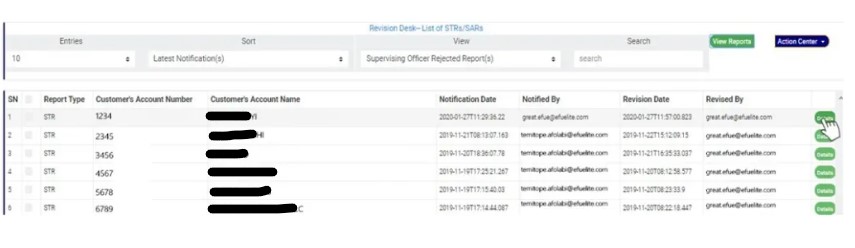
 STEP 2: Click on ‘VIEW REPORTS’ to see the Notifications as in fig. 6.3t below. On this page, the revision officer will be able to re-process Notification for approval again.

(fig. 6.3t)

  • To see details of the Notification, click on ‘DETAILS’. Every notification still undergoing processing has this button at the end of its row.

STEP 3: Clicking on the DETAILS button (as shown in fig 6.3t above) will display a console which allows you to revisit the Notification. See fig. 6.3u below for an example.

(fig. 6.3u)

STEP 4: Edit the details you want to change. You can edit all information except the notification itself. This means you can change the Reason for filing report, General information about transaction activity, Extra details, Action taken and reason to decline.

STEP 5: Click on REJECT or ACCEPT. This displays a confirmation console to confirm your selected action. Check that you are sure of your options before rejecting or accepting the notification as this step cannot be reversed once confirmed. See fig. 6.3v and 6.3w to see a planet inquiry when you decide to ‘reject’ and when you choose to ‘accept’ respectively. To proceed, click on CONFIRM and to cancel the review, click on CANCEL.

(fig. 6.3v)                                                                       (fig. 6.3w)

For further enquiries : 
Tel +234(0) 816 555 9818
Email solutions@efuelite.com 
Web http://solutions.efuelite.com
How to Assign Suspicious Transaction /Activity Notification (STR/SAR) on Revision Desk In Compliance Planet Anti Money Laundering/Core Banking Finance Software

NOTE: Only person(s) Profiled as Team Lead 1 or Team lead 2 can carry out these operations.

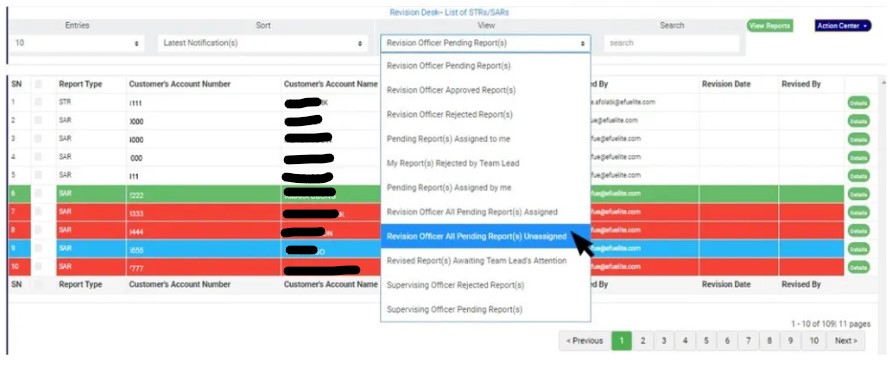
STEP 1: To assign Notification(s) to any member on the revision desk team, go to the VIEW box still on the revision desk page; select ‘Revision Officer All Pending Notifications Unassigned’, then click on the “view report” button.

(fig. 6.3x)

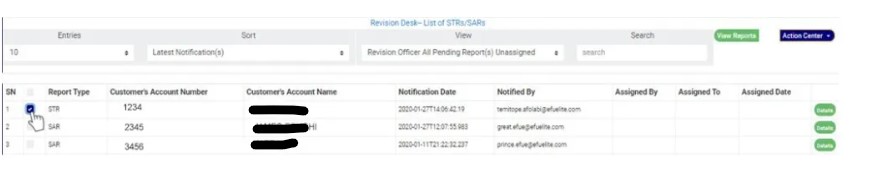
STEP 2: Click on the checkbox beside the report type to select the Notifications you want to assign. See an example in Fig 6.3y below

      (fig. 6.3y)

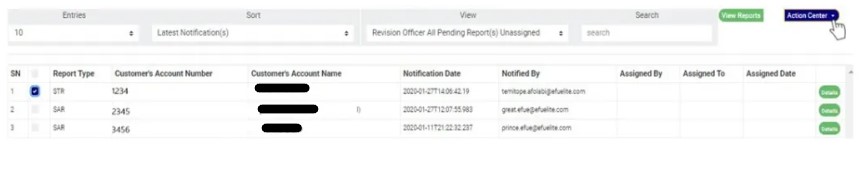
STEP 3: Click on the action center button as shown in in Fig 6.3z below

(fig. 6.3z)

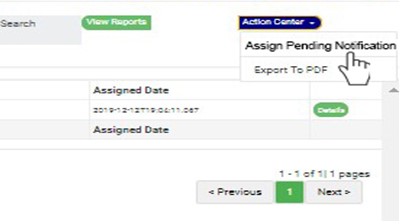
STEP 4: Click on “Assign Pending Notification” from the action center dropdown. See an example in Fig 6.3aa below

                                                                        (fig. 6.3aa)

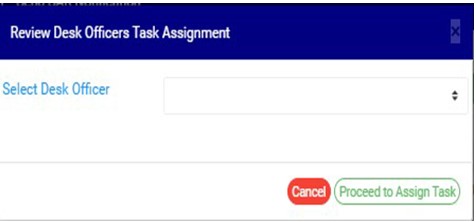
STEP 5: Clicking Assign Notification will display a “Review Desk Officers Task Assignment” dashboard as shown below in fig 6.3 ab below

   (fig. 6.3ab)

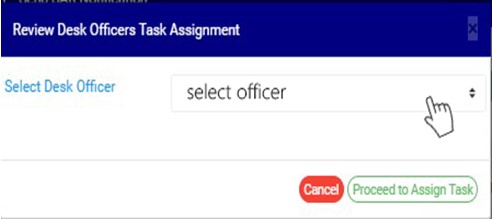
STEP 6: Select the officer you want to assign the Notification. This is shown in fig 6.3ac below

   (fig. 6.3ac)  

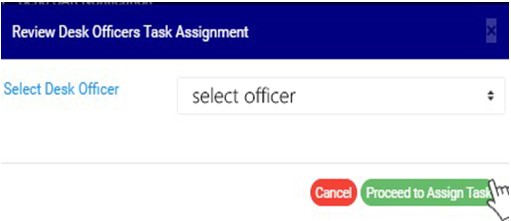
STEP 7: Click on “Proceed to Assign Task” to proceed or “cancel” to close the console and dismiss the operation.

         (fig. 6.3ad)

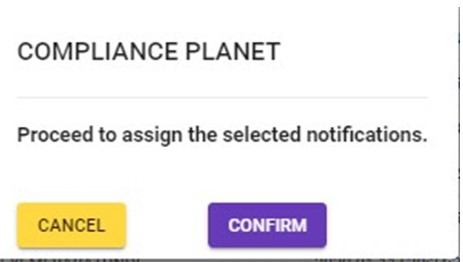
STEP 8: Clicking on “proceed to assign task” will display a console to confirm your selected action. See an example in Fig 6.3ae       below. To proceed, click on CONFIRM and to dismiss the operation, click on CANCEL.

                                                            (fig. 6.3ae)

For further enquiries : 
Tel +234(0) 816 555 9818
Email solutions@efuelite.com 
Web http://solutions.efuelite.com

How to Re-assign Suspicious Transaction /Activity Notification (STR/SAR) on Revision Desk In Compliance Planet Anti Money Laundering/Core Banking Finance Software

NOTE: Only person(s) profiled as Revision desk team lead 2 can carry out this operation.

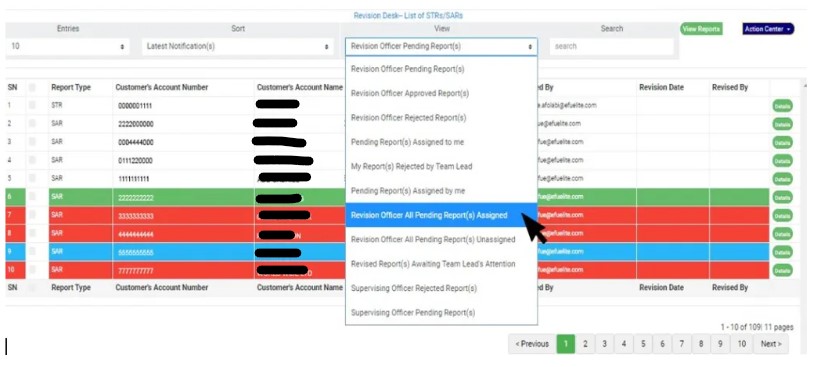
STEP 1:To re-assign Notification(s) to any member on the revision desk team, Click the VIEW box still on the NFIU STR/SAR revision page; select ‘Revision Officer All Pending Notifications assigned’, then click on the “view report” button. See fig 6.3af for an example.

(fig. 6.3af)

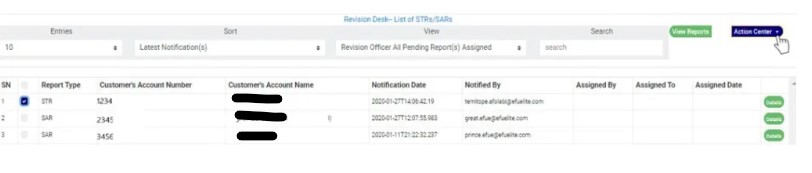
STEP 2: Click on the checkbox beside the report type to select the notification you want to re-assign. See an example in Fig 6.3ag below

(fig. 6.3ag)

STEP 3:          Click on the action center button as shown in in Fig 6.3ah below.

(fig. 6.3ah)

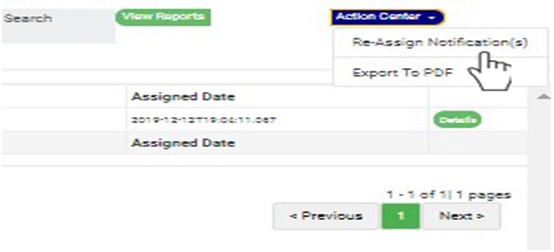
STEP 4: Click on “Re-Assign Notification” from the action center dropdown. See an example in Fig 6.3ai below

(fig. 6.3ai)

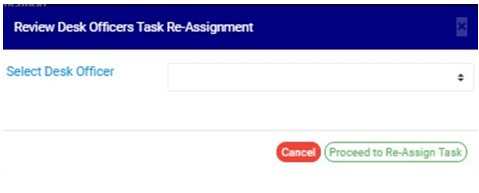
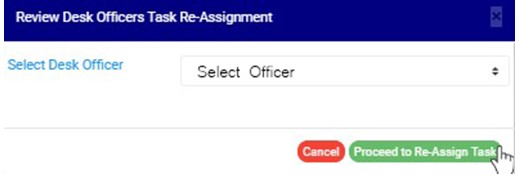
STEP 5: Clicking Re-Assign Notification will display a “Review Desk Officers Task Re-Assignment” dashboard as shown below in fig 6.3 aj below

   (fig. 6.3aj)

STEP 6: Select the officer you want to assign the Notification and click on proceed to assign task. This is shown in fig 6.3ak below

            (fig. 6.3ak)     

STEP 7: Click on “Proceed to Re-assign Task” to procced or ‘cancel” to close the console and dismiss the operation. See an example in Fig 6.3al below

                                            (fig. 6.3al)

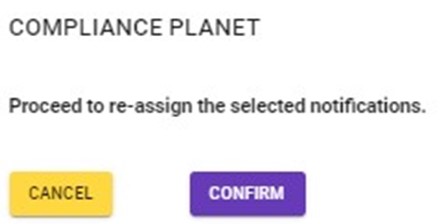
STEP 8: Clicking on “proceed to re-assign task” will display a console to confirm your selected action. See an example in Fig 6.3am below. To proceed, click on CONFIRM and to dismiss the operation, click on CANCEL.

                                                                                                 (fig. 6.3am)   

For further enquiries : 
Tel +234(0) 816 555 9818
Email solutions@efuelite.com 
Web http://solutions.efuelite.com

How to Delete Suspicious Transaction /Activity Notification (STR/SAR) on Revision Desk In Compliance Planet Anti Money Laundering/Core Banking Finance Software

NOTE: This action can only be done by person(s) profiled as either Team Lead 1 or Team Lead 2

STEP 1: Click on the checkbox beside the report type to select the Notifications you want to delete on the ‘Revision Officer pending Notification’ page. See an example in Fig 6.3an below

  (fig. 6.3an)

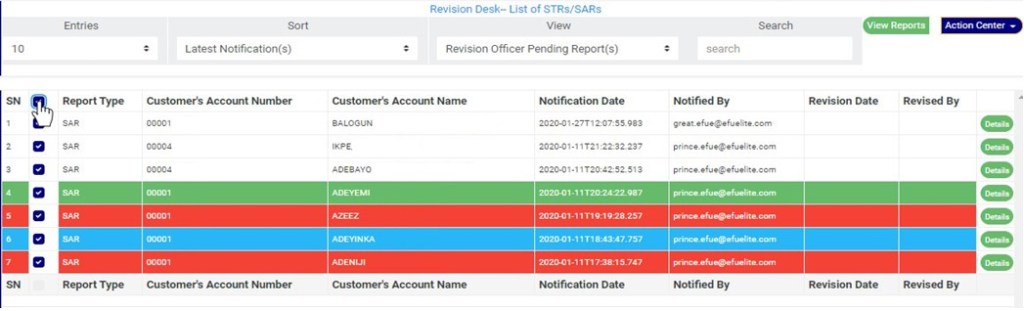
  • You can also select all Notifications on the page by clicking on the checkbox at the top. See an example in fig 6.3ao below

(fig. 6.3ao)

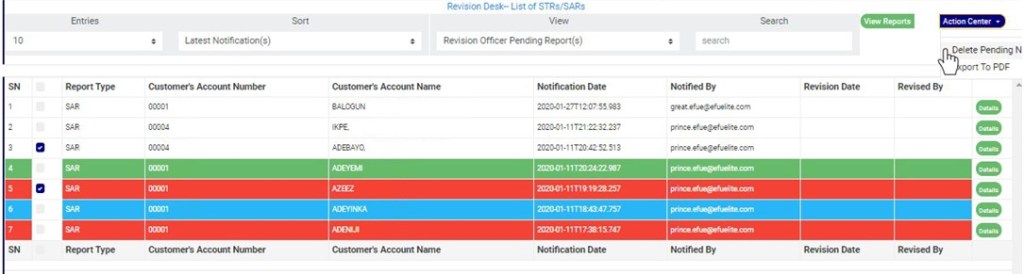
STEP 2: Click on the “Delete Notification(s)” button on the action center dropdown as shown  in Fig 6.3ap below           

                                                                                                                     (fig. 6.3ap)

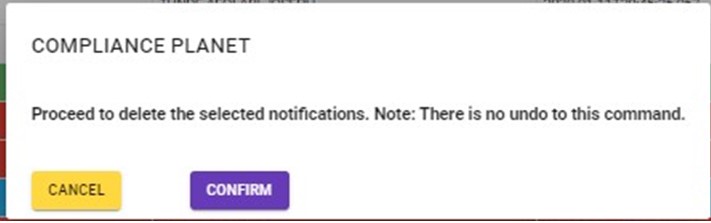
STEP 3: Clicking on “Delete Notification(s)” will display a console to confirm your selected action. See an example in Fig 6.3aq     below. To proceed, click on CONFIRM and to dismiss the operation, click on CANCEL.

(fig. 6.3aq)

  • Click on ‘CONFIRM’ as in fig. 6.3aq above to delete the Notifications or cancel to discontinue action.

For further enquiries : 
Tel +234(0) 816 555 9818
Email solutions@efuelite.com 
Web http://solutions.efuelite.com