This refers to adding new director information for a corporate account. Here is how to create a new director information.
NOTE: Only Person(s) profiled as a deputy Admin with right(s) to view and create new directors will be able to carry out this operation.
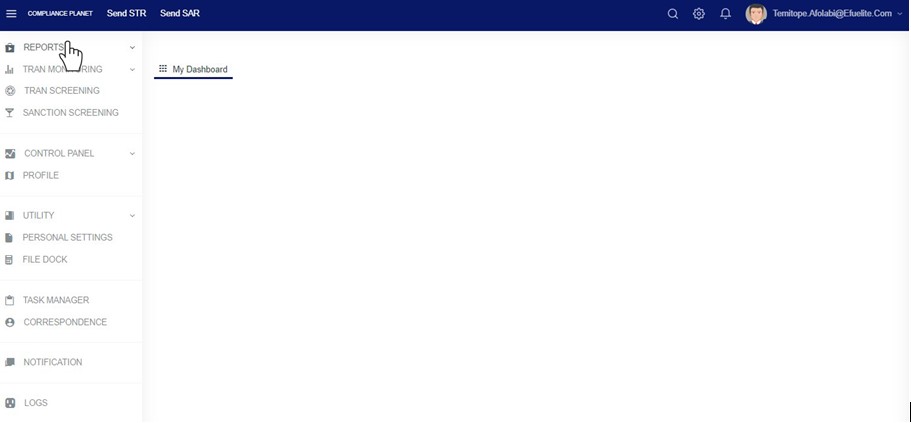
From the left hand side menu, Click ‘Control panel’ as in fig. 10.1a.
Fig 10.1a
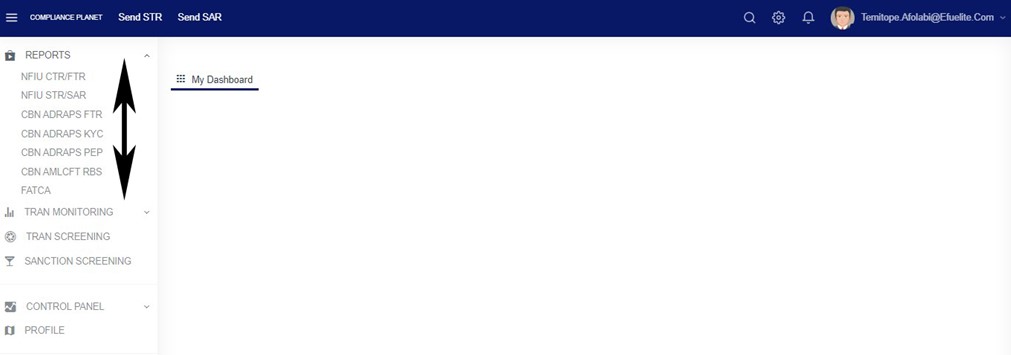
This will display a drop down as in Fig 10.1b below.
Fig 10.1b
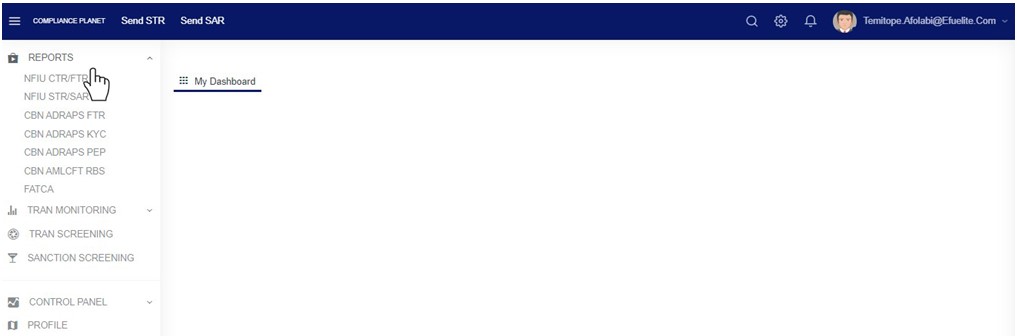
Click ‘DIRECTOR’ on the drop down list. See an example in Fig 10.1c below.
Fig 10.1c
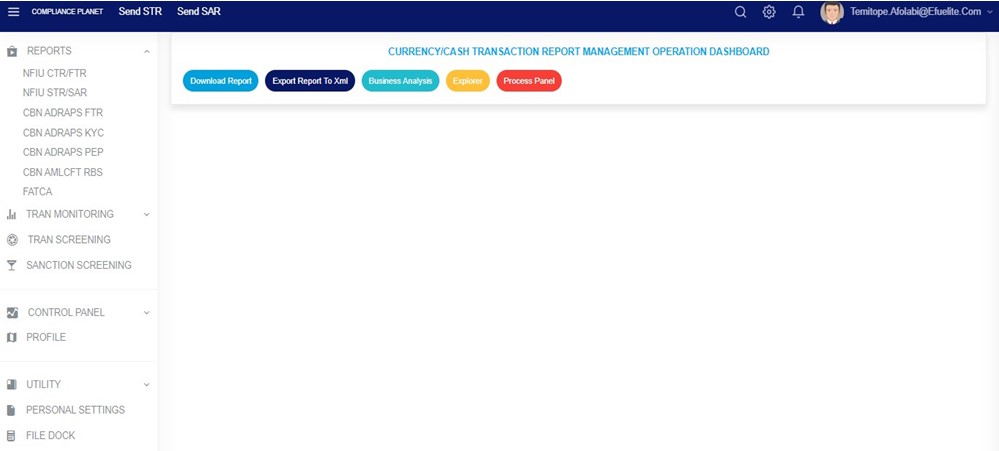
This will display the ACCOUNT DIRECTORS OPERATIONS dashboard as in Fig 10.1d below
Fig 10.1d
STEP 1: From the top menu, click Register as in fig 10.3a below
(fig. 10.3a)
This displays the ‘Create Corporate Account Director’ console as in fig. 10.3b below.
(fig. 10.3b)
STEP 2: Fill in the details of the new account director in their respective fields. To close the console, click on the ‘CANCEL’ button. See fig. 10.3c for an example of a filled console about to be saved.
(fig. 10.3c)
STEP 3: Click on ‘Save’ to upload the new director information on the Compliance planet software as in fig. 10.3c above.
A confirmation console as in fig. 10.3d will be displayed to confirm your request. Click on ‘CONFIRM’ to proceed to save new account director information or ‘CANCEL’ to go back to console.
(fig. 10.3d)
A notification as in fig. 10.3e below will be displayed at the top of the page when the information is successfully added.
The ‘DIRECTOR GENERAL LIST’ page provides a comprehensive list of all corporate account directors. Operations here involve searching out existing director information for accounts on the planet. Here are steps on how to search for account director information.
Note: Only persons profiled as a Deputy Supreme Admin with right to view account directors will be able to view list of account directors.
From the left hand side menu, Click ‘Control panel’ as in fig. 10.1a.
Fig 10.1a
This will display a drop down as in Fig 10.1b below.
Fig 10.1b
Click ‘DIRECTOR’ on the drop down list. See an example in Fig 10.1c below.
Fig 10.1c
This will display the ACCOUNT DIRECTORS OPERATIONS dashboard as in Fig 10.1d below
Fig 10.1d
STEP 1: From the top menu, Click ‘View’ as shown in fig. 10.4e below
(fig. 10.4a)
This will display a dropdown as in fig 10.4b below
STEP 2: Click “All” from the drop-down list as in fig 10.4b below
This will display a page listing out the directors of all the corporate accounts on the planet. See fig. 10.4b below for an example.
(fig. 10.4b)
At the bottom-right corner of the page, the planet gives information about the number of pages of the list, with the page numbers written out. All the page numbers represent buttons to go to each page. By clicking on any page number, the planet takes you to that particular page. Click on ‘NEXT’ to go to the next page or click on ‘PREVIOUS’ to go to the page before the current page.
Adjust the number of account directors you want to see per page by clicking on the ENTRIES box as in fig. 10.4c below.
(fig. 10.4c)
➔ To see list of corporate account directors of one of the branches, select branch name from the filter box as in fig. 10.4d. The default account director list is always for all branches of the institution. The list will be generated as soon as you make your selection.
(fig. 10.4d)
You can search for director information by typing the account name, account number, director’s first name, last name or director’s BVN in the search box. See an example in fig. 10.4e below.
(fig. 10.4e)
Each director’s information in the general list has three buttons. These buttons are for individual operations of the respective director information. They are;
‘DETAILS’ button,
‘EDIT’ button and
‘DELETE’ button
Here is how to make use of the buttons.
Click on ‘DETAILS’ as in fig. 10.4f below to view the details of a corporate account director.
NOTE Only person(s) assigned right to “view” account director data will be able to carry out this operation
(fig. 10.4f)
This will display a Corporate Account Director Details console as in fig. 10.4g below. After viewing, click on ‘DISMISS CONSOLE’ (as shown below) to close the console.
(fig. 10.4g)
To make changes to the details of a director, click on ‘EDIT’ as shown in fig. 10.4h.
NOTE Only person(s) assigned right to”view” and “edit” acoount director data will be able to carry out this operation
(Fig. 10.4h)
This will display an ‘Edit Corporate Account Director’ console where you can edit the director information previously saved and also, add other details in the fields that are yet to be filled. Note that the account number, account name, account branch, customer ID and BVN cannot be changed. See an example of the console in fig. 10.4i.
(fig. 10.4i)
Click on ‘SAVE’ to make the changes permanent.
This will display a confirmation console to confirm you want to make the changes. Click on ‘CONFIRM’ as shown in fig. 10.4j to proceed or ‘CANCEL’ to go back to the ‘Edit Corporate Account Director’ console.
(fig. 10.4J)
A notification will be displayed at the top of the page as in fig 10.4k below when changes are saved.
(fig. 10.4k)
To delete any of the corporate account director information, click on ‘DELETE’ as shown in fig. 10.4l.
NOTE Only person(s) assigned right to”view” and “delete” account director data will be able to carry out this operation
(fig. 10.4l)
This displays a confirmation console to confirm your request to delete that particular director information. Click on ‘CONFIRM’ to proceed with the delete or ‘CANCEL’ to stop action. See fig. 10.4m for an example.
(fig. 10.4m)
A notification will be displayed at the top of the page as in fig. 10.4n when the delete is done and the deleted account director information will move to the Account Directors Junk List
(fig. 10.4n)
Bulk Operations
These operations are; ‘Download Excel’ and ‘Delete Selected’.
Click “Operations” button as shown in fig 10.4o below
(fig. 10.4o)
This will display a dropdown as in Fig 10.4p below
(fig. 10.4p)
To carry out any bulk operation, select the corporate account director information to be treated. Select the account director information by clicking on their checkboxes. See fig. 10.4q below for an example.
To select or deselect all the accounts, click on the checkbox on the table title bar, that is, the checkbox between ‘S/N’ and ‘ACCOUNT NAME’. See fig. 10.4q for an example.
(fig. 10.4q)
After making your selection, proceed to carry out the bulk operations. The bulk operations are explained below.
Bulk Download
NOTE only person(s) profiled as deputy supreme Admin and assigned right(s) to “view” and “download excel” account director records will be able to carry out this operation.
Click on the ‘DOWNLOAD EXCEL FILE’ button as seen in fig. 10.4r below.
(fig. 10.4r)
This displays a confirmation console as in fig. 10.4s below. Click on ‘CONFIRM’ to proceed with the download or ‘CANCEL’ to discontinue.
(fig. 10.4s)
The signal console shows ongoing processes as in fig 10.4t below.
When the download is complete, a notification will be displayed at the top of the page. See fig. 10.4t below for an example. An excel file filled with the details of selected account director information will be downloaded to your computer.
(fig. 10.4t)
To close the signal console, click on its ‘DISMISS CONSOLE’ button;
To terminate the ongoing processes, click on ‘CANCEL OPS’.
This displays a confirmation console as in fig 10.4u below
(fig. 10.4u)
Click on ‘CONFIRM’ to proceed as seen in fig. 10.4u below.
A notification as in fig. 10.4v will also be displayed at the top of the page when the cancellation is successful.
By clicking on the ‘Delete Selected’ button, director information will be removed from the general list and moved to the account directors’ junk list.
NOTE only person(s) profiled as deputy supreme Admin and assigned right(s) to “view” and “delete” account director records will be able to carryout this operation.
Click on the ‘DELETE SELECTED’ button as seen in fig. 10.4w below.
(fig. 10.4w)
This displays a confirmation console as in fig. 10.4x below. Click on ‘CONFIRM’ to proceed with the delete or ‘CANCEL’ to discontinue.
(fig. 10.4x)
A notification will be displayed at the top of the page when delete is successful. See fig. 10.4y below for an example.
The compliance planet keeps a record of all KYC reports that have been manually scheduled. This section will guide you on how to access your scheduled KYC report and other features to enhance your overall experience.
NOTE: Only the person(s) assigned the right to ‘view KYC Report’ can carry out these operations
Step 1: From the app dashboard, click on “REGULATORY REPORTS” as in Fig. 5.4a below.
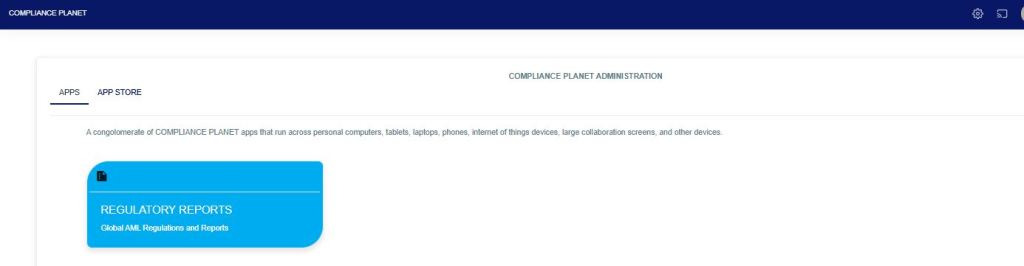
Fig 5.4a
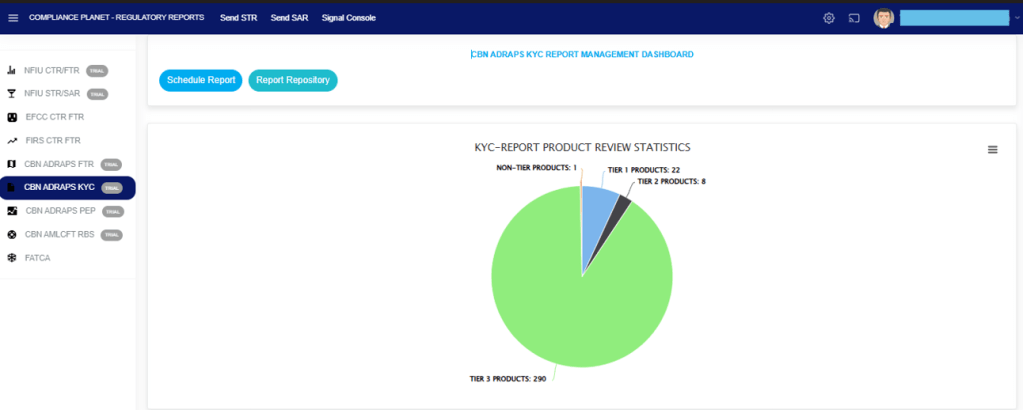
STEP 2: Click ‘CBN ADRAPS KYC’ on the drop-down list and display the KYC page as in Fig. 5.4b below.
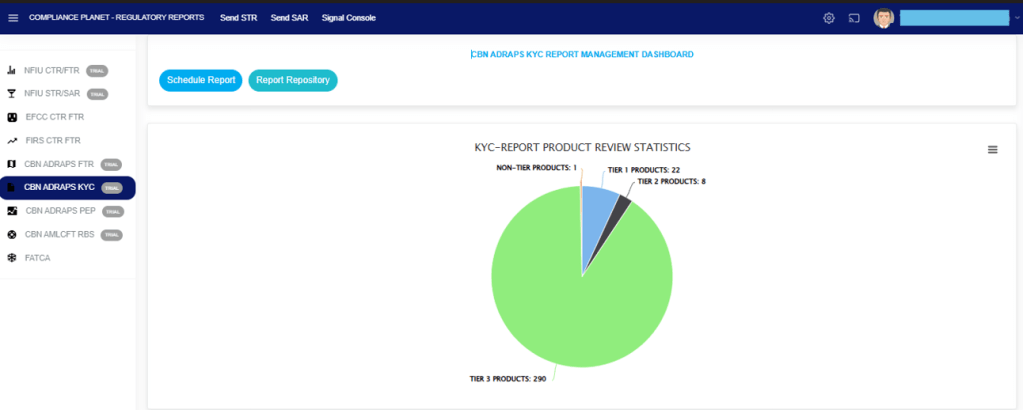
Fig 5.4b
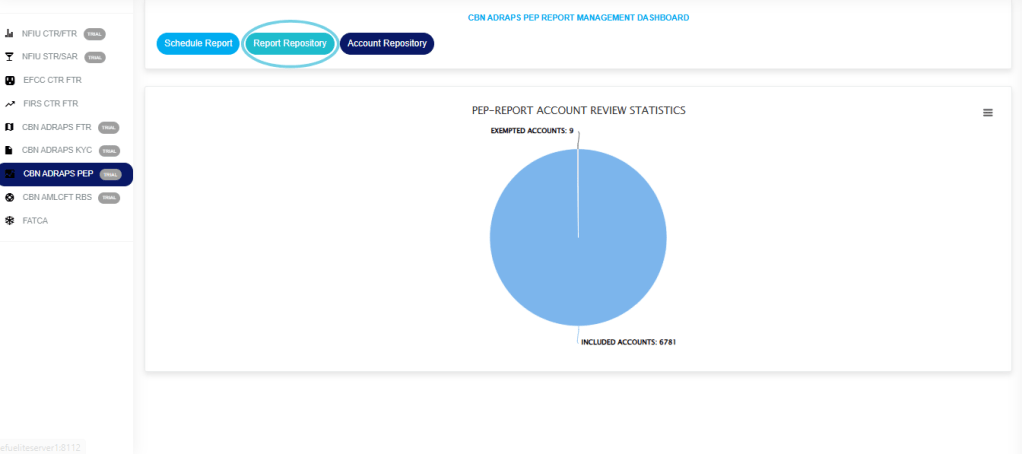
STEP 3: From the menu, click ‘REPORT REPOSITORY.’ Check out Fig. 5.4c below.
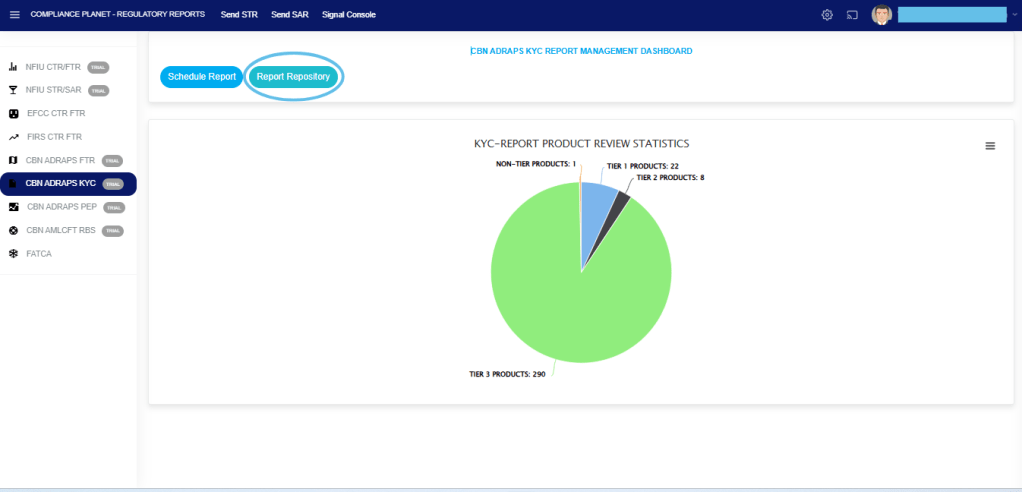
Fig 5.4c
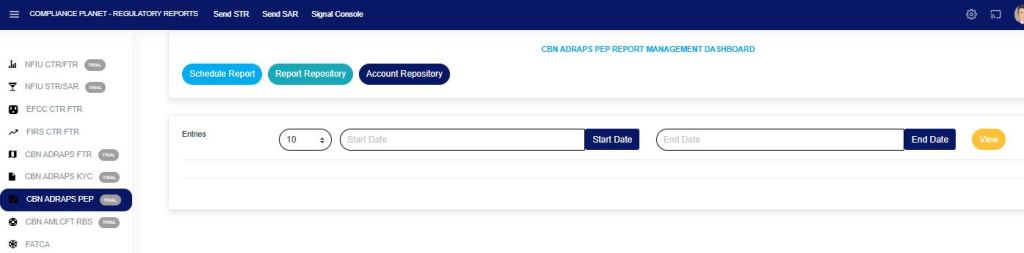
This will display a page as in Fig. 5.4d below. On this page, you can search for KYC reports by specifying the periods in which they were scheduled.
Fig 5.4d
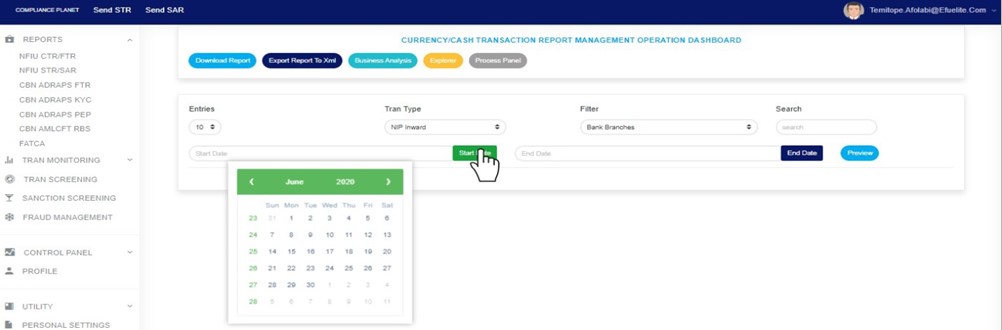
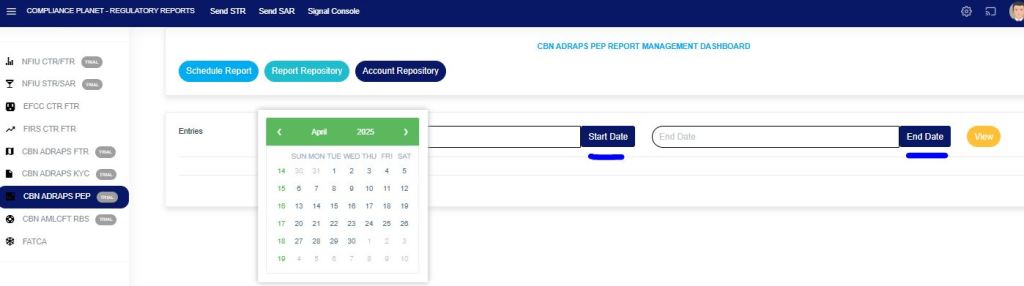
STEP 4: Click on the “START DATE” button/box and the “END DATE” button/box to set the beginning and the end of the period in which the reports you want to see have been scheduled. See Fig. 5.4e below for an example, and check out Fig. 5.3f to study using the compliance planet’s calendar.
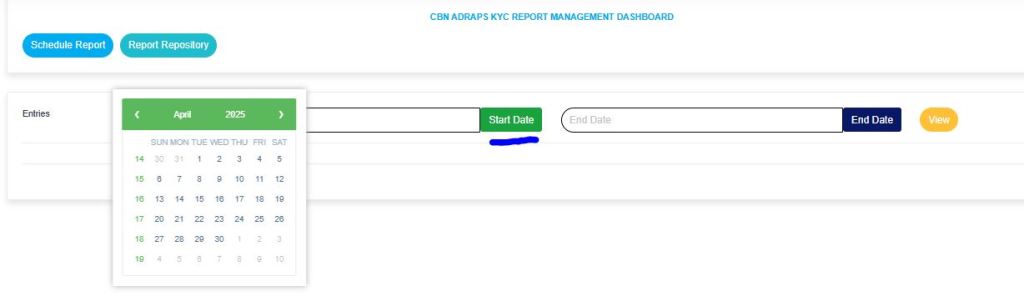
Fig 5.4e
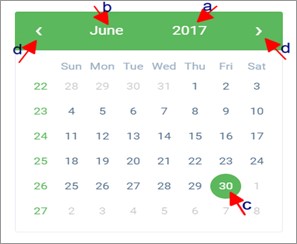
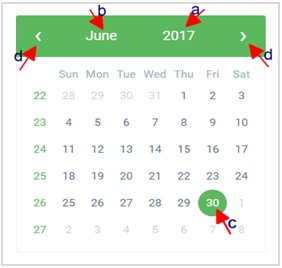
Take a look at the arrow labelled a-d in Fig. 5.4f to study the calendar.
Click on the given year to change it to your year of choice.
Click on the given month to change it to your month of choice.
Then, click on the date of the month.
You can also click on the angle brackets on the calendar [ ‘<’ or ‘>’ ] to go backward or forward.
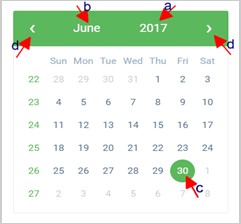
Fig 5.4f
You can increase the number of reports you want to see per page by clicking on the ENTRIES box. See Fig. 5.4g below for an example.

Fig 5.4g
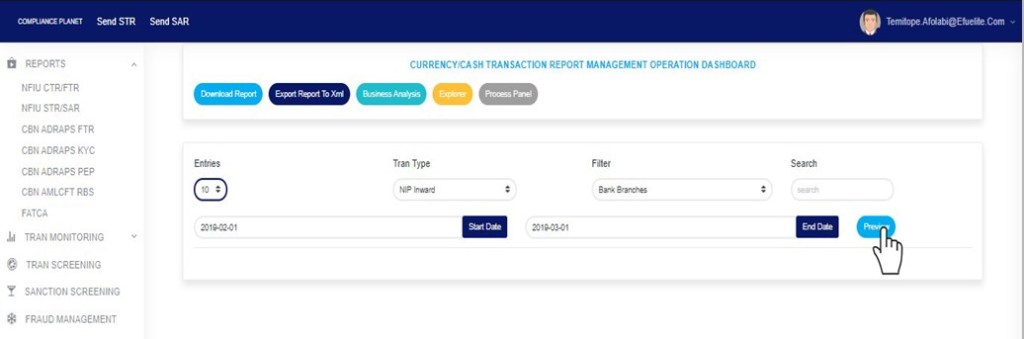
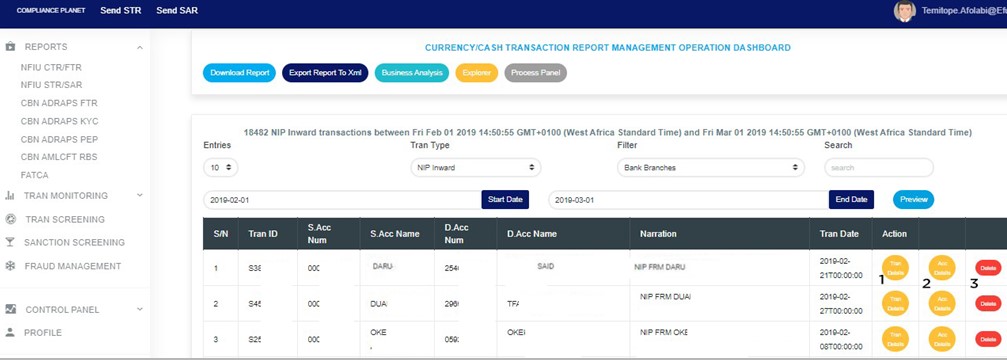
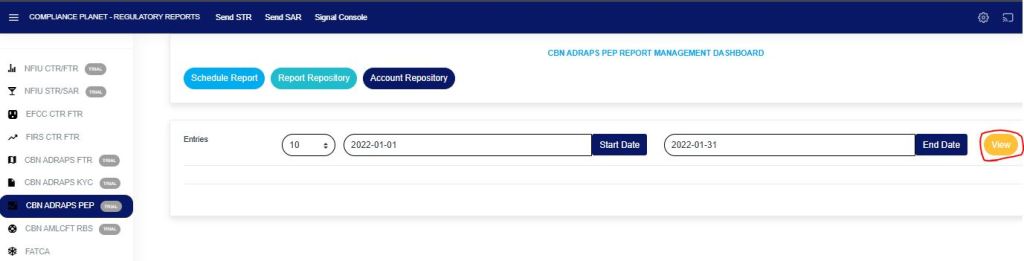
STEP 5: Click on the “VIEW” button to see the reports. It is an orange button at the upper area of the page, next to the END DATE box. By doing this, the software will search for reports scheduled for the period you entered in the date boxes. See Fig. 5.4h below. Click on the “VIEW “ button and see the results of the example in Fig. 5.4i.

Fig 5.4h
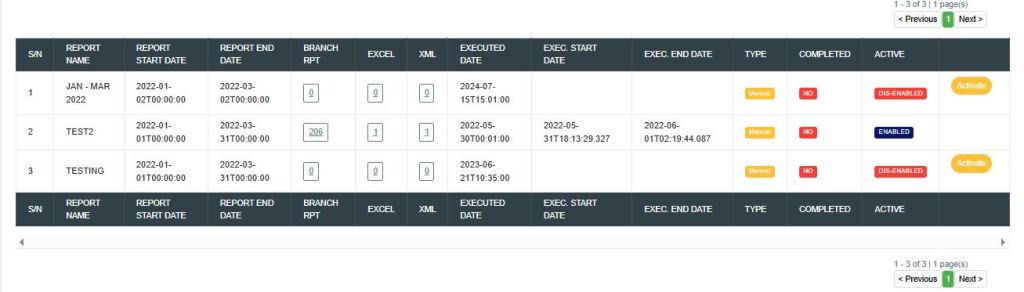
Fig 5.4i
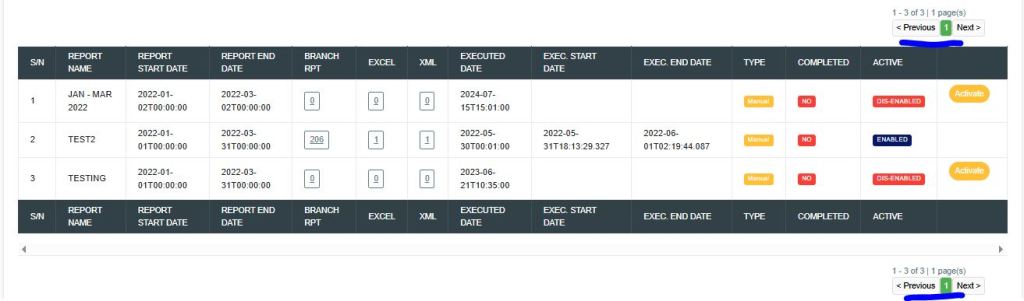
The software will search out the requested reports and give information about the start and end date, the number of branches the account information relates to (Branch Rpt), the number of Excel files and the XML files the report has been written into, the start date and end date for the processing of the report, the report type and whether the report has been completed or not. See Fig. 5.4i above.
The numbers under the Branch Rpt column represent the branches reported in the KYC report. Click on “BRANCH RPT”, a page titled Branch KYC Report will appear. This page gives information about the branch’s ID, number of tier one and tier two accounts, total account balances, and number of accounts that moved from one tier to another for each branch reported in the ADRAPS KYC. See Fig. 5.4j below.
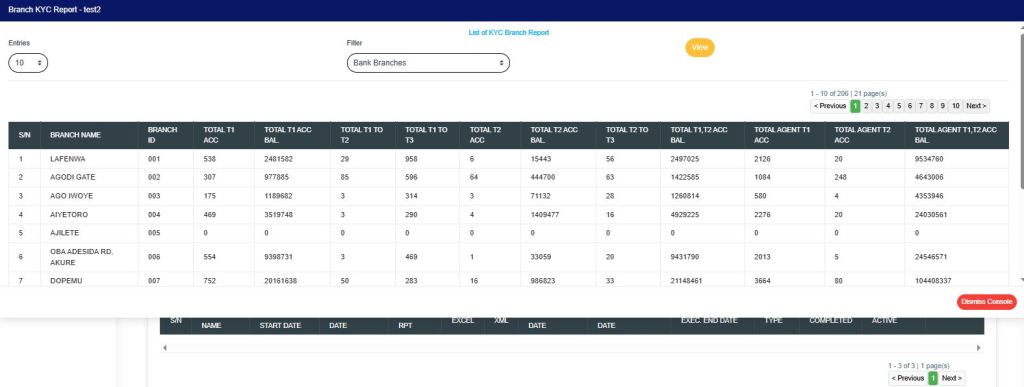
Fig 5.4j
BRANCH KYC REPORT PAGE The Branch KYC Report page has various features, and here are the following steps on how to use them:
ENTRIES Click on the “ENTRIES” box to adjust the number of transactions you want to see per page. See Fig. 5.4k below for an example of how to do this. The software will automatically affect your changes.
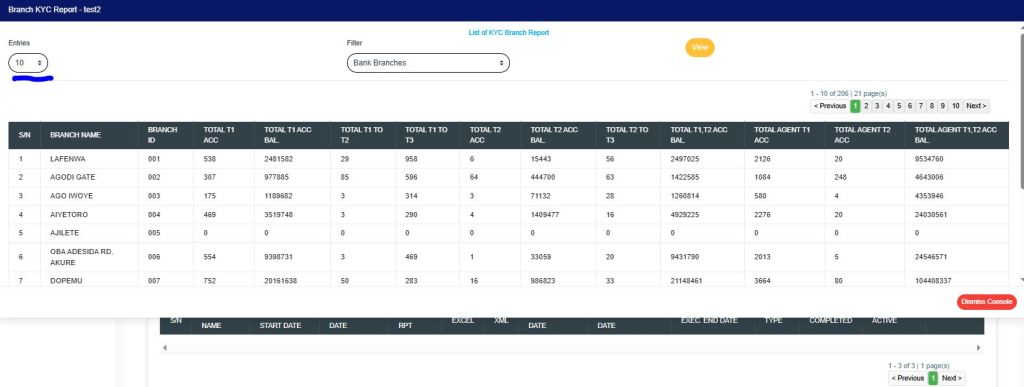
Fig 5.4k
FILTER Click on the “FILTER” box to select a bank branch for which you want to see KYC information. See Fig. 5.4l below for an example of how to do this.
Fig 5.4l
VIEW After selecting the bank branch of your choice, as in Fig. 5.4l above, click on “VIEW” to see the result of your selection. See Fig. 5.4m for an example of how to do this.
Fig 5.4m
PREVIOUS AND NEXT At the top-right and bottom-right corners, you see information about the number of pages. All the page numbers represent buttons for each page. By clicking on any page number, the software takes you to that particular page. Click on the “NEXT” button to take you to the next page. Click on the “PREVIOUS” button to take you to the page before the current page.
DISMISS To close this page, click on the “DISMISS” button at the bottom-right corner of the page.
Back to Fig. 5.4i.
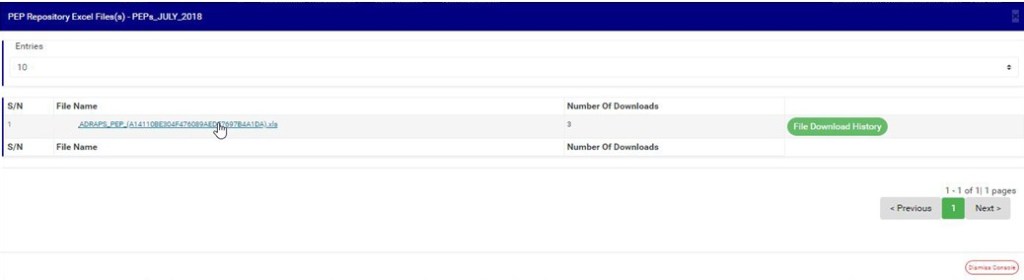
The numbers under the ‘Excel’ column (in Fig. 5.4i) also represent the Excel files into which the software has written the report. By clicking on the number of Excel files, the KYC Repository Excel file(s) console will appear on the screen. See Fig. 5.4n below for an example of the console.
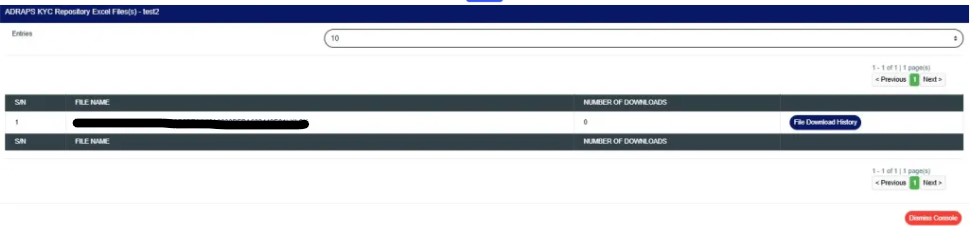
Fig 5.4n
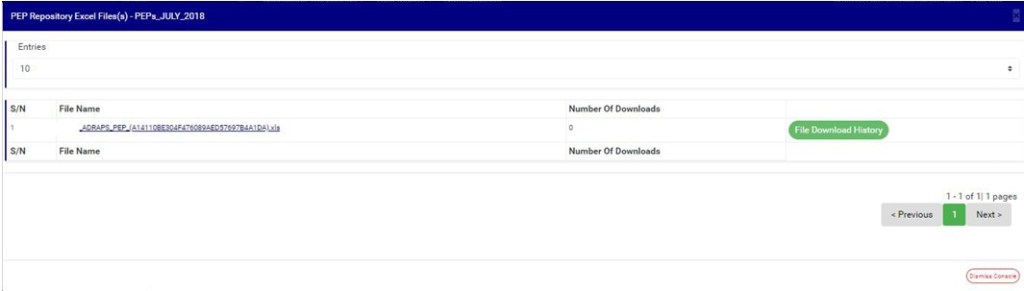
KYC REPOSITORY EXCEL FILE (S) PAGE The KYC Repository Excel file(s) page gives information about the Excel file name(s), the number of times users have downloaded the file, and the download history. It has various features, and here are the following steps on howto use them:
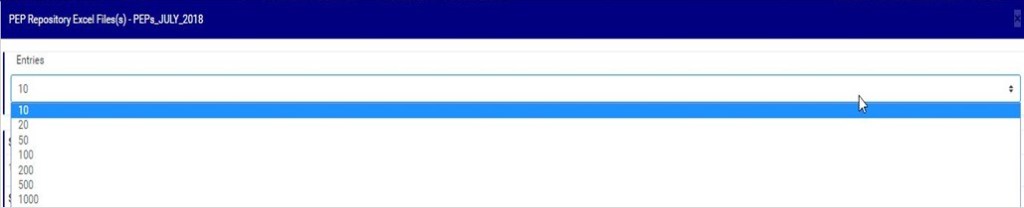
ENTRIES Click on the “ENTRIES” box to adjust the number of Excel files you want to see per page. See Fig. 5.4o below for an example of how to do this. The software will automatically affect your changes whenever you do this.
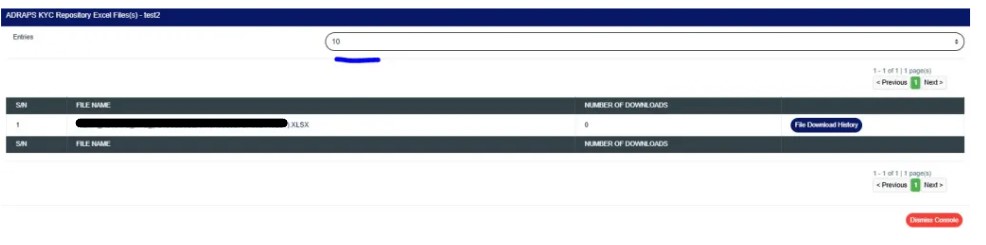
Fig 5.4o
FILE NAME Click on the “FILE NAME” to download the Excel file to your computer. The number of downloads will change once you click on the file name. See Fig. 5.4p below for an example of how to download the KYC Excel file.
NOTE: Only the person(s) assigned the right to ‘View KYC Report’ and ‘Download KYC Report’ can carry out these operations.
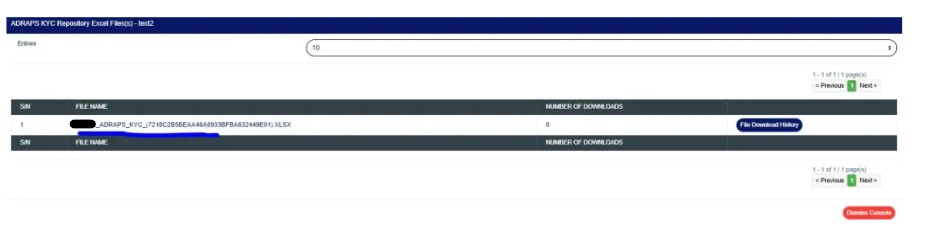
Fig 5.4p
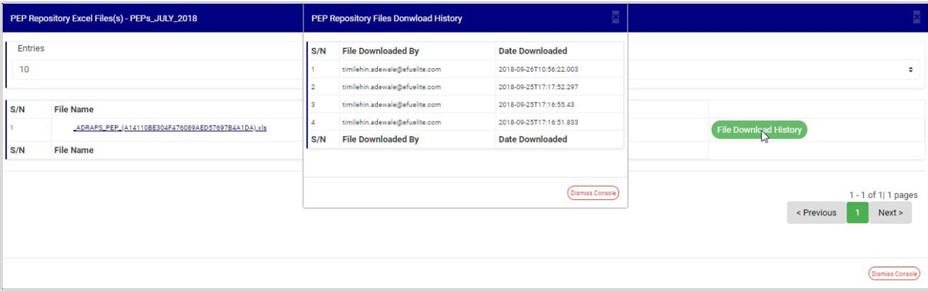
FILE DOWNLOAD HISTORY Click the “File Download History” button to see who downloaded the file and the download time. A small console will be displayed. See Fig. 5.4o below for an example. Close the console by clicking the DISMISS button located in the bottom-right corner.
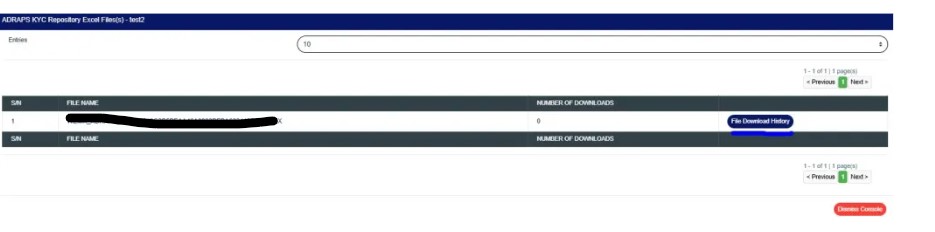
Fig 5.4q
PREVIOUS AND NEXT At the top-right and bottom-right corners, you see information about the number of pages. All the page numbers represent buttons for each page. By clicking on any page number, the software takes you to that particular page. Click on the “NEXT” button to take you to the next page. Click on the “PREVIOUS” button to take you to the page before the current page.
DISMISS To close this page, click on the “DISMISS” button at the bottom-right corner of the page.
Back to Fig 5.4i
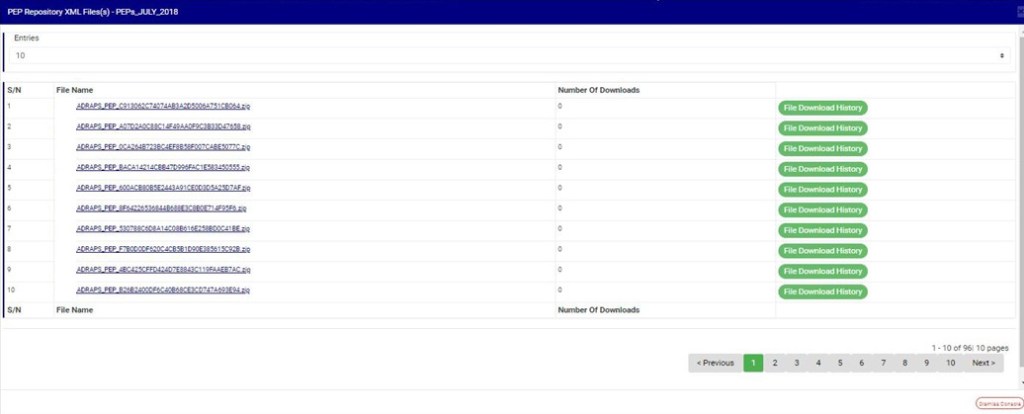
The numbers under the ‘XML’ column (in Fig. 5.4i) also represent the number of XML files into which the software has written the respective report. By clicking on the number of XML files, a page will appear on the screen, as in Fig. 5.4r.
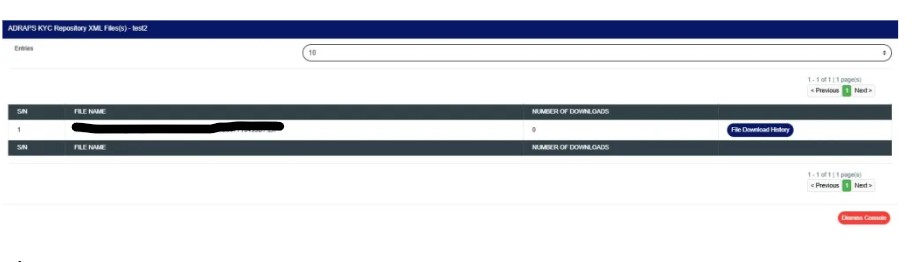
Fig 5.4r
KYC REPOSITORY XML FILE(S) PAGE The KYC Repository XML file(s)page also gives information about the XML file name(s), the number of times users have downloaded the file(s), and the download history. The features on the KYC Repository XML file(s) page function similarly to those on the KYC Repository Excel file(s) page. Here are the steps on how to make use of the KYC Repository XML file(s) page features:
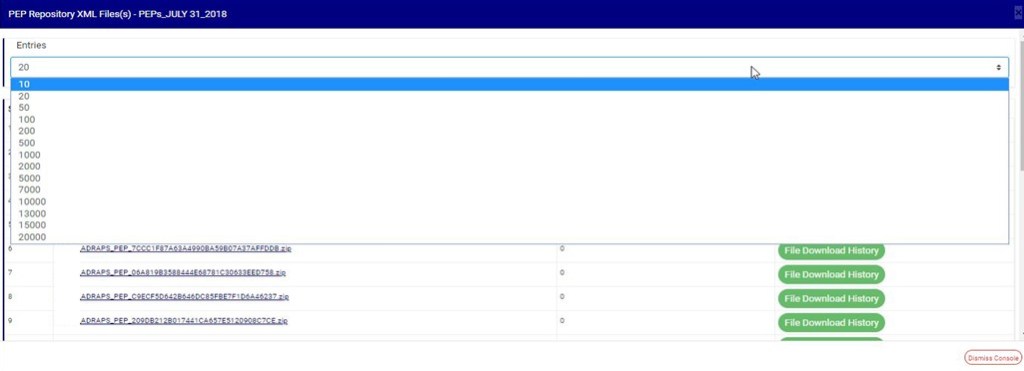
ENTRIES Click on the “ENTRIES” box to adjust the number of XML files you want to see per page. See Fig. 5.4s below for an example of how to do this. The software will automatically apply your changes whenever you do this.
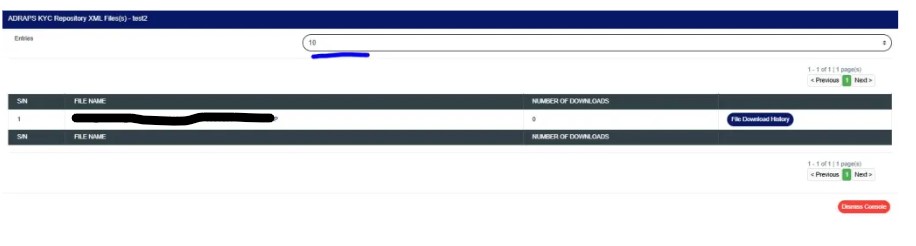
Fig 5.4s
FILE NAME Click on the “FILE NAME” to download the XML file to your computer. The number of downloads will change once you click on the file name. The file name is underlined, and the download is immediate! See Fig. 5.4t below for an example of downloading a KYC XML file.
NOTE: Only the person(s) assigned the right to ‘view KYC Report’ and ‘Download KYC Report’ can carry out these operation(s)
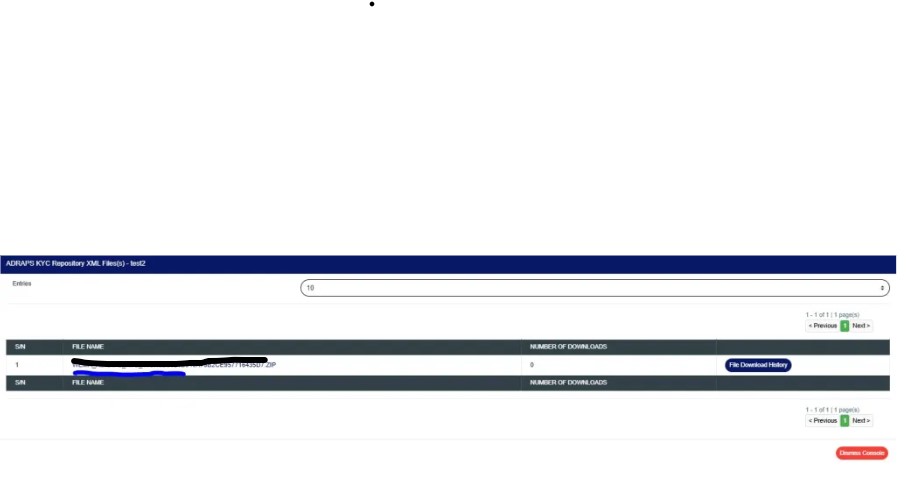
Fig 5.4t
FILE DOWNLOAD HISTORY Click the ‘File Download History‘ button to see who downloaded the file and the download time. A small console will be displayed on the page, as in Fig. 5.4u below. Close the console using the DISMISS button at the bottom-right corner of the console.
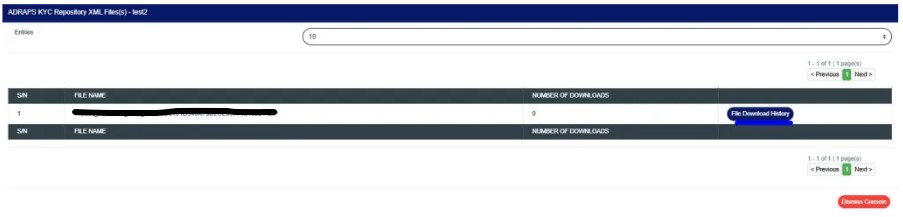
Fig 5.4u
PREVIOUS AND NEXT At the top-right and bottom-right corners, you see information about the number of pages. All the page numbers represent buttons for each page. By clicking on any page number, the software takes you to that particular page. Click on the “NEXT” button to take you to the next page. Click on the “PREVIOUS” button to take you to the page before the current page.
DISMISS To close this page, click on the “DISMISS” button at the bottom-right corner of the page.
Back to fig. 5.4i – KYC Repository list page: At the end of each report row, the software indicates whether the report processing is enabled or disabled under the ‘ACTIVE’ column.
For reports that have been completed, their status will read ENABLED. See Fig. 5.4i for an instance.
There will be an extra button next to their ACTIVE status for reports that have not been completed. This button is used to ACTIVATE or DEACTIVATE the processing of the report. See Fig. 5.4i also for an example. When the report is enabled, the button turns red, and it can be used to DEACTIVATE the report. It is yellow when the report is disabled and can be used to ACTIVATE the report for processing.
STEP 6: Click on Activate to enable the processing of the report or Deactivate to disable the processing of the report.
NOTE: Only the person(s) assigned the right to ‘view KYC Report’ and ‘Edit KYC Report’ can carry out these operation(s)
Clicking on ACTIVATE turns the status bar of the report to blue with an ‘ENABLED’ inscription, while clicking on DEACTIVATE will turn the status bar back to red with a ‘DIS-ENABLED’ inscription. See fig. 5.4v and fig. 5.4w to see the result of activating the report for an example, as well as Fig. 5.4x and Fig. 5.4y to know the result of deactivating the report for another example.
At the top-right and bottom-right corners of the page, the software gives information about the number of pages of your result, with the page numbers written out. All the page numbers represent buttons for each page. By clicking on any page number, the planet takes you to that particular page. There is the NEXT button to take you to the next page when you click on it, and there is a PREVIOUS button to take you to the page before the one you are viewing. See these features in Fig. 5.4z below.
Using the PEP Account Repositoryfeature, you can see a list of all the PEP accounts on the Compliance Planet software. Here are the steps:
NOTE: Only person(s) assigned the right to ‘view PEP Report’ and ‘process PEP Report’ can carry out these operation (s)
STEP 1: From the app dashboard, click on “REGULATORY REPORTS” as in Fig. 4.5a below.
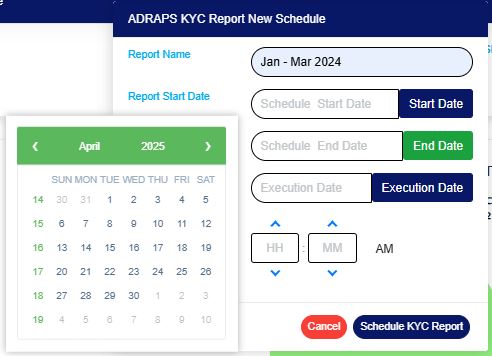
Fig 4.5a
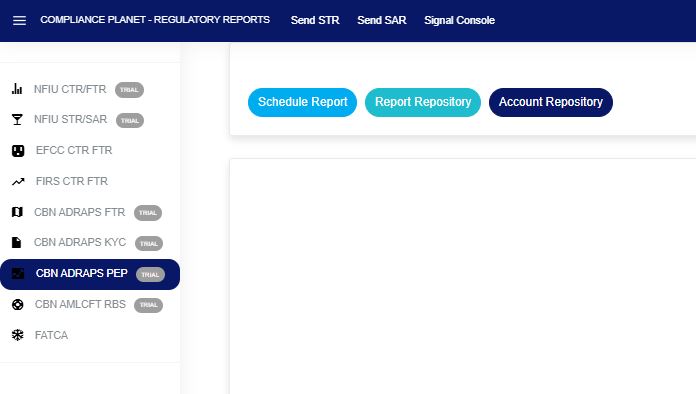
STEP 2: Click ‘CBN ADRAPS PEP’ on the drop-down list and display the PEP page as in Fig. 4.5b below.
Fig 4.5b
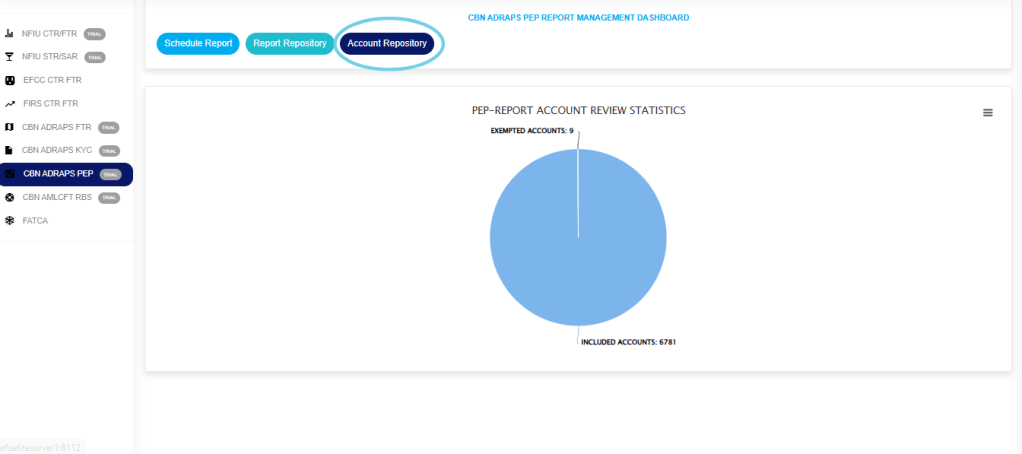
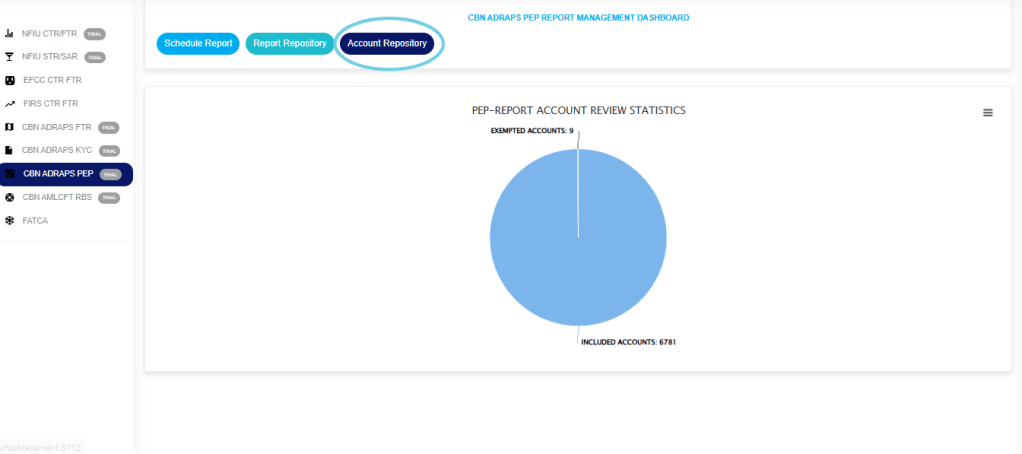
STEP 3: From the menu, click “Account Repository” as in Fig. 4.5c below.
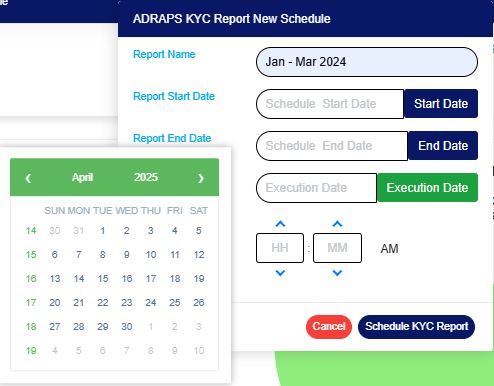
Fig 4.5c
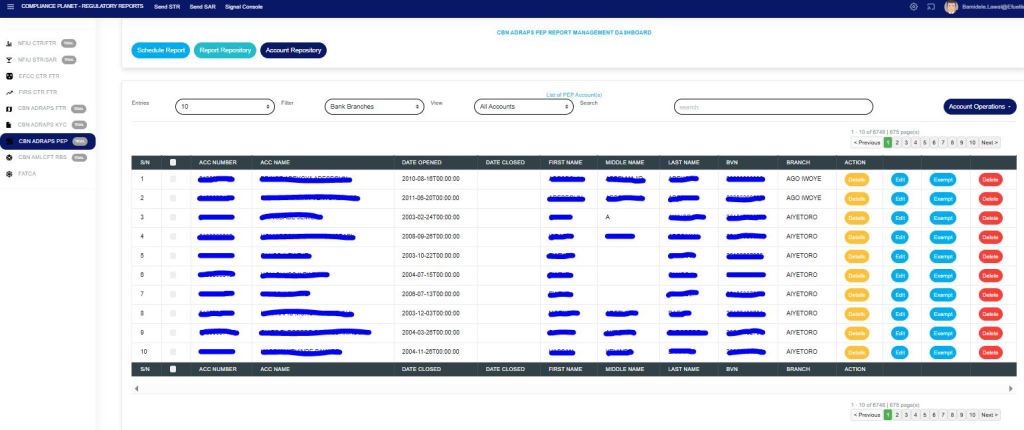
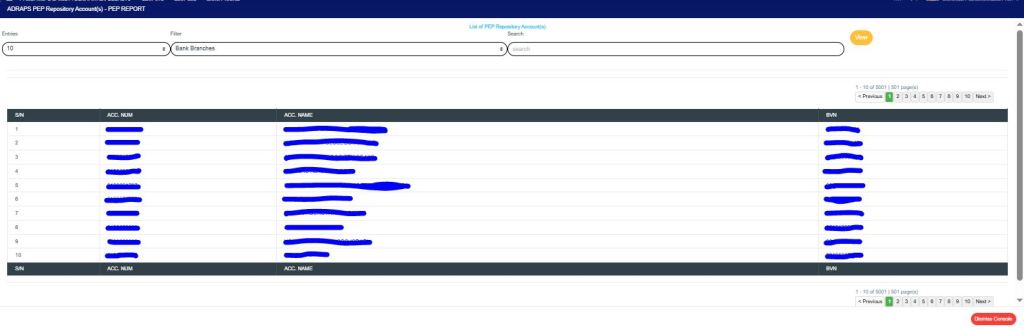
This displays a page showing a list of all the PEP accounts, as in Fig. 4.5d below.
Fig 4.5d
At the top-right and bottom-right corners of the page, there is information about the number of pages. The NEXT button takes you to the next page of the list, and the PREVIOUS button takes you to the page before the current one.
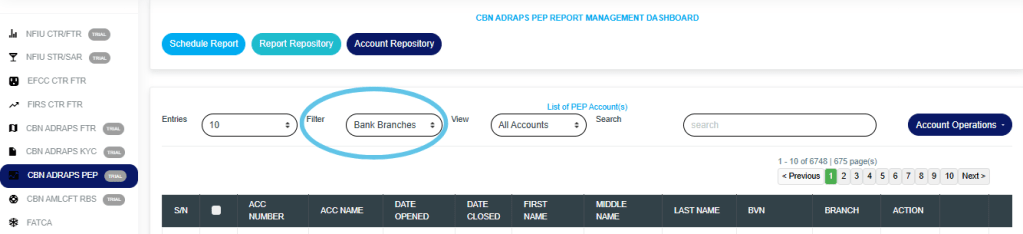
STEP 5: Click on the FILTER BOX to view the PEP list for a specific branch bank. The default list includes all branches of the institution (See Fig. 4.5d above). Therefore, you can select any branch to view its PEP accounts, as shown in Fig. 4.5e below.
Fig 4.5e
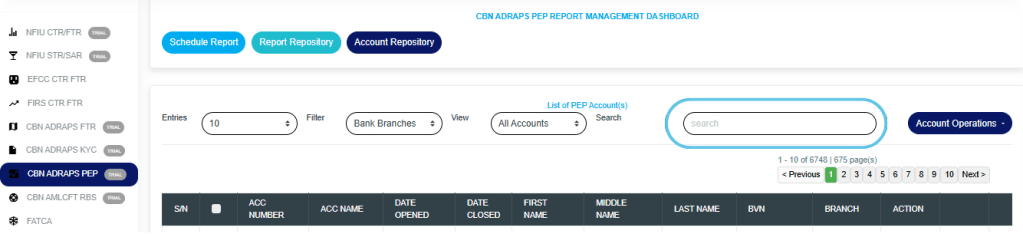
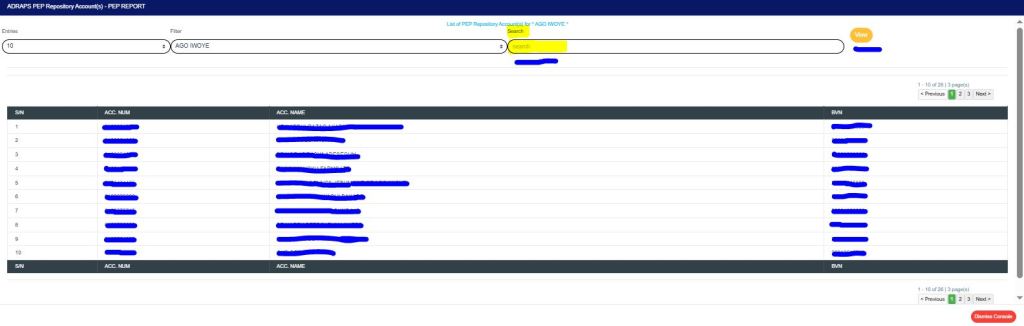
STEP 6: Type in the SEARCHBOX next to the FILTER box to narrow your list to a particular account number, account name, first name, middle name, last name, or bank verification number.
Note that you can’t search a branch name. The filter box does that already.
See Fig. 4.5f below to see an example of a search.
Fig 4.5f
Sort orders in ascending or descending order: Click on the “Account Opened Date” column header to sort the records in ascending or descending order.
Action buttons: For every search result given on the ‘PEP Account Repository’ page, there are action buttons right at the end of the row, and they are: Details button Edit button Exempt button Delete button These buttons only affect the account on their respective rows.
DETAILS Click on the “Details” button, and a console, as shown in Fig. 4.5g below, will be displayed, showing the details of the PEP account on the row you clicked the button. To close the console, click on “DISMISS CONSOLE“.
Fig 4.5g
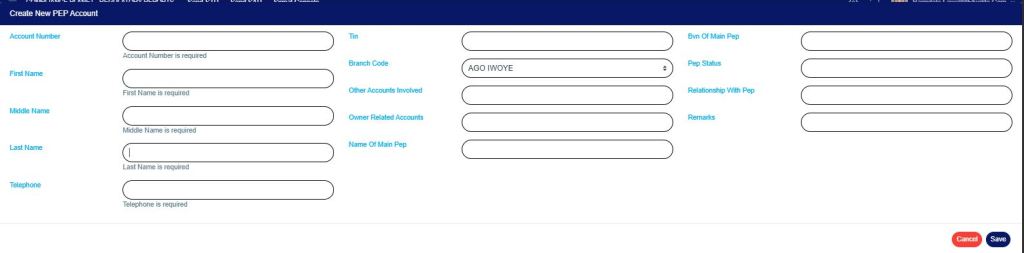
EDIT Click the “Edit” button to update or modify information in the details of your PEP account console. This button is next to the DETAILS button. By clicking on EDIT, a console as in Fig. 4.5h below, titled CREATE NEW PEP ACCOUNT will be displayed. This console is identical to the one generated when creating a new PEP account, but it comes pre-populated with fields that are already filled in. After filling in the details, effect the changes by clicking on the “SAVE” button. If you do not want to edit the information on the console, click on “CANCEL”.
Fig 4.5h
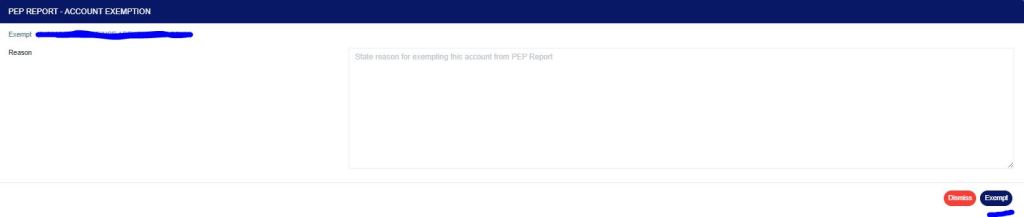
EXEMPT Click on the “Exempt” button, and a console, as shown in Fig. 4.5i below, will be displayed, displaying the account number and account name of the PEP to be exempted, along with the reason(s) for exemption. Click on “DISMISS CONSOLE” to close the console if the PEP is not to be exempted.
Fig 4.5i
DELETE Click on the “DELETE” button to remove a PEP account. NOTE: Only person(s) assigned the right to ‘Process PEP Report’ and ‘Edit PEP Report’ can carry out these operations
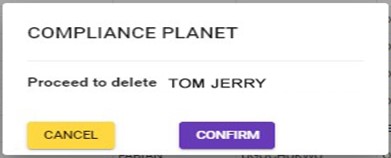
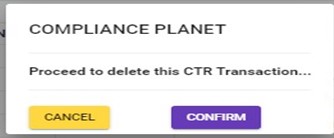
This displays a confirmation console as in Fig. 4.5j. Click “CANCEL” if you do not want to delete the account, or click on “CONFIRM” to confirm your request to delete the account. When you do this, the account will be deleted immediately from the list.
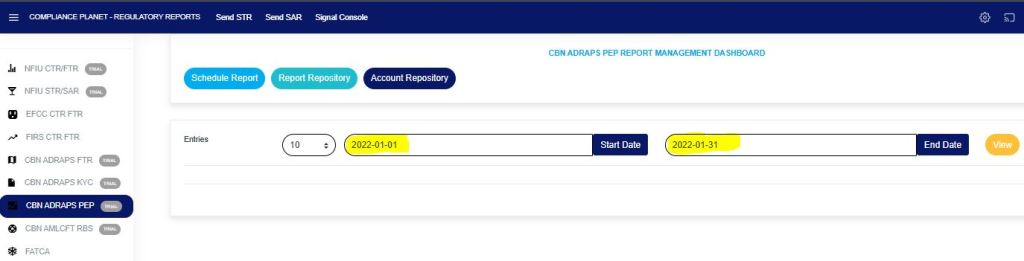
Fig 4.5j
Also, the PEP ACCOUNT REPOSITORY page gives options for bulk operations. The bulk operations include downloading PEP accounts and deleting PEP accounts.
How to Carry Out Bulk Delete of PEP Records
NOTE: You need to be assigned the right to ‘edit PEP Report’ to be able to delete reports.
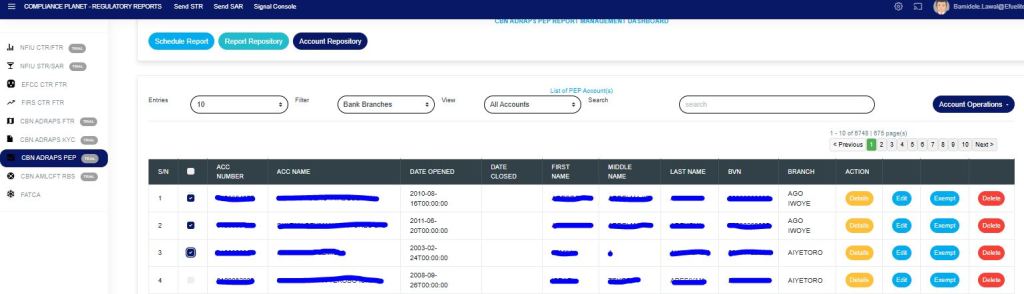
To carry out a bulk delete of accounts, select the accounts you want to delete as shown in Fig. 4.5k below
Fig 4.5k
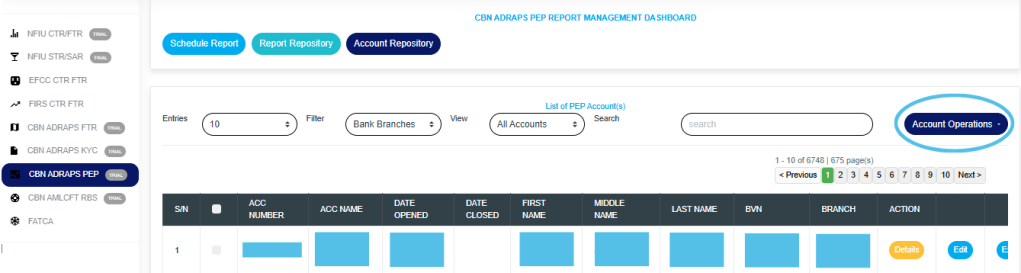
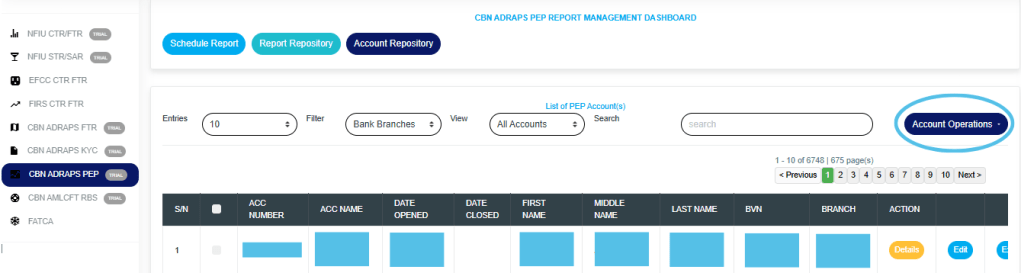
Click on “Account Operations” as shown in Fig. 4.5l below.
Fig 4.5l
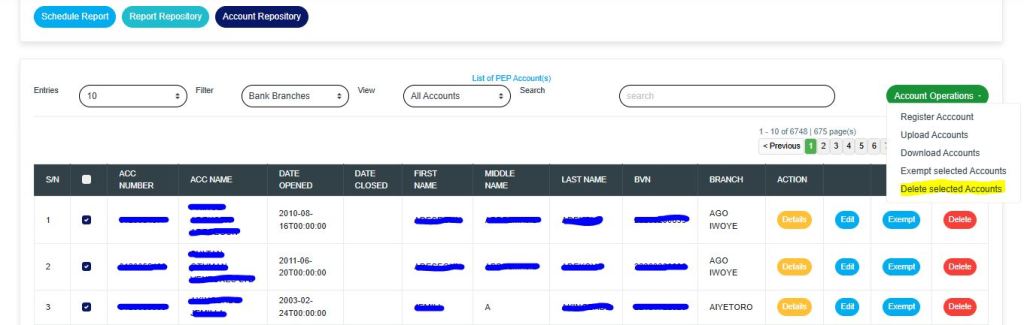
This will display a drop-down as in Fig. 4.5m below,
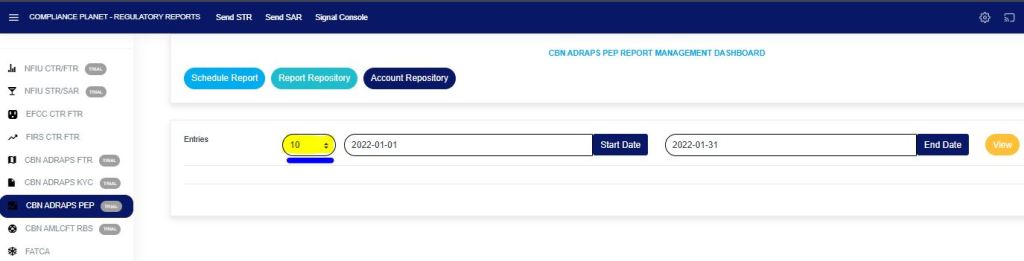
Click “Delete Selected Account” as in Fig 4.5m below
Fig 4.5m
How to Carry Out Bulk Download of PEP Records
NOTE: You need to be assigned the right to ‘download PEP Report’ to be able to download reports.
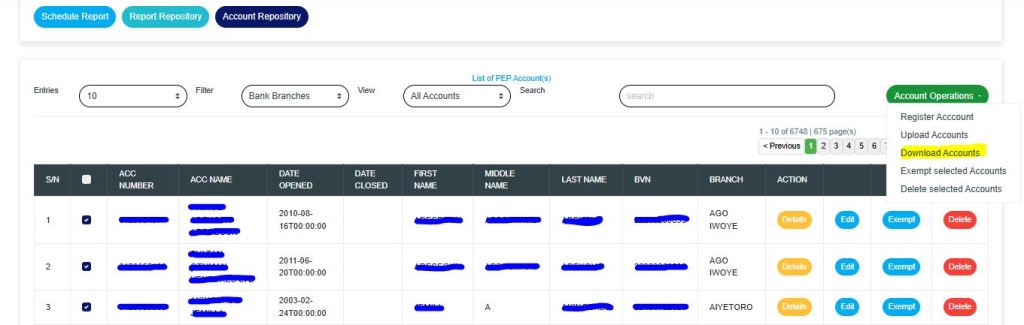
To carry out a bulk download of PEP accounts, select the accounts you want to download, and click “Download Selected Accounts” as shown in fig. 4.5n below.
This feature is used for the creation of new PEP accounts individually. Here are the steps to creating a new PEP account:
NOTE: Only person(s) assigned the right to ‘process PEP Report’ can carry out these operations
STEP 1: From the app dashboard, click on “REGULATORY REPORTS” as in Fig 4.6a below.
Fig 4.6a
STEP 2: Click ‘CBN ADRAPS PEP’ on the drop-down list and display the PEP page as in Fig. 4.6b below.
Fig 4.6b
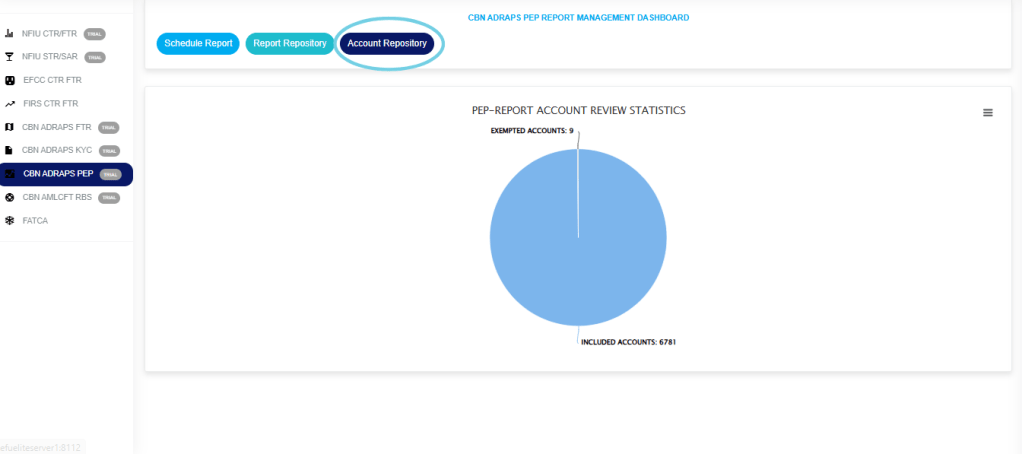
STEP 3: From the menu, click “Account Repository” as in Fig. 4.6c below.
Fig 4.6c
This displays a page showing a list of all the PEP accounts, as in Fig. 4.6d below.
Fig 4.6d
STEP 5: Click on “Account Operations” as shown in Fig. 4.6e below.
Fig 4.6e
This will display a drop-down as in Fig. 4.6f below.
Fig 4.6f
STEP 6: Click “Register Account” as in Fig. 4.6f above.
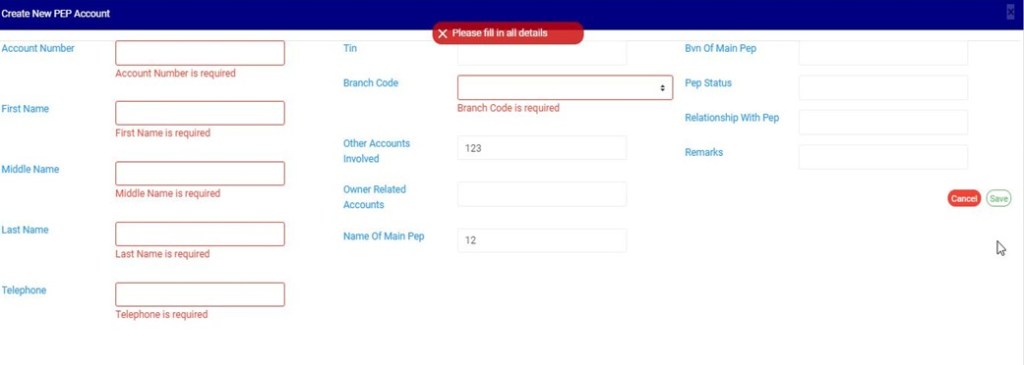
This displays a ‘CREATE NEW PEP ACCOUNT’ console as in Fig. 4.6g below.
Fig 4.6g
STEP 7: Enter details of the new PEP account you want to create. Some fields are mandatory to create a PEP account successfully. They are;
Account Number – Ensure the account number is present in the software account base.
First Name
Middle Name
Last Name
Telephone
Branch Code
See Fig. 4.6h below for an example.
Fig 4.6h
STEP 8: Click SAVE to create the PEP account after filling in the details, or click CANCEL to close the console if you do not wish to continue.
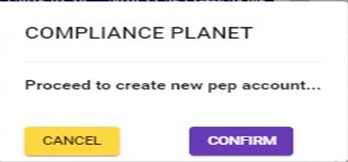
Clicking SAVE will display a confirmation console as in Fig. 4.6i below.
During the upload and single entry of PEP accounts, the software automatically scans other accounts related to the record entered using the CUST ID as an identifier, and also automatically migrates these records into the software.
Fig 4.6i
Click on CANCEL to go back to the console.
Click on CONFIRM to confirm your request to create a new PEP account. A notification will be displayed at the top of the page, as in Fig. 4.6j below.
This operation involves uploading multiple New PEP accounts. There is another feature that handles the creation of a new PEP account. For instance, to upload fifty (50) new PEP accounts on the planet, the Bulk Upload is the feature you should use instead of entering them one by one.
Compliance Planet also automatically scans the institution’s system for registered PEPs and notifies the Compliance Team.
Here is how to upload bulk PEP information:
NOTE: Only person(s) assigned the right to ‘process PEP Report’ can carry out these operations.
STEP 1: From the app dashboard, click on “REGULATORY REPORTS” as in Fig. 4.7a below.
Fig 4.7a
STEP 2: Click ‘CBN ADRAPS PEP’ on the drop-down list and display the PEP page as in Fig. 4.7b below.
Fig 4.7b
STEP 3: From the menu, click “Account Repository” as in Fig. 4.7c below.
Fig 4.7c
This displays a page showing a list of all the PEP accounts, as in Fig. 4.7d below.
Fig 4.7d
STEP 5: Click on “Account Operations” as shown in Fig. 4.7e below.
Fig 4.7e
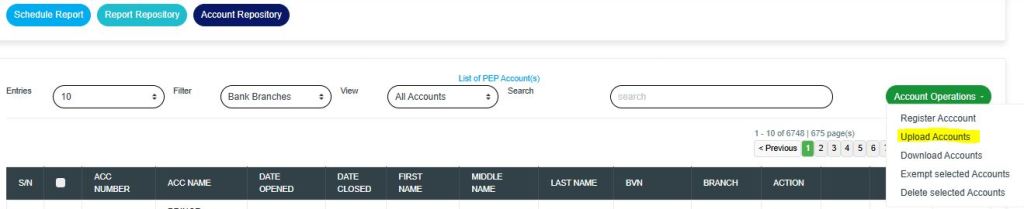
This will display a drop-down as in Fig. 4.7f below.
Fig 4.7f
STEP 6: Click “Upload Account” as in Fig. 4.7f highlighted above.
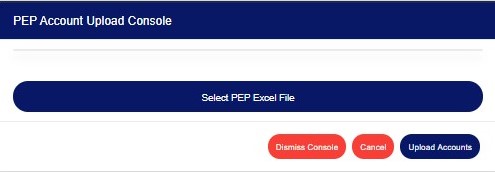
This displays a ‘PEP Account Upload’ console as in Fig. 4.7g below.
Fig 4.7g
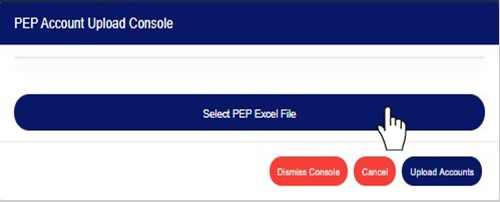
STEP 7: Click on “Select PEP Excel File” to upload the Excel file containing the details of the PEP Accounts you want to save on the software. Refer to Fig. 4.7h below to learn how to upload a file from your computer.
Fig 4.7h
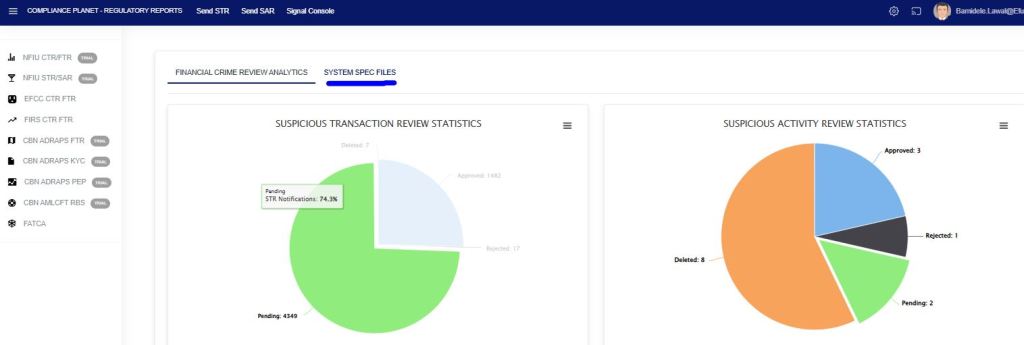
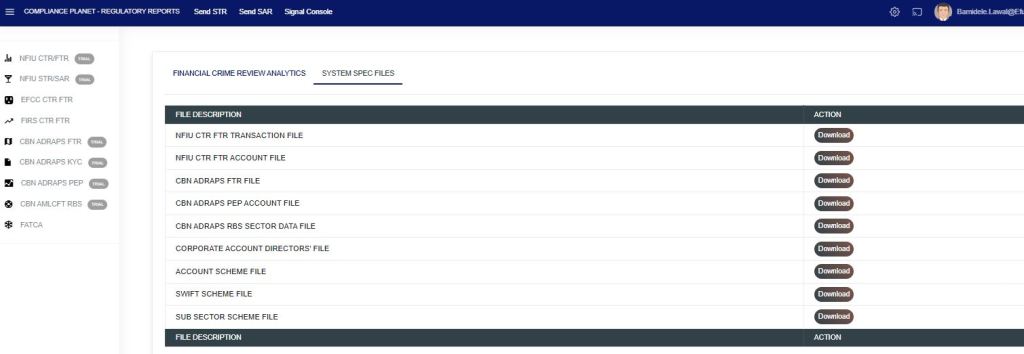
If you do not have the file specification for uploading new PEP Accounts, you can download it from the “SYSTEM SPEC FILES” on the software, as shown in the figure. 4.7i below to download an Excel file with the required specification.
Fig 4.7i
An Excel file will be downloaded to your computer with pre-filled titled columns under which the details will be entered. Open the file, fill in the required details of the new sub-sector schemes, and save the changes to the file. Renaming the file on your computer is optional. Go back to the software and click on ‘Select PEP Excel File’ to select the file.
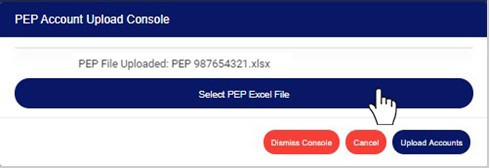
After selecting a file from your computer, the name of the selected file will be added to the upload console. See Fig. 4.7j for an example of what the PEP Account Upload Console looks like after selecting a file for upload.
Fig 4.7j
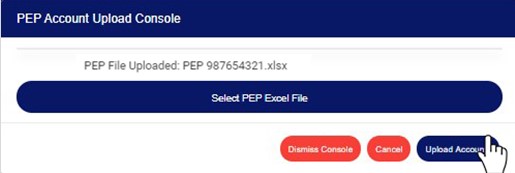
STEP 8: Click on “UPLOAD ACCOUNTS” to upload details from the selected file on the Compliance Planet software. This button is at the bottom-right corner of the console. See fig. 4.7k below for an example.
Fig 4.7k
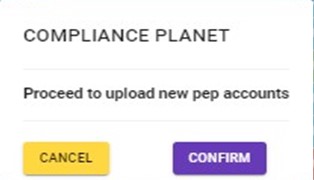
This displays a confirmation console as in Fig. 4.7l below.
Fig 4.7l
Click on “CANCEL” to go back to the console.
Click on “CONFIRM” to confirm that you want to upload the PEP Accounts. By clicking on CONFIRM, a notification will be displayed at the top of the console. See the notification in Fig. 4.7m below.
Fig 4.7m
Click on the “DISMISS CONSOLE” button to close the console. By clicking this button, the page will close, but you can return to it by clicking on Bulk Upload. See the button in Fig. 4.7j above.
Click on “CANCEL” to cancel the operation. See the button in Fig. 4.7j above.
The Compliance Planet enables you to manually schedule your ADRAPS KYC report in advance and download it once it has been fully processed. Here is how to do this.
NOTE: Only the person(s) assigned the right to ‘Process KYC Report’ can carry out these operations.
Step 1: From the app dashboard, click on “REGULATORY REPORTS” as in Fig. 5.3a below.
Fig 5.3a
STEP 2: Click ‘CBN ADRAPS KYC’ on the drop-down list and display the KYC page as in Fig. 5.3b below.
Fig 5.3b
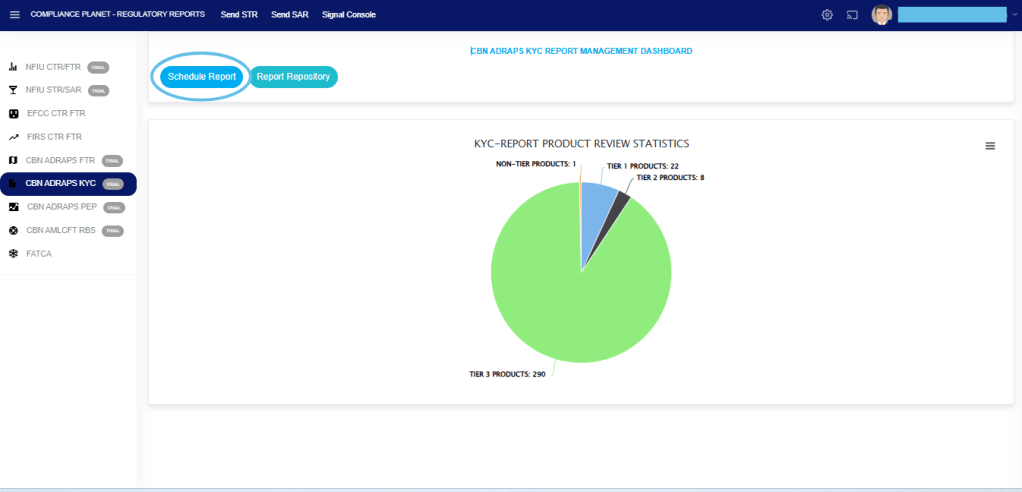
STEP 3: From the menu, click “Schedule Report” as in Fig. 5.3c below.
Fig 5.3c
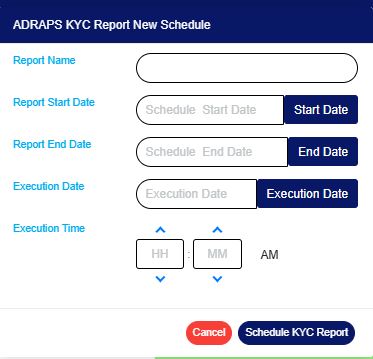
This displays a MANUAL KYC Scheduler console, as in Fig. 5.3d below.
Fig 5.3d
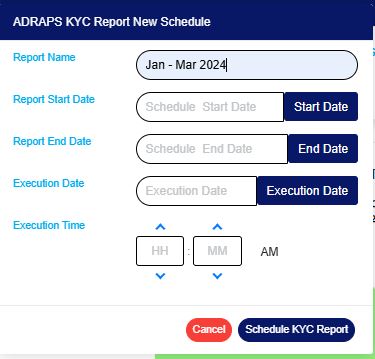
STEP 4: Fill in the name of your report in the “REPORT NAME” box. The report name should be any title of your choice for easy identification. See Fig. 5.3e for an example.
Fig 5.3e
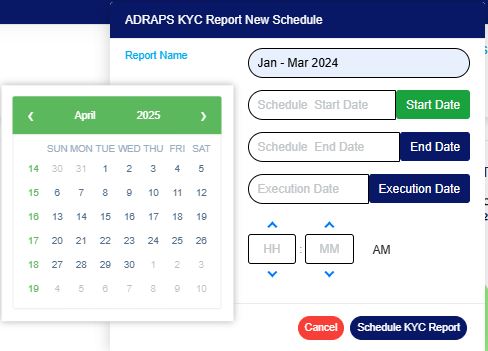
STEP 5: Click on the “REPORT START DATE” button to select the date that begins the period you want to generate an ADRAPS KYC report from the calendar, as shown in Fig. 5.3f.
Fig 5.3f
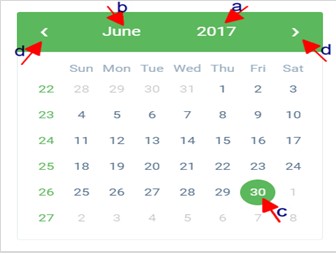
Look at the arrows labelled a-d in Fig. 5.3g below to study the calendar.
Click on the given year to change it to your year of choice.
Click on the given month to change it to your month of choice.
Then, click on the date of the month.
You can also click on the angle brackets on the calendar [ ‘<’ or ‘>’ ] to go backward or forward.
Fig 5.3g
STEP 6: Click the “REPORT END DATE” button to select the date ending the period you want to generate an ADRAPS KYC report from a calendar, as shown in Fig. 5.3h. The calendar operates similarly to the one shown in Fig. 5.3g above.
Fig 5.3h
STEP 7: Click the “EXECUTION DATE” button to select the date you want your ADRAPS KYC report processed from a calendar, as shown in Fig. 5.3i. The calendar also functions similarly to the one shown in Fig. 5.3g above.
Fig 5.3i
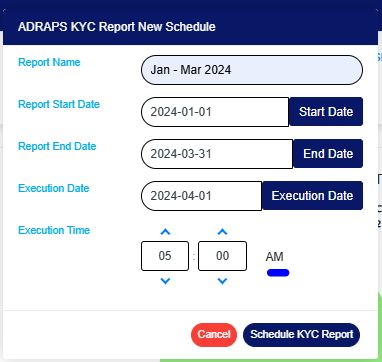
STEP 8: Set your report’s EXECUTION TIME by filling in the ‘hour’ and the ‘minute’ you want the report to be processed. There’s a button next to the hour and minute boxes used for switching between AM and PM. See an example in Fig. 5.3j.
Fig 5.3j
STEP 9: Click ‘SCHEDULE KYC REPORT’ to create your report or ‘CANCEL‘to close the console. These buttons are at the bottom-right corner of the console. See them in fig. 5.3j above.
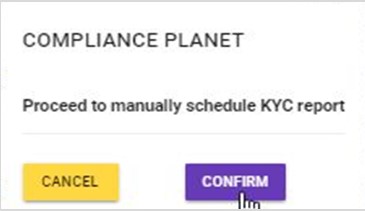
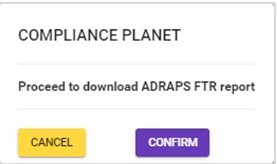
Click on the ‘SCHEDULE KYC REPORT’; a confirmation console will display, as shown in Fig. 5 .3k below. Click on ‘CONFIRM’ to proceed with your operation to schedule the report or ‘CANCEL’ to go back to the scheduler.
The ‘notification’ section of the STR/SAR on the planet handles the instant notification of the compliance team of a bank, upon the identification of a suspicious transaction or activity. Follow these steps to send a STR Notification
STEP 1: Click ‘Send STR’ as in fig. 6.2.1a below
(fig. 6.2.1a)
Clicking on ‘SEND STR NOTIFICATIONS’ displays a console as in fig. 6.2b. It is the STR Notification console. The STR notification console requires information about the suspicious transaction.
(fig. 6.2.1b)
STEP 2: Type in the Account number involved in the transaction. See an instance in fig. 6.2.1c. Kindly note that the account number must be valid.
(fig. 6.2.1c)
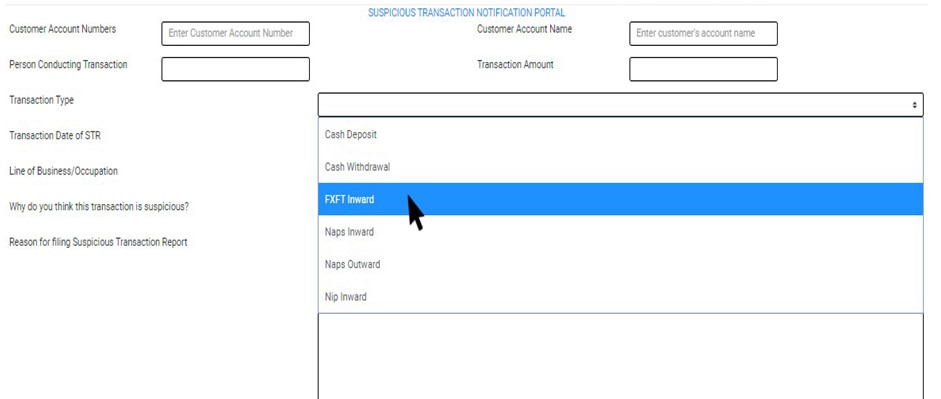
STEP 3: Fill in all other information about the transaction in the editor provided on the console. See an example in fig. 6.2.1d
(Fig. 6.2.1d)
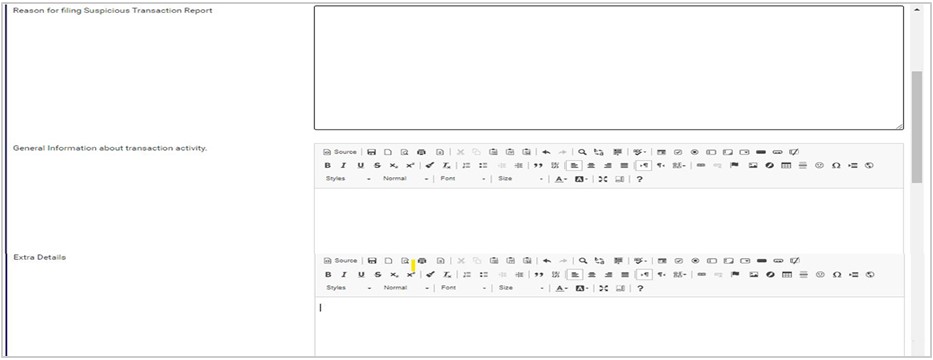
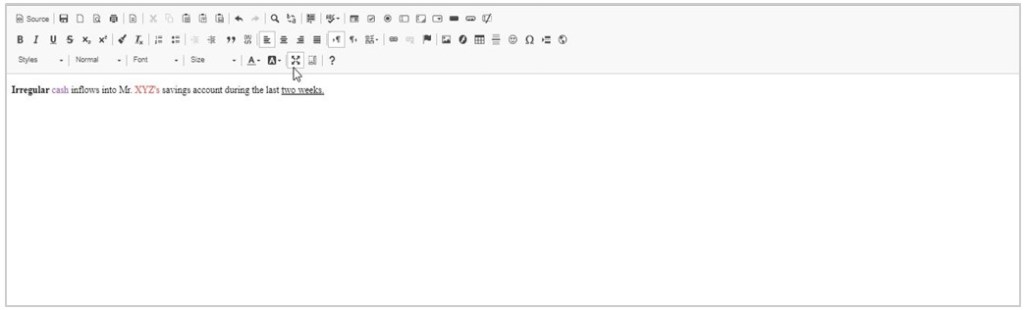
To fill the general information about the transaction and extra details section, there is a rich text editor which allows plain texts, characters and special features like tables, font style, colour, size, alignment, etc to format and customize the texts in your notification. See this feature in fig. 6.2.1e for an example.
(fig. 6.2.1e)
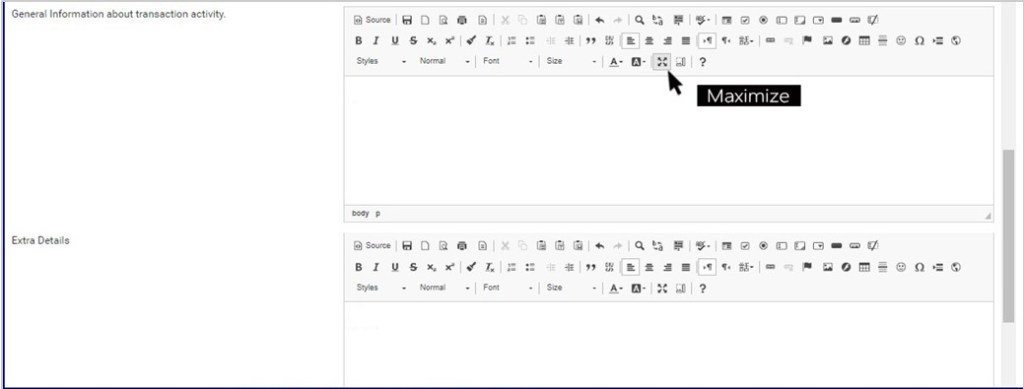
Among the features on the toolbar of the editor, there is a button that can maximize the editor to full screen. This button also minimize the editor’s view back to the console. See this button in fig. 6.2.1f and see fig. 6.2.1g for an example of a full screen view.
(fig. 6.2.1f)
(fig. 6.2.1g)
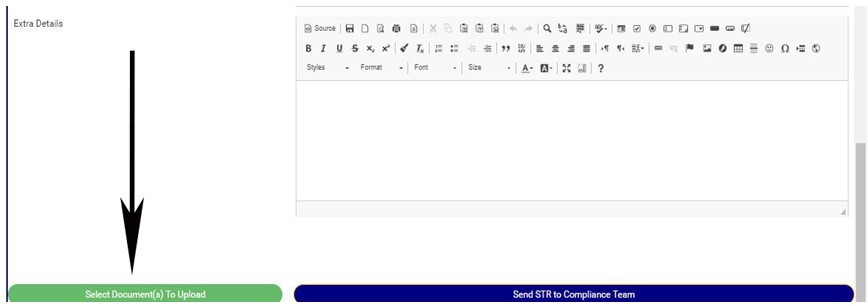
STEP 4: Click on “Select Document(s) to Upload” button to add supporting documents to the STR notification as shown in Fig.6.2.1h below
(fig. 6.2.1h)
Click on ‘SEND STR TO COMPLIANCE TEAM’ to send the information to compliance desk. This button is at the bottom-right corner of the console. Check out this buttons in fig. 6.2.1h above.
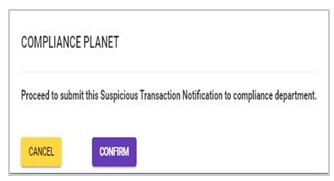
A confirmation console will be displayed when you click on ‘SEND REPORT TO COMPLIANCE TEAM’. Click on CONFIRM to proceed or click on Cancel to go back to the notification console
This operation involves downloading foreign transaction reports. The processes and operations outlined in this report are similar to those described in the CTR FTR Report. Here is how to schedule and download ADRAPS FTR:
NOTE: Only person(s) profiled and assigned the right to ‘Process FTR Reports’ will be able to carry out this operation.
Step 1: From the app dashboard, click on “REGULATORY REPORTS” as in Fig. 3.4a below.
Fig 3.4a
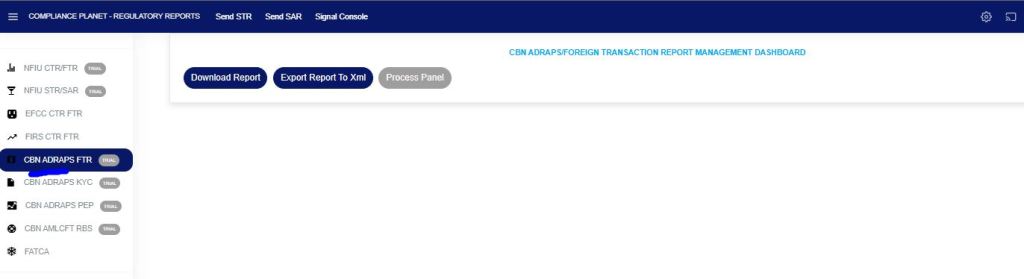
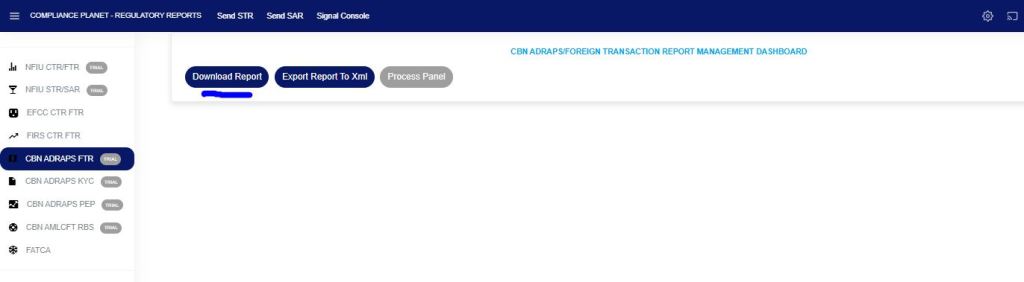
Step 2: Click on “CBN ADRAPS FTR” on the drop-down list, and this displays the ADRAPS FTR page as in Fig. 3.4b below.
Fig 3.4b
Step 3: From the menu, click “Download Report” as shown in Fig. 3.4c below.
Fig 3.4c
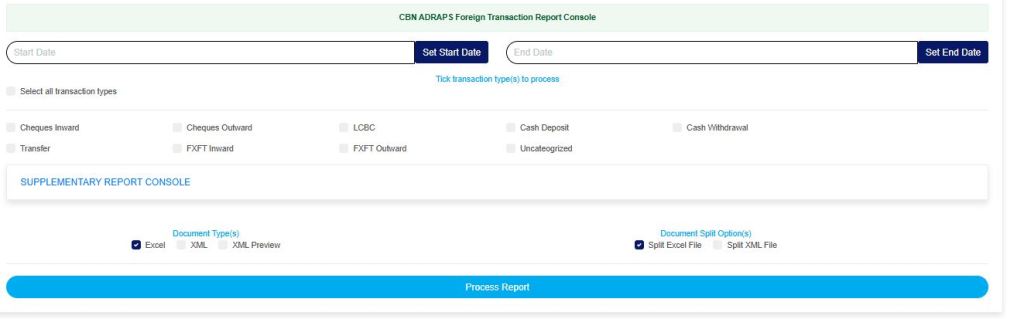
A console will be displayed on the screen as in Fig. 3.4d below, for you to fill in the details and parameters for your report.
Fig. 3.4d
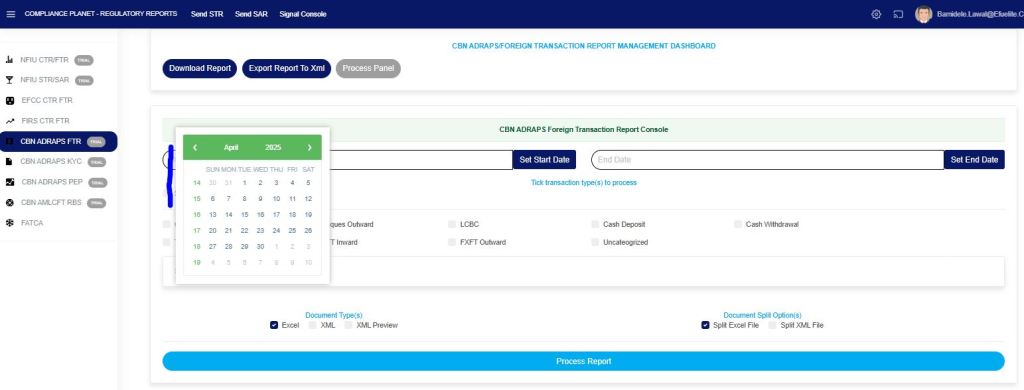
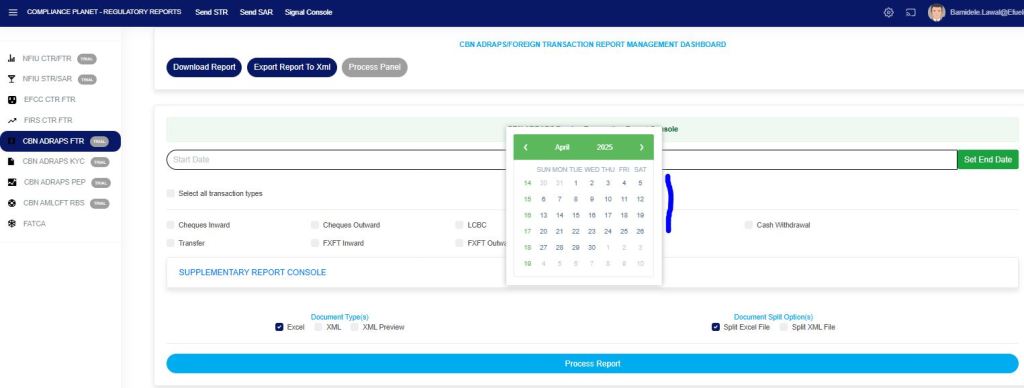
STEP 4: Click on “SET START DATE“and“SET END DATE” to specify the beginning and the end of the period (respectively) for which report(s) to be generated. A calendar drops below the date box, like in Fig. 3.4e and Fig. 3.4f.
Fig. 3.4e
Fig 3.4f
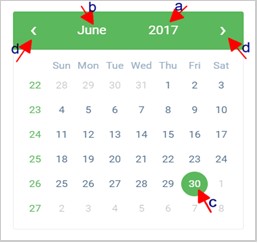
Take a look at the arrows labelled a to d in Fig. 3.4g to study the calendar.
Click on the given year to change it to your year of choice.
Click on the given month to change it to your month of choice.
Then, click on the date of the month.
You can also click on the angle brackets on the calendar [ ‘<’ or ‘>’ ] to go backward or forward.
Fig. 3.4g
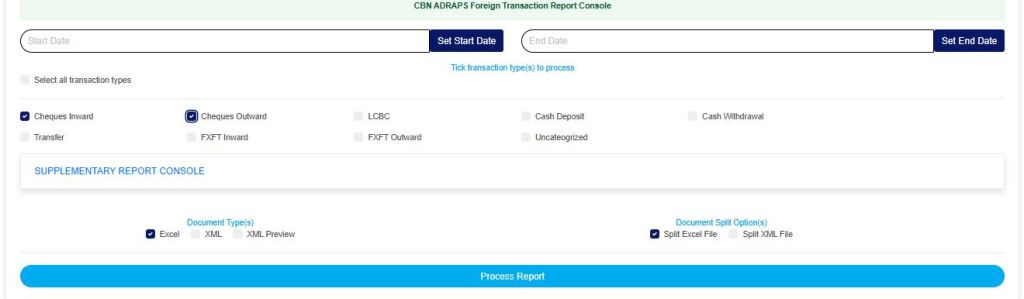
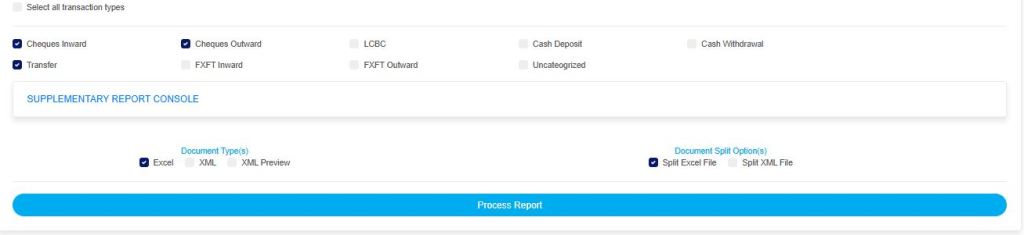
STEP 5: Select the transaction(s) you wish to process by marking their checkboxes. You can select one or more, as in Fig. 3.4h.
Fig 3.4h
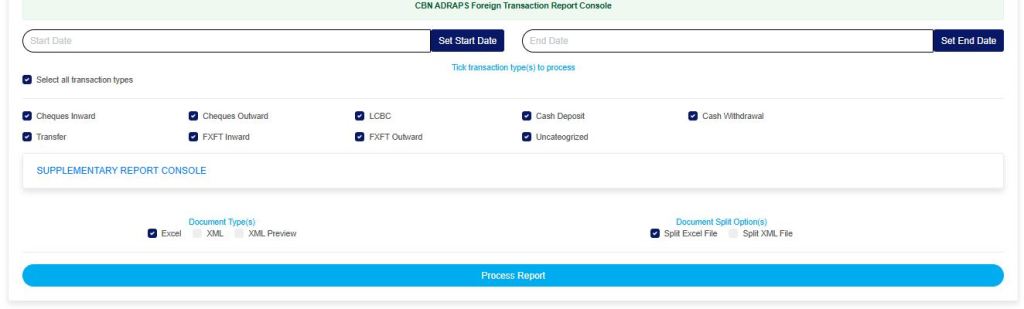
You can select all transactions by clicking on ‘Select all transaction types’ as in Fig. 3.4i for processing at once.
Fig 3.4i
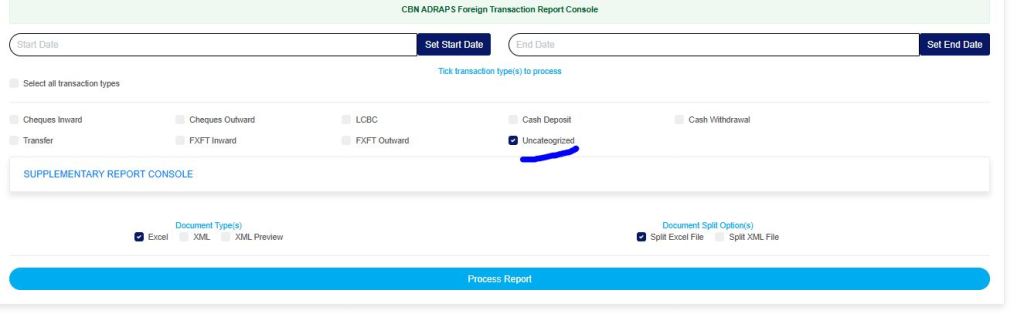
You can also select the “Uncategorized” option, which will give you all reportable transactions (irrespective of the transaction type) for the specified date range, as shown in Fig. 3.4j below. This type of report does not include external customer data.
Fig 3.4j
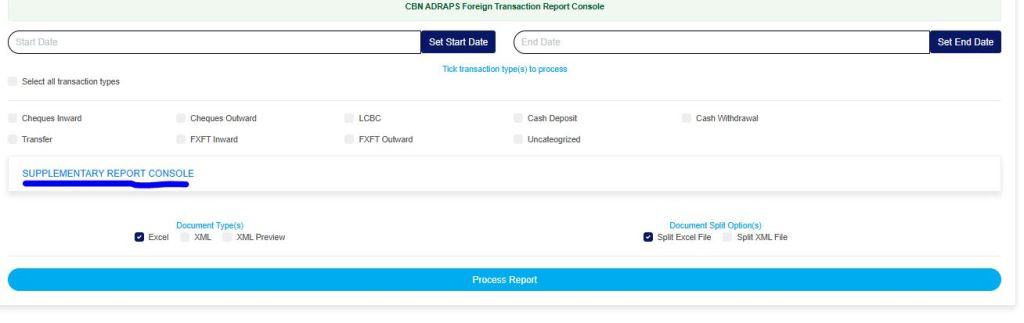
STEP 6: Click on ‘SUPPLEMENTARY REPORT CONSOLE’ as in Fig 3.4k below to download the report on the Specific account number(s) only within the period selected.
Fig 3.4k
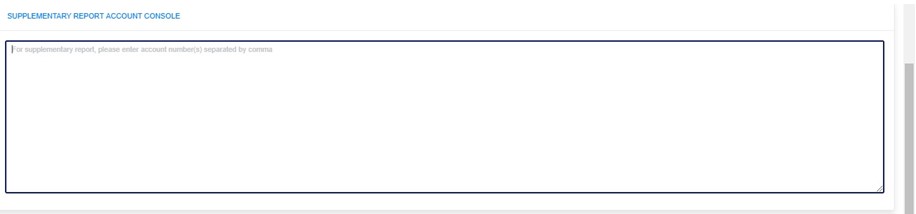
This displays a text box where the account number(s) are to be entered. Note that each account number is to be separated by a comma. See an example in Fig. 3.4l below.
Fig 3.4l
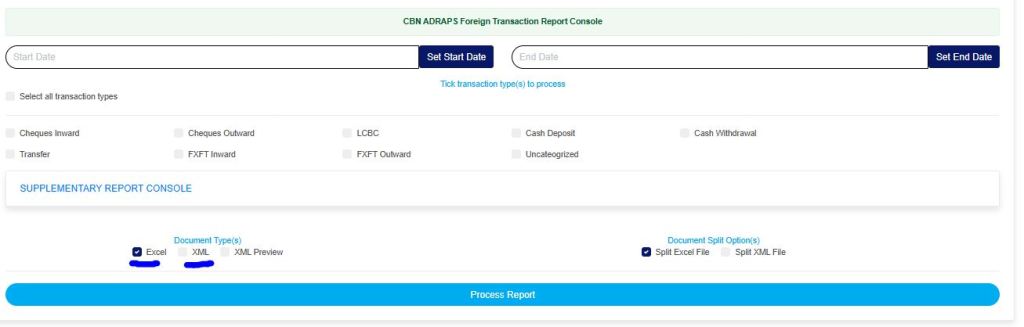
STEP 7: Select the document type; there are two options: Excel or XML. So, tick either of the two or select both. See Fig. 3.4m for an example.
Fig 3.4m
STEP 8: Tick the document split option(s). This step is optional. It all depends on whether you want to combine all the selected FTRs that you wish to process into one file or produce the reports for each FTR in separate files. By clicking on the document split options for either the Excel file or the XML, the software will generate individual reports for the different transaction types. For instance, in the fig. 3.4n, marking the split option will result in the planet generating each ADRAPS FTR file separately. Reports can be exported in Excel format and XML format without any additional steps.
Fig 3.4n
STEP 9: Click on “Process Report” to generate files as in Fig. 3.4o below.
Fig 3.4o
To make changes to your report settings on the ADRAPS FTR Console, click on Cancel. This will take you back to the scheduler.
Click on “Confirm” to confirm your answer.
Fig 3.4p
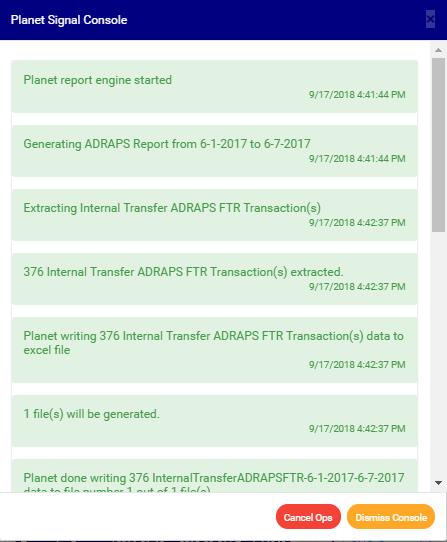
The signal console shows ongoing processes. An example of a signal console is fig. 3.4q below.
Fig 3.4q
You can terminate unfinished processes by clicking CANCEL OPS.
To minimize the signal console, click on “DISMISS CONSOLE“. This button is next to the CANCEL OPS button.
The Compliance Planet enables you to schedule your ADRAPS PEP report in advance. You can manually schedule and download ADRAPS PEP reports. Here is how to do this:
NOTE: Only the person(s) assigned the right to ‘process PEP Report’ can carry out these operations
STEP 1: From the app dashboard, click on “REGULATORY REPORTS” as in Fig. 4.3a below.
Fig 4.3a
STEP 2: Click ‘CBN ADRAPS PEP’ on the drop-down list and display the PEP page as in Fig. 4.3b below.
Fig 4.3b
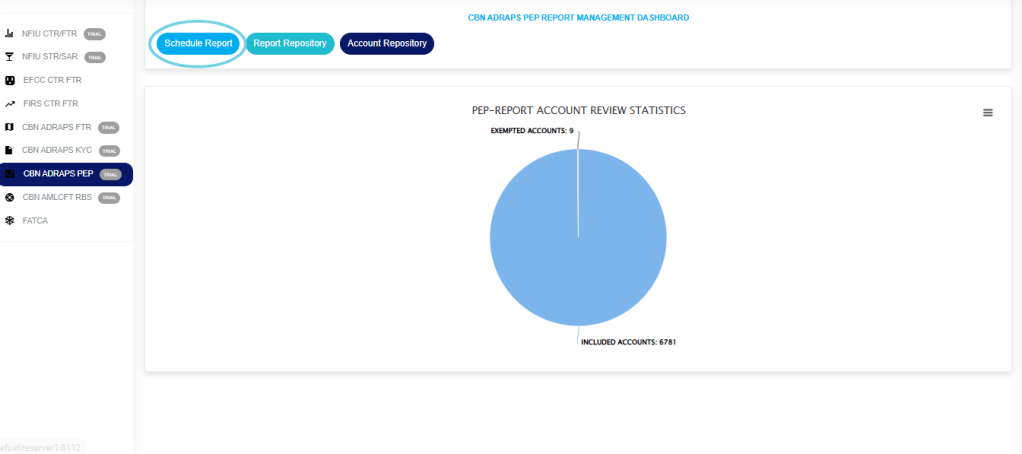
STEP 3: From the menu, click “Schedule Report” as in Fig. 4.3c below.
Fig 4.3c
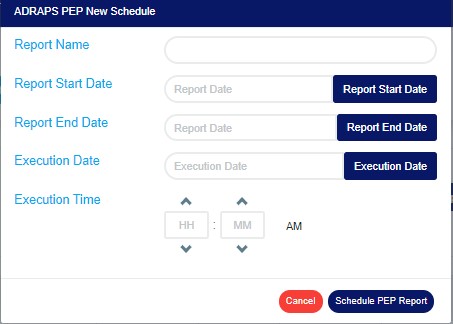
This displays an ‘ADRAPS PEP Scheduler’ as in Fig. 4.3d below.
Fig 4.3d
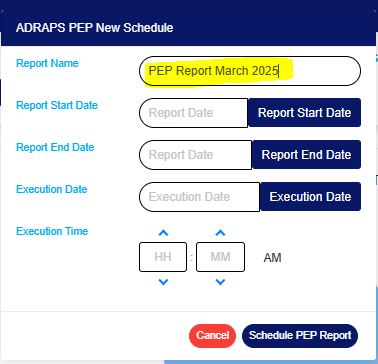
STEP 4: Fill in the name of your report in the “REPORT NAME” box. The report name should be any title of your choice for easy identification. (See Fig. 4.3e for an example)
Fig 4.3e
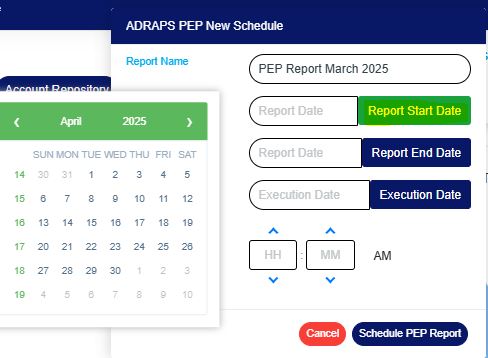
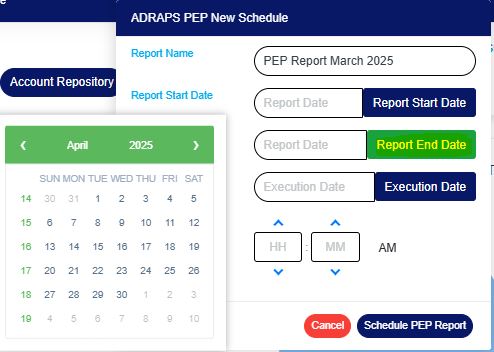
STEP 5: Click the “REPORT START DATE” and “REPORT END DATE” buttons to select the start date and end date, respectively, for generating the report. See examples in Fig. 4.3f and Fig. 4.3g below.
Fig 4.3f
Fig 4.3g
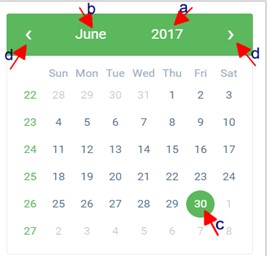
Look at the arrows labelled a to d in Fig. 4.3h to study the calendar.
Click on the given year to change it to your year of choice.
Click on the given month to change it to your month of choice.
Then, click on the date of the month.
You can also click on the angle brackets on the calendar [ ‘<’ or ‘>’ ] to go backward or forward.
Fig 4.3h
STEP 6: Click on the “EXECUTION DATE” button to select the date you want your ADRAPS PEP report processed from a calendar, as shown in Fig. 4.3i below. The calendar operates similarly to the one shown in Fig. 4.3h above.
Fig 4.3i
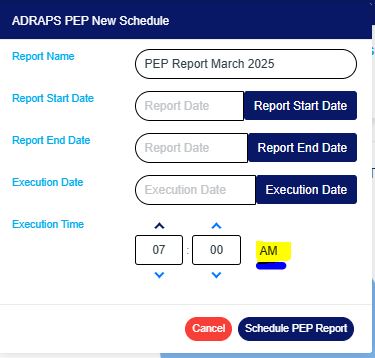
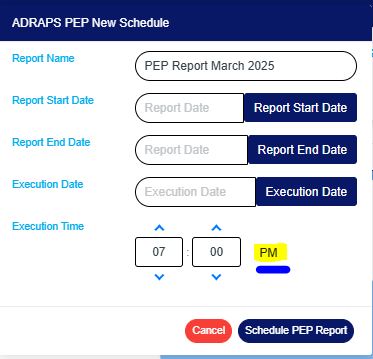
STEP 7: Set your report “EXECUTION TIME” by filling in the ‘hour’ and the ‘minute’ you want the report to be processed. There is a button next to the hour and minute boxes used for switching between AM and PM. See examples in Fig. 4.3j and 4.3k below.
Fig 4.3j
Fig 4.3k
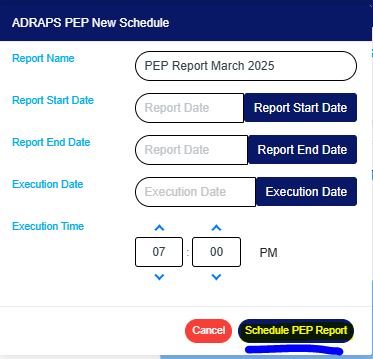
STEP 8: Click ‘SCHEDULE PEP REPORT’ to create your report. Click “CANCEL” to close the console. These buttons are at the bottom-right corner of the console. See them in fig. 4.3l below.
Fig 4.3l
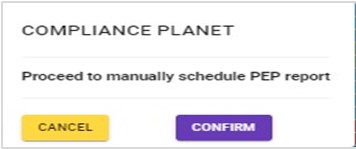
Click on ‘SCHEDULE PEP REPORT’ as in Fig. 4.3l above. A confirmation console will be displayed. Click on “CONFIRM” to confirm your request to schedule the report. Click “CANCEL” to go back to the scheduler. See Fig. 4.3m below for an example of the confirmation console.