This feature houses notifications generated by the Compliance planet software when a report is processed successfully. These notifications are also sent to the mail of the user. This section provides a guide on how to perform operations pertaining to notifications on the Compliance Planet software, with step-by-step instructions and pictures.
Notification Operations
Operations here include viewing and deleting notifications. Here is how to make use of the features.
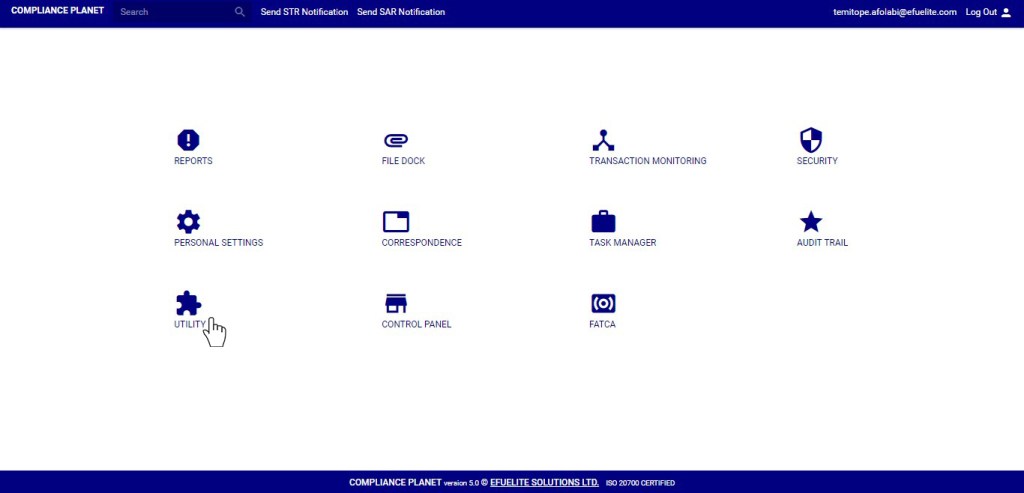
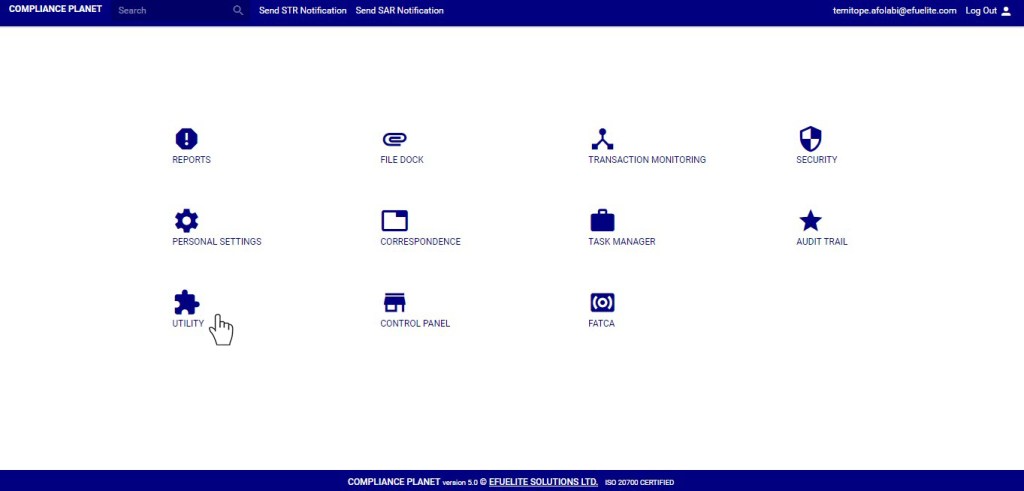
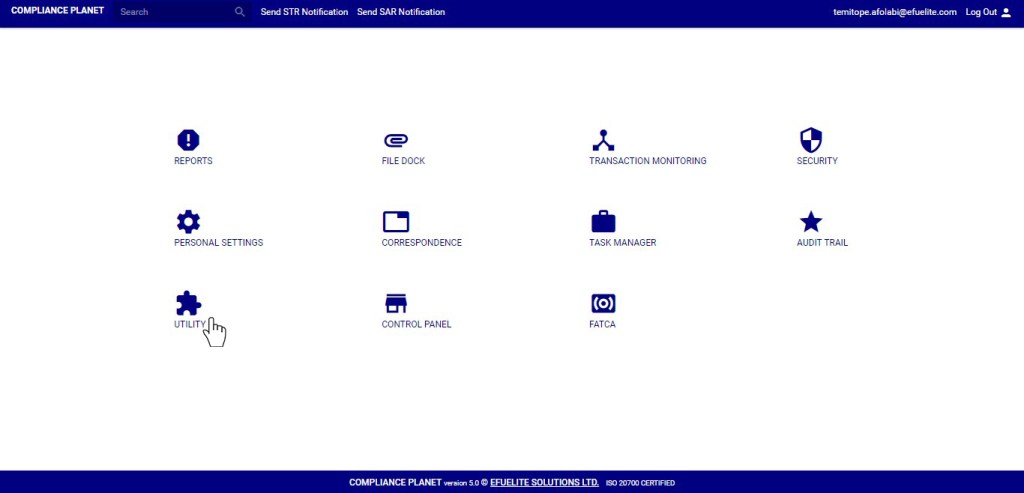
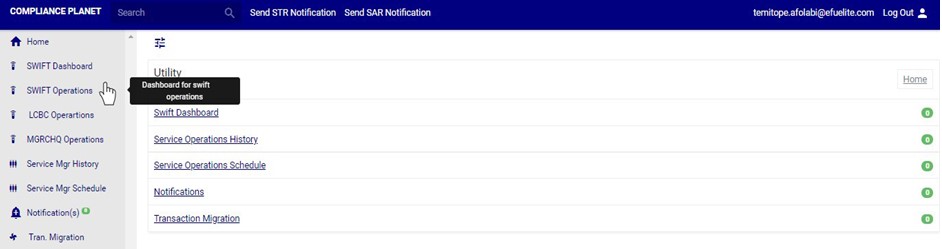
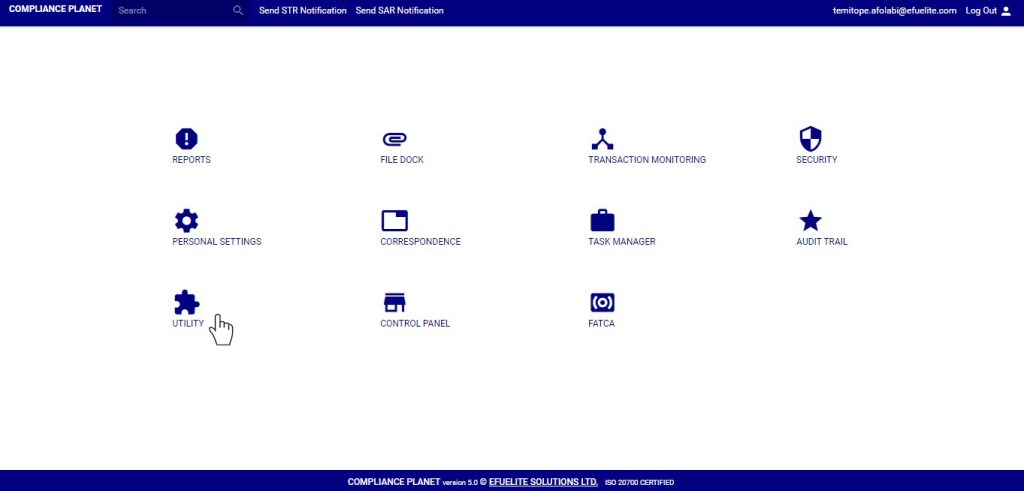
From the main dashboard, click ‘UTILITY’.
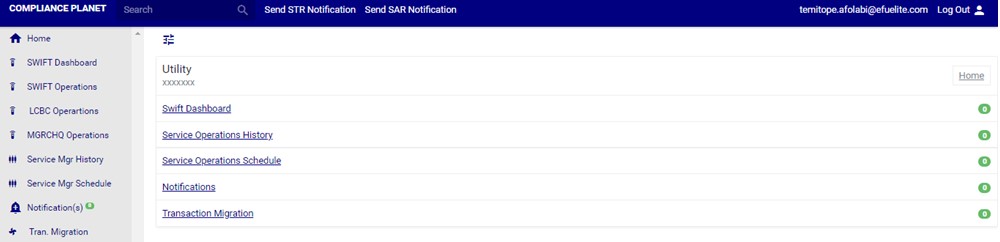
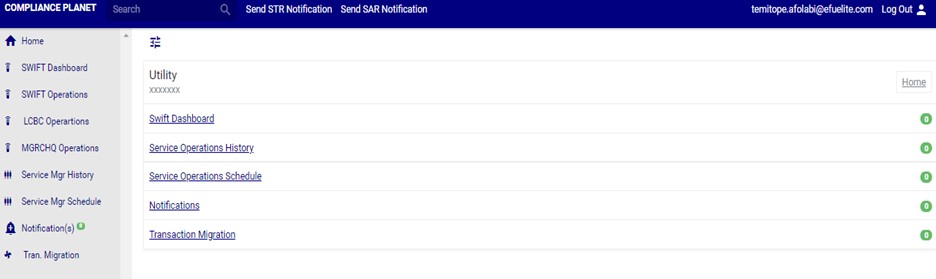
This will display the ‘Utility’ home page. See fig. 35.1b below for an example of the home page.
(fig. 35.1b)
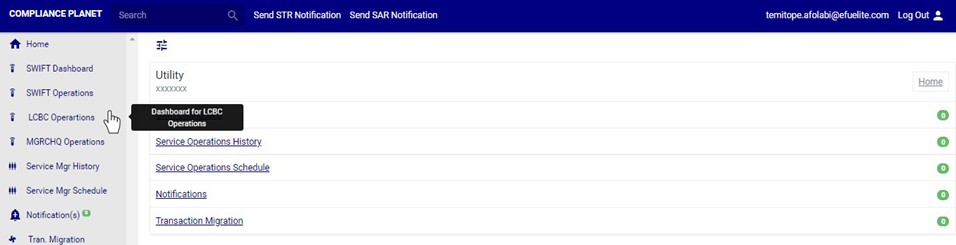
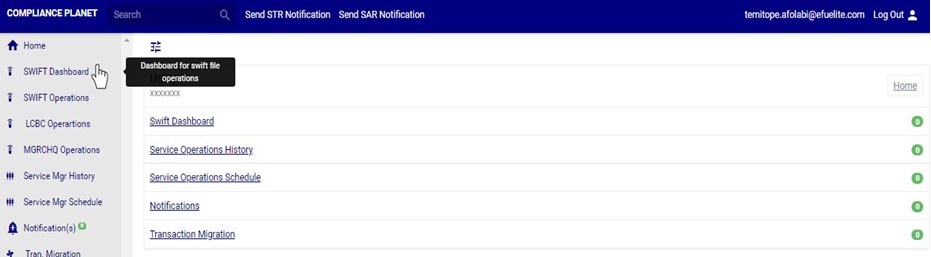
Click on ‘Notification’ on the left hand side menu as in fig. 35.1c or click ‘Notifications’ on Utility home page.
(fig. 35.1c)
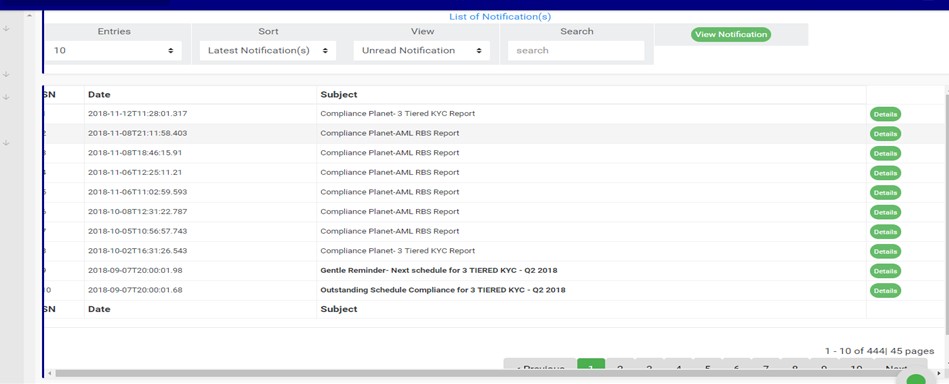
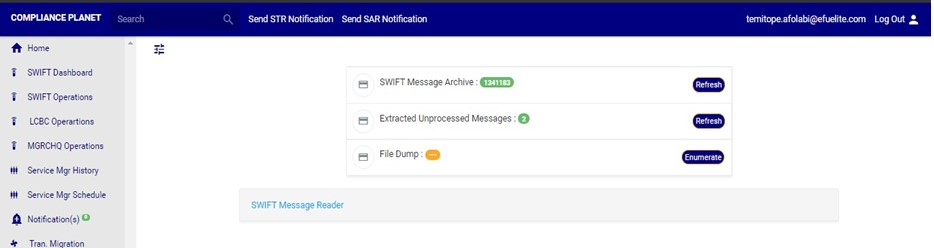
This will display the notifications page. See fig. 35.1d for an example of the page.
(fig. 35.1d)
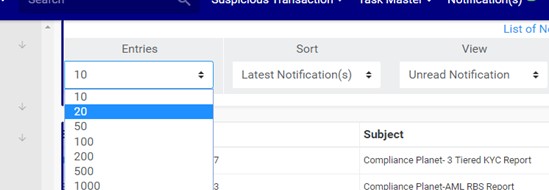
Click on the ‘entries’ box as in fig. 35.1e to adjust the number of notifications you want to see per page.
(fig. 35.1e)
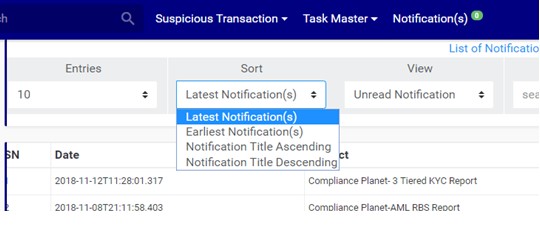
You can sort the notifications to be seen from the latest notification (oldest notification) to the earliest notification (newest notifications) or vice-versa. Specify the order of the list by clicking on the ‘Sort’ box as in fig. 35.1f. The default view is from the latest to the earliest.
(fig. 35.1f)
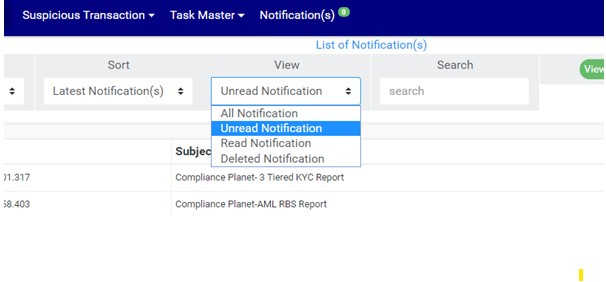
Select the notifications to be displayed by clicking the ‘View’ box as in fig. 35.1g. The categories of notifications available are; Unread notification, Read notification, Deleted notification and All notifications. The Unread category is the default view on landing on the page.
(fig. 35.1g)
After selecting the category you want to see, click on ‘View Notification’ as in fig. 35.1h.
(fig. 35.1h)
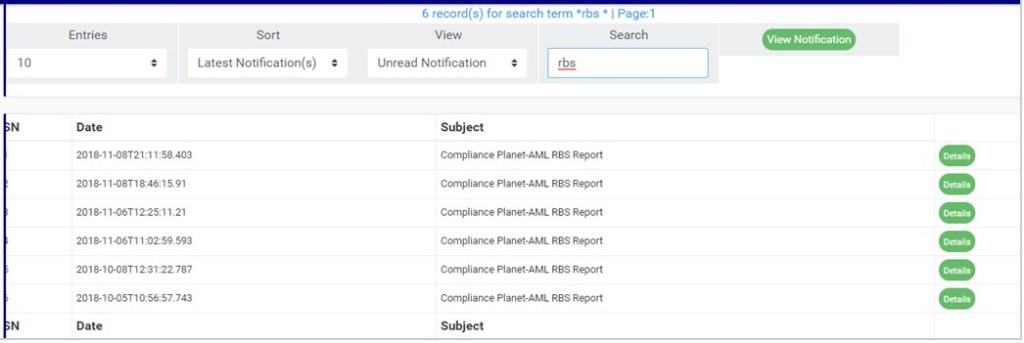
Search for a notification or a set of notifications by typing a search term in the ‘Search’ box. Search results are displayed in real time. See fig. 35.1i for an example of a search.
(fig. 35.1i)
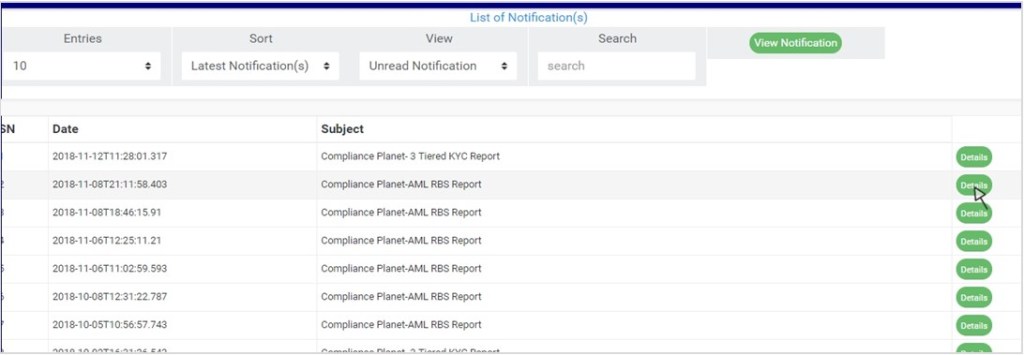
Each notification has a ‘Details’ button that shows details of the message conveyed by the notification. Click on ‘Details’ as in fig. 35.1j to see a notification message.
This section provides a guide on how to perform operations pertaining to letter of Credit Bill for Collection (LCBC), with step-by-step instructions and pictures. See section 2.1.14 for notes on LCBC.
Note: Only person(s) assigned right to ‘view LCBC transactions’ will be able to carry out this operation(s)
From the main dashboard, click ‘Utility’ as in fig 32.0a below
Click on ‘LCBC Operations’ on the on the left hand side menu as in fig. 32.0b.
(fig. 32.0b)
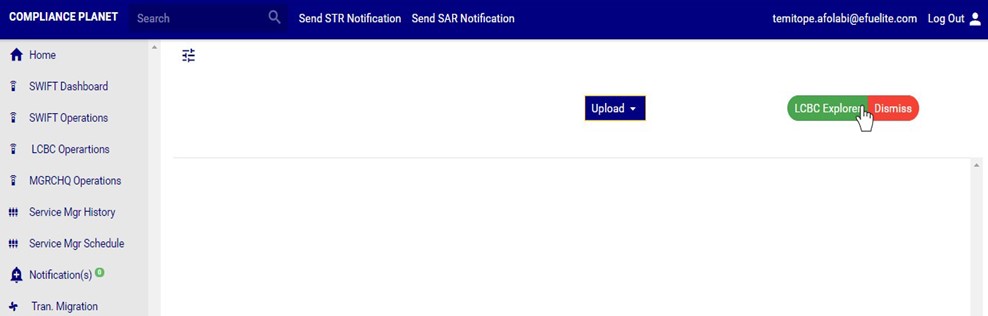
This will display a LCBC operations page as in fig. 32.0c below
(fig. 32.0c)
How to View LCBC Transaction Records
Note: Only person(s) assigned right to ‘view LCBC transactions’ will be able to carry out this operation(s)
STEP1: Click on ‘LCBCExplorer’ button on the LCBC Operation page. See Fig 32.2a for an example
(Fig. 32.2a)
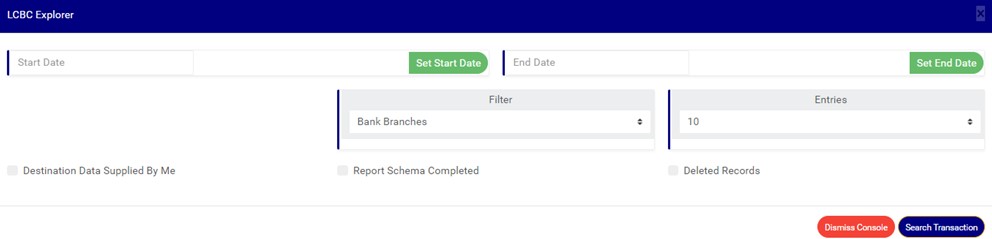
Clicking on the ‘LCBC Explorer’ button will display a ‘LCBC Explorer’ console as in Fig 32.2b below
(Fig. 32.2b)
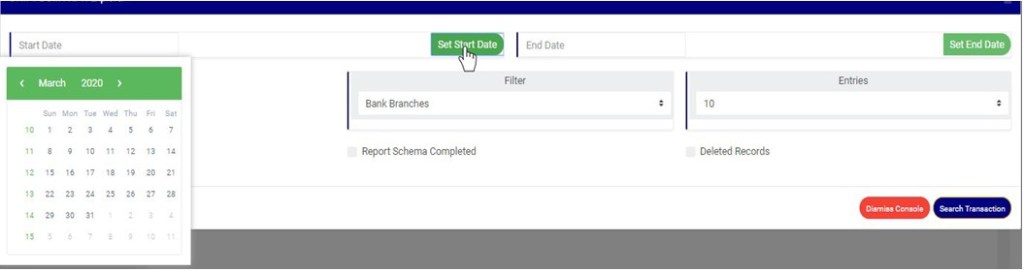
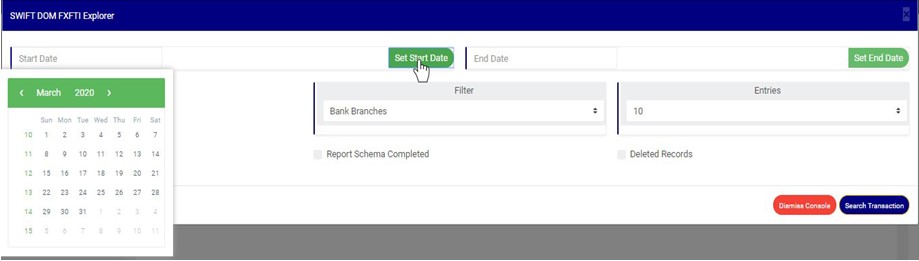
STEP 2: Click on SET START DATE and SET END DATE to specify the date range to be covered. See an example in Fig 32.2c below
(fig. 32.2c)
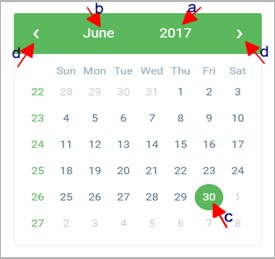
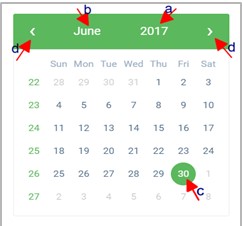
Take a look at the arrows labelled a to d in fig. 32.2d to study the calendar.
Click on the given year to change it to your year of choice.
Click on the given month to change it to your month of choice.
Then, click on the date of the month.
You can also click on the angle brackets on the calendar [ ‘<’ or ‘>’ ] to go backward or forward.
(fig. 32.2d)
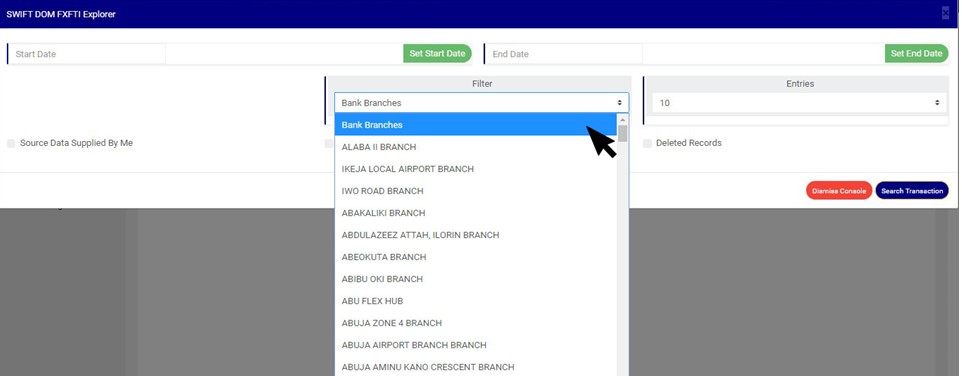
STEP 3: Click on the ‘filter’ box to select a bank branch. (See the example in fig. 32.2e). If you want to see the transactions for all branches, select bank branches. It is the first option on the filter list.
(Fig. 32.2e)
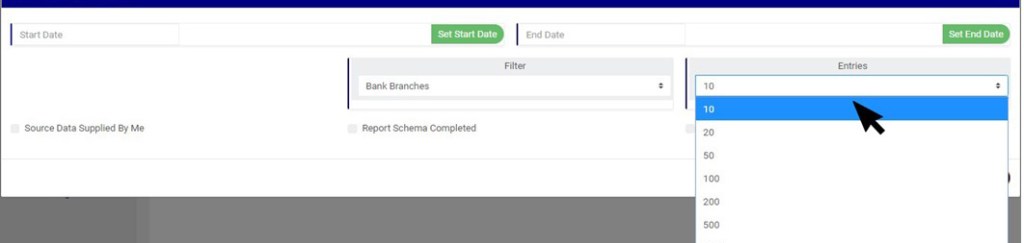
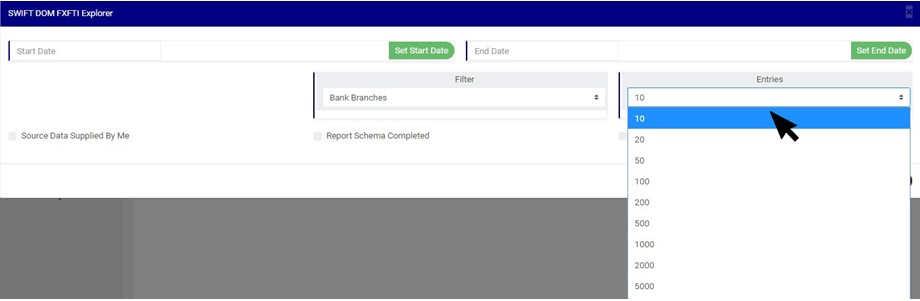
STEP 4: Click ‘entries’ box to change the number of transactions you want to see per page. (See the drop-box in fig. 32.2f. below).
(Fig. 32.2f)
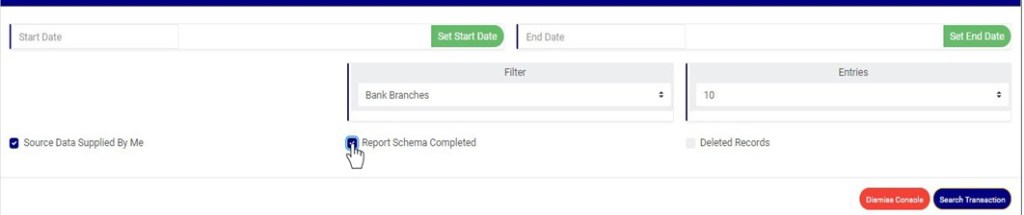
STEP 5: Tick the any of the checkbox as shown in fig 32.2g to further specify the transactions you want to view
Select ‘Source Data Supplied by Me’ to see list of LCBC transactions whose source data was supplied by you
Select ‘Report Schema Completed’ to see list of LCBC transactions whose report data is complete
Select ‘Deleted Records’ to see list of LCBC transactions that have been deleted.
(Fig. 32.2g)
NOTE: Leave all checkboxes unchecked to see list of all LCBC transactions
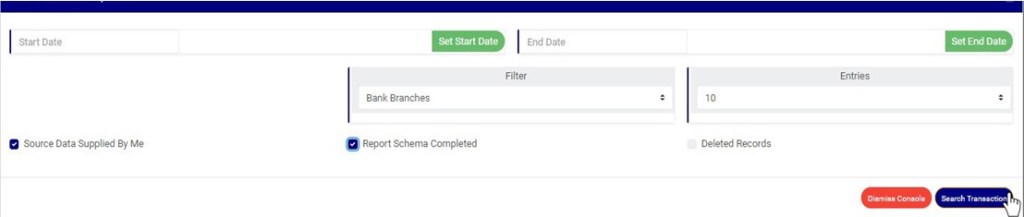
STEP 6: Click ‘Search Transaction’ as shown in fig 32.2h
(Fig. 32.2h)
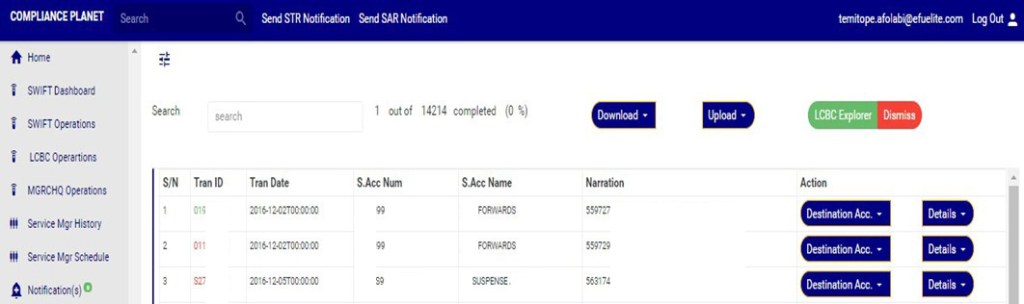
This will display a page as in Fig 32.2i below
(Fig. 32.2i)
Transactions with transaction ID coloured green signify that the schema for the transaction is complete.
Transactions with transaction ID coloured red signify that the schema for the transaction is incomplete.
How to Carry Out Destination Account Operations on LCBC transaction
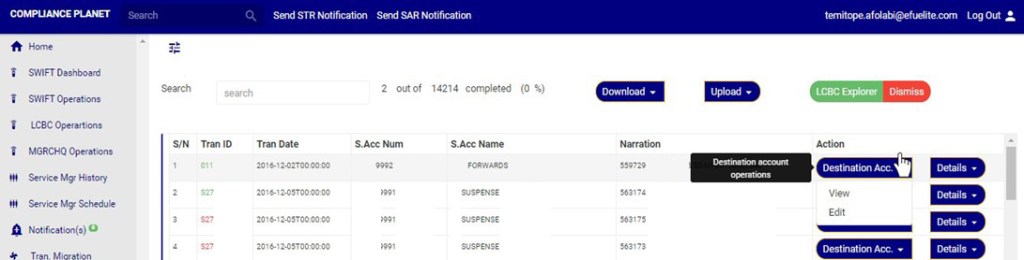
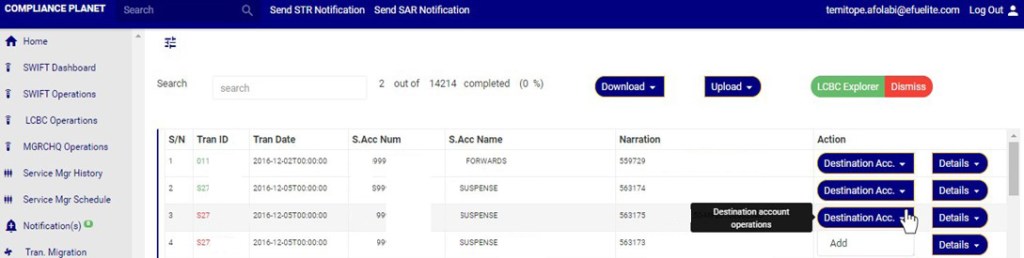
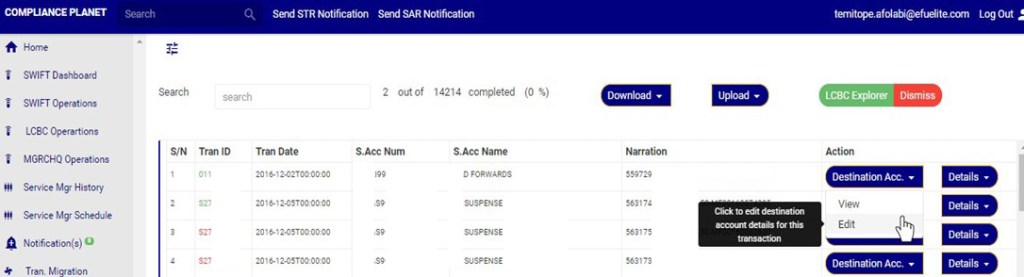
Click on ‘Destination Acc.’ button on the Action column, this will display a drop down with option to ‘view’ and ‘Edit’ if the schema for the transaction is complete. However, if the schema is incomplete, the dropdown will have an option to ‘ADD’ new destination account. See an example in fig 32.2j and 32.2k below.
(Fig. 32.2j)
(Fig. 32.2k)
A. How to View and Delete ‘Destination Account’ Data Attached to An LCBC Transaction
This option is available if a Destination account has been added to the LCBC transaction.
Note: You need to be assigned right to ‘view LCBC transactions’ and ‘Screen Edit LCBC transactions’ to be able to delete attached destination account data.
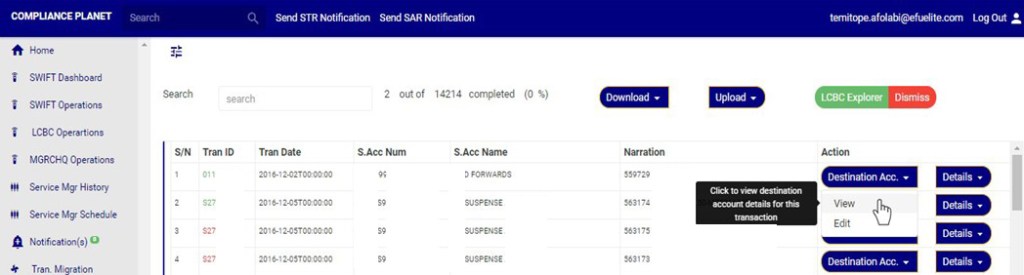
Click ‘Destination Acc.’ Button on the action column, this will display a dropdown as in fig 32.1l below.
On the destination Acc. Dropdown, click on ‘VIEW’ to see the destination account details for this transaction. See this in fig 32.2l
(Fig. 32.2l)
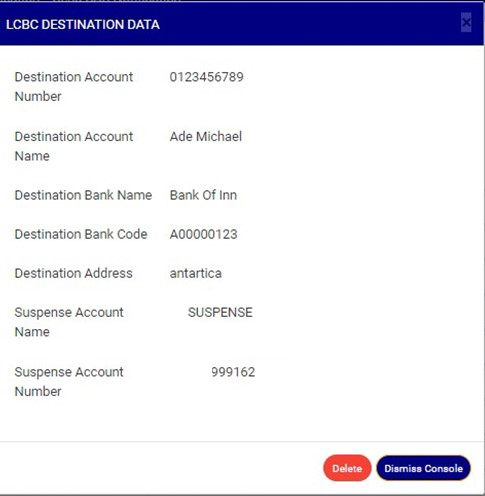
This will display a ‘LCBC DESTINATION DATA’ console as in in fig 32.2m below.
(Fig. 32.2m)
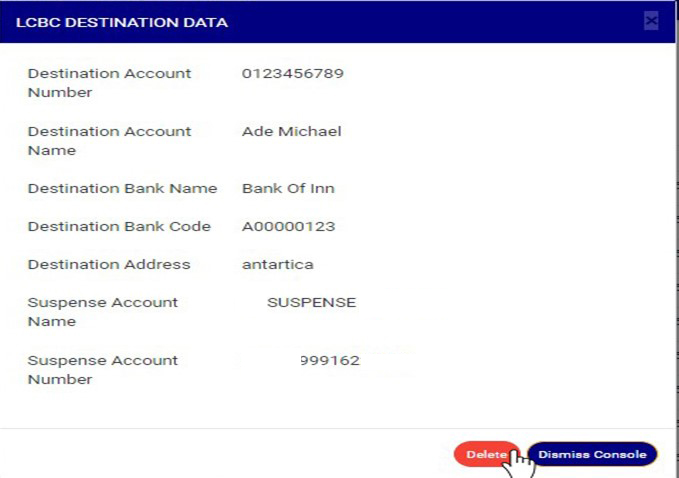
Click on ‘Dismiss console’ to close the console or click ‘Delete’ to delete the destination account data. See fig 32.2n
(Fig. 32.2n)
Clicking delete will display a confirmation console as in Fig 32.2o below. Click ‘confirm’ to continue or ‘cancel’ to dismiss the operation.
(Fig. 32.2o)
A notification will be displayed at the top of the page when delete is successful. See Fig 32.2p below
(Fig. 32.2p)
B. How to Edit ‘Destination Account’ Data Attached to a LCBC Transaction
This option is available only if there is a ‘destination account’ data attached to the LCBC transaction
Note: You need to be assigned right to ‘view LCBC transactions’ and‘Screen Edit LCBC transactions’ to be able to Edit attached destination account data.
Click ‘Destination Acc.’ Button on the action column, this will display a dropdown as in fig 32.2q below.
Click on ‘Edit’ to modify Destination account for this transaction.as in fig 32.2q below
(Fig. 32.2q)
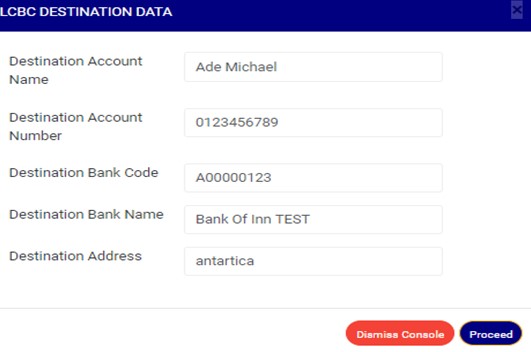
Clicking on ’Edit’ will display a console as in in fig 32.2r below.
(Fig. 32.2r)
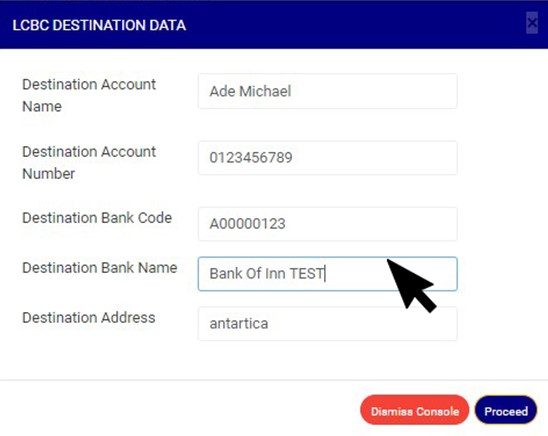
Click on any of the textboxes to edit the data as in fig 32.2s below
(Fig 32.2s)
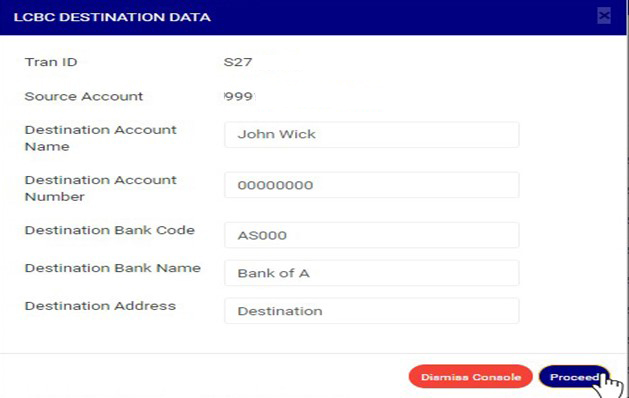
Click on ‘Dismiss console’ to close the console or click ‘proceed’ to save the data. See fig 32.2t
(Fig. 32.2t)
This displays a confirmation console as in Fig 32.2u below.
Click ‘confirm’ to continue or ‘cancel’ to dismiss the operation.
(Fig. 32.2u)
A notification will be displayed at the top of the page when edited destination account data is saved successfully. See Fig 32.2v below
(Fig. 32.2v)
C. How to Add ‘Destination Account’ to a LCBC Transaction
This Option is available when there is no Destination account data attached to the transaction
Note: You need to be assigned right to ‘view LCBC transactions’ and‘Screen Edit LCBC transactions’ to be able to add destination account data.
Click ‘Destination Acc.’ Button on the action column, this will display a dropdown as in fig 32.2w below.
On the Destination Acc. Dropdown, click on ‘add’ to add Destination account data to this transaction. This is shown in Fig 32.2w below
(FIG 32.2w)
Clicking on ’add’ will display a console as in in fig 32.2y below.
(Fig. 32.2y)
Click on any of the textbox to fill that field as in in fig 32.2z below.
(Fig. 32.2z)
Click on ‘Proceed’ to add the Destination account data or ‘dismiss console’ to dismiss the operation. See an example in Fig 32.2aa below
(Fig. 32.2aa)
Clicking on Proceed will display a confirmation console as in Fig 32.2ab below. Click on confirm to continue or cancel to dismiss the operation.
(Fig. 32.2ab)
A notification will be displayed at the Top when the destination account data is successfully added. See Fig 32.2ac below
(Fig. 32.2ac)
How to View LCBC Transaction ‘Account details’ and ‘Transaction details’
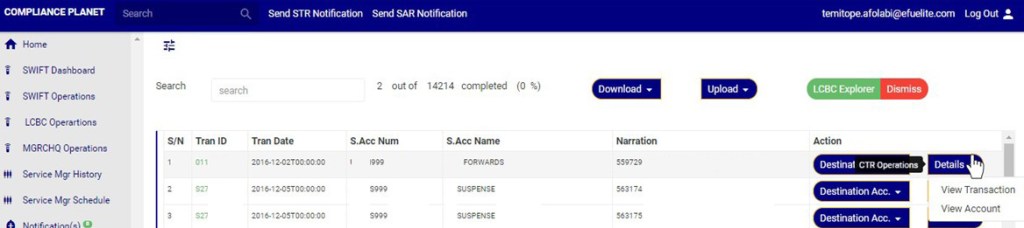
click on ‘Details’ button on the Action column, this will display a drop down with option to ‘VIEW Transaction’ and ’View Account’. See an example in fig 32.2ad
(Fig. 32.2ad)
A. How to View LCBC ‘Transaction details’
Note: You need to be assigned right to ‘view LCBC transactions’ to be able to carry out this operation
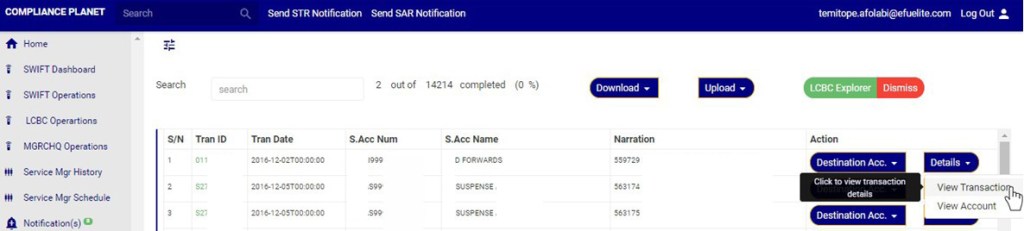
Click ‘Details.’ Button on the action column, this will display a dropdown as in fig 32.2ae.
Click on view transaction on the ‘Details’ dropdown’ as in fig 32.2ae below to see the Transaction details
(Fig. 32.2ae)
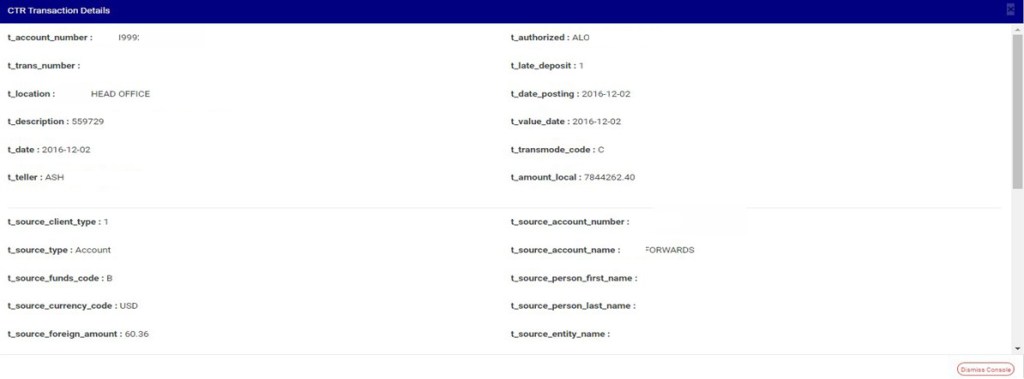
This displays a console as in fig 32.2af below
(Fig. 32.2af)
Click dismiss console to close the console
B. How to View LCBC Transaction ‘Account details’
Note: You need to be assigned right to ‘view LCBC transactions’ to be able to carry out this operation
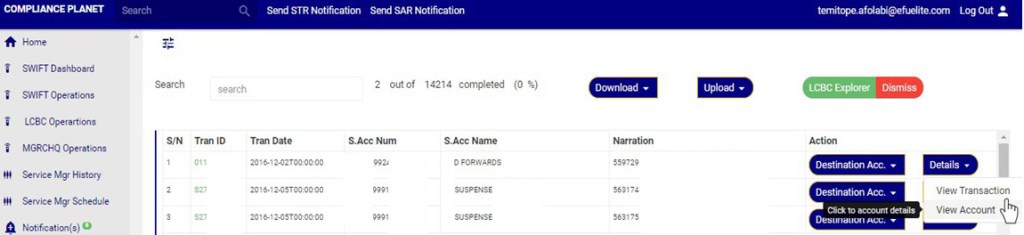
Click ‘Details.’ Button on the action column, this will display a dropdown as in fig 32.2ag.
Click on ‘view Account’ on the ‘details dropdown’ as in fig 32.2ag below to see the Account details
(Fig. 32.2ag)
Clicking ‘View Account will display a console as in fig 32.2ah below
(Fig. 32.2ah)
Click dismiss console to close the console
How to carry out Bulk LCBC transactions Operations
On the LCBC explorer page you can make a bulk download of Letter of Credit Bill for Collection (LCBC) transaction records either for viewing or editing purpose. The process is explained below.
Note that the records downloaded for editing purpose can be edited and uploaded on the software to update the records. However,
A. How to View Bulk LCBC Transactions Records
This feature downloads the LCBC Transaction records as an excel file.
Note: You need to be assigned right to ‘view LCBC transactions’ and‘Download LCBC transactions’ to be able to carry out this operation
STEP 1: Click the ‘Download’ button on the LCBC Explorer page. See Fig 32.3a for an example
(fig. 32.3a)
Clicking the download button will display a dropdown as in fig. 32.3b below
(fig. 32.3b)
STEP 2: Click ‘bulk view’ as shown in fig 32.3c below
(fig. 32.3c)
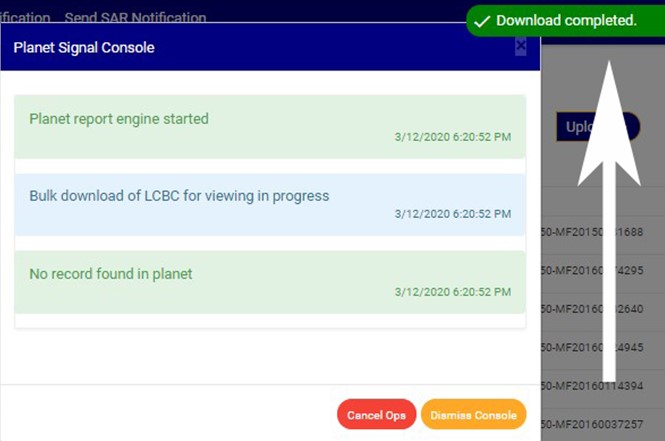
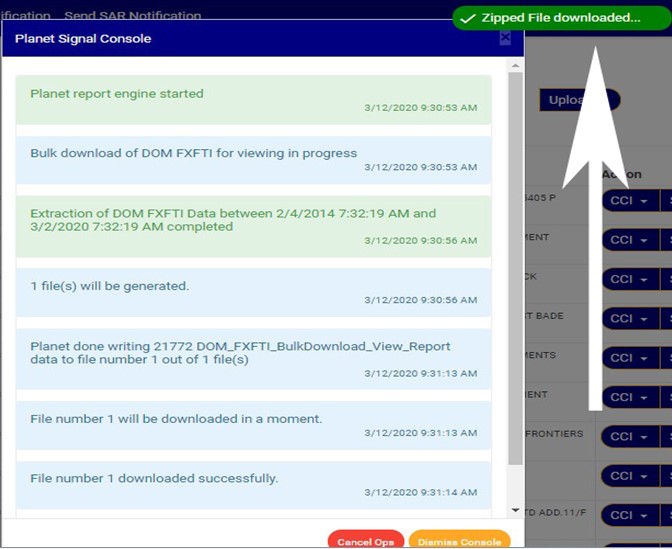
The signal console shows on going processes. An example of a signal console is fig 32.3d. You can terminate unfinished processes by clicking ‘CANCEL OPS’.
To minimize signal console, click on DISMISS CONSOLE.
(fig 32.3d)
An excel file with data of the LCBC transactions will be downloaded when the process is complete.
B. How to Edit Bulk LCBC Transaction Records
Note: You need to be assigned right to ‘view LCBC transactions’ and ‘Download LCBC transactions’ to be able to carry out this operation
STEP 1: Click on the download button on the LCBC Explorer page. See Fig 32.3f for an example
(fig. 32.3f)
Clicking the download button will display a dropdown as in fig. 32.3g below
(fig. 32.3g)
STEP 2: Click on the bulk Edit as shown in fig 32.3h below
(fig. 32.3h)
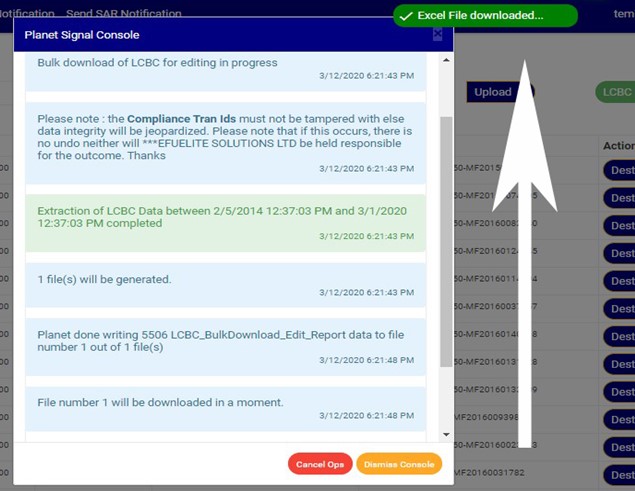
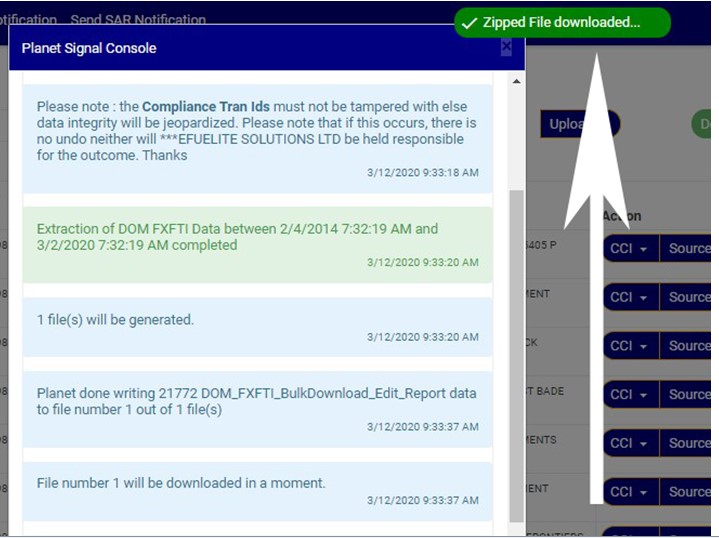
The signal console shows on going processes. An example of a signal console is fig 32.3i. You can terminate unfinished processes by clicking ‘CANCEL OPS’.
To minimize signal console, click on DISMISS CONSOLE.
An excel file with details of the LCBC transaction will be downloaded when the process is complete. The details on the downloaded excel file can be edited and uploaded on the software to update multiple LCBC transaction details at once. However, the ‘Compliance tran Id’ for each record on the excel file must not be tampered with for the upload to be successful.
How to Make Bulk Upload of Edited LCBC Transaction Records
On the LCBC Operations page you can make bulk upload of Edited LCBC Transaction records. The process is explained below
Note: You need to be assigned right to ‘view LCBC transactions’ and ‘Edit bulk LCBC transactions’ to be able to carry out this operation
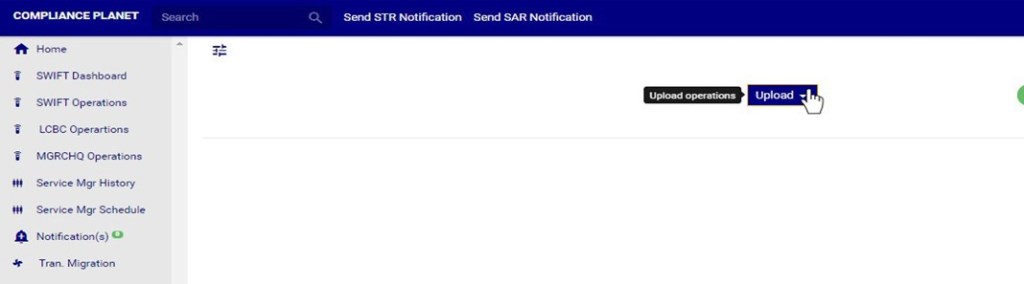
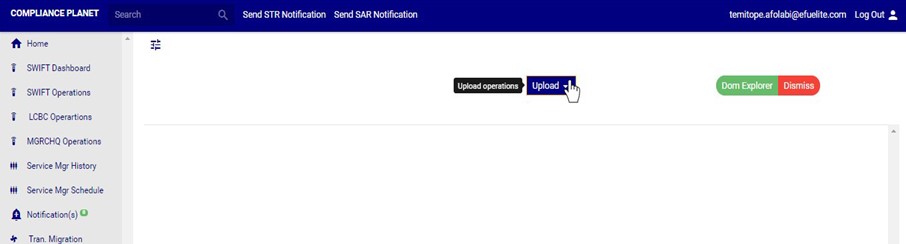
STEP 1: Click on the Upload button on the LCBC Operation page. See Fig 32.3i for an example
(fig. 32.3i)
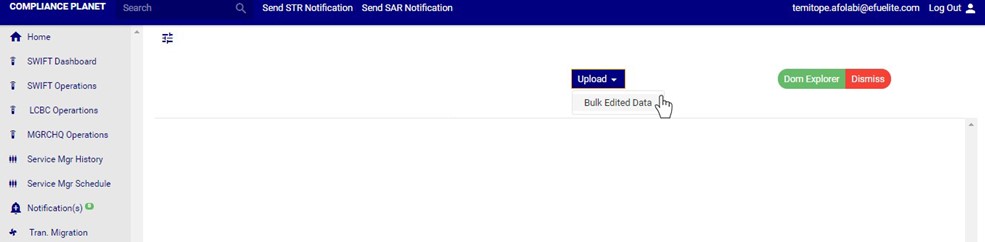
Clicking the Upload button will display a dropdown as in fig. 32.1b below
STEP 2: Click ‘bulk edited data’ on the dropdown as shown in fig 32.3j below
(Fig. 32.3j)
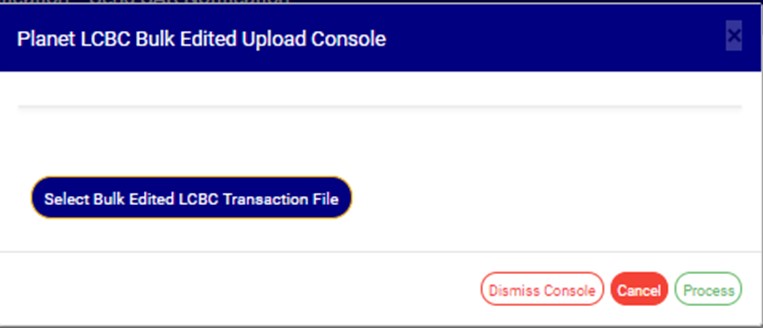
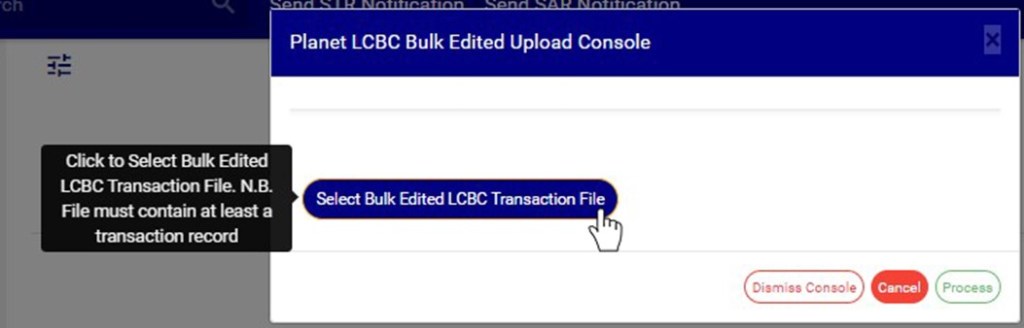
This will display a ‘Planet LCBC Bulk Edited Upload Console’ as in Fig32.3k below.
(fig. 32.3k)
STEP 3: Click on ‘Select Bulk Edited LCBC Transaction file’ to choose the edited transaction file you want to upload from your computer. See this in Fig 32.3l below
(fig. 32.3l)
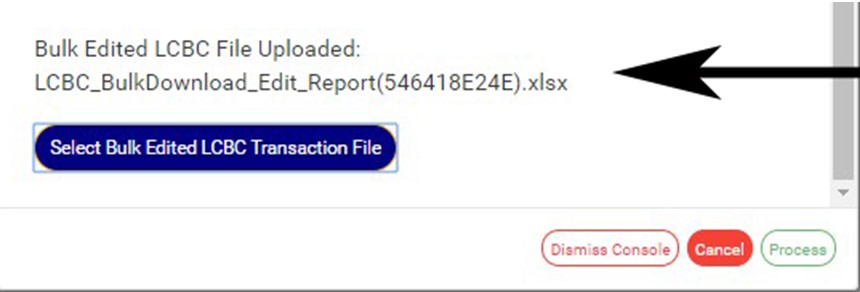
After successful upload of file, the file name will be displayed on the console. See fig. 32.3m to see an example.
(Fig. 32.3m)
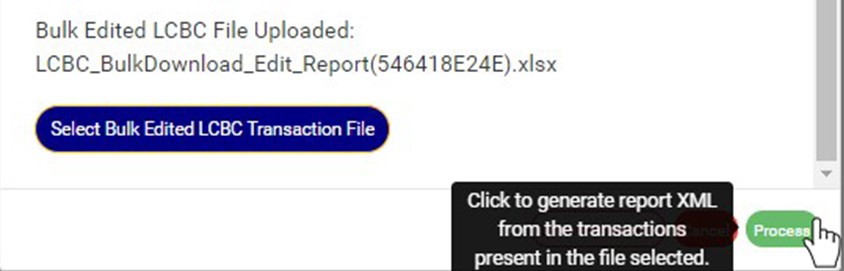
STEP 4: Click on ‘process’ button to proceed with the upload. See fig. 32.1f below to see the green button at the bottom-right corner of the console.
(Fig. 32.3m)
This will display a confirmation console as in fig. 32.3n below. Click ‘Confirm’ to proceed with the upload or ‘Cancel’ to close the console.
This section provides a guide on how to perform operations pertaining to swift, with step-by-step instructions and pictures.
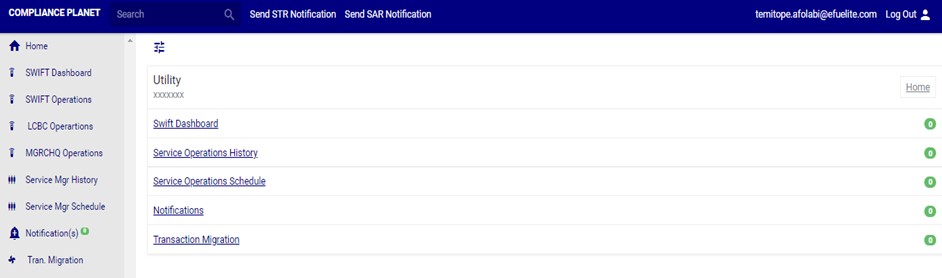
From the main dashboard, click ‘UTILITY’ as in fig 31.0a below
This displays a page as in fig. 31.0b.
(fig. 31.0b)
Click on ‘Swift Operations’ on the left hand side menu as in fig. 31.0c.
(fig. 31.0c)
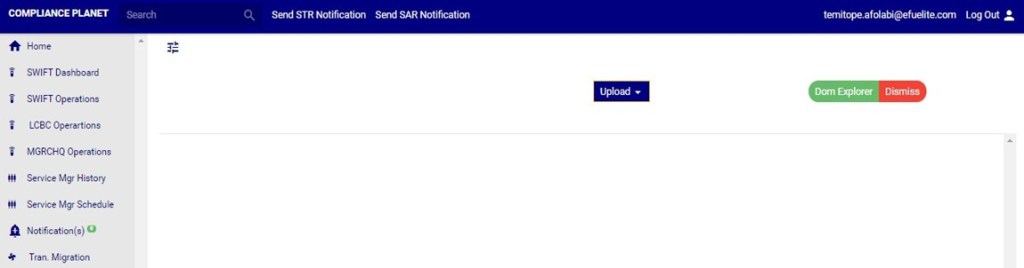
This will display a swift operations page as in fig. 31.0d below
(fig. 31.0d)
How to View SWIFT FXFTI Transaction
Note: Only person(s) assigned right to ‘view SWIFT DOM transactions’ will be able to carry out this operation(s)
STEP1: From the left hand side menu, Click on ‘Swift Operations’as in fig. 31.2a.
(fig. 31.2a)
This displays a page as in Fig 31.2b below
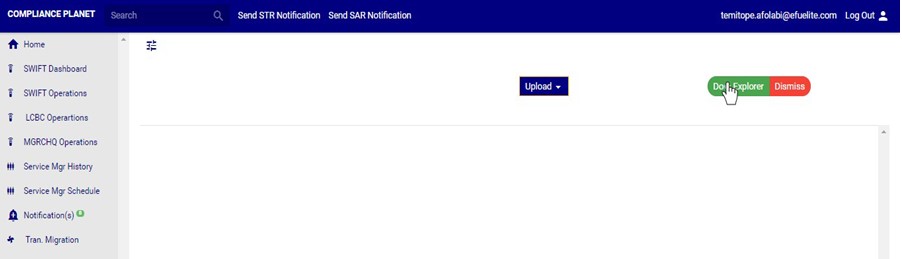
STEP 2: Click on ‘DocExplorer’ button on the Swift Operation page. See Fig 31.2b for an example
(Fig. 31.2b)
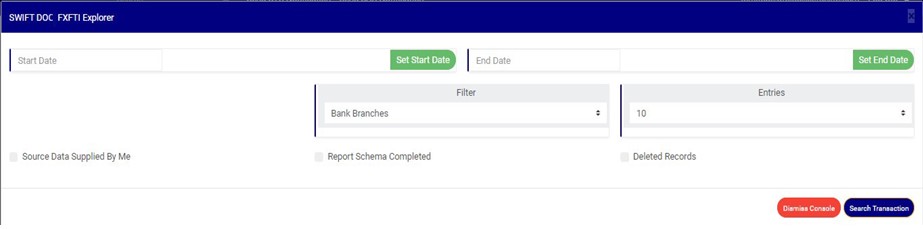
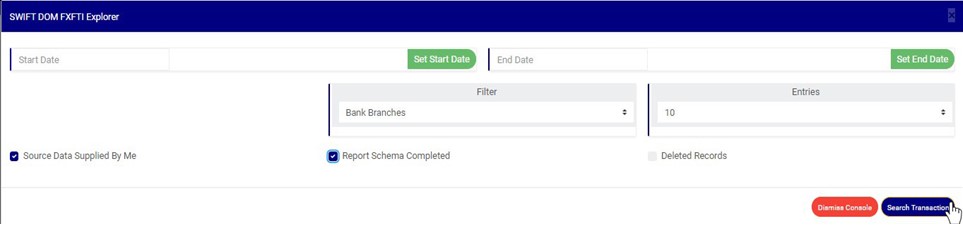
Clicking on the ‘Doc Explorer’ button will display a ’SWIFT DOC FXFTI Explorer’ console as in Fig 31.2c below
(Fig. 31.2c)
STEP 3: Click on SET START DATE and SET END DATE to specify the period to be covered. See an example in Fig 31.2d below
(fig. 31.2d)
Take a look at the arrows labelled a to d in fig. 31.2e to study the calendar.
Click on the given year to change it to your year of choice.
Click on the given month to change it to your month of choice.
Then, click on the date of the month.
You can also click on the angle brackets on the calendar [ ‘<’ or ‘>’ ] to go backward or forward.
(fig. 31.2e)
STEP 4: Click on the filter box to select a particular bank branch. (See the example in fig. 31.2f). If you want to see the transactions for all branches, select bank branches. It is the first option on the filter list.
(Fig. 31.2f)
STEP 5: Click the ‘entries’ box to change the number of transactions you want to see per page. (See the drop-box in fig. 31.2g. below)
(Fig. 31.2g)
STEP 6: Tick any of the checkbox as shown in fig 31.2h to specify the transactions you want to view
Select ‘Source Data Supplied by Me’ to see list of SWIFT FXFT transactions whose source data was supplied by you
Select ‘Report Schema Completed’ to see list of SWIFT FXFT transactions with a complete schema
Select ‘Deleted Records’ to see list of SWIFT FXFT transactions that have been deleted.
NOTE: Leave all checkboxes unchecked to see list of all SWIFT FXFT transactions
(Fig. 31.2h)
STEP 7: Click ‘Search Transaction’ as shown in fig 31.2i
(Fig. 31.2i)
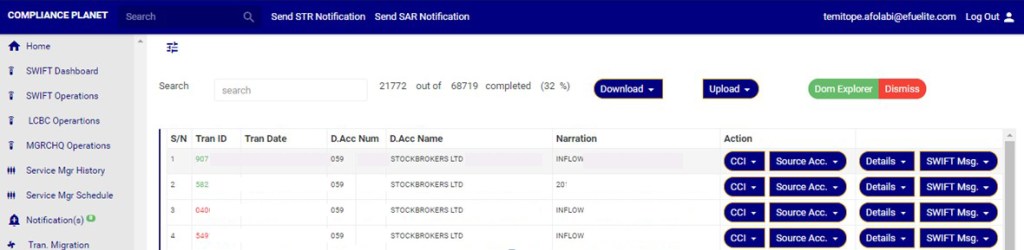
Clicking on the search transaction button will display a page as in Fig 31.2j below
(Fig. 31.2j)
Transactions with transaction ID coloured green signify that the schema for the transaction is complete.
Transactions with transaction ID coloured red signify that the schema for the transaction is incomplete.
How to carry out CCI Operations on SWIFT FXFTI transaction
Note: Only person(s) assigned right to ‘view SWIFT DOM transactions’ will be able to carry out this operation(s)
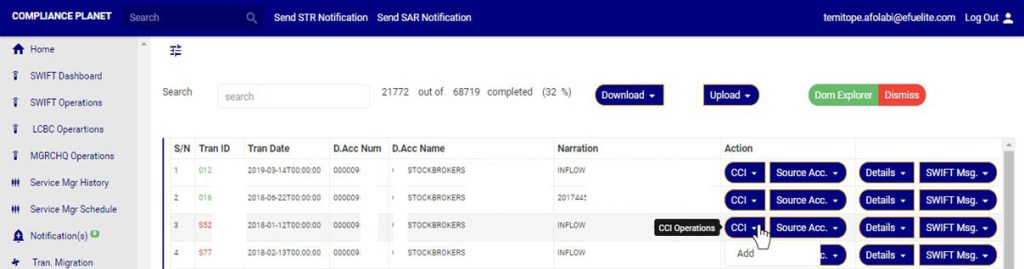
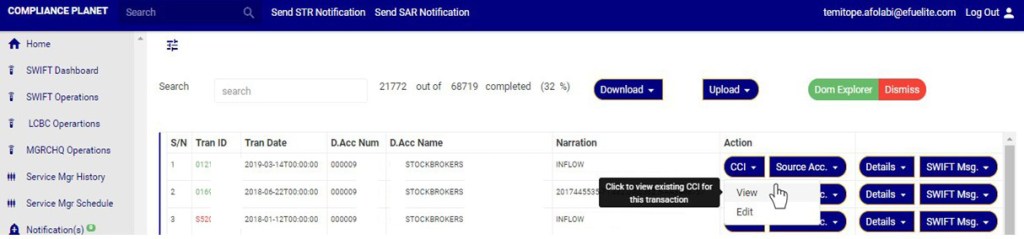
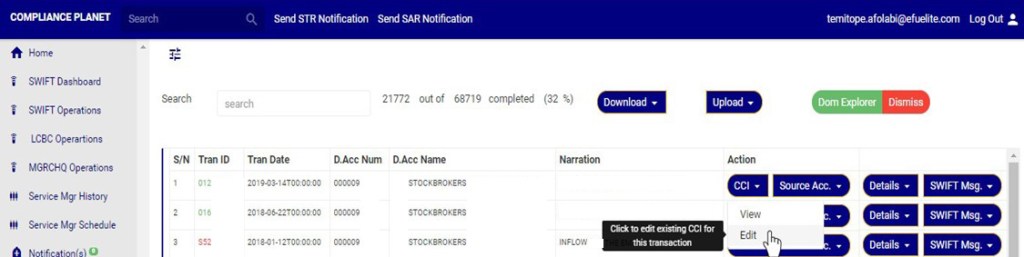
On the Doc explorer page Click on ‘CCI’ button on the Action column, this will display a drop down with option to ‘view’ and ‘Edit’ cci if the schema for the transaction is complete. However, if the schema is incomplete, the dropdown will have an option to ‘ADD’ new CCI. See examples in fig 31.2k and 31.2l below.
See section 18.1 for notes on certificate of capital importation (CCI)
(Fig. 31.2k)
(Fig. 31.2l)
A. How to View and Delete CCI Attached to a SWIFT FXFTI Transaction
Note: Only person(s) assigned right to ‘view SWIFT DOM transactions’ and ‘Screen Edit SWIFT DOM transactions’ will be able to delete attached CCI data
This option will be available if a Certificate of Capital Importation (CCI) has been added to the schema.
Click on ‘VIEW’ as in fig 31.2m to see the CCI attached to this transaction.
(Fig 31.2m)
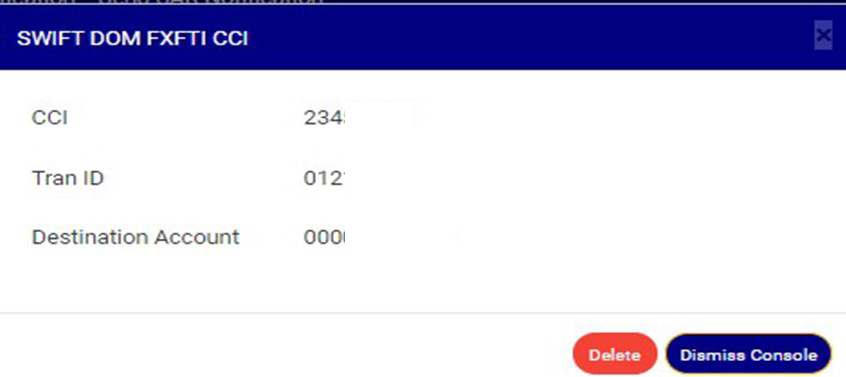
Clicking on ’View’ will display a console as in in fig 31.2n below.
(Fig. 31.2n)
Click on ‘Dismiss console’ to close the console or click ‘Delete’ to delete the data. See fig 31.2o for an example
(Fig. 31.2o)
Clicking on delete will display a confirmation console as in Fig 31.2p below. Click ‘confirm’ to continue or ‘cancel’ to dismiss the operation.
(Fig. 31.2p)
A notification will be displayed at the top when delete is successful as in Fig 31.2q below
(Fig. 31.2q)
B. How to Edit CCI Attached to a SWIFT FXFTI Transaction
This option is will be available if a cci has been added to the Swift FXFTI transaction.
Note: Only person(s) assigned right to ‘view SWIFT DOM transactions’ and ‘Screen Edit SWIFT DOM transactions’ will be able to Edit attached CCI data
Click on ‘Edit’ to modify CCI for this transaction as in fig 31.2r below
(Fig 31.2r)
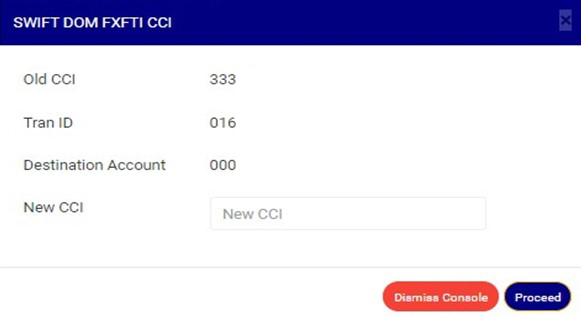
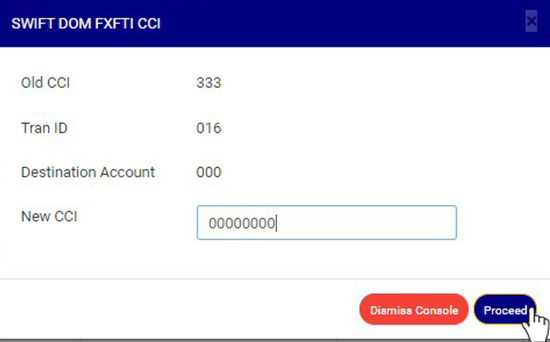
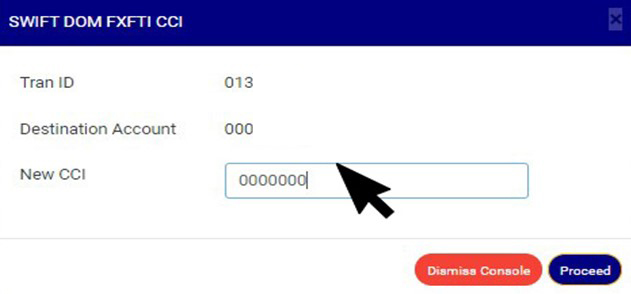
Clicking on ’Edit’ will display a console as in in fig 31.2s below.
(Fig. 31.2s)
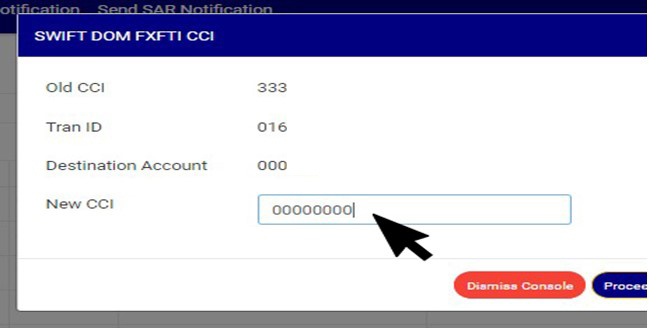
Click the NEW CCI textbox to input the new CCI as in fig 31.2t below
(Fig 31.2t)
Click on ‘Dismiss console’ to close the console or click ‘proceed’ to save the new cci. See fig 31.2u
(Fig. 31.2u)
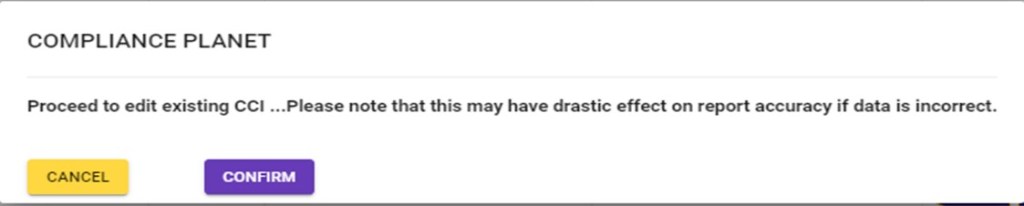
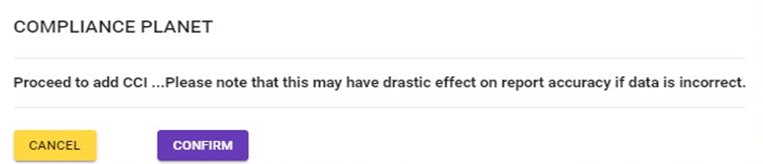
Clicking on proceed will display an inquiry console as in Fig 30.5v below. Click on confirm to continue or cancel to dismiss the operation.
(Fig. 31.2v)
A notification will be displayed at the top of the page when new CCI is saved successfully. See Fig 31.2w below
(Fig. 31.2w)
C. How to Add CCI to a SWIFT FXFTI Transaction
Note: Only person(s) assigned right to ‘view SWIFT DOM transactions’ and ‘Screen Edit SWIFT DOM transactions’ will be able to add CCI to a SWIFT FXFTI transaction
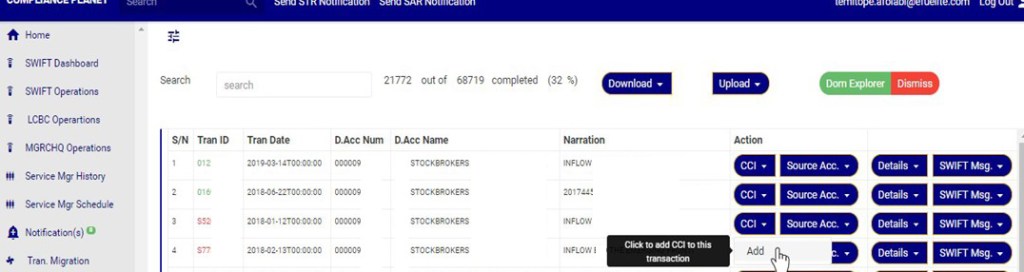
Click the CCI button on the action column his display a drop down as in fig 31.2x.
Click ‘Add’ on the dropdown, this is shown in Fig 31.2x below
(Fig 31.2x)
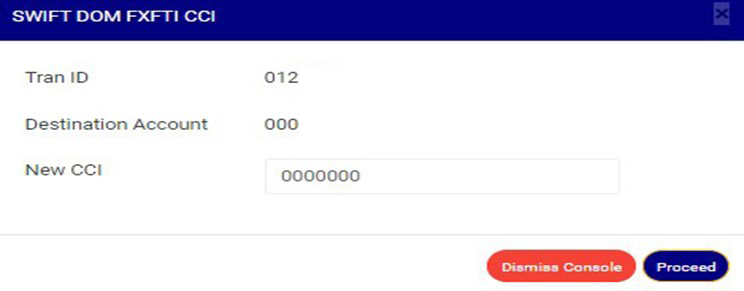
Clicking on ’add’ will display a console as in in fig 31.2ybelow.
(Fig. 31.2y)
Click on New CCI textbox to input new CCI as in in fig 31.2z below.
(Fig. 31.2z)
Click on Proceed to add the new cci or ‘dismiss console’ to dismiss the operation. See an example in Fig 31.2aa below
(Fig. 31.2aa)
Clicking on Proceed will display a confirmation console as in Fig 31.2ab below. Click on confirm to continue or cancel to dismiss the operation.
(Fig. 31.2ab)
A notification will be displayed at the Top when cci is successfully added. See Fig.31.2ac below.
(Fig. 31.2ac)
How To Carry Out Source Account Operations on Swift FXFTI Transaction
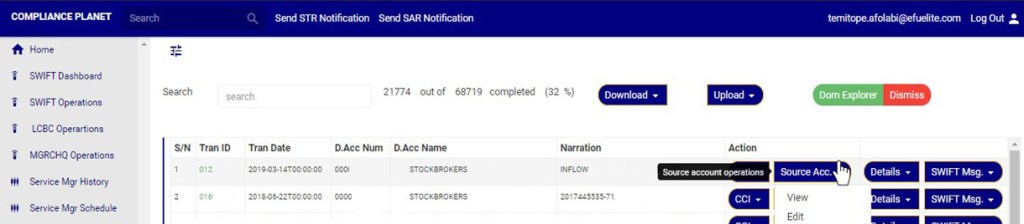
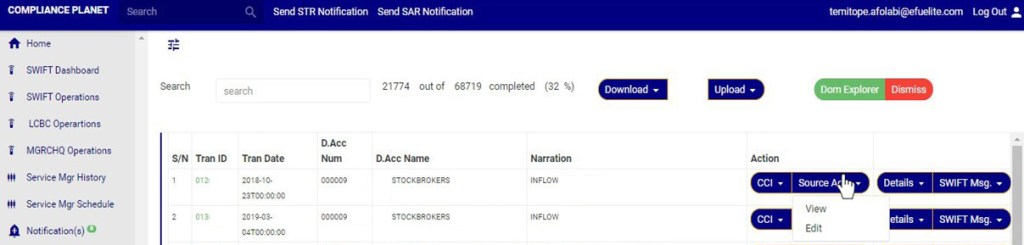
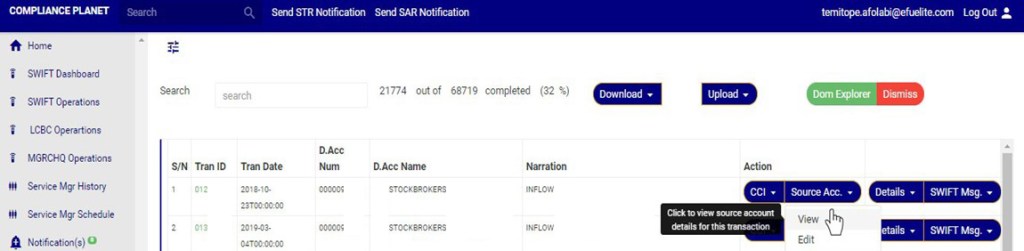
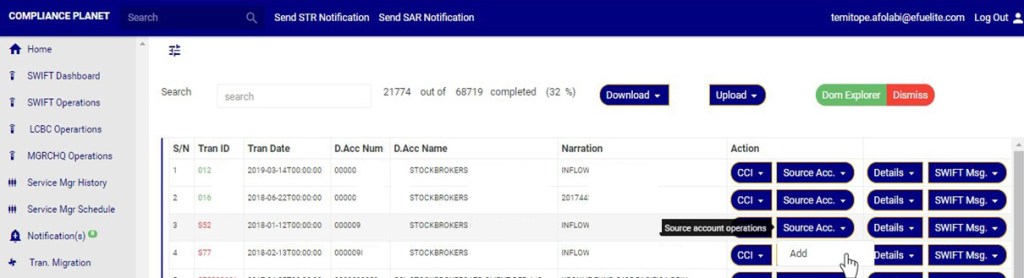
Click on ‘Source Acc.’ button on the action column, this will display a drop down with option to ‘view’ and ‘Edit’ Source account if the data has been added. However, if the source account data has not been added, the dropdown will have an option to ‘ADD’ source account. See an example in fig 31.2ad and 31.2ae below.
(Fig. 31.2ad)
(Fig. 31.2ae)
A. How to view and delete Source Account data attached to a Swift FXFTI Transaction
Note: Only person(s) assigned right to ‘view SWIFT DOM transactions’ and ‘Screen Edit SWIFT DOM transactions’ will be able to delete Source Account data
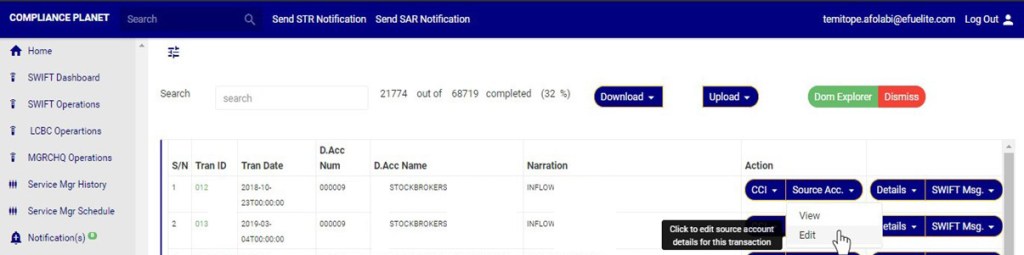
Click on ‘Source Acc’ button on the Action column, this will display a drop down with option to ‘VIEW’ source account details and ’Edit’ source account details. See an example in fig 31.2af below.
(Fig. 31.2af)
Click on ‘VIEW’ to see source account details as in fig 31.2ag below
(Fig 31.2ag)
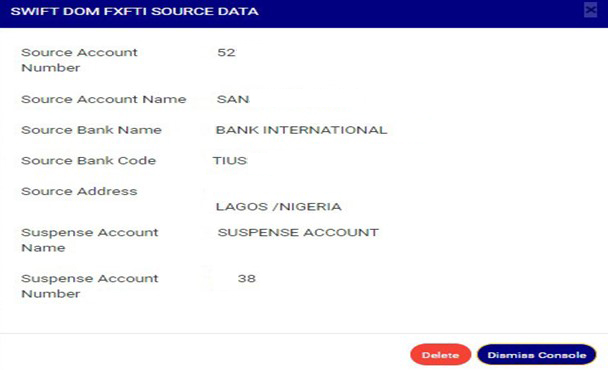
Clicking on ’View’ will display a console as in in fig 31.2a hbelow.
(Fig. 31.2ah)
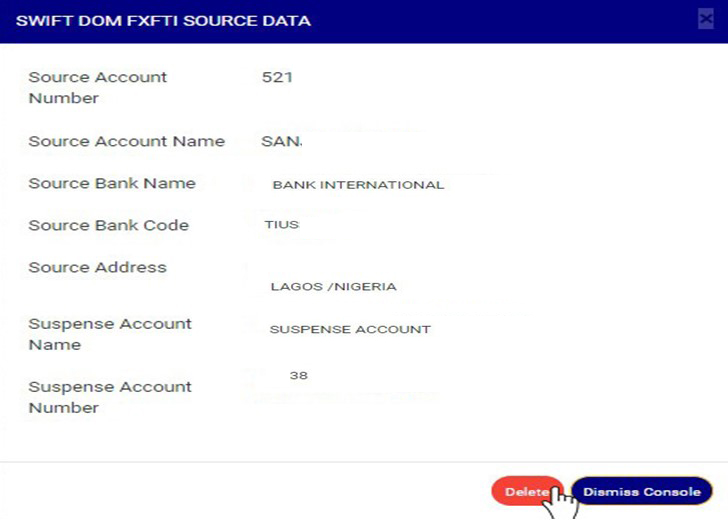
Click on ‘Dismiss’ to close the console or click ‘Delete’ to delete the source data. See fig 31.2ai
(Fig. 31.2ai)
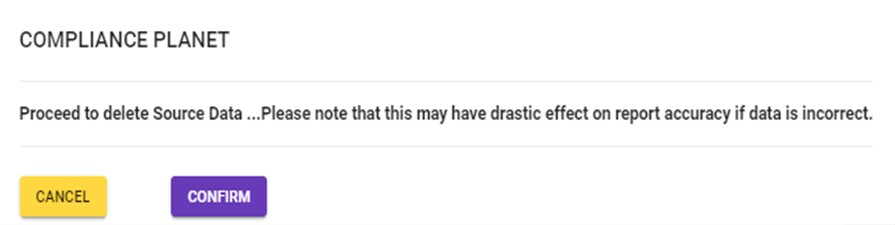
Clicking on delete will display a confirmation console as in Fig 31.2aj below. Click on confirm to continue or cancel to dismiss the operation.
(Fig. 31.2aj)
A notification will be displayed at the top of the page when delete is successful. See Fig 31.2ak below
(Fig. 31.2ak)
B. How to edit Account Source data attached to a Swift FXFTI Transaction
Note: Only person(s) assigned right to ‘view SWIFT DOM transactions’ and ‘Screen Edit SWIFT DOM transactions’ will be able to Edit Source Account data
Click ‘Source account’, this will display a dropdown as in fig 31.2al
On the Source account dropdown, click on ‘EDIT’ to modify source account details. See this in Fig 31.2al below
(Fig 31.2al)
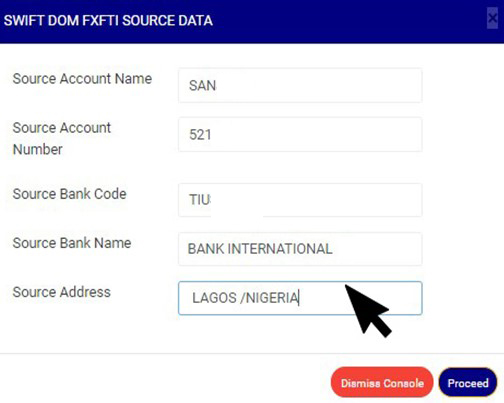
Clicking on ’Edit’ will display a console as in in fig 31.2am below.
(Fig. 31.2am)
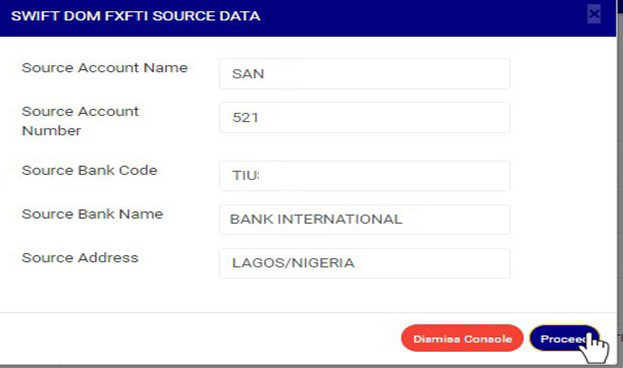
Click on ‘Dismiss console’ to close the console or click ‘proceed’ to save the source data. See fig 31.2an
(Fig. 31.2an)
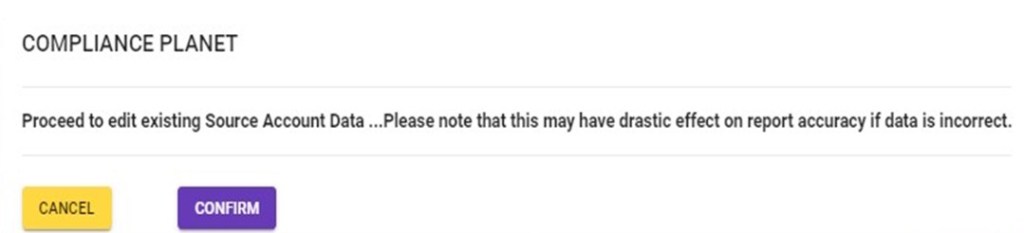
Clicking on proceed will display a confirmation console as in Fig 31.2ao below. Click on confirm to continue or cancel to dismiss the operation.
(Fig. 31.2ao)
A notification will be displayed at the top of the page when edit is saved successfully. See Fig 31.2ap below
(Fig. 31.2ap)
C. How to add ‘Source account’ data to a SWIFT FXFTI Transaction
This Option is available for SWIFT FXFTI transactions with no source account data.
Note: Only person(s) assigned right to ‘view SWIFT DOM transactions’ and ‘Screen Edit SWIFT DOM transactions’ will be able to add Source Account data
Click ‘Source account’ on the ‘Action’ column, this will display a dropdown as in fig 31.2aq
Click on ‘add’ on the source account dropdownto add source account data to this transaction. This is shown in Fig 31.2aq below
(Fig 31.2aq)
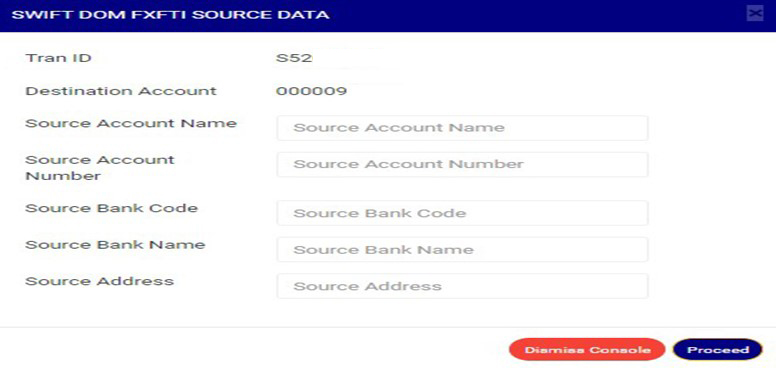
Clicking on ’add’ will display a console as in in fig 31.2ar below.
(Fig. 31.2ar)
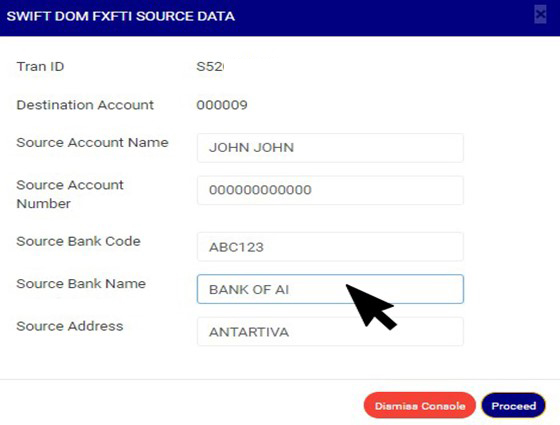
Click on any of the source account data textbox to fill the field as in in fig 31.2as below.
(Fig. 31.2as)
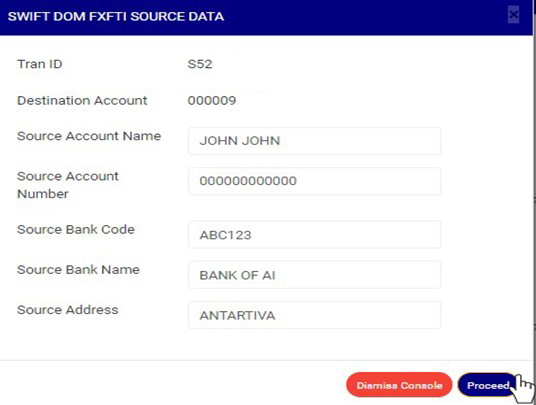
Click on Proceed to add the source account data or ‘dismiss console’ to dismiss the operation. See an example in Fig 31.2at below
(Fig. 31.2at)
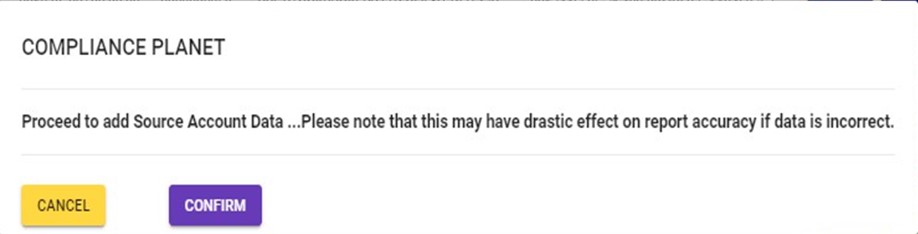
Clicking on Proceed will display a confirmation console as in Fig 31.2au below. Click on confirm to continue or cancel to dismiss the operation.
(Fig. 31.2au)
A notification will be displayed at the Top when Source account data is successfully added. See Fig. 31.2av below.
(Fig. 31.2av)
Viewing Swift FXFTI Transaction ‘Account details’ and ‘Transaction details’
Note: You need to be assigned right to ‘view SWIFT DOM transactions’ to carry out this operations
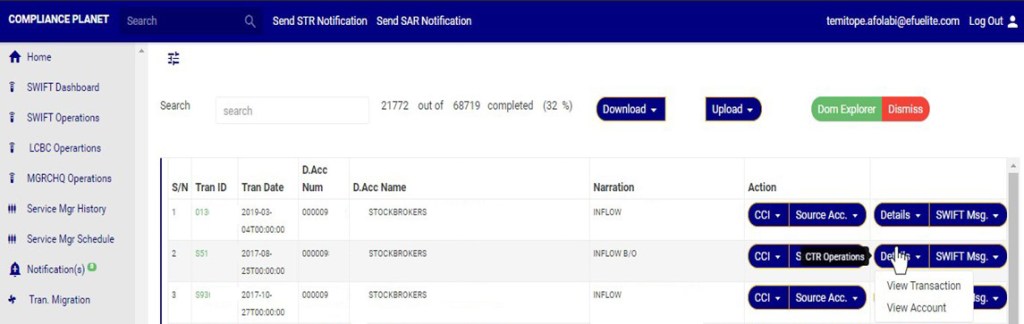
Click on ‘Details’ button on the Action column, this will display a drop down with option to ‘VIEW Transaction’ and ’View Account’. See an example in fig 31.2aw
(Fig 31.2aw)
A. How to View Swift FXFTI ‘Transaction details’
Note: Only person(s) assigned right to ‘view SWIFT DOM transactions’ will be able to carry out this operation(s)
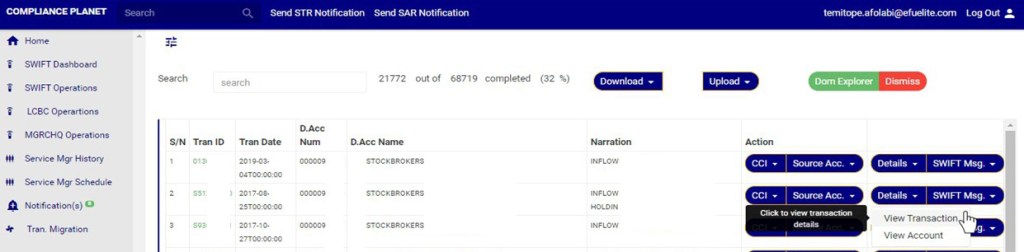
Click ‘details’, this will display a dropdown with options to ‘view transaction’ and ‘view account’
Click on view transaction as in fig 31.2ax below to see the details of the transaction
(Fig 31.2ax)
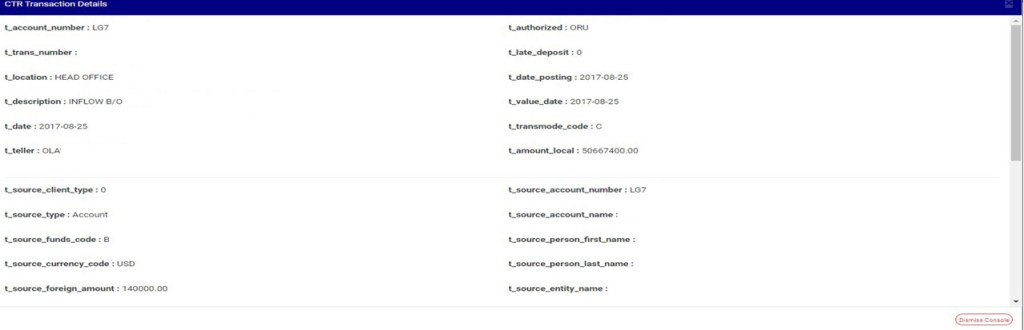
Clicking ‘View Transaction will display a console as in fig 31.2ay below
(Fig 31.2ay)
Click dismiss console to close the console
B. How to View Swift FXFTI Transaction ‘Account details’
Note: Only person(s) assigned right to ‘view SWIFT DOM transactions’ will be able to carry out this operation(s)
Click ‘details’, this will display a dropdown with options to ‘view transaction’ and ‘view account’.
Click on view Account as in fig 31.2az below to see the details of the transaction
(Fig 31.2az)
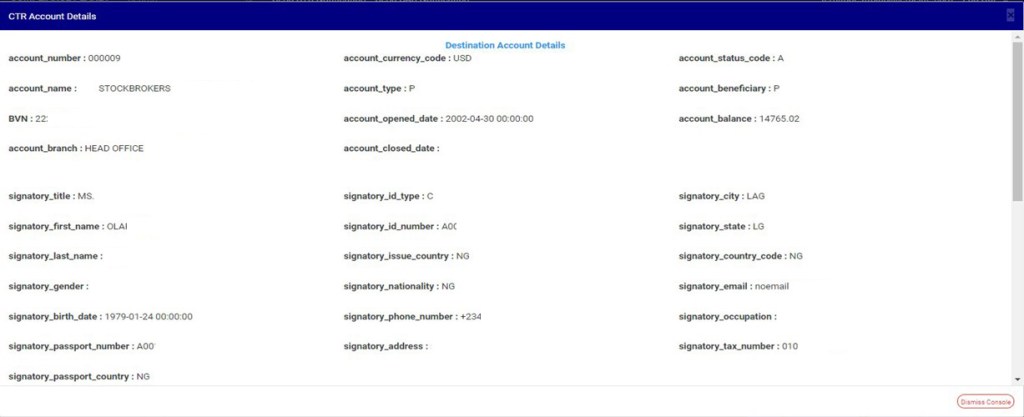
Clicking ‘View Account will display a console as in fig 31.2ba below
(Fig 31.2ba)
Click dismiss console to close the console
How to View Swift FXFTI Transaction ‘Swift message’
Note: You need to be assigned right to ‘view SWIFT DOM transactions’ to carry out this operations
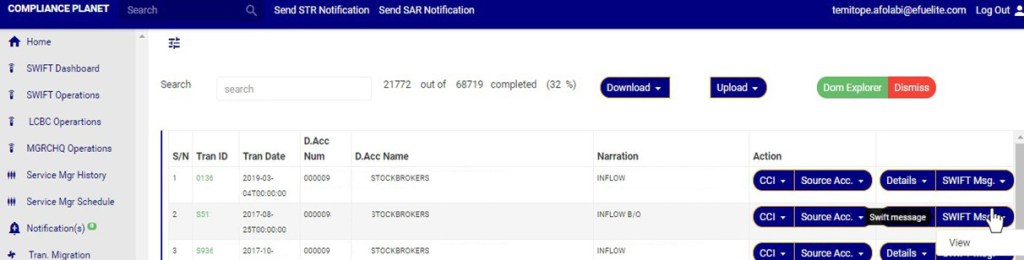
Click on ‘Swift Msg.’ button on the Action column, this will display a drop down with option to ‘VIEW’ Swift message for the transaction. See an example in fig 31.2bb below.
(Fig. 31.2bb)
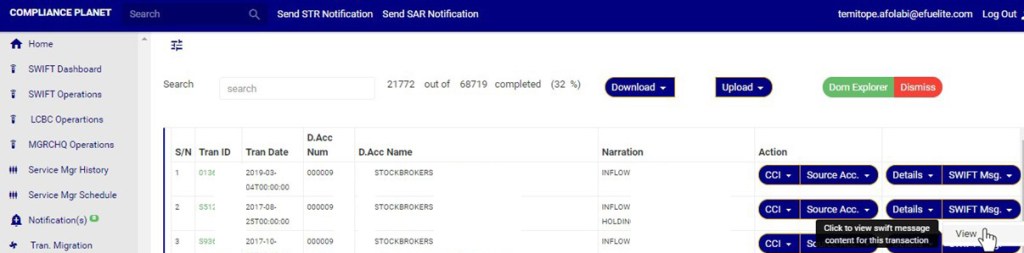
Click on ‘VIEW’ to see the swift message for the transaction.as in 31.2bc below
(Fig. 31.2bc)
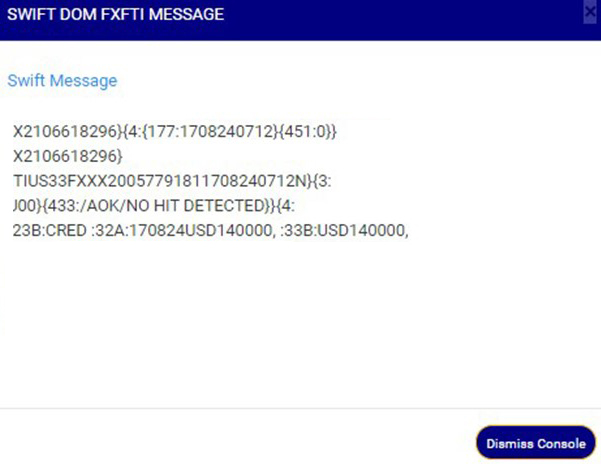
Clicking on ’View’ will display a console as in in fig 31.2bd below.
(Fig. 31.2bd)
Click on ‘Dismiss’ to close the console
How to Carry Out bulk Swift FXFTI transaction Operations
On the SWIFT FXFTI transaction list page you can make a bulk download of Foreign Exchange Foreign Transactions (FXFT) files either for viewing or editing purpose. The process is explained below
A. How to carry out bulk view of Swift FXFTI transactions
Note: You need to be assigned right to’view SWIFT DOM transactions’ and ‘Download SWIFT DOM transactions’ to carry out this operations
STEP 1: Click on the download button on the SWIFT FXFTI transaction list page. See Fig 31.3a for an example
(fig. 31.3a)
Clicking the download button will display a dropdown as in fig. 31.3b below
(fig. 31.3b)
STEP 2: Click on the bulk view as shown in fig 31.3c below
(fig. 31.3c)
The signal console shows on going processes. An example of a signal console is fig 31.3d. You can terminate unfinished processes by clicking ‘CANCEL OPS’.
To minimize signal console, click on DISMISS CONSOLE.
(fig 31.3d)
➔ An excel file with details of the SWIFT FXFT transaction will be downloaded when the process is complete.
B. How to carry out bulk edit of Swift FXFTI transactions
Note: You need to be assigned right to ‘view SWIFT DOM transactions’ and ‘Download SWIFT DOM transactions’ to carry out this operations
STEP 1: Click on the download button on the SWIFT FXFTI transaction page. See Fig 31.3e for an example
(fig. 31.3e)
Clicking the download button will display a dropdown as in fig. 31.3f below
(fig. 31.3f)
STEP 2: Click on the bulk Edit as shown in fig 31.3g below
(fig. 31.3g)
The signal console shows on going processes. An example of a signal console is fig 31.3h. You can terminate unfinished processes by clicking ‘CANCEL OPS’.
To minimize signal console, click on DISMISS CONSOLE.
(fig 31.3h)
➔ An excel file with details of the SWIFT FXFT transaction will be downloaded when the process is complete. The data on the file when edited can be uploaded to update that record on the software using the bulk upload feature.
Note that the headings in the excel file must not be tampered with.
How to Carry out Bulk Upload of Edited Swift Documents
On the Swift Operations page you can make a bulk upload of Edited Swift Foreign Exchange Foreign Transactions (FXFT) files. The process is described below
Note: You need to be assigned right to ‘view SWIFT DOM transactions’ and ‘Bulk Edit SWIFT DOM transactions’ to carry out this operations
STEP 1: Click on the Upload button on the Swift Operation page. See Fig 31.3i for an example
(fig. 31.3i)
Clicking the Upload button will display a dropdown as in fig. 31.3j below
STEP 2: Click the bulk edited data as shown in fig 31.3j below
(fig. 31.3j)
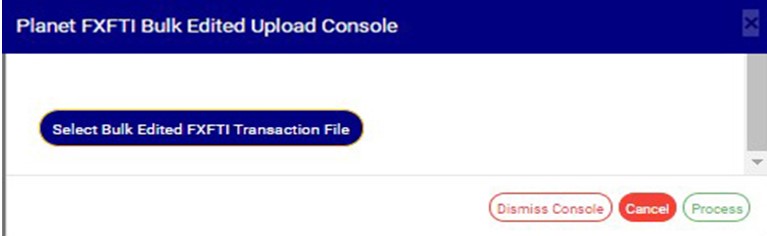
This displays a ‘Planet FXFTI Bulk Edited Upload Console’ as in Fig31.3k below.
(fig. 31.3k)
STEP 3: Click on ‘Select Bulk Edited FXFTI Transaction file’ to choose the edited transaction file you want to upload from your computer. See this in Fig 31.3l below
(fig. 31.3l)
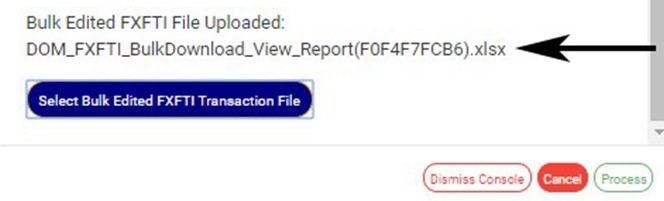
After successful upload of file, the console will display the title of the file, that is, the file name. See fig. 31.1e to see an example of how the console looks like when you successfully upload a file from your computer.
(Fig. 31.3m)
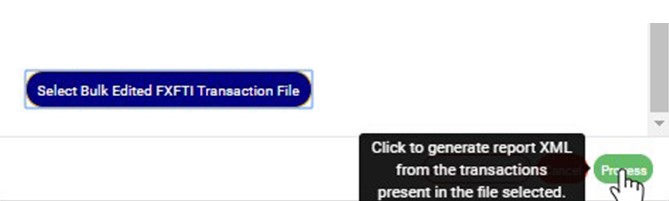
STEP 4: Click on ‘process’ button to proceed with the upload. See fig31.1fbelow to see the green button at the bottom-right corner of the console.
(Fig. 31.3m)
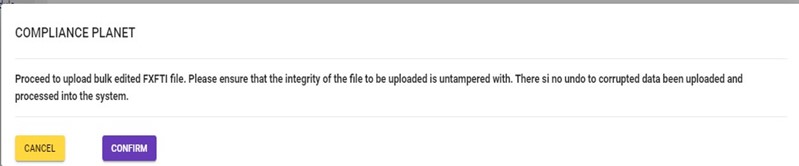
This displays a confirmation console as in fig. 31.1g below. Click ‘Confirm’ to continue or ‘Cancel’ to close the console.
The SWIFT dashboard provides information on the number of archived messages, the number of unprocessed messages and the number of SWIFT files processed by the software on the server. Also, SWIFT messages can be translated here on this page.
Note: Only person(s) assigned right to ‘view SWIFT DOM transactions’ will be able to carry out this operation(s)
To access the Compliance Planet’s SWIFT dashboard;
From the main dashboard, click ‘UTILITY’ as in fig. 30.3a below
(fig. 30.3a)
This displays the ‘Utility’ home page. See fig.30.3b for an example of the home page.
(fig. 30.3b)
Click on ‘Swift Dashboard’ on the left hand side menu as in fig. 30.3c.
(fig. 30.3c)
This displays the SWIFT dashboard as seen in fig. 30.3d.
(fig. 30.3d)
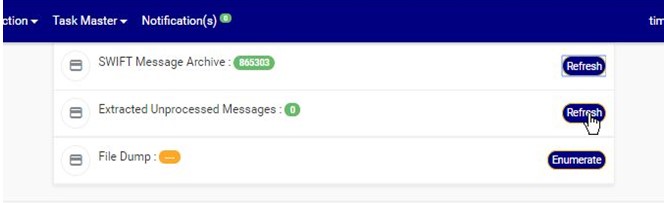
The SWIFT dashboard provides information on the number of archived messages. This figure can be refreshed by clicking on the ‘Refresh’ button as in fig. 30.3e below.
(Fig. 30.3e)
The SWIFT dashboard also provides information on the number of extracted unprocessed messages. This figure can also be refreshed by clicking on its ‘Refresh’ button as in fig. 30.3e.
(Fig. 30.3f)
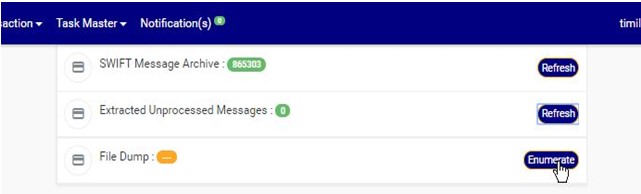
The SWIFT dashboard also gives information on the number of SWIFT files processed by the software on the server. This figure can also be refreshed by clicking on its ‘Enumerate’ button as in fig. 30.3g below.
(fig. 30.3g)
Also, the SWIFT dashboard has a SWIFT message reader that translates SWIFT messages to information that is meaningful to users.
How to Translate SWIFT messages
SWIFT Message types come in a format that cannot be interpreted by layman, hence the need for a SWIFT message reader (SWIFT message translator). The SWIFT console has a message reader. The Compliance Planet SWIFT message reader processes MT102 and MT103 only. These message types are category 1 messages -Customer Payments and Cheques. Here is how to translate a SWIFT message.
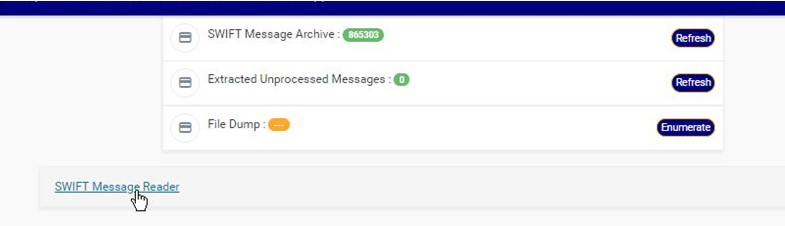
STEP 1: Click on ‘SWIFT Message Reader’ as in fig. 30.4a below.
(fig. 30.4a)
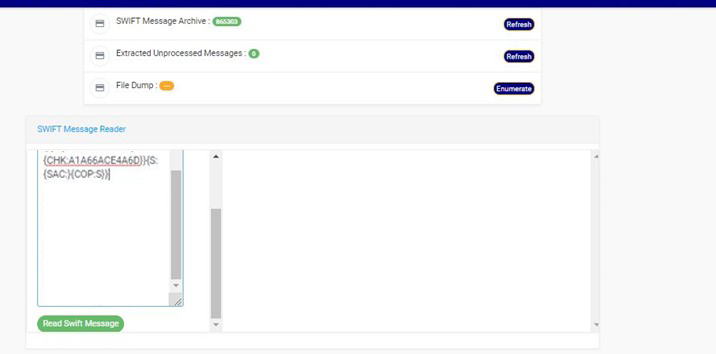
This displays a textbox as in fig. 24.4b.
(fig. 30.4b)
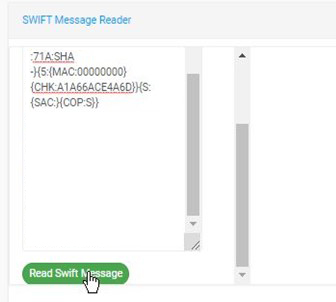
STEP 2: Paste the MT102 or MT103 message to be translated on the left side of the console. See an example in fig. 30.4c.
(fig. 30.4c)
STEP 3: Click on ‘Read SWIFT Message’ as in fig. 30.4d to translate the message.
(fig. 30.4d)
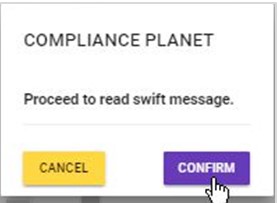
This displays a confirmation console to confirm the processing of the message. Click on ‘Confirm’ to proceed or ‘Cancel’ terminate the operation.
(fig. 30.4e)
By clicking on ‘Confirm’, the compliance planet software SWIFT reader will read the message, and place a transaction folder at the right side of the console and a notification will be displayed at the top of the page. The number of transaction folders represents each transaction reported in the SWIFT message translated. See fig. 30.4f below for an example.
(fig. 30.4f)
STEP 4: Click on the transaction folder(s) as in fig. 30.4g to view the message(s).
(fig. 30.4g)
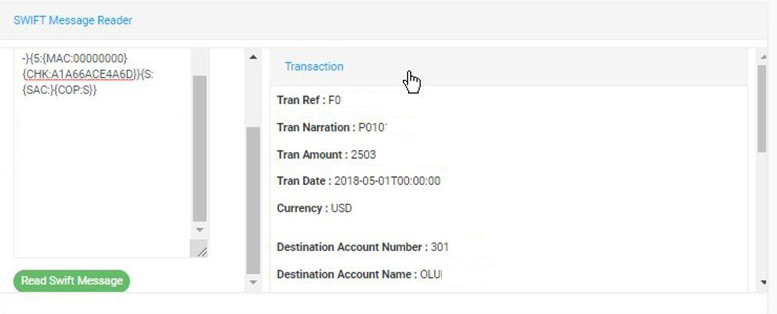
The translated version of the SWIFT message will appear as shown in fig. 30.4h
(fig. 30.4h)
Transactions reported in SWIFT messages fall under the Foreign Exchange Transaction type (FXFT). From the message reader, SWIFT transactions read can be posted to the transaction pool for Report processing. Transactions posted will form part of reports generated by the Compliance Planet. If they are re-posted, the transaction details will be duplicated in the report generated.
To post the transaction(s) for report processing;
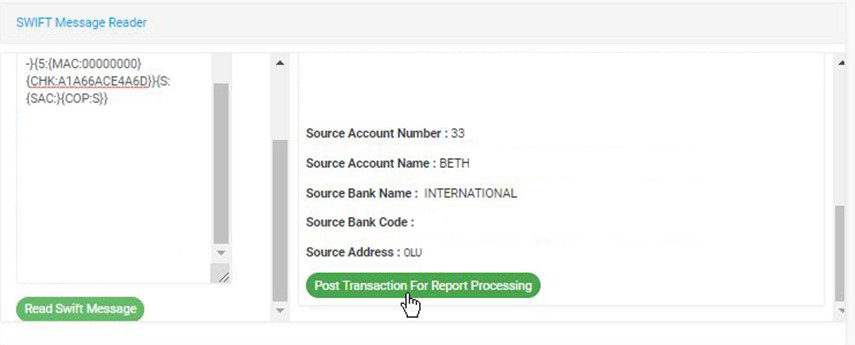
click on ‘Post Transaction for Report Processing’ as in fig. 30.4i below.
(fig. 30.4i)
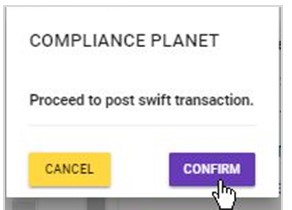
This displays a confirmation console as in fig. 30.4j. Click on ‘Confirm’ to proceed.
(fig. 30.4j)
A ‘Success Message’ will be displayed on the page as seen in fig. 30.4k below.
This section provides a guide on how to make personal settings on the Compliance Planet, with step-by-step instructions and pictures.
Personal Settings Operations
The operations available in this section pertain to;
File dock settings
Log-in settings
Follow the steps outlined below to view or change your personal settings,
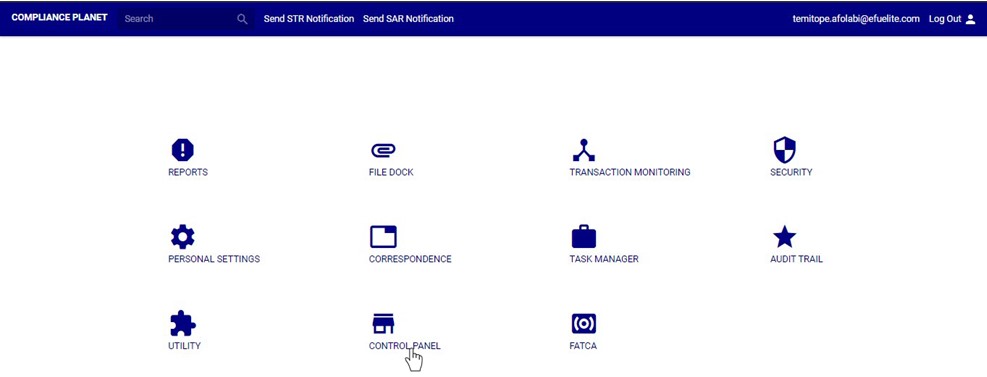
From the main dashboard, click ‘PERSONAL SETTINGS’ as in fig. 29a below
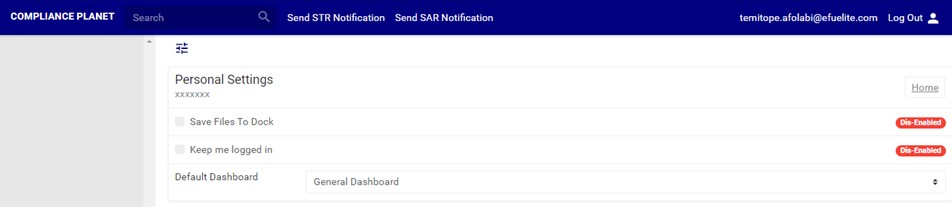
This displays a page as seen in fig. 29.1a below.
(fig. 29.1b)
Each setting has a status bar which shows whether it is enabled or disable. See this in fig. 23.1a above.
File Dock Settings
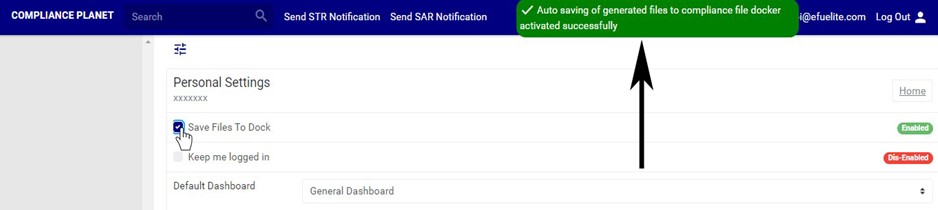
This refers to enabling or dis-enabling the auto-saving of generated files to the Compliance planet software file dock. To activate or deactivate auto-save for generated files to the file dock, click the ‘SAVE FILES TO FILE DOCK’ checkbox.
When the checkbox for this feature is ticked, it activates the feature and a notification will be displayed at the top of the page. The status will also change from ‘Dis-Enabled’ to ‘Enabled’ See fig. 29.2a for an example.
(fig. 29.2a)
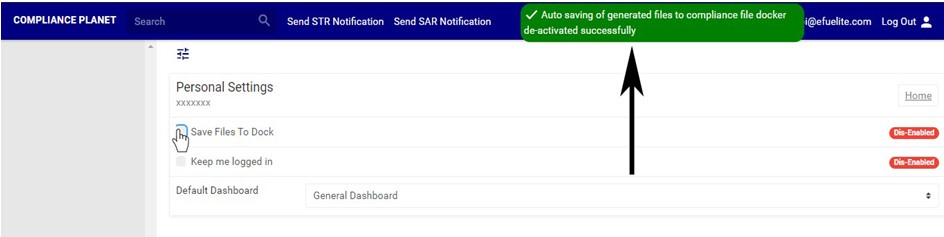
When you untick the checkbox, the feature is deactivated and a notification will be displayed at the top of the page. The status bar will also change from ‘ENABLED’ to ‘DIS-ENABLED’ also. See fig. 29.2b for an example.
(fig. 29.2b)
Log In Settings
This refers to enabling or dis-enabling the automatic login of your account credentials on the Compliance Planet. To activate or deactivate the automatic login of your account whenever you open the Compliance Planet on your computer, click on the ‘KEEP ME LOGGED IN’ checkbox.
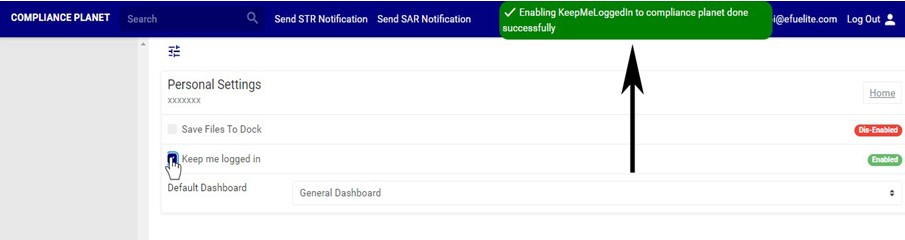
When you tick the checkbox to activate the feature, the software will display a notification at the top of the page and the status bar will change from ‘DIS-ENABLED’ to ‘ENABLED’. See fig. 29.3a for an example.
(fig. 29.3a)
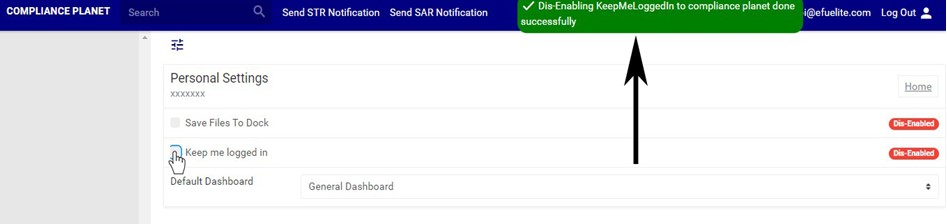
When you untick this checkbox to deactivate the feature, the software will display a notification at the top of the page and the status bar will change from ‘ENABLED’ to ‘DIS-ENABLED’. This means that any time you open the compliance planet software, you will have to provide you log-in credentials before accessing the Compliance planet features. See fig. 29.3b for an example.
(fig. 29.3b)
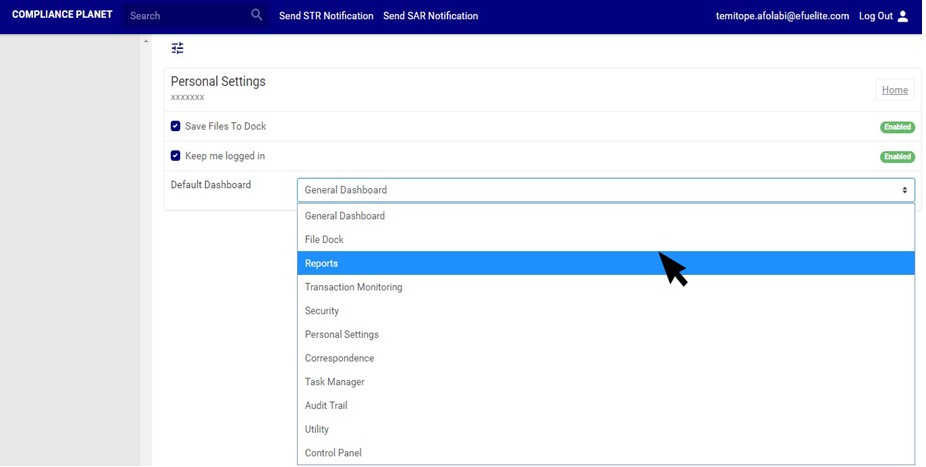
You can also choose a prefered default landing page as in fig. 29.3c. i.e. the page that will be displayed first anytime you open the software.
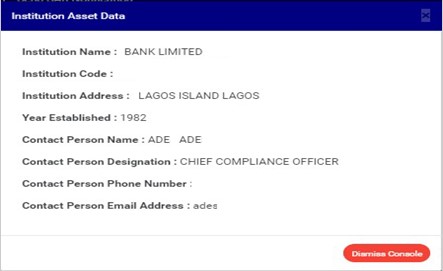
In this section, Institution asset data includes the name of the institution, the institution code, address, year of establishment and contact person details. This section provides a guide on how to perform operations as regards institution asset data on the Compliance Planet, with step-by-step instructions and pictures.
To view the institution asset data;
STEP 1: From the main dashboard, click ‘CONTROL PANEL’ as in fig 27.1a below
(fig. 27.1a)
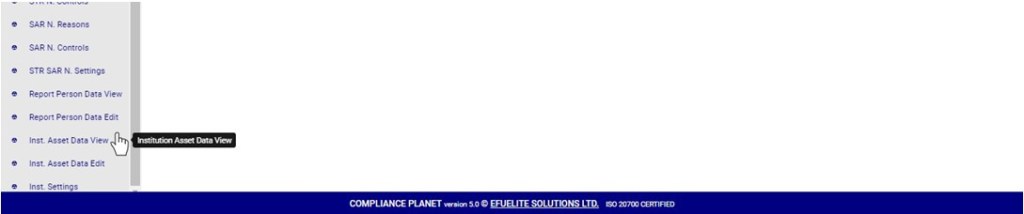
STEP 2: Click on ‘INSTITUTION ASSET DATA VIEW’ on the left hand side menuas in fig. 27.1b below.
(fig. 27.1b)
By clicking on ‘Institution Asset Data View’, a console will be displayed on your screen. See an example of an institution asset data in fig. 27.1c below.
(fig. 27.1c)
How to Edit Institution Asset Data
To make changes to the institution asset data,
STEP 1: From the left hand side menu, click on ‘INSTITUTION ASSET DATA EDIT’ as in fig 27.2a below.
(fig. 27.2a)
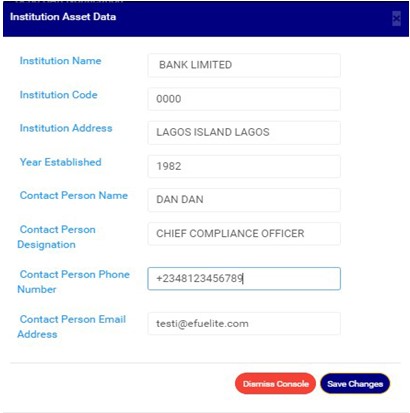
This displays an ‘Institution Asset Data’ console.
See an example of an institution asset data edit console in fig. 27.2b below.
(fig. 27.2b)
Fill in new data or change the details on the console.
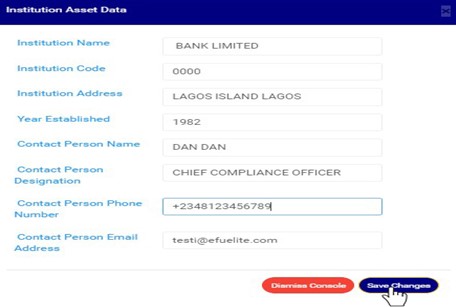
STEP 2: Click on ‘Save Changes’ as shown in fig. 27.2c to save the changes or click on ‘Dismiss console’ to discard changes or new details entered on the console.
(fig. 27.2c)
This displays a confirmation console as in fig. 27.2d will appear to confirm your request.
(fig. 27.2d)
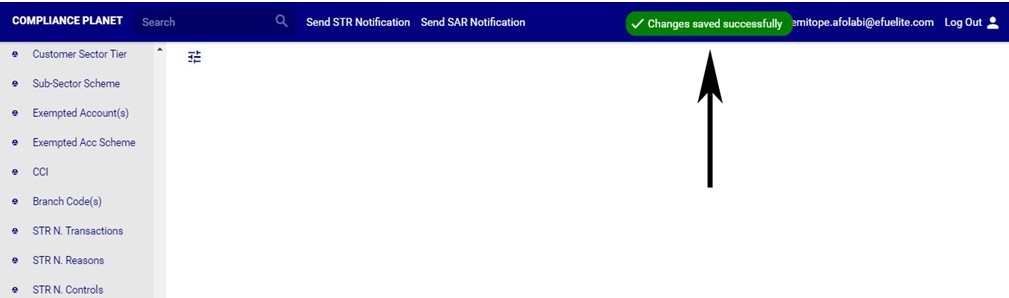
STEP 3: Click on ‘CONFIRM’ to proceed or ‘CANCEL’ to discontinue. A notification as in fig. 21.2e below will be displayed at the top of the page when the operation is complete.
The Action log provides a list of activities or actions that were carried out successfully and completed on the Compliance Planet software in a chronological order at any time. Here is how to view an action log for any period of time.
NOTE: Only the Supreme Administrator can carry out this operation
STEP 1: Click on ‘Action log’ on the audit trail page as in fig. 28.4a
(fig. 28.4a)
You can also click on ‘User trail’ on the left hand side menu as in Fig. 28.4b
(fig. 28.4b)
This displays the User log page as seen in fig. 28.4c below.
(fig. 28.4c)
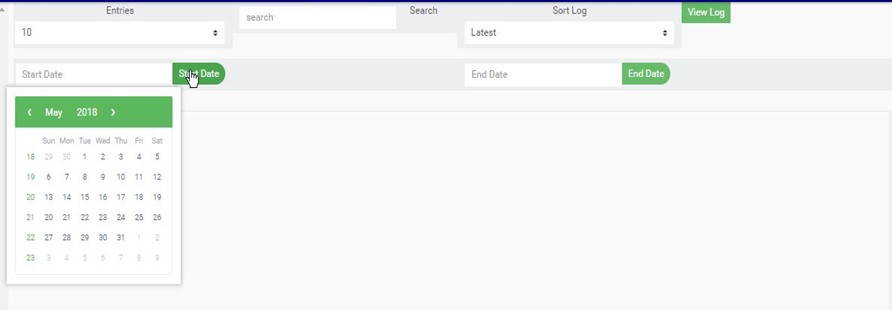
STEP 2: Click on the ‘Start Date’ button. This will display a calendar below the date. See fig. 28.4d for an example.
(fig. 28.4d)
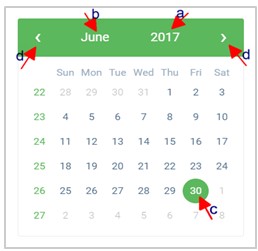
Take a look at the arrows labelled a to d in fig. 28.4e to study the calendar.
Click on the given year to change it to your year of choice.
Click on the given month to change it to your month of choice.
Then, click on the date of the month.
You can also click on the angle brackets on the calendar [ ‘<’ or ‘>’ ] to go backward or forward.
(fig. 28.4e)
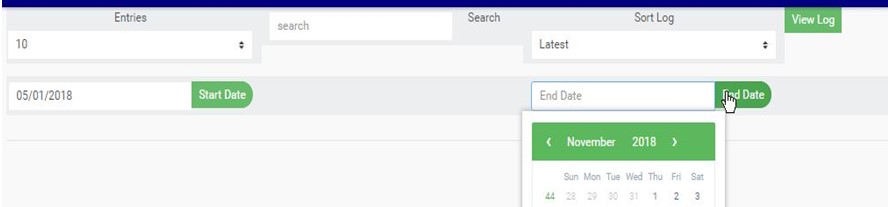
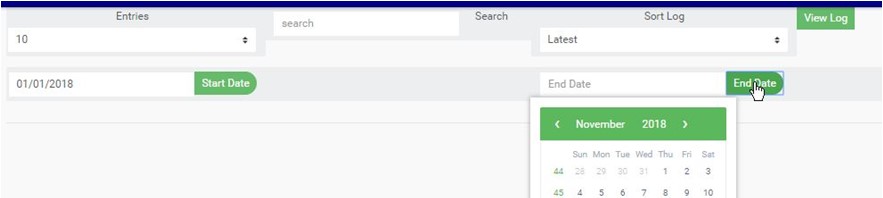
STEP 3: Click on the ‘End Date’ button to specify the end date. This displays a calendar below the date box. See fig. 28.4f for an example.
(fig. 28.4f)
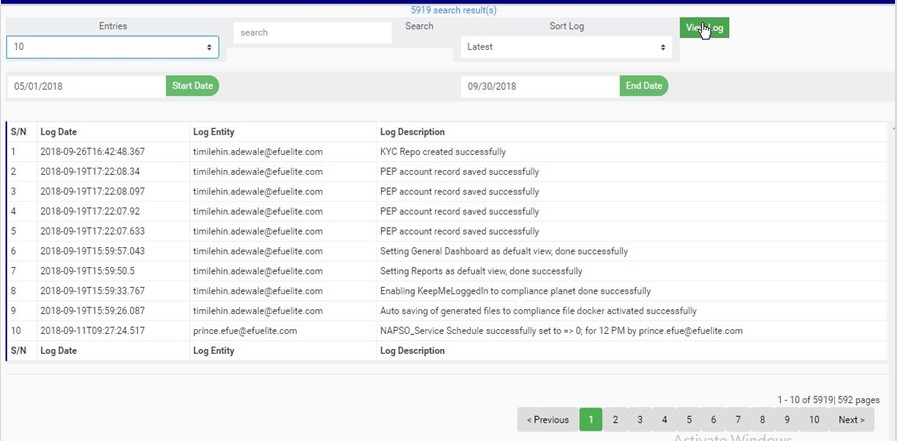
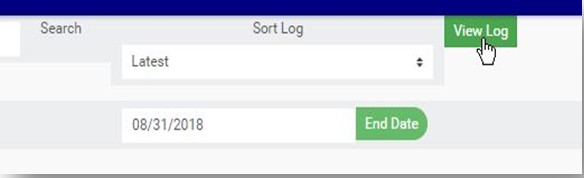
STEP 4: Click on ‘View Log’ as in fig. 28.4g to view the services.
(fig. 28.4g)
This displays a list of activities that were successfully carried within the specified date. See fig. 28.4h for an example.
(fig. 28.4h)
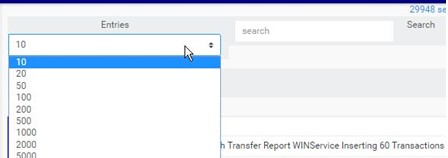
Click on the ‘entries’ box to change the number of entries you want to see per page. See fig. 28.4i.
(fig. 28.4i)
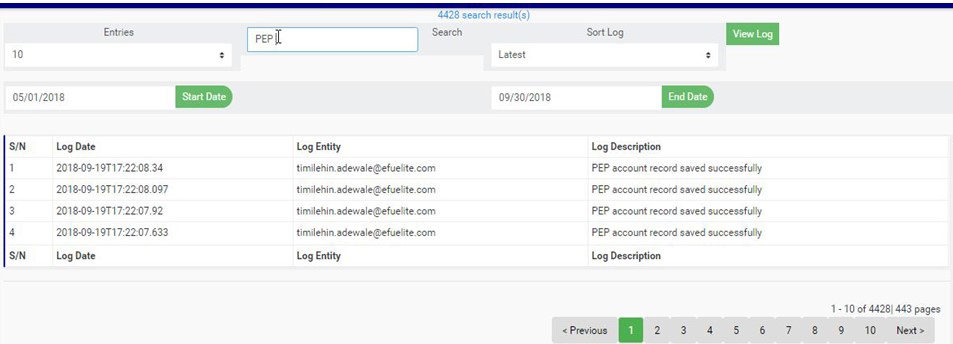
Search by inputting a search term in the ‘Search’ box. See fig. 28.4j for an example of a search.
(fig. 28.4j)
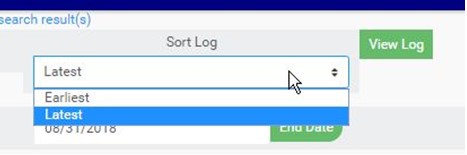
You can sort out the records to be seen from the latest to the earliest or vice-versa. Specify the order of the list by clicking on the ‘Sort Log’ box as in fig. 28.4k below.
(fig. 28.4k)
At the bottom-right corner of the page, the software provides information about the number of pages, with the page numbers written out. Clicking on a page number to go to that particular page. Click on ‘NEXT’ to go to the next page and click on ‘PREVIOUS’ to go to the page before the current page. See these features in fig. 28.4l below.
The service log keeps a record of the Compliance Planet software services forming a logical path linking a sequence of operations on the software. The service log provides a list of services that have affected an operation in a sequential order. It is used to trace the services that have affected the contents of a record.
NOTE: Only the Supreme Administrator can carry out this operation
Here is how to view a service log;
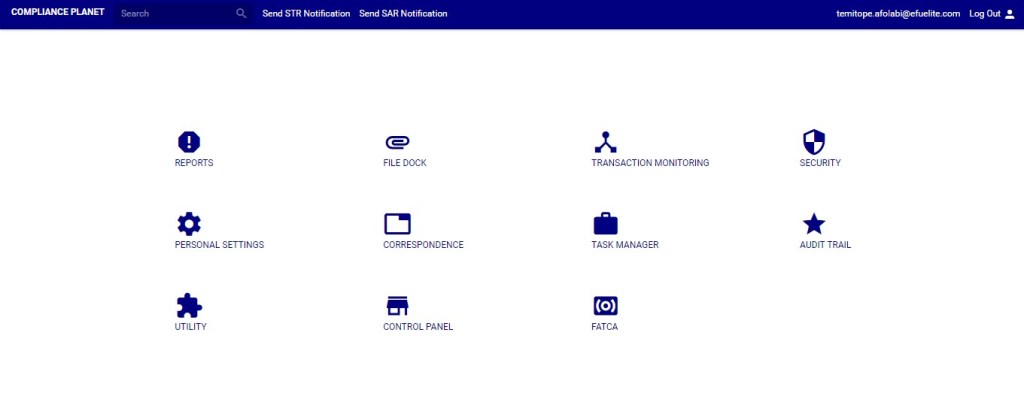
STEP 1:From the main dashboard, click ‘AUDIT TRAIL’ as shown in fig 28.2a below
(Fig 28.2a)
This will display the audit trail page as shown in fig. 28.2b.
(fig. 28.2b)
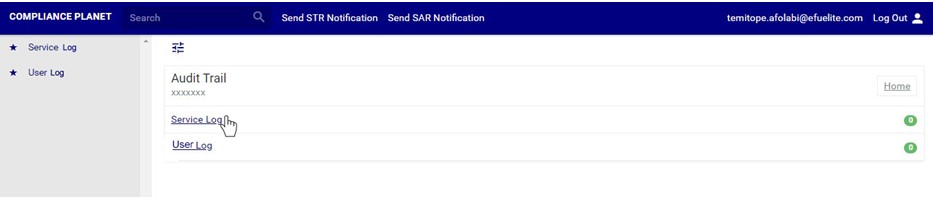
STEP 1: Click on ‘Service log’ on the audit trail page as shown in fig.28.3a. below.
(fig. 28.3a)
You can also click on ‘Service log’ on the left hand side menu as in fig. Fig. 28.3b
(fig. 28.3b)
This will display the service log page as seen in fig. 28.3c below.
(fig. 28.3c)
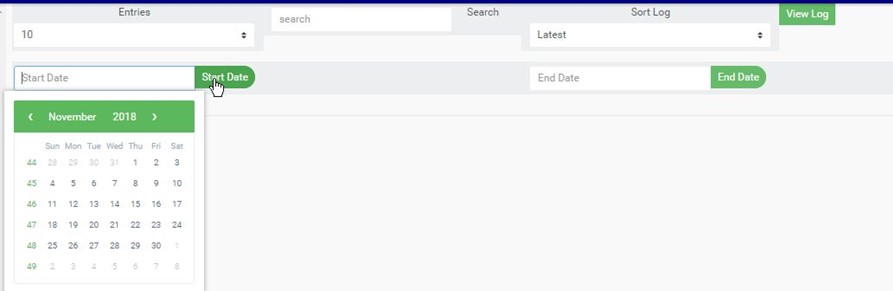
STEP 2: Click on the ‘Start Date’ button this displays a calendar just below the date box. See fig. 28.3d for an example.
(fig. 28.3d)
Take a look at the arrows labelled a to d in fig. 28.3e to study the calendar.
Click on the given year to change it to your year of choice.
Click on the given month to change it to your month of choice.
Then, click on the date of the month.
You can also click on the angle brackets on the calendar [ ‘<’ or ‘>’ ] to go backward or forward.
(fig. 28.3e)
STEP 3: Click on the ‘End Date’ button to specify the end date, this also displays a calendar below the date box. See fig. 28.3f for an example.
(fig. 28.3f)
STEP 4: Click on ‘View Log’ as in fig. 28.3g below to view the services.
(Fig. 28.3g)
This displays a list of services pertaining to operations that were carried within the specified period. See fig. 28.3h for an example.
(fig. 28.3h)
Click on the ‘entries’ box to change the number of entries you want to see per page. See fig. 28.3i.
(fig. 28.3i)
You can search for a service by typing th search term in the ‘Search’ box. The software displays the results in real time. See fig. 28.3j for an example of a search.
(fig. 28.3j)
You can sort out the records to be seen from the latest to the earliest or vice-versa. Specify the order of the list by clicking on the ‘Sort Log’ box as in fig. 28.3k.
(fig. 28.3k)
At the bottom-right corner of the page, the software provides information about the number of pages, with the page numbers written out. Clicking any page number, to go to that particular page. Click ‘NEXT’ to go to the next page and click on ‘PREVIOUS’ to go to the page before the current page. See these features in fig. 28.3l below.
(fig. 28.3l)
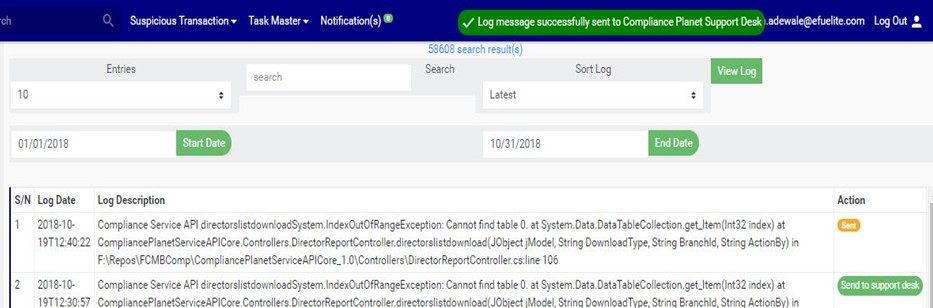
Each service log entry has an action button used for mailing the service log to the Compliance support desk.(See fig. 28.3m below) Here is how to mail a service log to the support desk;
Click on ‘Send To Support Desk’. This button is at the end of the row of each log entry. See this in fig. 28.3m below.
(fig. 28.3m)
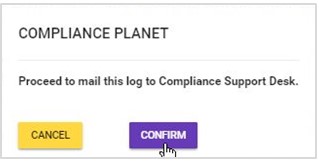
This displays a confirmation console as in fig. 28.3n will be displayed. Click on ‘Confirm’ to proceed
(fig. 28.3n)
.
A notification will be displayed at the top of the screen as in fig. 28.3o when the mail is sent successfully and the action button for that log will change to ‘Sent’.
This section provides a guide on how to view the Audit trail, that is, the track of services or actions on the Compliance Planet, with step-by-step instructions and pictures.
What is an Audit Trail?
An audit trail is a record that provides a documentary evidence of the sequence of activities, processes and services that have affected a specific operation or procedure on the Compliance Planet at any time in a chronological order. This record of system activities and services enables the reconstruction and examination of the sequence of events and operations on the planet and/or changes.
Audit Trail Operations
The audit trail menu houses features that provide information on the occurrence of the compliance planet services and significant actions carried out successfully on the compliance planet. The audit trail section comprises of;
Service log
Action log
NOTE: Only the Supreme Administrator can carry out this operation
To get an audit trail,
From the main dashboard, click ‘AUDIT TRAIL’ as shown in fig 28.2a below
(Fig 28.2a)
This will display the audit trail page as shown in fig. 28.2b.