How to Carry Out STR Notification HTML Controls Operations in Compliance Planet Anti Money Laundering/Core Banking Finance Software

This section provides a guide on how to execute the STR notification HTML controls on the Compliance Planet, with step-by-step instructions and pictures.

NOTE: Only person(s) profiled as deputy supreme admin can carry out these operations 

STEP 1: From the app dashboard, click ‘Control panel’ as in Fig. 21.2a.
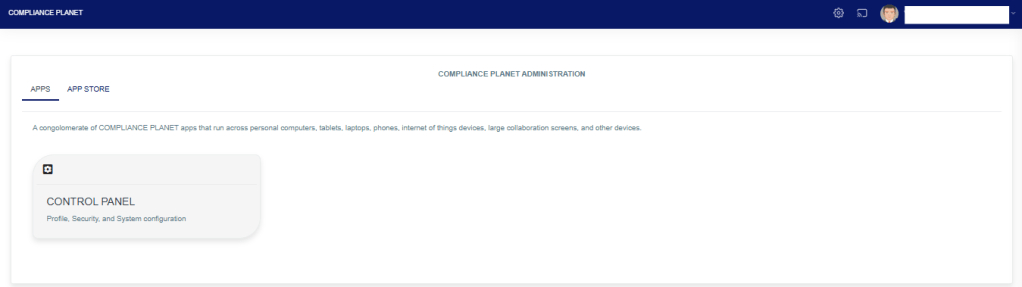
Fig 21.2a

  • This will display a drop-down as shown below.
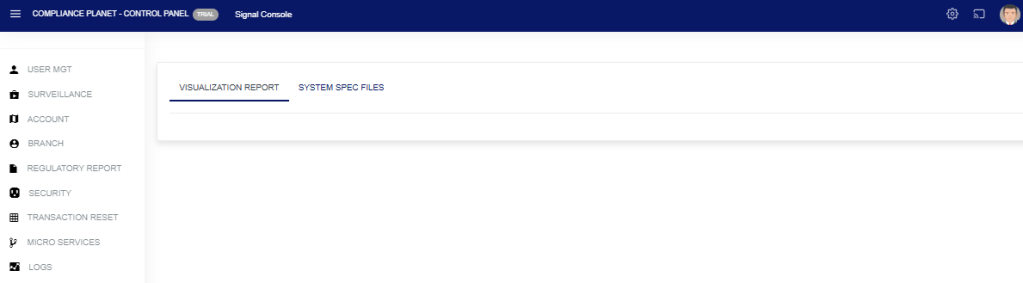
STEP 2: Select ‘SURVEILLANCE’ on the drop-down list and click on ‘Page Design’. See an example in Fig. 21.2b below.
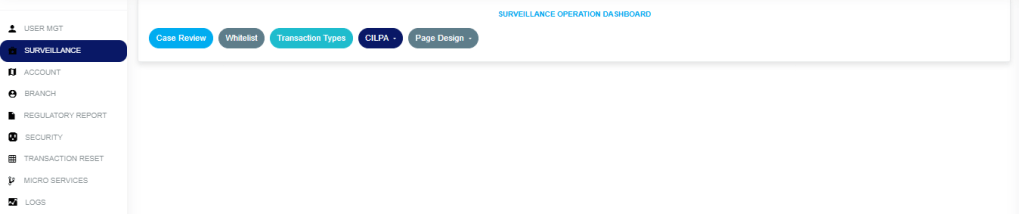
Fig 21.2b

STEP 3: In the Page Design drop-down option, select the ‘STR’ as in Fig. 21.2c below.

Fig. 21.2c

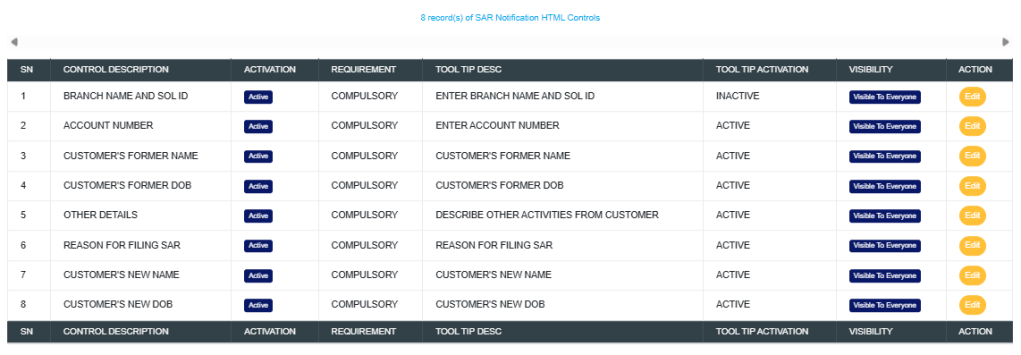
  • This displays a page showing a list of all ‘STR SAR Notification Html Control’ options that have been created and are available on the software. See Fig. 21.2d for an example.
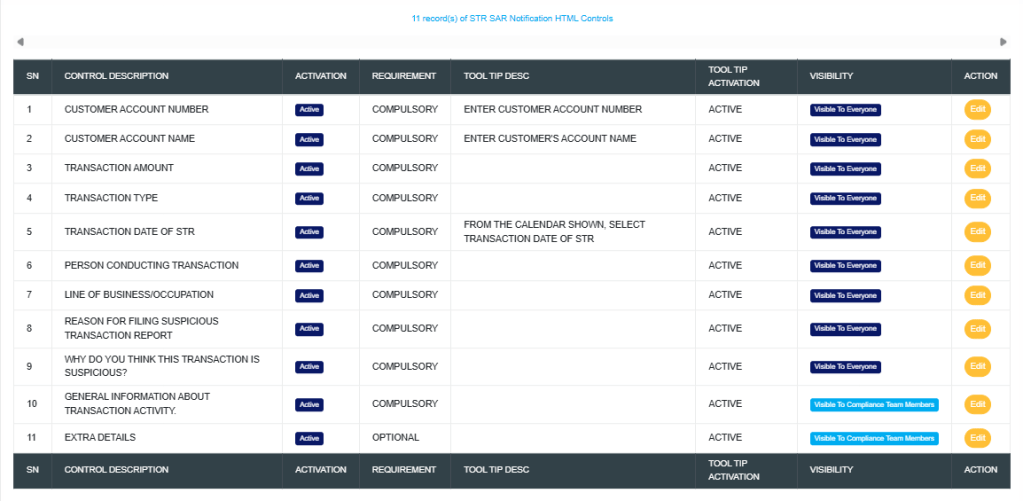
Fig. 21.2d

How to edit an STR notification

This refers to changing the description or status of the STR notification. Here is how to do this.

STEP 1: Click on the ‘EDIT’ button in the action column. See Fig. 21.2e for an example.

Fig. 21.2e

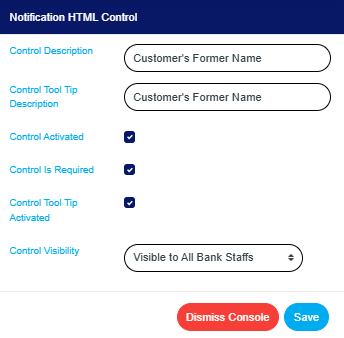
  • Clicking the edit button will display a console titled ‘Notification HTML Control’ as shown in Fig. 21.2f below.
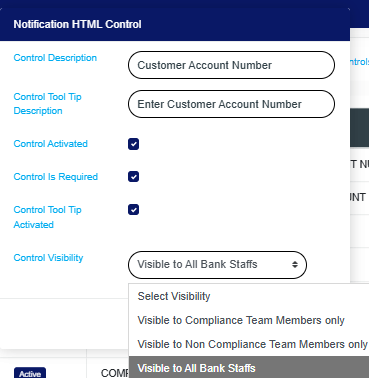
Fig. 21.2f

Control Description: Click on the “Control Description box” and enter the name of the control field that should appear on the STR notification form.

Control Tool Tip Description: Click on the “Control Tool Tip Description box” and input a brief instruction that will appear when working on a STR notification.

Control Activated: Tick the “Control Activated box to enable and display the control on the STR notification form.

Control Is Required: Tick the “Control Is Required box to make the control field mandatory for STR submission.

Control Tool Tip Activated: Tick the “Control Tool Tip Activated box so the tool tip appears when users focus or hover on the control.

Control Visibility: Click on the “Control Visibility dropdown and select whether the control should be visible to compliance team members only, non-compliance team members only, or all bank staff.

  • STEP 2: Click on the ‘save’ button to save the edit or click ‘dismiss console’ to cancel the operation. See Fig. 21.2g for an example.
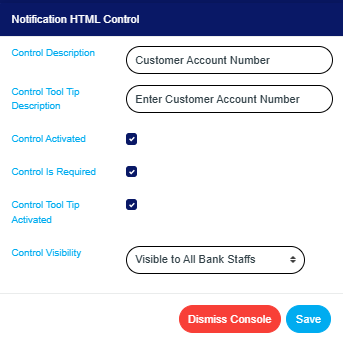
Fig. 21.2g

  • This displays a confirmation console as in Fig. 21.2h below

Fig. 21.2h

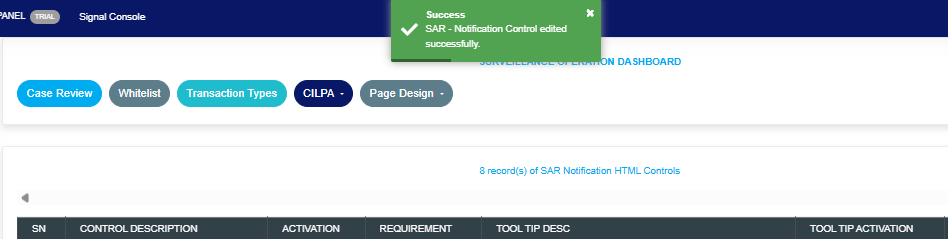
  • A notification, as in Fig. 21.2i, will be displayed at the top of the page.
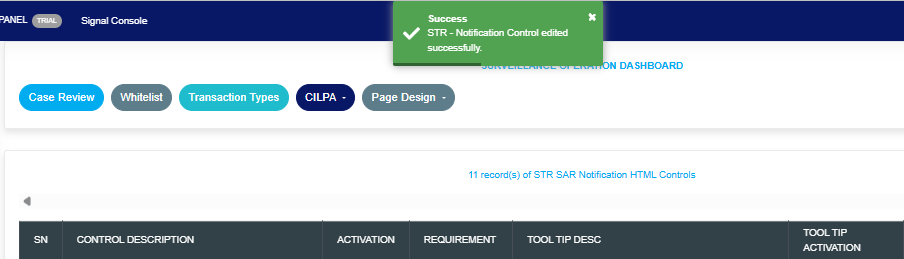
Fig. 21.2i

For further enquiries: 
Tel: +234(0) 816 555 9818
Email: solutions@efuelite.com 
Web: https://solutions.efuelite.com
How to carry out Whitelisting Operations on Control Panel in Compliance Planet Anti Money Laundering/Core Banking Finance Software

This section provides a guide to performing whitelisting operations on the control panel in the Compliance Planet Anti-Money Laundering/Core Banking Finance Software, complete with step-by-step instructions and illustrations.

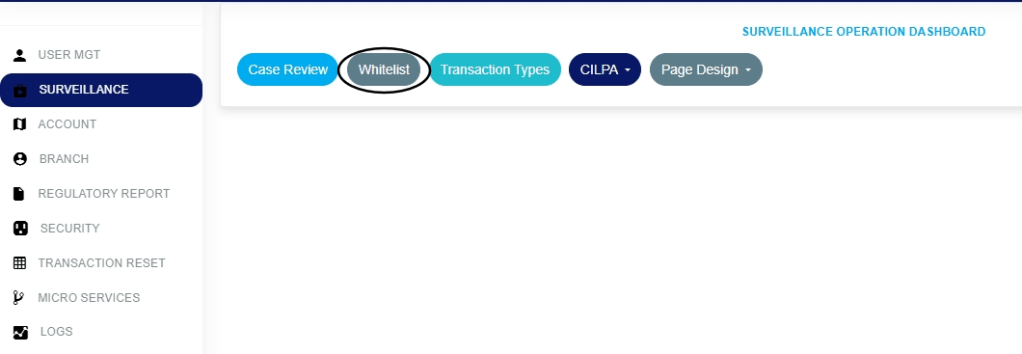
STEP 1: From the app dashboard, click ‘Control panel’ as in Fig. 21.2a.

Fig 21.2a

  • This will display a drop-down as shown below.

STEP 2: Select ‘SURVEILLANCE’ on the drop-down list and click on Whitelist. See an example in Fig. 21.2b below.

Fig 21.2b

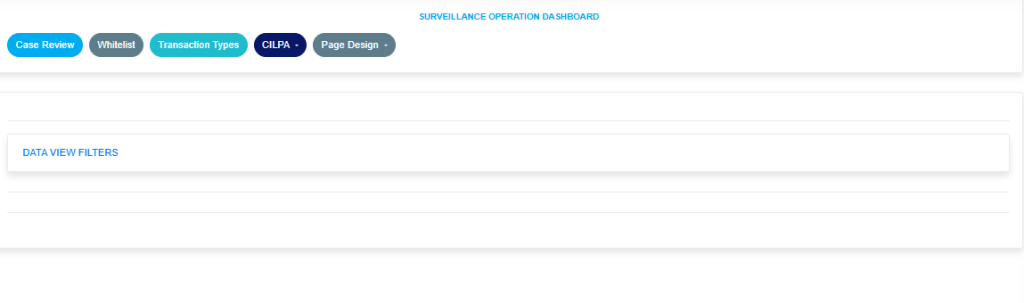
The above action will show the drop-down in Fig. 21.2c below.

Fig. 21.2c

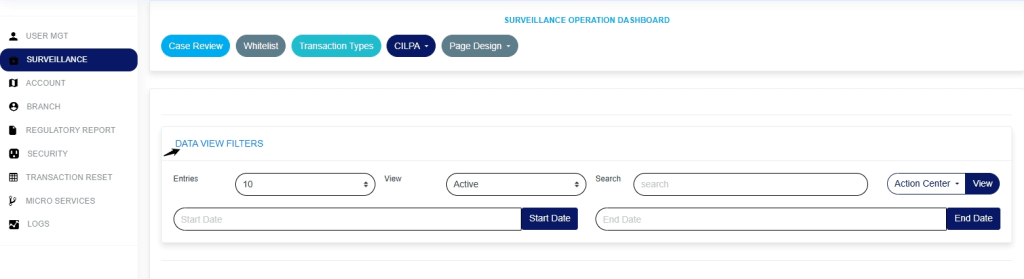
Click on the ‘Data View Filters to open the parameters as shown in the Fig. 21.2d image below.

Fig. 21.2d

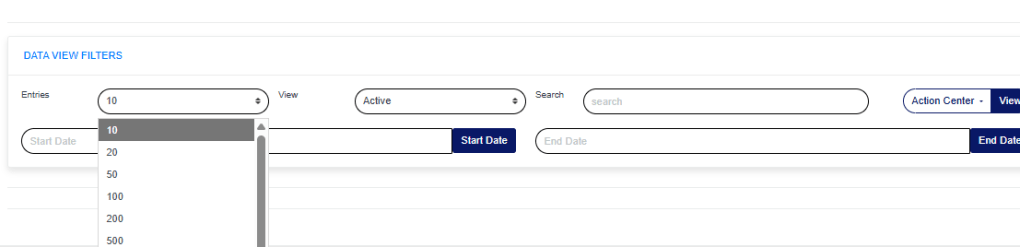
Entries: click on the Entries drop-down to choose how many case entries you want displayed per page, as shown in Fig. 21.2e

Fig. 21.2e

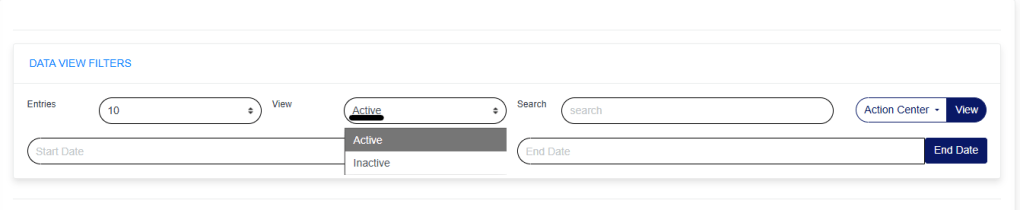
View: Click on the view drop-down to filter and select either active or inactive, as shown in Fig. 21.2f below.

Fig. 21.2f


Search: click on the search box and enter the account number to quickly find specific accounts, as shown in Fig. 21.2g below.

Fig. 21.2g

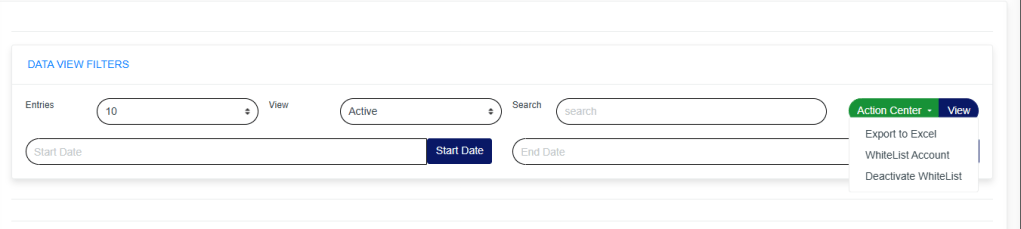
Action Center: click on the Action Center drop-down to perform quick actions to Export to Excel, whitelist accounts, and deactivate whitelist as shown in Fig.21.2h below.

Fig.21.2h

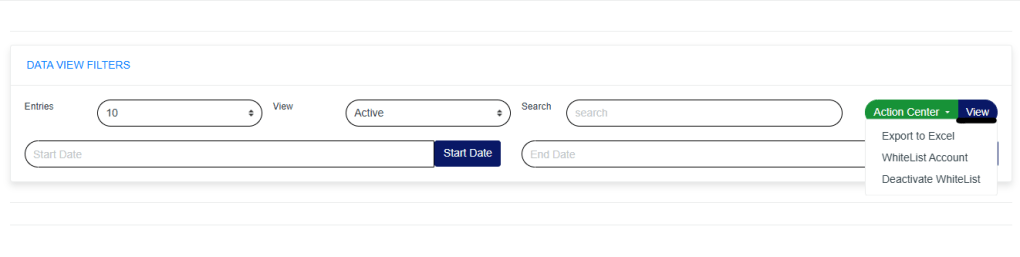
View: click on View to view cases. This is after filling in all the necessary parameters, as shown in Fig. 21.3a below.

Fig.21.3a

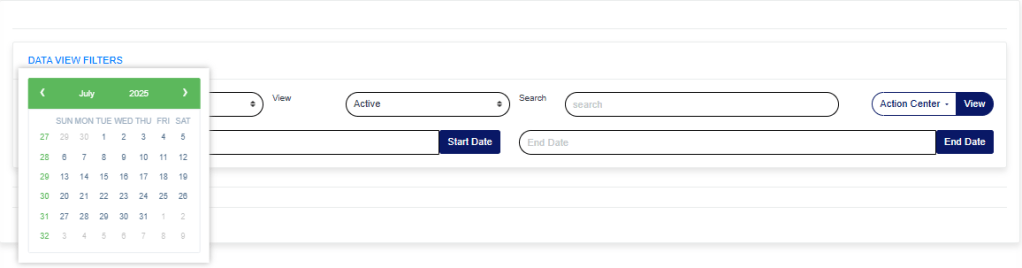
Start Date & End Date: Use the ‘Start Date’ and End Date’ fields to filter cases based on a selected time range, as shown in Fig.21.3b and Fig.21.3c below

Fig.21.3b

Fig.21.3c

How to Whitelist an account on the Control Panel.

STEP 1: Click on Action Center and select ‘Whitelist Account as shown in Fig.21.3d image below.

Fig.21.3d

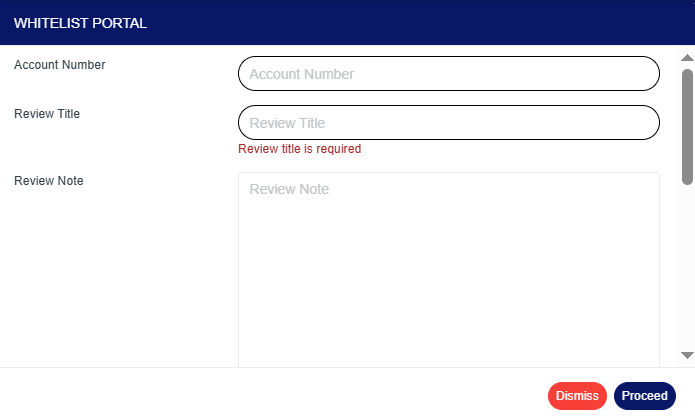
The above action will show the ‘Whitelist Portal page as shown in Fig.21.3e below.

Fig.21.3e

Account Number: Click on the ‘Account Number box and enter the account number you want to whitelist.

Review Title: Click on the Review Title box and enter the review title. Also, note that a review title box must be filled in to whitelist an account.

Review Note: Click on the Review Note box to enter why you are whitelisting the account.

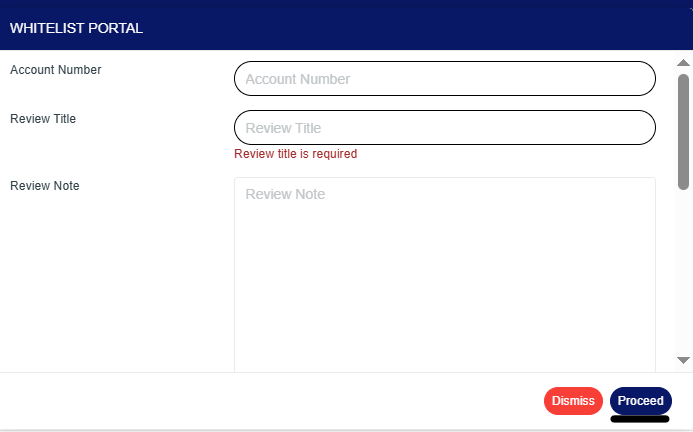
STEP 2: Click on proceed to continue with the whitelisting process or ‘dismiss to cancel the process, as shown in Fig.21.3f image below.

Fig.21.3f

Whitelist for a specific period: Turn on the ‘Whitelist for specific period’ button to whitelist the account for a certain period of time.

Start Date & End Date: Enter the Start Date and End Date fields to select the time range. This is required if the Whitelist for a specific period button is turned on.

Whitelist Category: Click on the Whitelist Category drop-down to select either TM/FRAUD Global Surveillance, TM/FRAUD Policy Surveillance, or TM/FRAUD Rule Surveillance.

Bulk Upload: Upload the bulk Excel file and click proceed to complete the process.

For further inquiries: 
Tel: +234(0) 816 555 9818
Email: solutions@efuelite.com 
Web: https://solutions.efuelite.com
How to Carry Out SAR Notification HTML Controls Operations in Compliance Planet Anti Money Laundering/Core Banking Finance Software

This section provides a guide on how to execute the SAR notification HTML controls on the Compliance Planet, with step-by-step instructions and pictures.

NOTE: Only person(s) profiled as deputy supreme admin can carry out these operations 

STEP 1: From the app dashboard, click ‘Control panel’ as in Fig. 21.1a.

Fig.21.1a

  • This will display a drop-down as shown below.

STEP 2: Select ‘SURVEILLANCE’ on the drop-down list and click on “Page Design“. See an example in Fig. 21.1b below.

Fig 21.1b

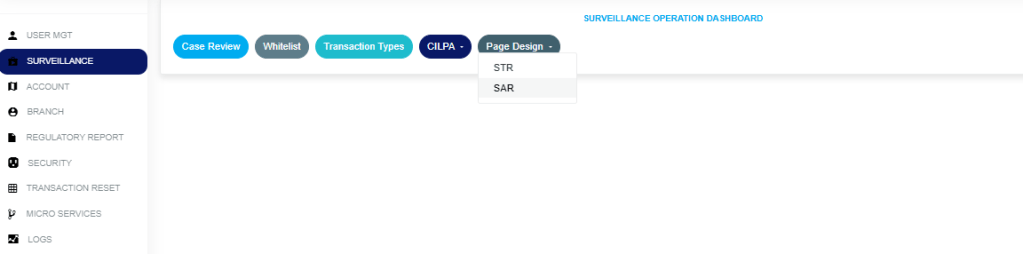
STEP 3: In the Page Design drop-down option, select the “SAR” as in Fig. 21.1c below.

Fig. 21.1c

  • This displays a page showing a list of all ‘‘SAR Notification HTML Control’’ options that have been created and are available on the software. See Fig. 21.1d for an example.

Fig. 21.1d

How to edit an STR notification

This refers to changing the description or status of the STR notification. Here is how to do this.

STEP 1: Click on the ‘EDIT’ button in the action column. See Fig. 21.1e for an example.

Fig. 21.1e

  • Clicking the edit button will display a console titled ‘Notification HTML Control’ as shown in Fig. 21.1f below.

Fig. 21.1f

Control Description: Click on the ‘Control Description box’ and enter the name of the control field that should appear on the SAR notification form.

Control Tool Tip Description: Click on the ‘Control Tool Tip Description box’ and input a brief instruction that will appear when working on a SAR notification.

Control Activated: Tick the ‘Control Activated box’ to enable and display the control on the SAR notification form.

Control Is Required: Tick the ‘Control Is Required box’ to make the control field mandatory for SAR submission.

Control Tool Tip Activated: Tick the ‘Control Tool Tip Activated’ box’ so the tool tip appears when users focus or hover on the control.

Control Visibility: Click on the ‘Control Visibility’ dropdown’ and select whether the control should be visible to compliance team members only, non-compliance team members only, or all bank staff.

  • STEP 2: Click on the ‘save’ button to save the edit or click ‘Dismiss Console’ to cancel the operation. See Fig. 21.1g for an example

Fig. 21.1g

  • This displays a confirmation console as in Fig. 21.2a below

Fig 21.2a

  • A notification, as in Fig. 21.2b, will be displayed at the top of the page.

Fig. 21.2b

For further enquiries: 
Tel: +234(0) 816 555 9818
Email: solutions@efuelite.com 
Web: https://solutions.efuelite.com
How to Carry out TM Review Explorer Operations on Digital Financial Crimes Surveillance in Compliance Planet Anti Money Laundering/Core Banking Finance Software

This section provides a guide on how to carry out Transaction Monitoring Review Explorer on the Compliance Planet Anti Money Laundering/Core Banking Finance Software, with step-by-step instructions and pictures.

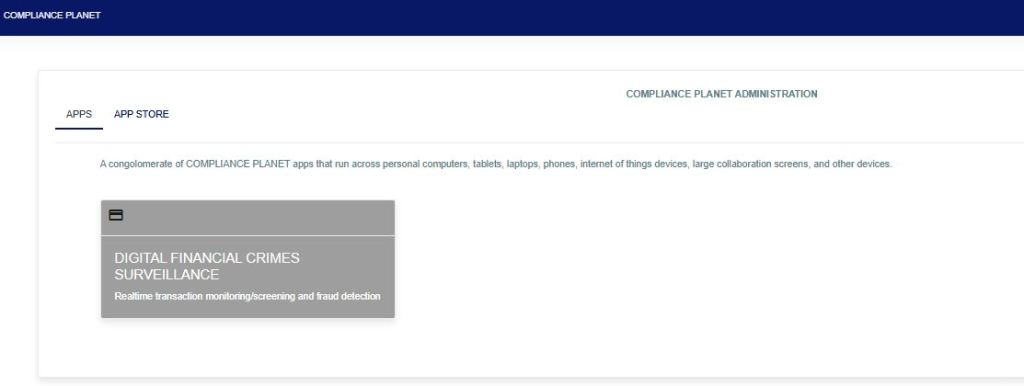
STEP 1: From the app dashboard, click “DIGITAL FINANCIAL CRIMES SURVEILLANCE” as in Fig. a below.

This image has an empty alt attribute; its file name is app-store-1.jpg

Fig a

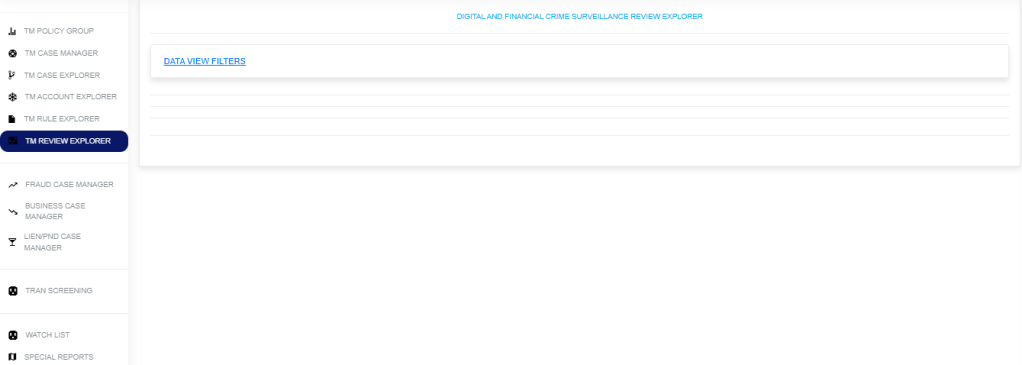
STEP 2: From the left-hand side menu, select “TM Review Explorer”, then click on “Data View Filter” as in Fig. b below.

Fig. b

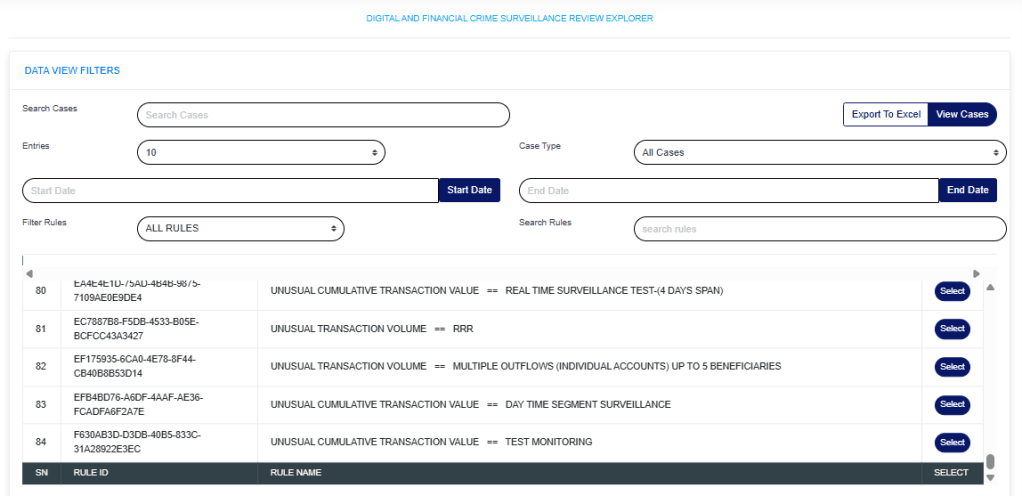
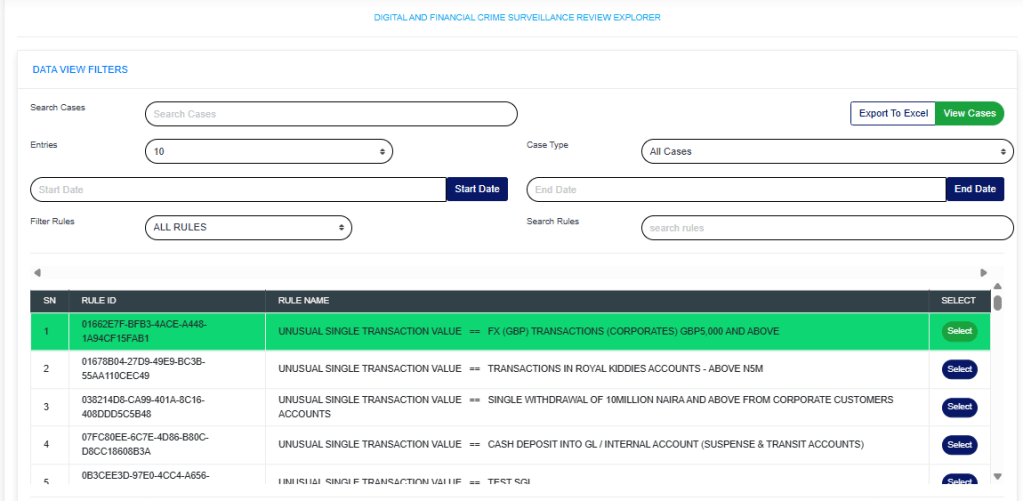
STEP 3: Then click “Data View Filters” to show a menu window that displays all the menus: Search Cases, Export to Excel, View Cases, Entries, Case Type, Start Date & End Date, Filter Rules, and Search Rules as in Fig. C below.

Fig. C

  • Search Cases: Click on the “Search Cases” box and enter keywords to quickly find specific cases related to a rule.
  • Export to Excel: Click on “Export to Excel” to carry out further analysis on a downloaded rule.
  • View Cases: Click on “View Cases” to view cases under a particular rule. Further visualization is below.
  • Entries: Click on the “Entries” drop-down to choose how many case entries you want displayed per page.
  • Case Type: Click on the “Case Type” drop-down to filter and view cases.
  • Start Date & End Date: Use the “Start Date” and “End Date” fields to filter cases or rules based on a selected time range.
  • Filter Rules: Click on the “Filter Rule” menu drop-down and select either All rules, Rules Deployed by me, or Rules Assigned to me.
  • Search Rules: Click the “Search rule” box and enter a phrase to quickly locate a specific rule. This feature helps you find rules containing the entered phrase.

To view rule cases, select the policy rule by clicking on the “select button” to highlight, input the start date and end date, then click on “View Cases” as in Fig. d below.

Fig d

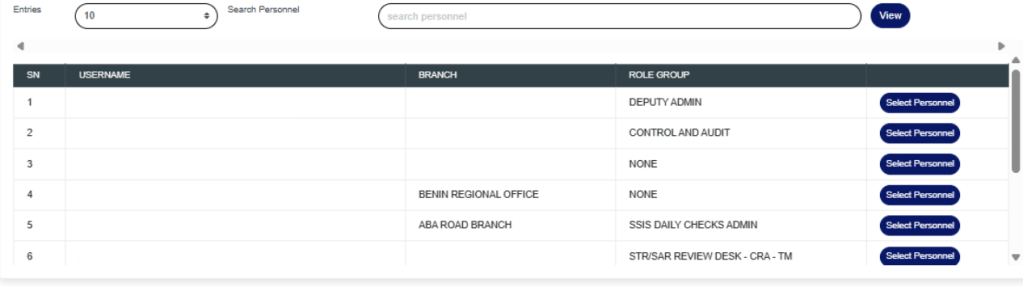
Below, you can select personnel to view the cases they have reviewed.

Then the lower part of the page now displays the policy rule name and all the information regarding the account, as seen in the figure below.
Each rule can be viewed in the Explorer case, Explorer account, or Explorer rule.


For further inquiries: 
Tel: +234(0) 816 555 9818
Email: solutions@efuelite.com 
Web: http://solutions.efuelite.com
How to Carry out Fraud Case Manager Operations on Digital Financial Crimes Surveillance in Compliance Planet Anti Money Laundering/Core Banking Finance Software

This section provides a guide on how to perform fraud case manager operations on the Compliance Planet Anti-Money Laundering/Core Banking Finance Software, complete with step-by-step instructions and illustrations.

STEP 1: From the app dashboard, click “DIGITAL FINANCIAL CRIMES SURVEILLANCE” as shown below.

This image has an empty alt attribute; its file name is app-store-1.jpg

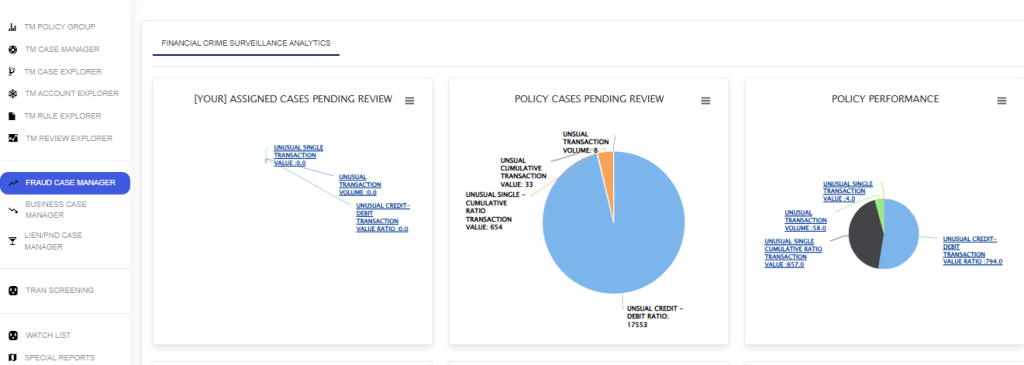
STEP 2: From the left-hand side menu, click on “Fraud Case Manager as shown below.

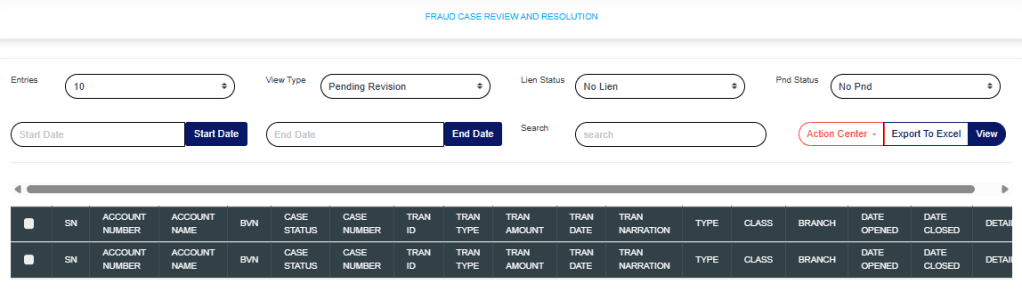
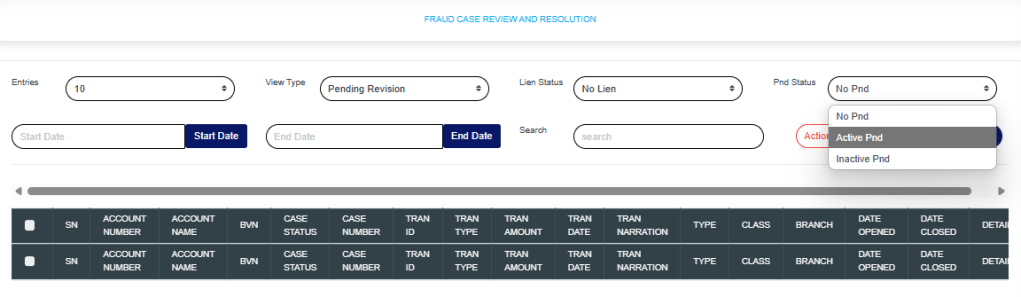
The above action will show the drop-down below.

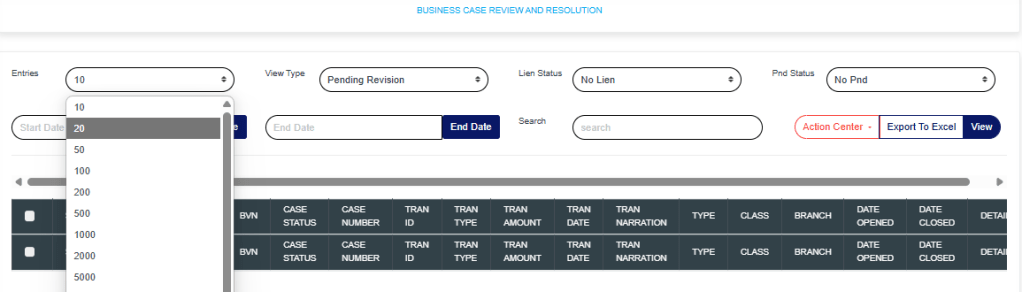
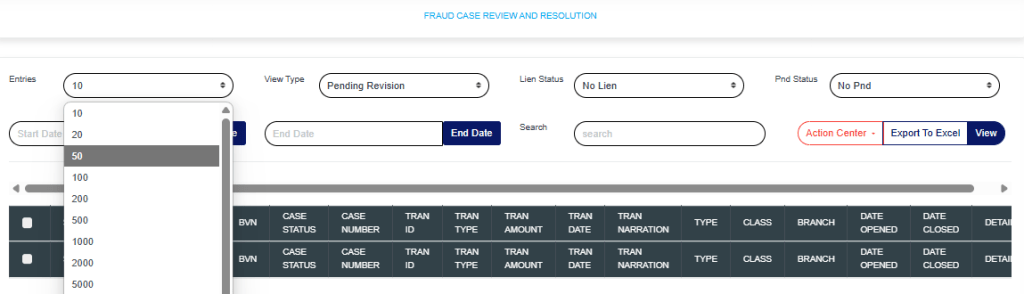
Entries: Click on the “Entries” drop-down to choose how many case entries you want displayed per page.

View Type: Click on the “View Type” drop-down to filter and select either Pending Revision, Revised, Pending Supervision, or Supervised.

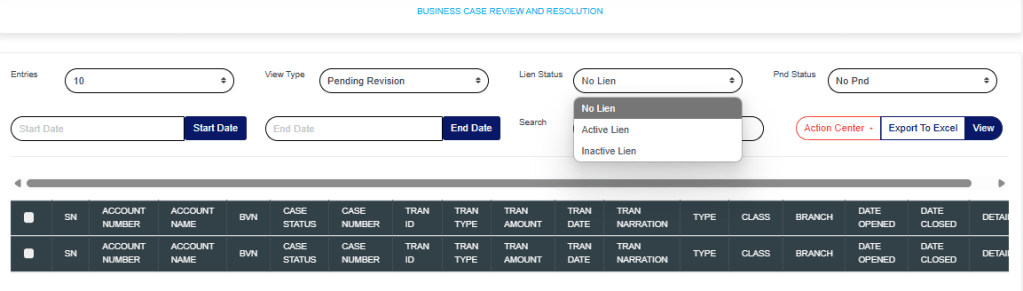
Lien Status: Click on the “Lien” drop-down to filter and select either active or inactive lien.

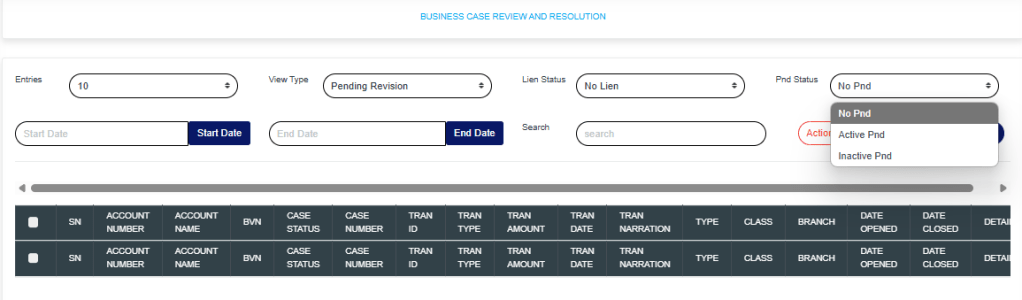
PND Status: Click on the “PND” drop-down to filter and select either active or inactive PND.

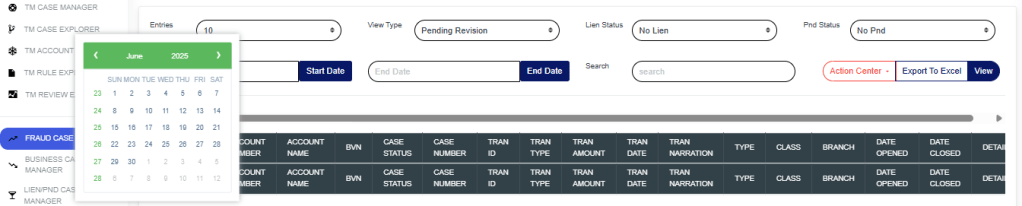
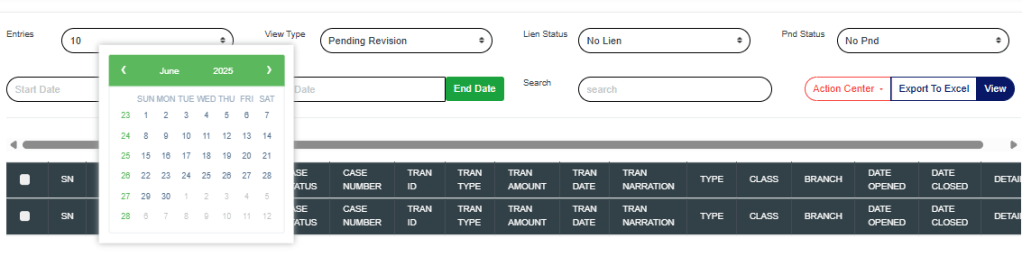
Start Date & End Date: Use the “Start Date” and “End Date” fields to filter cases based on a selected time range.
Search: Click on the “Search” box and enter keywords to quickly find specific cases.

Export to Excel: Click on “Export to Excel” to download cases in Excel format.
View: Click on “View” to view cases.

Action Center: Click on the “Action Center” drop-down to perform quick actions on Lien Selected transactions, Place Selected Accounts on PND, or Review Selected Accounts.

Lien Selected transactions: Click on “Lien Selected Transactions” to place a hold on the selected transactions.
Place Selected Accounts on PND: Click on “Place Selected Accounts on PND” to restrict all debit transactions from the selected accounts.
Review Selected Accounts
: Click on “Review Selected Accounts” to flag the selected accounts for further review.

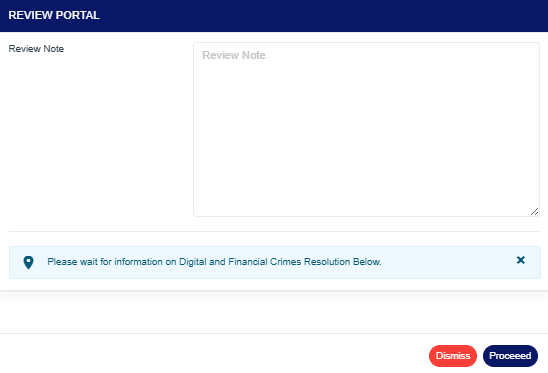
These actions will redirect you to the review portal, where you’ll be required to enter a review note explaining the reason for the selected action.

Click on “Proceed” to continue the process.
Click on “Dismiss” to stop the process.

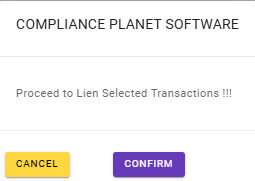
Clicking on Proceed will take you to the confirmation console.

Click on “Confirm” to save the process.

For further enquiries: 
Tel: +234(0) 816 555 9818
Email: solutions@efuelite.com 
Web: http://solutions.efuelite.com

How to Carry out Business Case Manager Operations on Digital Financial Crimes Surveillance in Compliance Planet Anti Money Laundering/Core Banking Finance Software

This section provides a guide on how to use the Business Case Manager feature on the Compliance Planet Anti-Money Laundering/Core Banking Finance Software, complete with step-by-step instructions and illustrations.

STEP 1: From the app dashboard, click “DIGITAL FINANCIAL CRIMES SURVEILLANCE” as shown below.

This image has an empty alt attribute; its file name is app-store-1.jpg

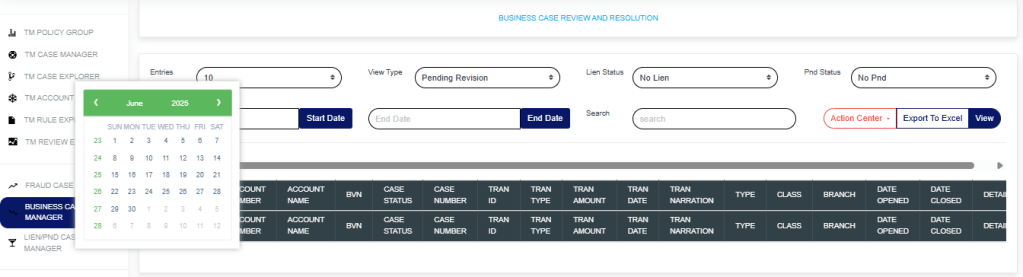
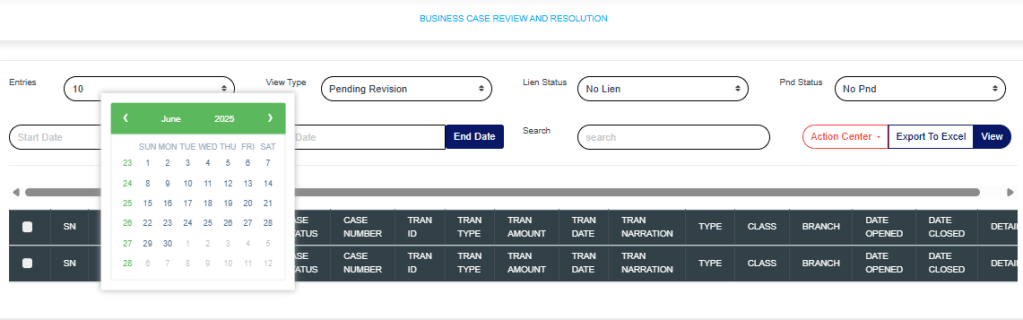
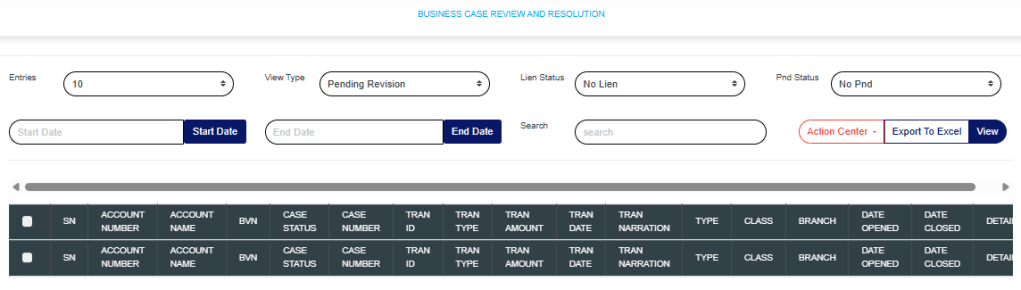
STEP 2: From the left-hand side menu, click on “Business Case Manager” and the drop-down will be seen as shown below.

Entries: Click on the “Entries” drop-down to choose how many case entries you want displayed per page.

View Type: Click on the “View Type” drop-down to filter and select either Pending Revision, Revised, Pending Supervision, or Supervised.

Lien Status: Click on the “Lien” drop-down to filter and select either active or inactive lien.

PND Status: Click on the “PND” drop-down to filter and select either active or inactive PND.

Start Date & End Date: Use the “Start Date” and “End Date” fields to filter cases based on a selected time range.
Search: Click on the “Search” box and enter keywords to quickly find specific cases.

Export to Excel: Click on “Export to Excel” to download cases in Excel format.
View: Click on “View” to view cases.

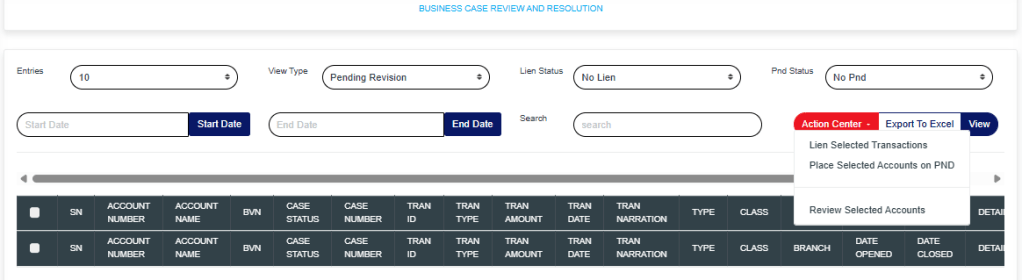
Action Center: Click on the “Action Center” drop-down to perform quick actions on Lien Selected transactions, Place Selected Accounts on PND, or Review Selected Accounts.

Lien Selected transactions: Click on “Lien Selected Transactions” to place a hold on the selected transactions.
Place Selected Accounts on PND: Click on “Place Selected Accounts on PND” to restrict all debit transactions from the selected accounts.
Review Selected Accounts
: Click on “Review Selected Accounts” to flag the selected accounts for further review.

These actions will redirect you to the review portal, where you’ll be required to enter a review note explaining the reason for the selected action.

Click on “Proceed” to continue the process.
Click on “Cancel” to stop the process.

Clicking on Proceed will take you to the confirmation console.

Click on “Confirm” to save the process.

For further enquiries: 
Tel: +234(0) 816 555 9818
Email: solutions@efuelite.com 
Web: http://solutions.efuelite.com

How to Carry out Lien/PND Case Manager Operations on Digital Financial Crimes Surveillance in Compliance Planet Anti Money Laundering/Core Banking Finance Software

This section provides a guide on how to use the Lien and PND Case Manager feature on the Compliance Planet Anti-Money Laundering/Core Banking Finance Software, complete with step-by-step instructions and illustrations.

STEP 1: From the app dashboard, click “DIGITAL FINANCIAL CRIMES SURVEILLANCE” as shown below.

This image has an empty alt attribute; its file name is app-store-1.jpg

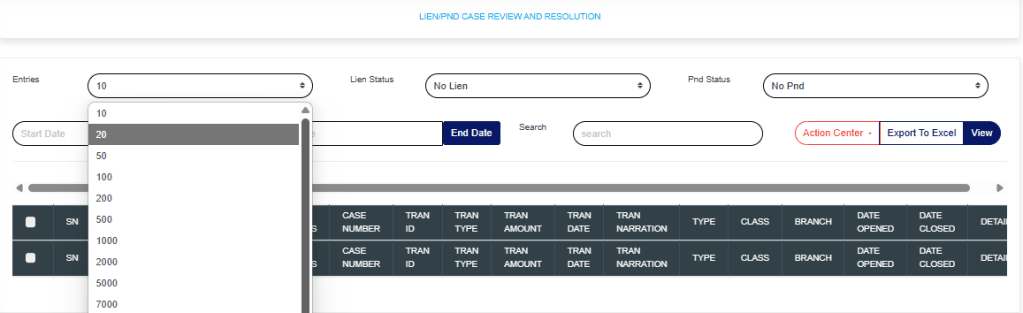
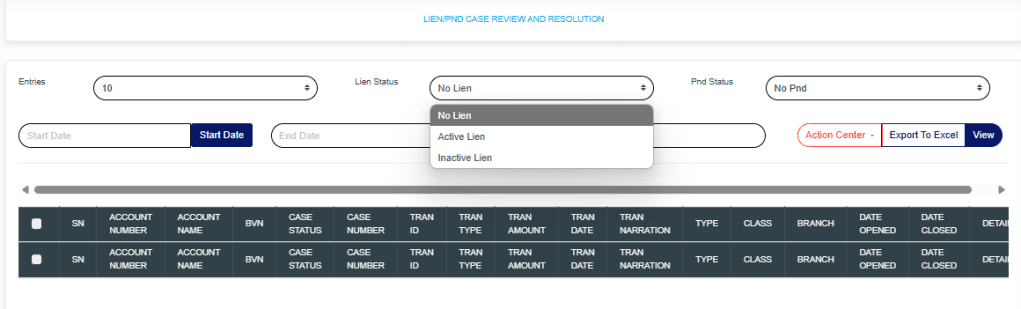
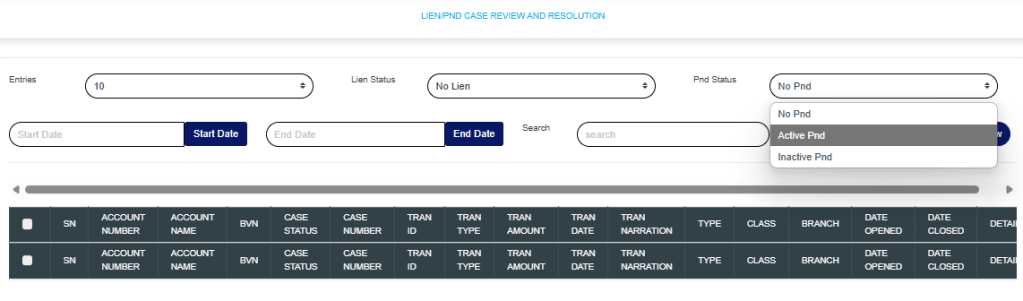
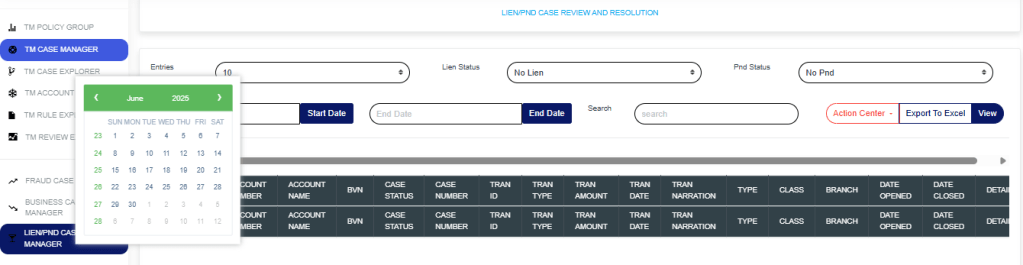
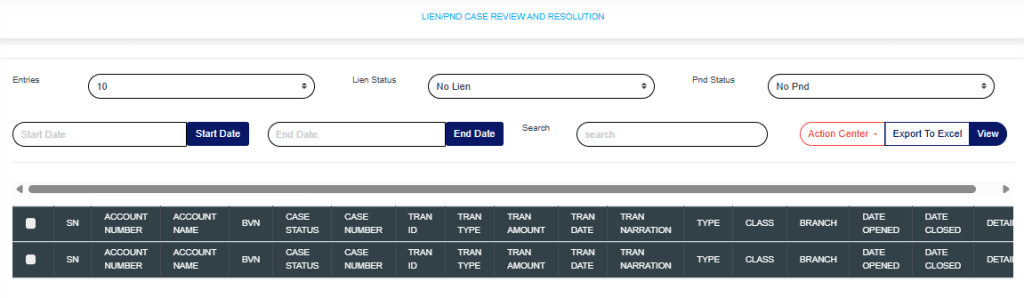
STEP 2: From the left-hand side menu, click on “Lien/PND Case Manager” and the drop-down will be seen as shown below.

Entries: Click on the “Entries” drop-down to choose how many case entries you want displayed per page.

Lien Status: Click on the “Lien” drop-down to filter and select either active or inactive lien.

PND Status: Click on the “PND” drop-down to filter and select either active or inactive PND.

Start Date & End Date: Use the “Start Date” and “End Date” fields to filter cases based on a selected time range.
Search: Click on the “Search” box and enter keywords to quickly find specific cases.

Export to Excel: Click on “Export to Excel” to download cases in Excel format.
View: Click on “View” to view cases.

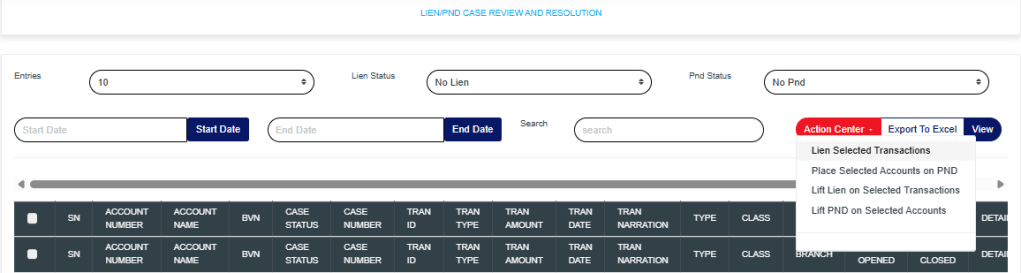
Action Center: Click on the “Action Center” drop-down to perform quick actions on Lien Selected transactions, Place Selected Accounts on PND, Lift Lien on Selected Transactions, or Lift PND on Selected Accounts.

Lien Selected transactions: Click on “Lien Selected Transactions” to place a hold on the selected transactions.
Place Selected Accounts on PND: Click on “Place Selected Accounts on PND” to restrict all debit transactions from the selected accounts.
Lift Lien on Selected Transactions:
Click on “Lift Lien on Selected Transactions” to remove the lien placed on the selected transactions.
Lift PND on Selected Accounts: Click on “Lift PND on Selected Accounts” to remove the PND (Post No Debit) restriction from the selected accounts.

These actions will redirect you to the review portal, where you’ll be required to enter a review note explaining the reason for the selected action.

Click on “Proceed” to continue the process.
Click on “Dismiss” to stop the process.

Clicking on Proceed will take you to the confirmation console.

Click on “Confirm” to save all processes.

For further enquiries: 
Tel: +234(0) 816 555 9818
Email: solutions@efuelite.com 
Web: http://solutions.efuelite.com
CBN Foreign Transaction Report (ADRAPS FTR) Process Panel In Compliance Planet Anti Money Laundering/Core Banking Finance Software

The CBN ADRAPS FTR process panel presents all transaction types and their corresponding date ranges, as well as the number of transactions under each type that have been processed on the Compliance Planet. The date range on the planet refers to the earliest and the latest dates of the transactions processed in Compliance Planet.

Note: Only persons assigned the right(s) to ‘view CTR reports’ and ‘process CTR reports’ will be able to carry out this operation.

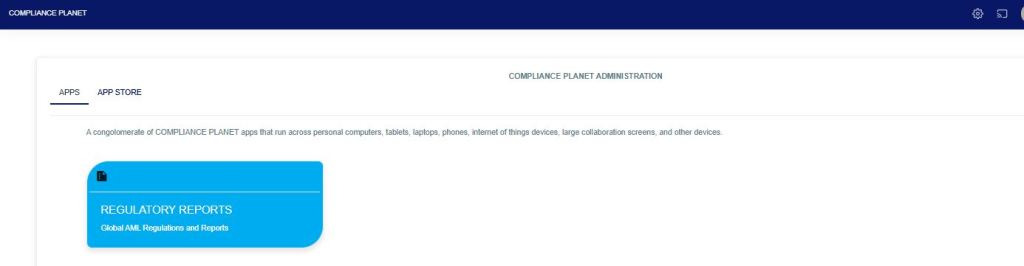
From the app dashboard, click on “REGULATORY REPORTS” as shown below

Fig

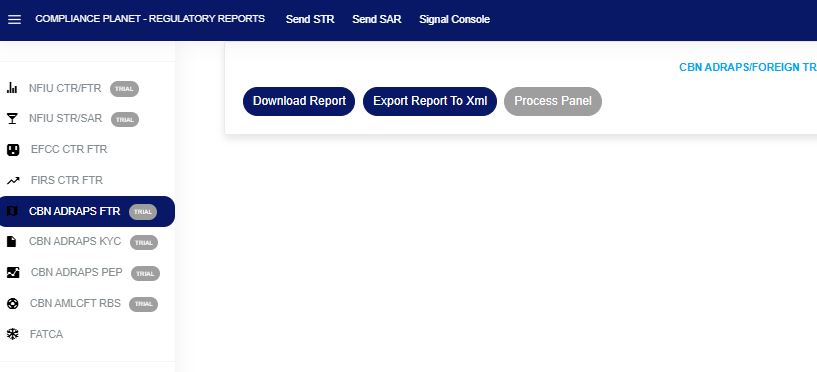
Click on ‘CBN ADRAPS FTR’ on the drop-down list. See an example in Fig below. This will display the CBN ADRAPS FTR page.

Fig

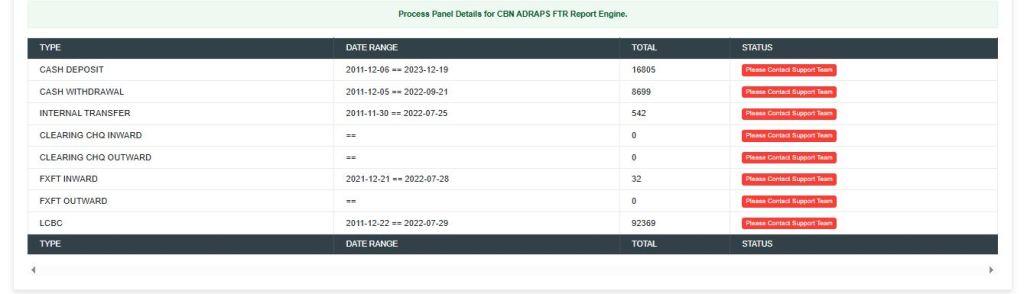
From the menu, click “Process Panel”, which will display all transaction types, date ranges, total records, and status, as shown in the Fig. below.

 
For further enquiries: 
Tel: +234(0) 816 555 9818
Email: solutions@efuelite.com 
Web: https://solutions.efuelite.com