How to Carry Out SAR Notification Reason Operations In Compliance Planet Anti Money Laundering/Core Banking Finance Software

This section provides a guide on how to modify “REASON” options available when sending an SAR notification (see section 6.2.2) on the Compliance Planet, with step-by-step instructions and pictures. These options are available when filling “Reason for filing SAR” when sending an SAR notification. 

SAR NOTIFICATION REASON OPERATIONS 

Here, the operations are; 

1. Editing notification reason, 

2. Deleting reason 

3. Adding a new reason 

NOTE: Only person(s) profiled as deputy supreme admin can carry out these operations.

To perform any of the operations; 

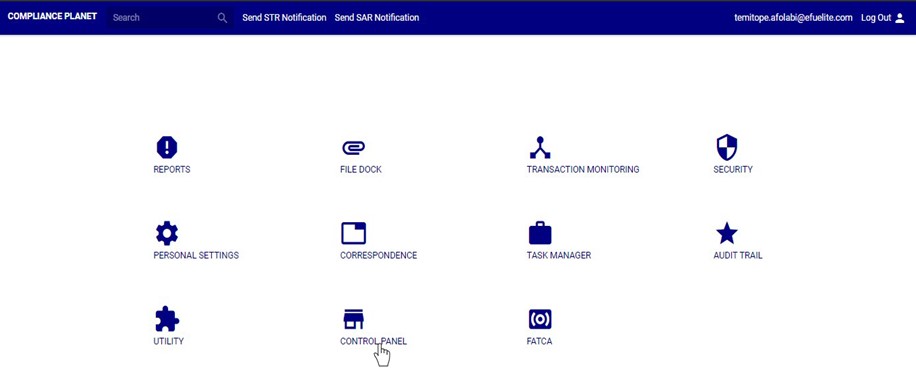
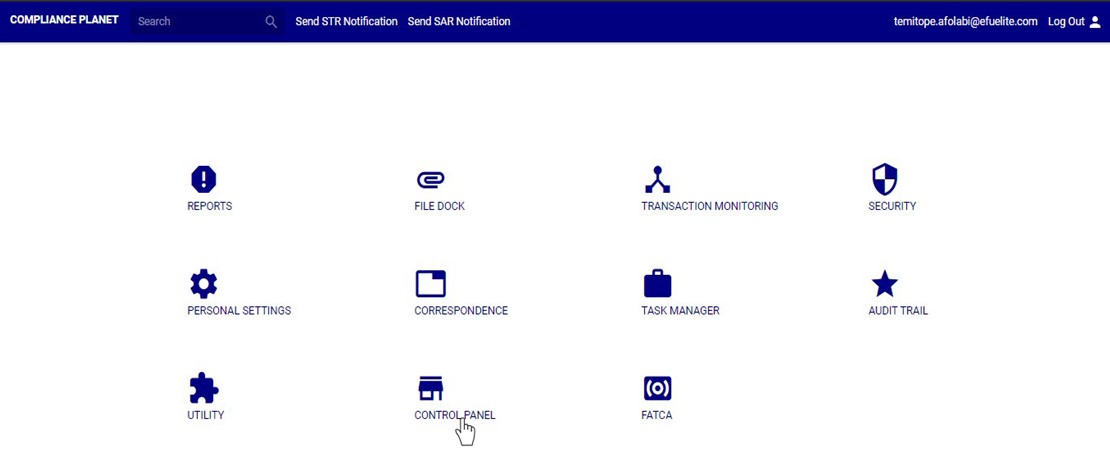
STEP 1: From the main dashboard, click ‘CONTROL PANEL’ as in fig 23.1a below 

(fig. 23.1a) 

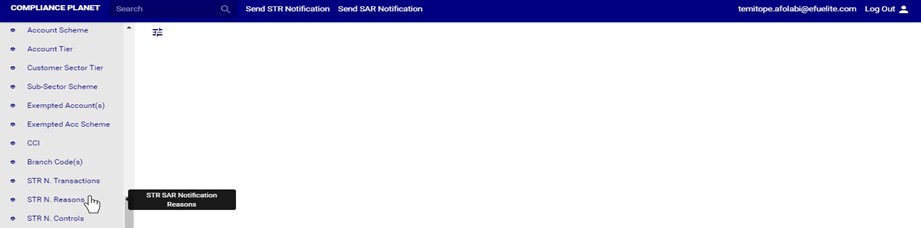
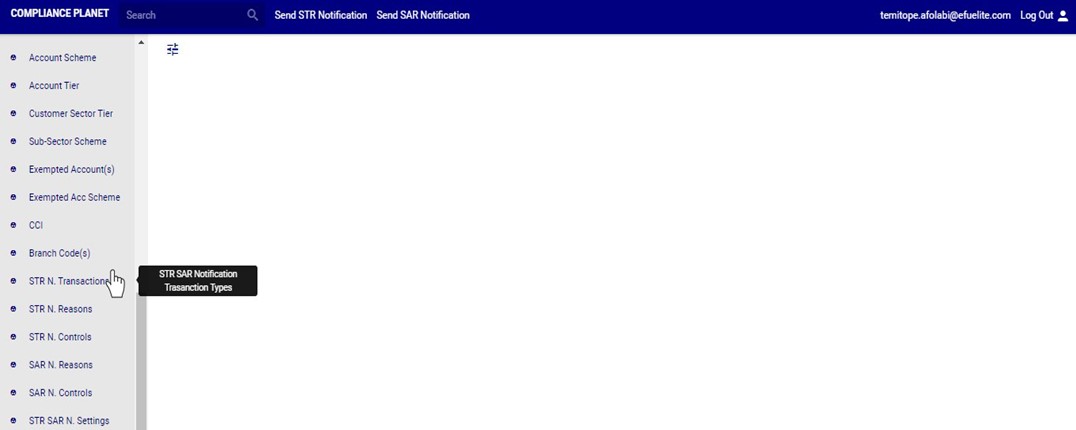
STEP 2: Click ‘SAR N. REASON’ on the left hand side menu as in fig 23.1b below 
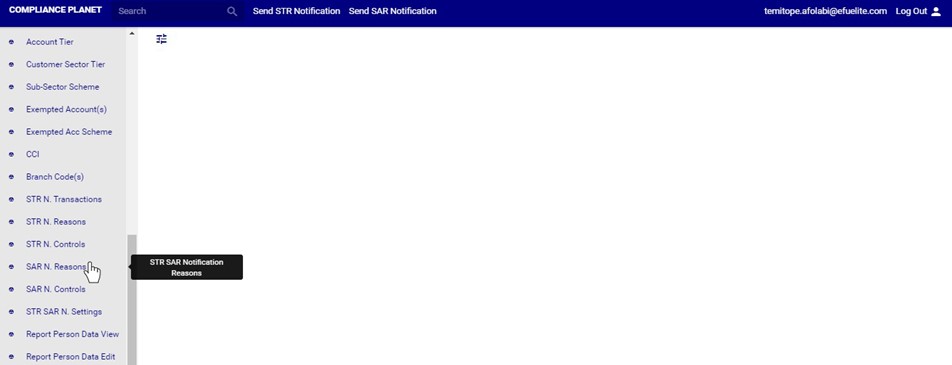
 (fig. 23.1b) 

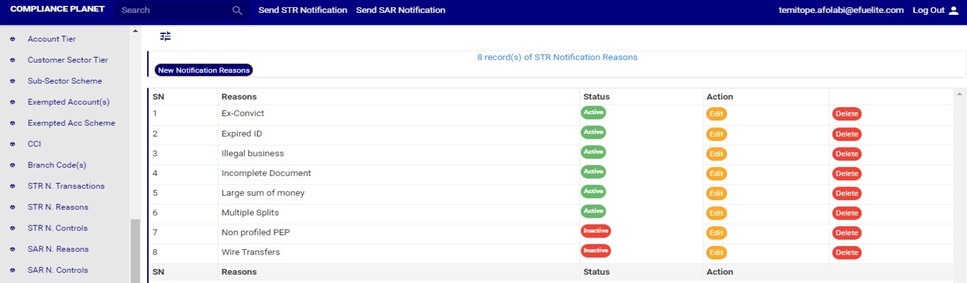
➔ This will display a page showing a list of all reasons that have been created and available on the planet. See fig. 23.1c for an example. 
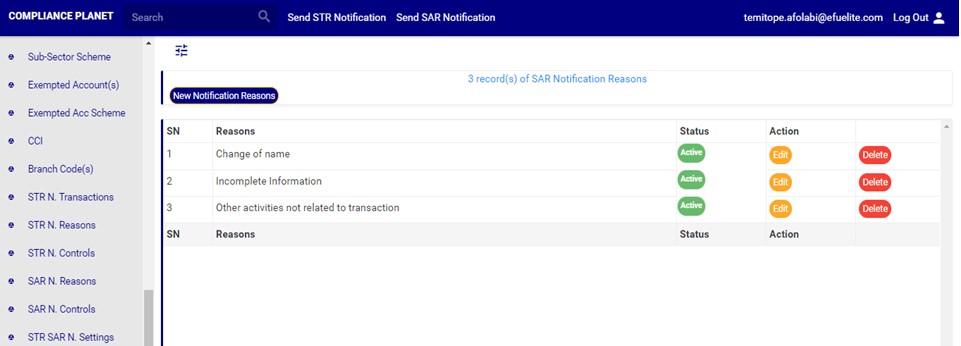
(fig. 23.1c) 

This refers to changing the description or status of the SAR notification reason. Here is how to do this. 

How to edit SAR notification reason 

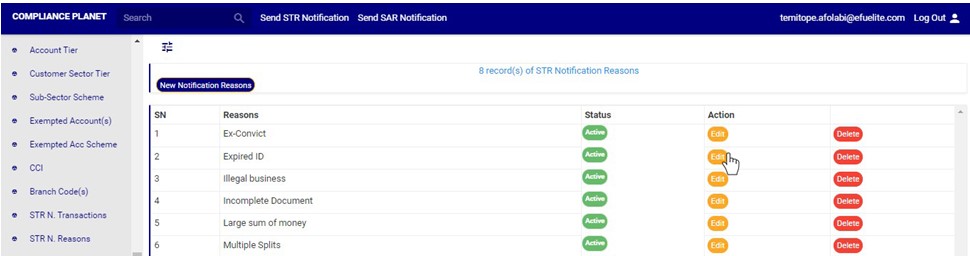
STEP 1: Click on the ‘EDIT’ button on the action column. See fig. 23.2a for an example. 

(Fig 23.2a) 

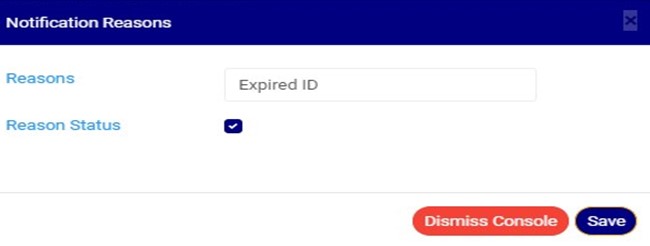
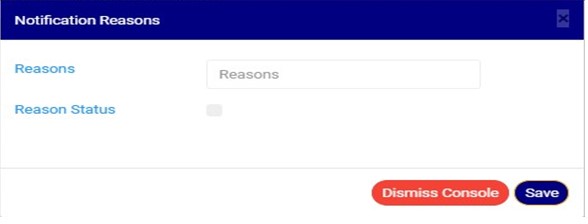
➔ Clicking the EDIT button will display a console titled, ‘Notifications Reasons’ as shown in fig 23.2b below. 
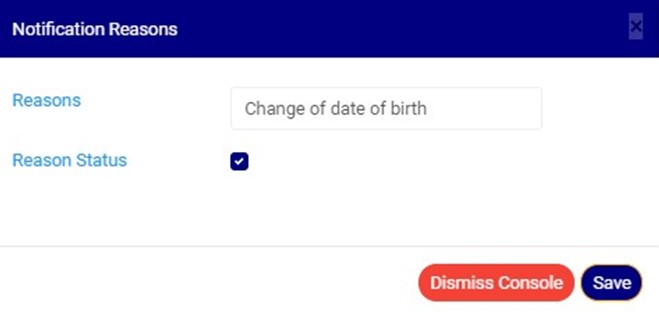
(Fig 23.2b) 

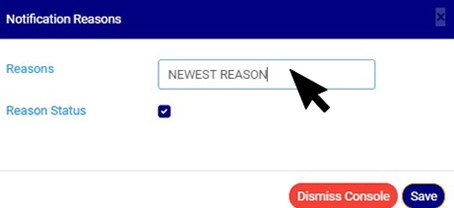
STEP 2: Click on the reasons textbox to change the Notification reason description. See an example in Fig 23.2c below. 
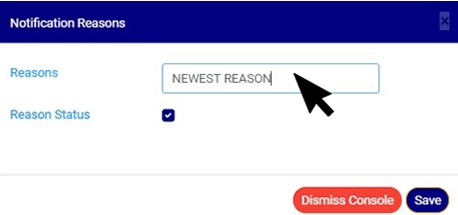
(Fig 23.2c) 

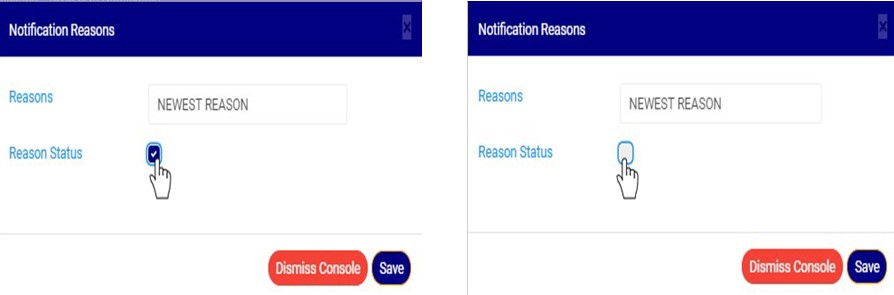
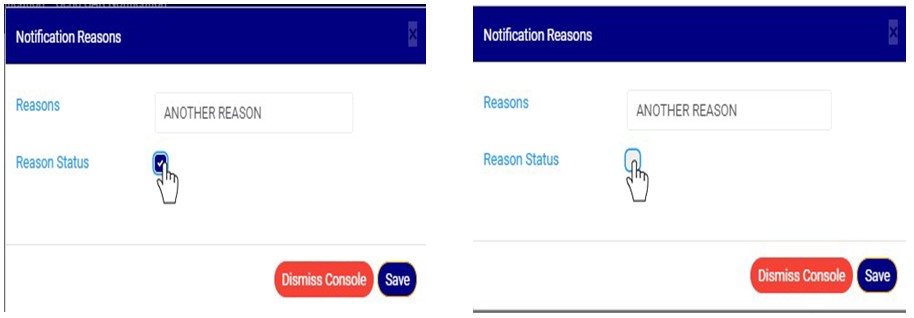
STEP 3: Click on the reason status checkbox to make that notification reason active or inactive. This is illustrated in Fig 23.2d and Fig 23.2e below 
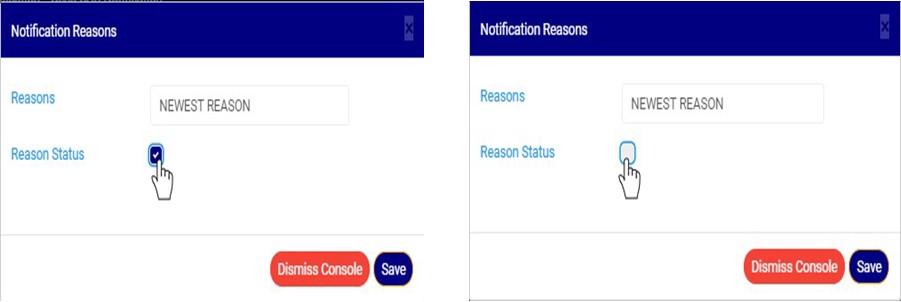
(Fig 23.2d) (Fig 23.2e) 

➔ Fig 23.2 d shows that the notification reason is set ACTIVE while Fig 23.2e shows that the notification reason is set INACTIVE. 

➔ An active notification reason will form part of the available options when sending a SAR notification on the compliance planet software while an inactive notification reason will no longer be part of the available options when sending a new SAR notification on the compliance planet. 

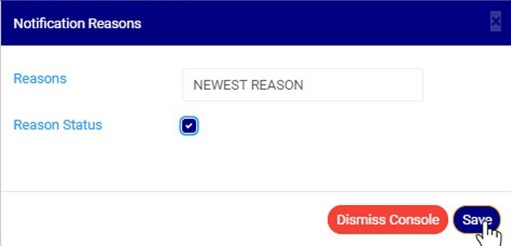
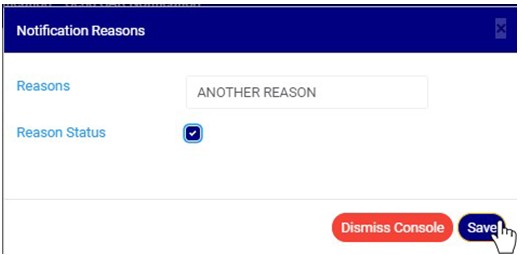
STEP 4: Click on ‘SAVE’ button to save the edit or click ‘DISMISS CONSOLE’ to close the console. See Fig 23.2f for an example 
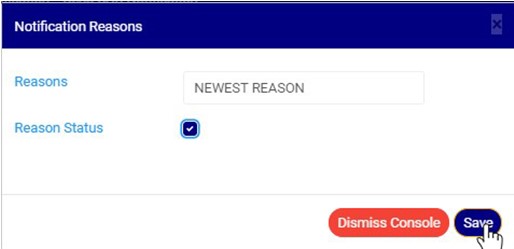
Fig 23.2f 

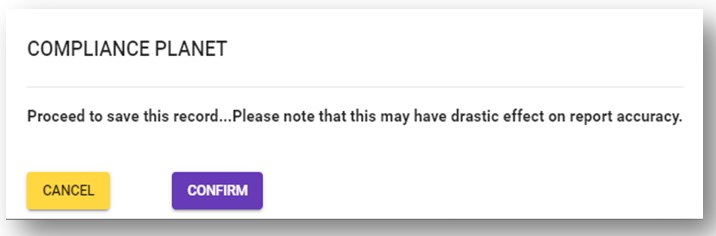
➔ This displays a confirmation console as in fig 23.2g below 
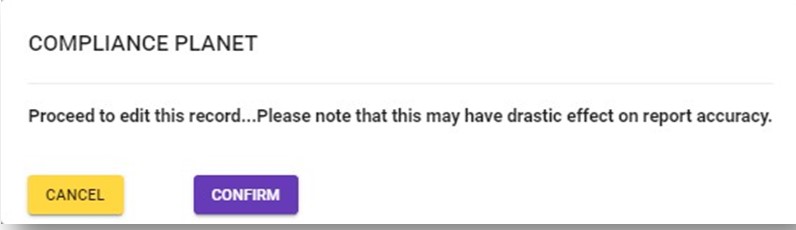
Fig 23.2g 

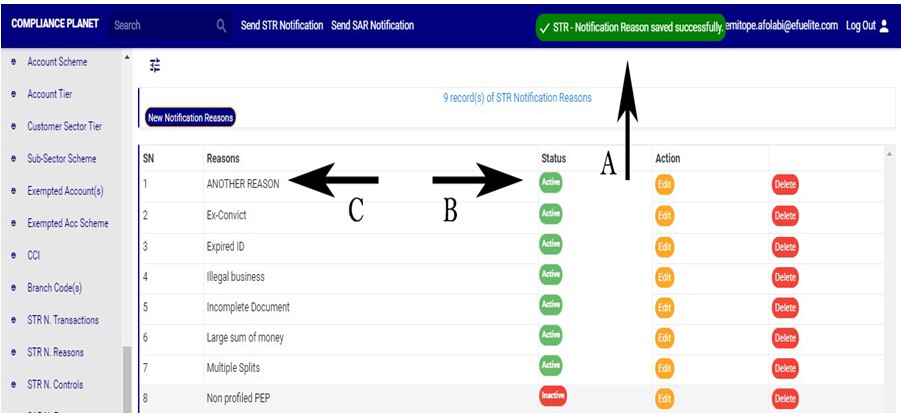
➔ A notification as in fig. 23.2h(A) will be displayed at the top of the page when the operation is successful. Also, See fig. 23.2h for an example of the updated description and status 
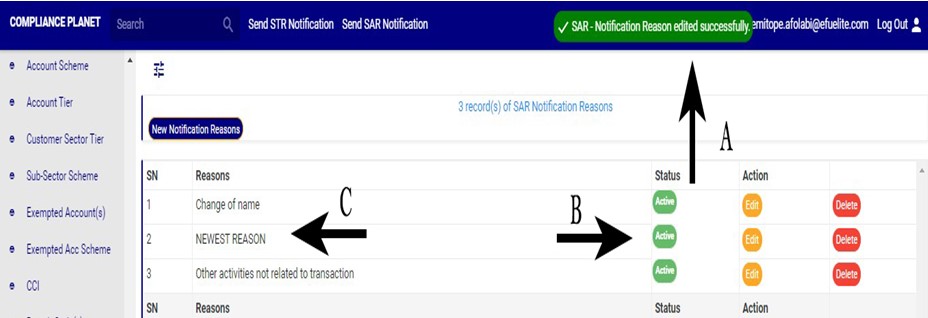
Fig 23.2h 

How to delete an SAR notification reason 

A deleted SAR notification reason will no longer be part of the available options when sending a SAR notification on the software(See section 6.2.2 for sending an SAR notification). 

Here is how to do this. 

STEP 1: Click on the ‘DELETE’ button of the SAR notification reason as in fig23.3a. 
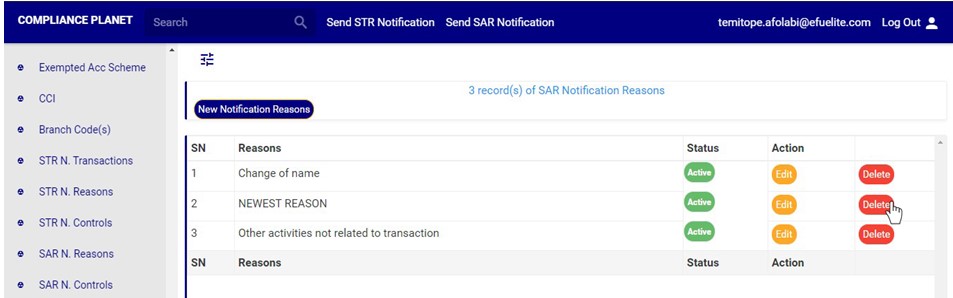
(fig23.3a) 

➔ This displays a confirmation console to confirm your request to delete the SAR reason. 

STEP 2: Click on ‘CONFIRM’ as in fig23.3b to proceed or ‘CANCEL’ to discontinue. 
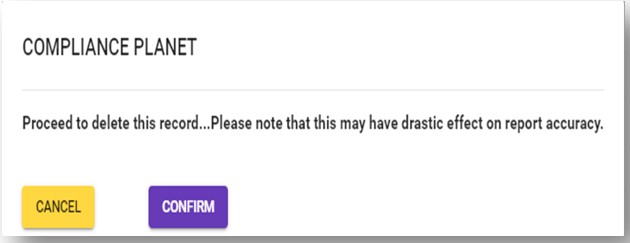
(fig23.3b) 

➔ A notification will be displayed at the top of the page when the delete operation is complete as in Fig 24.3c below 
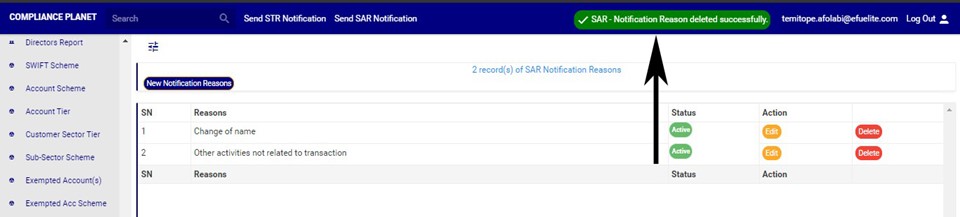
(fig23.3c) 

How to add new STR notification reason 

This refers to creating a new SAR notification reason. This notification reason will form part of the available options when sending a new SAR notification on the compliance planet (See section 6.0 for sending an SAR notification). 

STEP 1: Click on ‘NEW NOTIFICATION REASON’ as shown in fig. 23.4a below 
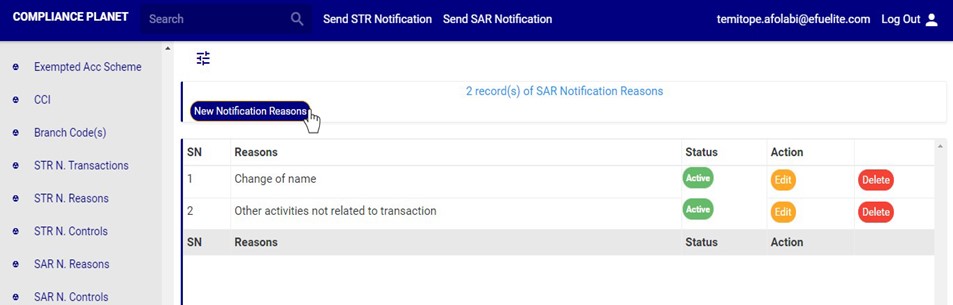
(fig. 23.4a) 

➔ A console as in fig. 23.4b will be displayed. 
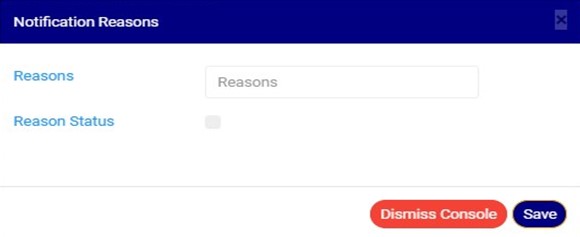
(fig. 23.4b) 

STEP 2: Fill the reasons textbox as in fig. 23.4c below 
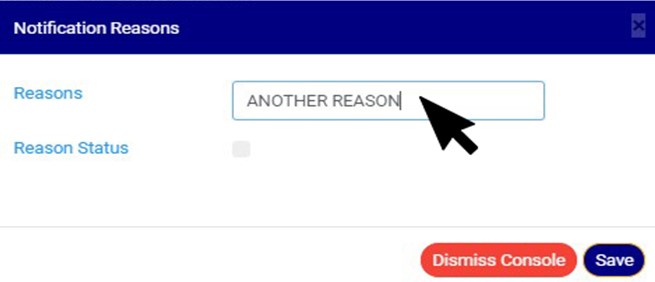
(fig. 23.4c) 

STEP 3: Click on the ‘reason status’ checkbox to make that notification reason active or inactive. This is illustrated in Fig 23.4d and Fig 23.4e below 
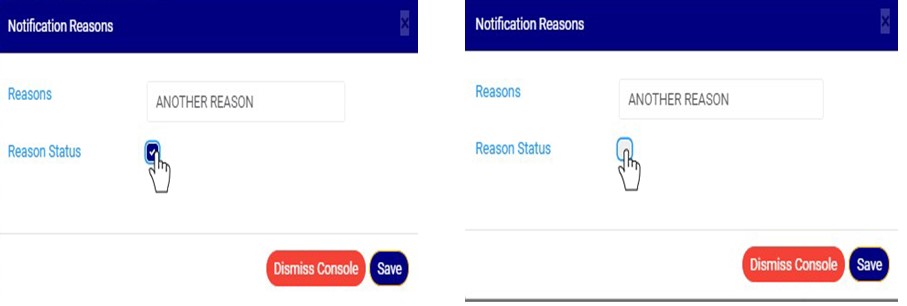
(Fig 23.4d) (Fig 23.4e) 

➔ Fig 23.4d shows that the notification reason is set ACTIVE while Fig 23.4e shows that the notification reason is set INACTIVE. 

➔ An active notification reason will form part of the available options when sending SAR notification on the software, while an inactive notification reason will no longer be part of the available options when sending a new SAR notification on the compliance planet. 

STEP 3: Click on ‘SAVE’ to save the edit or click ‘DISMISS CONSOLE’ to close the console. See Fig 23.4f for an example 

Fig 23.4f 

➔ This displays a confirmation console as in fig23.4g below 

Fig 23.4.g 

➔ A notification as in fig. 23.4h (A) will be displayed at the top of the page when the operation is successful. Also, See fig. 23.4h for an example of the updated description and status 
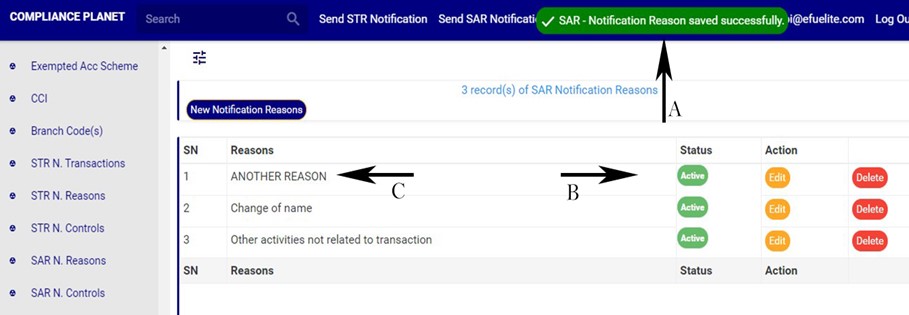
Fig 23.4h

For further enquiries : 
Tel +234(0) 816 555 9818
Email solutions@efuelite.com 
Web http://solutions.efuelite.com
How To Carry Out Branch Code Operations In Compliance Planet Anti Money Laundering/Core Banking Finance Software

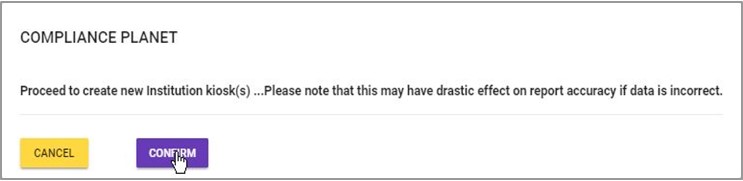
Under this feature, the software provides a list of the branch codes of the financial institution and their descriptions. The operations pertaining to branch codes on the planet include creating a new branch, activating or deactivating a branch and deleting a branch, with options to carry out bulk operations also.

Note: Only person(s) profiled as deputy supreme admin can carry out these operations

To perform any of the operations on branch codes;

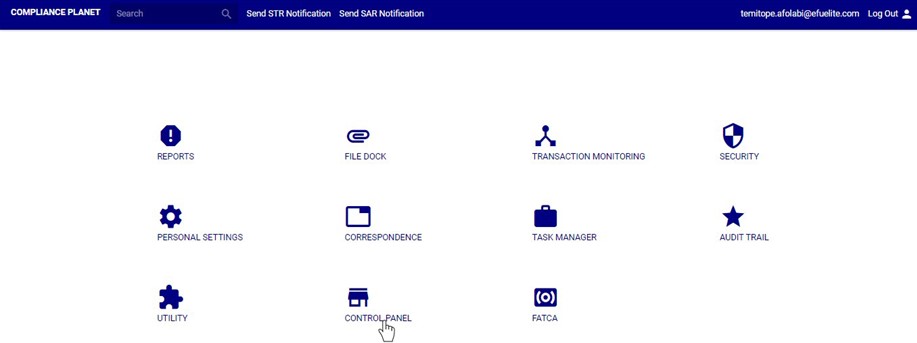
STEP 1: From the main dashboard, click ‘CONTROL PANEL’ as in fig 19.2a below.

(fig. 19.2a)

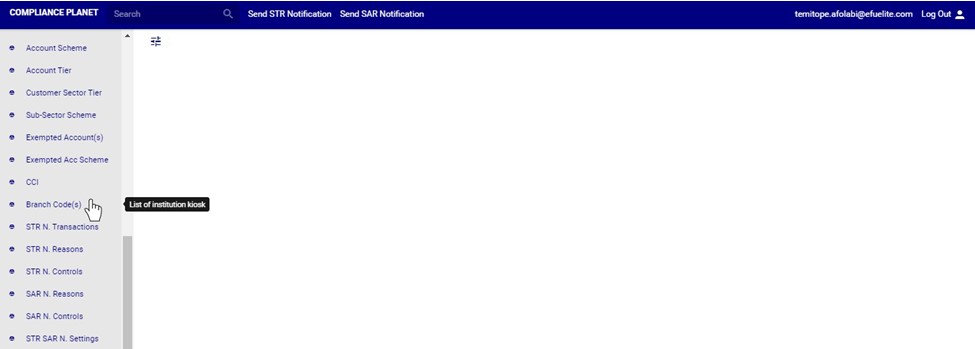
➔ STEP 2: Click on ‘BRANCH CODE(S)’ from the left hand side menu as in fig. 19.2b below.

(fig. 19.2b)

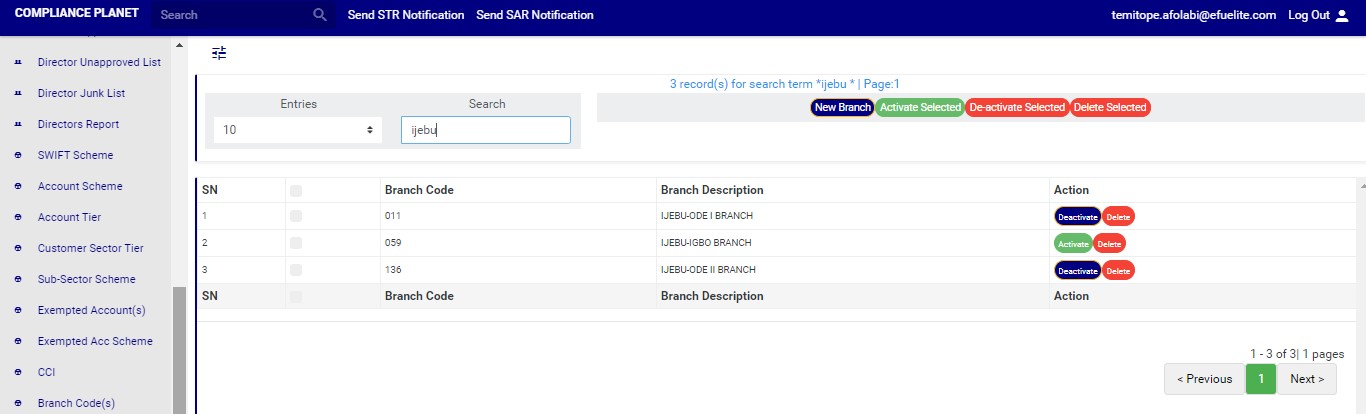
➔ This displays a page showing a list of all the financial institution’s branch codes and their descriptions as in fig. 19.2c.

(fig. 19.2c)

➔ At the bottom-right corner of the page, the software gives information about the number of pages of the list, with the page numbers written out. Click on any page number, to go that particular page. Click on ‘NEXT’ to go to the next page or ‘PREVIOUS’ to go to the page before the current page.

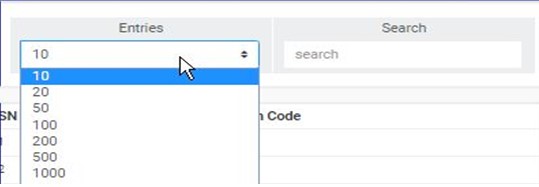
➔ Click on the ‘ENTRIES’ box as in fig. 19.2d to adjust the number of branches you see per page.

(fig. 19.2d)

➔ Search for branches by inputting the branch code or branch description in the search box. Search results will be displayed as soon as a character is typed in the search box. See fig. 19.2e below for an example.

(fig. 19.2e)

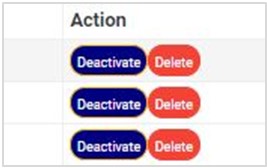
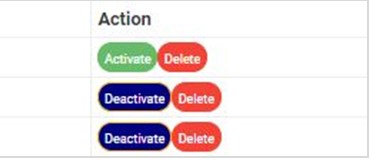
➔ Each branch entry has two (2) action buttons; ‘Activate/Deactivate’ toggle button and ‘Delete’ button. See these buttons in fig. 19.2f.

(fig. 19.2f)

➔ The buttons for the other operations are at the top-right area of the page.

(fig. 19.2g)

➔ The different operations are explained below.

How to Activate or Deactivate An Existing Branch

A branch information can either be active or inactive. For branches that are active, their action buttons will read, ‘DEACTIVATE’ and branches that are inactive will have ‘ACTIVATE’ buttons. The ACTIVATE/DEACTIVATE button is a toggle switch that either activates or deactivates a branch information depending on its current status. Here is how to make use of the button.

A. How to Activate A Branch

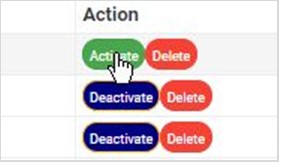
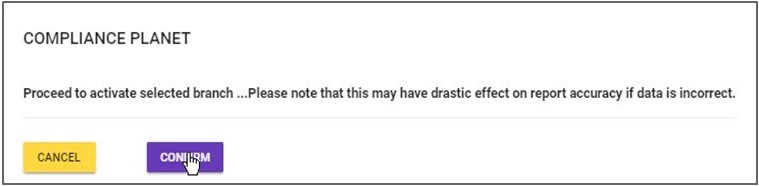
STEP 1: Click on ‘ACTIVATE’ as in fig. 19.3a.

(fig. 19.3a)

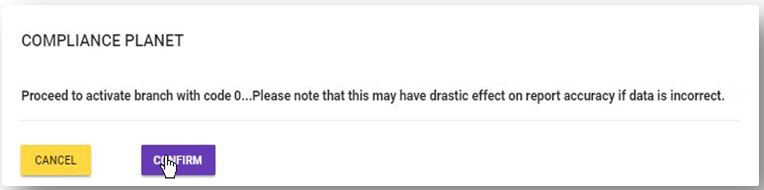
➔ This displays a confirmation console to confirm your request to activate the branch

STEP 2: Click on ‘CONFIRM’ as in fig. 19.3b to proceed or ‘CANCEL’ to discontinue.

(fig. 19.3b)

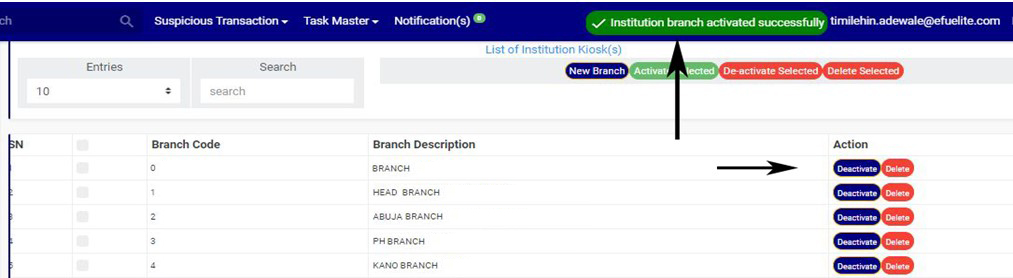
➔ A notification will be displayed at the top of the page when the activation is successful. See fig. 19.3c for an example.

(fig. 19.3c)

➔ When a branch information has been successfully activated, the action button changes from ‘ACTIVATE’ to ‘DEACTIVATE’. See fig. 19.3d and fig. 19.3e for an example.

(fig. 19.3d)                                                       (fig. 19.3e)

How to Deactivate A Branch

STEP 1: Click on ‘DEACTIVATE’ as in fig. 19.3f.

(fig. 19.3f)

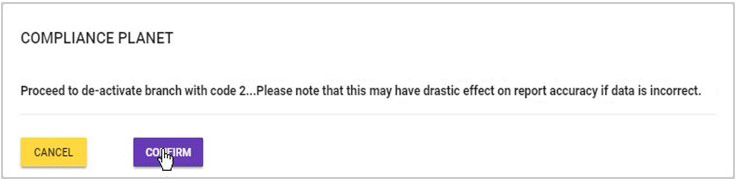
➔ This displays a confirmation console to confirm your request to deactivate the branch

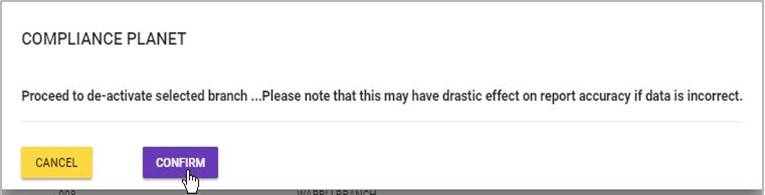
STEP 2: Click on ‘CONFIRM’ as in fig. 19.3g to proceed or ‘CANCEL’ to discontinue.

(fig. 19.3g)

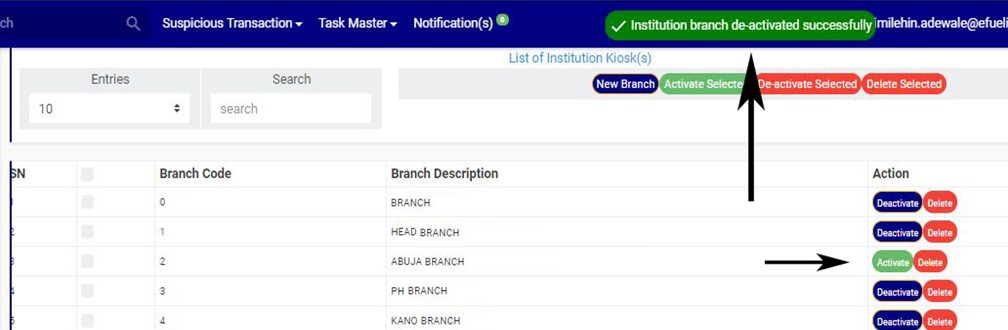
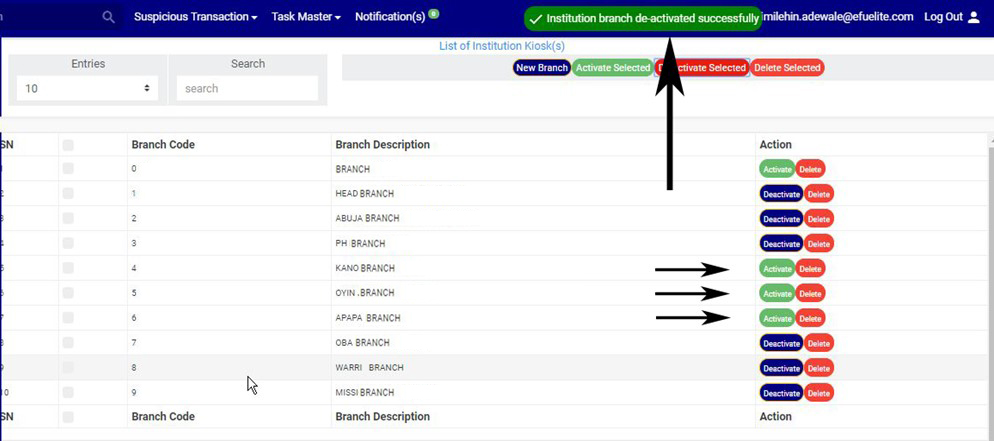
➔ A notification will be displayed at the top of the page when the deactivation is successful. See fig. 19.3h for an example.

(fig. 19.3h)

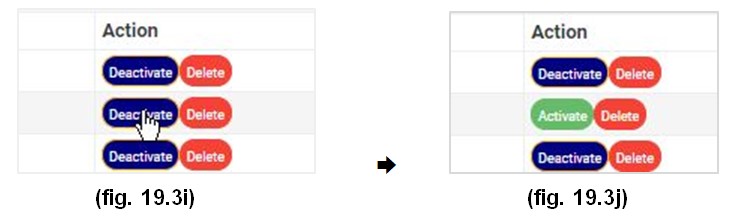
➔ When a branch has been successfully deactivated, the action button changes from ‘DEACTIVATE’ to ‘ACTIVATE’. See fig. 19.3i and fig. 19.3j for an example.

(fig. 19.3i)                                         (fig. 19.3j)

How to Delete A Branch

This refers to deleting a branch’s information from the software. Here is how to delete a branch information.

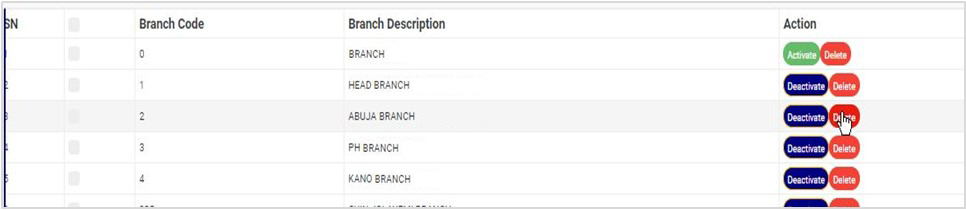
STEP 1: Click on the ‘DELETE’ button of the branch information as in fig. 19.4a.

(fig. 19.4a)

➔ This displays a confirmation console to confirm your request to delete the branch

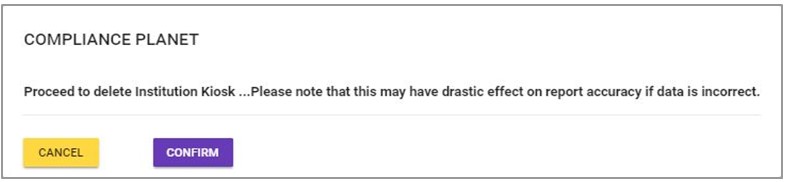
STEP 2: Click on ‘CONFIRM’ as in fig. 19.4b to proceed or ‘CANCEL’ to discontinue.

(fig. 19.4b)

➔ A notification will be displayed at the top of the page when the delete operation is complete.

How To Create A New Branch

This refers to creating a new branch on the software. Here is how to do this;

STEP 1: Click on ‘NEW BRANCH’ as shown in fig. 19.5a.

(fig. 19.5a)

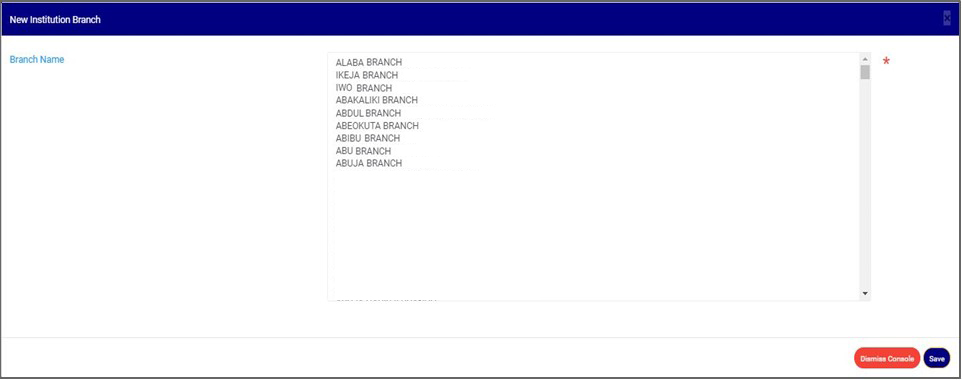
➔ A console as in fig. 19.5b will be displayed. Here, you are to select the branch description.

(fig. 19.5b)

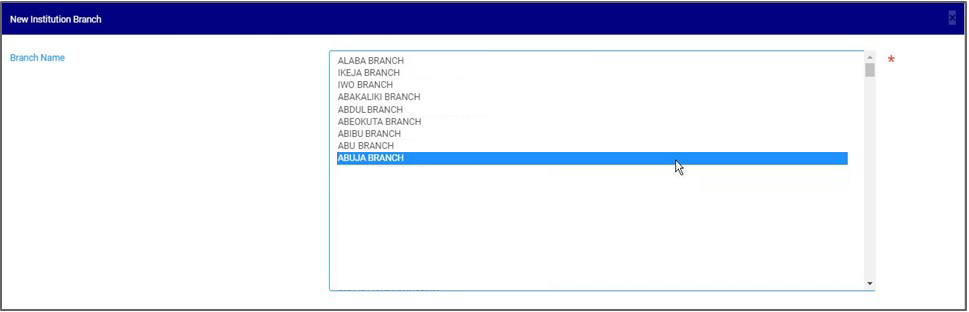
STEP 2: Select branch name as shown in fig. 19.5c.

(fig. 19.5c)

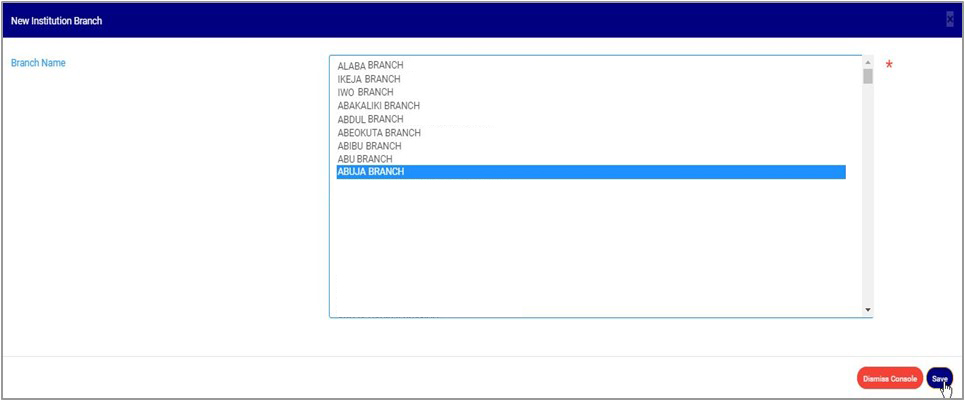
STEP 3: Click on ‘SAVE’ as in fig. 19.5d to save new branch information. Click on ‘DISMISS CONSOLE’ to close the console.

(fig. 19.5d)

➔ This displays a confirmation console to confirm your request.

STEP 4: Click on ‘CONFIRM’ as in fig. 19.5e to proceed or ‘CANCEL’ to discontinue.

(fig. 19.5e)

➔ A notification will be displayed at the top of the page when the operation is complete.

How To carry out bulk activation of branches

This refers to activating more than one branch and here is how to do this.

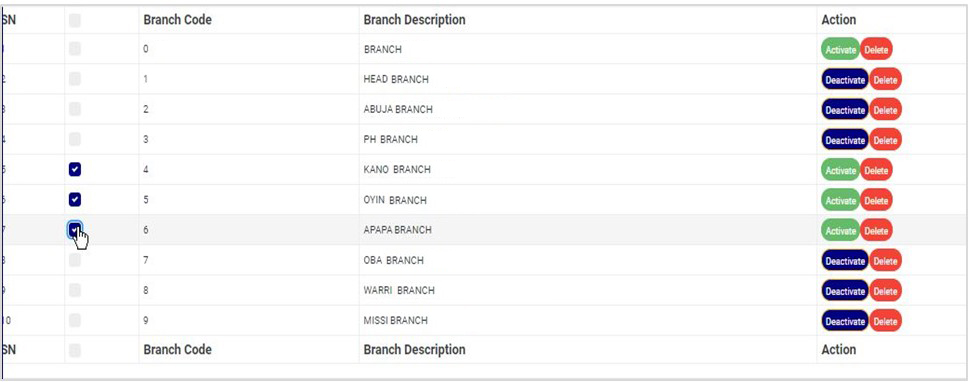
STEP 1: Select the deactivated branches to be activated by clicking on their check boxes as shown in fig. 19.6a below. An inactive branch has an ‘ACTIVATE’ action button.

(fig. 19.6a)

STEP 2: Click on ‘ACTIVATE SELECTED’ as in fig. 19.6b.

(fig. 19.6b)

➔ This displays a confirmation console to confirm your request.

STEP 3: Click on ‘CONFIRM’ as in fig. 19.6c to proceed or ‘CANCEL’ to discontinue.

(fig. 19.6c)

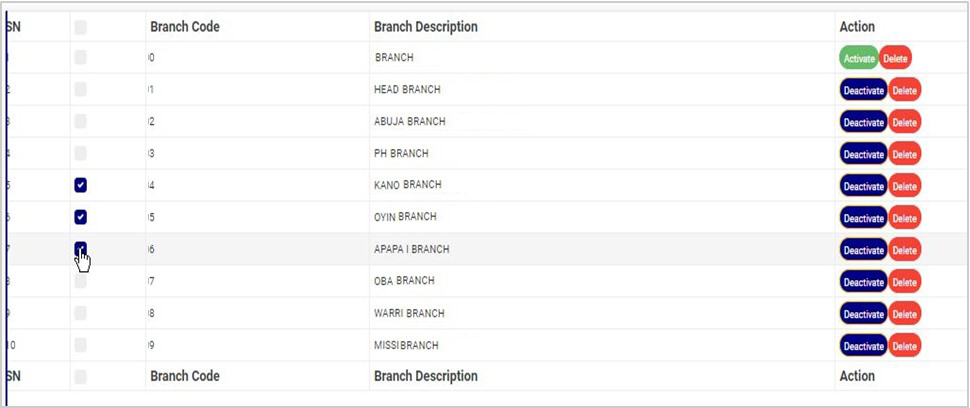
➔ When the operation is successful, a notification will be displayed at the top of the page and the Activate/Deactivate toggle button of the selected branch information will change from ‘ACTIVATE’ to ‘DEACTIVATE’. See fig. 19.6d below for an example.

(fig. 19.6d)

How To Carry Out Bulk Deactivation of Branches

This refers to deactivating more than one branch information. Here is how to do this.

STEP 1: Select the branches to be deactivated by clicking on their check boxes as shown in fig. 19.7a below. An active branch has a ‘DEACTIVATE’ action button.

(fig. 19.7a)

STEP 2: Click on ‘DEACTIVATE SELECTED’ as in fig. 19.7b.

(fig. 19.7b)

➔ This displays a confirmation console to confirm your request.

STEP 3: Click on ‘CONFIRM’ as in fig. 19.7c to proceed or ‘CANCEL’ to discontinue.

(fig. 19.7c)

➔ When the operation is successful, a notification will be displayed at the top of the page and the Activate/Deactivate button of the selected branch will change from ‘DEACTIVATE’ to ‘ACTIVATE’. See fig. 19.7d below for an example.

(fig. 19.7d)

How to Carry Out Bulk Delete Of Branches

This refers to deleting more than one branch information. Here is how to carry out a bulk delete.

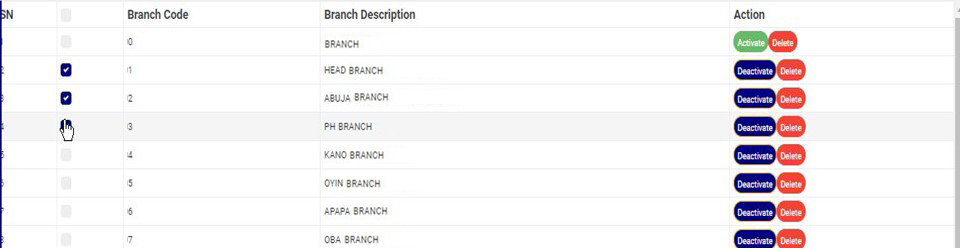
STEP 1: Select the branch information to be deleted by clicking on their check boxes as shown in fig. 19.8a below. Both active and inactive branches can be deleted.

(fig. 19.8a)

➔ To select or deselect all the entries on a page, click on the checkbox on the table title bar, that is, the checkbox between ‘S/N’ and ‘BRANCH CODE’. See fig. 19.8b for an example.

(fig. 19.8b)

STEP 2: Click on the ‘DELETE SELECTED’ as in fig. 19.8c.

(fig. 19.8c)

➔ This displays a confirmation console to confirm your request to delete the branches selected.

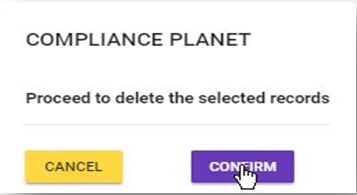
STEP 3: Click on ‘CONFIRM’ as in fig. 19.8d to proceed or ‘CANCEL’ to discontinue.

(fig. 19.8d)

➔ A notification will be displayed at the top of the page when the operation is complete.

(fig. 19.8e)

For further enquiries :
Tel +234(0) 816 555 9818
Email solutions@efuelite.com

Web http://solutions.efuelite.com
How to Carry Out STR Notification Reason Operations In Compliance Planet Anti Money Laundering/Core Banking Finance Software

This section provides a guide on how to modify “REASON” options available when sending an STR notification on the Compliance Planet, with step-by-step instructions and pictures.

STR NOTIFICATION REASON OPERATIONS

Here, the operations are;

1. Editing notification reason,

2. Deleting reason

3. Adding a new reason

NOTE: Only person(s) profiled as deputy supreme admin can carry out these operations 

To perform any of the operations;

STEP 1: From the main dashboard, click ‘CONTROL PANEL’ as in fig 21.1a below

(fig. 21.1a)

STEP 2: Click on ‘STR N. REASON’ on the left hand side menu as in fig 21.1b below

(fig. 21.1b)

➔ This displays a page showing a list of all ‘STR Notification reason’ options that have been created and available on the software. See fig. 21.1c for an example.

(fig. 21.1c)

How to edit an STR notification reason

This refers to changing the description or status of the STR notification reason. Here is how to do this.

STEP 1: Click on the ‘EDIT’ button on the action column. See fig. 21.3a for an example.

(Fig 21.2a)

➔ Clicking the EDIT button will display a console titled, ‘Notifications Reasons as shown in fig 21.2b below.

(Fig 21.2b)

STEP 2: Click on the reasons textbox to change the Notification reason description. See an example in Fig 21.2c below.

(Fig 21.2c)

STEP 3: Click on the reason status checkbox to make that notification reason active or inactive. This is illustrated in  Fig 21.2d and Fig 21.2e below

(Fig 21.2d)                                       (Fig 21.2e)

➔ Fig 21.2 d shows that the notification reason is set ACTIVE while Fig 21.2e shows that the notification reason is set INACTIVE.

➔ An active notification reason will form part of the available options when sending a new STR notification (See section 6.2.1 for sending an STR notification) while an inactive notification reason will no longer be part of the available options when sending a new STR notification.

STEP 4: Click on ‘SAVE’ button to save the edit or click ‘DISMISS CONSOLE’ to cancel the operation. See Fig 21.2f for an example

Fig 21.2f

➔ This displays a confirmation console as in fig 21.2g below

Fig 21.2g

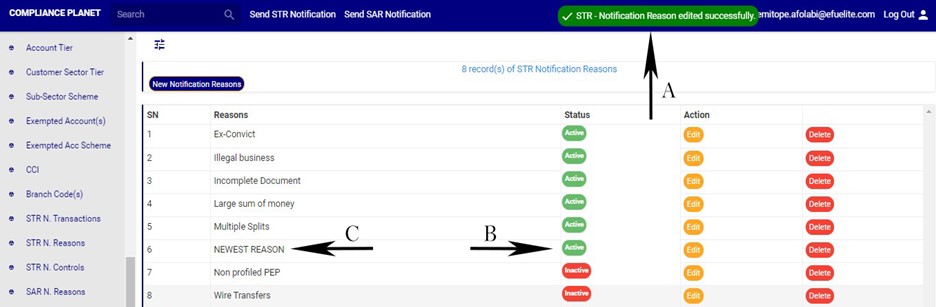
➔ A notification as in fig. 21.2h (A) will be displayed at the top of the page. Also, See fig. 21.2h for an example of the updated description and status

Fig 21.2h

How to Delete an STR notification reason

This operation removes the STR notification reason from the list of available reasons. A deleted STR notification reason will no longer be part of the available options when sending a new STR notification on the compliance planet (See section 6.2.1 for sending an STR notification).

STEP 1: Click on the ‘DELETE’ button of the STR notification reason as in fig 21.3a.

(fig21.3a)

➔ This displays a confirmation console to confirm your request to delete the STR reason.

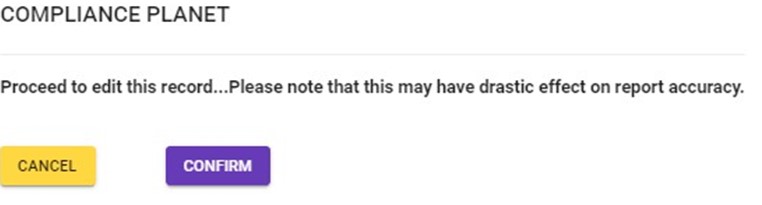
STEP 2: Click on ‘CONFIRM’ as in fig21.3b to proceed or ‘CANCEL’ to discontinue.

(fig21.3b)

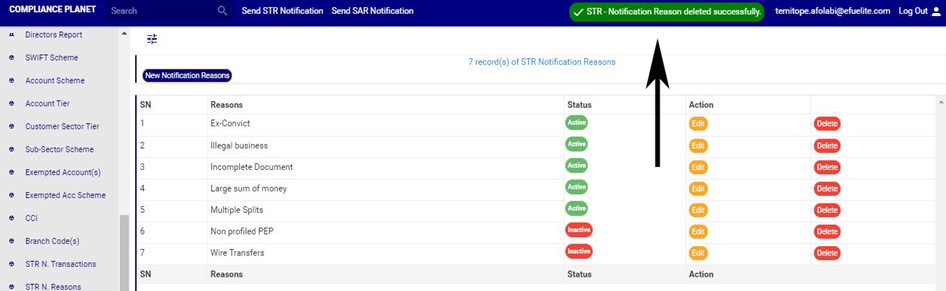
➔ A notification will be displayed at the top of the page as in Fig21.3c.

(fig21.3c)

How to add new STR notification reason

This refers to creating a new STR notification reason. This notification reason will be added to the list of available ‘reason’ option when sending a new STR notification on the compliance planet software (See section 6.2.1 for sending an STR notification).

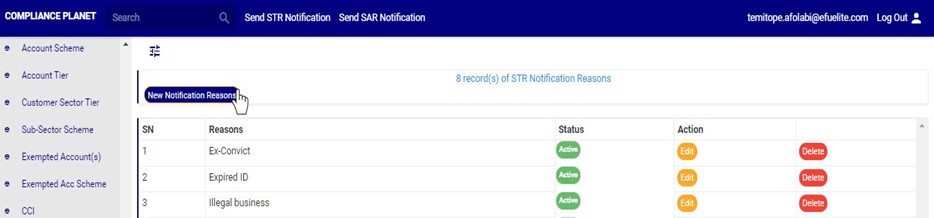
STEP 1: Click on ‘NEW NOTIFICATION REASON’ as shown in fig. 21.4a below

(fig. 21.4a)

➔ A console as in fig. 21.4b will be displayed.

(fig. 21.4b)

STEP 2: Fill the ‘reasons’ text box as in fig. 21.4c below

(fig. 21.4c)

STEP 3: Click on the ‘reason status’ checkbox to make that notification reason active or inactive. This is illustrated in Fig 21.4d and Fig 21.4e below

(Fig 21.4d)                                                                   (Fig 21.4e)

➔ Fig 21.4d shows that the notification reason is set ACTIVE while Fig 22.4e shows that the notification reason is set INACTIVE.

➔ An active notification reason will form part of the available options when sending a new STR notification on the compliance planet software(See section 6.2.1 for sending an STR notification) while an inactive notification reason will no longer be available when sending a STR notification on the compliance planet software.

STEP 3: Click on ‘SAVE’ to save the edit or click ‘DISMISS CONSOLE’ to cancel the operation. See Fig 21.4f for an example

Fig 21.4f

➔ This displays a confirmation console as in fig 21.4g below

Fig 21.4g

➔ A notification as in fig. 21.4h (A) will be displayed at the top of the page when the operation is successful. Also, See fig. 21.4h for an example of the updated description and status

Fig 21.4h

For further enquiries :
Tel +234(0) 816 555 9818
Email solutions@efuelite.com

Web http://solutions.efuelite.com

How To Carry Out STR notification transaction type Operations In Compliance Planet Anti Money Laundering/Core Banking Finance Software

This section provides a guide on how to modify transaction type options available when sending an STR notification  on the Compliance Planet, with step-by-step instructions and pictures.

Transaction types include NIP, NAPS, NEFT, Cheques, Cash deposits, Cash withdrawal, Transfer, FXFT, RTGS and REMITA, Investment Booking Transactions, Managers Cheque etc.

STR NOTIFICATION TRANSACTION TYPE OPERATIONS

Here, the operations are;

1. Editing notification transaction type,

2. Deleting notification transaction type

3. Adding a new notification transaction type

NOTE: Only person(s) profiled as deputy supreme admin can carry out these operations 

To perform any of the operations;

STEP 1: From the main dashboard, click ‘CONTROL PANEL’ as in fig 20.2a below

(fig. 20.2a)

STEP 2:Click on ‘STR N. TRANSACTION’ on the left hand side menu as in fig 20.2b below

(fig. 20.2b)

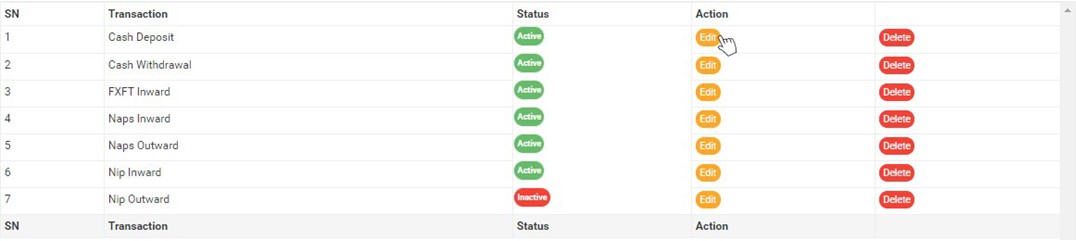
➔ This displays a page showing a list of all transaction types that have been created and available on the software. See fig. 20.2c for an example.

(fig. 20.2c)

How To Edit an STR notification transaction type

This refers to changing the description or status of the transaction type. Here is how to do this.

STEP 1: Click on the ‘EDIT’ button on the action column. See fig. 20.3a for an example.

(Fig 20.3a)

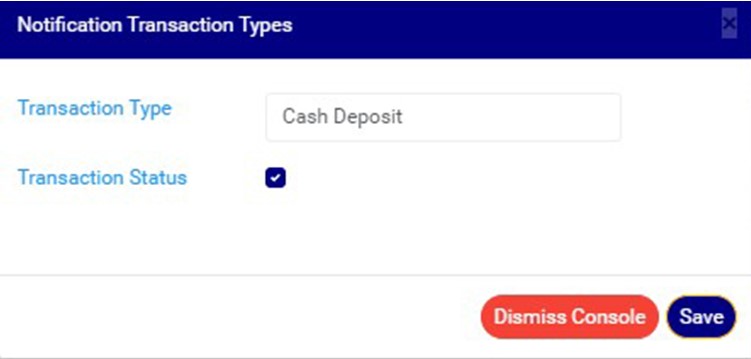
➔ Clicking the EDIT button will display a ‘Notifications Transaction Type’ console as shown in fig 20.3b below.

(Fig 20.3b)

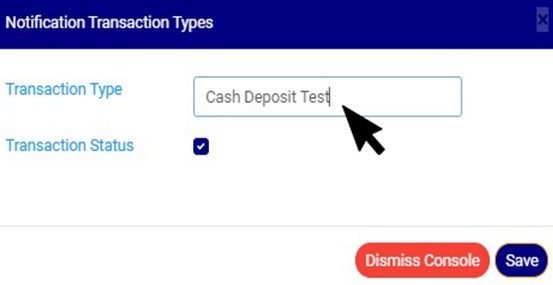
STEP 2: Click on the transaction type textbox to change the Notification transaction type description. See an example in Fig 20.3c below.

(Fig 20.3c)

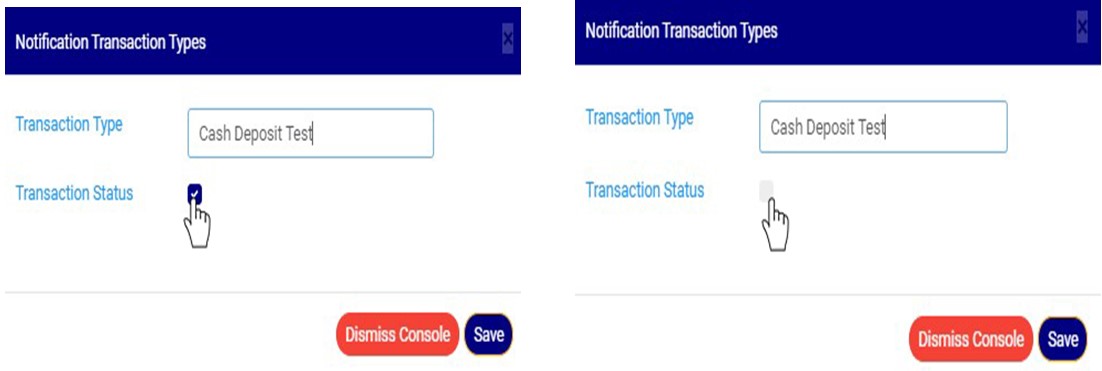
STEP 3: Click on the transaction status checkbox to make that transaction notification type active or inactive. This is illustrated in Fig 20.3d and Fig 20.3e below

(Fig 20.3d)                                                                   (Fig 20.3e)

➔ Fig 20.3d shows that the transaction type is set ACTIVE while Fig 20.3e shows that the transaction type is set INACTIVE.

➔ An active transaction type will form part of the available options when sending a new STR notification on the compliance planet (See section 6.2.1 for sending an STR notification) while an inactive transaction type will no longer be part of the available options when sending a new STR notification on the compliance planet.

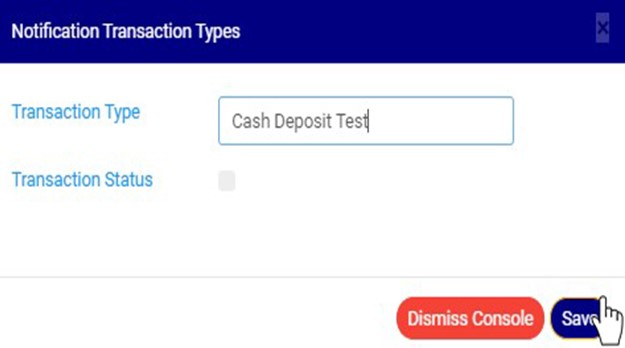
STEP 4: Click the ‘SAVE’ button to save the edit or click ‘DISMISS CONSOLE’ to cancel the operation. See Fig 20.3f for an example

Fig 20.3f

➔ This displays a confirmation console as in fig 20.3g below

Fig 20.3g

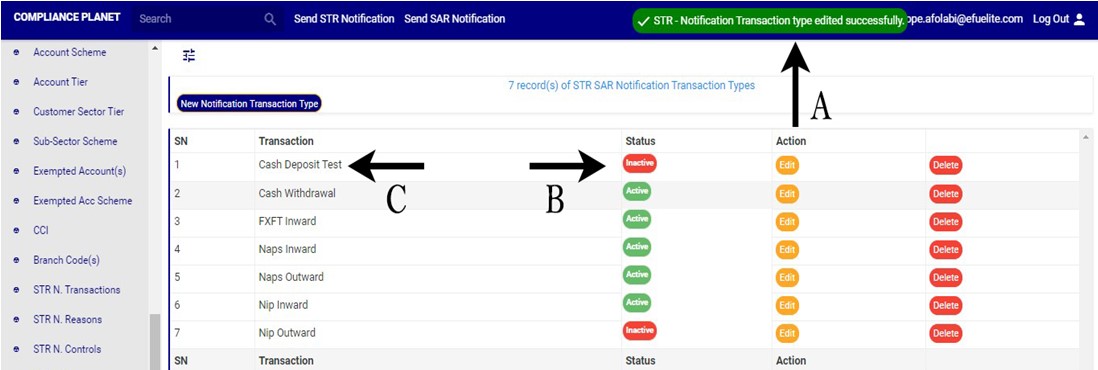
➔ A notification as in fig. 20.3h (A) will be displayed at the top of the page when the operation is successful. Also, See fig. 20.3h for an example of the updated description and status

Fig 20.3h

How To Delete an STR notification transaction type

This refers to deleting an STR notification transaction type. If a transaction type is deleted, it will no longer be part of the available options when sending a new STR notification on the compliance planet (See section 6.2.1 for sending an STR notification).

Here is how to do this.

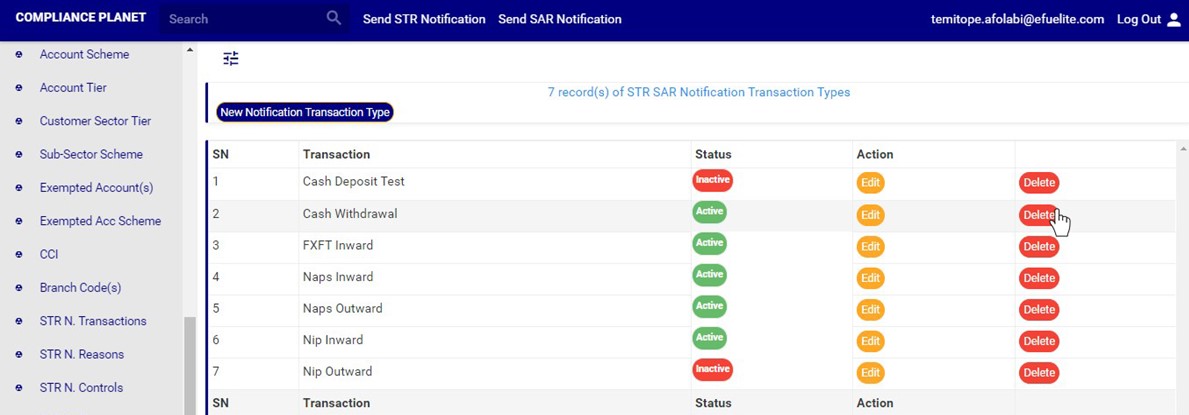
STEP 1: Click on the ‘DELETE’ button of the STR notification transaction type as in fig 20.4a.

(fig20.4a)

➔ This displays a confirmation console to confirm your request to delete the transaction type.

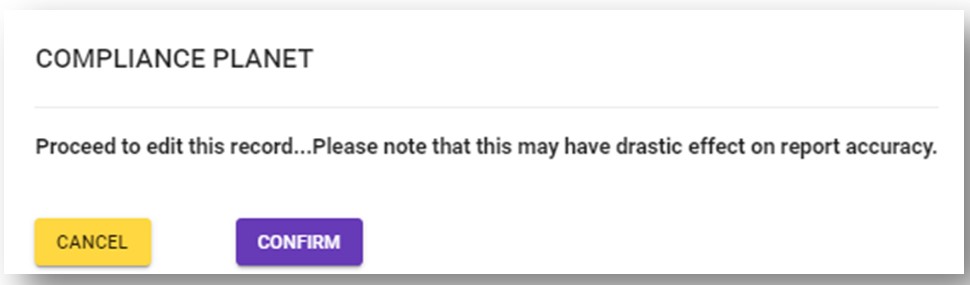
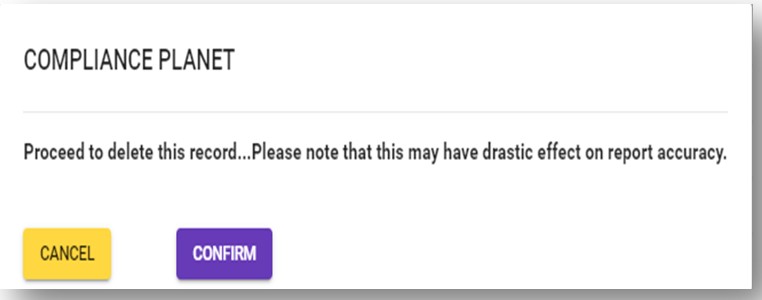
STEP 2: Click on ‘CONFIRM’ as in fig20.4b to proceed or ‘CANCEL’ to discontinue.

(fig20.4b)

➔ A notification will be displayed at the top of the page when the delete operation is complete.

(fig20.4c)

How to add new STR notification transaction type

This refers to creating a new STR notification transaction type. This transaction type will form part of the available options when sending a new STR notification on the compliance planet (See section 6.2.1 for sending an STR notification).

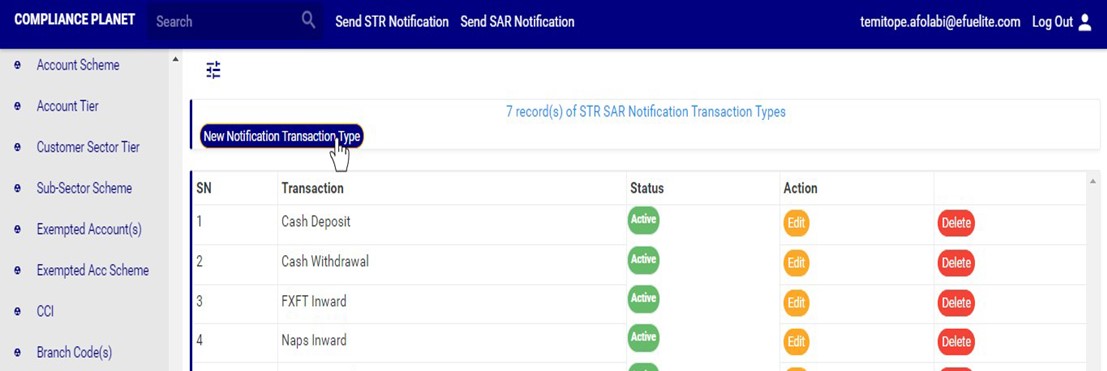
STEP 1: Click on ‘NEW NOTIFICATION TRANSACTION TYPE’ as shown in fig. 20.5a below

(fig. 20.5a)

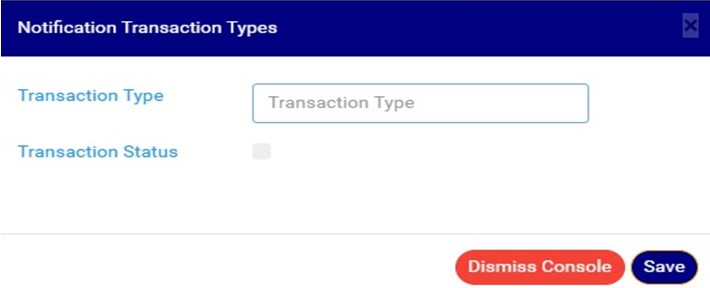
➔ A console as in fig. 20.5b will be displayed.

(fig. 20.5b)

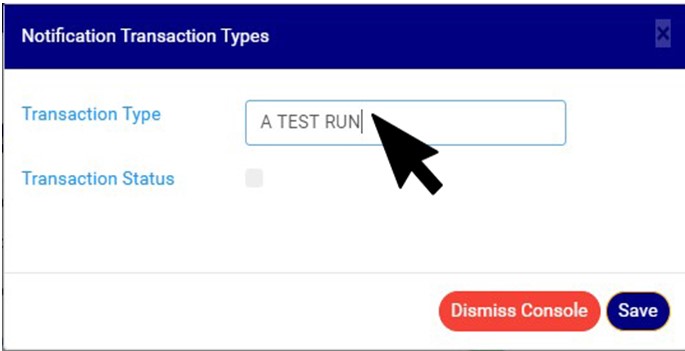
STEP 2: Input the transaction type as in fig. 21.5c below

(fig. 20.5c)

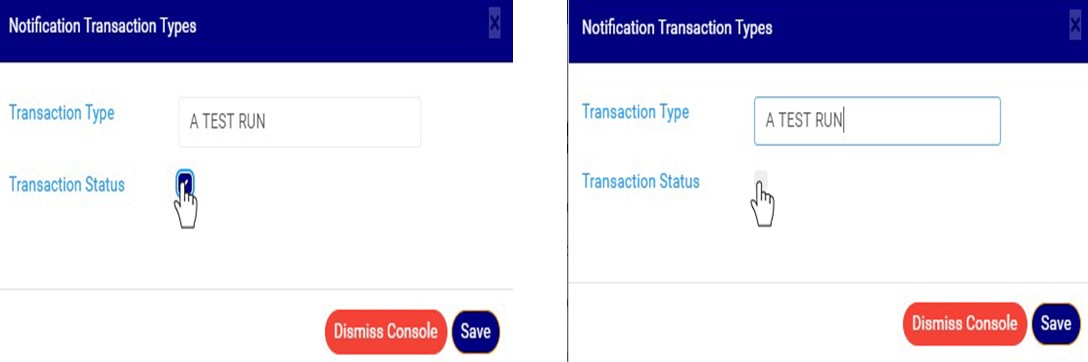
STEP 3: Click on the transaction status checkbox to make that transaction notification type active or inactive. This is illustrated in Fig 21.5d and Fig 20.5e below

(Fig 20.5d)                                                                    (Fig 20.5e)

➔ Fig 20.5d shows that the transaction type is set ACTIVE while Fig 21.0e shows that the transaction type is set INACTIVE.

➔ An active transaction type will form part of the available options when sending a new STR notification on the compliance planet (See section 6.2.1 for sending an STR notification) while an inactive transaction type will no longer be part of the available options when sending a new STR notification on the compliance planet.

STEP 3: Click on ‘SAVE’ to save the edit or click ‘DISMISS CONSOLE’ to cancel the operation. See Fig 20.5f for an example

Fig 20.5f

➔ This displays a confirmation console as in fig 20.5g below. Click ‘CONFIRM’ to proceed or ‘CANCEL’ to close the console.

Fig 20.5g

➔ A notification as in fig. 20.5h (A) will be displayed at the top of the page as in fig. 20.5h and the description and status will be updated.

Fig 20.5h

For further enquiries :
Tel +234(0) 816 555 9818
Email solutions@efuelite.com

Overview Of Account Scheme Exemption Operations In Compliance Planet Anti Money Laundering/Core Banking Finance Software

This section provides a guide on how to perform operations as regards EXEMPTED ACCOUNT SCHEMES on the Compliance Planet, with step-by-step instructions and pictures.

An exempted account scheme refers to an account scheme that has been excluded from CTR reports.

EXEMPTED ACCOUNT SCHEME OPERATIONS 

The operations pertaining to exempted account scheme include exempting an account scheme and removing an account scheme from the CTR exemption list.

NOTE: Only person(s) profiled as deputy supreme admin can carry out these operations 

To perform any of the operations on Exempted Account schemes;

STEP 1: From the main dashboard, click ‘CONTROL PANEL as in fig 17.2a below

(fig. 17.2a)

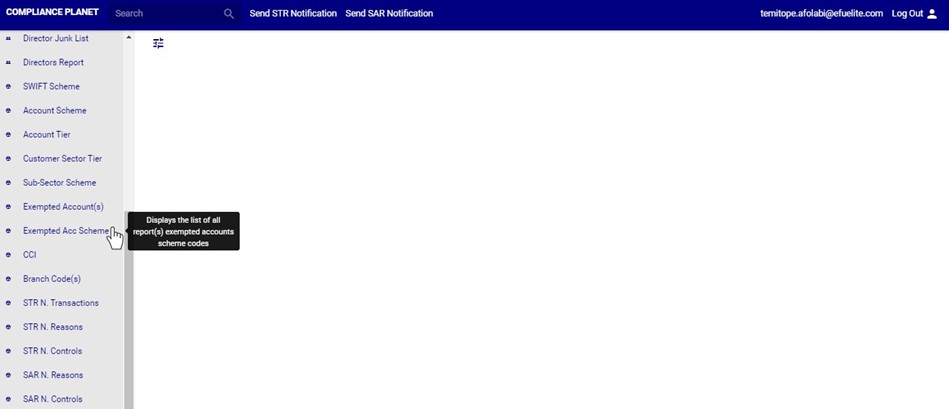
STEP 2: Click ‘EXEMPTED ACC. SCHEME’ on the left hand side menu. . See fig. 17.2b below.

(fig. 17.2b)

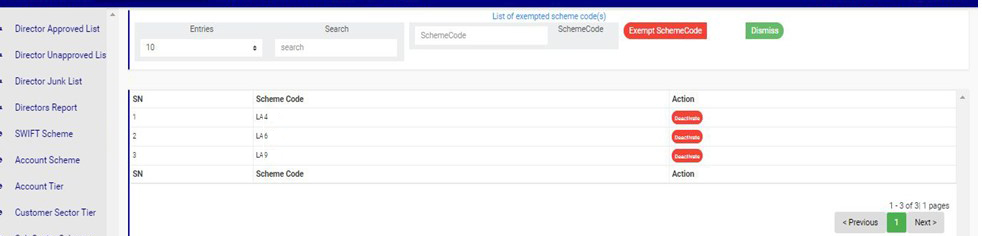
➔ This displays a page as seen in fig. 17.2c below.

(fig. 17.2c)

For further enquiries : 
Tel +234(0) 816 555 9818
Email solutions@efuelite.com 

How To carry out Certificate Of Capital Importation (CCI) Operations In Compliance Planet Anti Money Laundering/Core Banking Finance Software

Here, the operations are;

1. previewing list of CCI for transaction report,

2. Editing a CCI,

3. Deleting a CCI.

4. Adding a new CCI,

5. Downloading a CCI and

6. Bulk Delete

NOTE: Only person(s) profiled as deputy supreme admin can carry out these operations 

To perform any of the operations;

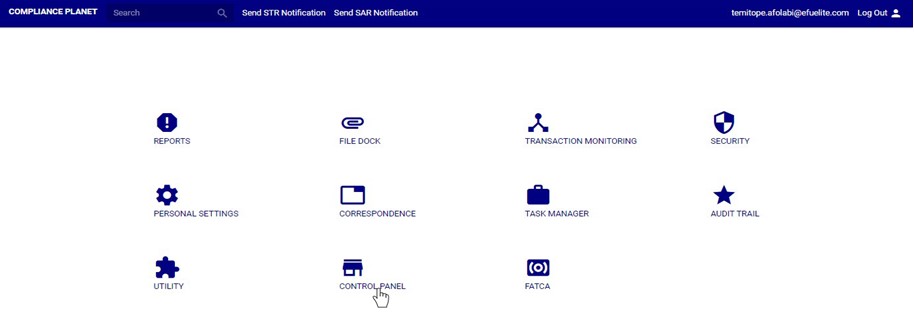
STEP 1: From the main dashboard, click ‘CONTROLPANEL’ as in fig 18.2a below

(fig. 18.2a)

STEP 2: Click on ‘CCI’ on the left hand side menu as in fig. 18.2b below.

(fig. 18.2b)

➔ This displays a page as seen in fig. 18.2c below.

(fig. 18.2c)

How To Preview List of CCI For Transaction Report
This refers to searching for CCI’s for the various transaction reports during a specified period. Here is how to preview a CCI for a transaction type.

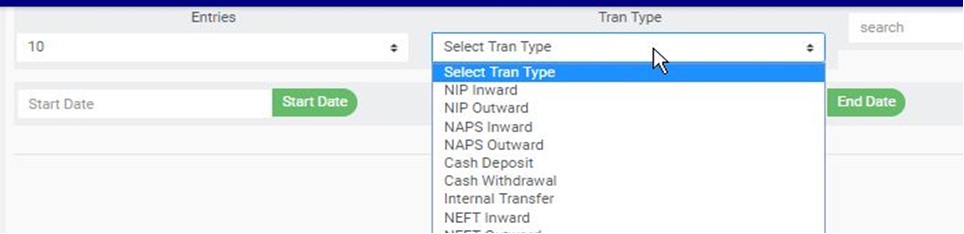
STEP 1: Select the transaction type from the ‘Tran Type’ box as shown in fig. 18.3a.

(fig. 18.3a)

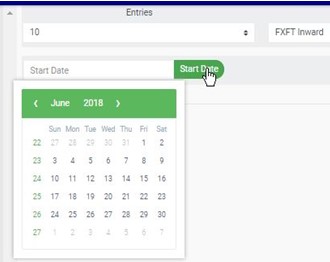
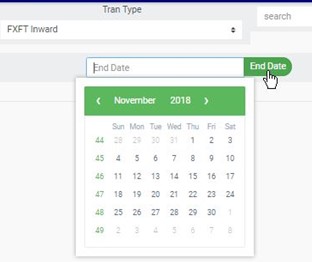
STEP 2: Set ‘START DATE’ and ‘END DATE’ to specify the beginning date and the ending date of the transaction reports whose CCI list is to be generated. See fig. 18.3a and fig. 18.3b for examples on setting start date and end date respectively.

(fig. 18.3b)                          (fig. 18.3c)

STEP 3: Click on ‘PREVIEW’ as in fig.18.3d below.

(fig. 18.3d)

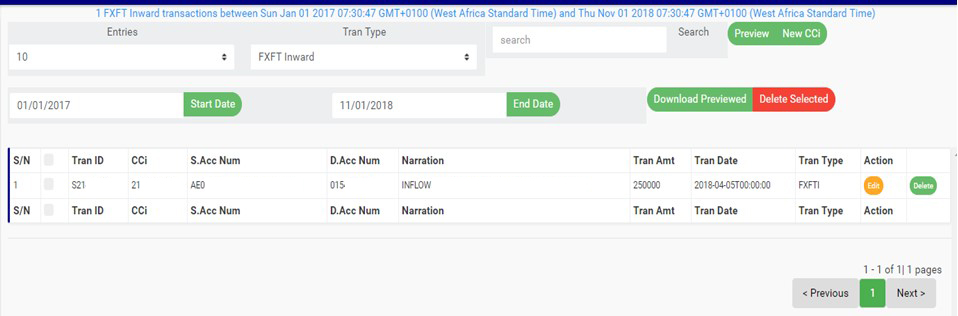
➔ Results for CCI for the selected transaction type will appear on the page as in fig. 18.3e below.

(fig. 18.3e)

➔ At the bottom-right corner of the page, the software gives information about the number of pages. The page numbers represent buttons to go to each page. Clicking any page number will take you to that particular page. Click on the ‘NEXT’ button to go to the next page or the ‘PREVIOUS’ button to go to the page before the current page.

➔ Click on the ‘ENTRIES’ box to adjust the number of entries per page as shown in fig. 18.3f below.

(fig. 18.3f)

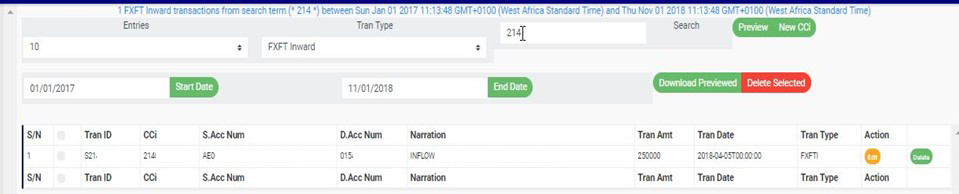
➔ You can search for a ‘CCI’ for a transaction by typing the ‘CCi’ , source account number or the destination account number involved in the matched transaction. See an example of a search in fig. 18.3g below.

(fig. 18.3g)

How to Edit CCI

This refers to changing the CCI number attached to a transaction. Here is how to do this.

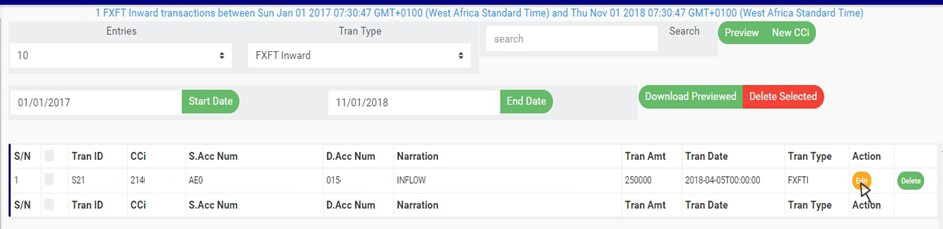
STEP 1: Click on the ‘EDIT’ button of the CCI record. See fig. 18.4a for an example.

(fig. 18.4a)

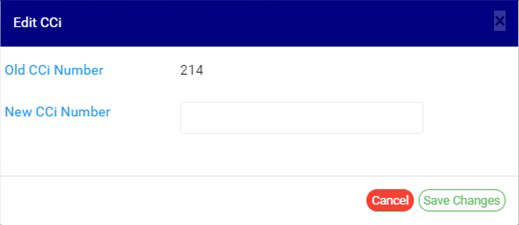
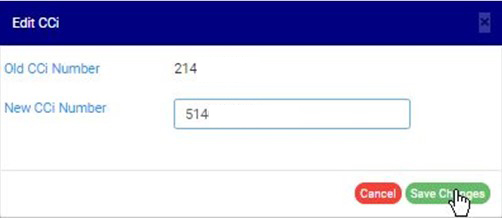
➔ This displays an ‘Edit CCI’ console as shown below.

(fig. 18.4b)

STEP 2: Fill in the new CCI (that is, the new Certificate of Capital Importation number to be attached to the transaction for reporting). See fig. 18.4c for an example.

(fig. 18.4c)

STEP 3: Click on ‘SAVE CHANGES’ as in fig. 18.4d to save the new transaction CCI.

(fig. 18.4d)

➔ This displays a confirmation console as in fig 18.4e below.

STEP 4: Click ‘CONFIRM’ as in fig. 18.4e to proceed to save changes or click on ‘CANCEL’ to discontinue.

(fig. 18.4e)

➔ A notification as in fig. 18.4f will be displayed at the top of  the page when the operation is successful.

(fig. 18.4f)

How To Add New CCI
This refers to matching a CCI to a transaction on the compliance planet software. This CCI will form part of the details that will be rendered for that particular transaction when the compliance planet processes an ADRAPS FTR report including the transaction.

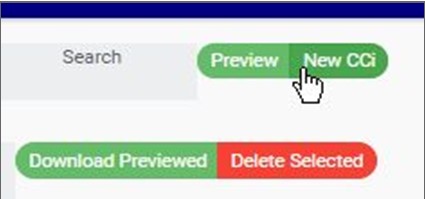
STEP 1: Click on ‘NEW CCI’ as shown in fig. 18.5a.This button is at the top of the page

(fig. 18.5a)

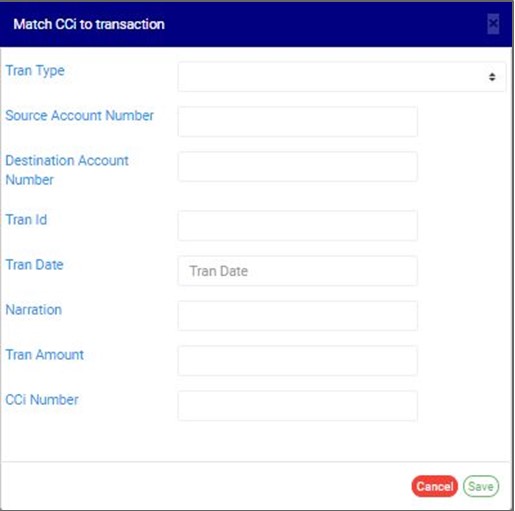
➔ This displays a console as in fig. 18.5b where details of the transaction and the CCI to be attached are to be filled.

(fig. 18.5b)

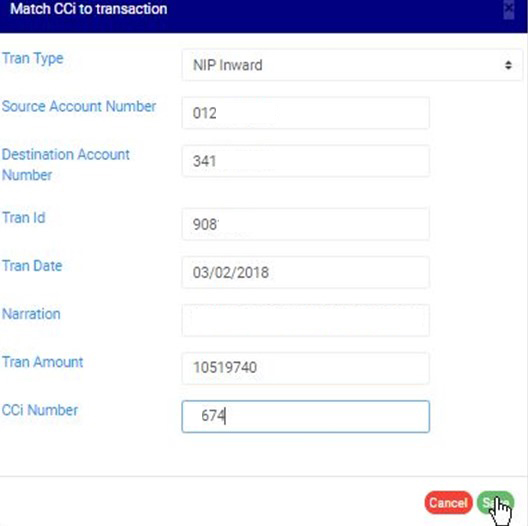
STEP 2: Fill in the required details and click on ‘SAVE’ as in fig. 18.5c to match CCi with transaction. Click on ‘CANCEL’ to close the console.

(fig. 18.5c)

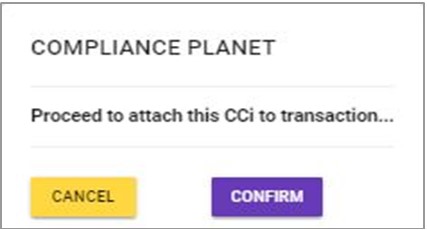
➔ This displays a confirmation console as in fig. 18. 5d to confirm your request.

(fig. 18.5d)

STEP 3: Click on ‘CONFIRM’ to proceed or ‘CANCEL’ to discontinue. A notification will be displayed at the top of the page when the operation is successful.

How To Delete CCI

This refers to deleting a CCI entry. Here is how to do this;

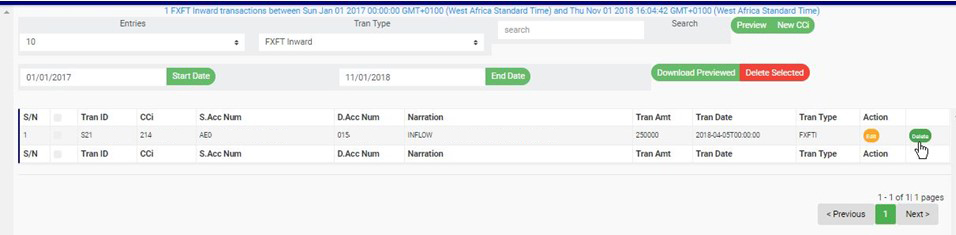
STEP 1: Click on the ‘DELETE’ button of the CCI entry as in fig. 18.6a.

(fig. 18.6a)

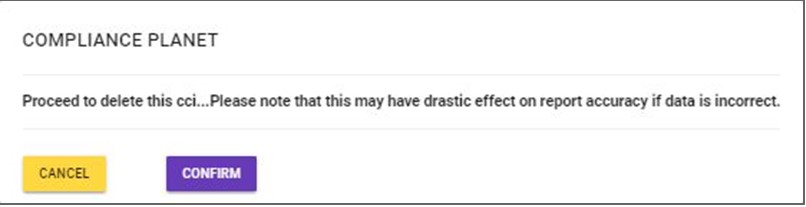
➔ A confirmation console will be displayed to confirm your request to delete the transaction CCi.

STEP 2: Click on ‘CONFIRM’ as in fig. 18.6b to proceed or ‘CANCEL’ to discontinue.

(fig. 18.6b)

➔ A notification will be displayed at the top of the page when the delete operation is complete.

How to Download CCI

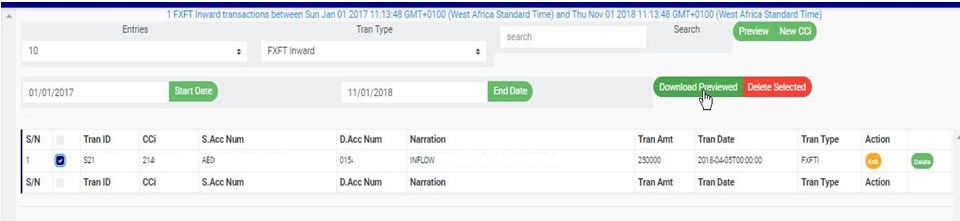
STEP 1: Select CCI entry to be downloaded as in fig. 18.7a below.

(fig. 18.7a)

STEP 2: Click on ‘DOWNLOAD PREVIEWED’ as shown in fig. 18.7b.

(fig. 18.7b)

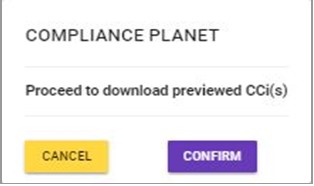
➔ This displays a confirmation console to confirm your request as in fig. 18.7c.

(fig. 18.7c)

STEP 3: Click on ‘CONFIRM’ to proceed with the download or click on ‘CANCEL’ to discontinue.

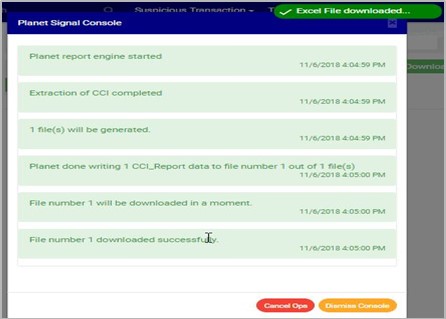
➔ The signal console shows on going processes. An example of a signal console is fig 18.7d. When the operation is complete, a notification will be displayed at the top of the page. See fig. 18.7d below for an example.

(fig. 18.7d)

How to Make Bulk Delete Of CCI records

This refers to deleting more than one CCI entry. Here is how to do this;

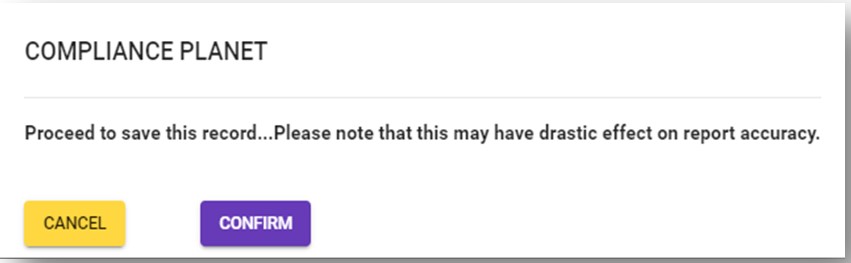
STEP 1: Select the entries to be deleted by clicking on their check boxes.

STEP 2: Click on ‘DELETE SELECTED’ as in fig. 18.8a.

(fig. 18.8a)

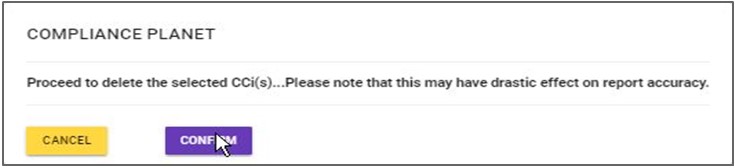
➔ This displays a confirmation console to confirm your request to delete the transaction CCi.

STEP 3: Click on ‘CONFIRM’ as in fig. 18.8b to proceed or ‘CANCEL’ to discontinue.

(fig. 18.8b)

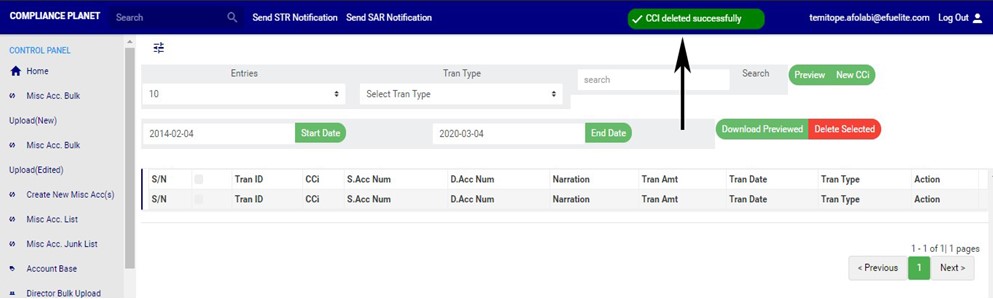
➔ A notification will be displayed at the top of the page when the operation is complete.

(fig. 18.8c)

For further enquiries : 
Tel +234(0) 816 555 9818
Email solutions@efuelite.com 

Web http://solutions.efuelite.com
How To Carry Out Account Scheme Exemption Operations In Compliance Planet Anti Money Laundering/Core Banking Finance Software

The operations pertaining to exempted account scheme include exempting an account scheme and removing an account scheme from the CTR exemption list.

NOTE: Only person(s) profiled as deputy supreme admin can carry out these operations 

To perform any of the operations on Exempted Account schemes;

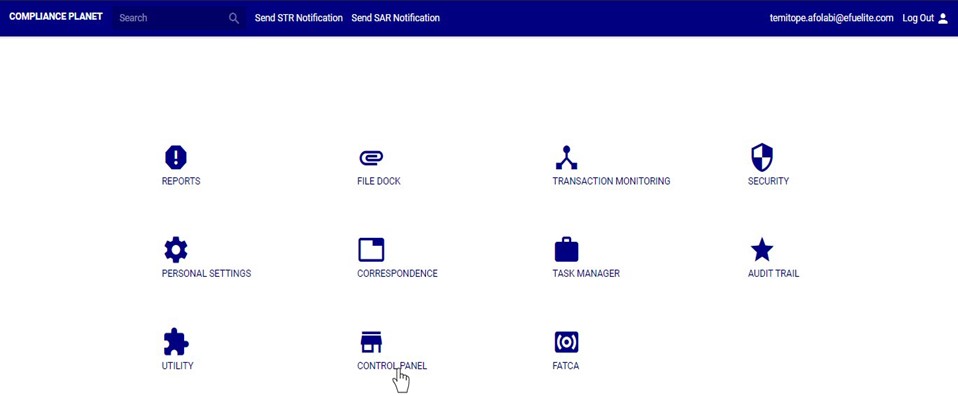
STEP 1: From the main dashboard, click ‘CONTROL PANEL as in fig 17.2a below


(fig. 17.2a)

STEP 2: Click ‘EXEMPTED ACC. SCHEME’ on the left hand side menu. . See fig. 17.2b below.

(fig. 17.2b)

➔ This displays a page as seen in fig. 17.2c below.

(fig. 17.2c)

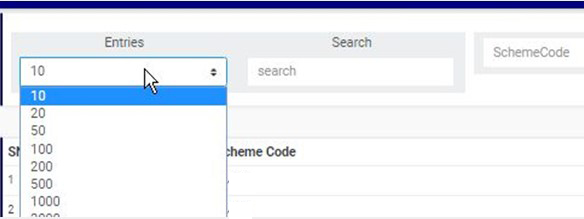
➔ Click on the ‘ENTRIES’ box to adjust the number of entries per page as shown in fig. 17.2d below.

(fig. 17.2d)

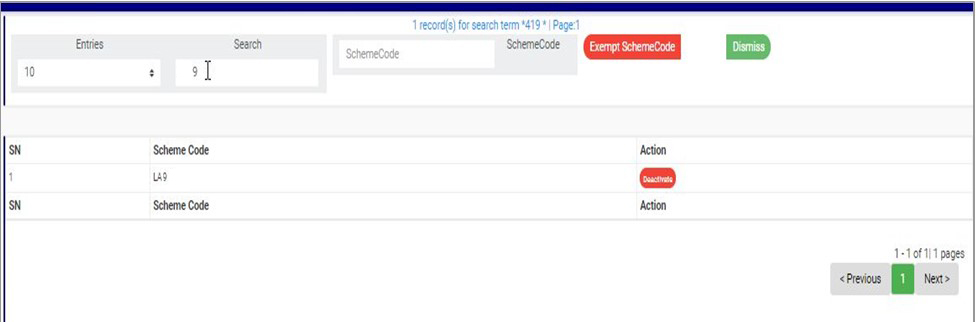
➔ Type a scheme code in the search box to search for an exempted scheme code. See an example of a search in fig. 17.2e below.

(fig. 17.2e)

➔ At the bottom-right corner of the page, the software gives information about the number of pages of the list, with the page numbers written out. The page numbers represent buttons to go to each page. By clicking on any page number, the software takes you to that particular page. Click on the ‘NEXT’ button to go to the next page or the ‘PREVIOUS’ button to go to the page before the current page.

➔ To close the Exempted Acc. Scheme page or return to the Control Panel home page, click ‘DISMISS’ as shown in fig. 17.2f below.

(fig. 17.2f)

How To Exempt An Account Scheme

This refers to adding an account scheme code to the exemption list. Here is how to do this.

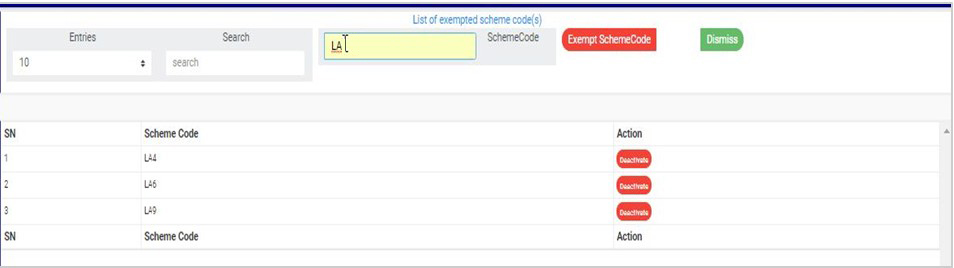
STEP 1: Type an account scheme code in the SCHEME CODE box. See an example in fig. 17.3a below.

(fig. 17.3a)

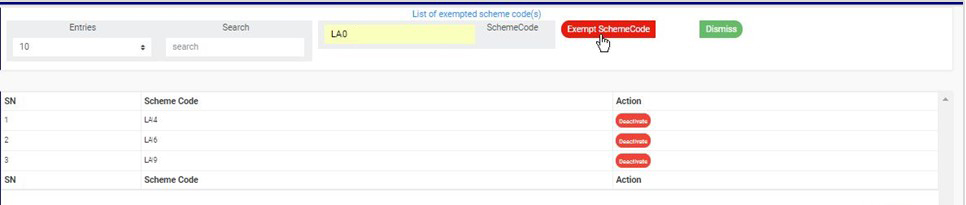
STEP 2: Click on ‘EXEMPT SCHEME CODE’’ as shown in fig. 17.3b.

(fig. 17.3b)

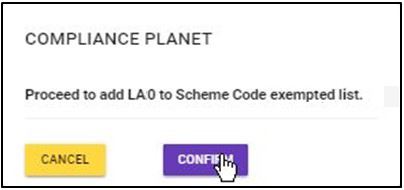
➔ This displays a confirmation console as in fig. 17.3c.

(fig. 17.3c)

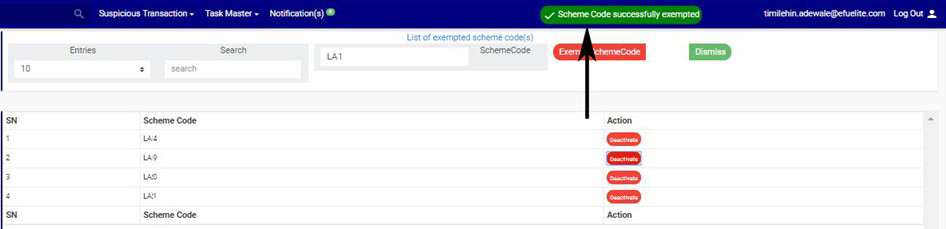
STEP 3: Click on ‘CONFIRM’ to add the account scheme to the exemption list or ‘CANCEL’ to discontinue. If you proceed, a notification will be displayed at the top of the page. See fig. 17.3d for an example.

(fig. 17.3d)

How To Remove An Account Scheme from Exemption List

To remove an account scheme from the exemption list;

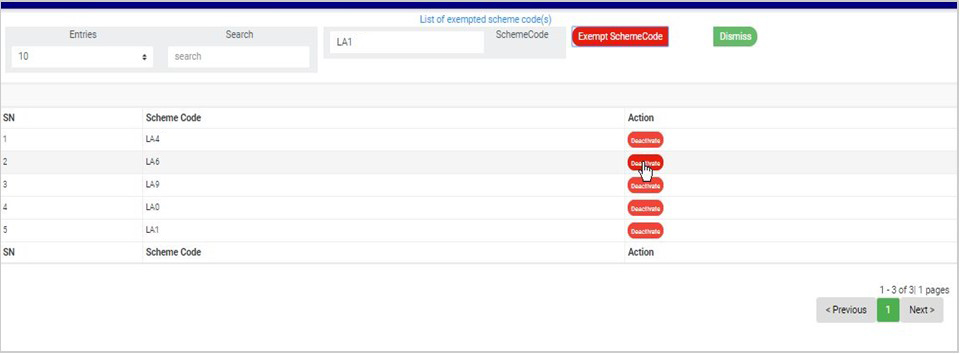
STEP 1: Click ‘DEACTIVATE’ button as in fig. 17.4a for an example.

(fig. 17.4a)

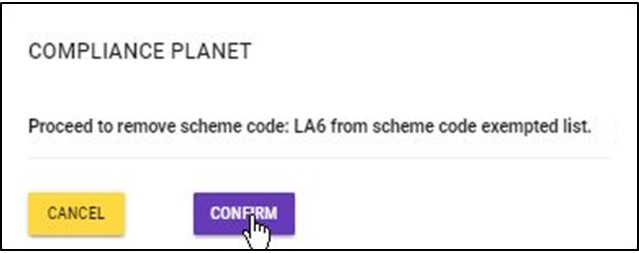
➔ This displays a confirmation console as in fig. 17.4b.

(fig. 17.4b)

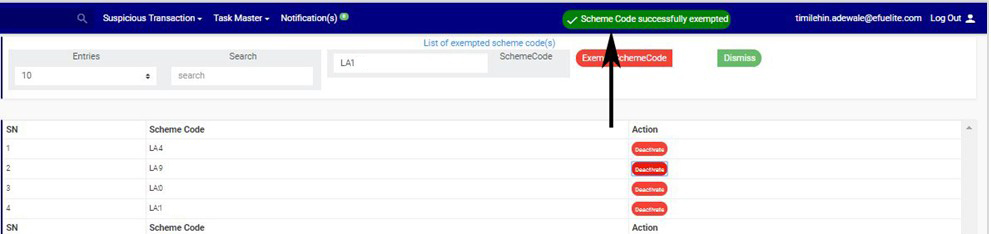
STEP 2: Click on ‘CONFIRM’ to remove the account scheme from the scheme code exempted list or ‘CANCEL’ to discontinue. If you proceed, the scheme code will be removed from the list immediately and a notification will be displayed at the top of the page. See fig. 17.4c for an example.

(fig. 17.4c)

For further enquiries : 

Tel +234(0) 816 555 9818

Email solutions@efuelite.com 

Overview Of Certificate Of Capital Importation (CCI) Operations In Compliance Planet Anti Money Laundering/Core Banking Finance Software

This section provides a guide on how to perform operations pertaining to CCI on the Compliance Planet, with step-by-step instructions and pictures. 


A Certificate of Capital Importation (CCI) is Central Bank of Nigeria (CBN) certificate issued by banks for importation of cash (foreign currency Inflow) for investment as Equity or Loan, and also for importation of machinery and equipment for investment as Equity or Loan. Every Certificate of Capital Importation has a number denoted by ‘CCi’ on the compliance planet. The importance and reason for the CCI feature on the compliance planet is to enable the attachment of CCI numbers to transactions reported in ADRAPS FTR reports. CCI’s are mostly matched with Inward Foreign Exchange Foreign Transactions (i.e., FXFTInward). 


CCI OPERATIONS 

Here, the operations are; 

1. previewing list of CCI for transaction report, 

2. Editing a CCI, 

3. Deleting a CCI. 

4. Adding a new CCI, 

5. Downloading a CCI and 

6. Bulk Delete 

NOTE: Only person(s) profiled as deputy supreme admin can carry out these operations.

To perform any of the operations; 

STEP 1: From the main dashboard, click ‘CONTROLPANEL’ as in fig 18.2a below 

(fig. 18.2a)

STEP 2: Click on ‘CCI’ on the left hand side menu as in fig. 18.2b below.

(fig. 18.2b)

➔ This displays a page as seen in fig. 18.2c below.

(fig. 18.2c)


For further enquiries : 
Tel +234(0) 816 555 9818
Email solutions@efuelite.com 

Web http://solutions.efuelite.com
Overview Of Account Exemption Operations In Compliance Planet Anti Money Laundering/Core Banking Finance Software

This section provides a guide on how to perform operations as regards EXEMPTED ACCOUNTS on the Compliance Planet, with step-by-step instructions and pictures.

An exempted account is an account whose details and transactions have been excluded from CTR reports.

EXEMPTED ACCOUNT(S) OPERATIONS 

The operations pertaining to exempted accounts include exempting an account and removing an account from the exemption list.

NOTE: Only person(s) profiled as deputy supreme admin can carry out these operations 

To perform any of the operations on Exempted Accounts;

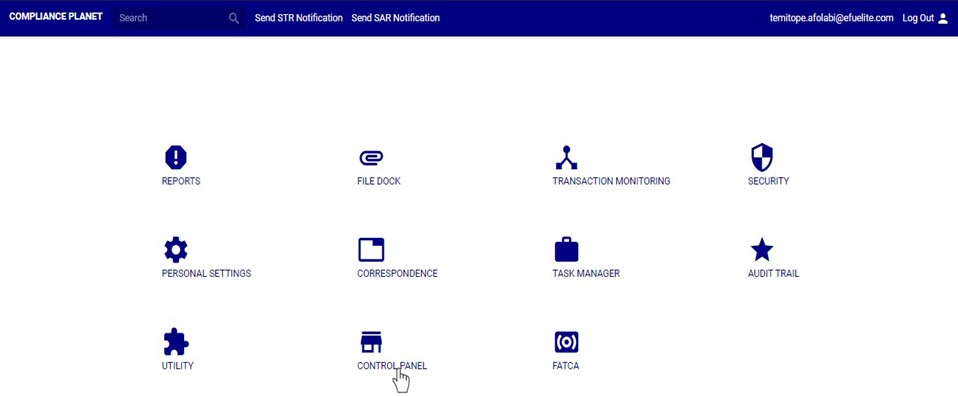
STEP 1: From the main dashboard, click ‘CONTROL PANEL’ as in fig 16.2a below

(fig. 16.2a)

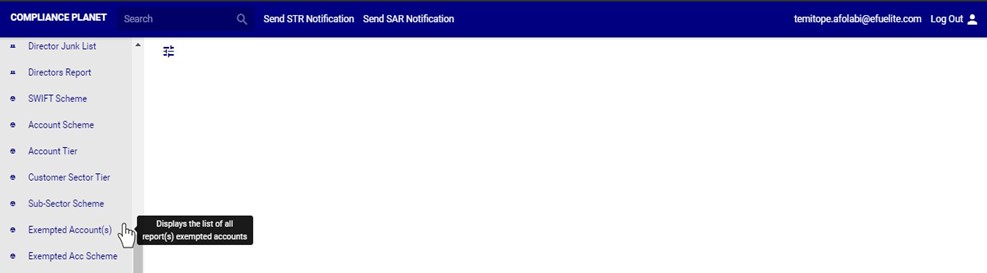
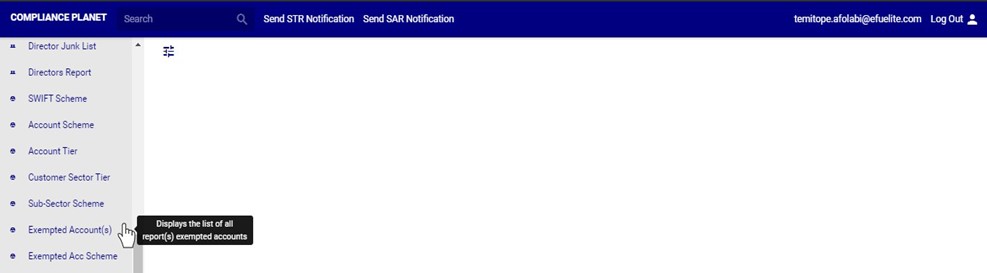
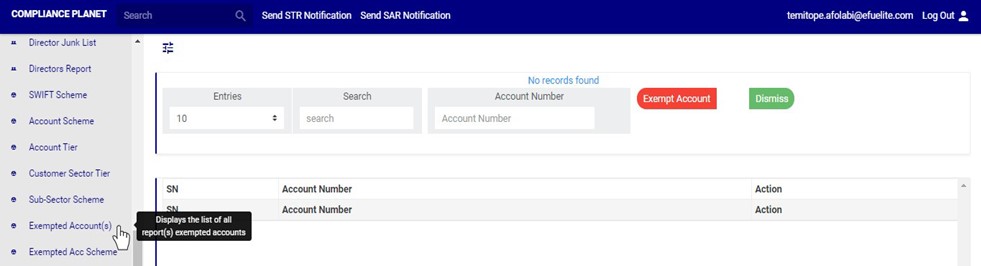
STEP 2: Click on ‘EXEMPTED ACCOUNT’ on the left hand side menu as seen in fig. 16.2b below.

(fig. 16.2b)

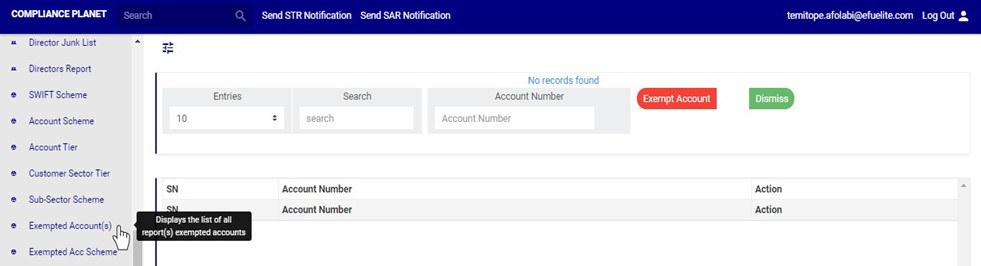
➔ This displays a page as in fig. 16.2c below.

(fig. 16.2c)

For further enquiries : 
Tel +234(0) 816 555 9818
Email solutions@efuelite.com 

Web http://solutions.efuelite.com
How To Carry Out Account Exemption Operations In Compliance Planet Anti Money Laundering/Core Banking Finance Software

The operations pertaining to exempted accounts include exempting an account and removing an account from the exemption list.

NOTE: Only person(s) profiled as deputy supreme admin can carry out these operations 

To perform any of the operations on Exempted Accounts;

STEP 1: From the main dashboard, click ‘CONTROL PANEL’ as in fig 16.2a below

(fig. 16.2a)

STEP 2: Click on ‘EXEMPTED ACCOUNT’ on the left hand side menu as seen in fig. 16.2b below.

(fig. 16.2b)

➔ This displays a page as in fig. 16.2c below.

(fig. 16.2c)

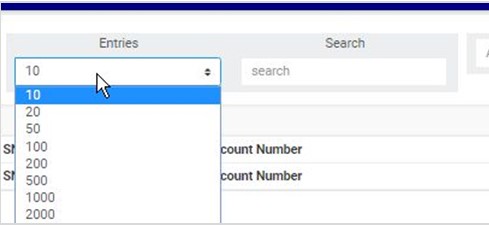
➔ To adjust the number of exempted accounts per page, click on the ‘ENTRIES’ box as in fig. 16.2d below and select the number of records you want to see per page.

(fig. 16.2d)

➔ To close the Exempted account(s) page or return to Control Panel home page, click on ‘DISMISS’ as shown in fig. 16.e below.

(fig. 16.2e)

How To Exempt an Account Number

This refers to adding an account number to the CTR exemption list. Here is how to exempt an account from reports.
STEP 1: Type an account number in the ACCOUNT NUMBER box. See an example in fig. 16.3a below.

(fig. 16.3a)

STEP 2: Click ‘EXEMPT ACCOUNT’. This button is positioned at the top of the page as shown in fig. 16.3b.

(fig. 16.3b)

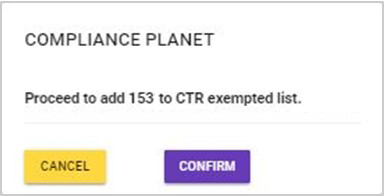
➔ This displays a confirmation console as in fig. 16.3c.

(fig. 16.3c)

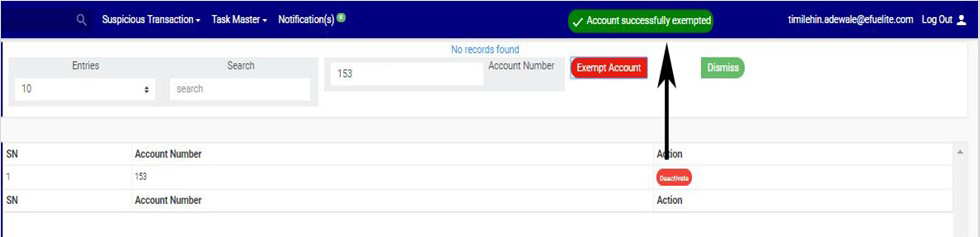
STEP 3: Click on ‘CONFIRM’ to add the account number to the exempted account list or ‘CANCEL’ to discontinue. If you proceed, a notification will be displayed at the top of the page.

(fig. 16.3d)

How To Remove An Account Number from the Exemption List

To remove an account number from the CTR exemption list;

STEP 1: Click the ‘DEACTIVATE’ button as shown in fig. 16.4a for an example.

(fig. 16.4a)

➔ This displays a confirmation console as in fig. 16.4b.

(fig. 16.4b)

STEP 2: Click on ‘CONFIRM’ to remove the account number from the exempted account list or ‘CANCEL’ to discontinue. If you proceed, the account will be removed from the exempted account list right away and a notification will be displayed at the top of the page.

(fig. 16.4c)

For further enquiries : 
Tel +234(0) 816 555 9818
Email solutions@efuelite.com