How to Carry out App Schedule Log On Control Panel In Compliance Planet Anti Money Laundering/Core Banking Finance Software

The Security section of the Compliance Planet AML Software is designed with features that give the administrator options to set multiple layers of security.

How to carry out security operations on the Compliance Planet AML software.

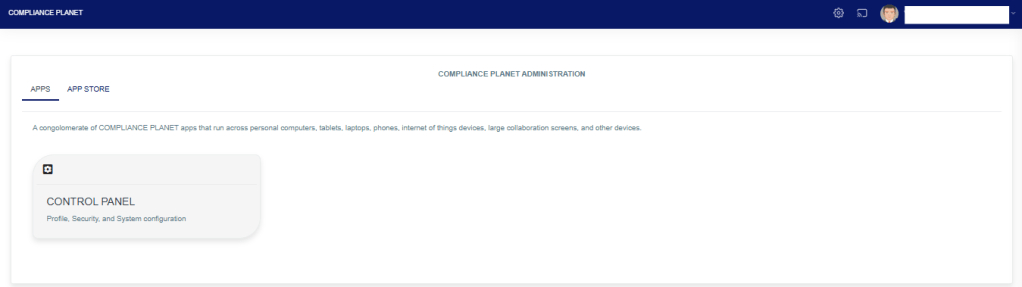
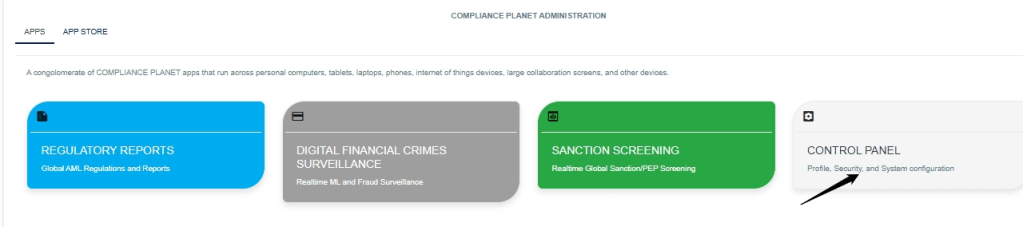
STEP 1: From the app dashboard, click ‘Control panel’ as in Fig. 21.2a.

Fig. 21.2a.
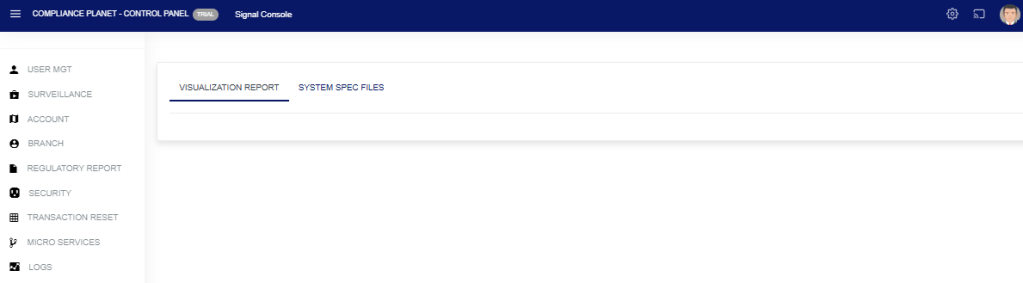
STEP 2: Click “Security” from the control panel drop-down as in Fig. 21.2b below

Fig. 21.2b
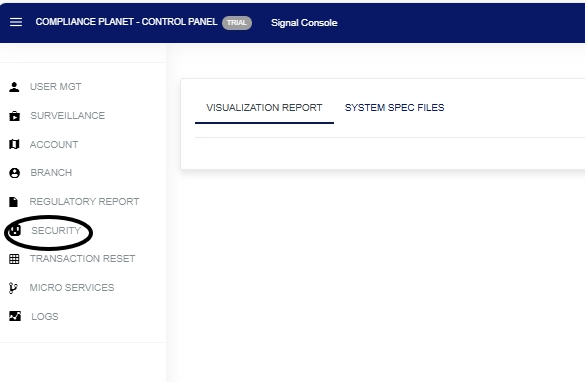
STEP 2: Click “Security” from the control panel drop-down, as in Fig. 21.2c below:

Fig.21.2c.
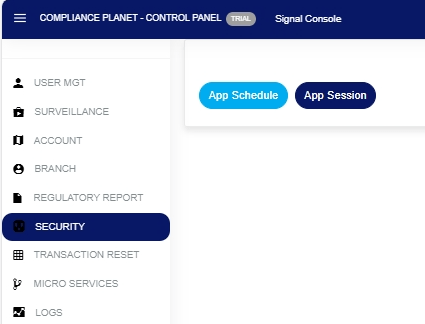
STEP 3: Click “App Schedule” from the control panel drop-down, as in Fig. 21.2d, and a page will display below:

Fig. 21.2d
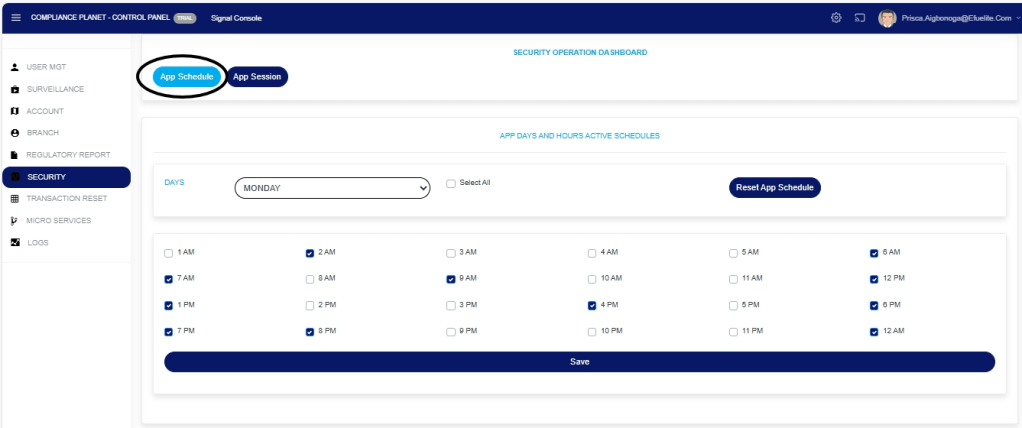
STEP 4: DAY: Click on the ‘Day’ drop-down to filter and select the day you want to schedule for as shown in Fig.21.2e. below:

Fig.21.2e.
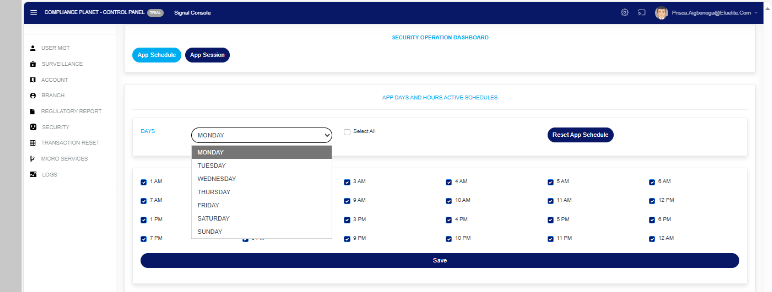
STEP 5: SELECT ALL: Tuggle on the ‘SELECT ALL‘ button to select all the time you want to schedule for, as shown in Fig.21.2g. below:

Fig.21.2g.
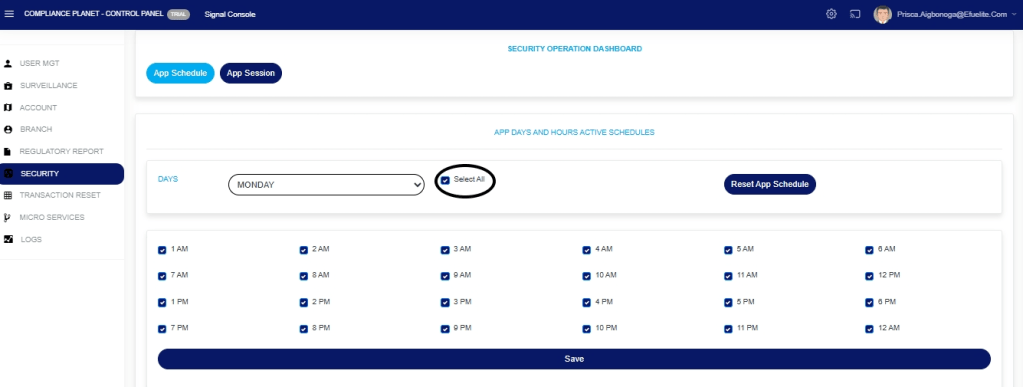
STEP 6: SAVE: Click on the ‘Save’ button to save your changes as shown in Fig.21.2h. below:
Fig.21.2h.
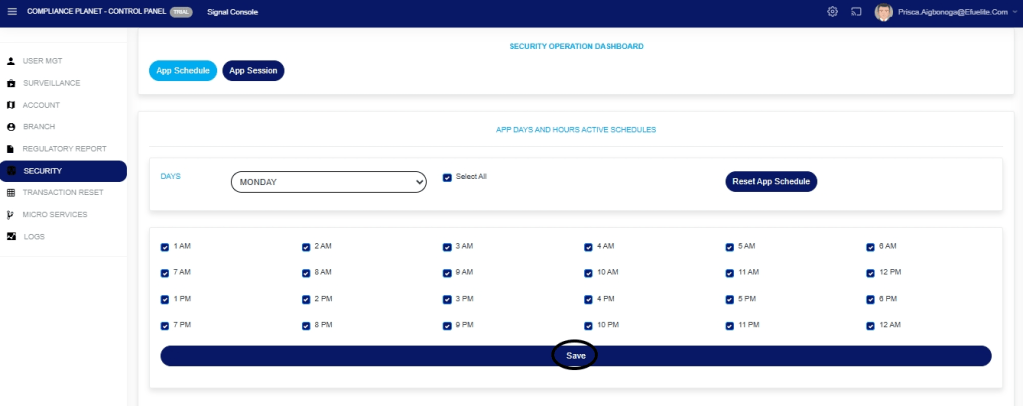
STEP 7: Click on the ‘Reset App Schedule’ button to save your changes as shown in Fig.21.2i. below:

Fig.21.2i
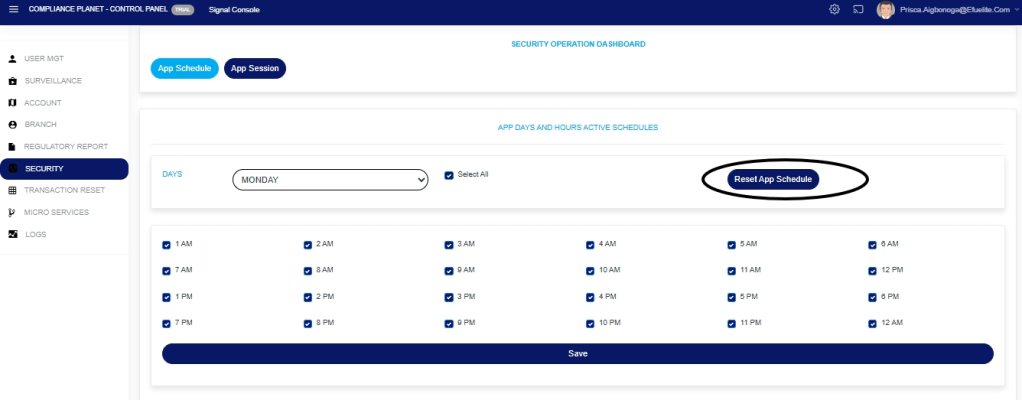
STEP 8: Click on the ‘confirm’ button to effect your change as shown in Fig.21.2j. below:

Fig.21.2j
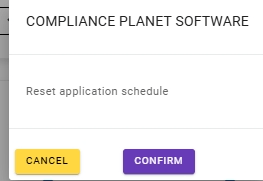
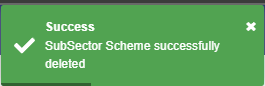
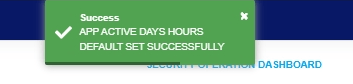
A notification, as in Fig. 21.2k, will be displayed at the top of the page.

Fig. 21.2k.
How to Carry Out App Session

STEP 1: Click “App Session” from the control panel drop-down, as in Fig. 21.2l, and a page will display below:

Fig. 21.2l
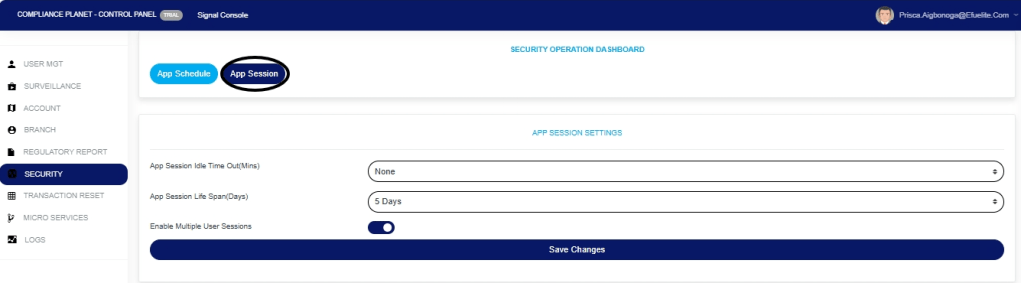
STEP 2: Enter all the parameters and click Save Changes as shown in Fig.21.2n. below:

App Session Idle Time Out(Mins): Click on the ‘App Session Idle Time Out(Mins)’ drop-down to select the time you want to set.

App Session Life Span(Days): Click on the ‘App Session Life Span(Days)‘ drop-down to select the days you want to set.

Enable Multiple User Sessions: Tuggle on the Enable Multiple User Sessionsbutton to enable multiple users.

Save Changes: Click on the ‘save changes’ button

Fig.21.2n.
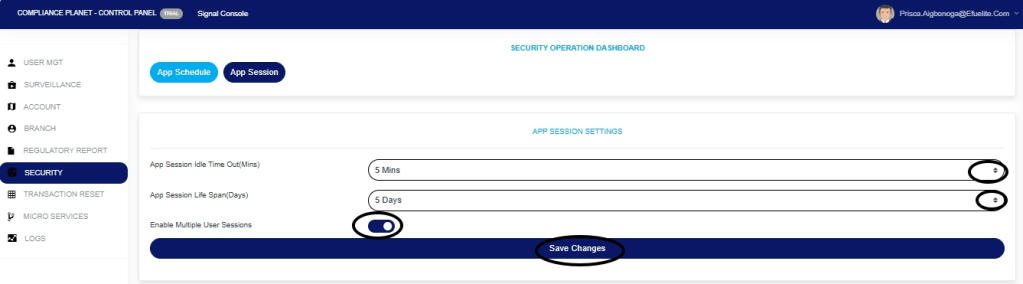
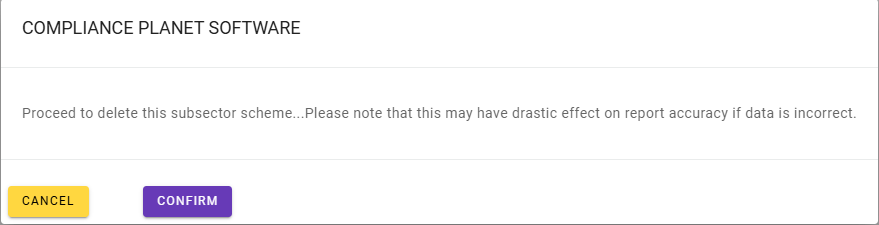
Click “Confirm” to proceed or “Cancel” to dismiss the console as shown in Fig.21.2o below:

Fig.21.2o
Tel +234(0) 816 555 9818
Email solutions@efuelite.com 
Web https://solutions.efuelite.com

How to View Branch List on Control Panel in Compliance Planet Anti Money Laundering/Core Banking Finance Software.

This section provides a guide on how to view the Branch List on the Compliance Planet control panel, with step-by-step instructions and pictures.

NOTE: This action can only be carried out by person(s) profiled as Administrator in the software

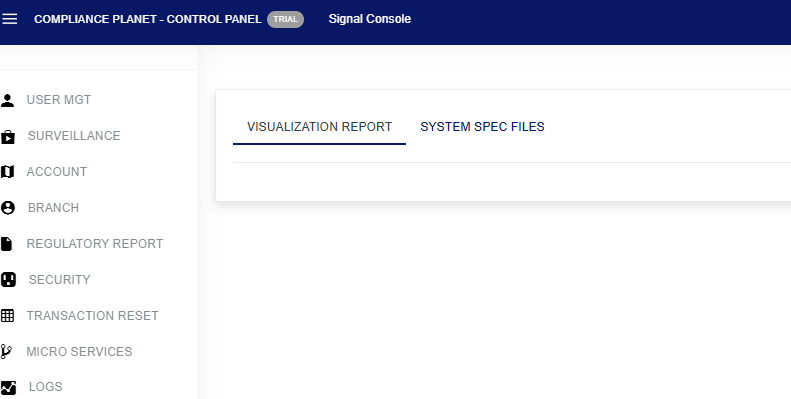
STEP 1: From the app dashboard, click on “CONTROL PANEL” as shown in the image below.

  • The action above displays the page shown below.
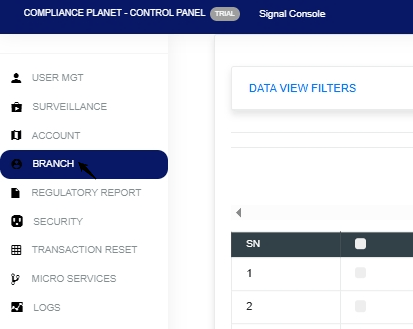
  • STEP 2: Click on “BRANCH” to see the drop-down below.

  • STEP 3: Click on the Data View Filters’ as shown in Fig.3.1a below.

Fig.3.1a

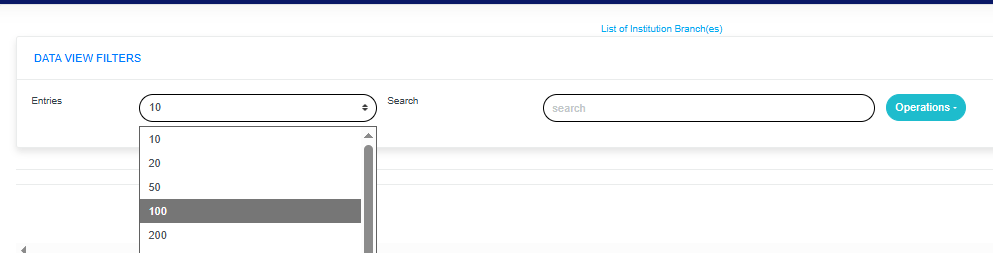
  • This displays a page showing the entries and search box shown in Fig.3.1b below.

Fig.3.1b

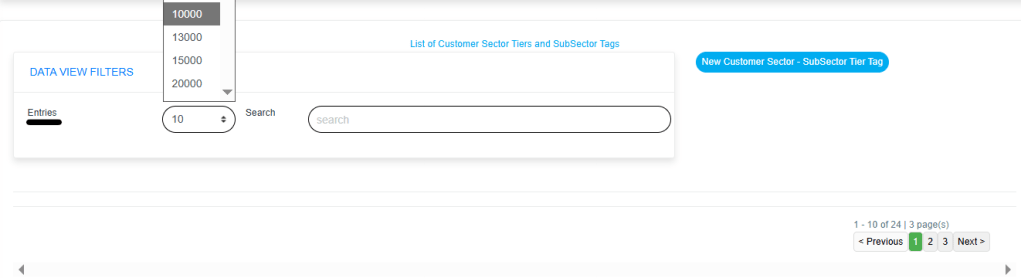
  • Click on theEntries” box as in Fig. 3.1c below to select the number of records you want to view per page.

Fig. 3.1c

Click on the “operations” drop-down to select from the list of branch operations you want to view, as shown in Fig.3.1d below.

Fig.3.1d

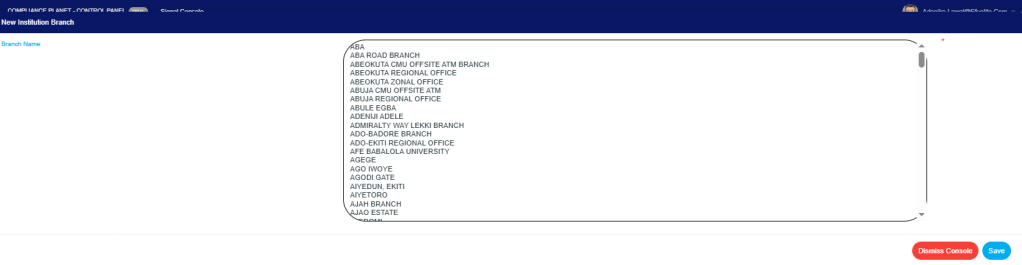
  • Click onNew Branch” from the Operations drop-down list to select your preferred branch, as shown in Fig.3.1e
  • Select from this drop-down in the page below, as shown in Fig.3.1f

Fig.3.1f

  • Click on the save console, and this will display the image below as shown in Fig.3.1g

Fig.3.1g

  • Click “Confirm” to proceed or “Cancel” to dismiss the console as shown in Fig.3.1h
  • How to Delete Branch Description
  • Note: Only person(s) assigned this role can carry out this operation.

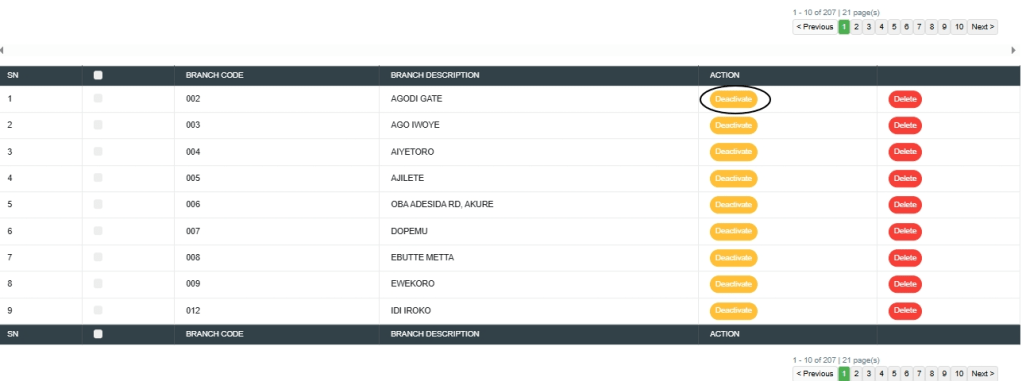
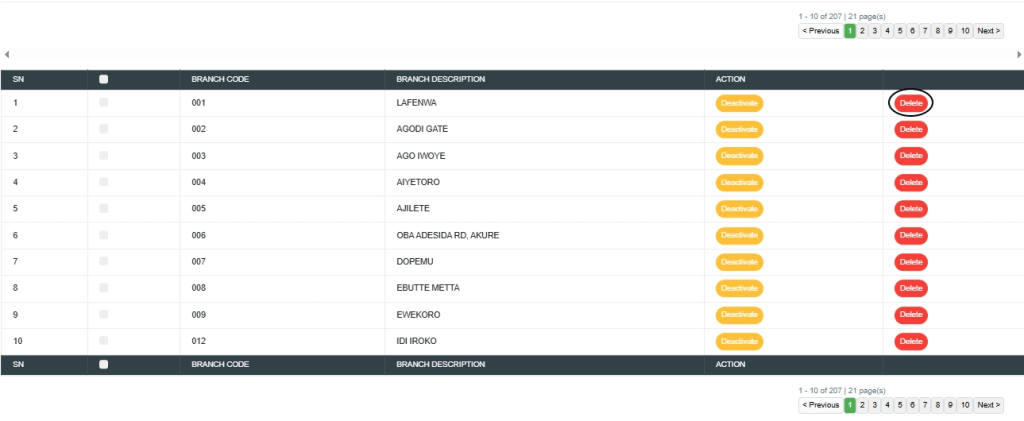
STEP 1: Click the “Delete” button, as shown in Fig. 3.1i below, to edit the action.

Fig. 3.1i

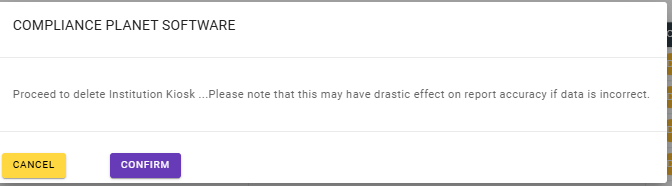
  • This will display a confirmation console as shown in Fig.3.1j
  • STEP 2: Click “Confirm” to proceed or “Cancel” to dismiss the console

Fig.3.1j

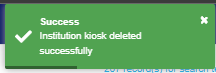
  • A notification will be displayed at the top of the page, as shown in Fig. 3.1k below, and the record will be deleted from the list.

Fig. 3.1k

How to Deactivate Institution Branch

Note: Only person(s) assigned this role can carry out this operation.

STEP 1: Click the “Deactivate” button, as shown in Fig. 3.1l below, to edit the action.

Fig. 3.1l

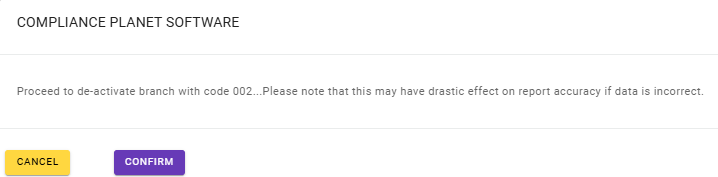
  • This will display a confirmation console as shown in Fig.3.1m
  • STEP 2: Click “Confirm” to proceed or “Cancel” to dismiss the console

Fig.3.1m

  • A notification will be displayed at the top of the page, as shown in Fig. 3.1n below, and the record will be deactivated from the list.

Fig. 3.1n

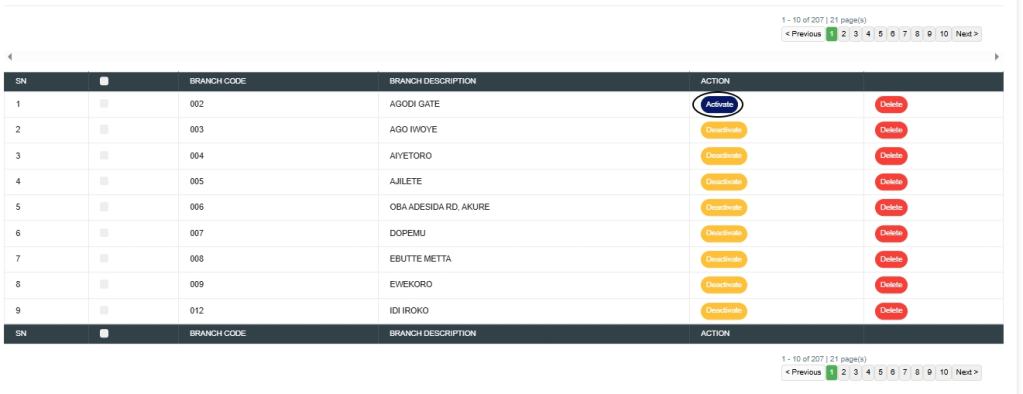
How to Activate Branch Institution

Note: Only person(s) assigned this role can carry out this operation.

STEP 1: Click the “Activate” button, as shown in Fig. 3.2a below, to edit the action.

Fig. 3.2a

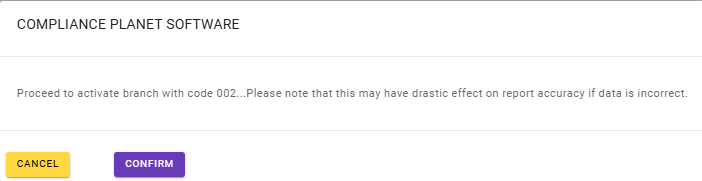
  • This will display a confirmation console as shown in Fig.3.2b
  • STEP 2: Click “Confirm” to proceed or “Cancel” to dismiss the console

Fig.3.2b

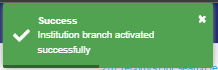
  • A notification will be displayed at the top of the page, as shown in Fig. 3.2c below, and the record will be activated.

Fig. 3.2c

For further enquiries : 
Tel +234(0) 816 555 9818
Email solutions@efuelite.com 
Web https://solutions.efuelite.com
How to View Account Operations on Control panel in Compliance Planet Anti Money Laundering/Core Banking Finance Software

This section provides a guide on how to view and modify info spool, account tier, and account scheme on the Compliance Planet control panel, with step-by-step instructions and pictures.

NOTE: This action can only be carried out by person(s) profiled as Administrator in the software

STEP 1: From the app dashboard, click on “CONTROL PANEL” as shown in the image below.

  • The action above displays the page shown below.
  • STEP 2: Click on “ACCOUNT” to see the drop-down below.

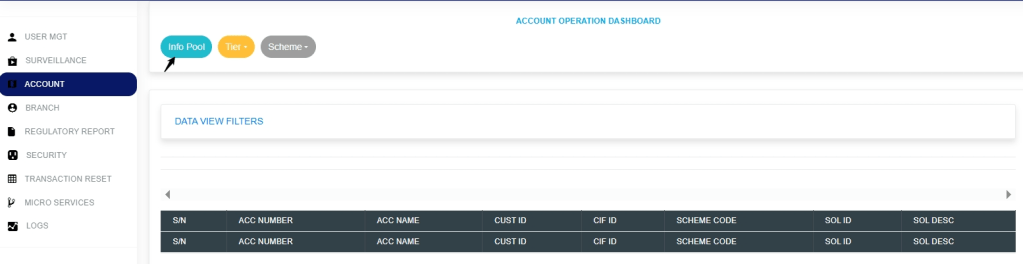
  • STEP 3: Click on Info Spool’ from the account operation dashboard page, as shown in Fig.2.1a below.

Fig.2.1a

  • STEP 4: Click on Data View Filters’ to fill in the parameters of the account you want, as shown in Fig. 2 .1b below.

Fig. 2 .1b

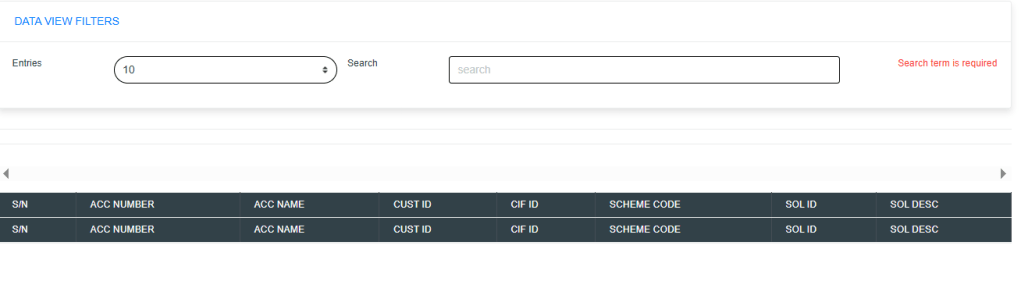
  • This displays a page showing the entries and search box shown in Fig.2.1c below.

Fig.2.1c

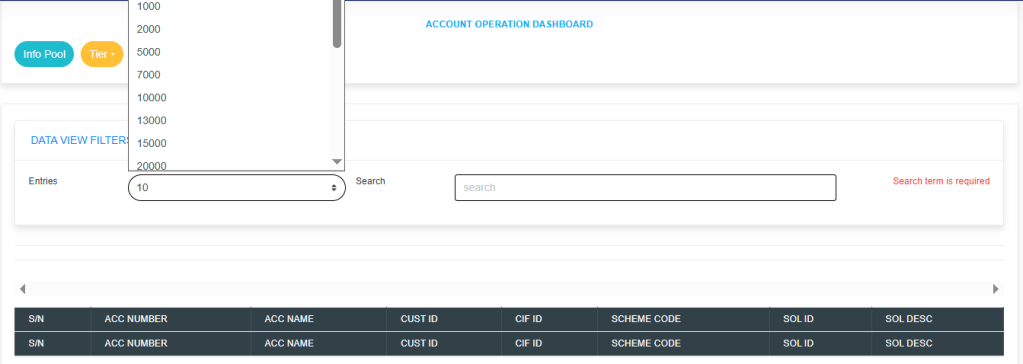
Click on the “Entries” box as in Fig. 2.1d below to select the number of records you want to view per page.

Click on the “Search” box as in Fig. 2.1d below to input the account number you want to spool for.

How to Edit and Delete a Custom Sector under Tier

Note: Only the person(s) assigned this role can carry out this operation.

Click on the “Tier” box menu, and a drop-down revealing the customer sector option will be revealed as shown in Fig. 2.1e below.

Fig. 2.1e

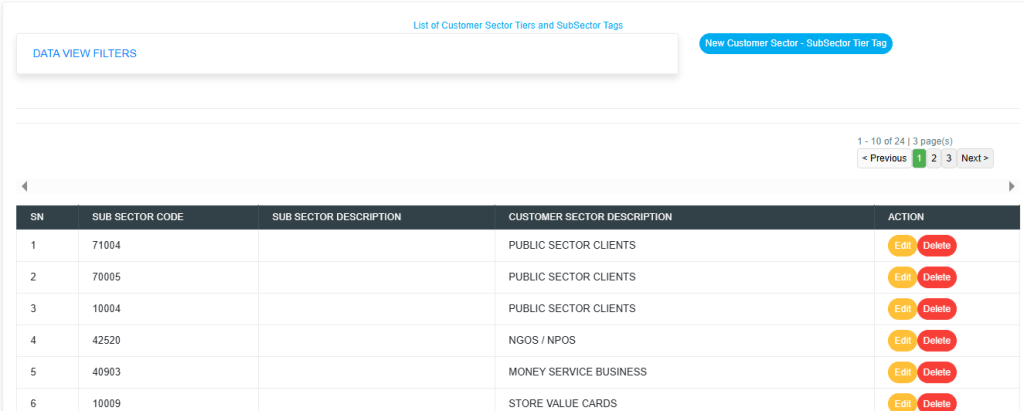
Click on the customer sector option, and this will display a page shown in Fig.2.1f below.

Fig.2.1f

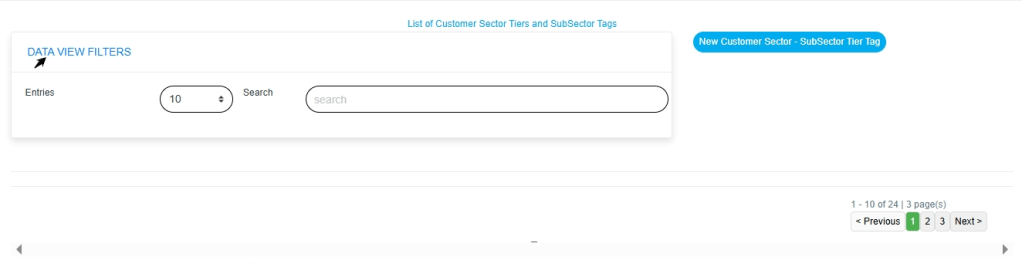
Click on the Data View Filters option to display the entries and search box as shown in Fig.2.1g below.

Fig.2.1g

Enter the number of pages you want to view in the entries box as shown in Fig.2.1h below.

Fig.2.1h

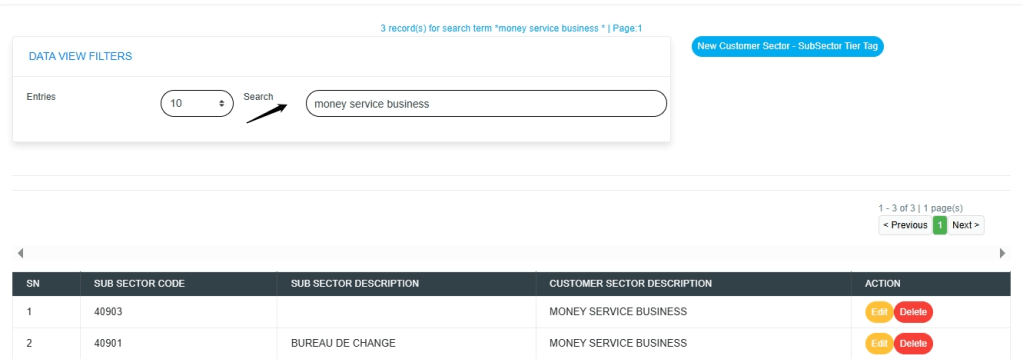
Fill in the search box to easily locate the customer sector description as shown in Fig.2.2a below.

Fig.2.2a

  • How to Delete a Customer Sector Tier tag

Note: Only person(s) assigned this role can carry out this operation.

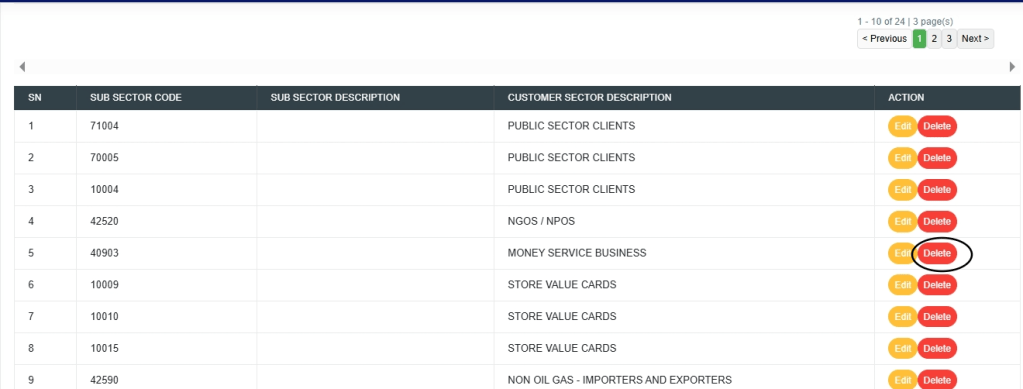
STEP 1: Click the “Delete” button, as shown in Fig. 2.2b below, to delete the action.

Fig. 2.2b

  • This will display a confirmation console as in Fig. 2.2c below

STEP 2: Click “Confirm” to proceed or “Cancel” to dismiss the console.

Fig. 2.2c 

  • A notification will be displayed at the top of the page, as shown in Fig. 2.2d below, and the record will be deleted from the list.

Fig. 2.2d

  • How to Edit a Customer Sector /sub-sector Tier tag

Note: Only person(s) assigned this role can carry out this operation.

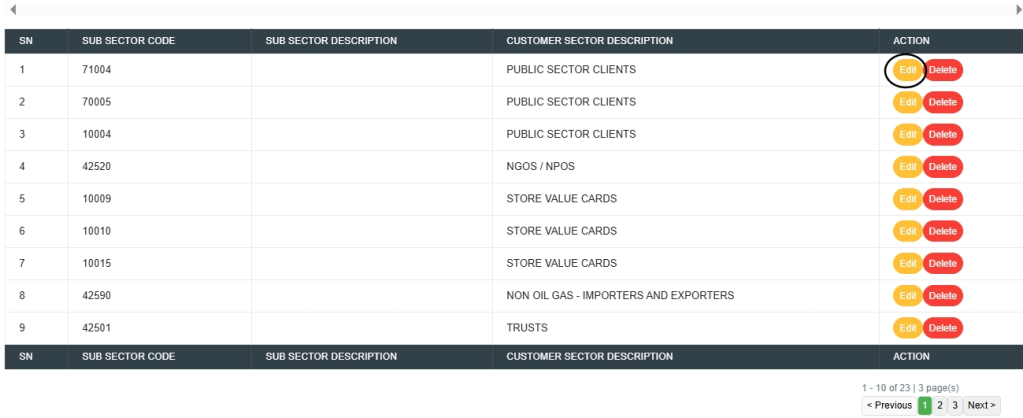
STEP 1: Click the “Edit” button, as shown in Fig. 2.2e below, to edit the action.

Fig. 2.2e 

  • This will display a page as in Fig. 2.2f below.

Fig. 2.2f 

STEP 1: Click the “sub search” box, as shown in Fig. 2.2g below, a list of drop-downs will be displayed.

Fig.2.2g

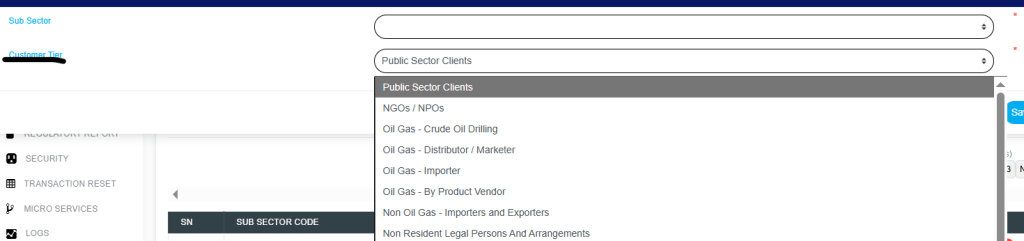
  • Click on the Customer Tier box as shown in Fig.2.2h below to display a list of drop-downs for more options.

Fig.2.2h

  • Note that the sub-sector search box and the customer tier search box must be filled accordingly.
  • This will display a console for dismissing or saving changes, as shown in Fig.2.3a below.

Fig.2.3a

Clicking on Save changes will display a confirmation console as in page shown in Fig.2.3b below.

STEP 2: Click “Confirm” to proceed or “Cancel” to dismiss the console.

Fig.2.3b

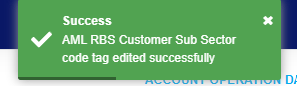
  • A notification will be displayed at the top of the page, as in Fig.2.3c below, showing that the customer sector code tag has been successfully edited.

Fig.2.3c

How to Edit and Delete an Account Scheme.

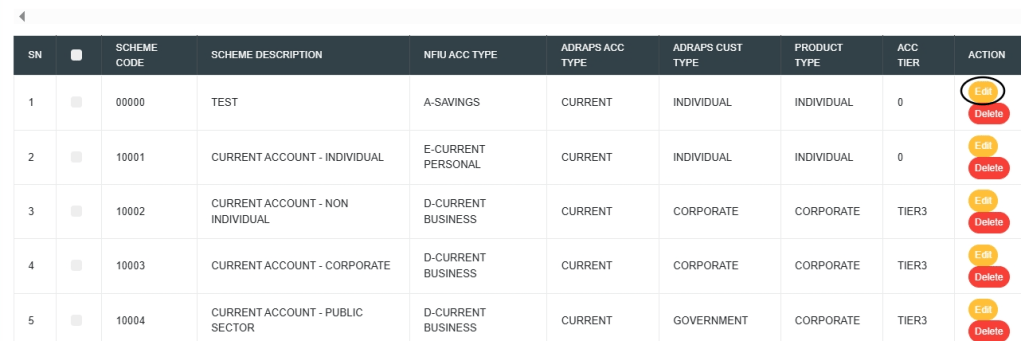
  • Click on the “Scheme” in the Account Operation Dashboard page to display a list of drop-downs as shown in Fig.2.3d, then click on Account.

Fig.2.3d

  • Click on Data view Filters to display the Entries and search box.
  • Fill the entries box with the number of pages you want to view by clicking on the dropdown button, and also fill the search box with your choice of scheme from the Operations dropdown.
  • Note that this action will display the List of Account Schemes as shown in Fig.2.3e

Fig.2.3e

  • How to Edit Account Scheme
  • STEP 1:To edit the Account Scheme, click on the Edit console. This will display a page as shown in Fig.2.3f

Note: Only person(s) assigned this role can carry out this operation.

Fig. 2.3f

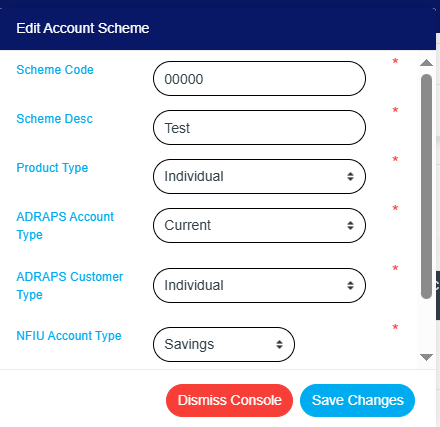
  • This will display a page as shown in Fig.2.3g

Fig.2.3g

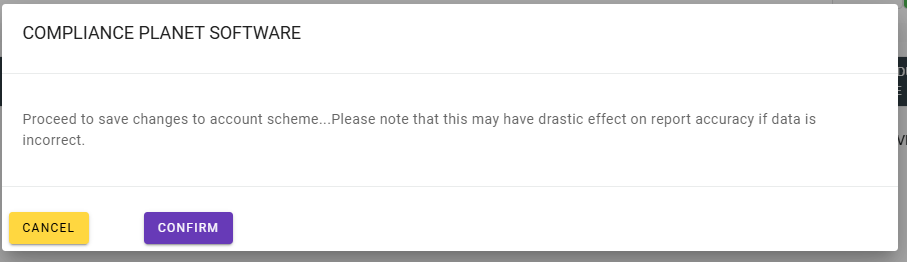
  • Clicking on Save changes will display a confirmation console as in page shown in Fig.2.3h below.

Fig.2.3h

  • A notification will be displayed at the top of the page, as in Fig.2.4a below, showing that the account scheme has been successfully edited.
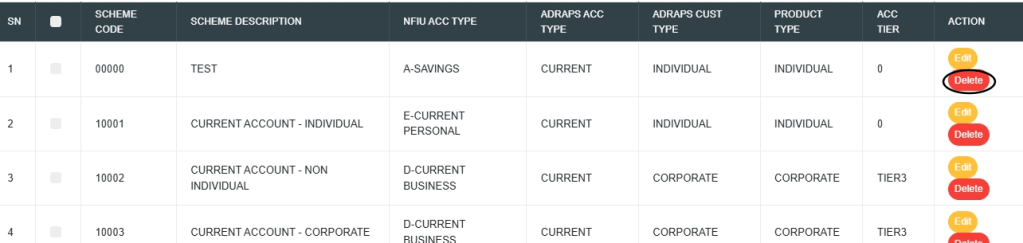
  • To delete the Account Scheme, click on the Delete console as shown in Fig.2.4b

Fig.2.4b

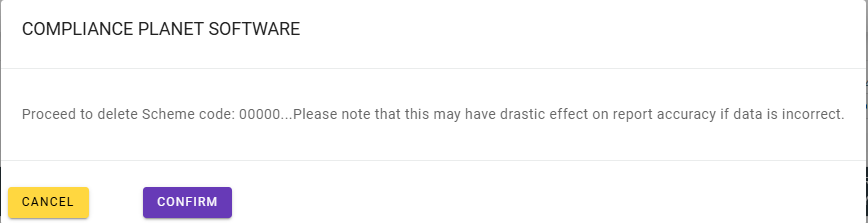
  • This will display a confirmation console as shown in Fig.2.4c

Fig.2.4c

  • A notification will be displayed at the top of the page, as in Fig.2.4d below, showing that the account scheme has been successfully deleted.

Fig.2.4d

How to Edit and Delete Swift

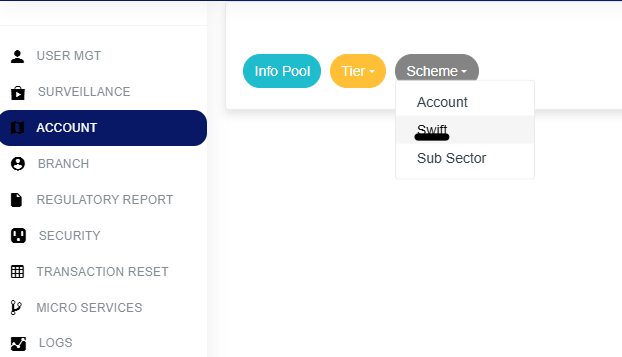
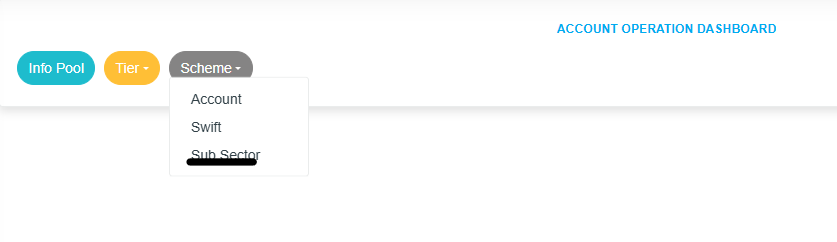
  • Click on Scheme to display the image shown in Fig.2.4e. This will display a list of dropdowns, then click on Swift

Fig.2.4e

  • This will display a console shown in Fig.2.4f
  • Fig.2.4f
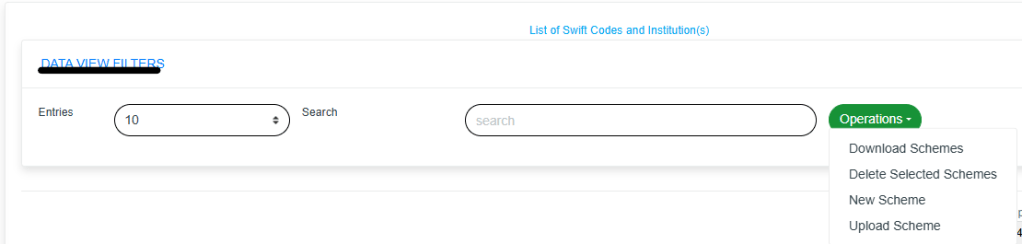
  • Click on Data view Filters to display the Entries and search box.
  • Fill the entries box with the number of pages you want to view by clicking on the dropdown button, and also fill the search box with your choice of scheme from the Operations dropdown.
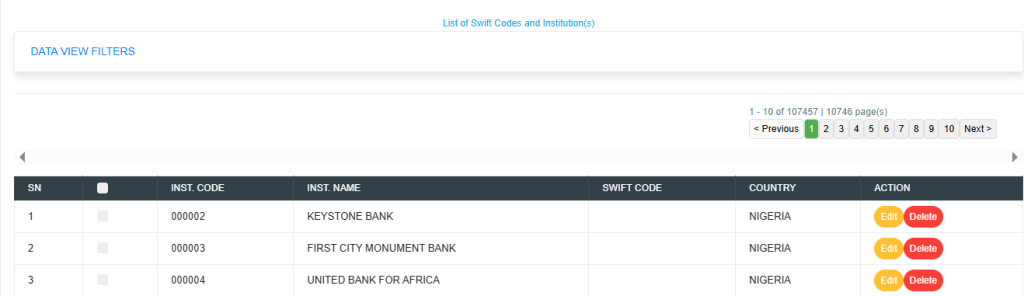
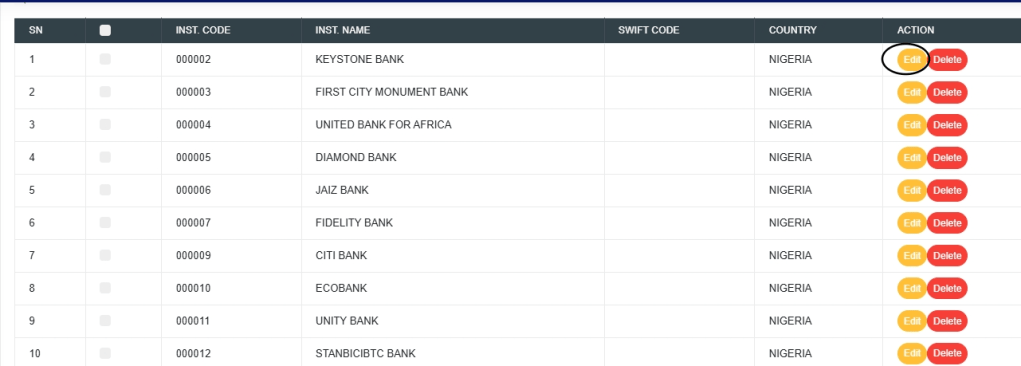
  • Note that this action will display the image below as shown in Fig.2.4g

Fig.2.4g

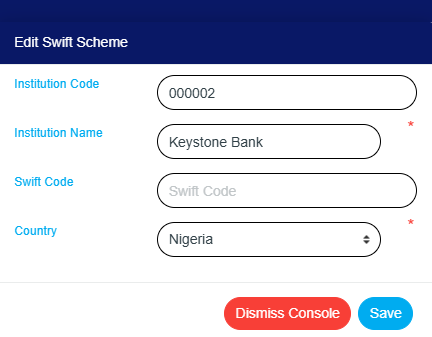
  • To edit the Swift Scheme, click on the Edit console. This will display a page as shown in Fig.2.4h

Fig.2.4h

  • This will display a page shown in Fig.2.5a below

Fig.2.5a

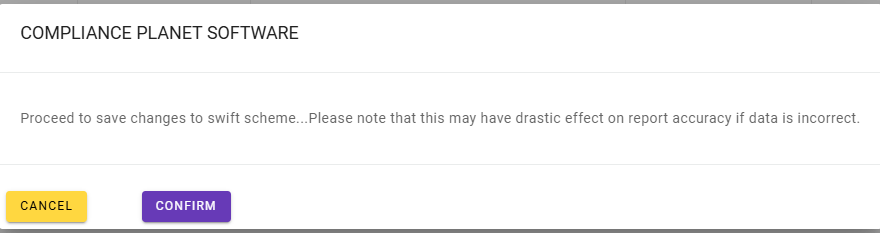
  • Clicking Save will display a confirmation console, as shown in Fig. 2.5b below.

Fig.2.5b

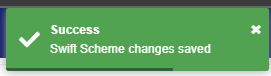
  • A notification will be displayed at the top of the page, as shown in Fig. 2.5c below, indicating that the swift scheme has been successfully edited.
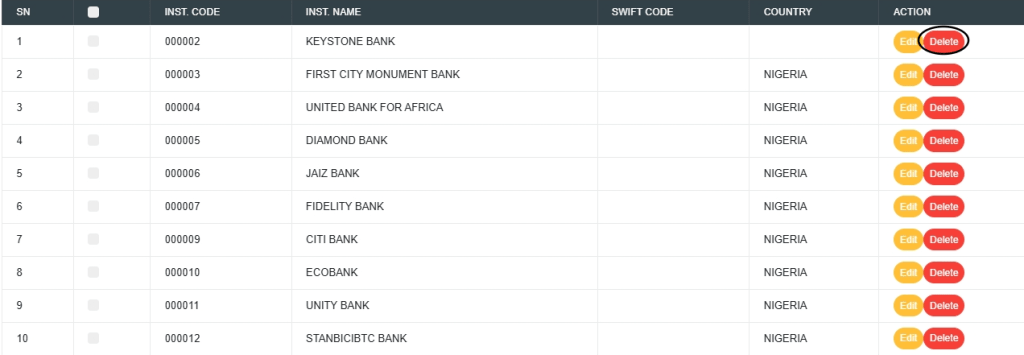
  • To delete the Swift Scheme, click on the delete console as shown in Fig.2.5e

Fig.2.5e

  • This will display a confirmation console as shown in Fig.2.5f

Fig.2.5f

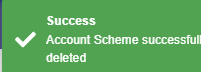
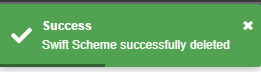
  • A notification will be displayed at the top of the page, as shown in Fig. 2.5g below, indicating that the Swift scheme has been successfully deleted.

Fig.2.5g

How to Edit and Delete Subsector

  • Click on Scheme to display the image shown in Fig.2.5h. This will display a list of dropdowns, then click on Subsector.

Fig.2.5h

  • This will display a console shown in Fig.2.6a

Fig.2.6a

  • Click on Data view Filters to display the Entries and search box.
  • Fill the entries box with the number of pages you want to view by clicking on the dropdown button, and also fill the search box with your choice of scheme from the Operations dropdown.
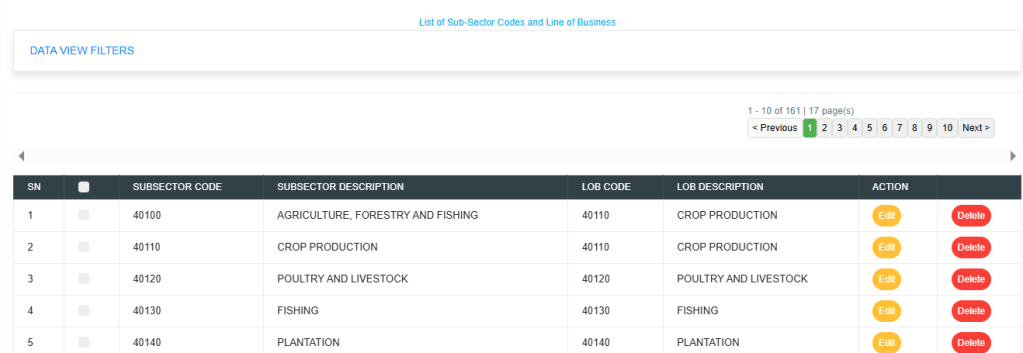
  • Note that this action will display the image below as shown in Fig.2.6b

Fig.2.6b

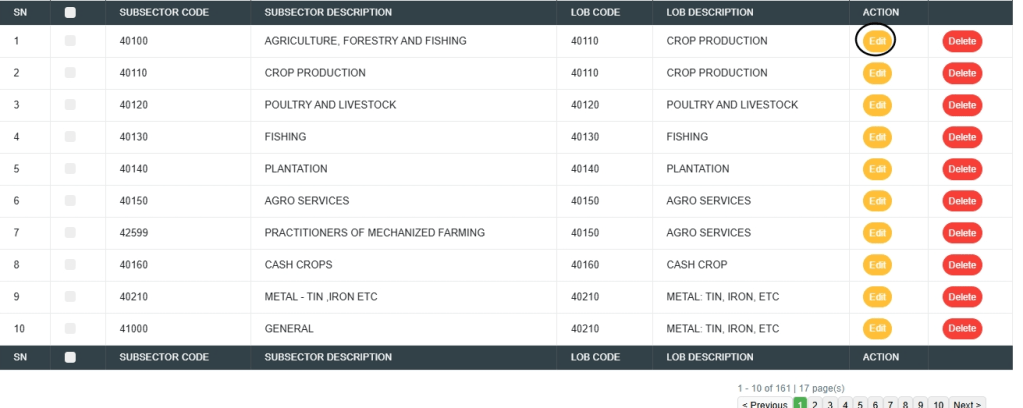
  • To edit the Subsector, click on the Edit console. This will display a page as shown in Fig.2.6c

Fig.2.6c

  • This will display a page shown in Fig.2.6d below

Fig.2.6d

  • Clicking Save will display a confirmation console, as shown in Fig. 2.6e below.

Fig.2.6e

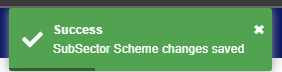
  • A notification will be displayed at the top of the page, as in Fig.2.6f below, showing that the subsector scheme has been successfully edited.

Fig.2.6f

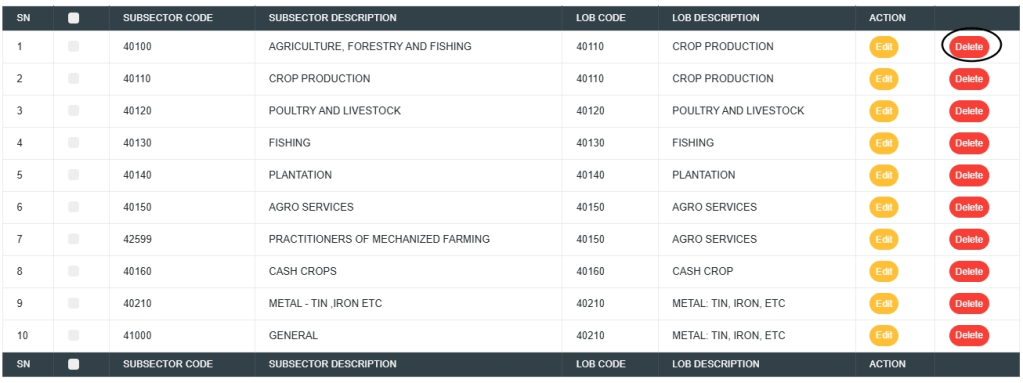
  • To delete the Subsector, click on the delete console as shown in Fig.2.6g

Fig.2.6g

  • This will display a confirmation console as shown in Fig.2.6h

Fig.2.6h

  • A notification will be displayed at the top of the page, as in Fig.2.6i below, showing that the Subsector has been successfully deleted.

Fig.2.6i

For further enquiries : 
Tel +234(0) 816 555 9818
Email solutions@efuelite.com 
Web https://solutions.efuelite.com
How to Carry Out STR Notification HTML Controls Operations in Compliance Planet Anti Money Laundering/Core Banking Finance Software

This section provides a guide on how to execute the STR notification HTML controls on the Compliance Planet, with step-by-step instructions and pictures.

NOTE: Only person(s) profiled as deputy supreme admin can carry out these operations 

STEP 1: From the app dashboard, click ‘Control panel’ as in Fig. 21.2a.

Fig 21.2a

  • This will display a drop-down as shown below.

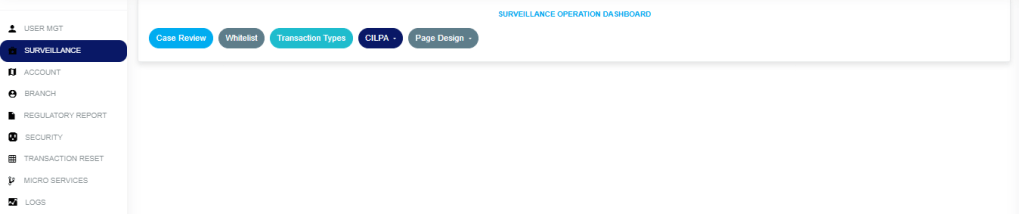
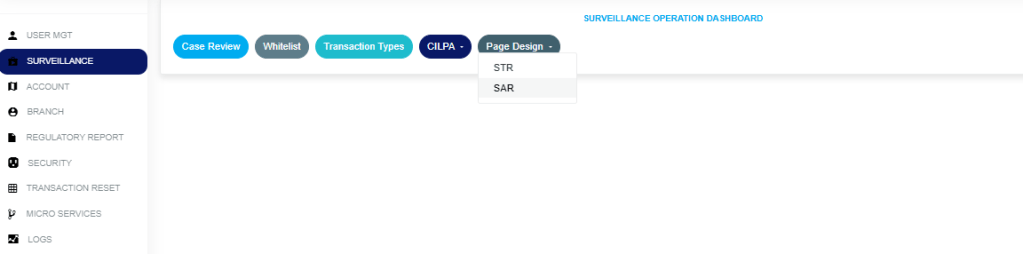
STEP 2: Select ‘SURVEILLANCE’ on the drop-down list and click on ‘Page Design’. See an example in Fig. 21.2b below.

Fig 21.2b

STEP 3: In the Page Design drop-down option, select the ‘STR’ as in Fig. 21.2c below.

Fig. 21.2c

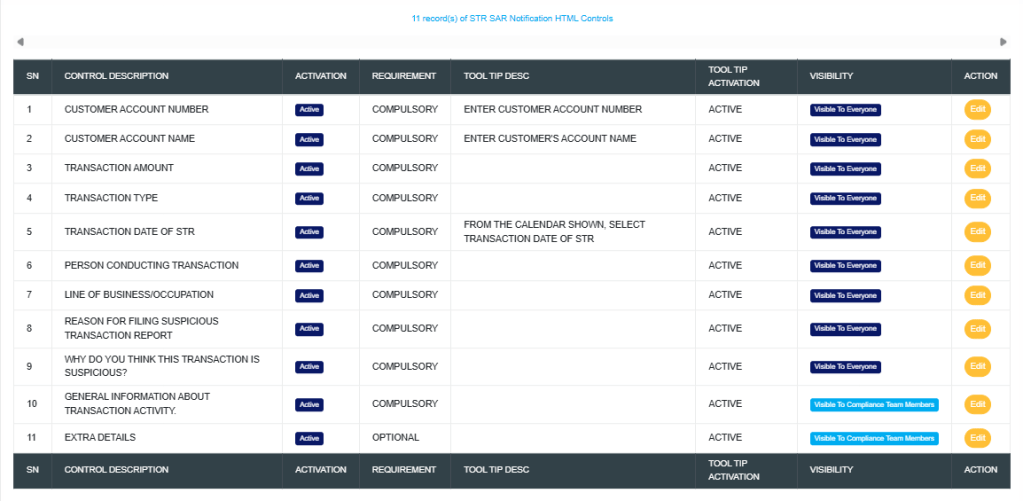
  • This displays a page showing a list of all ‘STR SAR Notification Html Control’ options that have been created and are available on the software. See Fig. 21.2d for an example.

Fig. 21.2d

How to edit an STR notification

This refers to changing the description or status of the STR notification. Here is how to do this.

STEP 1: Click on the ‘EDIT’ button in the action column. See Fig. 21.2e for an example.

Fig. 21.2e

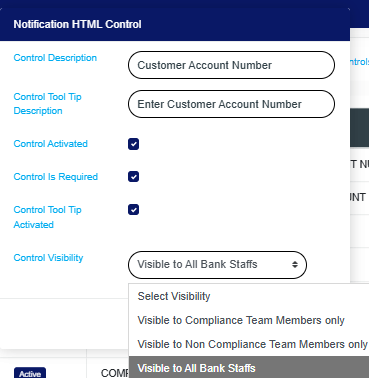
  • Clicking the edit button will display a console titled ‘Notification HTML Control’ as shown in Fig. 21.2f below.

Fig. 21.2f

Control Description: Click on the “Control Description box” and enter the name of the control field that should appear on the STR notification form.

Control Tool Tip Description: Click on the “Control Tool Tip Description box” and input a brief instruction that will appear when working on a STR notification.

Control Activated: Tick the “Control Activated box to enable and display the control on the STR notification form.

Control Is Required: Tick the “Control Is Required box to make the control field mandatory for STR submission.

Control Tool Tip Activated: Tick the “Control Tool Tip Activated box so the tool tip appears when users focus or hover on the control.

Control Visibility: Click on the “Control Visibility dropdown and select whether the control should be visible to compliance team members only, non-compliance team members only, or all bank staff.

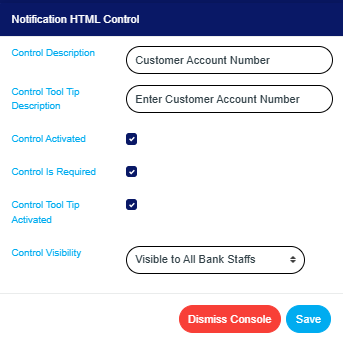
  • STEP 2: Click on the ‘save’ button to save the edit or click ‘dismiss console’ to cancel the operation. See Fig. 21.2g for an example.

Fig. 21.2g

  • This displays a confirmation console as in Fig. 21.2h below

Fig. 21.2h

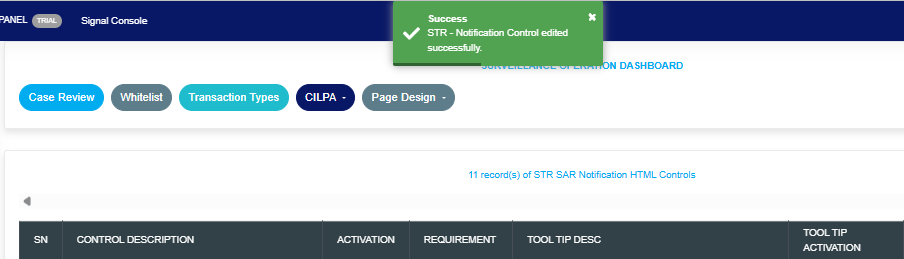
  • A notification, as in Fig. 21.2i, will be displayed at the top of the page.

Fig. 21.2i

For further enquiries: 
Tel: +234(0) 816 555 9818
Email: solutions@efuelite.com 
Web: https://solutions.efuelite.com
How to carry out Whitelisting Operations on Control Panel in Compliance Planet Anti Money Laundering/Core Banking Finance Software

This section provides a guide to performing whitelisting operations on the control panel in the Compliance Planet Anti-Money Laundering/Core Banking Finance Software, complete with step-by-step instructions and illustrations.

STEP 1: From the app dashboard, click ‘Control panel’ as in Fig. 21.2a.

Fig 21.2a

  • This will display a drop-down as shown below.

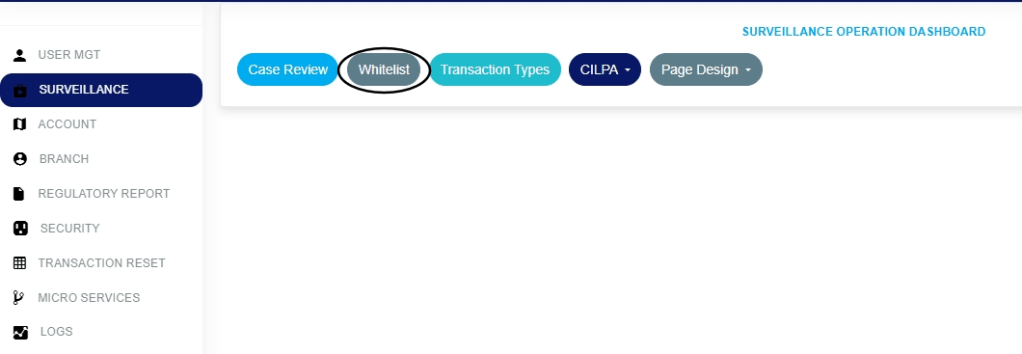
STEP 2: Select ‘SURVEILLANCE’ on the drop-down list and click on Whitelist. See an example in Fig. 21.2b below.

Fig 21.2b

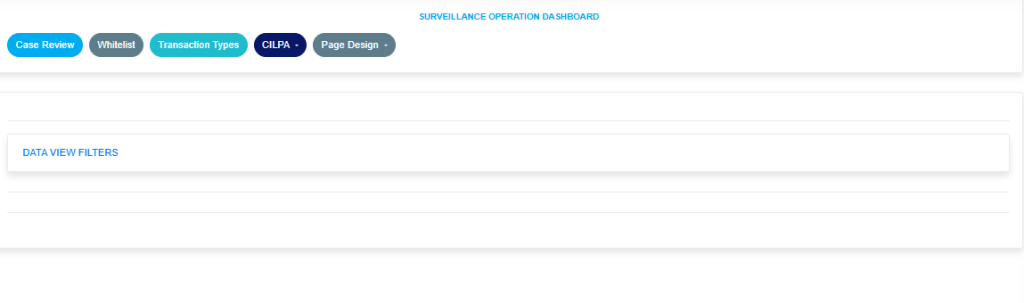
The above action will show the drop-down in Fig. 21.2c below.

Fig. 21.2c

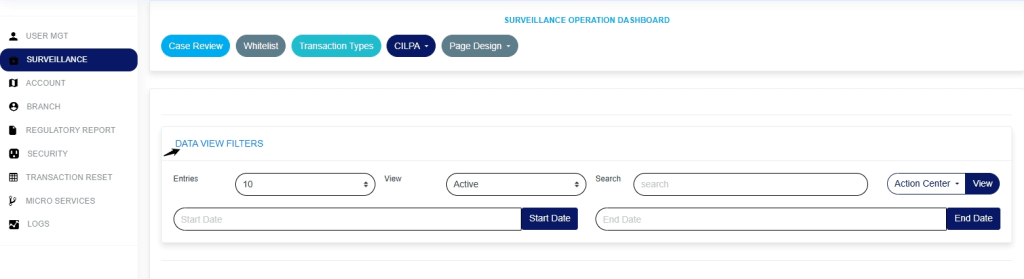
Click on the ‘Data View Filters to open the parameters as shown in the Fig. 21.2d image below.

Fig. 21.2d

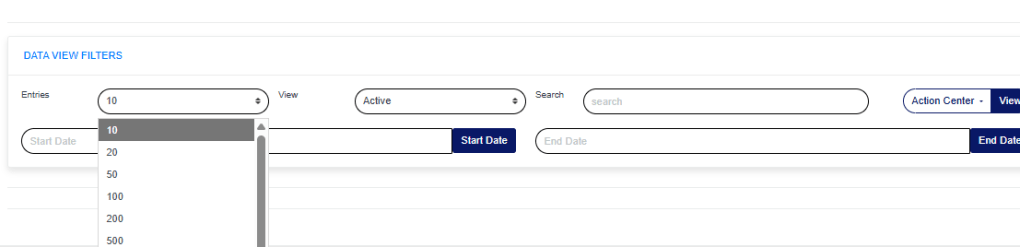
Entries: click on the Entries drop-down to choose how many case entries you want displayed per page, as shown in Fig. 21.2e

Fig. 21.2e

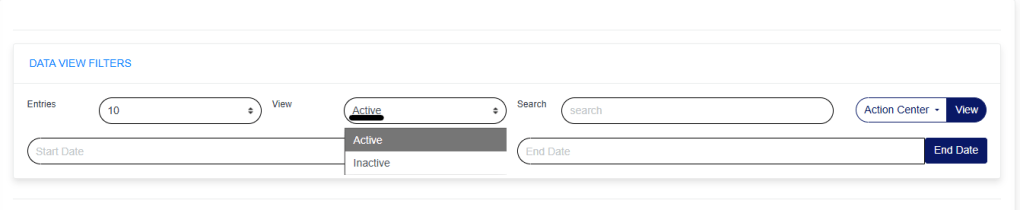
View: Click on the view drop-down to filter and select either active or inactive, as shown in Fig. 21.2f below.

Fig. 21.2f


Search: click on the search box and enter the account number to quickly find specific accounts, as shown in Fig. 21.2g below.

Fig. 21.2g

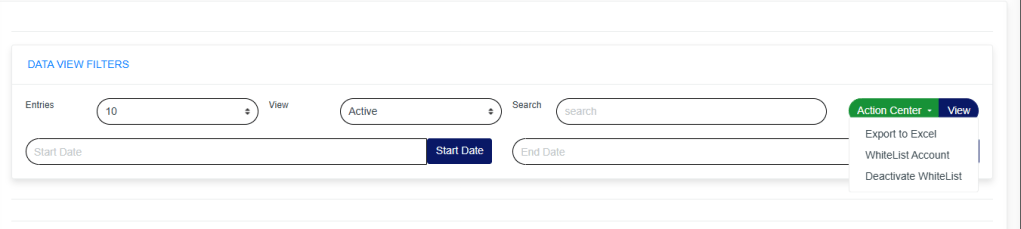
Action Center: click on the Action Center drop-down to perform quick actions to Export to Excel, whitelist accounts, and deactivate whitelist as shown in Fig.21.2h below.

Fig.21.2h

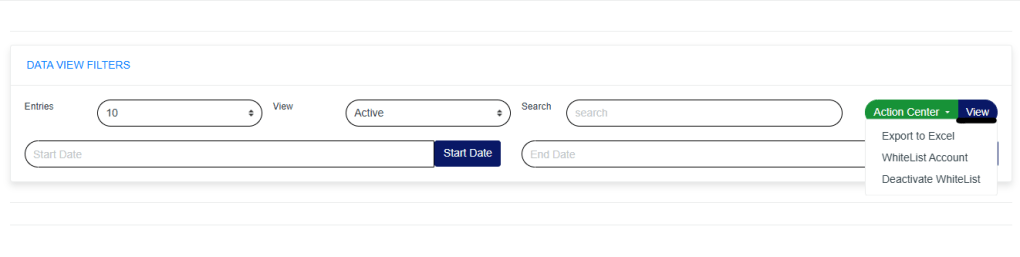
View: click on View to view cases. This is after filling in all the necessary parameters, as shown in Fig. 21.3a below.

Fig.21.3a

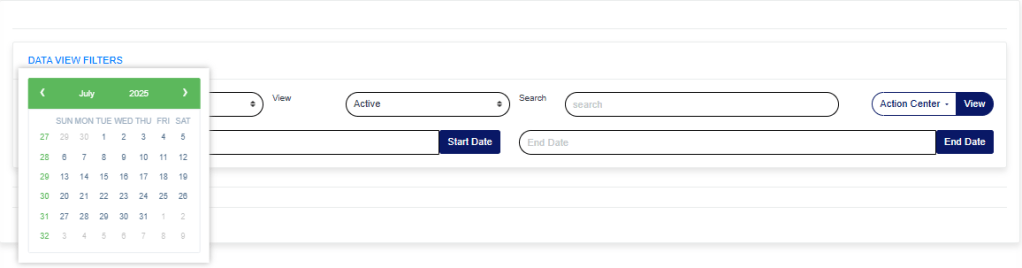
Start Date & End Date: Use the ‘Start Date’ and End Date’ fields to filter cases based on a selected time range, as shown in Fig.21.3b and Fig.21.3c below

Fig.21.3b

Fig.21.3c

How to Whitelist an account on the Control Panel.

STEP 1: Click on Action Center and select ‘Whitelist Account as shown in Fig.21.3d image below.

Fig.21.3d

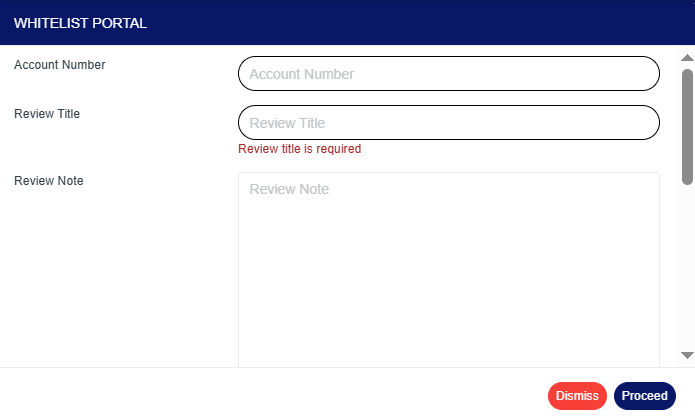
The above action will show the ‘Whitelist Portal page as shown in Fig.21.3e below.

Fig.21.3e

Account Number: Click on the ‘Account Number box and enter the account number you want to whitelist.

Review Title: Click on the Review Title box and enter the review title. Also, note that a review title box must be filled in to whitelist an account.

Review Note: Click on the Review Note box to enter why you are whitelisting the account.

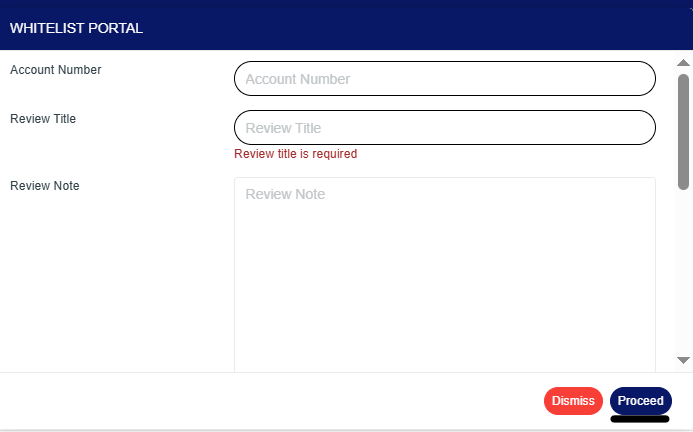
STEP 2: Click on proceed to continue with the whitelisting process or ‘dismiss to cancel the process, as shown in Fig.21.3f image below.

Fig.21.3f

Whitelist for a specific period: Turn on the ‘Whitelist for specific period’ button to whitelist the account for a certain period of time.

Start Date & End Date: Enter the Start Date and End Date fields to select the time range. This is required if the Whitelist for a specific period button is turned on.

Whitelist Category: Click on the Whitelist Category drop-down to select either TM/FRAUD Global Surveillance, TM/FRAUD Policy Surveillance, or TM/FRAUD Rule Surveillance.

Bulk Upload: Upload the bulk Excel file and click proceed to complete the process.

For further inquiries: 
Tel: +234(0) 816 555 9818
Email: solutions@efuelite.com 
Web: https://solutions.efuelite.com

How to Carry Out SAR Notification HTML Controls Operations in Compliance Planet Anti Money Laundering/Core Banking Finance Software

This section provides a guide on how to execute the SAR notification HTML controls on the Compliance Planet, with step-by-step instructions and pictures.

NOTE: Only person(s) profiled as deputy supreme admin can carry out these operations 

STEP 1: From the app dashboard, click ‘Control panel’ as in Fig. 21.1a.

Fig.21.1a

  • This will display a drop-down as shown below.

STEP 2: Select ‘SURVEILLANCE’ on the drop-down list and click on “Page Design“. See an example in Fig. 21.1b below.

Fig 21.1b

STEP 3: In the Page Design drop-down option, select the “SAR” as in Fig. 21.1c below.

Fig. 21.1c

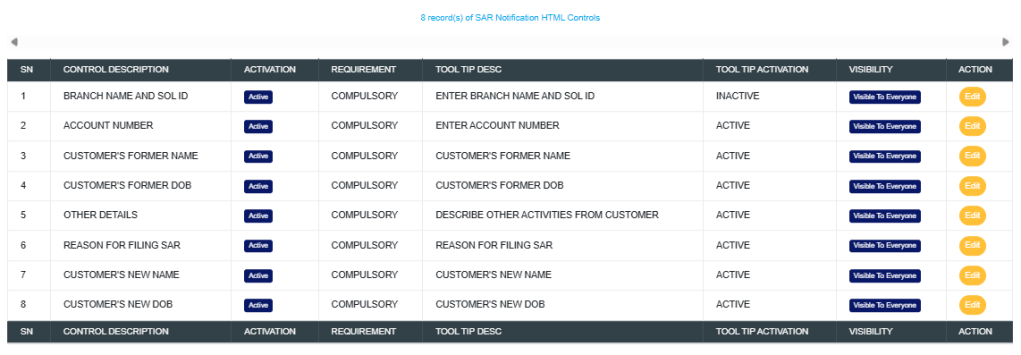
  • This displays a page showing a list of all ‘‘SAR Notification HTML Control’’ options that have been created and are available on the software. See Fig. 21.1d for an example.

Fig. 21.1d

How to edit an STR notification

This refers to changing the description or status of the STR notification. Here is how to do this.

STEP 1: Click on the ‘EDIT’ button in the action column. See Fig. 21.1e for an example.

Fig. 21.1e

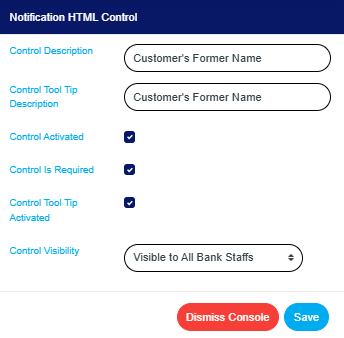
  • Clicking the edit button will display a console titled ‘Notification HTML Control’ as shown in Fig. 21.1f below.

Fig. 21.1f

Control Description: Click on the ‘Control Description box’ and enter the name of the control field that should appear on the SAR notification form.

Control Tool Tip Description: Click on the ‘Control Tool Tip Description box’ and input a brief instruction that will appear when working on a SAR notification.

Control Activated: Tick the ‘Control Activated box’ to enable and display the control on the SAR notification form.

Control Is Required: Tick the ‘Control Is Required box’ to make the control field mandatory for SAR submission.

Control Tool Tip Activated: Tick the ‘Control Tool Tip Activated’ box’ so the tool tip appears when users focus or hover on the control.

Control Visibility: Click on the ‘Control Visibility’ dropdown’ and select whether the control should be visible to compliance team members only, non-compliance team members only, or all bank staff.

  • STEP 2: Click on the ‘save’ button to save the edit or click ‘Dismiss Console’ to cancel the operation. See Fig. 21.1g for an example

Fig. 21.1g

  • This displays a confirmation console as in Fig. 21.2a below

Fig 21.2a

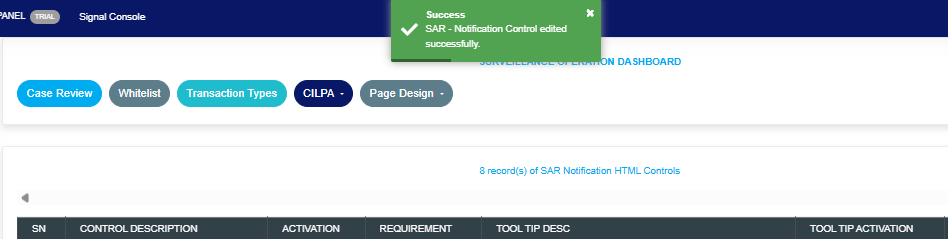
  • A notification, as in Fig. 21.2b, will be displayed at the top of the page.

Fig. 21.2b

For further enquiries: 
Tel: +234(0) 816 555 9818
Email: solutions@efuelite.com 
Web: https://solutions.efuelite.com
How to Carry out CBN ADRAPS PEP Review Statistics in Compliance Planet Anti Money Laundering/Core Banking Finance Software

This section provides a brief visualization of the report account for PEP in the Compliance Planet Anti-Money Laundering/Core Banking Finance Software, along with step-by-step instructions and pictures.

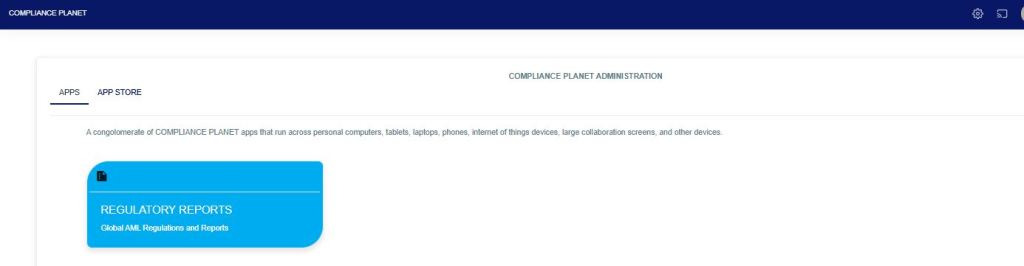
From the app dashboard, click on “REGULATORY REPORTS” as shown in the figure below.

Fig

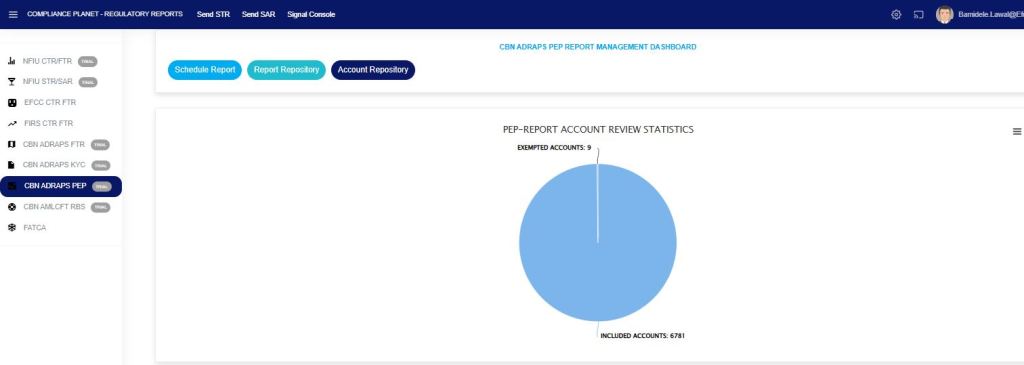
Click on “CBN ADRAPS PEP” on the drop-down list, and this displays the ADRAPS PEP page as shown in the Fig. below.

Fig

This displays the number of PEP account(s) that have been exempted from the report and those that have been included in the report.

For further enquiries: 
Tel: +234(0) 816 555 9818
Email: solutions@efuelite.com 
Web: http://solutions.efuelite.com
How to Carry out TM Case Explorer Operations on Digital Financial Crimes Surveillance in Compliance Planet Anti Money Laundering/Core Banking Finance Software

This section provides a guide on how to use the Transaction Monitoring Case Explorer feature in the Compliance Planet Anti-Money Laundering/Core Banking Finance Software, complete with step-by-step instructions and illustrations.

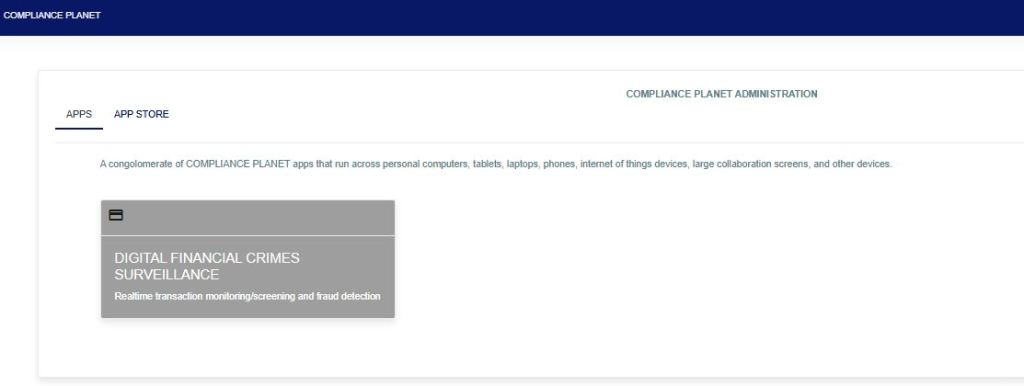
STEP 1: From the app dashboard, click “DIGITAL FINANCIAL CRIMES SURVEILLANCE” as in Fig. a below.

Fig a

STEP 2: From the left-hand side menu, click “TM Case Explorer” as in Fig. b below.

FIG b

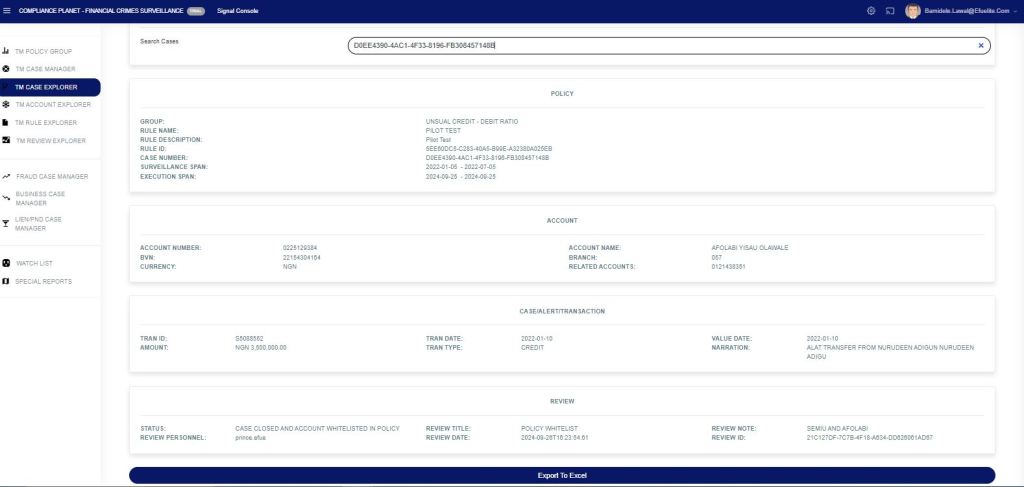
STEP 3: Input the case number to see the details of the account that has bridged the rule, as in Fig. C below. This can be exported to Excel for further review by clicking the “Export to Excel” button.

FIG c

This image displays all the data for the case under review, including Policy Group, Rule Name, Rule Description, Rule ID, Case Number, Surveillance Span (the period of monitoring), and Execution Span (the last time monitoring was executed). Also, it displays the customer’s data and the review action.

For further enquiries: 
Tel: +234(0) 816 555 9818
Email: solutions@efuelite.com 
Web: http://solutions.efuelite.com

How to Carry out TM Account Explorer Operations On Digital Financial Crimes Surveillance In Compliance Planet Anti Money Laundering/Core Banking Finance Software

This section provides a guide on how to use TM Account Explorer on the Compliance Planet Anti-Money Laundering/Core Banking Finance Software, including step-by-step instructions and illustrations.

STEP 1: From the app dashboard, click “DIGITAL FINANCIAL CRIMES SURVEILLANCE” as in Fig. a below.

Fig a

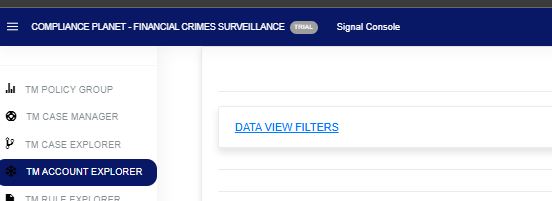
STEP 2: From the left-hand side menu, click “TM Account Explorer” as in Fig. b below.

FIG b

STEP 3: Click on the “Data View Filter” as in Fig. C below to open the sub-menu: Entries, Search, View (Export to Excel), Start Date, and End Date.

FIG c

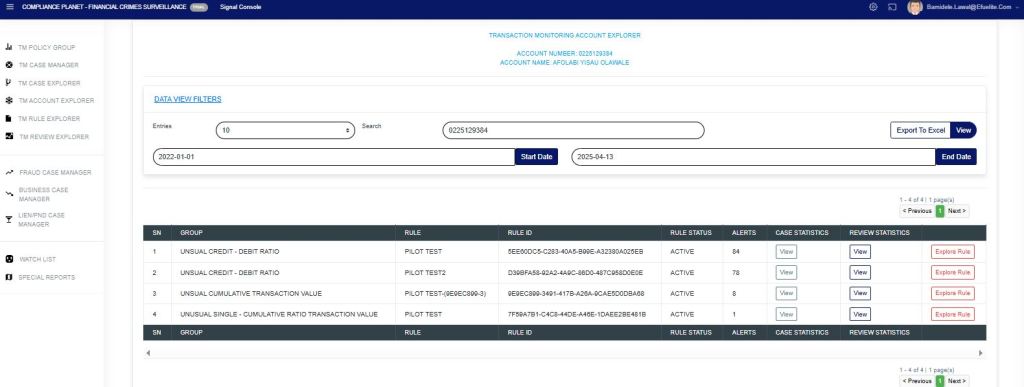
STEP 4: In the search bar, input the account number, Start Date, and End Date, then click View as in Fig. D below. This will display in detail every policy group and policy rule that the account has bridged.

FIG d

The “Alert” column displays the number of alerts captured within the specified date range for that account. This also displays other rule(s) the account has bridged within that same date range.

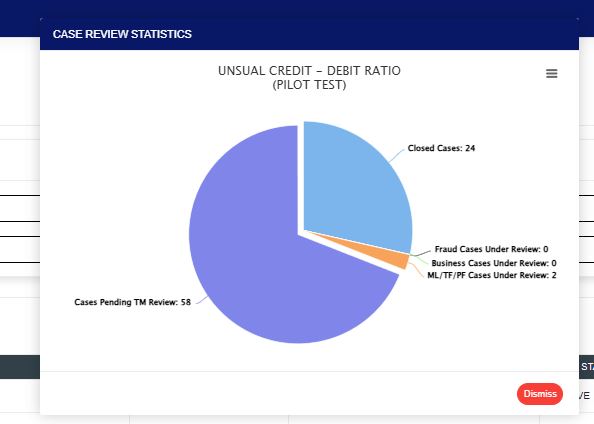
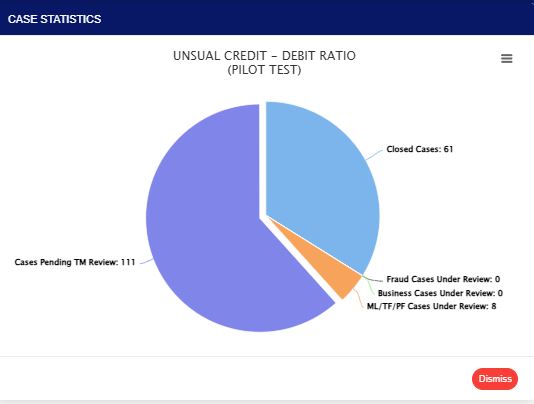
Click the View option under the case statistics column to show a visualization of the “case statistics“. All the cases pending TM review (shows the number of cases that are pending), closed cases (shows the number of cases that have been closed), fraud cases under review (shows the number of cases for fraud review), business cases under review (shows the number of cases for business review), and ML/TF/PF cases under review (shows the number of cases for STR review) within the date range specified as in Fig e below.

Fig e

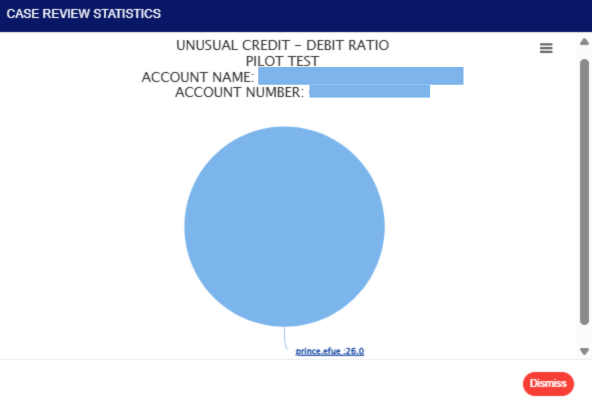
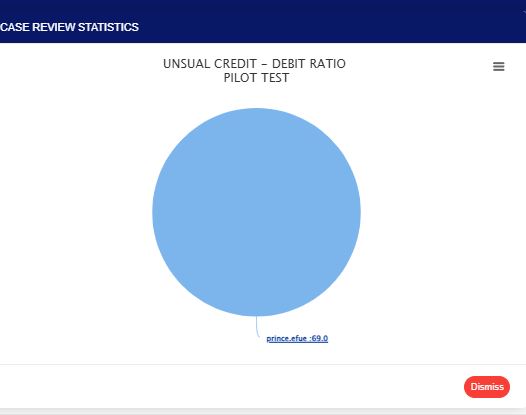
Click the view option under the review statistics column to show a visualization of the “review statistics“. This will display the policy name, the customer account name selected by the rule, and the account number. This also indicates the reviewer(s) and the number of times the rule has been reviewed out of the total number of alerts generated by the rule. Either the name of the reviewer (s) or the name of the policy with the number of reviewed actions, as in Fig. f below.

Fig f

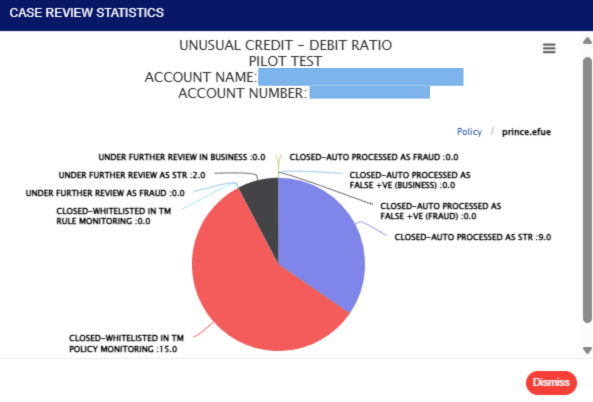
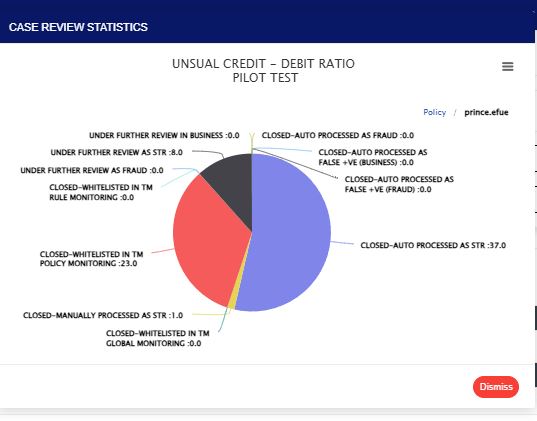
Clicking on the visualization chart will display detailed information on the review case, including figures as shown in Fig. g below, which illustrates how the reviewing personnel handled the review case. This includes cases manually closed by the reviewer, those auto-processed by the system and pushed to Fraud, those whitelisted, and those under review at different desks.

This provides a deeper insight into how cases were reviewed for a particular customer and the alerts generated by the rule within the specified date range.

When cases are pushed to STR for review and they are not closed, the alert will be pending on ML/TF/PF cases under review on the “case review statistics”.

Fig g

This displays the reviewer’s name. Also, every action taken on the account under review.


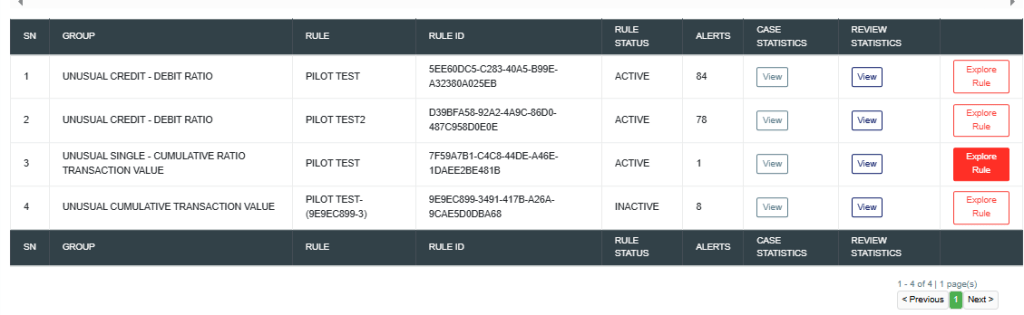
Click on “Explore Rule” to display the TRANSACTION MONITORING RULE EXPLORER Page.

Click on “Explore Rule” to display the TRANSACTION MONITORING RULE EXPLORER as seen below.

For further inquiries: 
Tel: +234(0) 816 555 9818
Email: solutions@efuelite.com 
Web: http://solutions.efuelite.com
How to Carry out TM Rule Explorer Operations on Digital Financial Crimes Surveillance In Compliance Planet Anti Money Laundering/Core Banking Finance Software

This section provides a guide on how to carry out TM Rule Explorer on the Compliance Planet Anti Money Laundering/Core Banking Finance Software, with step-by-step instructions and pictures.

STEP 1: From the app dashboard, click “DIGITAL FINANCIAL CRIMES SURVEILLANCE” as in Fig a below.

FIG a

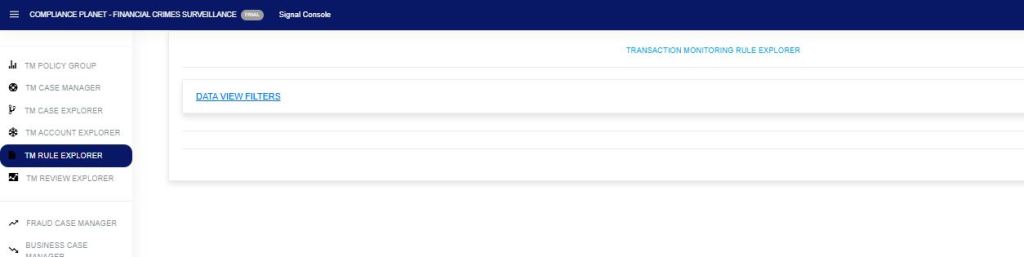
STEP 2: From the left-hand side menu, click “TM Rule Explorer” as in Fig. b below.

FIG b

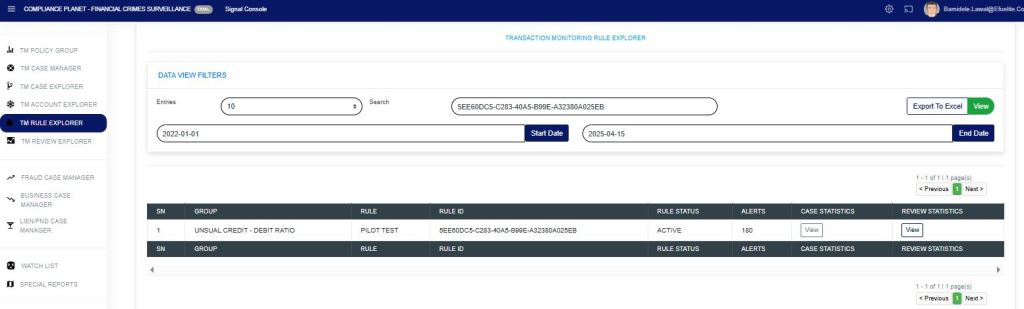
STEP 3: Click on the “Data View Filter” as in Fig. c below to open the sub-menu: Entries, Search, View (Export to Excel), Start Date, and End Date.

FIG c

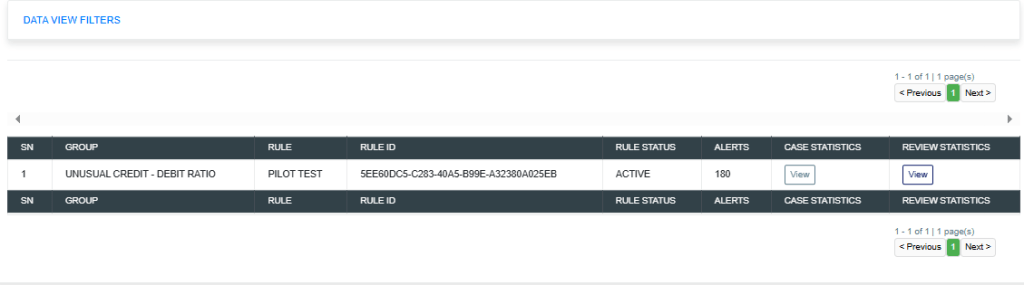
STEP 4: In the search bar, enter either the Rule ID, Rule Name, or Rule Description. Start Date and End Date, then click view as in Fig. d below. This will display in details of the rule.

FIG d

The “Alert” column shows the number of alerts picked within the specified date range for that rule.

Click the “view” option under the case statistics column to show a visualization of the “case statistics“. All the cases pending TM review (shows the number of cases that are pending), closed cases (shows the number of cases that have been closed), fraud cases under review (shows the number of cases for fraud review), business cases under review (shows the number of cases for business review), and ML/TF/PF cases under review (shows the number of cases for STR review) within the date range specified as in Fig e below.

FIG e

Click the “view” option under the review statistics column to show a visualization of the “review statistics“. This will display the policy rule name and personnel who have reviewed cases from the rule, as shown in Fig. f below.

FIG f

Clicking on the visualization chart will display detailed information on the rule within the specified period that has been reviewed, along with the person(s) who reviewed the case(s). This also gives a deeper insight into how the reviewing personnel handled the review case. The ones manually closed by the reviewer, those auto-processed by the system and pushed to Fraud and STR, those whitelisted, and those under different review desks, as shown in Fig. g below.

FIG g


For further inquiries: 
Tel: +234(0) 816 555 9818
Email: solutions@efuelite.com 
Web: http://solutions.efuelite.com