How to Delete Suspicious Transaction /Activity Notification (STR/SAR) on Revision Desk In Compliance Planet Anti Money Laundering/Core Banking Finance Software

NOTE: This operation can only be carried out by persons profiled as Team Lead 2 and Revision Officer

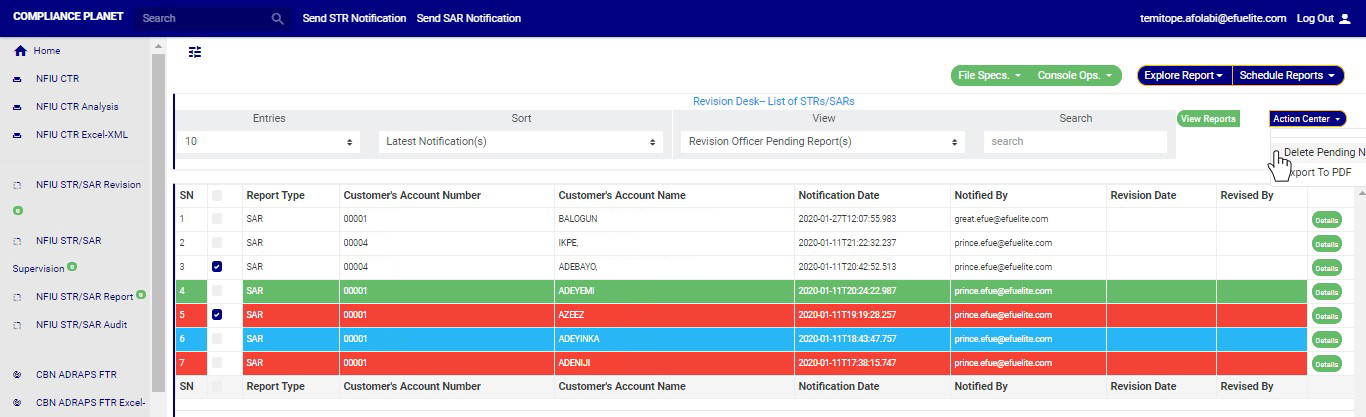
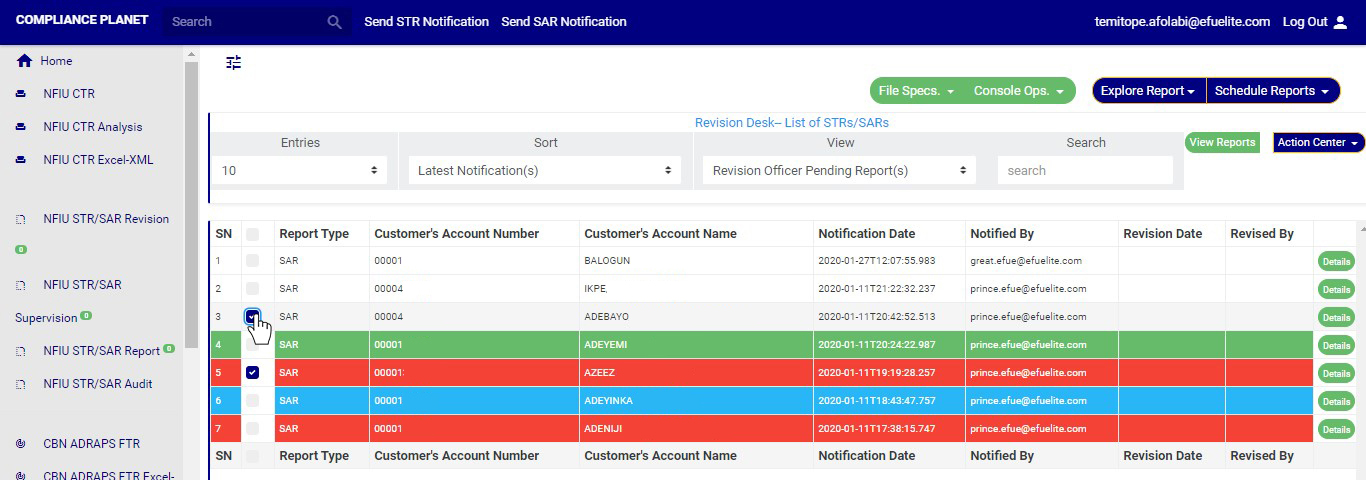
STEP 1: Click on the check boxes to select the notifications. See an example in Fig 6.3aj below

 (fig. 6.3aj)

➔ You can also select all Notifications on the page by clicking on the checkbox at the top. See an example in fig 6.3ak below

(fig. 6.3ak)

STEP 2: Click on the “Delete Notification(s)” button as shown in in Fig 6.3al below

(fig. 6.3al)

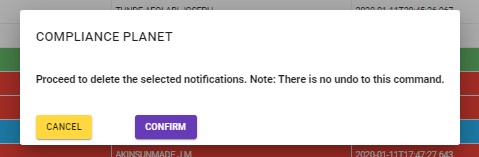
STEP 3: Clicking on “Delete Notification(s)” will display a confirmation console to confirm your selected action. See an example in Fig 6.3am below. To proceed, click on CONFIRM and to dismiss the operation, click on CANCEL.

(fig. 6.3am)

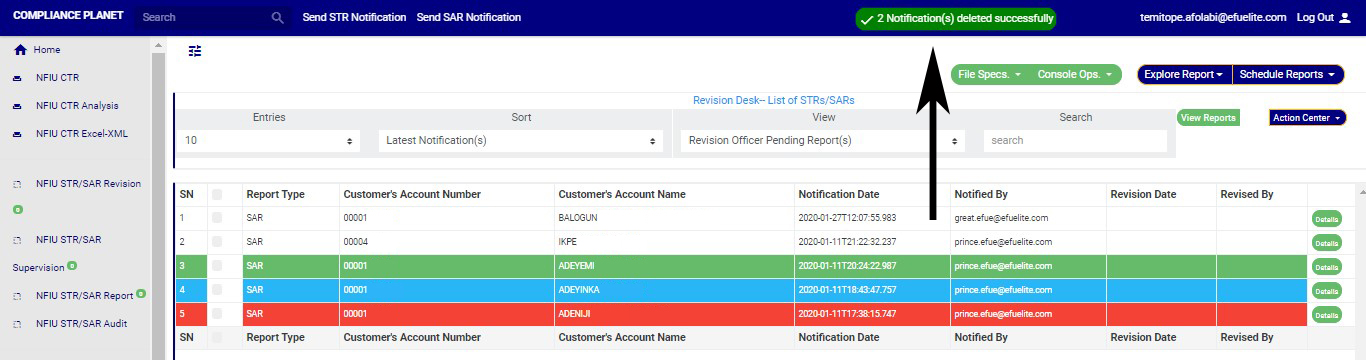
➔ Click on ‘CONFIRM’ as in fig. 6.3am above delete the Notifications or cancel to discontinue action. When you click confirm,a temporary notification will be displayed at the top of the page as in fig. 6.3an below.

(fig. 6.3an)

For further enquiries :
Tel +234(0) 816 555 9818
Email solutions@efuelite.com

How to Assign Suspicious Transaction /Activity Report (STR/SAR) on Revision Desk In Compliance Planet Anti Money Laundering/Core Banking Finance Software

NOTE: Only person(s) Profiled as Team Lead 1 or Team lead 2 can carry out these operations.

➔ From the main dashboard and click on reports as in fig below

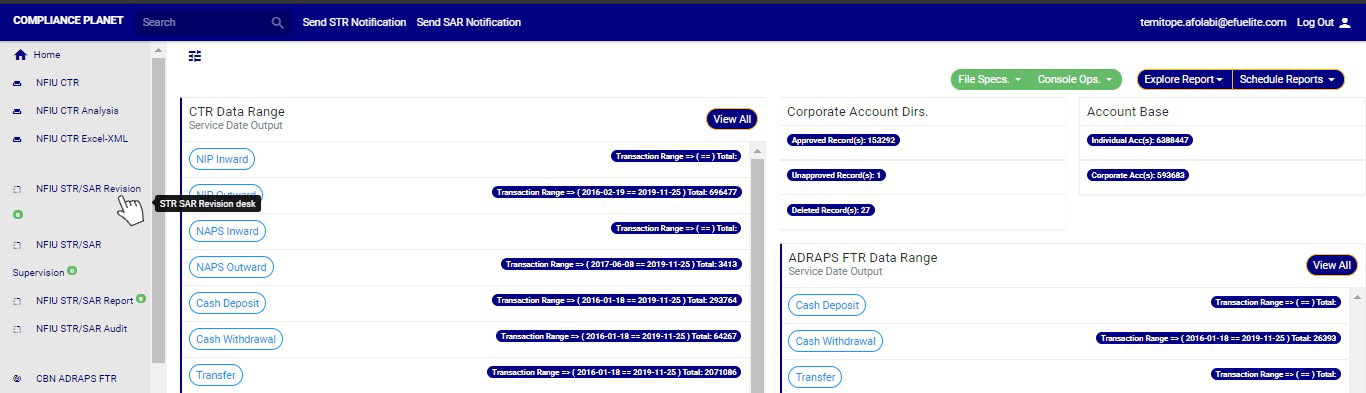
➔ From the left hand side menu click on “NFIU STR/SAR Revision”. See this feature in fig  below.

➔ Clicking on “NFIU STR/SAR Revision” will display a page as in fig. below.

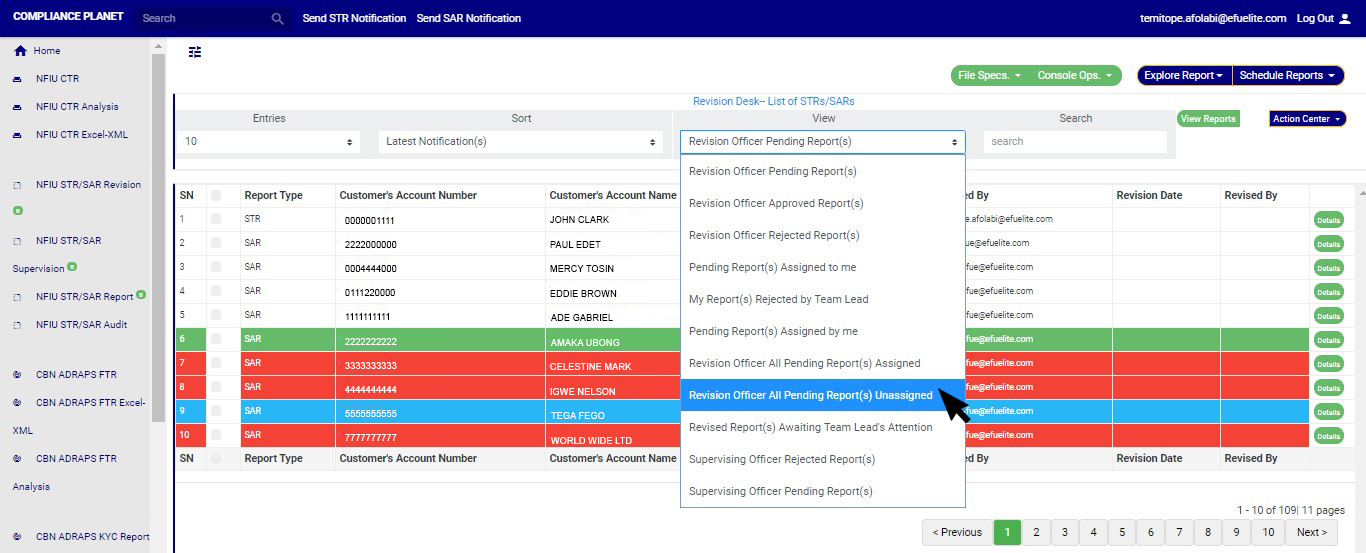
STEP 1:select ‘Revision Officer All Pending Notifications Unassigned’ on the VIEW box still on the revision page, then click on the “view report” button.

(fig. 6.3t)

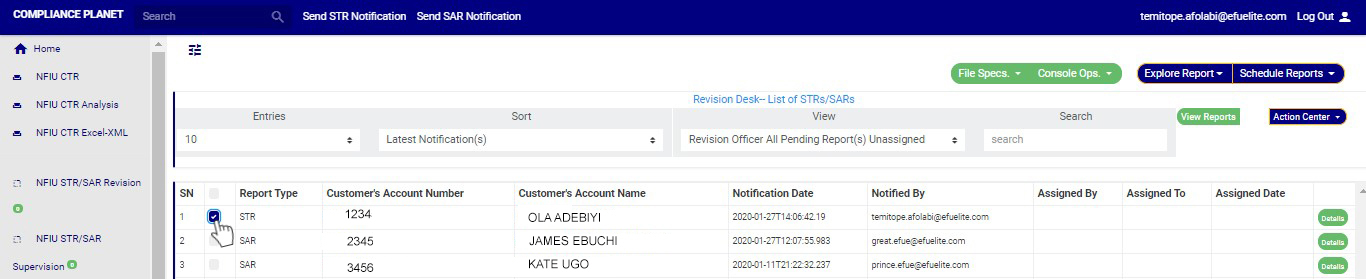
STEP 2: Click on the checkbox beside the report type to select the Notifications you want to assign. See an example in Fig 6.3u below

(fig. 6.3u)

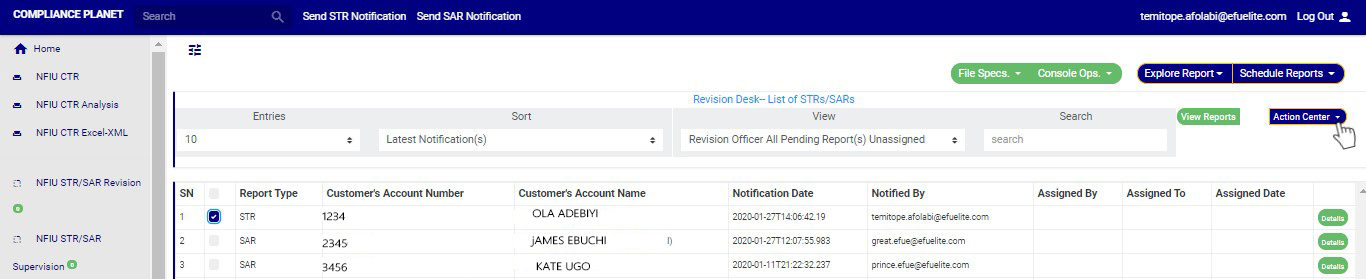
STEP 3: Click on the action center button as shown in in Fig 6.3v below

(fig. 6.3v)

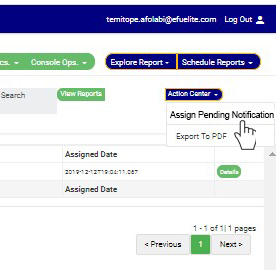
STEP 4: Click on “Assign Pending Notification” from the action center dropdown. See an example in Fig 6.3w below

(fig. 6.3w)

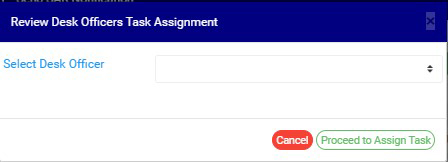
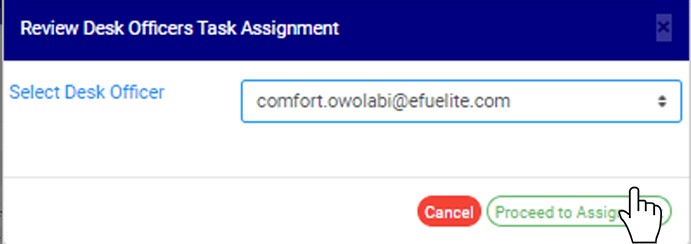
STEP 5: Clicking Assign Notification will display a “Review Desk Officers Task Assignment” console as shown below in fig 6.3 x below

(fig. 6.3x)

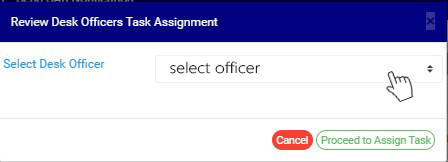
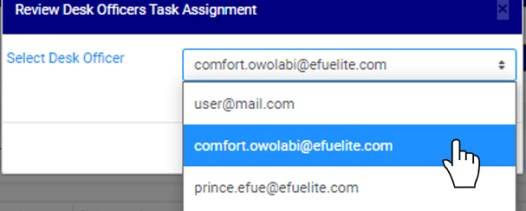
STEP 6: Select the officer you want to assign the notification. This is shown in fig 6.3y below

(fig. 6.3y)

44

STEP 7: Click on “Proceed to Assign Task” to proceed or “cancel” to close the console and dismiss the operation.

44
(fig. 6.3z)

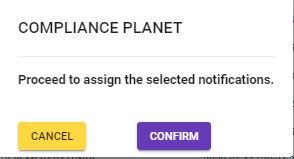
STEP 8: Clicking on “proceed to assign task” will display a console to confirm your selected action. See an example in Fig 6.3aa below. To proceed, click on CONFIRM and to dismiss the operation, click on CANCEL.

(fig. 6.3aa)


For further enquiries :
Tel +234(0) 816 555 9818
Email solutions@efuelite.com

How to Re-assign Suspicious Transaction /Activity Notification (STR/SAR) on Revision Desk In Compliance Planet Anti Money Laundering/Core Banking Finance Software

NOTE: This action can only be done by person(s) profiled as Team Lead 2

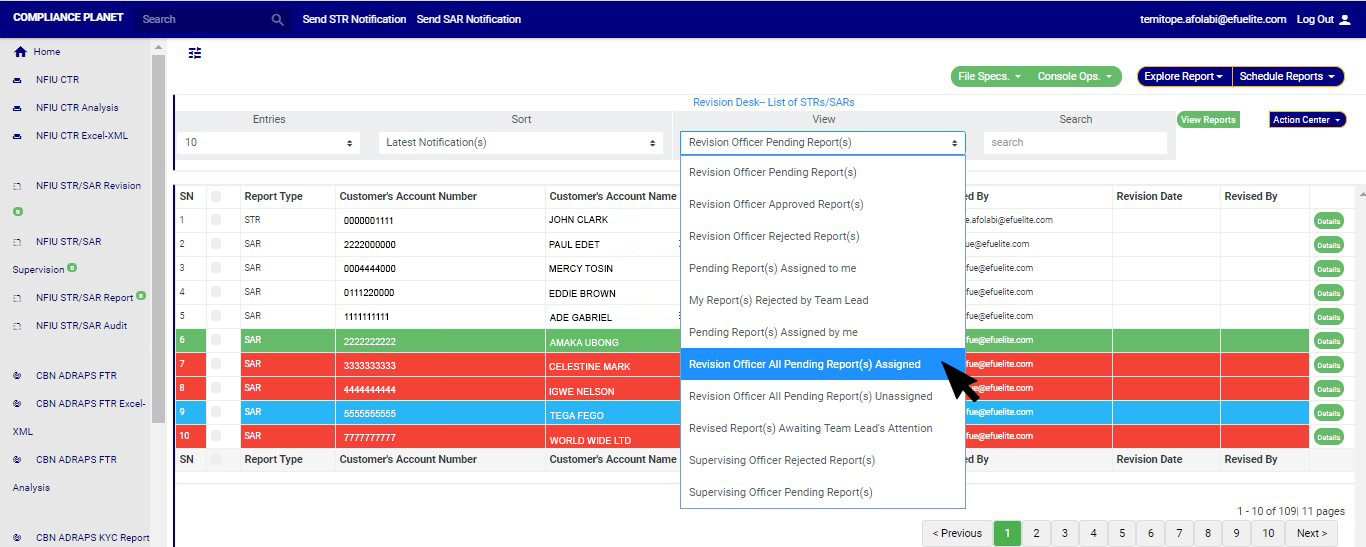
STEP 1: To re-assign notification(s) to any member on the revision desk team, go to the VIEW box still on the revision desk page; select ‘Revision Officer All Pending Notifications assigned’, then click on the “view report” button. See fig 6.3ab for an example.

(fig. 6.3ab)

STEP 2: Click on the check boxes to select the notifications. See an example in Fig 6.3ac below

(fig. 6.3ac)

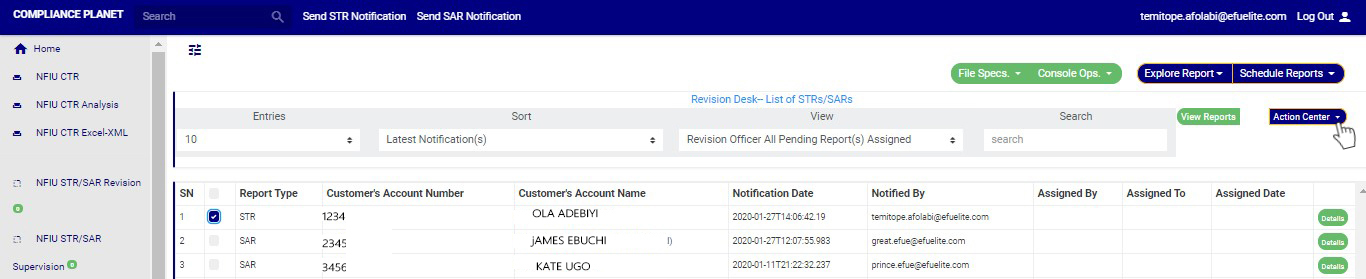
STEP 3: Click on the action center button as shown in in Fig 6.3ad below.

(fig. 6.3ad)

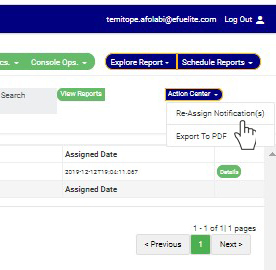
STEP 4: Click on “Re-Assign Notification” from the action center dropdown. See an example in Fig 6.3ae below

(fig. 6.3ae)

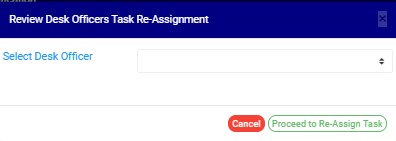
STEP 5: Clicking Re-Assign Notification will display a “Review Desk Officers Task Re-Assignment” console as shown below in fig 6.3af below

(fig. 6.3af)

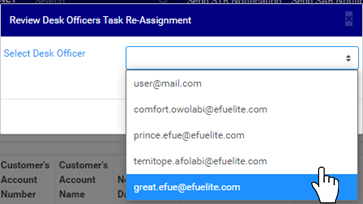
STEP 6: Select the officer you want to assign the notification and click on proceed to assign task. This is shown in fig 6.3ag below

(fig. 6.3ag)

6.3

STEP 7: Click on “Proceed to Re-assign Task” to procced or ‘cancel” to close the console and dismiss the operation. See an example in Fig 6.3ah below

6.3ah

(fig. 6.3ah)

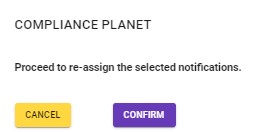
STEP 8: Clicking on “proceed to re-assign task” will display a console to confirm your selected action. See an example in Fig 6.3ai below. To proceed, click on CONFIRM and to dismiss the operation, click on CANCEL.

(fig. 6.3ai)
For further enquiries :
Tel +234(0) 816 555 9818
Email solutions@efuelite.com

Web http://solutions.efuelite.com

How to Revise Rejected Suspicious Transaction / Activity Notification (STR/SAR) In Compliance Planet Anti Money Laundering/Core Banking Finance Software

When an STR/SAR notification is rejected by the supervising officer, the notification can be revisited for re-processing by the revision officer. Below are steps on how to revise notifications that have been rejected by the supervising officer.

NOTE: You have to be profiled as a revision officer with rights to EDIT  to be able to carry out this operation.

➔ From the main dashboard and click on reports as in fig below

➔ From the left hand side menu click on “NFIU STR/SAR Revision”. See this feature in fig  below.

➔ Clicking on “NFIU STR/SAR Revision” will display a page as in fig. below.

STEP 1: Go to the VIEW box still on the revision desk page, select ‘Supervising Officer Rejected Notification(s)’.

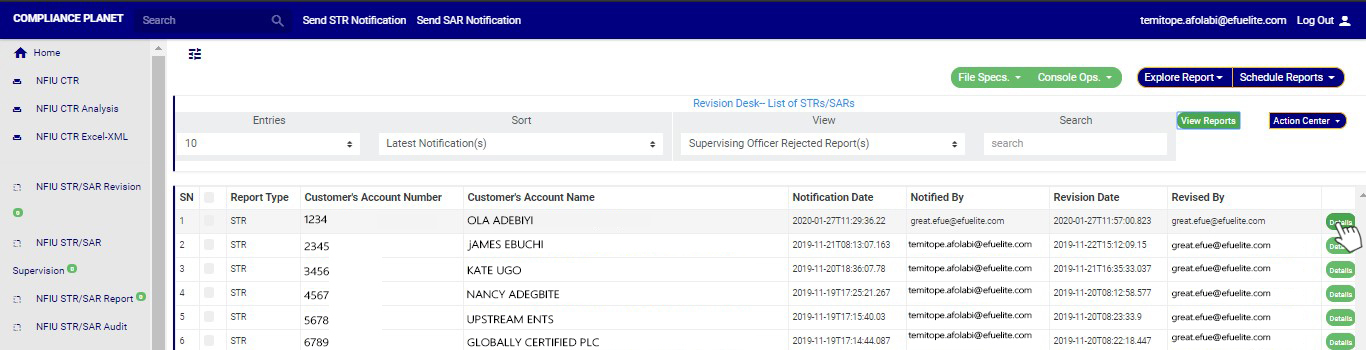
(fig. 6.3o)

STEP 2: Click on ‘VIEW REPORTS’ to see the Notifications as in fig. 6.3p below. On this page, the revision officer will be able to re-process Notification for approval again.

(fig. 6.3p)

➔ To see details of the STR notification, click on ‘DETAILS’. Every notification still undergoing processing has this button at the end of its row.

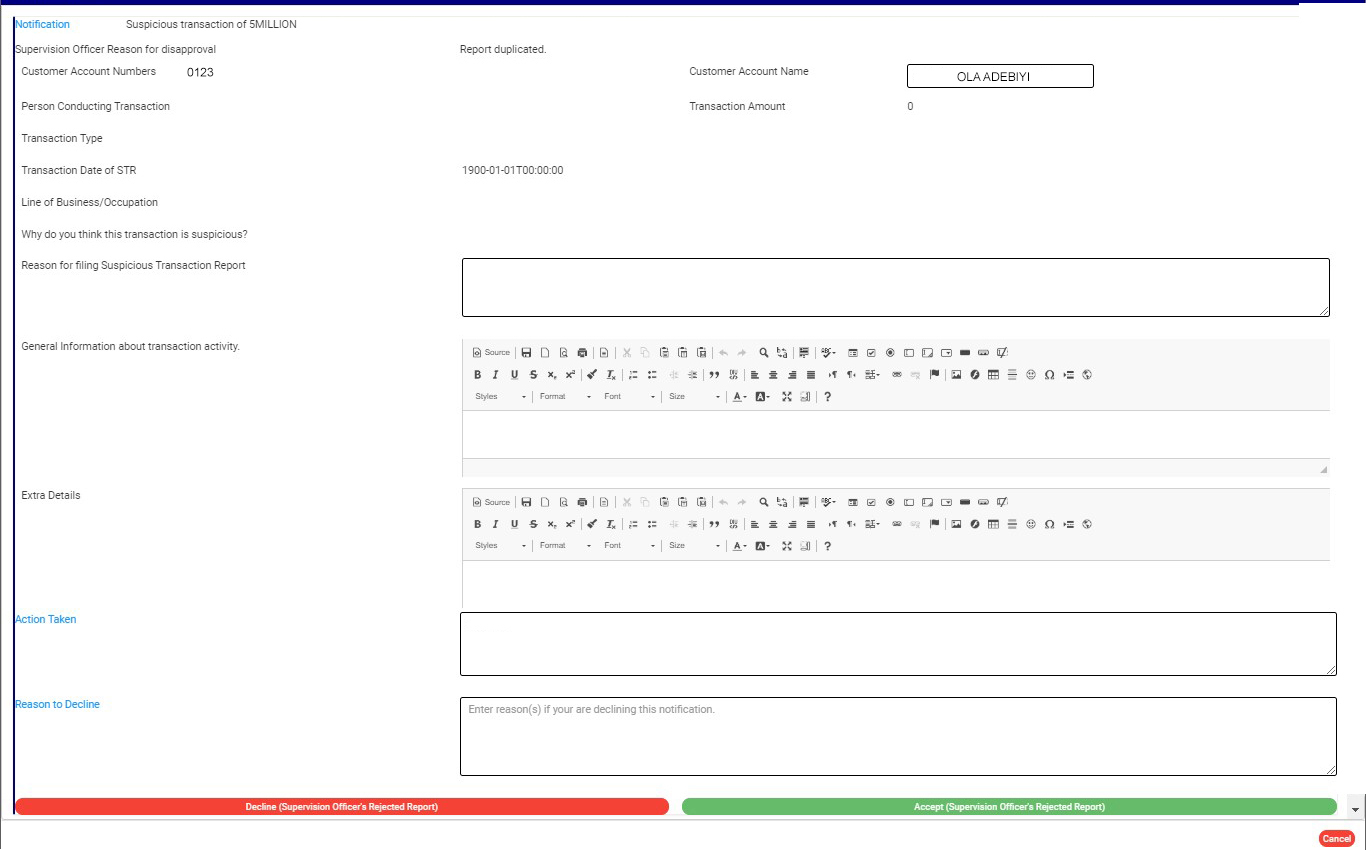
STEP 3: Clicking on the DETAILS button (as shown in fig 6.3p above) will display a console which allows you to revisit the Notification. See fig. 6.3q below for an example.

(fig. 6.3q)

STEP 4: Edit the details you want to change.  This means you can change the Reason for filing Notification, General information about transaction activity, Extra details, Action taken and reason to decline.

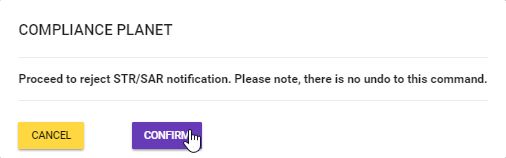
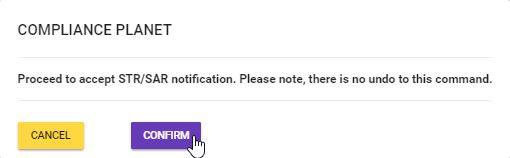
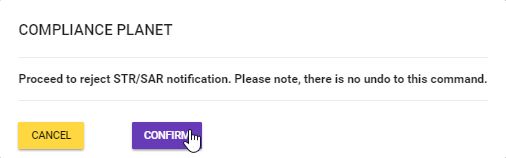
STEP 5: Click on REJECT or ACCEPT. This displays a console to confirm your selected action. Check that you are sure of your options before rejecting or accepting the notification as this step cannot be reversed once confirmed. See fig. 6.3r and 6.3s to see an example of confirmation console when you decide to ‘reject’ and when you choose to ‘accept’ respectively. To proceed, click on CONFIRM and to cancel the review, click on CANCEL.

(fig. 6.3r)

(fig. 6.3s)

For further enquiries :
Tel +234(0) 816 555 9818
Email solutions@efuelite.com

How to Revise Suspicious Transaction/Activity Notification (STR/SAR) In Compliance Planet Anti Money Laundering/Core Banking Finance Software

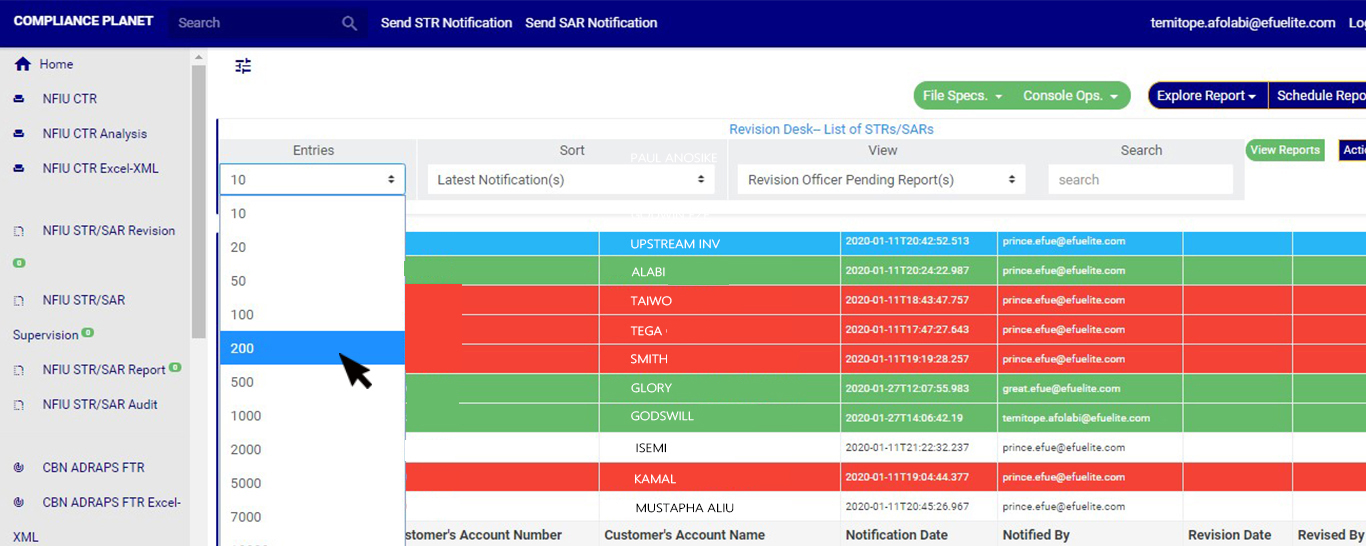
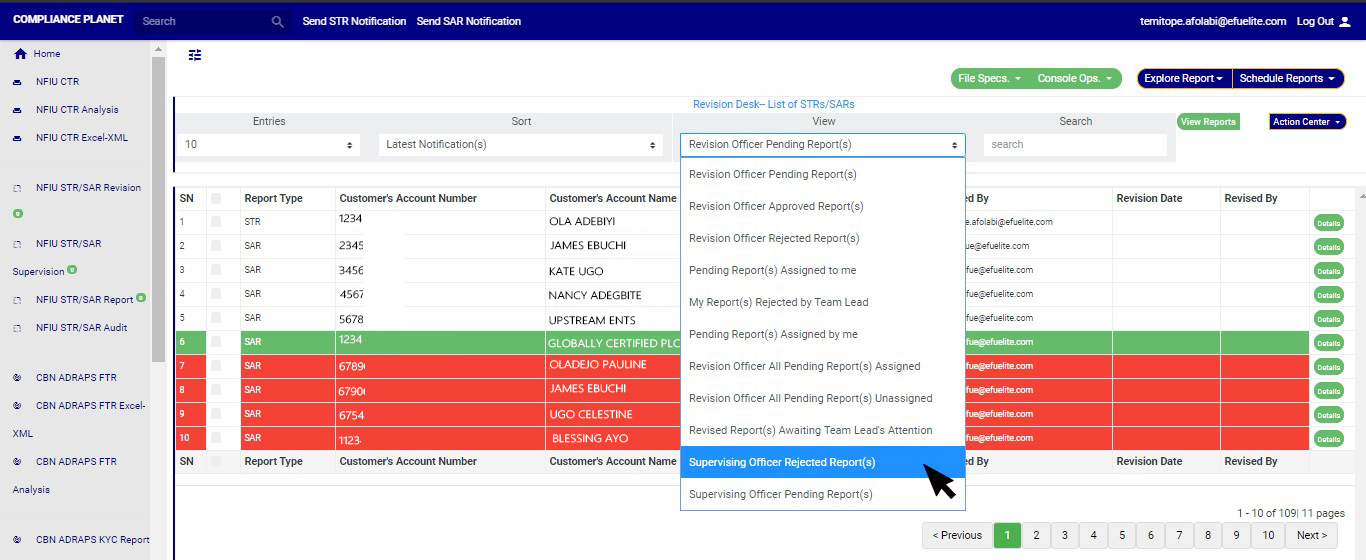
The STR/SAR notification goes straight to the REVISION DESK team lead(s) when successfully sent. It is the duty of the revision team lead(s) to assign notifications to revision officer(s) to review the notifications sent to the compliance team. Below are steps on how to review notifications sent to the compliance desk. Note that notifications attended to by team members will go to the team lead who can either accept or reject the team member’s decision (to accept or reject the notification). If a team member’s decision is rejected, the notification goes back to the team member to work on before it returns to the team lead. However, upon team lead’s approval the notification goes to the next desk i.e. supervision desk or revision desk (depending on the institution setting) NOTE; Only Person(s) profiled as ‘Revision Desk Officer’ can carry out these operations Below are steps on how to review notifications sent to the compliance desk. ➔ From the main dashboard and click on reports as in fig below STEP 1: From the left-hand side menu click on “NFIU STR/SAR Revision”. See this feature in fig. 6.3a below.(fig. 6.3a) ➔ Clicking on “NFIU STR/SAR Revision” will display a page as in fig. 6.3b below. (fig. 6.3b) ➔ The notification(s) highlighted “RED” indicates that it has not been viewed by anyone on the reporting desk. ➔ The notification(s) highlighted “GREEN” indicates that it has been viewed by you alone. ➔ The notification(s) highlighted “WHITE” indicates that it has been viewed by you and at least one other reporting officer(s) ➔ The notification(s) highlighted “BLUE” indicates that it has been viewed by other reporting officer(s) excluding you You can increase the number of notifications you want to see per page by clicking on the ENTRIES box. Pick any number of entries per page of your choice. See fig. 6.3c below for an example.(fig. 6.3c) ➔ You can sort the notifications by clicking on any of the column header, either by alphabetical order or from the latest to the earliest notifications or vice-versa as shown in Fig 6.3d above
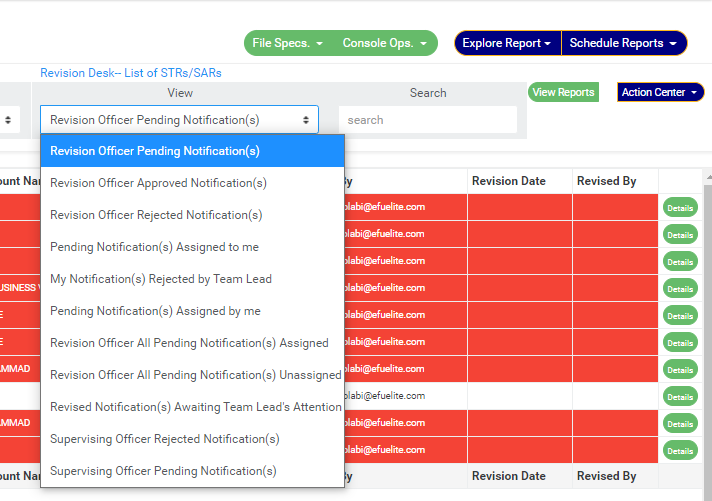
(fig. 6.3d) ➔ Click on the VIEW box to see notifications classified according to the stage of processing they have gotten to. See fig. 6.3e for the classes of notifications available to a revision officer’s view. Select any of them.
1
(fig. 6.3e) As seen in fig. 6.3e above, the classes are;
  1. Revision Officer Pending Notification(s); these are notifications that have not been reviewed, i.e. they have not been attended to by a  revision officer. This is the default view of the revision desk.
  2. Revision Officer Approved Notification(s); these are notifications that have been reviewed by a revision officer and approved by the revision desk team lead. These notifications will be forwarded to the supervising officer for further processing. Once a Notification is reviewed and approved, it joins the supervising officer pending Notification(s) list for further approval.
  3. Revision Officer Rejected Notification(s); these are notifications that have been reviewed but rejected by team lead.
  4. Pending Notifications Assigned to me; these are notifications that are assigned to you (a revision officer) by the revision desk team lead and are yet to be reviewed or treated by you.
  5. My Notification(s) rejected by team lead; these are notifications that have been reviewed by you but not satisfactory to the revision desk team lead.
  6. Pending Notification(s) assigned by me; these are notifications that you (i.e. if you are profiled as either team lead 1 or 2) assigned to other revision officers in your team and are yet to be treated or attended to. In this case you are the team lead.
  7. Revision Officer All Pending Notification(s) Assigned; these are the notifications that have been assigned to a revision officer (or team member) by the team lead but are yet to be attended to.
  8. Revision Officer All Pending Notification(s) Unassigned; these are the Notifications are yet to be assigned to any revision officer (or team member) by the revision desk team lead.
  9. Revised Notification awaiting team lead’s attention; these are notifications that have been attended to by a revision desk team member but is yet to be reviewed or treated by the team lead.
  10. Supervising Officer Rejected Notification(s); these are notifications that have been reviewed by revision officer and sent to supervising officer for further processing but were rejected by the supervising officer.
  11. Supervising Officer Pending Notification(s); these are notifications that have been approved by revision team lead and await the supervising officer’s treatment.
➔ After selecting the class of Notification(s) from the VIEW box, Click on the view reports button to view the notification(s) from any of the selected class. This button is at the top-right corner of the page. See this in Fig6.3f below
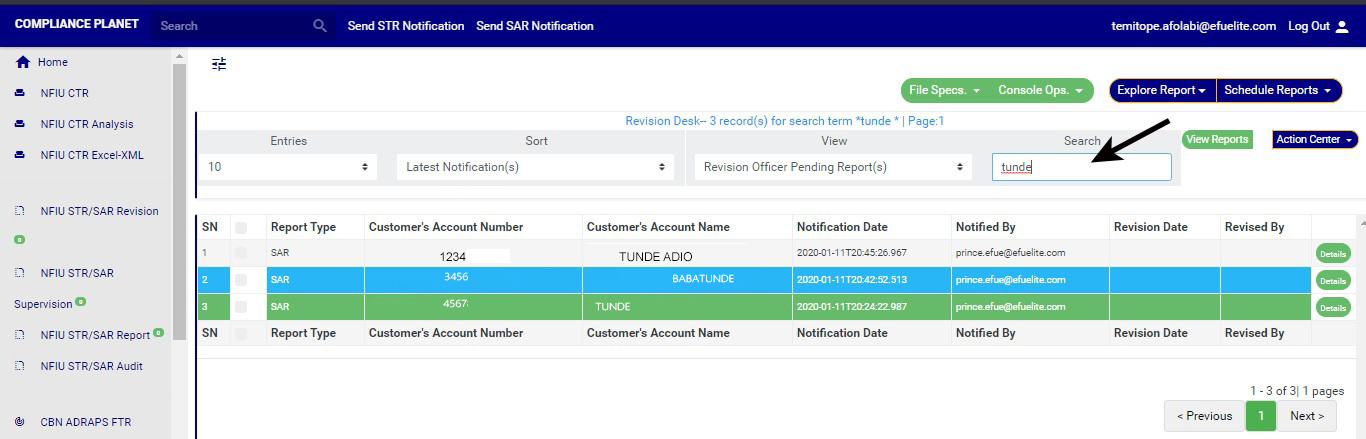
(fig. 6.3f) ➔ Also, you can search for a particular notification by typing in the customer’s name or account number concerned in the search box. The planet will make the search immediately. See fig. 6.3g for an example of a search.
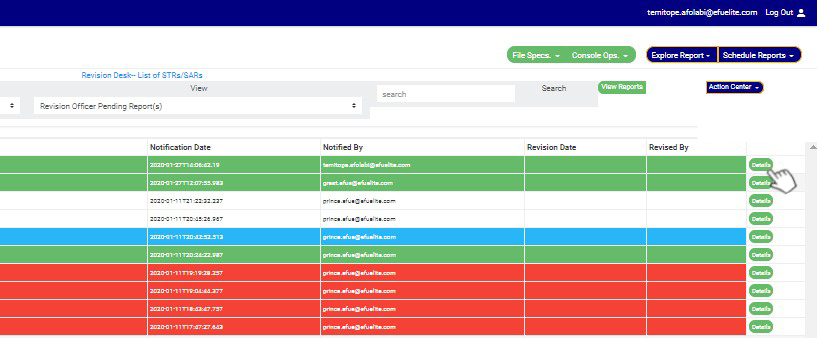
(fig. 6.3g) STEP 2: Select notification to be reviewed from the ‘REVISION OFFICER PENDING NOTIFICATION(S) list by clicking on the details button at the end of the notification row. NOTE: If you are not profiled as a Team Lead 1 or Team Lead 2 on Revision desk; all notifications revised by you will be forwarded to a Team Lead 1 or Team Lead 2 on revision desk for higher level approval. If the Team Lead 1 or Team Lead 2 approves, then it proceeds to the next higher desk. If the Team Lead 1 or Team Lead 2 rejects, then it is returned to you for your re-evaluation.
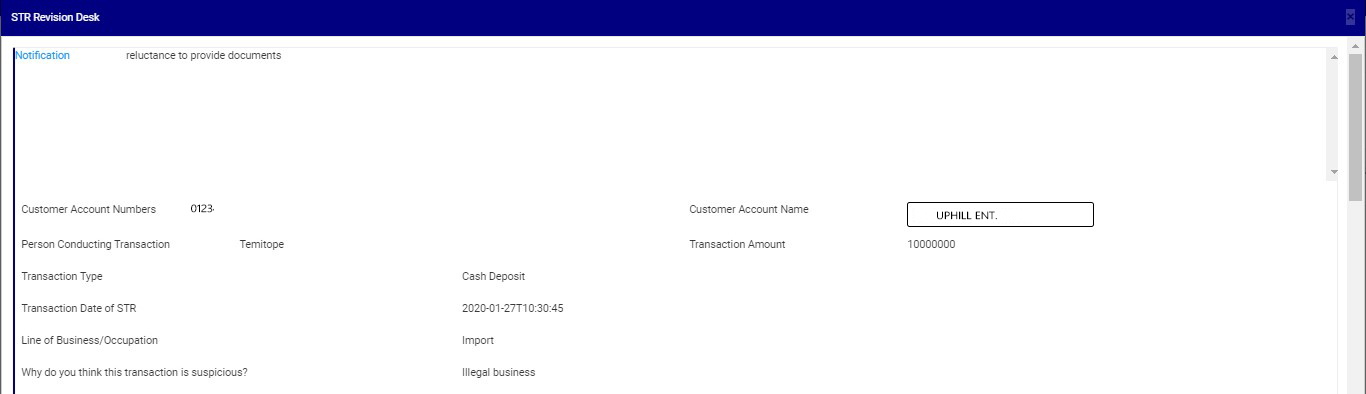
(fig. 6.3h) STEP 3: By clicking on ‘DETAILS’, a console will be displayed as in fig. 6.3i.
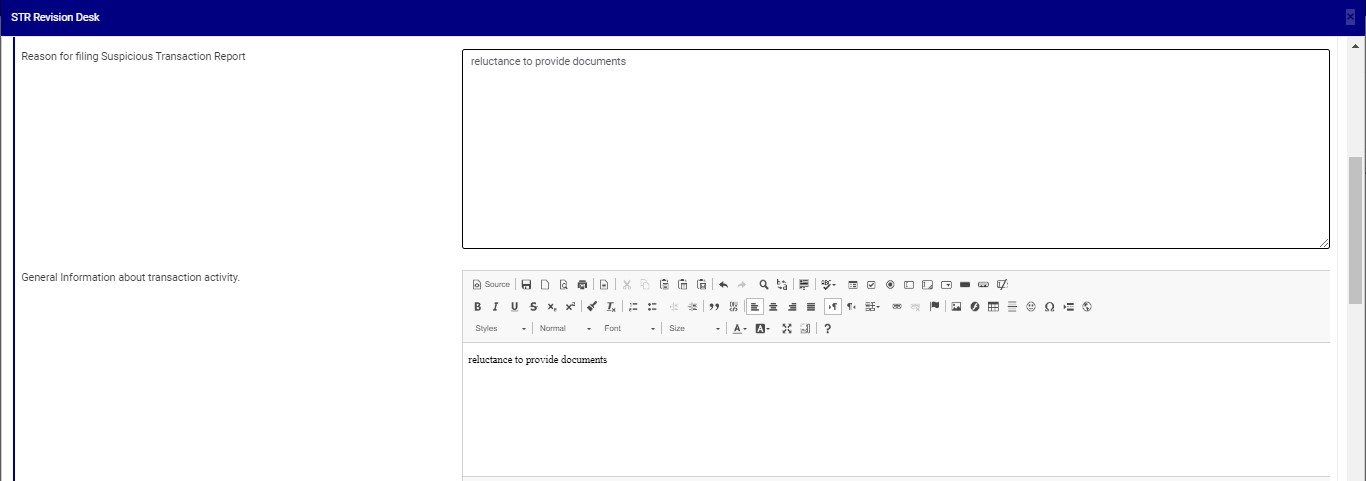
(fig. 6.3i) STEP 4: Click on the ‘Reason for Filing Suspicious Transaction Notification’ box to state your reason(s) for approving the notification. This step is compulsory if you want to accept the notification. See an example in fig. 6.3j below.
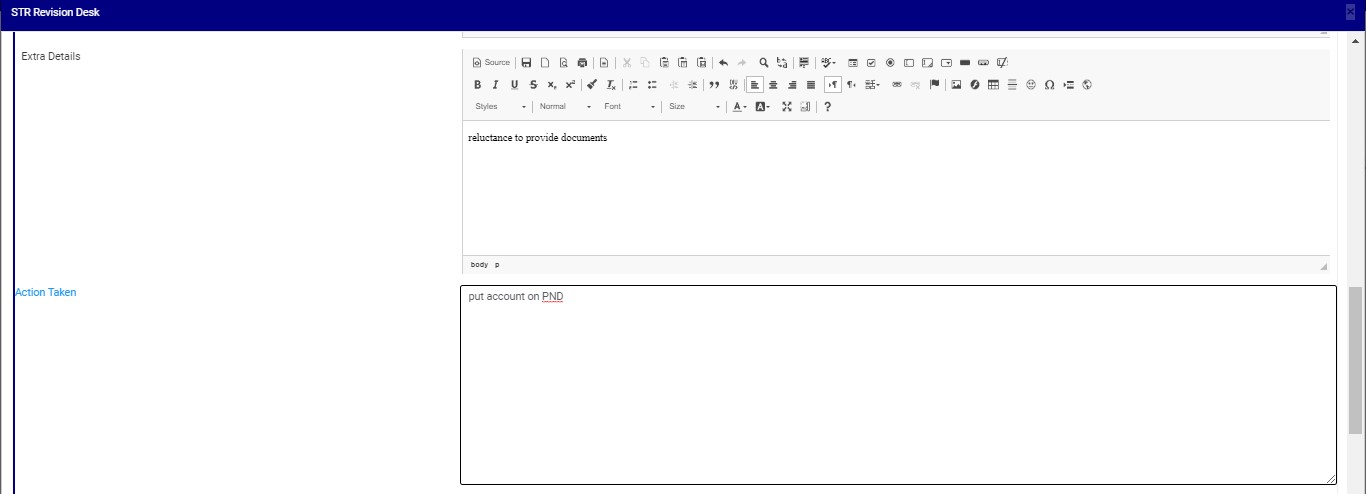
(fig. 6.3j) STEP 5: Click on “Extra Details” box to enter in other comment. STEP 6: Click on “Action Taken” box to enter in action(s) taken concerning the suspicion filed. See an example in fig. 6.3k below (Note that this field is mandatory if you want to accept the notification).
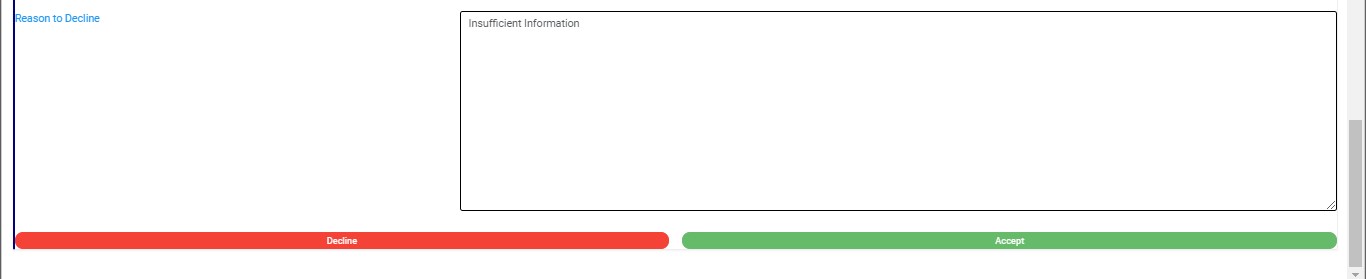
(Fig. 6.3k) STEP 7: Click on ‘Reason to Decline’ box (if you want to reject the notification) to enter in comments. This step is mandatory if you want to reject the notification. See fig. 6.3l for an example.
(fig. 6.3l) STEP 8: Click on REJECT or ACCEPT. A confirmation console will be displayed to confirm your selected action. Check that you are sure of your options before rejecting or accepting the notification as this step cannot be reversed once confirmed. See fig. 6.3m and 6.3n to see a confirmation console when you decide to ‘reject’ and when you choose to ‘accept’ respectively. To proceed, click on CONFIRM and to cancel the review, click on CANCEL. (fig. 6.3m)
(fig. 6.3n) ➔ Irrespective of the decision you make to accept or reject the notification, the software will display a notification  at the top of the page.
For further enquiries :
Tel +234(0) 816 555 9818
Email solutions@efuelite.com
Web http://solutions.efuelite.com

How to Send SAR Notification to your institution’s compliance Team In Compliance Planet Anti Money Laundering/Core Banking Finance Software

The ‘notification’ section of the STR/SAR on the planet handles the instant notification of the compliance team of a bank, upon the identification of a suspicious transaction or activity. Follow the following steps to send a STR Notification

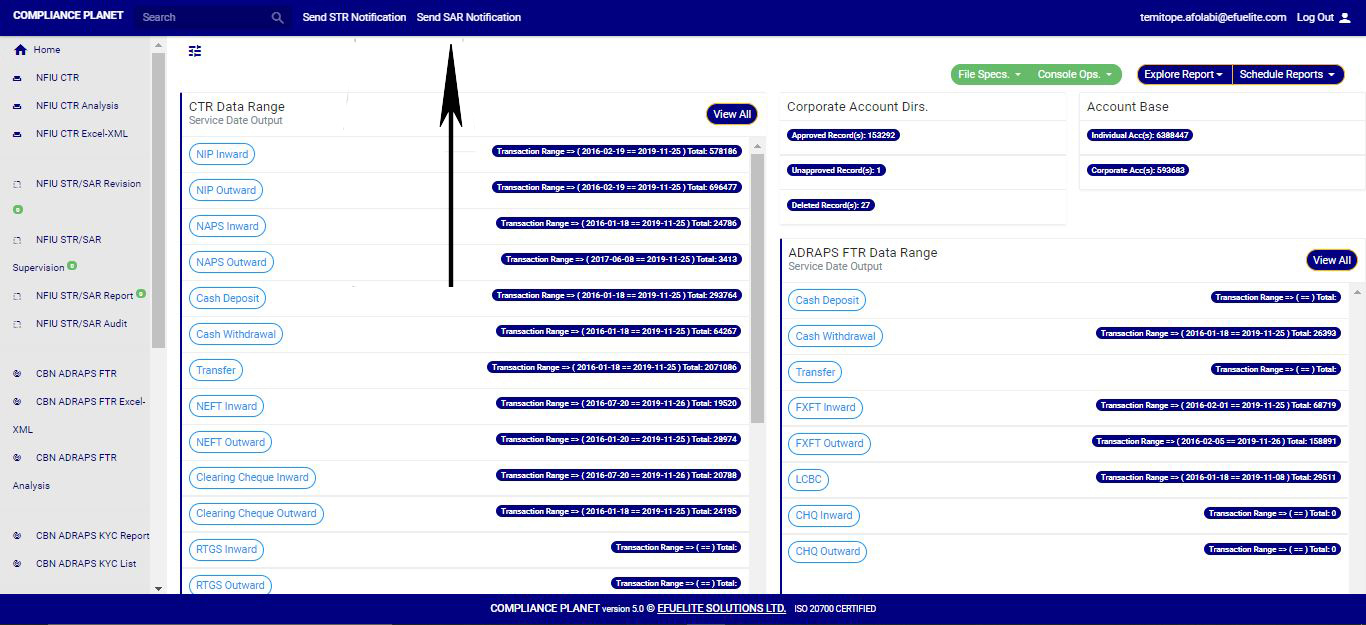
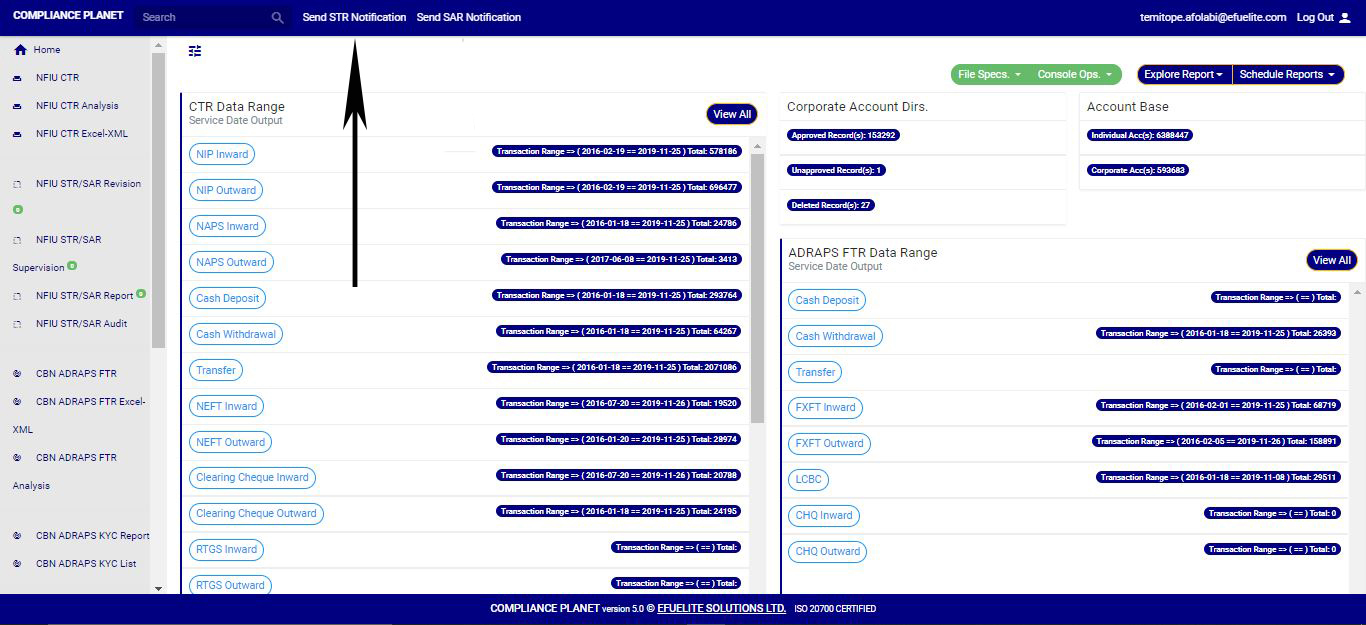
STEP 1: Click ‘Send SAR notifications’ as in fig. 6.2.2a below.(Fig 6.2.2a)

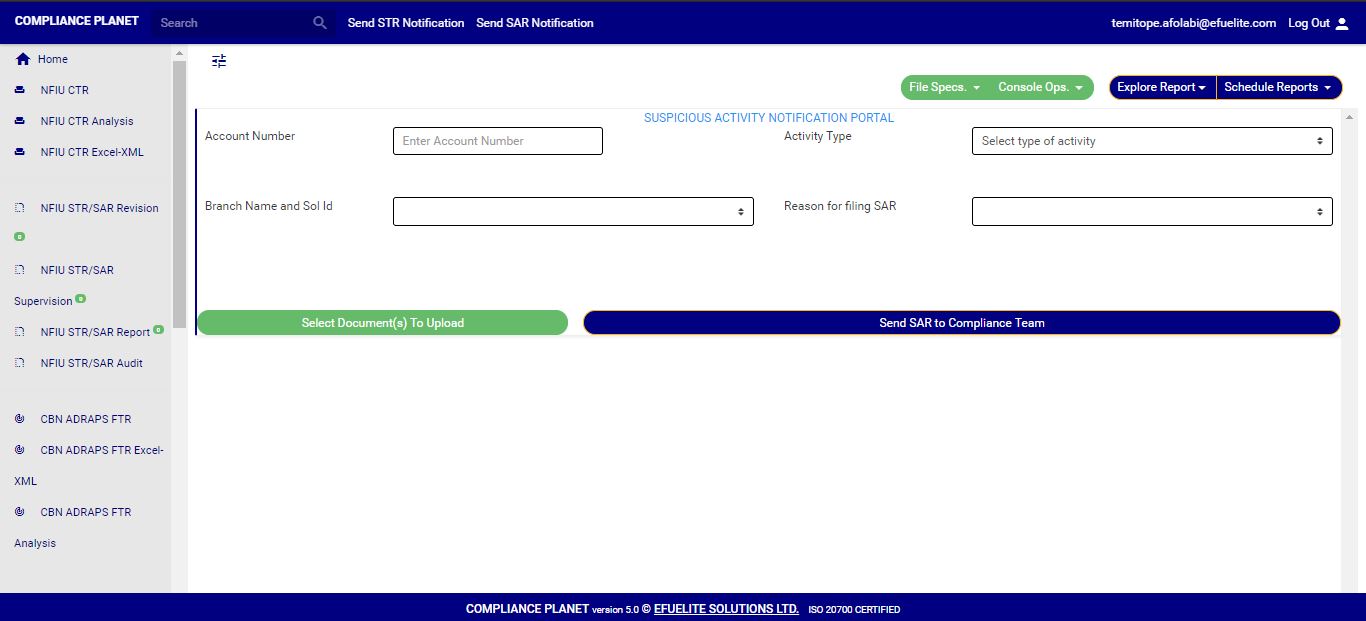
➔ Clicking on ‘SEND SAR NOTIFICATIONS’ will display a console as in fig. 6.2.2b below

(Fig 6.2.2b)

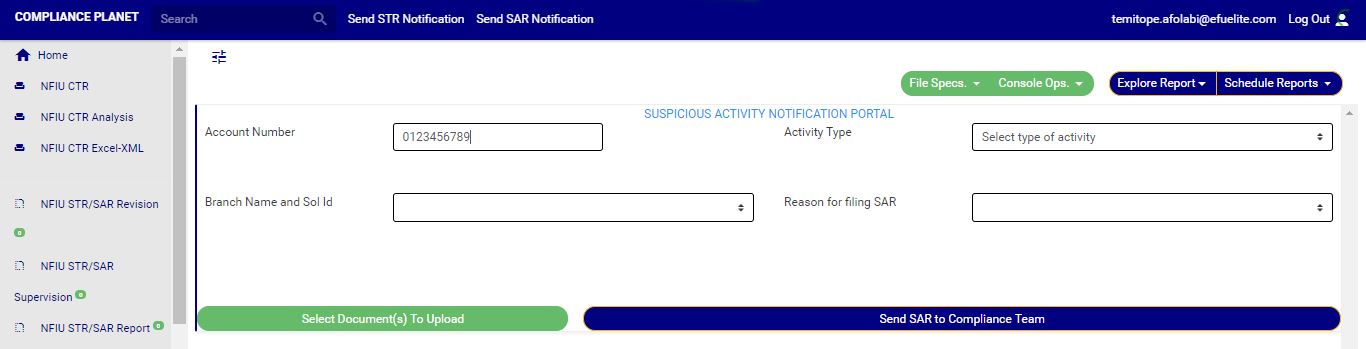
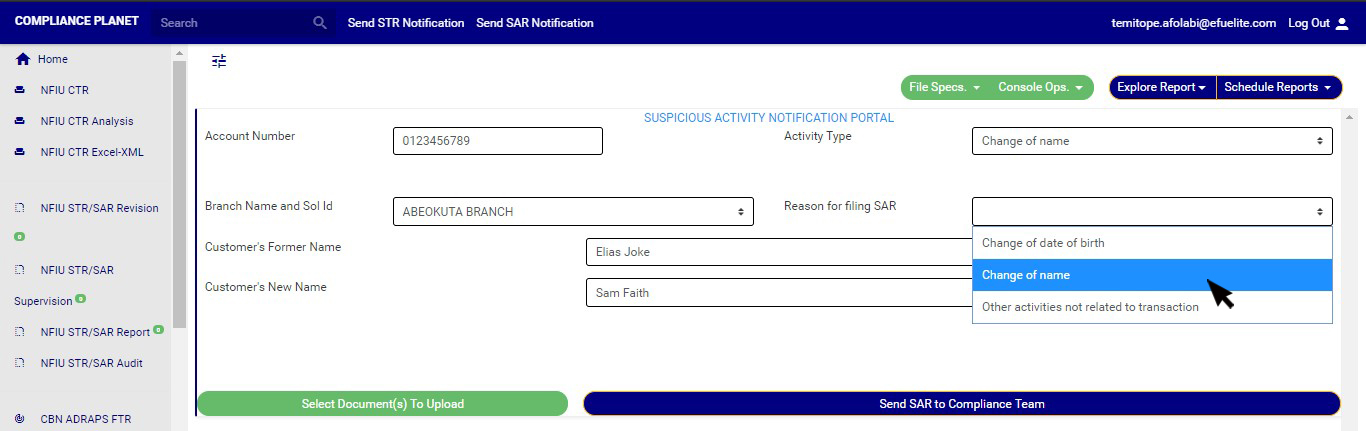
STEP 2: Type in the Account number involved in the activity. See an instance in fig. 6.2.1c. Kindly note th­at the account number must be valid.(Fig 6.2.2c)

STEP 3: Fill in all other information about the activity in the editor provided on the console. See an example in fig. 6.2.2d

(Fig6.2.2d)

STEP 4: Click on “Select Document(s) to Upload” button to add supporting documents to the SAR notification as shown in Fig.6.2.2e below(Fig 6.2.2e)

➔ Click on ‘SEND SAR TO COMPLIANCE TEAM’ to send the information to compliance desk. This button is at the bottom-right corner of the console. Check out this button in fig. 6.2.2e above.

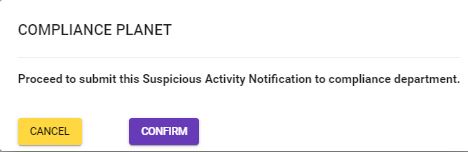
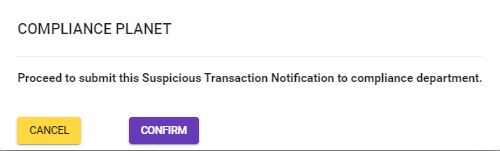
➔ A confirmation console will be displayed when you click on ‘SEND SAR TO COMPLIANCE TEAM’. Click on CONFIRM to proceed or click on Cancel to go back to the notification console.

(fig. 6.2.2f)

For further enquiries : 
Tel +234(0) 816 555 9818
Email solutions@efuelite.com 

Web http://solutions.efuelite.com

How to Send STR Notification to your institution’s compliance Team In Compliance Planet Anti Money Laundering/Core Banking Finance Software

The ‘notification’ section of the STR/SAR on the compliance planet handles the instant notification of the compliance team of a bank, upon the identification of a suspicious transaction or activity. Follow the following steps to send a STR Notification.
STEP 1: Click ‘Send STR notifications’ as in fig. 6.2.1a below
(fig. 6.2.1a)
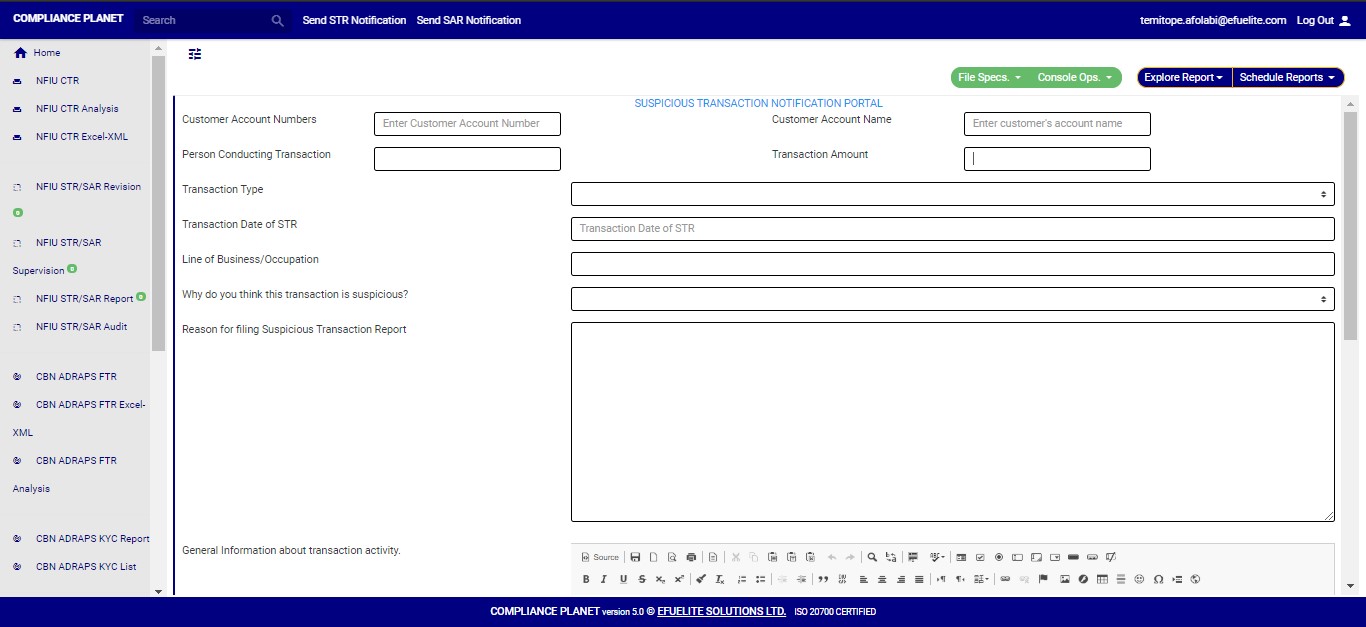
➔ Clicking on ‘SEND STR NOTIFICATIONS’ displays a console as in fig. 6.2b. It is the STR Notification console. The STR notification console requires information about the suspicious transaction.
(fig. 6.2.1b)
STEP 2: Type in the Account number involved in the transaction. See an instance in fig. 6.2.1c. Kindly note th­at the account number must be valid.
(fig. 6.2.1c)
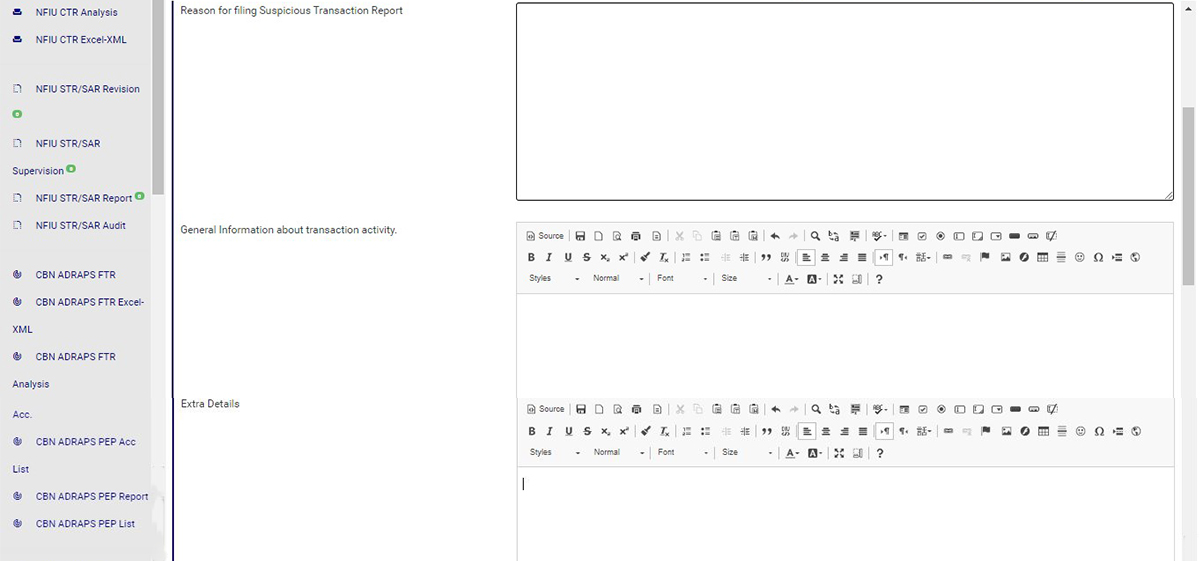
STEP 3: Fill in all other information about the transaction in the editor provided on the console. See an example in fig. 6.2.1d
(Fig. 6.2.1d)
➔ To fill the general information about the transaction and extra details section, there is a rich text editor which allows plain texts, characters and special features like tables, font style, colour, size, alignment, etc to format and customize the texts in your notification. See this feature in fig. 6.2.1e for an example.
(fig. 6.2.1e)
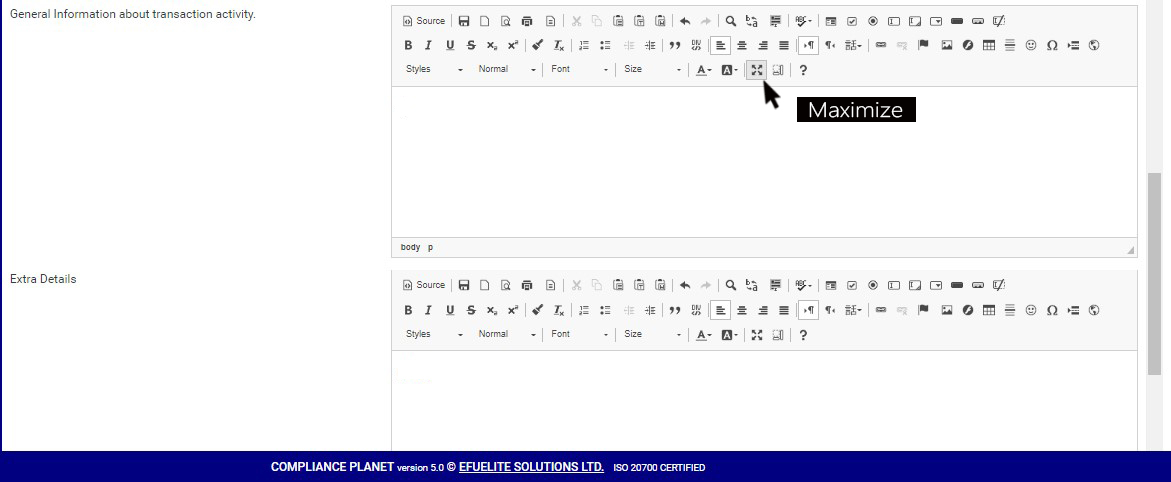
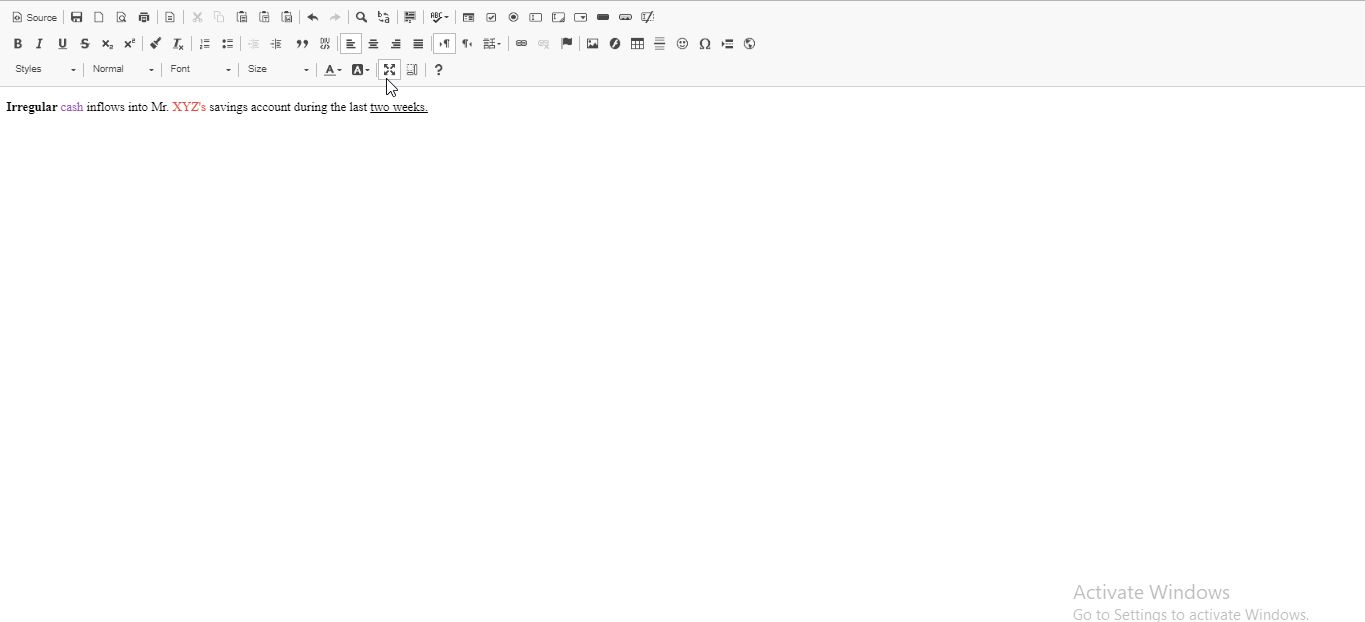
➔ Amongst the features on the toolbar of the editor, there is a button that can maximize the editor to full screen. This button also minimizes the editor’s view back to the console. See this button in fig. 6.2.1f and see fig. 6.2.1g for an example of a full screen view.
(fig. 6.2.1f)
(fig. 6.2.1g)
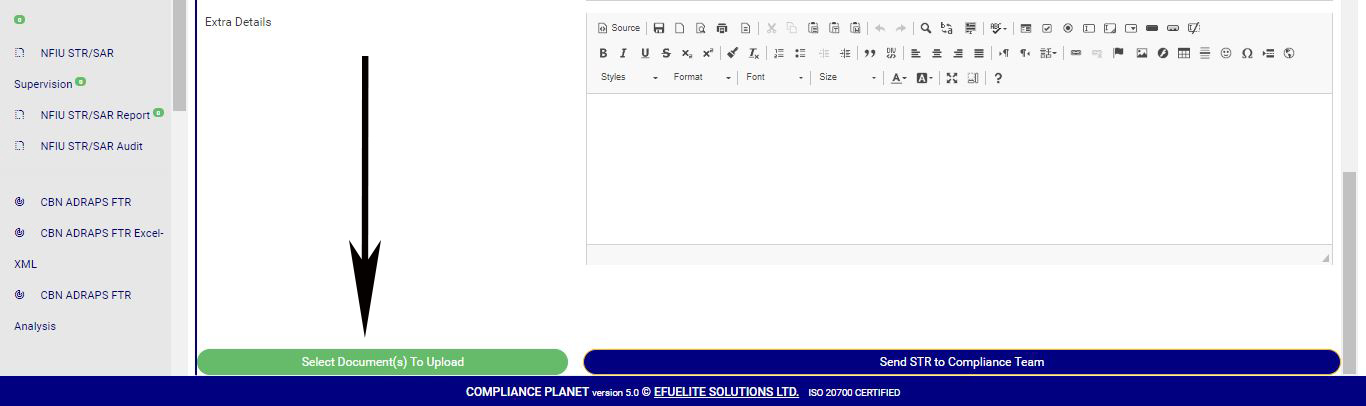
STEP 4: Click on “Select Document(s) to Upload” button to add supporting documents to the STR notification as shown in Fig.6.2.1h below
(fig. 6.2.1h)
➔ Click on ‘SEND STR TO COMPLIANCE TEAM’ to send the information to compliance desk. This button is at the bottom-right corner of the console. Check out this button in fig. 6.2.1h above.
➔ A confirmation console will be displayed when you click on ‘SEND REPORT TO COMPLIANCE TEAM’. Click on CONFIRM to proceed or click on Cancel to go back to the notification console.
(fig. 6.2.1i)

For further enquiries :
Tel +234(0) 816 555 9818
Email solutions@efuelite.com

Web http://solutions.efuelite.com

KYC Repository Listing In Compliance Planet Anti Money Laundering/Core Banking Finance Software

The compliance planet software keeps a record list of all KYC reports that have been manually scheduled. In this section, you will learn how to find your scheduled KYC report and some other features to give you the best experience.

NOTE; Only person(s) assigned right to ‘View KYC report’  can carry out this operation

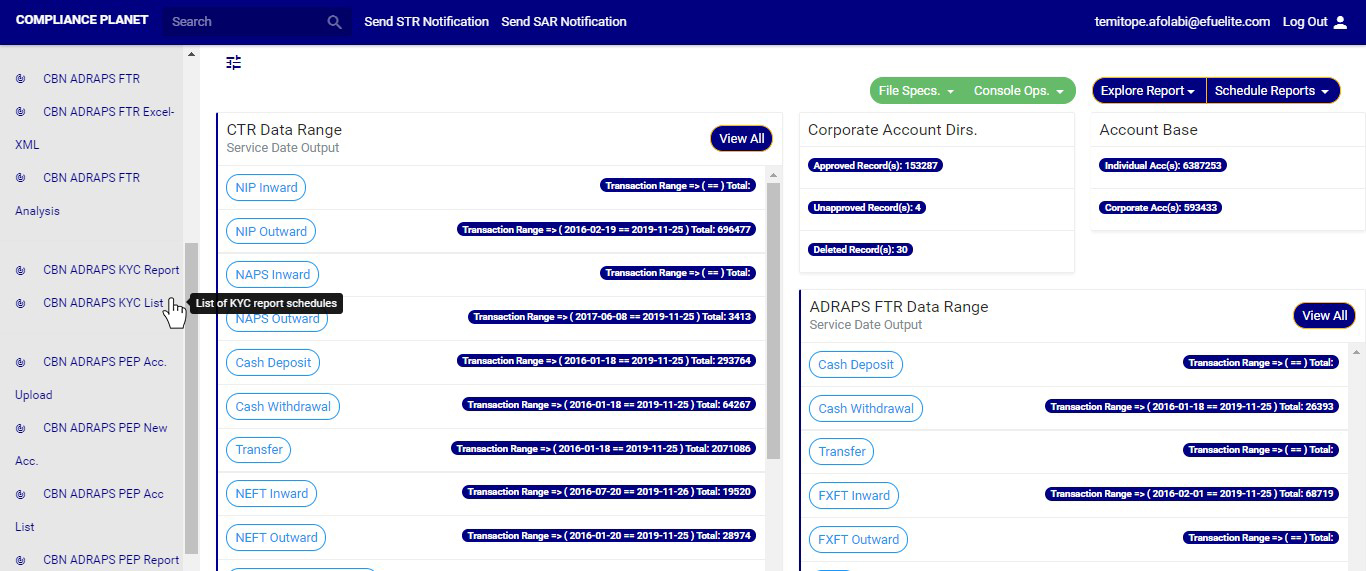
STEP 1: From the left hand side menu, click on ‘CBN ADRAPS KYC LIST’ Check out fig. 5.4a below.

(fig. 5.4a)

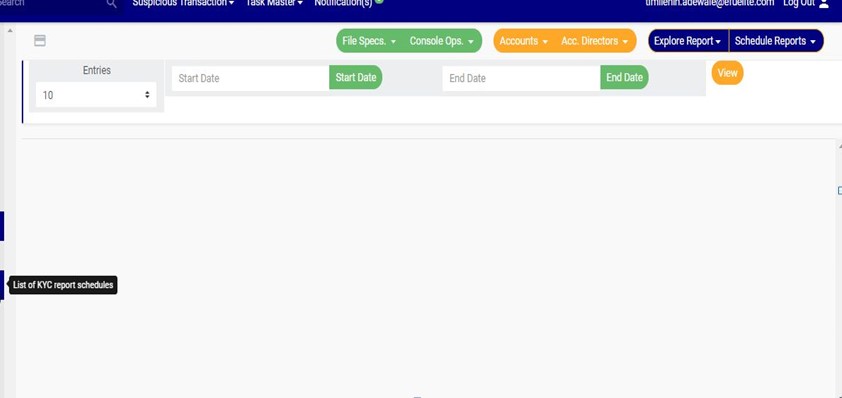
➔ Clicking on ‘KYC Repository LIST’ will display a page as in fig. 5.4b below. On this page, you can search out KYC reports by specifying periods in which they were scheduled for.

(fig. 5.4b)

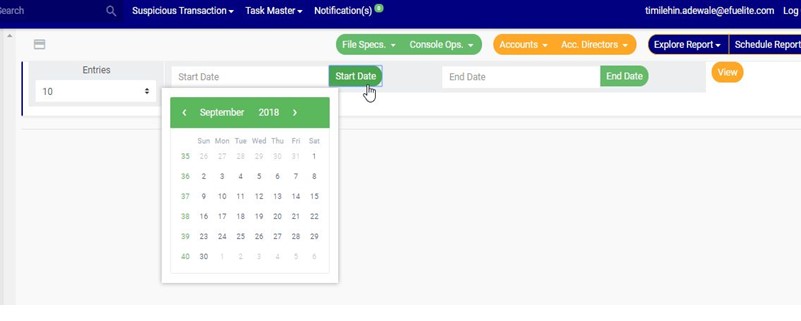
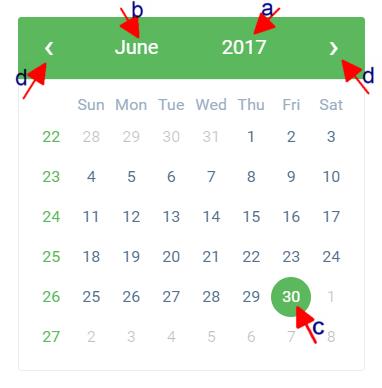
STEP 2: Click on the START DATE button/box and the END DATE button/box to set the beginning and the end of the period in which the reports you want to see have been scheduled for. See fig. 5.4c below for an example and check out fig. 5.3e to study the use of the calendar.

(fig. 5.4c)

➔ Take a look at the arrow labelled a to d in fig. 5.4d to study the calendar.

a) Click on the given year to change it to your year of choice.

b) Click on the given month to change it to your month of choice.

c) Then, click on the date of the month.

d) You can also click on the angle brackets on the calendar [ ‘’ ] to go backward or forward.

(fig. 5.4d)

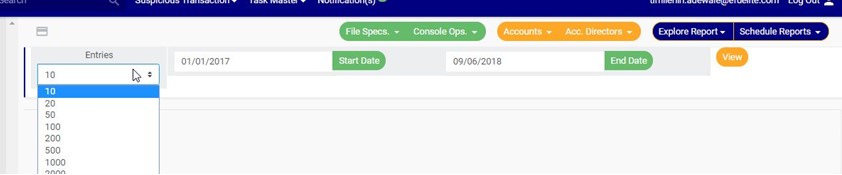
➔ You can increase the number of reports you want to see per page by clicking on the ENTRIES box. Pick any number of entries per page of your choice. See fig. 5.4e below for an example.

(fig. 5.4e)

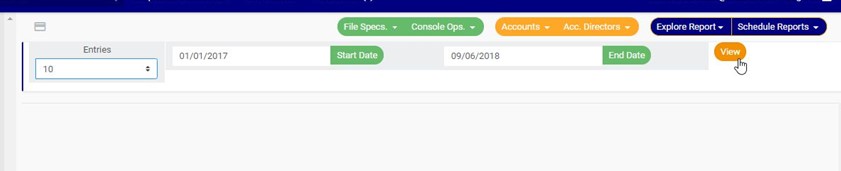
STEP 3: Click on the VIEW button to see the reports. It is an orange colour button at the upper area of the page, next to the END DATE box. By doing this, the software will search out reports that were scheduled for that period you have entered in the date boxes. See fig. 5.4f below to see the pointer clicking on the view button and see the results of the example in fig. 5.3g.

(fig. 5.4f)

(fig. 5.4g)

➔ The software will search out the requested reports and give information about the start and end date, the number of branches the account information relates to (Kiosk Rpt), the number of excel files and the XML files the report has been written into, the start date and end date for the processing of the report, the report type and whether the report has been completed or not. See fig. 5.4g above.

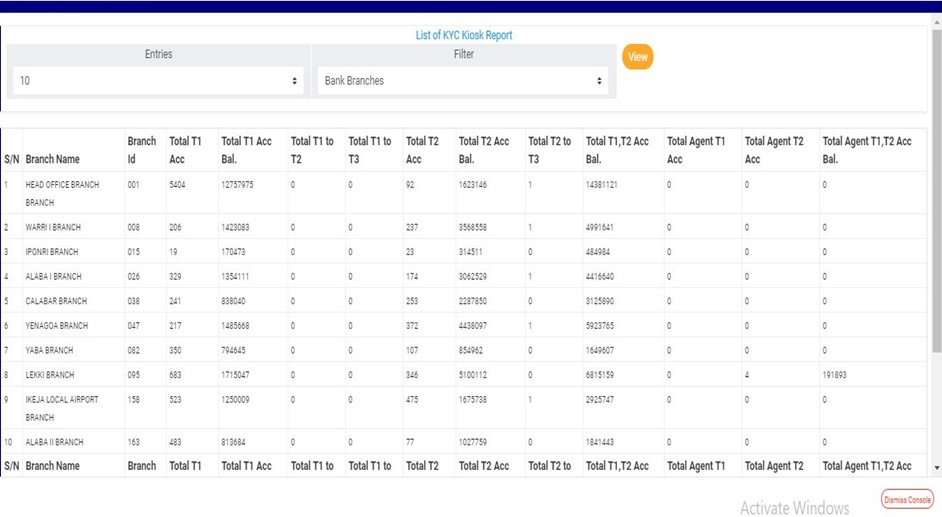
➔ The numbers under the Kiosk Rpt column represent the number of branches reported in the KYC report. By clicking on Kiosk Rpt., a page titled, Kiosk KYC Report, will come up. Another name for branch on the compliance planet is kiosk. This page gives information about the branch’s ID, number of tier one accounts and tier two accounts, their total account balances and number of accounts that moved from one tier to another, for each branch reported in the ADRAPS KYC. See fig. 5.4h below.

(fig. 5.4h)

➔ See the following steps on how to make use of the features on the Kiosk KYC Report page.

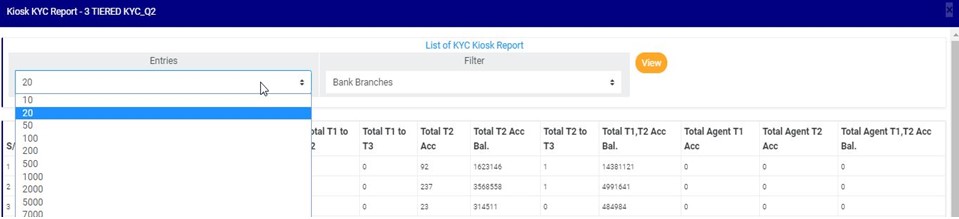
a) Click on the entries box to adjust the number of transactions you want to see per page. See fig. 5.4i below for an example on how to do this. The software will automatically effect your changes.

(fig. 5.4i)

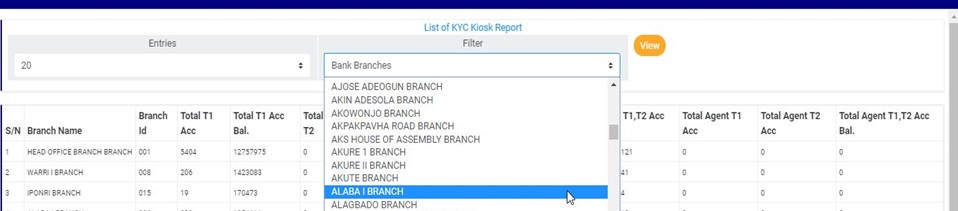
b) Click on the filter box to select a bank branch for which you want to see KYC information. See fig. 5.4j below for an example on how to do this.

(fig. 5.4j)

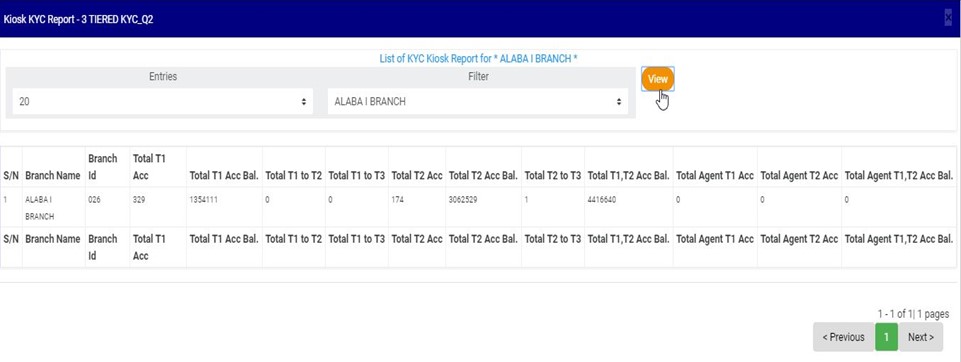
c) After selecting the bank branch of your choice as in fig. 5.4j above, click on VIEW to see the result of your selection. See fig. 5.4k for an example on how to do this.

(fig. 5.4k)

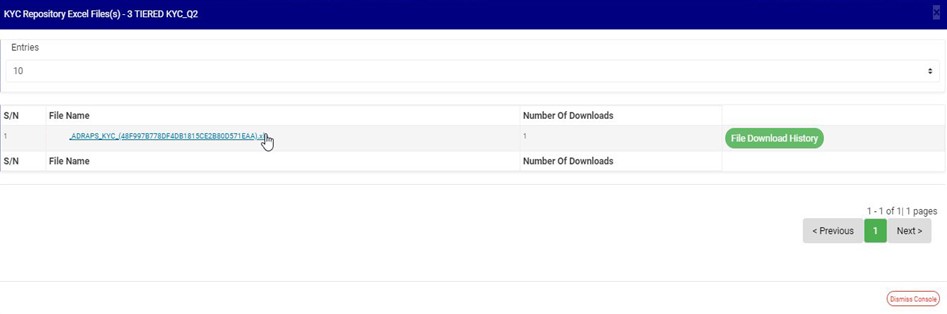
➔ The numbers under the ‘Excel’ column (in fig. 5.4g) also represent the number of Excel files that the software has written the report into. By clicking on the number of Excel files, the KYC Repository Excel file(s) console will be displayed on screen. See fig. 5.4l below for an example of the console.

(fig. 5.4l)

➔ The KYC Repository Excel file(s) page gives information about the Excel file name(s), the number of times users have downloaded the file and the download history. See the following steps on how to make use of its features.

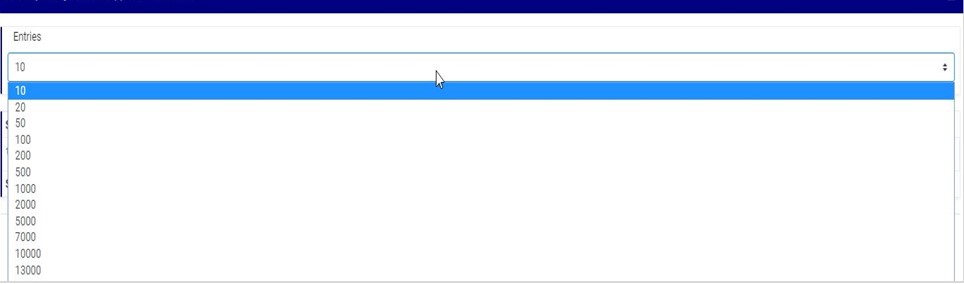
a) Click on the entries box to adjust the number of Excel files you want to see per page. See fig. 5.4m below for an example on how to do this. The software will automatically effect your changes whenever you do this.

(fig. 5.4m)

b) Click on the file name to download the Excel file to your computer. The number of download will change as soon as you click on the file name. See fig. 5.4n below for an example on how to download KYC excel file.

NOTE; Only person(s) assigned right to ‘Process KYC report’ and ‘Download KYC Report’ can carry out this operation

(fig. 5.4n)

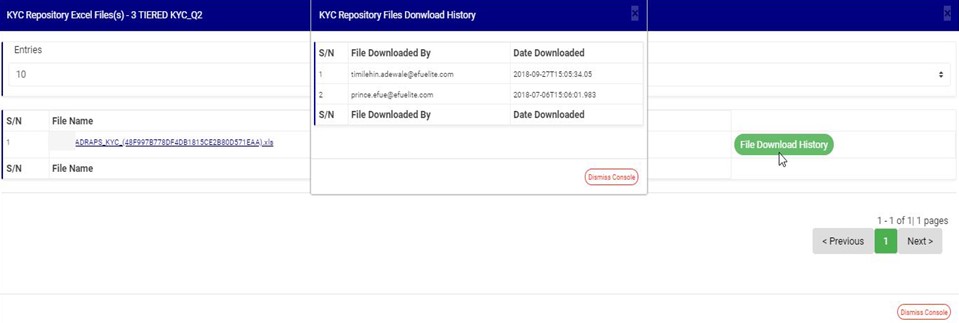
c) To see who downloaded the file and the time of download, click on the ‘File Download History’ button. A  console will be displayed on screen as in fig. 5.4o below for an example. Close the console using the DISMISS button at the bottom-right corner of the console.

(fig. 5.4o)

d) Also, at the bottom-right corner of the KYC Repository Excel file(s) page, the software gives information about the number of pages of the KYC Repository Excel file(s) list,, with the page numbers written out. All the page numbers represent buttons for each page. By clicking on any page number, the software takes you to that particular page. The NEXT button will take you to the page after the one you are viewing at the moment, while the PREVIOUS button will take you to the page before the one you are viewing at that moment. To close this page, click on the DISMISS button. It is also at the bottom-right corner of the page.

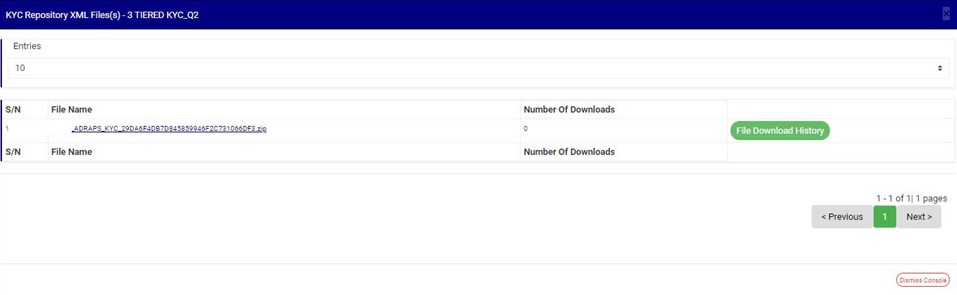
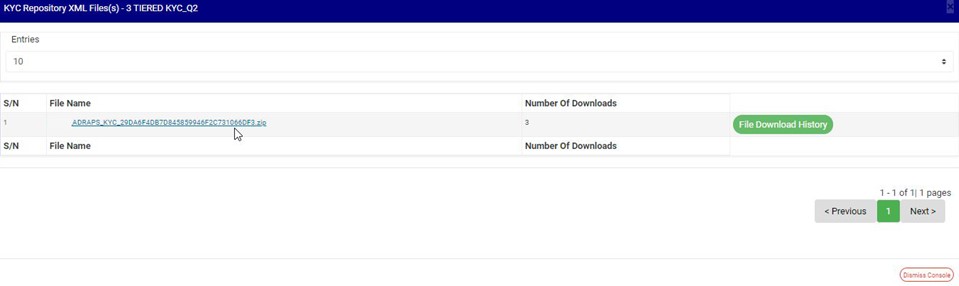
➔ The numbers under the ‘XML’ column (in fig. 5.4g) also represent the number of XML files that the software has written the respective report into. By clicking on the number of XML files, a page will be displayed  as in fig. 5.4p

(fig.5. 4p)

➔ The KYC Repository XML file(s) page also gives information about the XML file name(s), the number of times users have downloaded the file(s) and the download history. See the following steps on how to make use of its features. The features on the KYC Repository XML file(s) page work like those of the KYC Repository Excel file(s) page.

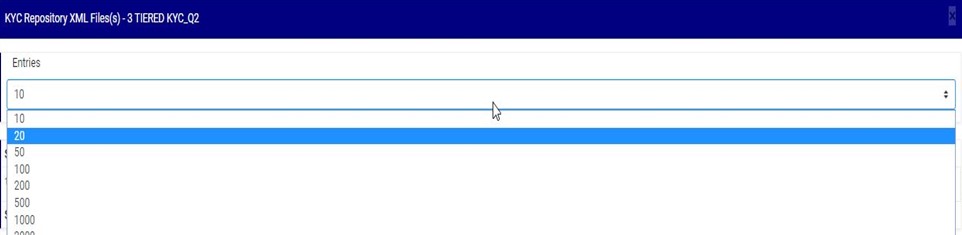
a) Click on the entries box to adjust the number of XML files you want to see per page. See fig. 5.4q below for an example on how to do this. The software will automatically effect your changes whenever you do this.

(fig. 5.4q)

b) Click on the file name to download the XML file to your computer. The number of download will change as soon as you click on the file name. The file name is underlined and the download is immediately also! See fig. 5.4r below for an example on how to download KYC XML file.

NOTE; Only person(s) assigned right to ‘Process KYC report’ and ‘Download KYC Report’ can carry out this operation.
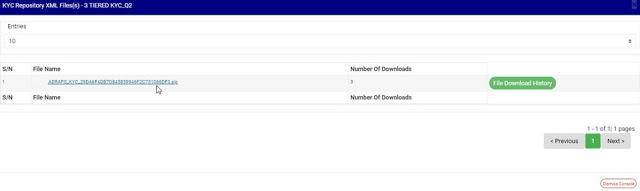
(fig. 5.4r)

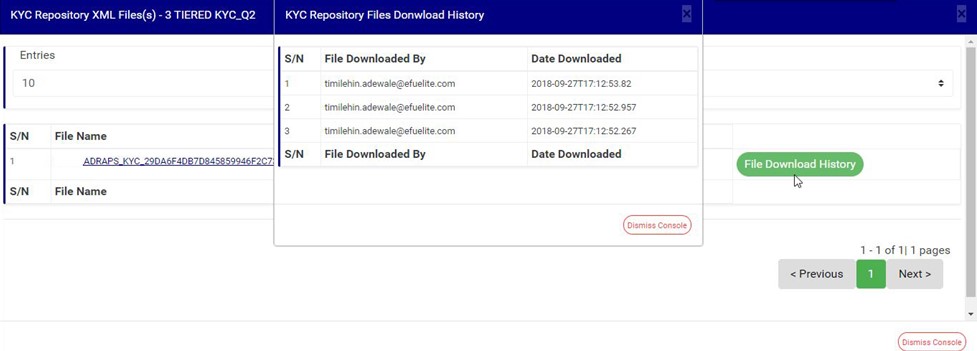
c) To see who downloaded the file and the time of download, click on the ‘File Download History’ button. A console will be displayed as in fig. 5.4s below for an example. Close the console using the DISMISS button at the bottom-right corner of the console.

(fig. 5.4s)

d) At the the bottom-right corner of the KYC Repository XML file(s) page, the software also gives information about the number of pages of the KYC Repository XML file(s) list, with the page numbers written out. All the page numbers represent buttons for each page. By clicking on any page number, the software takes you to that particular page. The NEXT button will take you to the page after the one you are viewing at the moment, while the PREVIOUS button will take you to the page before the one you are viewing at that moment. To close this page, click on the DISMISS button at the bottom-right corner of the page. See these features in fig. 5.4s above.

➔ Back to fig. 5.4g – KYC Repository list page, at the end of each report row, the software shows if the processing of the report is enabled or dis-enabled under the ‘ACTIVE’ column.

➔ For reports that have been completed, their status will read, ENABLED. See fig. 5.4g for an instance.

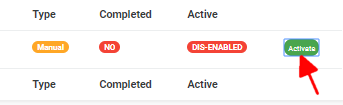
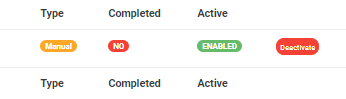
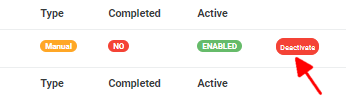
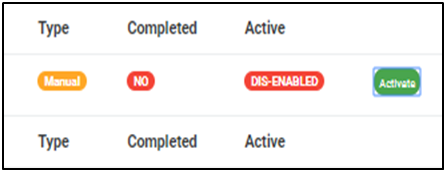
➔ For reports that have not been completed, there will be an extra button next to their ACTIVE status. This button is used to ACTIVATE or DEACTIVATE the processing of the report. See fig. 5.4g also for an example. The button turns red when the report is enabled and it can be used to DEACTIVATE the report. It is green when the report is dis-enabled and it can be used to ACTIVATE the report for processing.

STEP 4: Click on Activate to enable processing of report or Deactivate to disable the processing of the report.

NOTE; Only person(s) assigned right to ‘Process KYC report’ and ‘Edit KYC Report’ can carry out this operation

➔ Clicking on ACTIVATE turns the status bar of the report to green with an ‘ENABLED’ inscription, while clicking on DEACTIVATE will turn the status bar back to red with an ‘DIS-ENABLED’ inscription. See fig. 5.4t and fig. 5.4u to see the result of activating the report for an example and see fig. 5.4v and fig. 5.4w to see the result of deactivating the report for another example.

● Activating a report
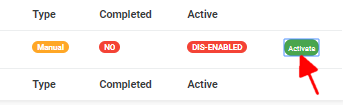
(fig. 4.7t)

(fig. 4.7u)

● Deactivating a report

(fig. 4.7v)

(fig. 4.7w)

➔ At the bottom-right corner of the page, the software gives information about the number of pages of your result, with the page numbers written out. All the page numbers represent buttons for each page. By clicking on any page number, the software takes you to that particular page. There is the NEXT button to take you to the next page when you click on it and there is a PREVIOUS button to take you to the page before the one you are viewing at that moment. See these features in fig. 5.4x below.

(fig. 5.4x)

For further enquiries :
Tel +234(0) 816 555 9818
Email solutions@efuelite.com

Web http://solutions.efuelite.com

Suspicious Transaction / Suspicious Activity Report (STR/SAR) In Compliance Planet Anti Money Laundering/Core Banking Finance Software

Anti-Money laundering and Countering Financing of Terrorism regulations places obligations on financial institutions to detect and deter money laundering and terrorism financing. A financial institution is required to render an STR/SAR report to the Nigerian Financial Intelligence Unit within twenty-four hours and inform the CBN of same whenever it detects a known or suspected criminal violation of MLPA or a suspicious transaction related to money laundering activity or a violation of other laws & regulations.
A suspicious transaction is one for which there are reasonable grounds to suspect that the transaction whether or not made in cash is related to a money laundering offence or a terrorist activity financing offence. A suspicious activity refers to any observed behaviour or event that could indicate terrorism or terrorism-related crime.
STR/SAR OPERATIONS 
Suspicions may arise from any branch of a financial institution. Upon any suspicion, there are processes that would kick-off to bring about an STR/SAR to be sent to the NFIU by the Compliance team. These processes are;
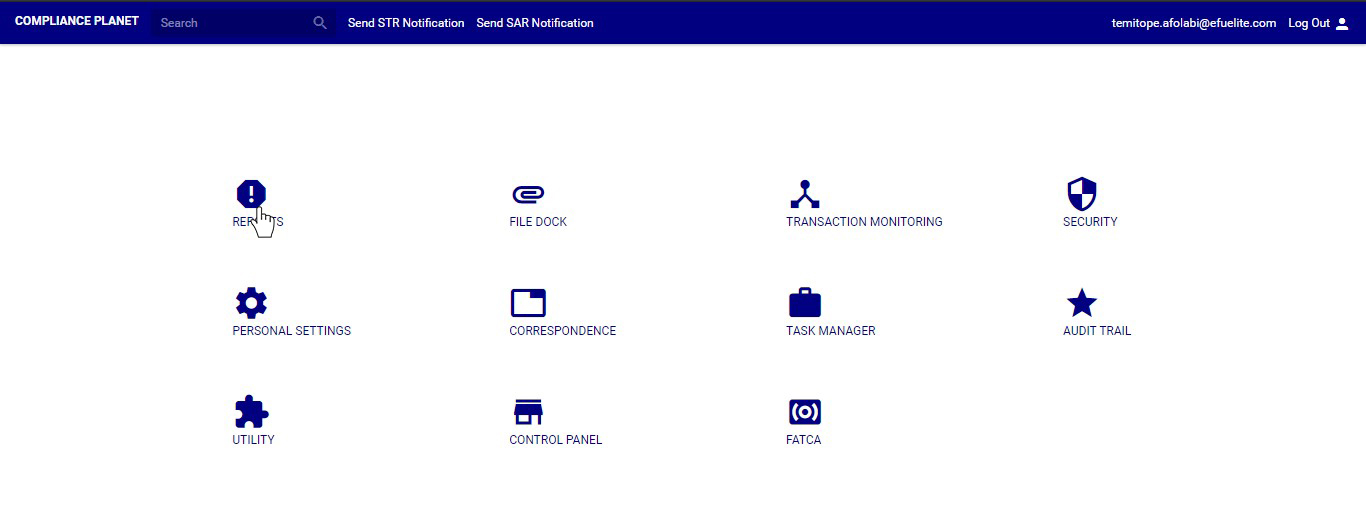
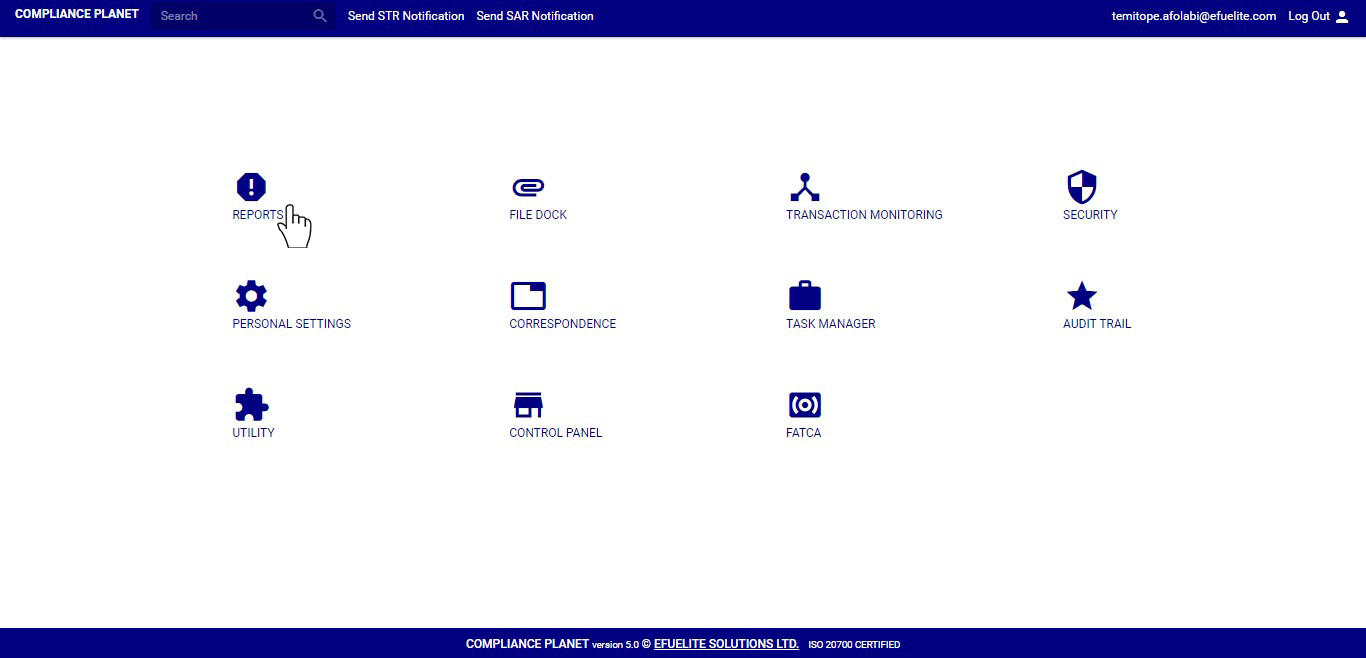
➔ To perform STR/SAR operations on the software, Click REPORT on  the main  dashboard as shown below
1a
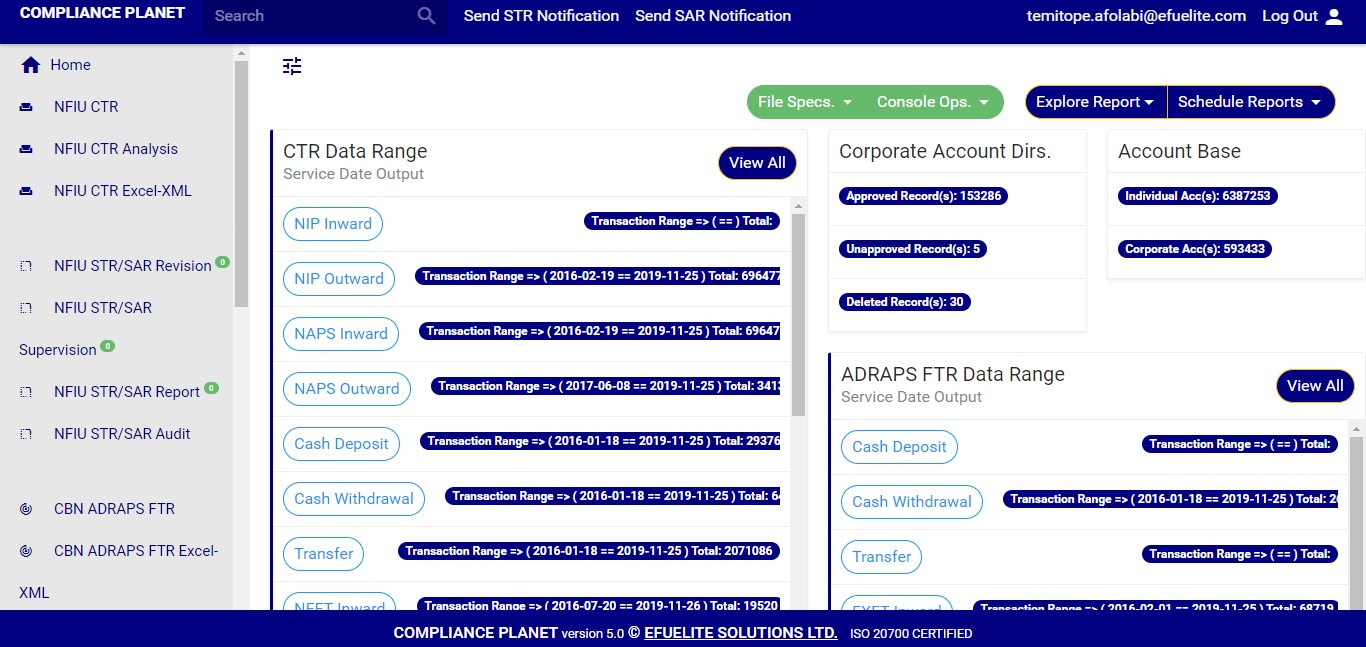
This will display a page  as shown in fig. 6.1b below
b
(fig. 6.1b)
➔ All the processing desks have indicators that show if the desks have pending requests or not.

For further enquiries : 
Tel +234(0) 816 555 9818
Email solutions@efuelite.com 

Web http://solutions.efuelite.com
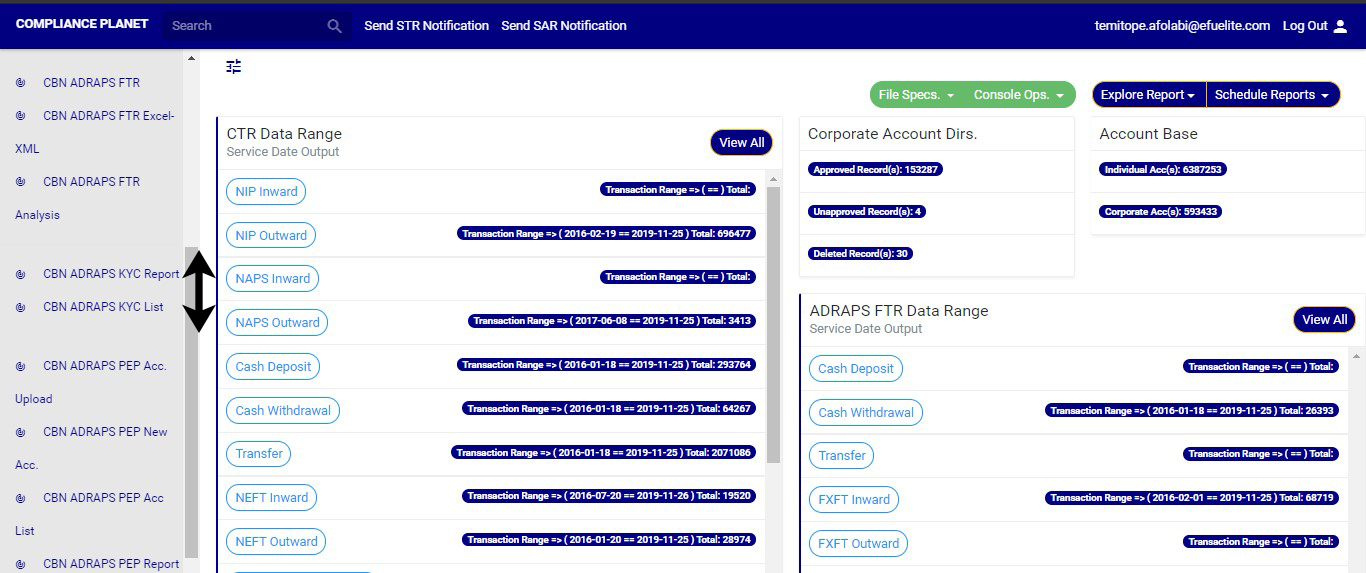
ADRAPS Three Tiered Know Your Customer Report In Compliance Planet Anti Money Laundering/Core Banking Finance Software

ADRAPS THREE-TIERED KNOW YOUR CUSTOMER REPORT (ADRAPS KYC)

This section provides a guide on how to perform operations pertaining to ADRAPS KYC Report on the Compliance Planet, with step-by-step instructions and pictures.

What is ADRAPS KYC REPORT?

KYC stands for ‘Know Your Customer”. The ‘Know Your Customer’ Policy is a mandatory framework for all banks and other financial institutions used for customer identification. It is the process of a business verifying the identity of its clients and assessing potential risks of illegal intentions.

However, the enforcement of this requirement excluded the socially and financially disadvantaged persons, a greater segment of the Nigerian population, from financial services because of lack of an acceptable means of identification. Therefore, to promote financial inclusion, the Central Bank of Nigeria (CBN) issued the Three-tiered KYC requirements. With this development, all bank accounts in Nigeria have been categorized into tier one, two and three with the documentations for each class clearly established by the policy.

While, the three-tiered KYC requirements seek to promote and deepen financial inclusion, the objective of the KYC process is to prevent banks from being used, intentionally or unintentionally by criminal elements for money laundering. All banks are required to file three-tiered KYC report quarterly.

 ADRAPS KYC REPORT OPERATIONSThe operations pertaining to ADRAPS KYC on the Compliance Planet are;

  1. Generating KYC Reports
  2. KYC Repository Lists

➔ To perform any of the operations,

➔ From the main dashboard and click on reports as in fig. 5.2b below

(fig. 5.2b)

➔ On the left hand side menu, you’ll see a list of ADRAPS KYC operations as in fig. 5.2c below.

(fig. 5.2c)

NOTE: Only person(s) assigned right to ‘view KYC Report’ and ‘Process KYC Report’ can carry out these operation(s)

For further enquiries : 
Tel +234(0) 816 555 9818
Email solutions@efuelite.com 
Web http://solutions.efuelite.com